Seeing the stunning GIFs showcased on the Google Flow official site, many people wonder: is this a feature for uploading GIFs or for making them? The answer is—Google Flow provides a video-to-GIF export feature, allowing you to convert AI videos generated by Veo 3.1 into shareable animated formats with just one click.
Core Value: By the end of this article, you'll fully understand Google Flow's GIF export mechanism. You'll master the strategy for choosing between 270p GIF, 720p original video, and 1080p enhanced video formats, and learn how to efficiently use this feature to create social media animations.
Google Flow GIF Feature: A Core Breakdown
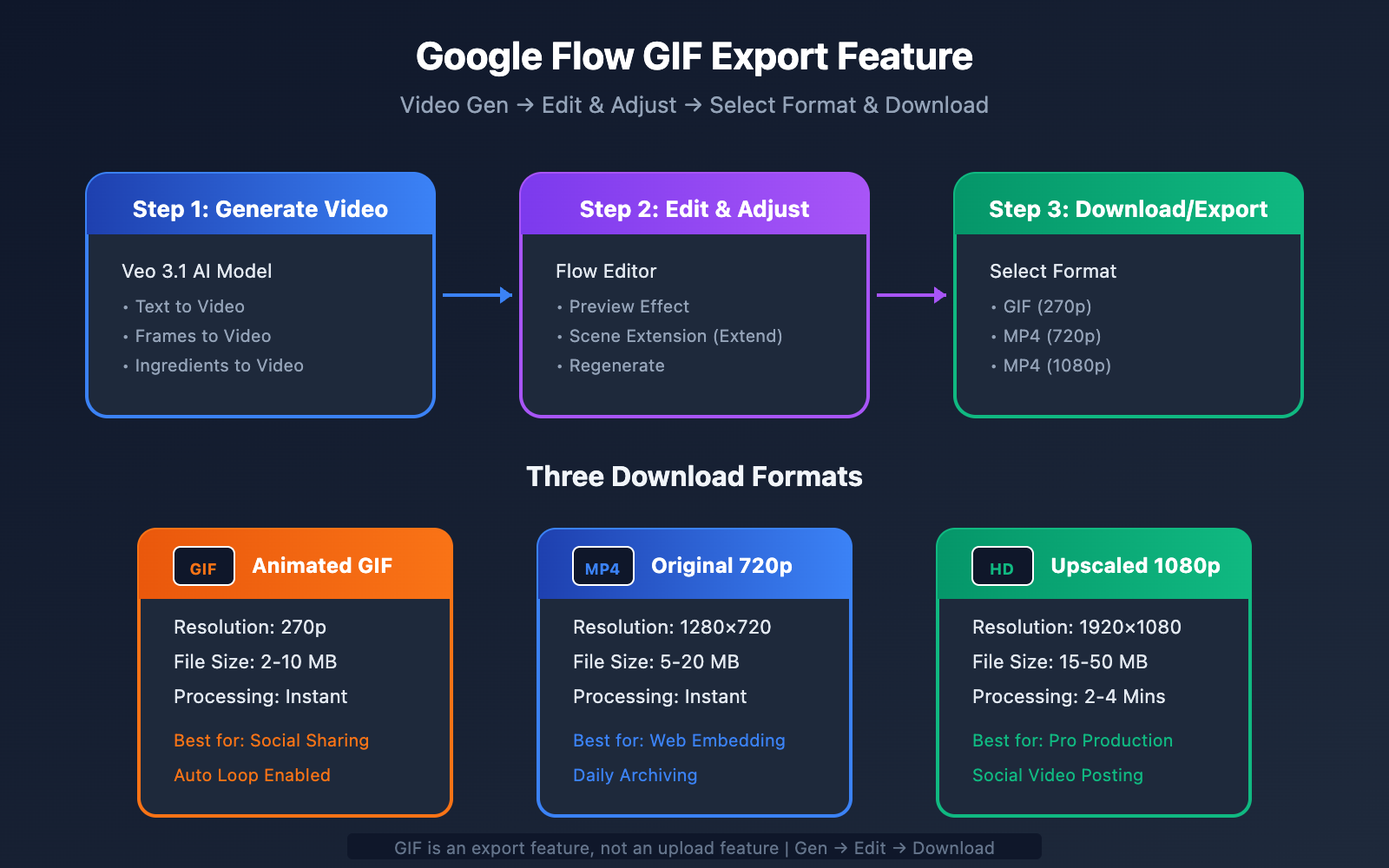
First, let's clear up a common misconception: the GIFs shown on the official Google Flow website aren't an upload feature; they're an export/download feature. Here's how the Flow workflow actually works:
- Generate an AI video using Veo 3.1.
- Tweak and optimize it in the editor.
- Select the GIF format when you're ready to download and export.
| Feature Type | Description | Support |
|---|---|---|
| Upload GIF | Uploading a local GIF to Flow | ❌ Not supported |
| Export GIF | Downloading a generated video as a GIF | ✅ Supported |
| GIF to Video | Converting a GIF into a video format | ❌ Not supported |
| Video to GIF | Exporting a video as an animated GIF | ✅ Core feature |
The Three Export Formats in Google Flow
Once you've finished creating your video in Google Flow, clicking the download button will give you three options:
| Format Option | Resolution | File Type | Best For… |
|---|---|---|---|
| Animated GIF | 270p | .gif | Social media sharing, previews |
| Original Size | 720p | .mp4 | Standard use, web embedding |
| Upscaled | 1080p | .mp4 | High-def needs, professional production |
🎯 Technical Tip: If you need to batch-generate AI videos and export them as GIFs, you can automate your workflow by calling the Veo 3.1 API through APIYI (apiyi.com) and using local tools to handle the format conversion.
Detailed Breakdown of Google Flow's GIF Export
Why is the GIF only 270p?
Many users wonder why the GIF export is capped at 270p rather than a higher resolution. This is mainly due to the technical limitations of the GIF format itself:
| Technical Factor | Explanation |
|---|---|
| File Size | GIFs don't support efficient compression; higher resolutions would result in massive files. |
| Color Limits | GIFs are limited to 256 colors, so high resolution doesn't offer much visual benefit. |
| Loading Speed | 270p loads significantly faster on websites and social media platforms. |
| Compatibility | Low-resolution GIFs offer better compatibility across different devices and platforms. |
| Use Case | GIFs are primarily intended for quick previews and sharing, not high-definition viewing. |
Technical Specs for GIF Exports
Based on Google Flow's actual performance, GIF exports follow these technical specifications:
| Parameter | Value | Explanation |
|---|---|---|
| Resolution | 270p (480×270) | Fixed resolution |
| Frame Rate | Approx. 15-24 fps | Automatically adjusted based on the source video |
| Duration Limit | Same as source video | Usually around 8 seconds max |
| File Size | Typically 2-10 MB | Depends on content complexity |
| Color Depth | 256 colors | Standard GIF format limitation |
| Looping | Supported | Automatic infinite loop |
Google Flow GIF Export Guide
Step 1: Complete Video Generation
In Google Flow, you can generate videos in several ways:
Text to Video:
提示词示例:一只橙色的猫咪在阳光下打哈欠,
毛发在微风中轻轻飘动,电影级画质
Frames to Video:
- Upload starting and/or ending frame images.
- The system automatically generates the transition animation.
Ingredients to Video:
- Upload up to 3 reference images.
- Specify the subject, background, and style separately.
- Veo 3.1 automatically synthesizes the complete video.
Step 2: Preview and Adjust
Once your video is generated, use the Flow editor to:
- Preview the result: Click play to see how it looks.
- Extend the scene: If you need a longer video, use the Extend feature.
- Fine-tune parameters: You can regenerate the video or tweak your prompt.
- Confirm you're happy: Once it looks good, you're ready to download.
Step 3: Select GIF Format for Download
This is the key step for exporting as a GIF:
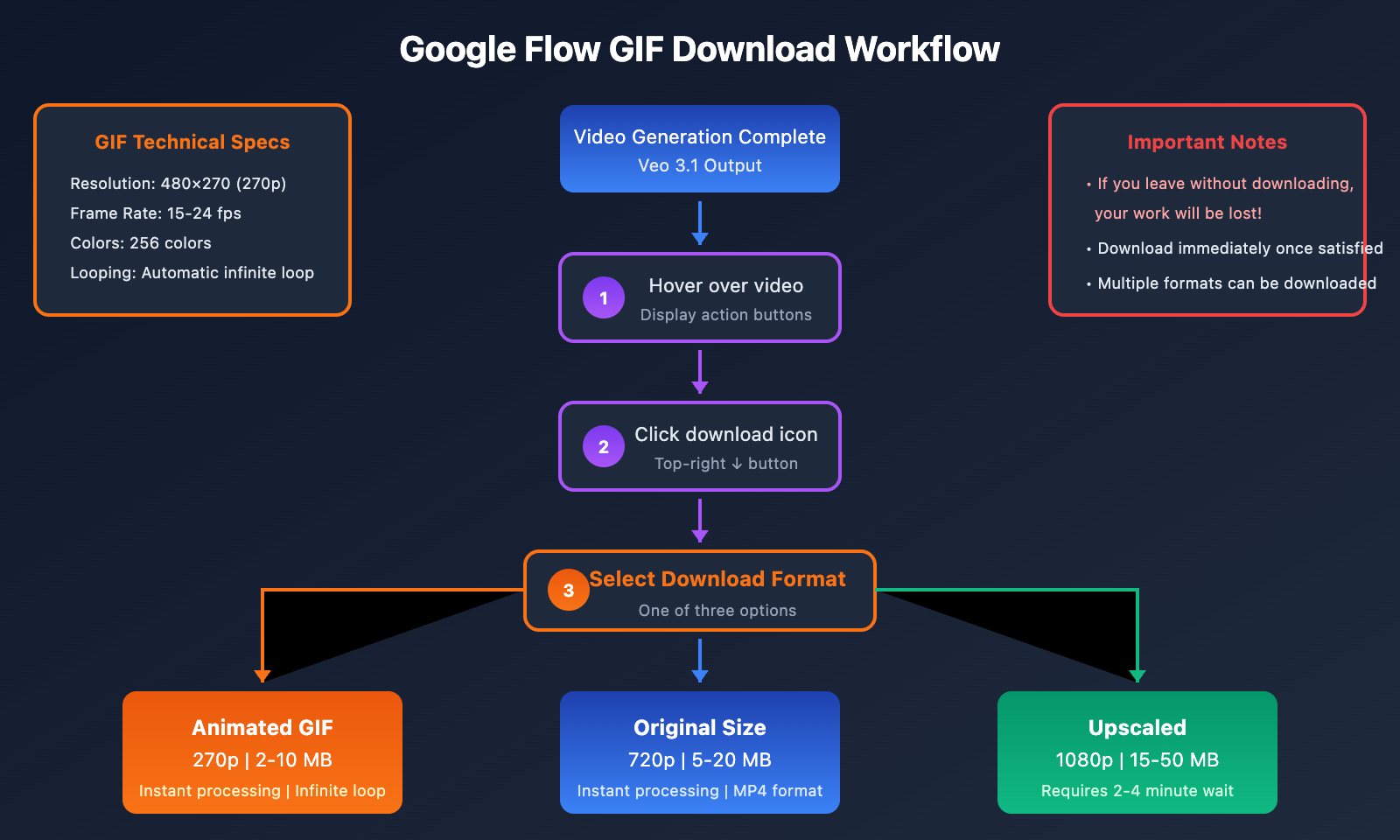
- Hover over the video: Move your mouse over the video player.
- Click the download icon: You'll find the download button in the top-right corner of the video.
- Choose your format: Select "Animated GIF (270p)" from the three options.
- Wait for processing: The system will automatically handle the format conversion.
- Save the file: Click Download again to save it to your local device.
🚀 Quick Start: If you're a developer looking to automate video generation and format conversion via API, we recommend using the APIYI (apiyi.com) platform. It supports unified calls for various video generation models, including Veo 3.1.
Important Tip: Download Promptly
Note: If you leave the Flow Scenebuilder page without downloading, your work will be lost! The system doesn't automatically save generated videos, so make sure to download them as soon as you're satisfied with the result.
Comparison of Google Flow's Three Download Formats
Format Selection Decision Guide
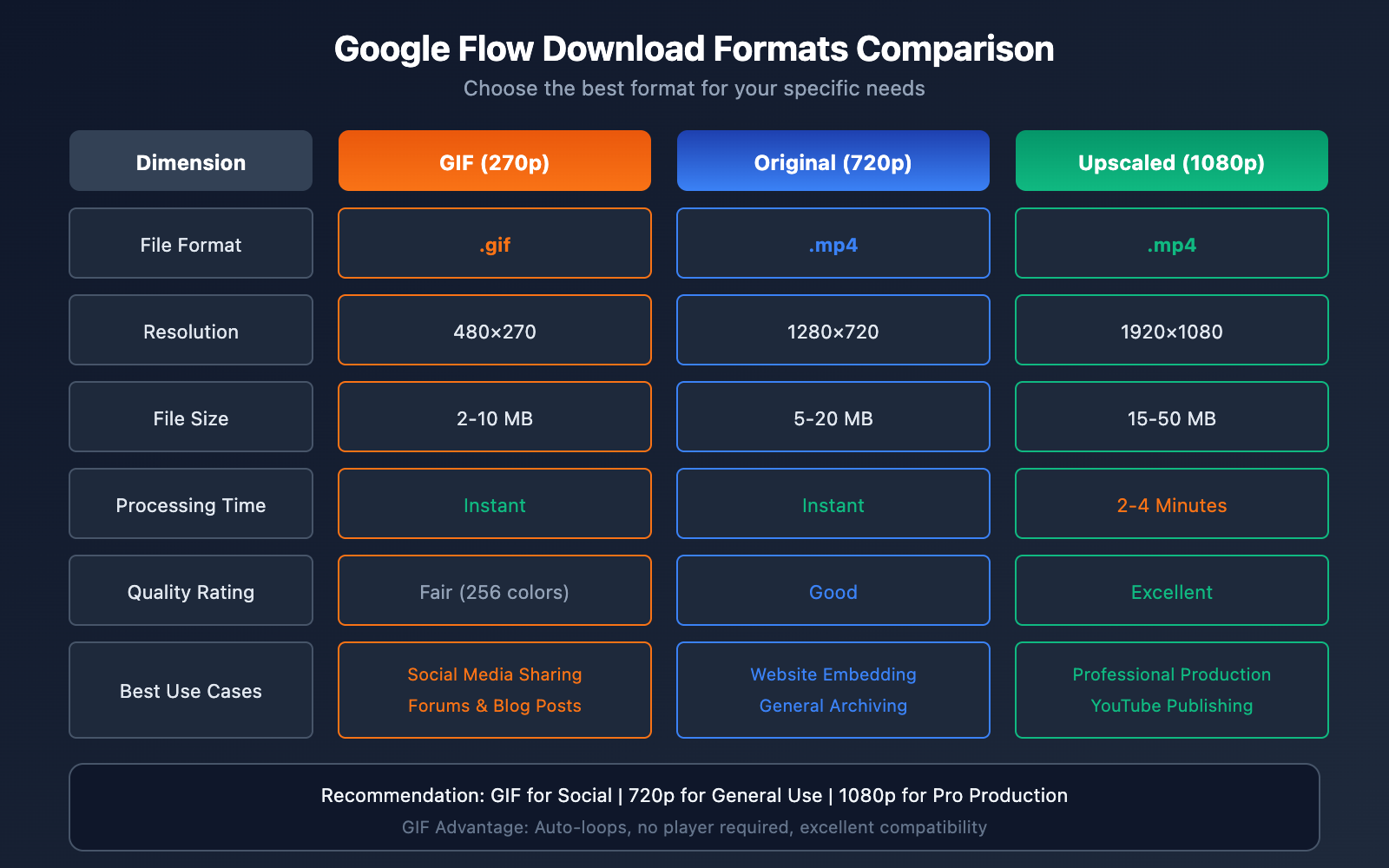
Different formats suit different needs. Here's a detailed breakdown:
| Dimension | GIF (270p) | Original (720p) | Upscaled (1080p) |
|---|---|---|---|
| File Format | .gif | .mp4 | .mp4 |
| Resolution | 480×270 | 1280×720 | 1920×1080 |
| File Size | 2-10 MB | 5-20 MB | 15-50 MB |
| Processing Time | Instant | Instant | 2-4 minutes |
| Quality | Fair | Good | Excellent |
| Compatibility | Exceptional | Excellent | Excellent |
| Target Platforms | Social Media, Forums | Websites, Presentations | Professional Production |
Best Use Cases for Each Format
When to choose GIF (270p):
- Sharing on social platforms like WhatsApp, X (Twitter), or Reddit.
- Images for forum posts and blog articles.
- Quick previews in instant messaging apps.
- Dynamic displays in emails.
- Any scenario where you need an automatic infinite loop.
When to choose Original (720p):
- Video embeds for websites and blogs.
- Product demos and tutorial videos.
- General everyday use and archiving.
- When you need decent quality without massive file sizes.
When to choose Upscaled (1080p):
- Assets for professional video production.
- Publishing to video platforms like YouTube.
- High-definition displays and presentations.
- Post-editing and compositing needs.
Practical Application Scenarios for Google Flow GIFs
Social Media Content Creation
GIFs are one of the most popular formats on social media, and Google Flow-generated GIFs can be used for:
| Platform | Recommended Usage | Notes |
|---|---|---|
| Twitter/X | Tweet visuals, reply GIFs | 15MB file limit |
| Chat stickers, Moments | Compression recommended before use | |
| Post visuals, comment section | Direct uploads supported | |
| Discord | Server stickers, chat | Unlimited for Nitro users |
| Slack | Work chats, feedback | Enterprise version supports larger files |
Product Showcases and Marketing
AI-generated GIFs are perfect for:
- Product Preview Animations: Showcasing products in motion.
- Feature Demos: Briefly highlighting core software or service functions.
- Ad Assets: Eye-catching dynamic advertising graphics.
- Email Marketing: Boosting email open and click-through rates.
Creative Expression and Art
Leverage Veo 3.1's powerful generation capabilities for:
- AI Art Creation: Generating unique dynamic artworks.
- Concept Visualization: Turning abstract ideas into moving images.
- Storytelling: Using short GIFs to tell micro-stories.
- Emotional Expression: Creating personalized reaction GIFs.
💡 Pro Tip: For users who need to batch-generate creative GIFs, you can call the Veo 3.1 API via APIYI (apiyi.com) and combine it with automation scripts for large-scale production.
Google Flow vs. Other GIF Creation Solutions
There are plenty of ways to make GIFs out there. Here’s how Google Flow stacks up against the competition:
| Solution | Type | Pros | Cons |
|---|---|---|---|
| Google Flow | AI Generation + Export | Create animations directly from text; infinite creativity | Subscription required; 270p resolution |
| Photoshop | Professional Software | Fine control; high quality | Steep learning curve; requires existing assets |
| GIPHY | Online Tool | Free; simple to use | Limited features; relies on existing assets |
| ScreenToGif | Screen Recording | Free; practical | Recording only; cannot "generate" content |
| FFmpeg | Command Line Tool | Flexible and powerful; batch processing | High technical barrier |
| Runway | AI Generation | High quality; multi-functional | Higher pricing |
Unique Advantages of Google Flow GIFs
- Create from Scratch: No assets needed—just describe it in text to generate.
- AI-Powered: Veo 3.1 ensures top-tier generation quality.
- All-in-One: Generate, edit, and export all within a single platform.
- Ready to Use: Download directly after generation without needing extra conversion.
Google Flow GIF FAQ
Q1: Is Google Flow’s GIF feature for uploading or exporting?
Google Flow's GIF feature is an export function, not an upload function.
The workflow looks like this:
- Use Veo 3.1 in Flow to generate an AI video.
- Once you're done editing, click download.
- Select "Animated GIF (270p)" as the format for export.
You can't upload a GIF to Flow for editing or conversion. Flow currently supports uploading static images (used for the "Frames to Video" or "Ingredients to Video" features).
Q2: Why is the GIF export only 270p? Can I increase the resolution?
270p is the fixed resolution for Google Flow's GIF exports right now, and it can't be adjusted directly. This is because:
- The GIF format itself isn't great for high resolutions (file sizes would get massive).
- GIF only supports 256 colors, so you don't get much extra benefit from higher resolutions.
- 270p is usually plenty for sharing on social media.
Alternatives:
- Download the 720p/1080p MP4 video instead.
- Use a tool like FFmpeg to convert it to a higher-resolution GIF yourself.
- Call the API via APIYI (apiyi.com) to get the original video and process it locally.
Q3: What should I do if the exported GIF file is too large?
If your exported GIF exceeds a platform's limit, try these steps:
- Online Compression: Use tools like ezgif.com or compressor.io.
- Reduce Frames: Lowering the frame rate can significantly shrink the file size.
- Crop the Duration: Only keep the best parts of the animation.
- Resize: Shrink the resolution even further.
Recommended Tool: ezgif.com/optimize
Q4: How can I batch generate GIFs?
The Google Flow interface doesn't support batch operations, but you've got other options:
- API Solution: Use APIYI (apiyi.com) to call the Veo 3.1 API for batch video generation.
- Script Conversion: Use FFmpeg to batch-convert your videos into GIFs.
- Workflow Automation: Combine Python scripts for an end-to-end automated process.
# FFmpeg batch conversion example
for file in *.mp4; do
    ffmpeg -i "$file" -vf "fps=15,scale=480:-1" "${file%.mp4}.gif"
done
Q5: Does Google Flow require a subscription?
Yes, Google Flow requires a subscription to either Google AI Pro or Google AI Ultra:
| Plan | Price | Flow Features |
|---|---|---|
| AI Pro | First month free, then paid | Full features, Veo 3.1 access |
| AI Ultra | $249.99/mo | Higher quotas, priority processing |
New users can usually get free trial credits to test out Flow's capabilities.
Advanced Tips for Google Flow GIF Exports
Prompt Strategies for Better GIF Quality
The quality of your generated video directly impacts the final GIF. Here are some prompt tips:
| Technique | Description | Example |
|---|---|---|
| Simplify the Scene | Fewer complex elements lead to better GIF compression. | "A cat on a solid color background" |
| Emphasize Action | Highlight main movements and avoid clutter. | "Close-up of a cat blinking" |
| Control Colors | Use high-contrast colors. | "Red apple spinning on a white background" |
| Loop-Friendly | Design actions where the start and end can connect. | "A windmill spinning continuously" |
Using "Ingredients to Video" for GIFs
Veo 3.1's "Ingredients to Video" feature is perfect for making GIFs:
- Prep Assets: Upload your main subject, a background, and a style reference.
- Write the Prompt: Describe the movement and effects you want.
- Generate Video: Let Veo 3.1 handle the synthesis.
- Export GIF: Choose the Animated GIF format for download.
This method ensures the subject in your GIF stays consistent with your brand or creative vision.
Local Post-processing Optimization
Once you've exported your GIF, you can use these tools to polish it:
# Optimize GIF using FFmpeg
# Reduce color count to compress the file
ffmpeg -i input.gif -vf "split[s0][s1];[s0]palettegen=max_colors=128[p];[s1][p]paletteuse" output.gif

# Adjust frame rate
ffmpeg -i input.gif -vf "fps=12" output.gif

# Resize dimensions
ffmpeg -i input.gif -vf "scale=320:-1" output.gif
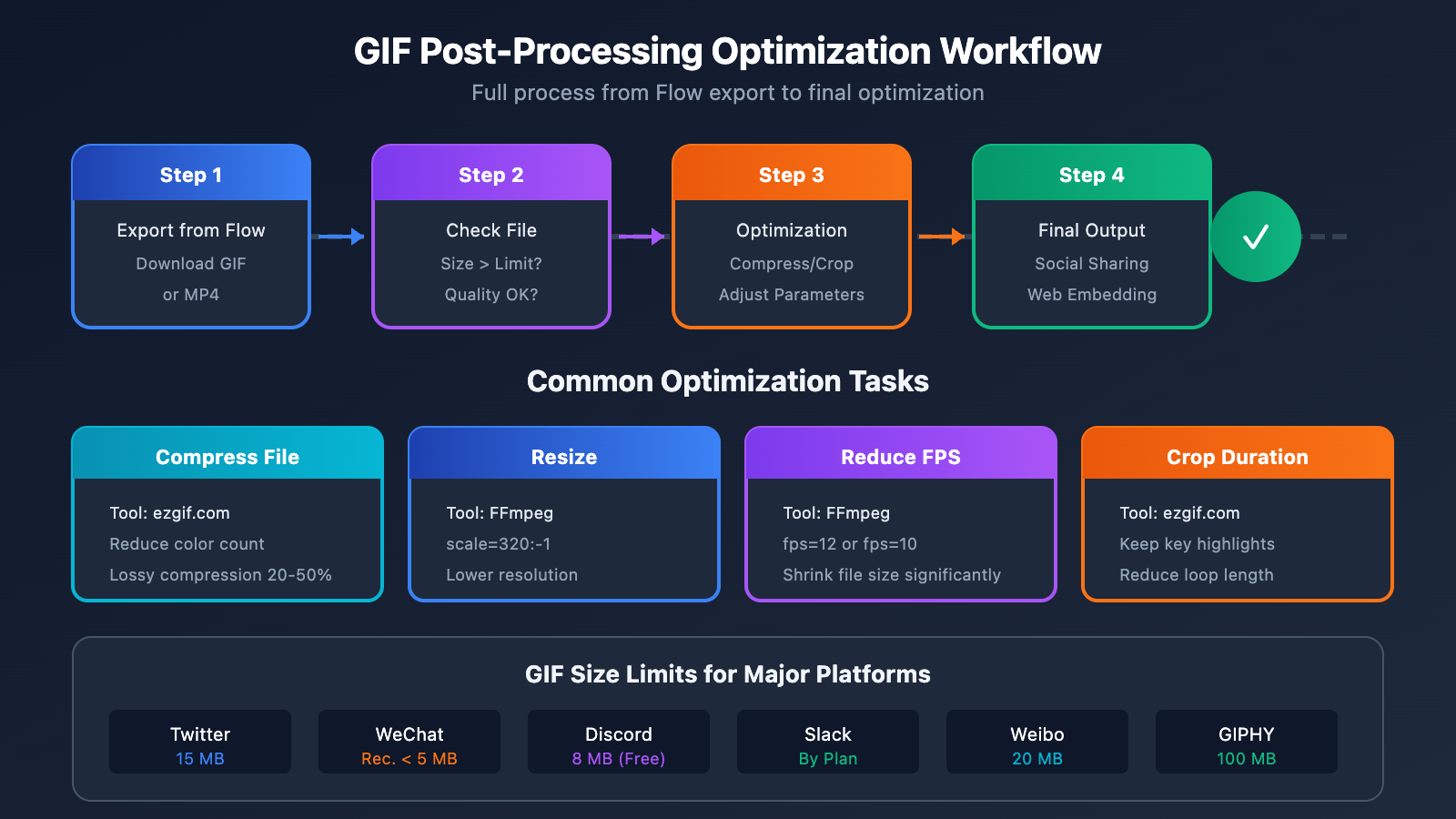
Google Flow GIF Limitations and Alternatives
Current Limitations
| Limitation | Description | Impact |
|---|---|---|
| Fixed Resolution | Can only export 270p GIFs | Not suitable for HD requirements |
| No Batch Processing | The interface doesn't support batch operations | Limits efficiency |
| Subscription Required | Must be a paid user | There's a cost barrier |
| No Uploads | Can't upload GIFs for editing | One-way functionality |
| Storage Limits | Works are lost if not downloaded | You need to save your work promptly |
Recommended Alternatives
For users with specific needs:
Need High-Resolution GIFs?
- Download the 1080p MP4 → Use FFmpeg to convert it.
- Get the original video via APIYI (apiyi.com) → Process it locally.
Need Batch Generation?
- Use the Veo 3.1 API combined with scripts.
- APIYI (apiyi.com) provides a unified interface, making automation easy.
Need More Editing Features?
- Combine with Photoshop or After Effects.
- Use professional GIF editing tools like ScreenToGif.
Summary
The GIF feature on the Google Flow official site is an export tool, not an upload tool. Here are the key takeaways:
- Three Download Formats: Animated GIF (270p), Original (720p), and Upscaled (1080p).
- GIF Resolution: Fixed at 270p, which is perfect for social media sharing and quick previews.
- Workflow: Generate video → Edit and adjust → Select GIF format for download.
- Save Promptly: If you leave the page without downloading, you'll lose your work.
- Use Cases: Social sharing, product previews, and creative expression.
If you're looking for more flexible video generation and GIF creation options, we recommend calling the Veo 3.1 API through APIYI (apiyi.com). You can combine it with local tools to achieve high-resolution GIF production and batch processing.
This article was written by the APIYI technical team. For more AI video generation tutorials, please visit apiyi.com.