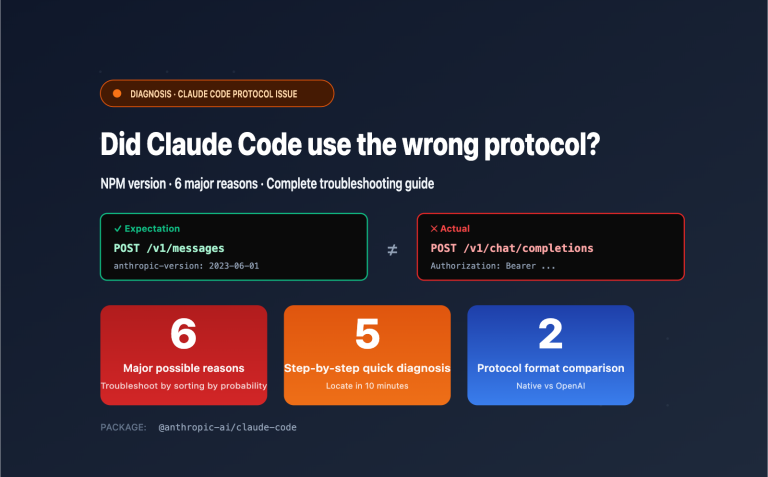
Author's Note: A complete guide to the Claude Cowork experience for newcomers, detailing what it’s actually like to have an AI control your desktop, what it can and can't do, and the core differences between Cowork (desktop GUI) and Claude Code (command-line CLI).
"AI, help me operate my computer"—it sounds like science fiction, but Claude Cowork has turned this into reality. It can open your browser, click buttons, manipulate files, and read emails, acting just like an assistant sitting right next to you to control your desktop. But how does it differ from Claude Code? One is a desktop GUI, the other is a command-line CLI—which one should you choose? This article is written for newcomers, breaking down the Cowork experience, its capabilities, and the core differences from Claude Code from the ground up.
Core Value: Understand what Claude Cowork can actually do in 15 minutes, and whether you should choose Cowork or Claude Code.
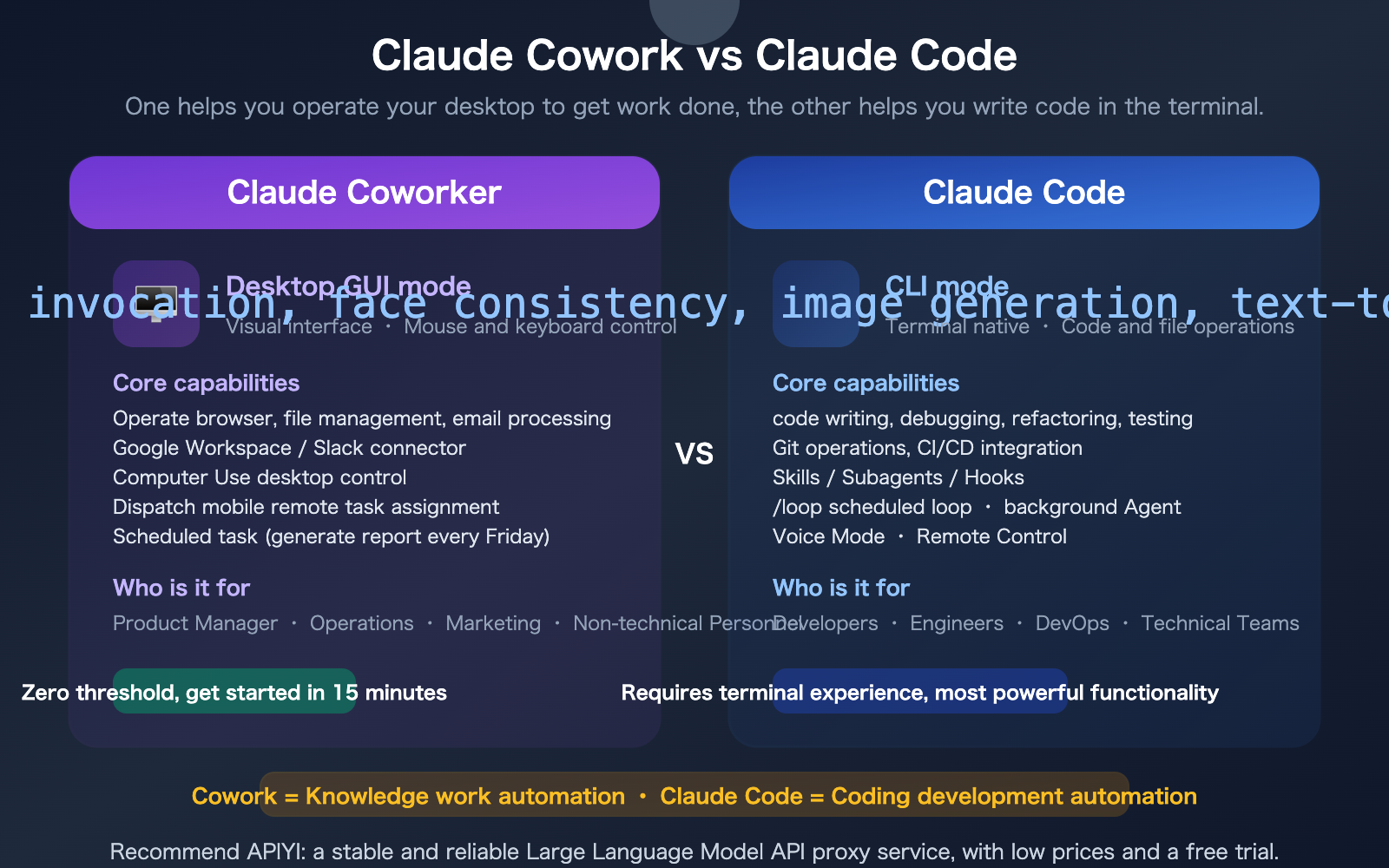
What is Claude Cowork?
In a nutshell: Cowork is an AI desktop assistant built directly into the Claude desktop app—it acts like a colleague sitting right next to you, operating your computer to complete multi-step tasks.
| Dimension | Description |
|---|---|
| Product Positioning | Knowledge work automation (non-coding scenarios) |
| Access Point | Claude desktop app → Switch to the "Cowork" tab at the top |
| Supported Systems | macOS (Apple Silicon M1+) and Windows |
| Subscription Requirements | Pro ($20/mo), Max ($100-200/mo), Team, Enterprise |
| Onboarding Time | 15 minutes from installation to completing your first task |
| Core Features | Computer Use desktop control, Dispatch remote tasking, 38+ connectors, plugin marketplace |
Three Working Modes of Claude Cowork
| Mode | Description | User Experience |
|---|---|---|
| Connector-First | Connects directly via API to Google Workspace, Slack, Microsoft 365 | Fastest and most stable |
| Computer Use | When no connector is available, Claude directly controls your mouse and keyboard | Like watching someone else use your computer |
| Dispatch Remote | Assign tasks to Claude remotely via mobile/web | Keep the AI working while you're on the go |
What is the Claude Cowork experience really like?
Computer Use Experience: Watching AI Operate Your Computer
This is the most "sci-fi" feature of Cowork. When you ask Claude to do something that isn't supported by a connector, it takes direct control of your screen—moving the mouse, clicking buttons, and typing text.
Actual Experience:
- Feel: Like a remote desktop session—you can see the mouse moving, clicking, and typing across your screen.
- Speed: Slightly slower than a human (there's a brief delay for each action), but you don't need to watch it.
- Accuracy: Most desktop operations are accurate, though it occasionally clicks the wrong spot or misses a button.
- Best for: Repetitive desktop tasks (filling out forms, organizing files, extracting data from websites).
- Not for: Tasks requiring pixel-perfect precision (intricate design work, complex drag-and-drop).
What Can Cowork Actually Do?
| Task Type | Specific Example | Experience Rating |
|---|---|---|
| File Organization | Categorizing the Downloads folder and renaming files to a uniform format | Excellent, saves tons of repetitive work |
| Email Handling | Reading emails, extracting key info, and drafting replies | Good, via Google/Outlook connectors |
| Data Processing | Extracting data from Excel and formatting it into a report | Good, via Microsoft 365 connector |
| Web Operations | Opening pages, filling out forms, and extracting info | Moderate, Computer Use is occasionally imprecise |
| Slack Messages | Summarizing channel messages every morning and sending a digest | Excellent, native Slack connector support |
| Scheduled Tasks | Pulling data from an analytics dashboard every Friday to update a weekly report | Excellent, via Dispatch scheduling |
What Can't Cowork Do?
| Limitation | Description |
|---|---|
| Writing Code | Not designed for coding—use Claude Code for that |
| Long-term Unattended Use | The desktop app must remain open, and the computer cannot go to sleep |
| Investment/Trading | Investment and cryptocurrency platforms are blocked by default (security policy) |
| Pixel-Perfect Precision | Computer Use has limited click accuracy; not suitable for fine design |
| Cross-System Operation | Can only operate the local machine, not remote servers |
🎯 Newbie Tip: When using Cowork for the first time, start with low-risk tasks—like "help me organize my Downloads folder." Don't let it touch important work files right away. Create a test folder, copy some files into it, and let Cowork handle those first. Once you're confident in the results, you can move on to real-world scenarios.
Getting Started with Claude Cowork
5 Steps to Complete Your First Cowork Task
Step 1: Download the Claude desktop app (claude.com/download) — it's available for both macOS and Windows.
Step 2: Log in to your Claude Pro/Max account.
Step 3: Once you've opened the app, you'll see three tabs at the top: Chat, Cowork, and Code. Click on Cowork.
Step 4: Click "Work in a Folder" at the bottom and select a test folder (avoid selecting any important folders).
Step 5: Enter your first task:
Sort all PDF files in this folder by date,
rename them to the format "YYYY-MM-DD_original_filename.pdf",
and create an index.txt file listing all the files.
Claude will:
- Present an execution plan (which you can review and modify).
- Request folder access permissions (you'll need to approve this).
- Execute the task step-by-step (you can watch every action).
- Display a summary of the results once finished.
Dispatch: Remote Tasking from Your Phone
Dispatch is the "remote control" for Cowork—you can assign tasks to Cowork via the Claude mobile app or the claude.ai website:
- Open the Claude desktop app on your computer and start Cowork.
- Open the Claude app on your phone and select Dispatch.
- Enter a task description, such as "Organize the screenshot files on my desktop."
- Claude will execute the task on your computer and push the results to your phone.
This means you can close your laptop, head out, and continue using your phone to have the AI work on your computer.
Choosing Between Claude Cowork and Claude Code
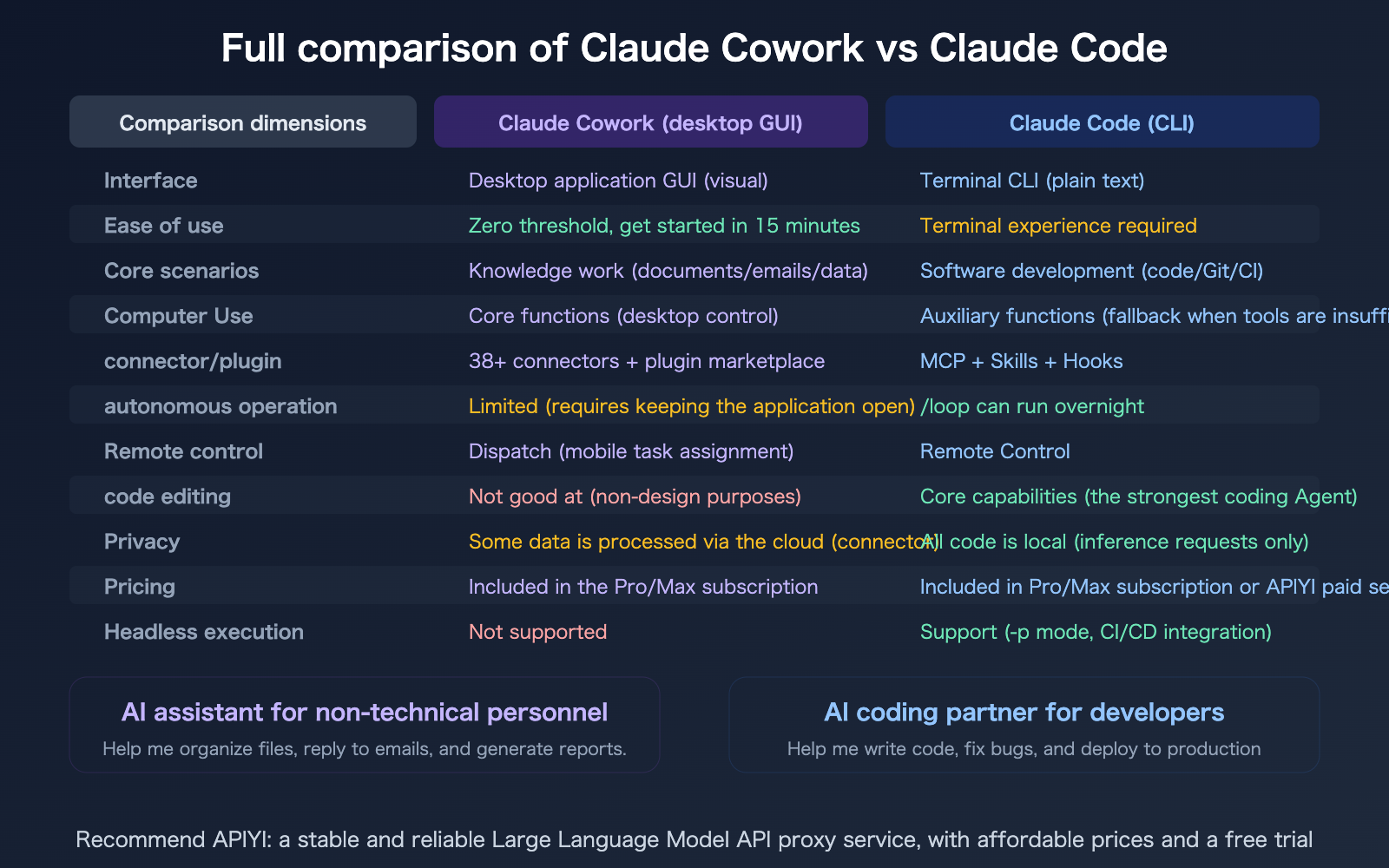
Choosing by Role
| Who are you? | Recommendation | Why? |
|---|---|---|
| Product Manager | Cowork | Organizing requirement docs, extracting feedback from Slack, generating weekly reports |
| Operations | Cowork | Data organization, email management, Excel analysis |
| Marketing | Cowork | Extracting competitor info from websites, organizing assets, batch image processing |
| Software Developer | Claude Code | Writing code, debugging, refactoring, Git management |
| DevOps | Claude Code | CI/CD configuration, script writing, server management |
| Full-stack + Manager | Use both | Use Code for development, Cowork for management tasks |
Choosing by Task
| Task | Use Cowork | Use Claude Code |
|---|---|---|
| Organizing files and folders | ✅ | — |
| Managing email and calendar | ✅ | — |
| Extracting data from websites | ✅ | — |
| Writing and debugging code | — | ✅ |
| Git operations and PR management | — | ✅ |
| Generating technical documentation | Simple: Cowork | Complex: Code |
| Batch data processing | Small scale: Cowork | Large scale: Code scripts |
| CI/CD automation | — | ✅ |
| Weekly recurring reports | ✅ (Dispatch) | ✅ (/loop) |
🎯 Quick Tip: If your work mostly happens between browsers, email, documents, and spreadsheets—go with Cowork. If your work is primarily in the terminal, code editor, and repositories—go with Claude Code. They aren't mutually exclusive; many people use both.
If you're a developer needing to access Claude models via API, we recommend using APIYI (apiyi.com) for a 20% discount.
3 Security Mechanisms of Claude Cowork
Since Cowork controls your computer, security is naturally a top concern. Anthropic has designed three layers of protection:
Security Mechanism 1: Per-Application Permission Approval
Every time Claude needs to access a new application, it requires your explicit approval. It won't open your banking sites or private chat logs without your permission.
Security Mechanism 2: Default Blocking of Sensitive Apps
High-risk scenarios like investment platforms and cryptocurrency apps are blocked by default. Claude won't touch your financial assets.
Security Mechanism 3: Execution Plan Review
Before starting any task, Claude will display its plan—you can review every step, modify it, or reject it. It's not "fully automated with one click," but rather "you review, it executes."
FAQ
Q1: Is it safe for Cowork to operate my computer?
Anthropic has designed a three-layer security mechanism: 1) You must explicitly approve access to any new application; 2) High-risk activities like investment trading and cryptocurrency are blocked by default; 3) A plan is displayed for your review before any action is taken. Furthermore, when in Computer Use mode, Cowork only operates within visible windows—you can see exactly what Claude is doing in real-time and interrupt it at any moment. We recommend that beginners start by using it in a test folder to verify the results before applying it to important files.
Q2: Can I use Cowork and Claude Code at the same time?
Yes, you can. Both coexist side-by-side in the Claude desktop app (via the Cowork and Code tabs). Many full-stack developers and technical managers use both—handling coding tasks in the Code tab while managing non-coding work (emails, documents, reports) in the Cowork tab. Both share the same Claude Pro/Max subscription quota.
Q3: Can Cowork run overnight?
There are limitations. The Claude desktop app must remain open, and your computer cannot go to sleep. If you close the app or your computer enters sleep mode, the task will terminate. The /loop feature in Claude Code is better suited for long-running, unattended tasks. Cowork is designed for scenarios where you are present but prefer not to do the work yourself, rather than for fully unattended automation.
Q4: Do developers need Cowork?
It depends on your non-coding workload. If 90% of your time is spent writing code, Claude Code is sufficient. However, if you also need to handle emails, write documentation, extract information from websites, or organize project materials, Cowork can help you offload these "busywork" tasks. For developers looking to build applications via model invocation, we recommend accessing Claude Opus 4.6 at a 20% discount through APIYI (apiyi.com).
Summary
Key takeaways for your Claude Cowork experience and selection:
- What is Cowork?: It's an AI desktop assistant built into the Claude desktop app that uses Computer Use to control your mouse and keyboard for desktop tasks. You can get started in under 15 minutes.
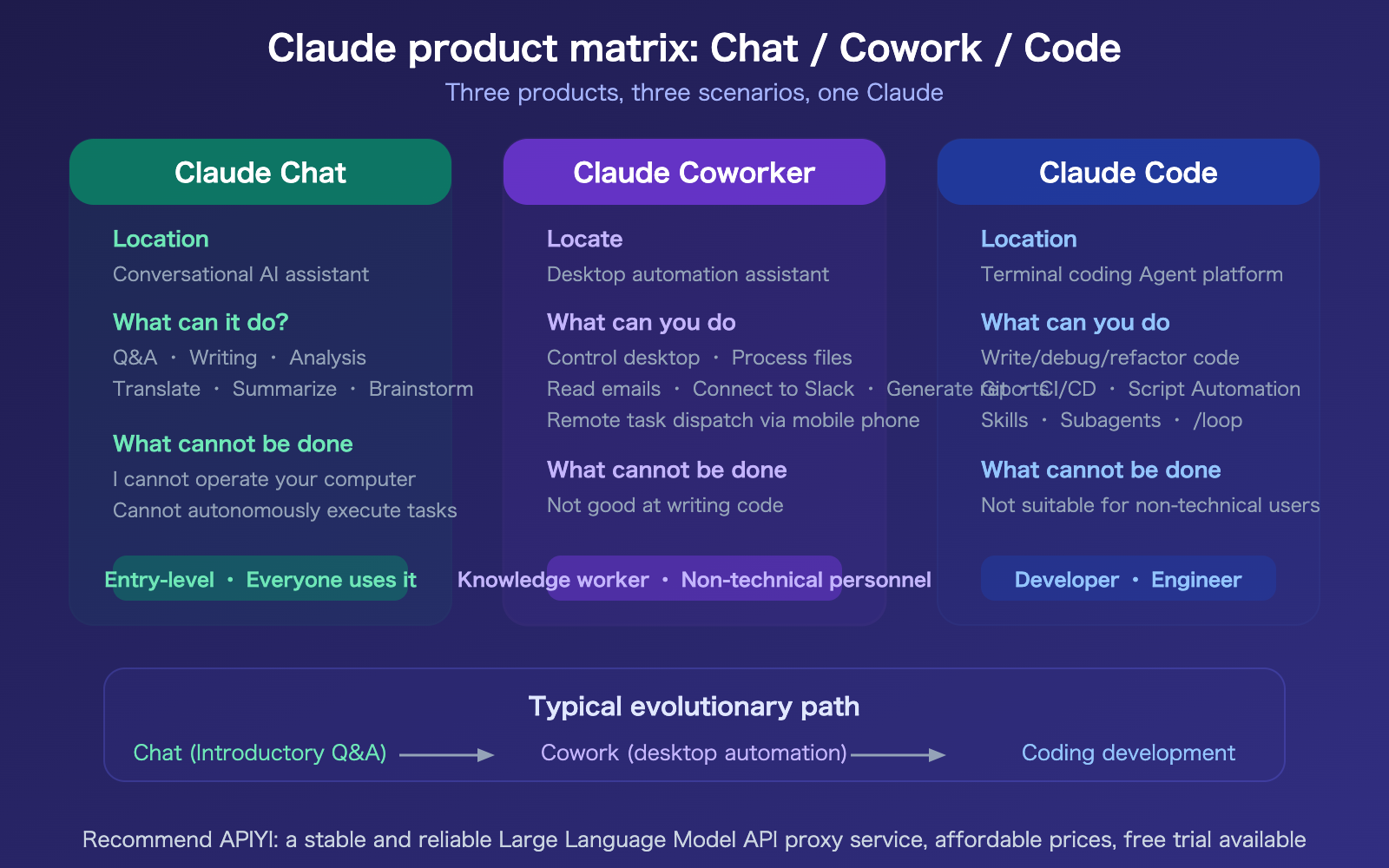
- Cowork vs. Claude Code: Cowork is aimed at knowledge workers (files, emails, reports), while Claude Code is aimed at developers (code, Git, CI/CD). They don't conflict and can be used simultaneously.
- Getting Started: Start by trying simple tasks (like file organization) in a test folder to confirm how it works before using it in real-world scenarios. You can also use Dispatch to close your laptop and head out, then use your phone to assign tasks to Claude remotely.
We recommend that developers access the Claude Opus 4.6 API at a 20% discount via APIYI (apiyi.com) to build your own AI automation applications.
📚 References
-
Claude Cowork Official Getting Started Guide: Anthropic's tutorial for using Cowork
- Link:
support.claude.com/en/articles/13345190-get-started-with-cowork - Description: Includes steps for installation, permission configuration, and your first task.
- Link:
-
Claude Cowork Computer Use Documentation: Detailed explanation of desktop control features
- Link:
support.claude.com/en/articles/14128542-let-claude-use-your-computer-in-cowork - Description: Covers permission management and security mechanisms.
- Link:
-
Cowork vs. Claude Code Comparative Analysis: Positioning and differences between the two products
- Link:
fortelabs.com/blog/the-difference-between-claude-code-and-cowork/ - Description: Includes use cases and selection advice.
- Link:
-
APIYI Documentation Center: 20% off access to Claude Opus 4.6 API
- Link:
docs.apiyi.com - Description: The optimal solution for developers to perform model invocation for Claude via API.
- Link:
Author: APIYI Technical Team
Technical Discussion: Feel free to join the discussion in the comments section. For more resources, visit the APIYI documentation center at docs.apiyi.com.