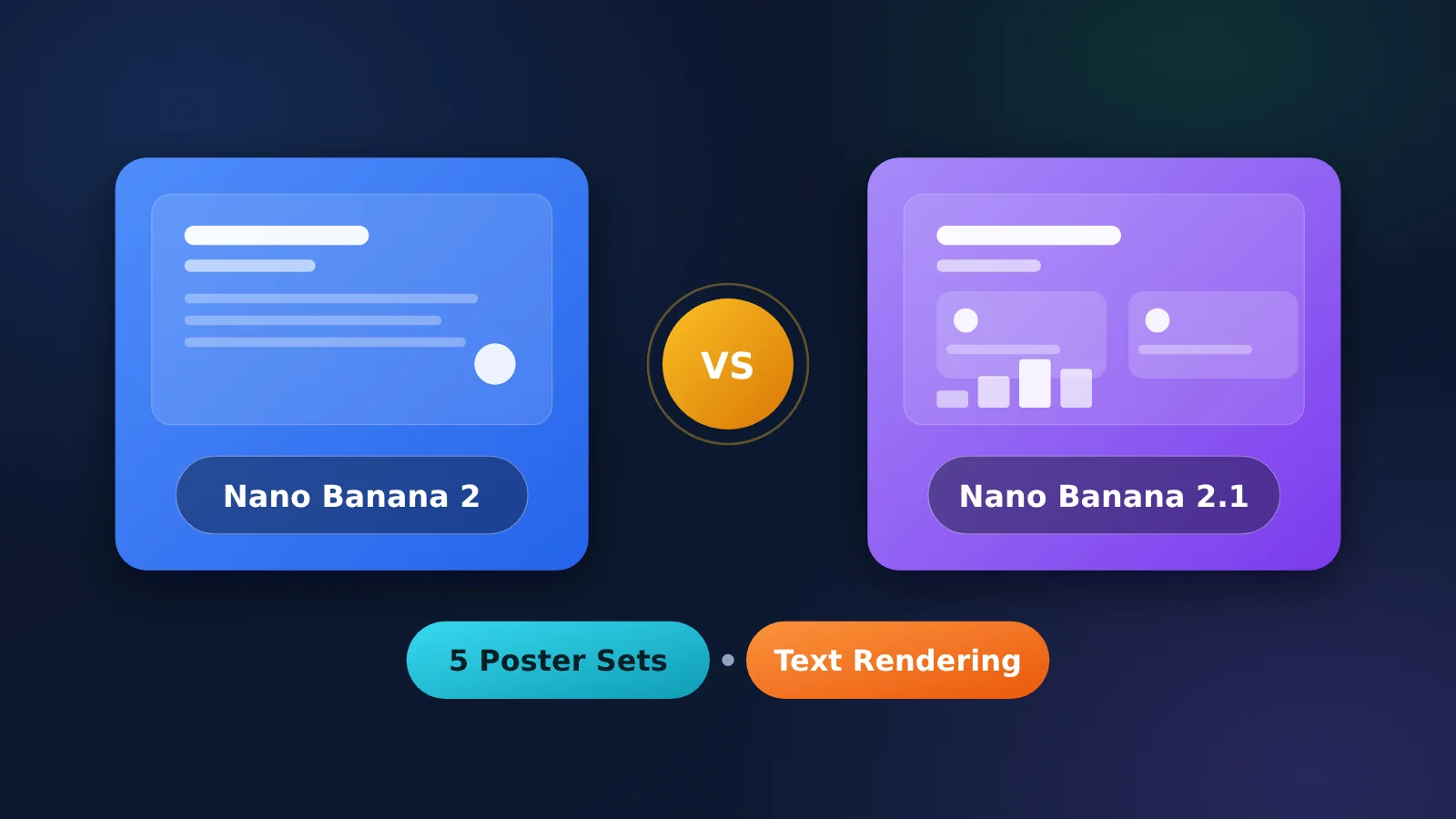
Author’s note: Here’s the bottom line. For posters with just a headline and a few short lines, both Nano Banana 2 and 2.1 can get the job done. The main reason to switch to 2.1 is to save money. It’s worth switching for infographics, tall images with multiple sections, and better control over Chinese typos—but small text requires 2K or 4K. Neither version is reliable for long paragraphs, full pages of small text, or text on outdoor signs. Also, the official deprecation page says there’s “no announced shutdown date” for the production version of gemini-3.1-flash-image, so there’s no need to rush a migration based on rumors.
Recently, developers have reported that when generating posters with text using Nano Banana 2, the text in the images can actually be more accurate than with the newer Nano Banana 2.1. The official claim is that 2.1 improves text rendering and infographic layout accuracy. In practice, though, people have seen cases where that’s not true. These two things aren’t contradictory.
This isn’t a review written to promote the newer version. We’ll be upfront about the limitations listed in the official model card, including blurry small text and confusion between long paragraphs or left and right. Any judgments about performance are based only on the official model card and public third-party tests with cited sources and dates.
What you’ll get from this article: 5 sets of reproducible poster prompts and acceptance criteria, plus clear guidance on which version to use for each scenario, what resolution to choose, and how much each image costs.
The Bottom Line: When to Switch from Nano Banana 2 to 2.1 for Text Rendering
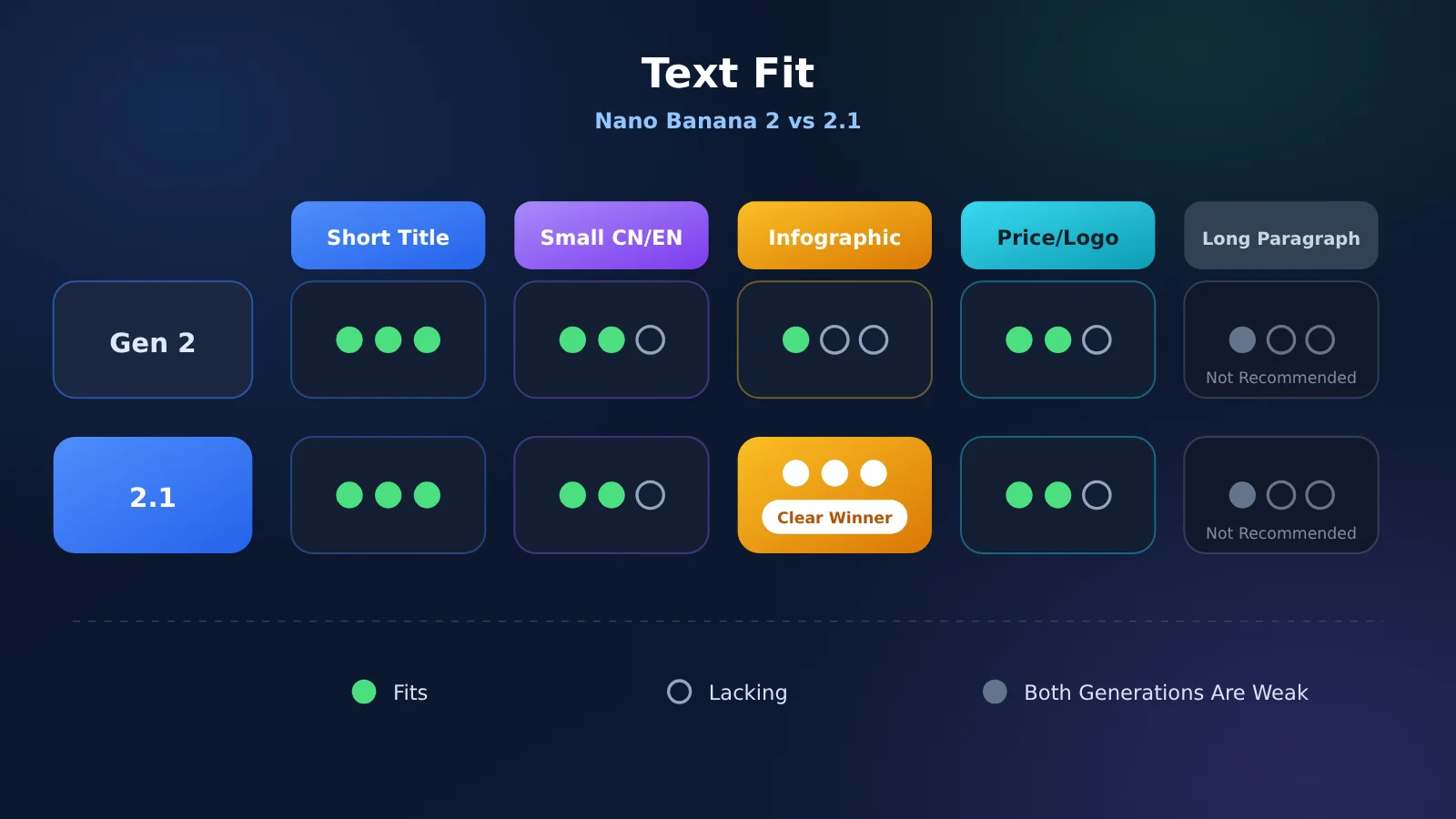
To decide whether to switch, don’t ask “Which generation is better?” Look at the kind of text in your poster. Both generations handle short headlines well. Infographics and layouts with multiple labels are where 2.1 is clearly stronger. Long text and text that appears in the environment remain weak spots for both.
Why Some People Think Nano Banana 2 Renders Text More Accurately
First, “better text rendering” is the official description of overall average performance. It doesn’t mean the model wins with every prompt. The Elo scores in the model card are averages based on many side-by-side comparisons by human evaluators. It’s completely normal for a single image-to-image comparison to suggest the opposite.
Second, image generation has a lot of variation from one output to the next. Run the same prompt twice, and even the locations of misspelled words may differ. On 2026-10-06, Fuser ran a test using the same prompt once per model, with no retries. In the fifth set, featuring street signs, Nano Banana Pro produced readable neon lettering, Nano Banana 2 was partly readable (it rendered the text as BARK BARS), and Nano Banana 2.1 was completely unreadable. If your use case happens to resemble this example, you might come away thinking “generation 2 is more accurate.”
Third, the resolutions may not be comparable. Google explicitly says that small text is often blurry at 1K. Comparing small text across the two generations at 1K is more likely to show noise than a real difference between the models.
About the Rumors That Nano Banana 2 Is Being Discontinued
As of 2026-10-23, Google’s official deprecations page (ai.google.dev/gemini-api/docs/deprecations) lists no announced shutdown dates for the stable versions of gemini-3.1-flash-image, gemini-3-pro-image, or gemini-3.1-flash-lite-image. The dates are for preview versions: gemini-3.1-flash-image-preview and gemini-3-pro-image-preview are marked for shutdown on 2026-06-25, while the first-generation gemini-2.5-flash-image is marked for shutdown on 2027-03-15.
The rumors likely come from confusing preview versions with stable releases. A third-party testing article also gave a specific shutdown date, but there’s no matching entry on Google’s official page, so it shouldn’t be treated as fact. The safer approach is to update the model ID in your code to a stable version, then decide whether to switch to 2.1 based on your use case.
🎯 Quick test recommendation: Switching between the two generations only requires changing the model name in the request URL. Try all five prompts below using the same key on APIYI (apiyi.com), then judge the results against your own business posters. That’s more reliable than drawing conclusions from any single benchmark.
How Nano Banana 2 and 2.1 Are Related: Model IDs, Release Dates, and Deprecation Status
Nano Banana 2.1 isn’t a renamed version of Nano Banana 2; it’s a new production model. According to the official documentation, it’s built on Gemini 3.6 Flash and launched as a generally available (GA) model on 2026-10-06. Nano Banana 2 launched on 2026-05-28 and is still a production model. Its official model page was last updated on 2026-10-09.
There are three other models in the same family: Nano Banana Pro (gemini-3-pro-image), Nano Banana 2 Lite (gemini-3.1-flash-lite-image, 1K only), and the first generation (gemini-2.5-flash-image, 1K only). For text-heavy posters, the main choices are 2.1, 2, and Pro.
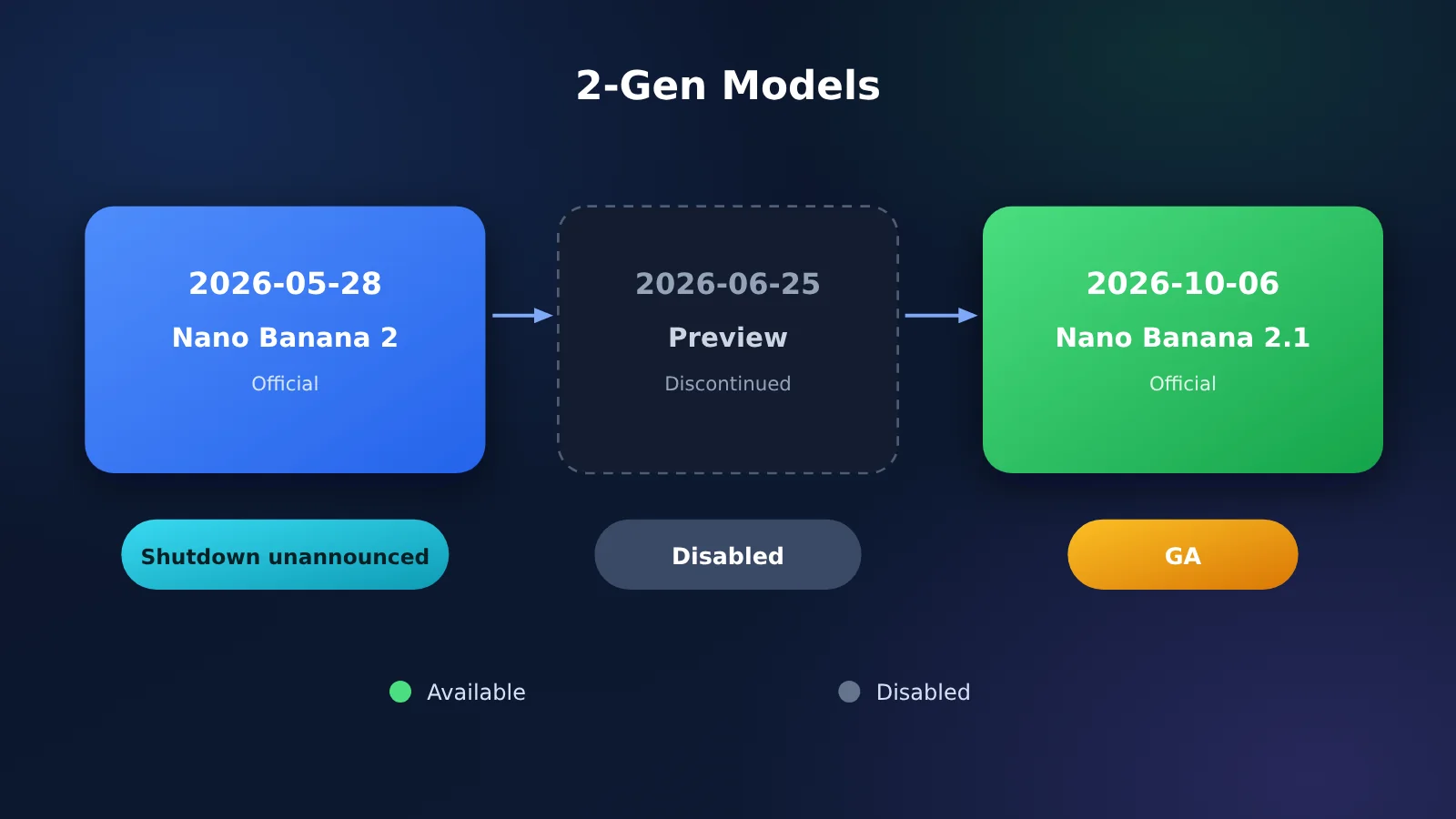
Nano Banana 2 vs. 2.1: Specification Comparison
| Comparison | Nano Banana 2.1 | Nano Banana 2 |
|---|---|---|
| Model ID | gemini-nano-banana-2.1 |
gemini-3.1-flash-image |
| Release and status | Released as a production model on 2026-10-06 | Released on 2026-05-28; production model, with no deprecation date announced |
| Resolution | 1K / 2K / 4K; 512 not supported | 512 / 1K / 2K / 4K |
| Thinking levels | minimal / medium / high; medium by default | minimal / high; minimal by default |
| Output tokens per 4K image | Approx. 3,780 | Approx. 2,520 |
| Wide aspect ratios | 14 supported ratios; tiling artifacts at 2K/4K for ratios such as 1:4 and 8:1 have been fixed | Official documentation doesn’t specify whether these issues have been fixed |
| Google’s official pricing (per million tokens) | Input: $1.50; image output: $30 | Input: $0.50; image output: $60 |
| APIYI per-call price | $0.045/call | $0.055/call |
Changes and Limitations Reported by Nano Banana 2.1’s Official Documentation
The official model page lists three main improvements: better image quality and realism at all resolutions—1K, 2K, and 4K; fixed tiling artifacts in wide and panoramic aspect ratios at 2K/4K; and more accurate text rendering and infographic layout. It’s positioned for “clear text on posters and complex diagrams” and “multilingual localized text rendering.” It supports up to 14 reference images, as well as grounding with Google Search and Image Search.
The Elo scores from the model card’s human side-by-side comparisons offer a useful point of reference. For overall preference, the scores are 1,050 for 2.1 with thinking enabled, 1,015 for 2.1 with thinking disabled, 990 for Nano Banana 2 with thinking enabled, and 935 for Pro. For infographic design, the scores are 1,048, 1,001, 961, and 912, respectively. Automated scores for infographic factual accuracy are 0.521, 0.328, 0.179, and 0.265, respectively—the clearest gap among the metrics.
The same model card also notes several limitations: small text can render poorly and is especially prone to blurring at 1K; long passages and full pages of text are difficult; character consistency isn’t always perfect; and errors such as left-right confusion still occur. These limitations help determine which of the five scenarios below call for switching models and which don’t.
Nano Banana 2 vs. 2.1 Text Rendering: A Scene-by-Scene Look at 5 Poster Scenarios
The five scenarios below are ordered from least to most text, and from largest to smallest font size. Each includes a prompt tip you can copy directly. Text that should appear in the image is enclosed in English double quotation marks. This makes it easier for the model to treat the text as something it must render exactly as written. each::labs also recommends this approach in its hands-on guidance from 2026-10-07. For every scenario, check three things: Is every character correct? Is the smallest text readable? Is there any extra text?
Scenario 1: Nano Banana Poster with a Large Chinese Headline
- Scenario: One main headline and a subtitle, portrait
2:3,1Kresolution. - Prompt tip:
Portrait music festival poster, dark nighttime background, place only the main headline "夏夜潮汐" in the center, with a one-line subtitle "港湾礼堂 现场演出" underneath. Don't include any other text beyond these two lines. - Acceptance criteria: All four characters in the main headline are correct; no strokes are stuck together or malformed; there’s no extra text in the image.
- Difference between generations: Both generations handle short text reliably. The official materials list poster text as a target scenario for 2.1. In a 2026-10-10 report, QbitAI cited designer @歸藏’s test of a Chinese promotional poster and concluded that Chinese text clarity has improved significantly, with fewer typos.
- Which should you choose? Either one. For high-volume use, choose 2.1, since it costs less at the same resolution.
Group 2: Chinese-English Mixed Text and Small Type in Nano Banana
- Scenario: A title, date, venue, and website appear on four lines. The website is the smallest line.
- Prompt essentials:
Minimalist screen-printing-style poster, front-facing flat artwork. The four lines of text, in order, are "NIGHT TIDE", "夜潮音乐会", "11 月 14 日 · 20:00 港湾礼堂", and "harbourhall.com/nighttide". The website line should use the smallest font size. No other text anywhere. - Acceptance criteria: The website must be legible at the original size. Don’t omit the middle dot, colon, spaces, or slash, and don’t replace Chinese text with English or vice versa.
- Differences between generations: On 2026-10-06, Fuser tested a similar four-line English poster, and 2.1, 2, and Pro all reproduced every character correctly, including the middle dot and website. The difference was in the output format: Pro produced flat artwork ready for printing, while 2.1 and 2 produced “a piece of paper on a desk,” complete with shadows. On the other hand, the official documentation explicitly says that small text can look blurry at 1K, and 2.1 can’t guarantee otherwise.
- Which one to choose: Start with 2.1 at
2Kor higher. If you need flat artwork ready for printing, emphasize “front-facing, no perspective, no shadows” in the prompt. If the result still doesn’t meet your needs, switch to Pro.
Group 3: Nano Banana 2.1 Portrait Infographic
- Scenario: A
1:4portrait infographic with a title, five short stage labels, and numbered steps. - Prompt highlights:
1:4 portrait process infographic, with the title "Five Steps to Launching a New Product" at the top, followed by five stages in order, numbered 1 to 5, with the labels "Research," "Design," "Prototyping," "Testing," and "Launch." No other explanatory text. - Acceptance criteria: Exactly five labels; each number matches its label, in the correct order; no extra text; no repeated tiled blocks in the middle of the long image.
- Differences between generations: This is one area where 2.1 has a clear advantage. The official update fixed tiling artifacts at
1:4,8:1, and other aspect ratios at 2K/4K, so the aspect ratio now works as intended. The model card also shows the largest gap in infographic design and factual accuracy. - Which one to choose: 2.1. Use a resolution of at least
2K;highis the recommended thinking level.
Group 4: Nano Banana Price and Logo Promotion Image
- Scenario: A Chinese headline, crossed-out original price, sale price, currency symbol, and brand wordmark.
- Prompt highlights:
Square promotional poster with the Chinese headline "周末限时购" ("Weekend Flash Sale"), a large sale price of "¥199," and the original price "¥299" beside it with a strikethrough. Place the brand logo from the reference image in the bottom-right corner, keeping it unchanged and not redrawing it. No other text. - Acceptance criteria: Every digit is correct;
¥isn’t omitted or replaced with another symbol; the strikethrough crosses only the original price; the logo lettering remains unchanged. - Differences between generations: Numbers and symbols are common failure points for both generations. On 2026-10-13, Ofox tested a three-step editing workflow: “create a poster → change the headline → change the bowl’s color.” Both generations spelled ORCHARD MARKET and SATURDAY 10 AM correctly, changed the headline and color, and missed the negative constraint “don’t draw a border.” The author also emphasized that this was just one workflow for each model, not a benchmark.
- Which one to choose: 2.1 has a slight edge, mainly due to improvements in Chinese text and pricing. Always provide the logo as a reference image rather than asking the model to redraw it from memory. For critical price figures, it’s best to add them during post-production layout.
Group 5: Nano Banana and Long Paragraphs or Fine Print
- Scenario: Ingredient lists, promotion rules, and fine print with five or more lines on one screen.
- Prompt tips (recommended wording):
Front of product packaging, showing only the product name "晨露面霜" and the selling point "48 小时保湿"; leave a blank white area on the back for the terms and conditions, and don't generate any fine print - Acceptance criteria: If you still want the model to generate long text, check line by line that it’s complete, that no lines run together, and that no text has been made up.
- Differences between the two generations: The official model cards explicitly list “long paragraphs and full-page text” as limitations, so neither generation is suitable. Text in outdoor scenes, such as signs that need to blend into their surroundings, is also high risk. In the Fuser street-sign test mentioned earlier, 2.1 actually ranked last.
- Which one to choose: Neither. Use a layout tool for long text and keep images to headings and short phrases. If sign text needs to be readable, switch to Nano Banana Pro.
Nano Banana 2 vs. 2.1: Summary of the Five Acceptance Tests
| Group | Scenario | Recommended resolution | What to check | Which one to choose |
|---|---|---|---|---|
| Group 1 | Chinese poster with a large headline | 1K | Check every character in the main headline; make sure strokes don’t merge | Either; choose 2.1 for higher volume |
| Group 2 | Small mixed Chinese and English text | 2K or higher | Check that URLs are readable and punctuation and spaces are intact | 2.1; use Pro for print layouts |
| Group 3 | 1:4 long infographic | 2K or higher | Check label count, numbering order, and that content isn’t tiled | 2.1 |
| Group 4 | Prices and logos | 2K | Check each digit and currency symbol; make sure the logo is unchanged | 2.1 has a slight edge; provide the logo as a reference image |
| Group 5 | Long paragraphs and terms and conditions | — | Read every line; check that no lines run together | Neither; use a layout tool |
💡 Reproduction tip: Results can vary widely from one image to the next, so a “better result once” isn’t enough to draw a conclusion. Keep the prompt, aspect ratio, and resolution fixed, and run each group three times. Base your judgment on the most consistent results. On APIYI apiyi.com, both generations use the same token, so you can compare them by switching the model ID.
How to Set Nano Banana 2.1 Parameters and Costs: Resolution, Thinking Levels, and Pricing
Parameters determine whether text in an image is readable, while the billing model determines the cost per image. You’ll want to decide on both together. This guide focuses on the graphical interface: first create a token in the console, then write your request.
Step 1: Create a Token in the Console and Choose a Billing Model
- Sign in to the APIYI apiyi.com console, go to Token Management, and create a token.
- In the token settings, set Billing model to Pay-per-request. Each generated image is billed as one unit.
- Copy the generated key and save it in the
APIYI_API_KEYenvironment variable. Don’t hard-code it in your code or frontend.
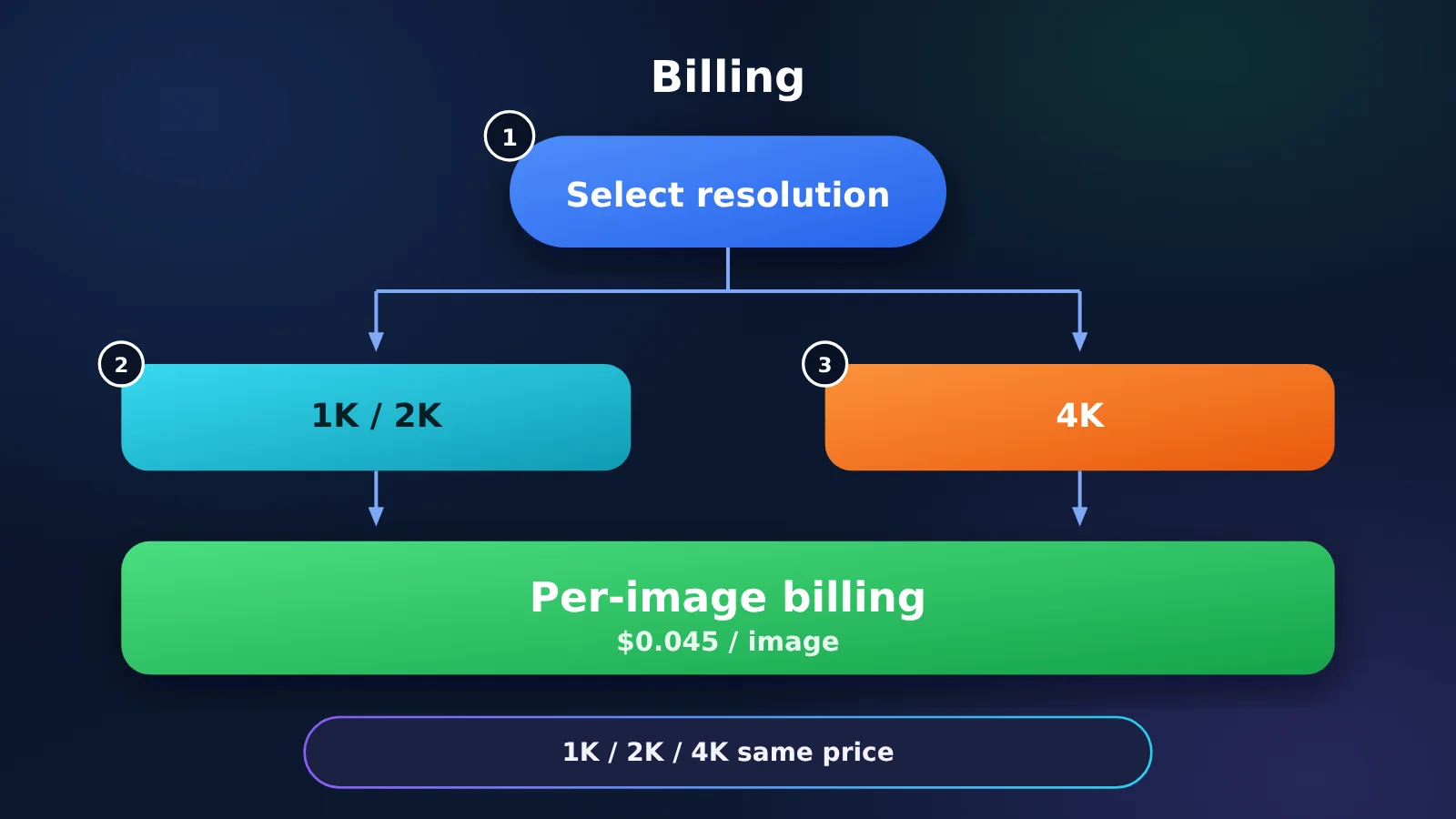
The billing method is determined by the token’s Billing model, not by a request parameter. Each generated image counts as one billing unit. 1K and 4K images cost the same, so you don’t need separate tokens for different resolutions.
Step 2: Fill in the request parameters
- Endpoint:
POST https://api.apiyi.com/v1beta/models/gemini-nano-banana-2.1:generateContent. This uses Gemini’s native format. To use Nano Banana 2, replace the model name withgemini-3.1-flash-image. - Authorization header: In
Authorization, enterBearerfollowed by your API key. - Prompt: Put one
textpart incontents[0].parts. A single part can contain eithertextorinlineData, but not both. - Reference image: Put reference images, such as logos, in
inlineDataas Base64. You can also usefileData.fileUrito provide a public URL, which Google’s servers will fetch. Base64 is recommended. - Resolution: Set
generationConfig.imageConfig.imageSizeto1K,2K, or4K. If omitted, it defaults to1K. Version 2.1 doesn’t support512; passing it will return a 400 error. - Aspect ratio: Set
aspectRatioto a value such as2:3or1:4. If omitted, the model chooses one, so the same prompt might produce either a landscape or portrait image. Be sure to set a fixed ratio when comparing results. - Thinking level: For version 2.1,
thinkingLevelcan be set tominimal,medium, orhigh; the default ismedium. Nano Banana 2 only supportsminimalandhigh. - Timeout: Calls are synchronous and don’t return a task ID. If the connection drops, you’ll lose the result, but you’ll still be charged. Set the HTTP timeout to 360 seconds, and make sure to raise execution time limits for your reverse proxy, gateway, and serverless environment as well.
- Retrieve the image: Iterate through
candidates[0].content.parts, filter for parts containinginlineData, and take the last image. Don’t hard-codeparts[0]. ReadmimeTypefrom the response rather than defaulting toimage/png.
When troubleshooting, keep these three cases in mind. If you get HTTP 200 but parts is empty, content moderation likely blocked the request (IMAGE_SAFETY). These cases aren’t billed, and retrying the same request once or twice often works. NO_IMAGE usually means the prompt asked for text instead of an image. If a reference image wasn’t used, check whether promptTokensDetails contains IMAGE. Each image must be no larger than 7 MB, and the total request size must be under 100 MB. Base64 increases the payload size by about 33%. If 2K or 4K images suddenly look blurry or requests start failing, first check aistudio.google.com/status for upstream issues.
The command line and SDK are alternative ways to make requests. If your project already uses the OpenAI SDK, you can use the compatible /v1/chat/completions endpoint by setting base_url to https://api.apiyi.com/v1. Pass reference images in image_url as Base64 or a public URL. Note that this endpoint doesn’t support /v1/images/generations.
Nano Banana Series Pricing
| Model | Model ID | APIYI per image | Official Google pricing (per million tokens) | Official cost per image | Notes |
|---|---|---|---|---|---|
| Nano Banana 2.1 | gemini-nano-banana-2.1 |
$0.045 (same price for 1K/2K/4K) | Input $1.50, text and thinking output $7.50, image output $30 | 1K $0.0336, 2K $0.0504, 4K $0.113 | Price reduced from $0.05 on 2026-10-13 |
| Nano Banana 2 | gemini-3.1-flash-image |
$0.055 | Input $0.50, text output $3, image output $60 | 0.5K $0.045, 1K $0.067, 2K $0.101, 4K $0.151 | The old ID with -preview costs the same |
| Nano Banana Pro | gemini-3-pro-image |
$0.09 | — | — | Alternative for signage and graphic design |
| Nano Banana 2 Lite | gemini-3.1-flash-lite-image |
$0.025 | — | — | 1K only |
| First generation | gemini-2.5-flash-image |
$0.02 | — | — | 1K only; officially scheduled for retirement on 2027-03-15 |
On the current page at docs.apiyi.com/models, all five models are listed as “image generation · per-image pricing.” Nano Banana 2.1 and Nano Banana 2 use the same chat and gemini endpoints, and are grouped under NB_OSS / NB-Enterprise / Default / SVIP. Input, output, and cache-read columns don’t apply. Pro, Lite, and the first-generation model are also billed per image only. Prices and groupings are subject to the page’s live data. Google’s official batch pricing is half the standard rate. Based on Google’s official per-image costs, Nano Banana 2.1 is half the price of Nano Banana 2 at 1K and 2K, and about 25% cheaper at 4K.
A Cost Breakdown for 1K, 2K, and 4K
| Resolution | APIYI pay-per-image | Total for 100 images | Google official price per image |
|---|---|---|---|
| 1K | $0.045 | $4.5 | $0.0336 |
| 2K | $0.045 | $4.5 | $0.0504 |
| 4K | $0.045 | $4.5 | $0.113 |
Pay-per-image pricing doesn’t vary by resolution: 1K through 4K all cost the same per image. That means higher resolutions offer better value. For the same 100 images, 4K costs about $11.3 through Google’s official pricing, compared with $4.5 through APIYI. To lower your per-image cost, make full use of the available resolution rather than creating separate tokens for each resolution.
Compared with Nano Banana 2, Nano Banana 2.1 costs $0.01 less per image under pay-per-image pricing ($0.045 vs. $0.055), saving you $1 for every 100 images. Setting the thinking level to high increases the time it takes to generate each image, but the price stays the same with pay-per-image billing, making your budget easier to plan.
Nano Banana 2 vs. 2.1: Summary and FAQs
Nano Banana 2 vs. 2.1: Which One to Choose
| Scenario | First choice | Alternative | Why |
|---|---|---|---|
| Short text on posters | Nano Banana 2.1 | Nano Banana 2 | Both generations can handle it, but 2.1 costs less |
| Infographics and long, label-heavy images | Nano Banana 2.1 (2K or higher, high) |
— | The infographic benchmark shows the biggest score gap between the models, and wide-format artifacts have been fixed |
| Small text and URLs | Nano Banana 2.1 (2K/4K) | Nano Banana Pro | At 1K, both generations produce blurry text; for flat designs, consider Pro |
| Long paragraphs and full-page terms | A layout tool | — | The official documentation explicitly lists these as limitations; neither generation is suitable |
| Text on signs in real-world scenes | Nano Banana Pro | Nano Banana 2 | In third-party tests, text on signs generated by 2.1 was unreadable |
Key Takeaways on Nano Banana Text Rendering
- Better overall doesn’t mean it wins every time: Elo is an average score, so the occasional counterexample is expected.
- Both versions handle short headlines well: The main reasons to switch to 2.1 are price and support for wide aspect ratios.
- Infographics are worth switching for: 2.1 shows its clearest gains in infographic design and factual accuracy.
- Small text needs resolution: Don’t expect fine, readable text at 1K; use at least 2K.
- Don’t push it with long passages or signage: Use layout tools for long text, and switch to Pro for text on signs.
- Don’t believe shutdown rumors: The official version has no announced shutdown date. You only need to replace the old
-previewID. - One flat price per image: 1K, 2K, and 4K all cost $0.045 per image, so higher resolutions offer better value. With one APIYI token from apiyi.com, you can run the entire model lineup.
Q1: Is Nano Banana 2 about to be discontinued? Should I migrate early?
As of 2026-10-23, the official deprecation page lists no shutdown date for the production version, `gemini-3.1-flash-image`. A specific shutdown date has only been announced for the preview version. We recommend replacing the old `-preview` ID with the production version first, then using the scenario guide in this article to decide which workloads to move to 2.1. There’s no need to migrate everything at once.
Q2: Why does 2.1 get the text wrong when I use the same prompt? Does that mean the model has gotten worse?
Not necessarily. First, check three things: whether the resolution is the same, whether the aspect ratio is explicitly fixed, and whether you ran each test only once. Align these settings, then run each prompt three times before comparing results. If the model still makes mistakes with signage or long passages, those are known limitations acknowledged by Google—not just random errors.
Q3: Can I use 512 resolution with Nano Banana 2.1 to save money?
No. 2.1 only supports `1K`, `2K`, and `4K`; sending `512` will return a 400 error. If you need 512-resolution previews, you can keep using Nano Banana 2 or pay the 1K rate of $0.045 per image.
Q4: What thinking level should I use for text posters?
The default `medium` setting is fine for short headlines. For infographics and images with multiple labels, we recommend `high`—the difference between enabling and disabling thinking is quite noticeable in the model card. With per-image pricing, the thinking level doesn’t change the cost; it only affects latency and consistency.
Q5: What’s the fastest way to compare text rendering in Nano Banana 2 and 2.1?
Create a token in the APIYI apiyi.com console and copy the key. Use the five prompts in this article, keep `aspectRatio` and `imageSize` fixed, and change only the model name in the request URL. Run each prompt three times with each model. Both versions use the same key, so you don’t need to integrate two separate APIs.
Q6: Can 2.1 completely solve text errors in Chinese posters?
No. Third-party tests in Chinese report major improvements in text accuracy and clarity, but numbers, currency symbols, and small text are still common sources of errors. For critical details like prices, dates, and URLs, add them during post-production layout. Keep the image itself to a main headline and short phrases.
Summary
To return to the question we started with: “better text rendering in 2.1” refers to its overall average performance, backed by official and third-party data for infographics and short Chinese headings. Text in signs, tiny text at 1K, and long passages are still its weak spots—which is why some people find Nano Banana 2 more accurate.
For practical use, follow these three guidelines: switch to 2.1 for posters with short text to save money; use 2K or higher and set high for infographics and tiny text; and look for another solution for long passages and signs. We recommend creating a pay-as-you-go token through APIYI at apiyi.com, running five sets of prompts, and then deciding how broadly to migrate.
Author: APIYI Technical Team
Technical questions: You can find interface parameters and the latest pricing in the documentation center at docs.apiyi.com. If you have any questions, feel free to contact us through the APIYI homepage.