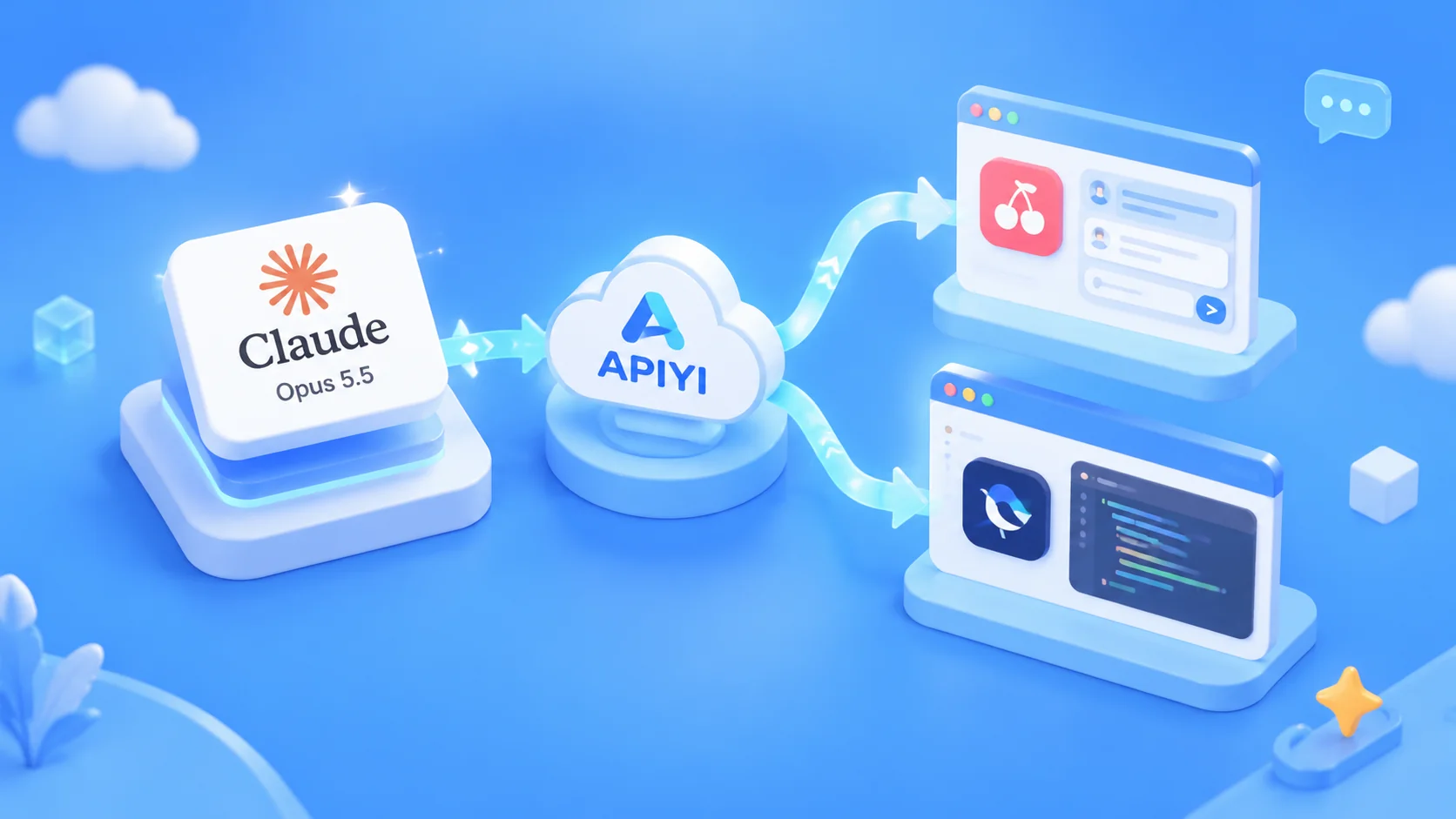
Author’s note: Claude’s official website isn’t accessible from mainland China, and even if you can get through, there’s a risk your account could be banned—whether you’re a mainland Chinese citizen or a foreigner visiting China. This article shows you how to use APIYI to connect claude-opus-5-5 to a chat app and a coding agent in 15 minutes. We’ll use Cherry Studio as the chat app and Magpie to manage the agent.
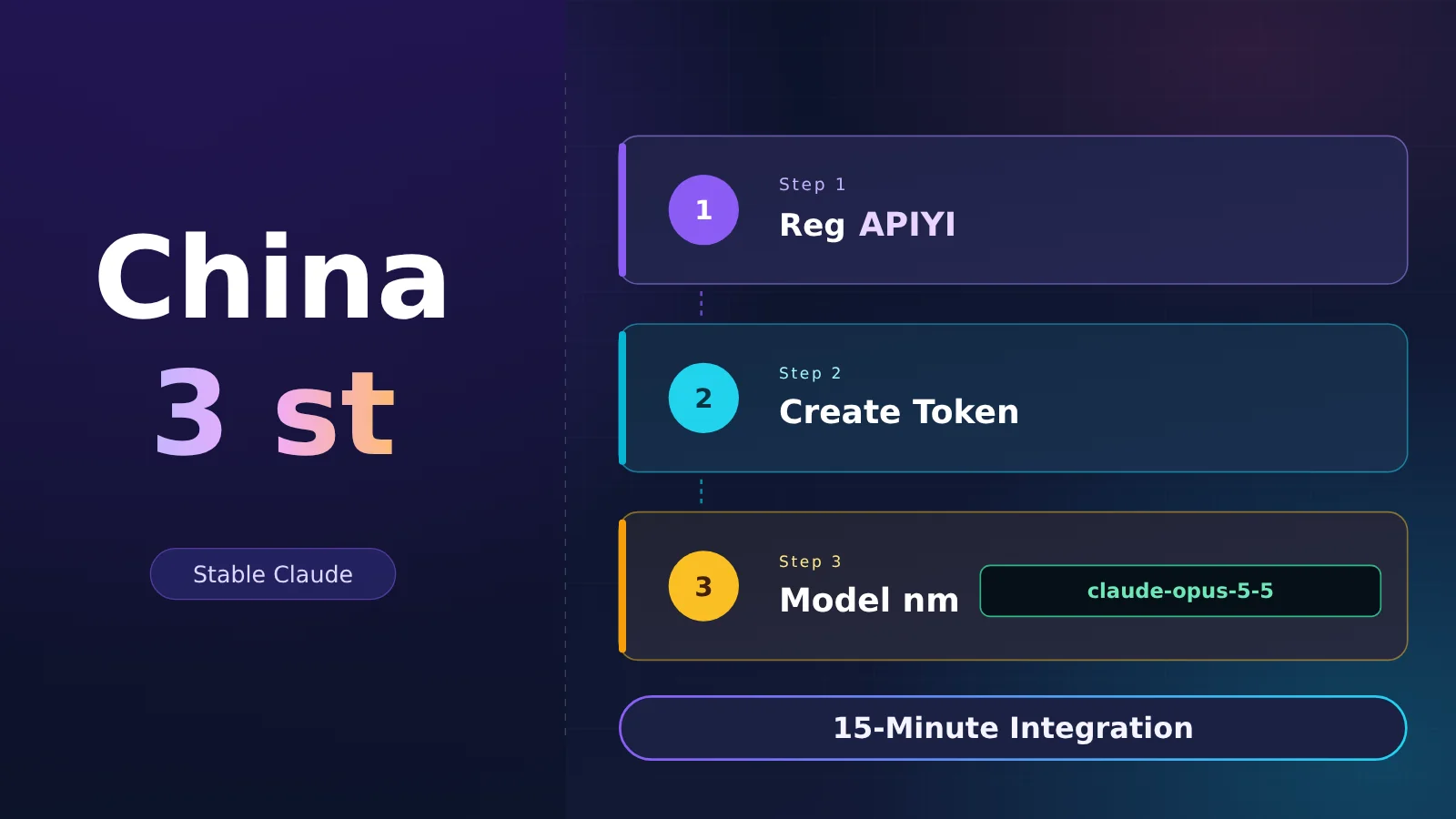
If you’re in mainland China and want reliable access to claude-opus-5-5, what you really need is a key you can top up with WeChat Pay or Alipay and use in different apps. APIYI (apiyi.com) is an API aggregator for AI Large Language Models. With a single API key, you can call popular models from Claude, OpenAI, Gemini, and more. It supports the OpenAI-compatible API and pay-as-you-go billing. In this article, we’ll use it to connect claude-opus-5-5 to a chat app (Cherry Studio) and then to a coding agent (managed with Magpie). Everything is done through a graphical interface, and it takes about 15 minutes from signup to your first message.
The Official Website Is Inaccessible—and Even If You Get Through, Your Account Could Be Banned
If you’re in mainland China, you can’t access Claude through its official website. The website, desktop app, and official subscription aren’t normally available to users in mainland China. This isn’t a setting you can fix or a problem you can solve by switching browsers.
Even if you find a way to access it, there’s a significant risk your account could be banned. If that happens, you could lose your remaining balance and chat history, and the official team may not restore them or give you a way to appeal. You could spend money and build up a history of conversations, only to lose it all. It’s not worth the risk.
A more reliable option is to use Claude through APIYI, with the model name claude-opus-5-5. You don’t need to log in to Claude’s official website—you just need an endpoint, a token, and a model name. Enter those three details in your software, and you’re ready to go.
Get a Claude Token from APIYI First
Before you get started, review these five important points. They cover the five most common pitfalls you’ll encounter later, and we’ll come back to each one in the steps below.
| Important point | What to do | What happens if you get it wrong |
|---|---|---|
| Use hyphens in the model name | Write claude-opus-5-5, with hyphens throughout |
Writing claude-opus-5.5 will result in a “model not found” error |
| Don’t turn off thinking | Thinking can’t be disabled for this model, so don’t send disabled |
Sending disabled returns a 400 error. To save time, use low for effort instead |
Check whether the URL needs /v1 |
For clients using the Anthropic protocol, enter the root domain. For OpenAI-compatible clients, include /v1 |
Including or omitting /v1 incorrectly will result in a 404 |
| Choose the right group | Use Default for chat. Coding agents must use ClaudeCode | The wrong group can make the agent’s calls fail or cost more |
| Start with a small limit | Give your first token a very small limit | If your configuration is wrong, the limit caps your potential loss |
Getting ready is simple: you’ll need an email address, a browser that can open the APIYI site, and a chat app you already use. If you want to write code, install Magpie too. These instructions are designed for beginners. Each step explains the goal, what you should see, where to click, how to tell when you’re done, and roughly how many minutes it’ll take. Here’s the total time estimate:
- Step 1: Register an account — about 3 minutes.
- Step 2: Add funds with WeChat Pay or Alipay — about 2 minutes.
- Step 3: Create two tokens — about 3 minutes.
- Step 4: Send your first message in a chat app — about 4 minutes.
- Step 5: Connect a coding agent with Magpie — about 3 minutes.
Step 1: Register an account (about 3 minutes)
The goal is to get an APIYI account you can log in to. Open api.apiyi.com in your browser, click Register on the page, and follow the instructions to sign up with your email address and log in. Once you’re logged in, you’ll land on the dashboard, where you can see your account balance.
According to the documentation, new accounts receive a very small trial balance—enough for one or two short messages. The exact amount depends on what’s shown in your account, so don’t assume it’ll always be available. This step is done when you can see the dashboard and your balance.
If you don’t reach the dashboard after registering, check your inbox for a verification email, then check your spam folder. After logging in, we recommend bookmarking the site. You’ll need to come back here to create tokens and check logs, so there’s no need to search for it again each time.
Step 2: Add funds (about 2 minutes)
The goal is to add a little usable balance to your account. Find the recharge option in the dashboard, choose WeChat Pay or Alipay, and scan the QR code to pay. We recommend adding only a small amount the first time. Get the process working before adding more as needed—that way, if you make a mistake along the way, your loss will be limited. When the payment is complete, refresh the page. If the balance has increased, you’re done with this step.
Before topping up, it’s worth checking the prices. The figures below are taken from APIYI’s model pricing table (docs.apiyi.com/models). The pricing page lists the data as last updated at 06:05 on 2026-10-23. All prices are in US dollars per million tokens, based on a Default group multiplier of 1. claude-opus-5 is included for comparison only; it’s not the model this article will connect to.
| Billing item | claude-opus-5-5 | claude-opus-5-5-thinking | claude-opus-5 (baseline) |
|---|---|---|---|
| Input | $4 | $4 | $5 |
| Output | $20 | $20 | $25 |
| Cache read | $0.20 | $0.20 | $0.50 |
Understand the three column names first so you don’t misread the bill. Input is the tokens you send to the model; output is the tokens the model sends back; cache reads are the tokens charged at the cache-read rate after a prompt cache hit. For claude-opus-5-5, cache reads cost 5% of the input rate; for claude-opus-5, they cost 10%. So if you repeatedly ask questions with the same large block of context, a cache hit can save you a noticeable amount. Any tokens that don’t hit the cache are still charged at the regular rate. The pricing page lists the same rates for claude-opus-5-5-thinking, so both IDs cost the same. This model supports both the Chat and Messages endpoints. The group column lists five groups: ClaudeCode, Claude_Reverse, Claude_Enterprise, Default, and SVIP. There’s no tiered-pricing marker after the model name, so the rates in these three rows apply regardless of request size.
Let’s look at another typical model invocation. Based on the prices listed above, this is an estimate, not an actual bill: 20,000 input tokens plus 2,000 output tokens costs $0.12 in the Default group. For the same invocation, the ClaudeCode group’s 0.95 multiplier brings the cost to $0.114. For your actual bill, check the records in your console logs.
You can break down the cost like this: 20,000 input tokens at $4 per million cost $0.08, while 2,000 output tokens at $20 per million cost $0.04. Together, that’s exactly $0.12. A couple of questions in a chat window typically use far fewer tokens than this example, so a small initial top-up is enough to complete all the steps.
There’s pricing on the top-up side, too, so let’s spell that out. APIYI settles at a fixed exchange rate of 1:7, with a minimum top-up of $5—about RMB 35. Top-ups also come with a bonus: according to the pricing page, the bonus can bring your effective cost down to 1/1.1 of the listed price (about 91% of the price), or during promotions, as low as 1/1.2 (about 83%). This bonus can be combined with the group discounts in the table, so the actual amount deducted for the same model invocation is usually a little less than the listed price would suggest. For the exact amount charged, check your console.
Additionally, Anthropic says claude-opus-5-5 generates more than 30% faster than the previous-generation Opus 5. That’s Anthropic’s claim, not a figure measured in this article.
Step 3: Create two keys (about 3 minutes)
You’ll need two keys that start with sk-: one for your chat app and one for your coding Agent. Open the token page at api.apiyi.com/token and create a new token. Keep these points in mind as you fill out the form:
- Choose any name you like. We recommend naming one
chatand the othercodeso you can tell them apart at a glance. - Group: Choose Default for the chat key and ClaudeCode for the coding Agent key.
- Quota: Start with a small quota for the first key, then increase it once everything works. Don’t choose unlimited quota just for convenience, and don’t set the key to never expire.
- Billing method: Choose per-token billing, not per-call billing.
- Model restrictions: You can allow only
claude-opus-5-5to prevent other models from using your quota.
Once the keys are created, copy them and store them safely. You’re done with this step when the token list shows two enabled keys. If you only plan to chat and your chat app is set to the Anthropic type, you only need to create one key in the ClaudeCode group. You can use it for chat, too.
After creating each key, copy it right away and save it in your password manager. Don’t paste it into a group chat or put it in a file that’ll be uploaded to a public repository. If you accidentally expose a key, return to the token page and disable it, then create a new one. Since the quota is small to begin with, the impact should be limited.
How should you choose between the groups? The table below lays it all out:
| Group | Multiplier | How to use it |
|---|---|---|
| Default | 1 | For chat; choose this if you want the same price as the official site |
| ClaudeCode | 0.95 | Required for coding Agents; can also be used with chat apps |
| Claude_Enterprise | 1.2 | More expensive; not recommended |
| Claude_Reverse | 0.5 | The source hasn’t been verified, so avoid it if you need a stable connection |
The grouped column on the pricing page also lists SVIP. Its multiplier is 1, the same as Default, but it isn’t used in this article’s integration process.
Connecting a Chat App: Cherry Studio as an Example
Cherry Studio is just one example. Whichever chat app you normally use, if it lets you add an Anthropic-compatible service, enter the same three things: the base URL, your sk- token, and the model name claude-opus-5-5. The steps below show where to click in Cherry Studio. In other apps, look for the same three fields.
Step 4: Send Your First Message in a Chat App (about 4 minutes)
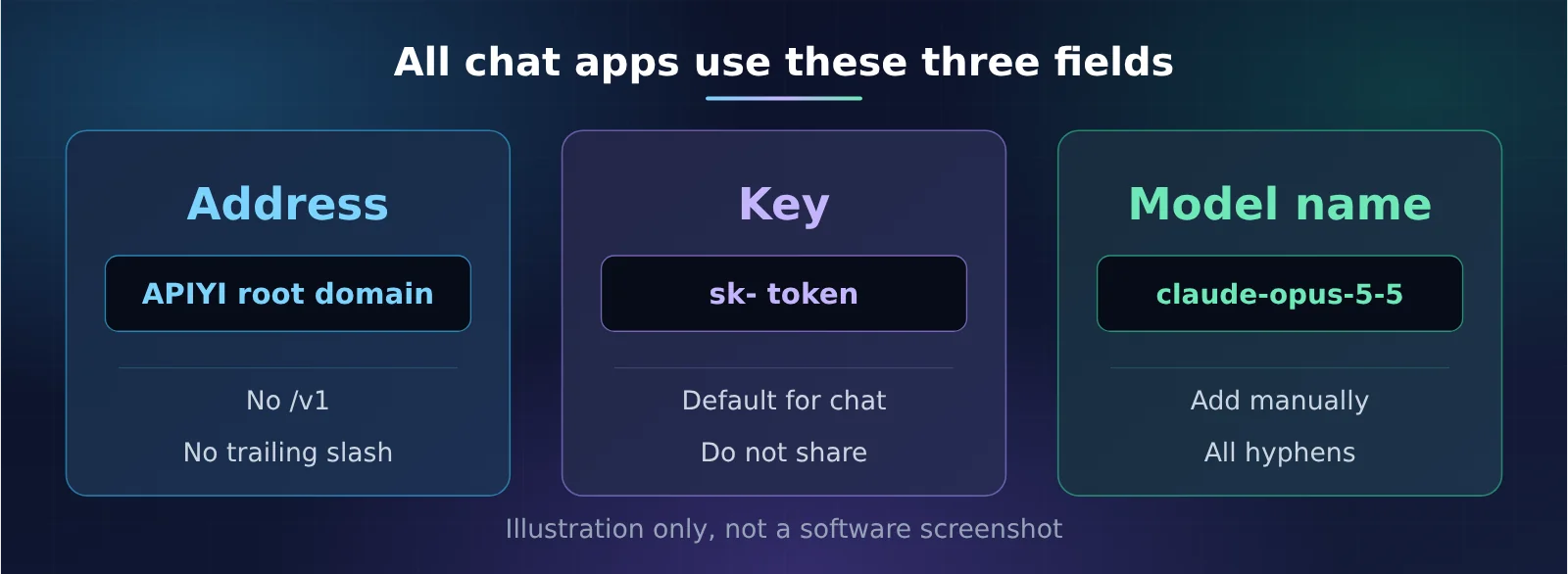
The goal is to get claude-opus-5-5 to reply in your chat window. We’ll use Cherry Studio as an example. First, download and install it, then open the app. Click Settings in the lower-left corner, go to Model Services, click Add, and enter the following:
- Provider type: Select Anthropic.
- Name: You can enter
APIYI-CLAUDEto make it easy to recognize later. - API URL:
https://api.apiyi.com. Enter the base URL—don’t add/v1or an extra slash at the end. - API key: Paste the
sk-token you created earlier—the one in the Default group for chat. - Model: Choose Add model manually and enter
claude-opus-5-5as the ID, with hyphens in the middle.
After saving, return to the chat window and select the model you just added at the top. Send a short message, such as “Introduce yourself in one sentence.” You should see a reply appear after a few seconds. This model’s thinking mode can’t be turned off, so its first reply may take a little longer than with a regular chat model. That’s normal—don’t click Send again.
Check two things to confirm it worked. First, make sure there’s a reply in the chat window. Second, go back to the APIYI console and open the log page for that token. The latest entry should show claude-opus-5-5 as the model. The step is complete only when both checks pass. If the log shows a different model name, you selected the wrong model in the chat window. Go back and choose the right one.
The most common configuration mistake is selecting OpenAI as the provider type. The difference between the two types is how you enter the URL: with Anthropic, enter the base URL without /v1; if you choose the OpenAI-compatible type, add /v1 after the base URL. This guide uses Anthropic throughout so it matches the setup for Claude Code later on, and you don’t have to remember an extra difference. If sending a message returns a 404 after you save, go back to settings and check that there isn’t an extra slash at the end of the URL.
Which of the three fields is easiest to get wrong? The diagram below shows them. Other chat apps use the same three fields:
How to Connect Coding Agents with Magpie
You can connect any coding agent—not just one specific tool. Claude Code, Codex, Pi, Hermes, and any other agents you use can all share the same APIYI Claude token. If you’re connecting multiple agents, use the open-source Magpie to manage them all in one window, instead of configuring each tool separately. There’s already a dedicated article with step-by-step screenshots for Magpie, so we won’t repeat them here. For the visual guide, see Connect Every Agent with One Key: The Magpie Tutorial.
Step 5: Connect your agent with Magpie (about 3 minutes)
The goal is to let your agent call claude-opus-5-5 through APIYI. Magpie has a graphical interface. Once it’s installed and open, configure the provider, then enable the agent.
- Install and open Magpie. Go to “Providers,” click Add, and select APIYI.
- Protocol: Select Anthropic.
- Address: Enter
https://api.apiyi.com. Use the root domain—don’t add/v1. - Key: Enter the token from the ClaudeCode group, not the one from Default.
- Model: Select
claude-opus-5-5.
After saving, open the “Agents” page, enable the tool you want to use, and select this model. Then restart the tool so it doesn’t keep using the old configuration in an existing session. To test it, ask the agent to do something simple, like “Read the current directory and tell me what files are in it.” You should get a reply within a few seconds.
There are two things to check. First, the tool should reply. Second, go to the token logs in the APIYI console and check that the latest entry shows the model name claude-opus-5-5 and uses the token from the ClaudeCode group. Both checks need to pass. If the tool reports a failed call, first check that the token belongs to the ClaudeCode group—that’s the most common cause.
If you want to switch to another provider temporarily, just do it in Magpie. There’s no need to remove APIYI; you can switch back to it whenever you want. If you only use Claude Code and already have CC Switch, you can enter the same address and token there. But if you’re connecting multiple agents, Magpie is more convenient.
Only Using Claude Code? Skip Magpie
If you only use Claude Code and don’t want to install Magpie, you can set the environment variables directly: set ANTHROPIC_AUTH_TOKEN to the token from the ClaudeCode group and ANTHROPIC_BASE_URL to the root domain. You can also add both variables to the env section of .claude/settings.json in your user directory. This uses the same APIYI token, so you don’t need to register for a separate Claude account. If you’re not familiar with configuration files, Magpie is the easier option.
Endpoints, Groups, and Error Troubleshooting
This section collects the most commonly used reference tables after setup. First, here’s how to choose between the three endpoints. They offer the same features; the only differences are the network route and timeout limit.
| Endpoint | Address | When to use it |
|---|---|---|
| Default endpoint | api.apiyi.com |
Start here, whether you’re in China or elsewhere |
| Domestic backup | b.apiyi.com |
Same features; switch to it only if the primary endpoint has issues |
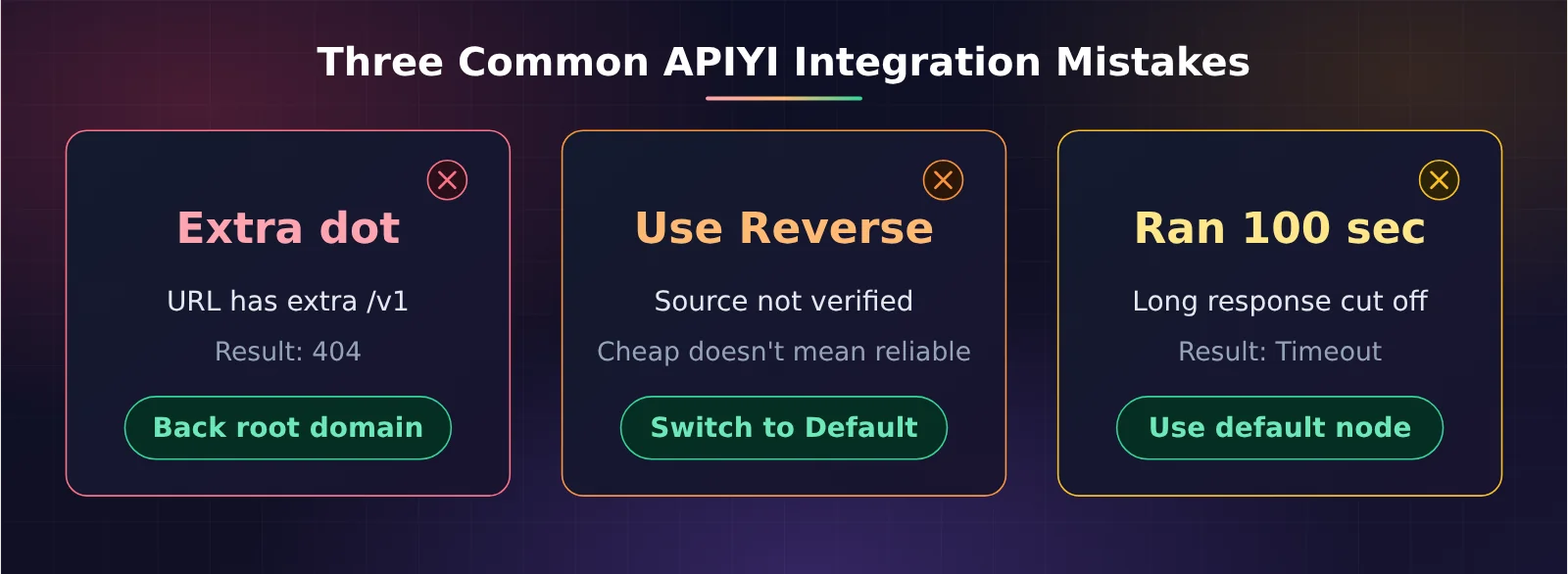
| Endpoint with cf | The address includes cf (check the site for the exact address) | Timeout limit is 100 seconds, and thinking can’t be turned off. Don’t use it for long responses |
If you run into an error, find what you’re seeing in the left column of this table:
| Symptom | Common cause | What to do |
|---|---|---|
| 404 | The Anthropic client added /v1, the OpenAI-compatible client is missing /v1, or there’s an extra trailing slash in the address |
For the Anthropic client, enter https://api.apiyi.com. Only OpenAI-compatible clients should include /v1 |
| Model not found | You entered claude-opus-5.5, claude-opus-5, or an older Gen 4 ID |
Change it to claude-opus-5-5 |
| Agent call failed | The token isn’t in the ClaudeCode group | Create a token in the ClaudeCode group on the Tokens page, then replace the existing token |
| Thinking configuration returns 400 | The request includes disabled |
Remove this parameter. To reduce latency, set effort to low instead |
| Timeout | Your balance is depleted, or the token is disabled | Check your balance and make sure the token is enabled. Then try the domestic backup endpoint; don’t switch to the 100-second endpoint |
| Bill is too high | You selected the enterprise group with 1.2x pricing | Switch back to Default or ClaudeCode |
| Bill is half the expected amount | You selected the Reverse group | Lower cost doesn’t mean you’re using the same stable route. Don’t choose it for a stable setup |
The diagram below shows the three easiest mistakes to make:
When not to use this approach
We recommend avoiding this approach in the following situations:
- The official site is available to you and its monthly subscription is a better deal. Use the official site directly.
- You want to use the claude.ai website. Tokens here can only call the API; they can’t give you access to the official site.
- You want to pay the same price as on the official site. Use the Default group. Don’t choose Reverse to save money, and don’t choose the enterprise group with 1.2x pricing.
- You need to run long tasks. Don’t use the 100-second endpoint with cf; long responses may be cut off.
Frequently asked questions
Q: Can I set effort to high in the graphical interface?
A: This is currently unclear. Whether your software has an effort setting, and what it’s called, depends on the version you’ve installed. This article won’t make up a button name. If you want high-quality results for coding tasks but can’t adjust the setting, make your prompt more specific: say which file to change, what outcome you expect, and what not to touch.
Q: What’s a suitable token limit?
A: Start with a very small limit for your first token. After confirming the model name in the logs, you can increase it. Tokens are billed by usage, so don’t choose an unlimited limit for convenience or set the token to never expire.
Q: What should I do if the model name in the logs doesn’t match the one I selected?
A: The software probably has the wrong model selected, or another model ID is still configured under the same provider. Go back to the model list, keep only claude-opus-5-5, then send a short message to test it again.
Q: Do I need to install both a chat app and Magpie?
A: No. Install a chat app if you only want to chat, Magpie if you only want to code, or both if you want to do both. Use the Default and ClaudeCode token groups for the two apps, respectively.
To wrap up the whole process: first, confirm that the official website isn’t accessible; then register, add funds, and create two tokens. Next, send your first message in the chat app, then connect the coding Agent in Magpie. Finally, use the table above to troubleshoot any issues. Verify each step by checking the model name claude-opus-5-5 in the logs—don’t rely only on whether a reply appears in the window.