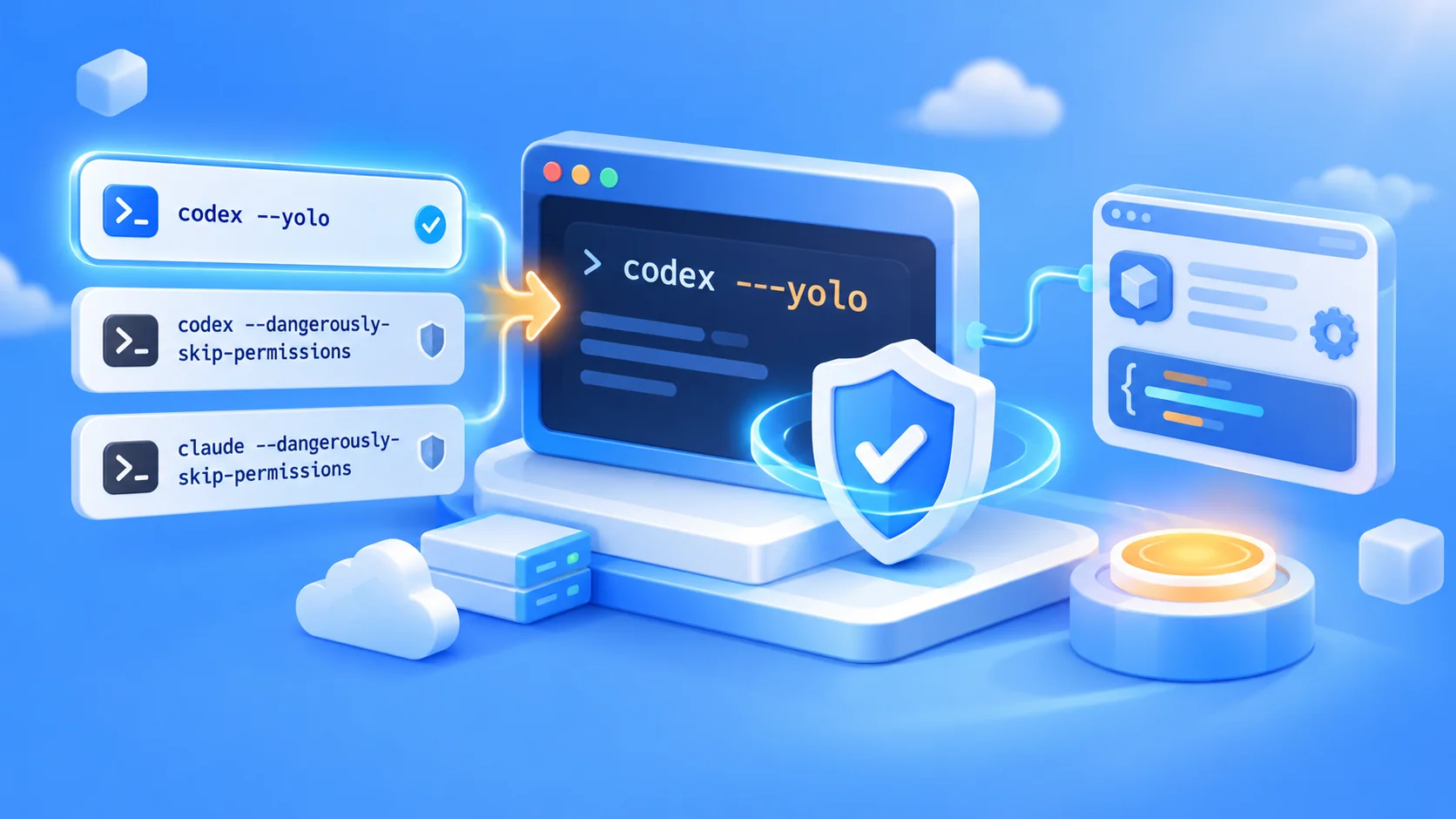
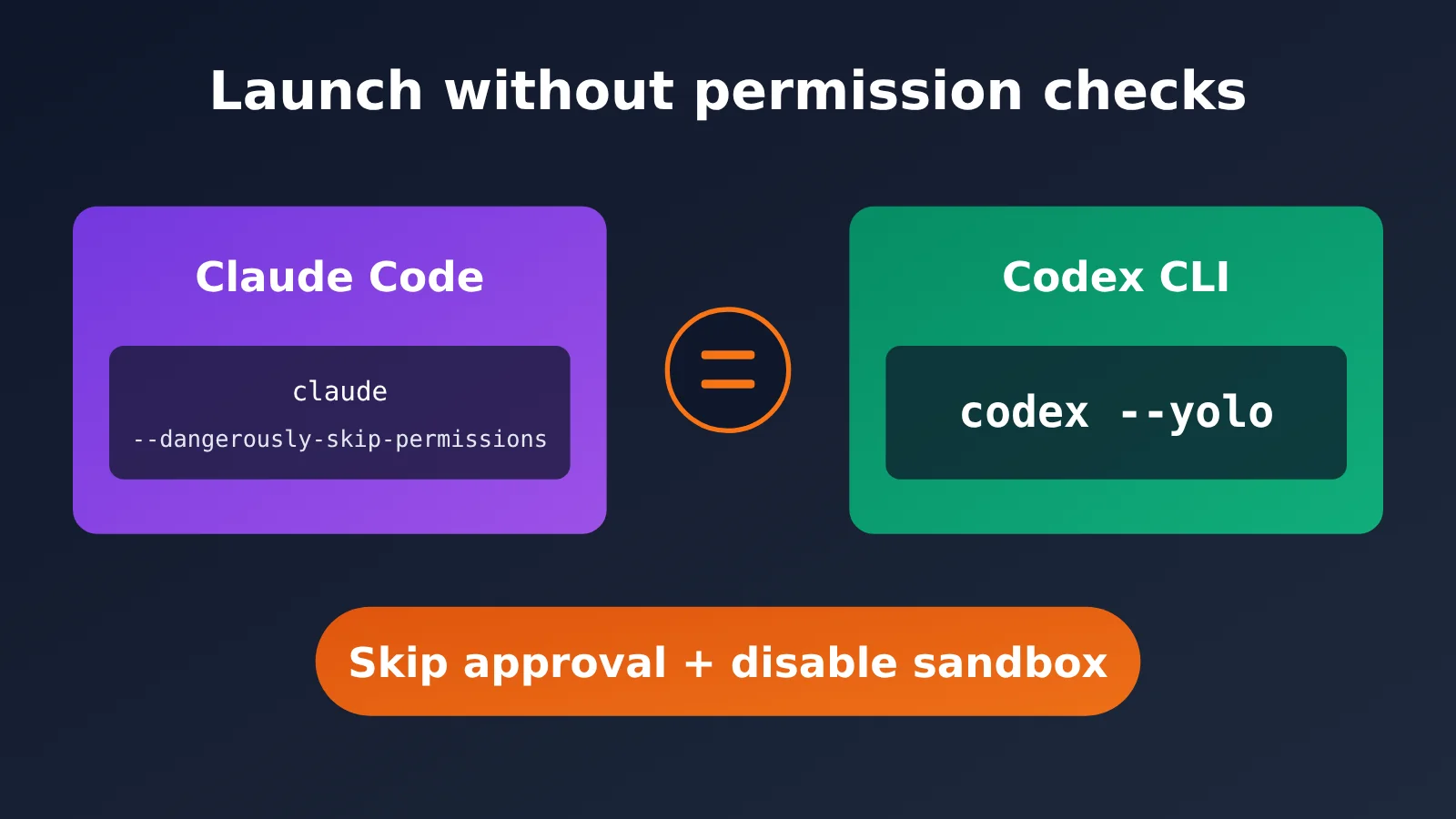
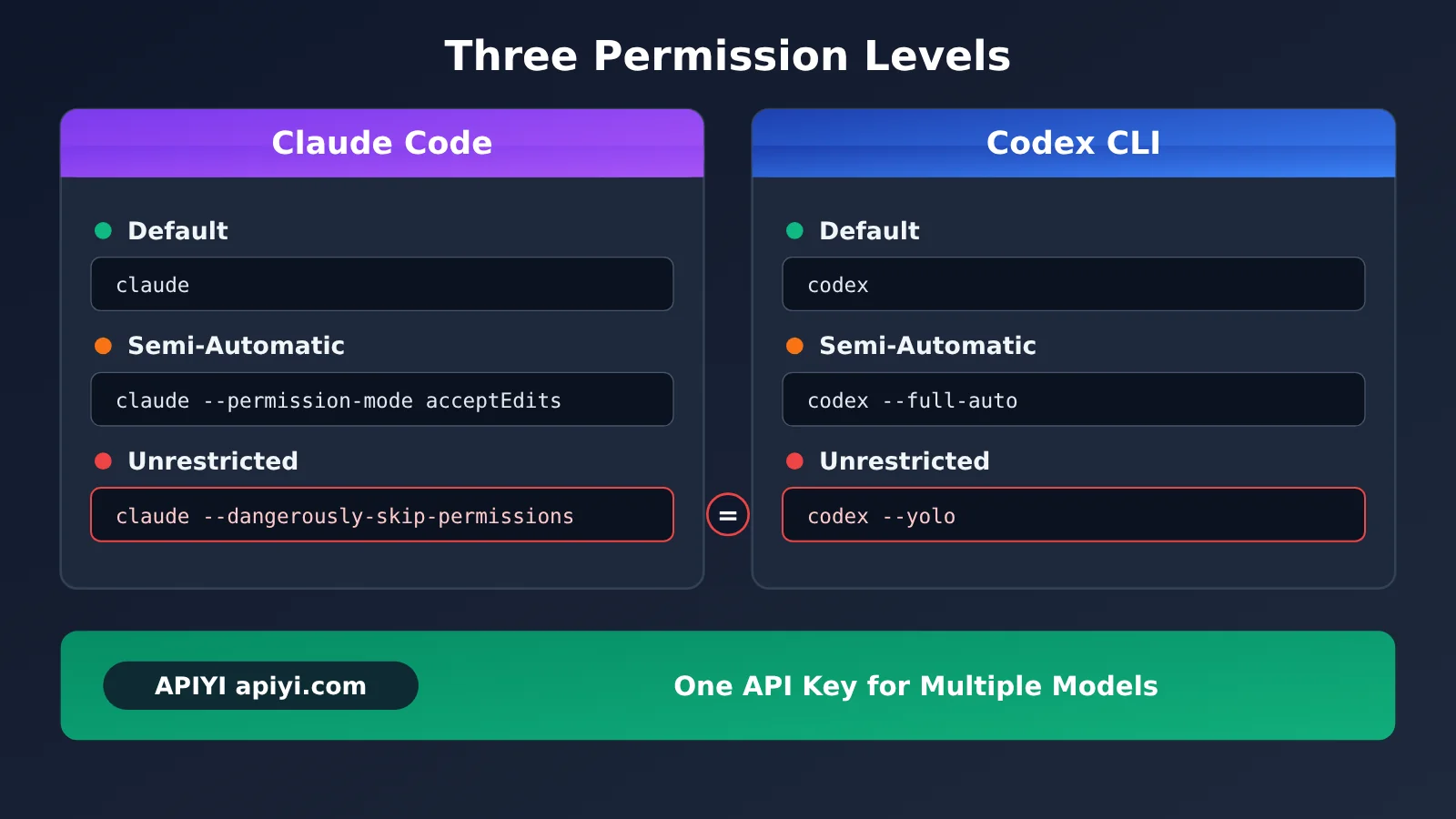
After getting used to claude --dangerously-skip-permissions in Claude Code, the first question that often comes up when switching to OpenAI’s Codex CLI is: What’s the equivalent switch for “skip approvals and get straight to work”? Here’s the answer: codex –yolo, which is shorthand for codex --dangerously-bypass-approvals-and-sandbox.
This isn’t just a quick reference with one command. We’ll explain the permission boundaries, use cases, and safe practices for all three launch options—and show you how to connect to models through the APIYI API proxy service at apiyi.com.
What you’ll get: By the end, you’ll know which launch options fit your development environment, so you can cut down on confirmation prompts without giving AI access where it shouldn’t have it.
Key Points About Codex CLI –yolo
First, here’s a comparison of the commands that fully open up permissions in the two tools:
| Comparison | Claude Code | Codex CLI |
|---|---|---|
| Full command | claude --dangerously-skip-permissions |
codex --dangerously-bypass-approvals-and-sandbox |
| Shorthand | None | codex --yolo |
| Effect | Skips permission prompts and executes actions directly | Skips approval prompts and removes sandbox restrictions |
| Risk level | High; recommended only in trusted environments | High; recommended only in trusted environments |
Codex CLI: Full Command and Shorthand Explained
codex --dangerously-bypass-approvals-and-sandbox and codex --yolo work exactly the same way. The latter is simply shorthand for the former. Once enabled, Codex won’t ask you to approve actions one by one, and it won’t be constrained by the sandbox. It can execute commands, modify files, and access the network directly.
Pay attention to the two keywords in the full command: “approvals” refers to whether Codex asks before executing each command, while “sandbox” refers to the files Codex can access and its network capabilities. The full command names both, which makes clear that it removes two safeguards, not just one.
Here’s one way to think about how this compares with Claude Code: Claude Code’s --dangerously-skip-permissions mainly corresponds to skipping approval prompts, while Codex’s --yolo also disables the sandbox. So in practice, this Codex option grants broader access than its name might suggest.
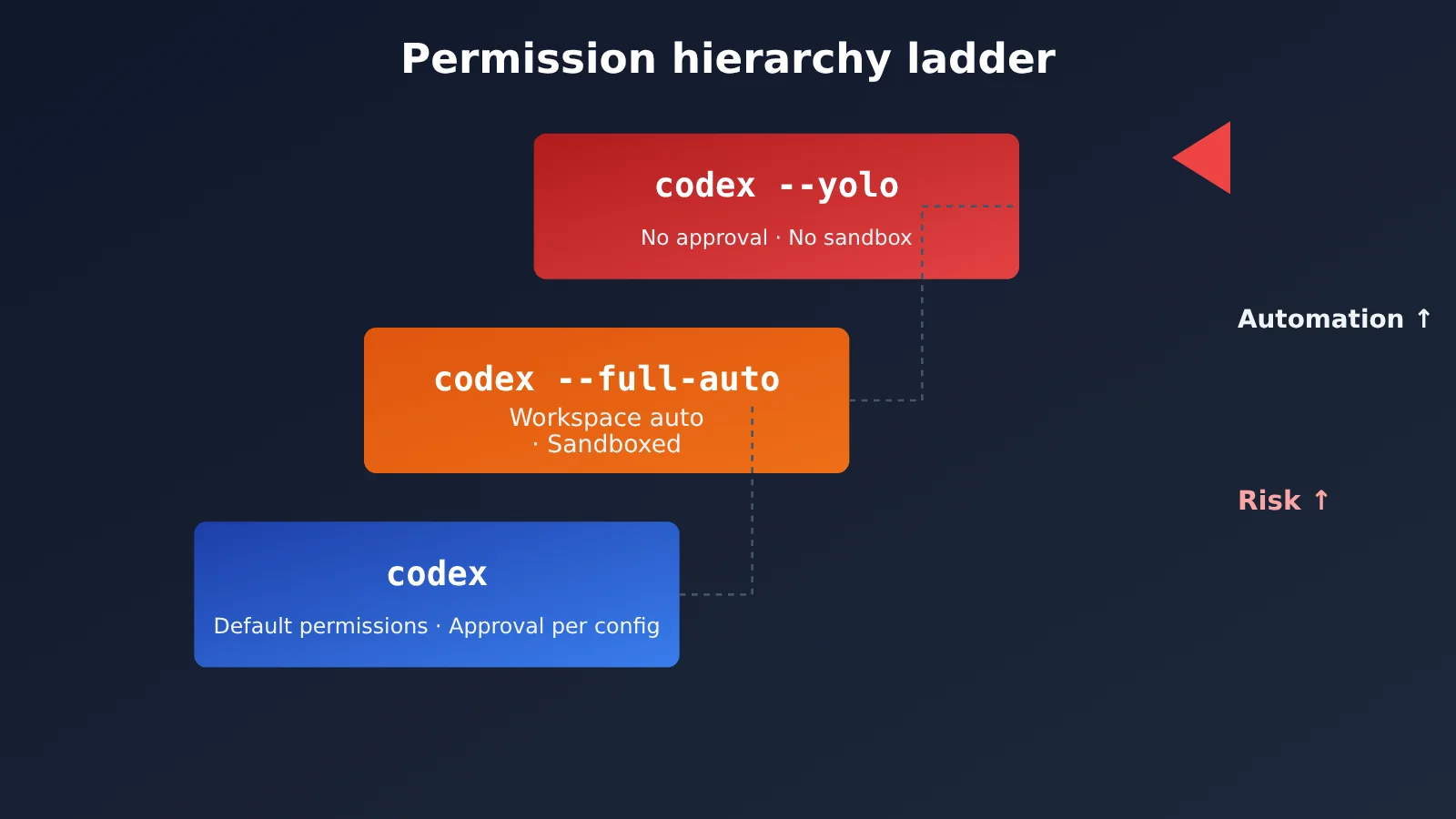
Comparing 3 Ways to Launch Codex from the Command Line
The three most common ways to launch Codex differ in two key ways: whether actions require approval and whether the sandbox remains enabled.
| Command | Permissions | Approval required? | Sandbox restrictions |
|---|---|---|---|
codex |
Default permissions; approvals follow your configuration | Depends on your configuration | Enabled |
codex --full-auto |
Automatically performs actions within the workspace | No step-by-step confirmation required within the workspace | Enabled |
codex --yolo |
Unrestricted permissions | No | Disabled |
codex is the most cautious option. It’s a good fit when you’re exploring an unfamiliar project for the first time or want to review every step yourself. codex --full-auto is the middle ground: Codex can perform actions automatically within the workspace, but it’s still sandboxed. It’s the closest match for “let the AI run on its own, but keep it inside the project directory.” codex --yolo removes those restrictions entirely, making it suitable when your environment is already well isolated and the cost of mistakes is low.
If you want Codex to perform tasks automatically, like Claude Code, but don’t want to disable the sandbox right away, start with codex --full-auto. Once you’ve confirmed that the tasks are reliable and the environment is trustworthy, you can consider --yolo.
You can also configure Codex’s approval policy and sandbox mode separately, so you don’t have to lower both safeguards at once. Check the output of codex --help on your machine and the official configuration documentation for available options, as they may vary between versions.
How to Get Started Quickly with Codex –yolo
Minimal Startup Example
Open your project directory in the terminal and run:
# Full version
codex --dangerously-bypass-approvals-and-sandbox

# Equivalent shorthand
codex --yolo
If you often switch between modes, add a couple of aliases to your shell configuration so you don’t have to type the commands each time:
# Add to ~/.zshrc or ~/.bashrc
alias cx="codex"
alias cxa="codex --full-auto"
alias cxy="codex --yolo"
You can rename the aliases however you like. We recommend making the --yolo alias stand out as a reminder that you’re running with all restrictions disabled.
Connecting to Models Through APIYI
Codex supports custom model providers. If you want to use a single API key to access multiple models, you can connect through APIYI’s OpenAI-compatible API at https://api.apiyi.com/v1.
Here’s an example of how you might configure ~/.codex/config.toml:
# Example custom model provider; check the official configuration docs for your Codex version to confirm the field names
[model_providers.apiyi]
name = "APIYI"
base_url = "https://api.apiyi.com/v1"  # Use APIYI's unified endpoint
env_key = "APIYI_API_KEY"
After configuring this, set your API key in the APIYI_API_KEY environment variable, then point the default provider to apiyi in your configuration. Field names and syntax can vary between versions, so check the official configuration docs before making changes.
View the Complete Python Code for Testing APIYI Connectivity
Before changing your Codex configuration, you can run a small script to check that the key and endpoint work. This helps you avoid confusing a configuration issue with unexpected Codex behavior:
import os
import openai
from typing import Optional


def check_connection(
    prompt: str = "Just reply OK",
    model: str = "gpt-4o-mini",
    system_prompt: Optional[str] = None,
) -> str:
    """
    Send a minimal request to verify that the API key and base_url are working

    Args:
        prompt: User input
        model: Model name
        system_prompt: Optional system prompt

    Returns:
        The model response or an error message
    """
    client = openai.OpenAI(
        api_key=os.environ.get("APIYI_API_KEY", "YOUR_API_KEY"),
        base_url="https://api.apiyi.com/v1",  # APIYI's unified endpoint
    )

    messages = []
    if system_prompt:
        messages.append({"role": "system", "content": system_prompt})
    messages.append({"role": "user", "content": prompt})

    try:
        response = client.chat.completions.create(
            model=model,
            messages=messages,
            max_tokens=50,
        )
        return response.choices[0].message.content
    except Exception as e:
        return f"Error: {str(e)}"


if __name__ == "__main__":
    print(check_connection())
Tip: Get free testing credits through APIYI at apiyi.com. First, try
codex --full-autoon a small project, then decide whether you need--yolo. One API key gives you access to leading models such as OpenAI, Claude, and Gemini, making it easy to compare how they perform on automated tasks.
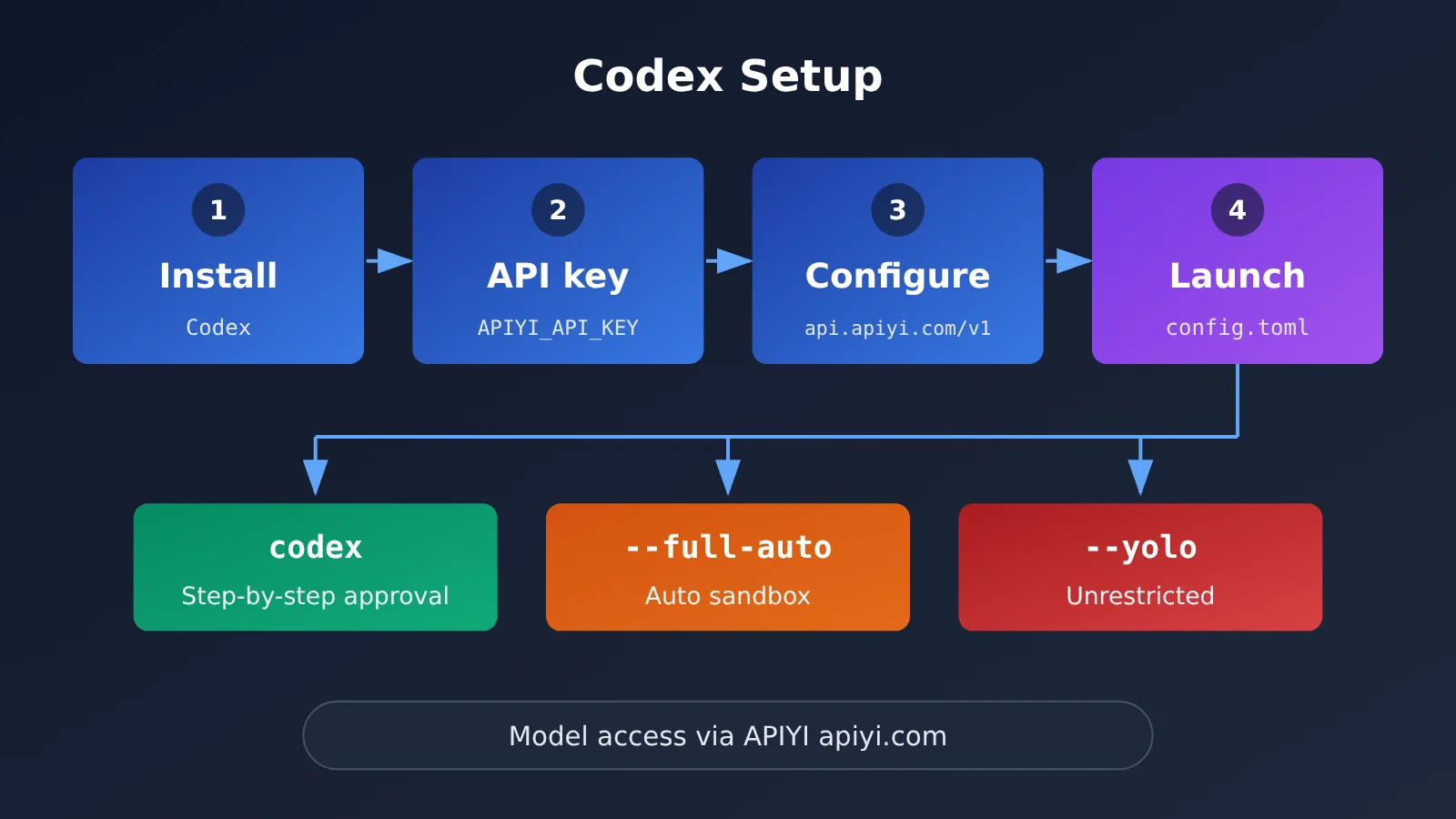
When to Use Codex –yolo: Choosing the Right Scenario
The right launch mode depends on three things: whether you trust the environment, whether you can roll back changes, and whether the task needs network access. Here are some recommendations for common scenarios:
| Scenario | Recommended launch mode | Reason |
|---|---|---|
| Opening an unfamiliar project for the first time | codex |
First see what Codex plans to do, then grant permissions gradually |
| Developing your own project locally on a Mac | codex --full-auto |
Runs automatically within the workspace while keeping the sandbox in place—a good balance between efficiency and safety |
| Batch tasks in a disposable container or virtual machine | codex --yolo |
The environment can be discarded, so the cost of granting broad permissions is low |
| A directory containing production credentials or database connections | codex |
Don’t let automation touch resources where mistakes can’t be undone |
| An experimental project that frequently needs to install dependencies online | codex --yolo (in a trusted environment) |
Disabling the sandbox allows direct network access and avoids interruptions |
The logic behind this table is simple: --yolo means “no interruptions,” but it also means “no safety net.” So the more easily an environment can be rolled back or discarded, the better suited it is to --yolo. If a directory contains real credentials or production resources, keep approvals or the sandbox in place.
Codex –yolo Safety Checklist
Without approvals or sandboxing, Codex can do anything you can do from your terminal: delete files, rewrite configurations, and make network requests without being blocked. That’s why it’s worth taking a few extra precautions before and after using it:
| Risk | Possible consequence | Recommended safeguard |
|---|---|---|
| Accidental file deletion or modification | Project code is lost | Commit your changes to Git before you start so you can roll back at any time |
| Exposure of sensitive credentials | Keys are read or sent elsewhere | Don’t run Codex in directories containing keys, or clear the relevant environment variables first |
| Running unknown scripts | Malicious dependencies are introduced | Use Codex only in trusted projects, and check the source before installing dependencies |
| Unrestricted network access | Data is sent to an unexpected destination | Run Codex in an isolated environment and, if needed, restrict access at the network level |
| Vague task instructions | AI performs actions beyond the intended scope | Clearly define the task’s scope and break it into smaller steps |
Here are a few more tips to keep in mind:
- Run
codex --full-autofirst to see how Codex works, then decide whether to switch to--yolo. - Limit
--yoloto a container, virtual machine, or dedicated development machine. Avoid running it in your home directory on your everyday work computer. - Create a Git checkpoint before each task. When it’s done, review the changes with
git diffand decide whether to keep or revert them. - Break tasks into smaller steps. The broader the instructions, the more likely AI is to take unexpected actions when no one is supervising it.
How to Use Codex CLI Alongside Claude Code
Many developers don’t choose just one—they run Codex and Claude Code on the same machine. The two tools take a similar approach to relaxing permission restrictions, so you can carry over the same habits:
- Everyday development: Use Claude Code with its default permissions, and Codex with
codexorcodex --full-auto. - Isolated environments: Use Claude Code with
--dangerously-skip-permissionsand Codex with--yolo. - Collaborative troubleshooting: Have one tool write the code and the other review it. Start both with a clean Git working tree.
If you need to use multiple models, such as OpenAI, Claude, and Gemini, managing your keys through APIYI apiyi.com can make things easier: one API key and an OpenAI-compatible interface let you switch models without reconfiguring your entire environment. Pay-as-you-go pricing also makes it easy to track costs based on your actual usage.
Frequently Asked Questions (FAQ)
Q1: What’s the Codex CLI equivalent of `claude –dangerously-skip-permissions`?
The equivalent command is `codex –dangerously-bypass-approvals-and-sandbox`, or, in shorthand, `codex –yolo`. Both work the same way: they skip approval prompts and remove sandbox restrictions, allowing Codex to run commands, modify files, and access the network directly.
Q2: What’s the difference between `codex –yolo` and `codex –full-auto`?
`–full-auto` automatically performs actions within the workspace, but still enforces sandbox restrictions. `–yolo` removes all restrictions: no approvals and no sandbox. The first is like “go ahead within the project directory”; the second is “go ahead with everything.”
Q3: Which option should I use for local Mac development?
If you want tasks to run automatically, as they do in Claude Code, use `codex –full-auto`. Only use `codex –yolo` when you really need to remove all restrictions, and try to confine it to a trusted development environment.
Q4: What are the best use cases for `codex –yolo`?
It’s mainly suited to these scenarios:
– **Disposable containers or virtual machines**: The environment can be discarded, so even if something goes wrong, the host machine won’t be affected.
– **Experiments you can roll back**: The code is already committed to Git, so you can restore it at any time.
– **Tasks that involve a lot of network activity**: For example, installing dependencies in bulk or downloading resources without repeated sandbox interruptions.
Q5: How can I quickly connect Codex to models through APIYI?
Follow these steps:
1. Visit APIYI at apiyi.com and create an account.
2. Get an API key and free testing credits.
3. Set the endpoint to `https://api.apiyi.com/v1`, then configure a custom provider using the official configuration guide for your version of Codex.
APIYI provides OpenAI-compatible APIs and supports leading models from OpenAI, Claude, Gemini, and others, making it easy to compare and switch models with the same configuration.
Q6: What are the known risks of using `–yolo`?
The biggest risk is that there are no safeguards: commands run without approval, and the sandbox no longer restricts file access or network activity. Files could be deleted by mistake, sensitive credentials could be read, or unknown scripts could be run. Commit your work to Git beforehand, use an isolated environment, and break tasks into smaller steps.
Q7: Is there a more granular way to control access without removing all restrictions?
Yes. You can adjust the approval policy and sandbox mode separately, rather than turning both off at once. Check the output of `codex –help` on your machine or refer to the official configuration guide for available options, since supported values may vary by version.
Codex CLI --yolo: Key Takeaways
- Command equivalent: Claude Code’s
--dangerously-skip-permissionsiscodex --yoloin Codex. - Full flag:
codex --dangerously-bypass-approvals-and-sandboxhas the same effect as--yolo. - What it bypasses: It skips approvals and disables the sandbox, so it grants more access than the name might suggest.
- Recommended starting point: For local development, start with
codex --full-auto. The sandbox stays enabled, balancing efficiency and safety. - Safety baseline: Use
--yoloonly in trusted, reversible, and disposable environments, and commit your work to Git first. - Model access: Use the
https://api.apiyi.com/v1endpoint from APIYI (apiyi.com) to access multiple leading models with a single API key.
Summary
The Codex CLI equivalent of claude --dangerously-skip-permissions is codex --yolo, whose full flag is codex --dangerously-bypass-approvals-and-sandbox. It helps to think of the permissions in three tiers:
codex: Uses the default permissions and approval settings. Suitable for unfamiliar projects and sensitive directories.codex --full-auto: Runs automatically within the workspace but remains sandboxed. Suitable for everyday local development.codex --yolo: Removes all restrictions. Suitable for trusted, isolated, and reversible environments.
A good approach is to loosen permissions gradually: start with the default mode to get familiar with Codex’s behavior, switch to --full-auto when you want to move faster, and use --yolo only when you truly need it. For a quick way to test model access, try APIYI (apiyi.com), which offers free testing credits and a unified interface for multiple models.
References
- OpenAI Codex Configuration Documentation: Official configuration guide
- Link:
developers.openai.com/docs/config-file/config-basic - Note: Check the latest configuration options for startup parameters, approval policies, and sandbox modes. The available options may vary by version.
Author: APIYI Technical Team
Technical support: Contact us on the APIYI homepage. For more resources, visit the documentation center at docs.apiyi.com.