
Author’s note: This article is for developers already using Claude Code, Codex, or OpenCode on a computer. It walks through eight steps to connect a coding agent to your phone, covering remote access options, permission modes, Claude usage limits, and how to connect through the APIYI gateway.
You’ve stepped away from your desk, a task is still running, and you can’t approve a command. If you use coding agents heavily, you’ve probably been there. This article covers T3 Code remote control from your phone, so you can manage the agents already installed on your computer in one place.
This isn’t another “install it and you’re done” beginner’s guide. Installation is straightforward. Permission modes and network routes are where things tend to go wrong, so we’ll cover both in detail.
Before you start, here are four things to know:
- Goal: Connect the coding agents already installed on your computer to your phone, so you can start tasks, check progress, approve commands, and review diffs on the go.
- Time: About 15–25 minutes for initial installation and pairing, including installing a CLI, signing in, and pairing. Once you’re familiar with the process, setting up another machine takes about 5 minutes.
- Prerequisites: A computer or VPS that stays powered on; at least one CLI you’ve signed in to (Claude Code, Codex, or OpenCode); the T3 Code app installed on your phone; and network access to GitHub and npm.
- Difficulty: Intermediate. The tricky parts aren’t installation, but permission modes and network routes.
T3 Code: What Problem Does It Actually Solve?
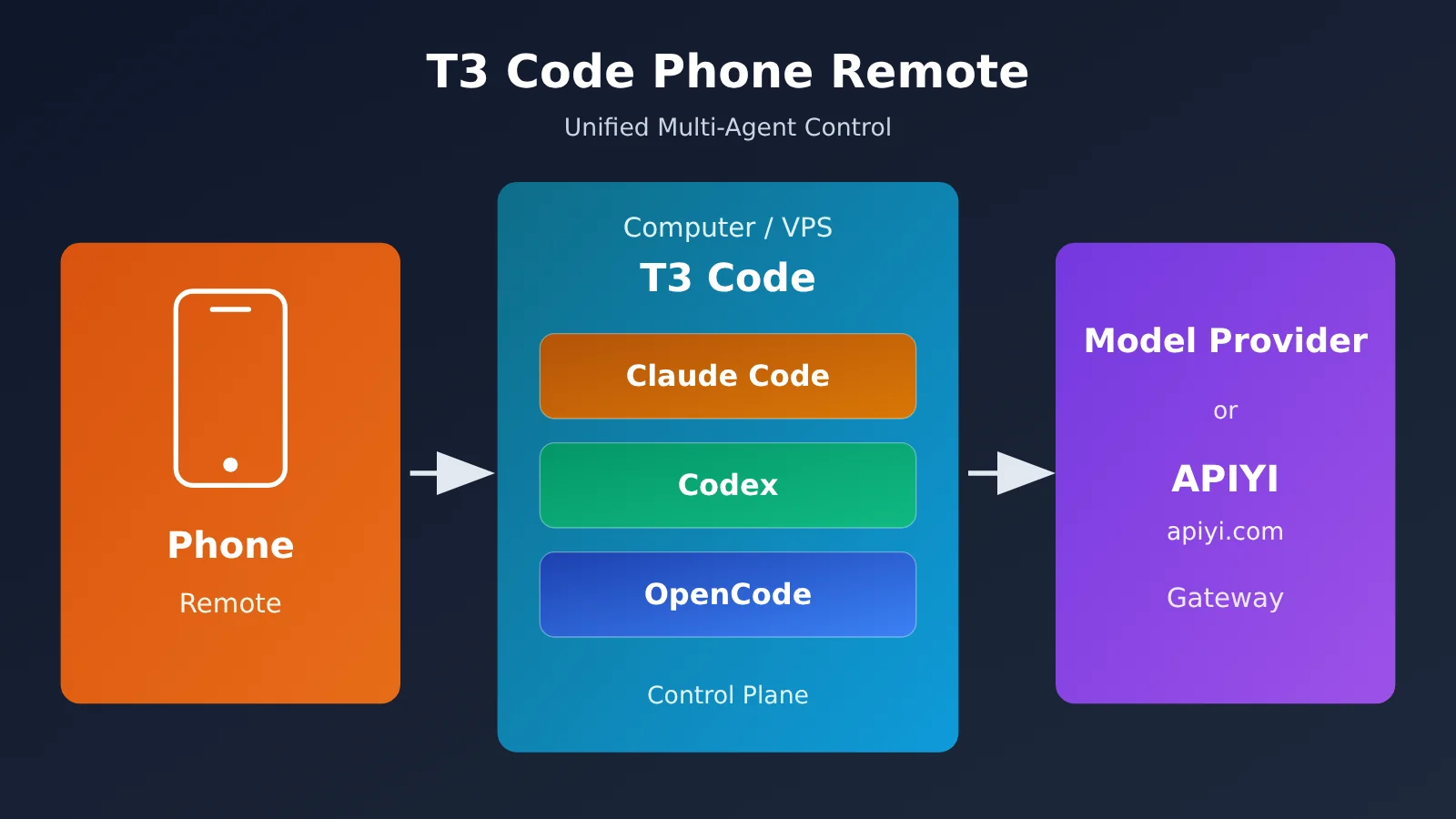
In short, T3 Code isn’t another coding agent. It’s a single remote control for the agents you already use. If you only use one agent and already have a Claude Pro or Max subscription, the official Remote Control is simpler—there’s no need to add another layer.
The project describes itself as an agent harness control surface: a control panel for agent harnesses. It doesn’t run models itself. Instead, it calls tools you’re already logged into on your machine—such as Claude Code, Codex, OpenCode, Cursor, Grok Build, and Google Antigravity—and uses their respective harnesses.
| Key point | What it means | Why it matters to you |
|---|---|---|
| Control surface only | Drives CLIs you’re already logged into locally | You still pay the providers for model usage |
| Cross-platform | iOS, Android, web, and desktop | Your phone becomes a remote control |
| Free and open source | MIT license; the project says it doesn’t charge | You can fork it if you’re not happy with it |
| Very early stage | The current stable release is v0.1.3 | Expect bugs |
Three important limitations to understand before using it:
- It doesn’t provide models or usage credits, and it doesn’t support local models. The project team believes models that can run locally aren’t capable of serious engineering work. If your computer is off or your CLI isn’t logged in, the mobile app can’t do anything.
- The project is at a very early stage. In the team’s own words: “We are very very early in this project. Expect bugs.” External contributions aren’t accepted in most cases right now. Small fixes may be considered, but major features aren’t accepted.
- New threads default to Full access. That effectively turns off all approval prompts. Before using it remotely, make sure to change that default.
Getting Started with T3 Code: 8 Steps
Each step tells you whether to use your computer or phone and includes a check to confirm it’s working. Complete the check before moving on to avoid unnecessary detours.
Step 1 (Computer): Install the CLI and Log In
Each CLI has its own login process. Complete the steps that apply to you:
- Claude Code: After installation, run
claude auth login. - Codex: Run
codex login. You can also wait and authorize directly with your ChatGPT plan during the T3 Code setup process. - OpenCode: You need version
1.14.19or later. If you’re using 2.x, you need2.0.18or later. The package name is@opencode/cli.
Check: Run the CLI directly in your terminal and confirm that you can complete a conversation.
Step 2 (Computer): Install T3 Code
Choose either the command-line version or the desktop app:
- macOS / Linux command line: Run
curl -fsSL https://t3.codes/install.sh | sh. The program installs to~/.local/bin. - Windows PowerShell: Run
irm https://t3.codes/install.ps1 | iex. - Try it without installing: Run
npx t3@latest. You’ll need Node.js installed. - Desktop app: Run
winget install T3Tools.T3Codeorbrew install --cask t3-code.
Check: Your terminal recognizes the t3 command, or the desktop app opens successfully. Note that there’s no t3 command-line version for Intel Macs; you’ll need to use the desktop app.
Step 3 (Computer): Start the T3 Code Service
- Run
t3to start the service and open the local web page. - Run
t3 serveto start the service without opening the page. - Run
t3 service installto keep the service running in the background on macOS / Linux. This is recommended if you need long-term remote access.
Check: The local web page shows the providers it has detected. If a CLI doesn’t appear, go back to step 1 and check that you’re logged in.
🚀 Quick start: If you don’t have a subscription yet, you can claim free testing credits at APIYI apiyi.com. Later in this guide, we’ll walk through connecting a Claude instance to the gateway, so you can complete the entire setup without a subscription.
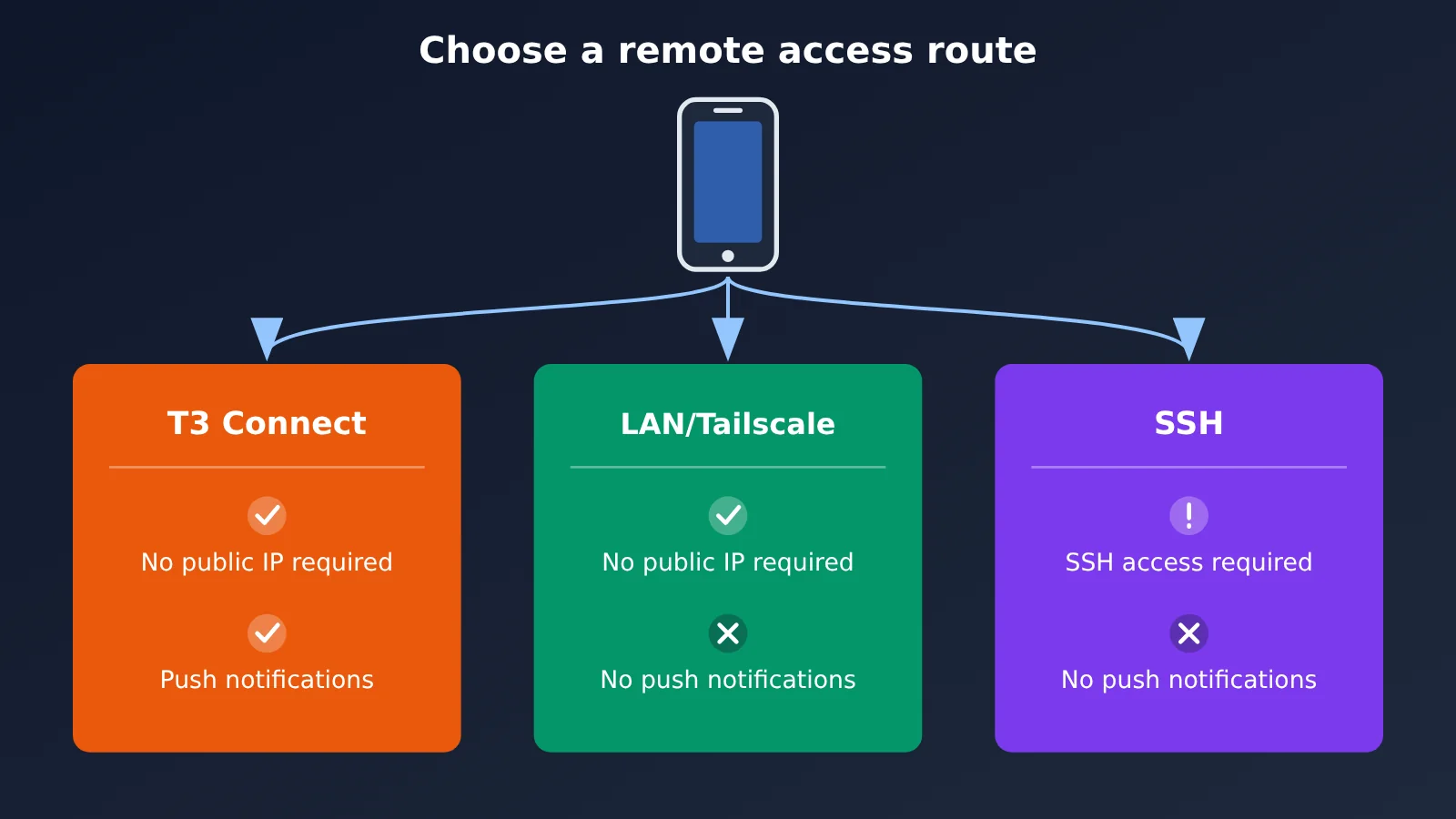
Step 4 (computer): Choose a T3 Code remote connection route
This step determines how your phone connects to your computer and whether it can receive push notifications.
| Route | Best for | Requires public internet access? | Phone push notifications? |
|---|---|---|---|
| T3 Connect | Most people; the easiest option | No | Yes, only through this route |
| LAN / Tailscale direct connection | Using it at home or on the same private network | No | No |
| Desktop-managed SSH | A remote Linux or Apple Silicon Mac server | SSH access required | No |
Here’s how to enable each route:
- T3 Connect (desktop app): Sign in under Settings → Connections and enable it for the current environment.
- T3 Connect (command line): Run
t3 connect. Signing in alone doesn’t start the service; it must be running for your phone to connect. - LAN direct connection (command line): Run
t3 serve --host <private-ip>. If the service is already running, uset3 pairto generate a new pairing link. - Tailscale: Run
t3 serve --tailscale-serveort3 pair --tailscale. - SSH: Enter
[email protected]under Settings → Environments → Add environment → SSH.
Common pitfall: The local loopback address 127.0.0.1 is accessible only from the device itself. Your phone won’t be able to connect using a link generated with that address.
Check: You have a pairing link or QR code that your phone can reach over its network, or T3 Connect shows the machine as online.
Step 5 (Phone): Pair T3 Code
Search for “T3 Code – Remote Claude & more” in the App Store, or install T3 Code from Google Play. If you’re using T3 Connect, sign in to the same account on your phone, then select your machine. If you’re connecting directly, scan the QR code or paste the pairing link into Add environment.
Pitfall 2: Pairing links and authorization codes are equivalent to passwords. Don’t share screenshots of them or paste them into logs or bug reports. If you suspect one has been exposed:
- Run
t3 auth session listto view your current sessions. - Run
t3 auth session revoke <id>to revoke any suspicious sessions. - If you’re using the desktop app, you can also revoke sessions and unused links under Settings → Sharing & access.
Check: You can see the machine on your phone and browse its project files.
Step 6 (Phone): Create a Thread and Select Supervised
When you create a thread, the permission mode defaults to Full access. Manually switch it to Supervised—don’t skip this step the first time you use it. See the next section for the differences between permission levels.
Check: The permission shown at the top of the thread is Supervised.
Step 7 (phone): Approve a command
Choose a disposable repository and start a test task: create a new text file, then run a read-only command. To receive approval notifications, you need to do three things: sign in to T3 Connect, connect your environment, and turn on Device Notifications under Settings → Notifications.
Success check: Your phone receives an approval request. After you approve it, you can see the execution result and the corresponding diff. If there’s an action you don’t want to run, you can type a refusal in the conversation and explain why—Claude supports this.
Step 8 (computer): Check the diff
Back at your computer, run git status and git diff in the repository to confirm the changes match what you saw on your phone.
Success check: The new file exists, and there are no unexpected changes. At this point, you’ve verified the entire workflow.
T3 Code Permission Modes Explained
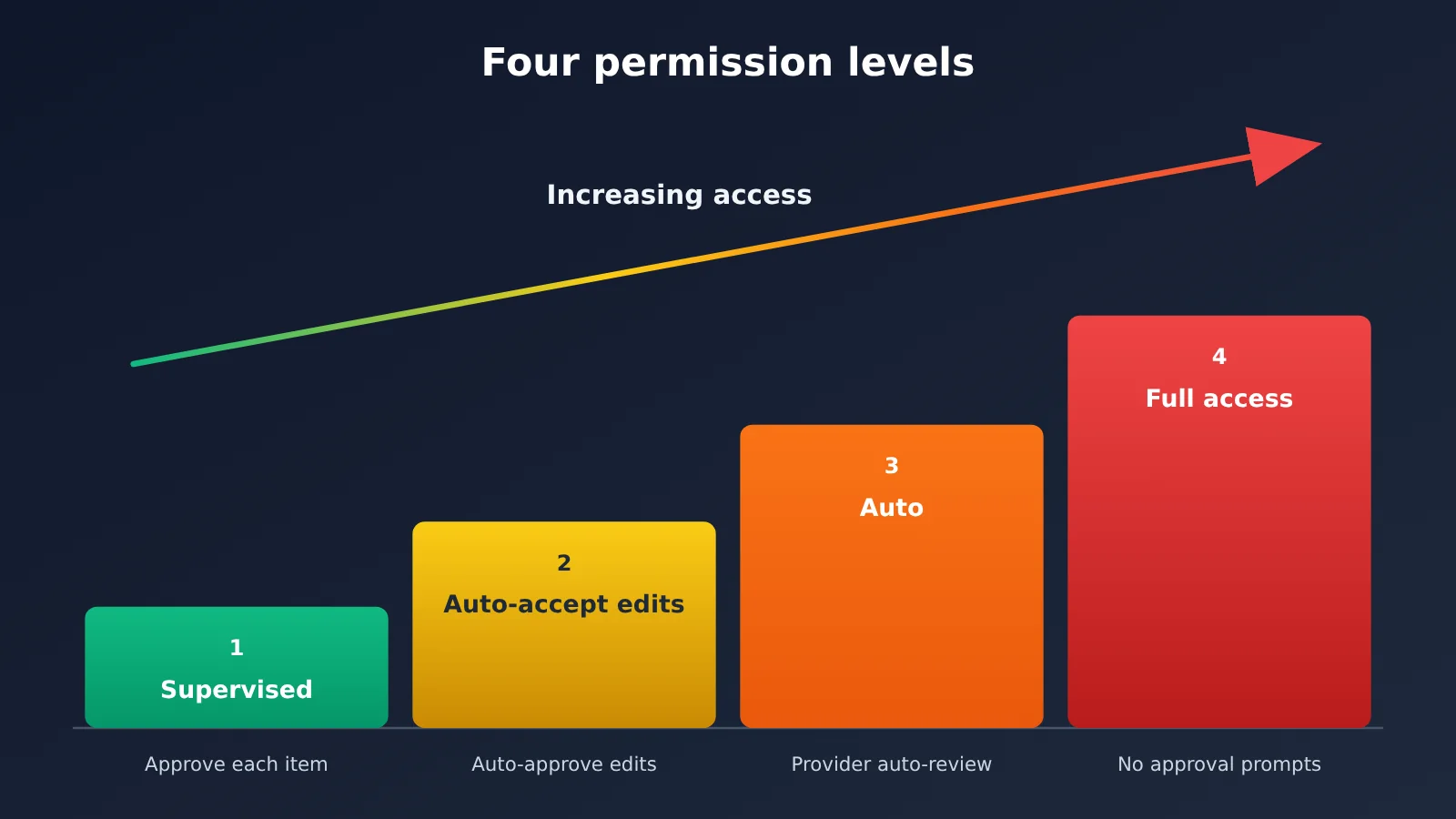
This is the most important section of the tutorial to read carefully. When you’re working remotely and away from your computer, the permission mode determines what the agent can do.
| Mode | What’s Allowed | Remote Use Recommendation |
|---|---|---|
| Supervised | Commands and file changes each require approval | Use this for your first session |
| Auto-accept edits | File edits are approved automatically; other actions may still require approval | Use once you’re familiar with the workflow |
| Auto | The provider’s built-in automatic review approves routine actions | Depends on the provider |
| Full access | Commands and edits run without approval prompts | Initial default for new threads; use with caution remotely |
You can change the default under Settings → Threads → New threads → Permissions. Project-level settings can override the environment default. Existing threads, as well as threads where you selected a mode in the draft, retain their own permission settings.
Behavior varies by provider:
- OpenCode and Antigravity don’t have equivalent automatic review capabilities, so Auto mode falls back to asking for approval on each action. For OpenCode, the Auto rules are identical to Supervised.
- Even in Full access mode, Claude may still ask for approval if its own settings disable bypass permissions.
- Grok doesn’t have an Auto-accept edits mode.
Practical tip: When you’re starting out, change the default to Supervised, then follow step 7 to run a test task: create a text file and run one read-only command. Once you’ve confirmed that your phone receives the approval requests, diff, and execution results, you can consider relaxing the permissions.
The Quota Gotcha When Running Claude in T3 Code
T3 Code runs Claude through Anthropic’s Agent SDK. On 2026-10-25, the author confirmed that there’s a real bug on Anthropic’s side: usage through the Agent SDK consumes the 5-hour quota faster than using Claude Code directly, though it doesn’t affect the weekly quota. The issue has been reported to Anthropic, but a fix hasn’t been confirmed yet.
It’s not T3 Code’s fault, but you’re the one footing the bill. If you’re relying on a subscription and use T3 Code to run Claude every day, factor this into your costs.
Connecting T3 Code to the APIYI Gateway: An Alternative Without a Subscription
If you don’t have a Claude subscription, or don’t want the Agent SDK eating into your subscription’s 5-hour quota, you can configure a separate Claude instance in T3 Code that uses the APIYI apiyi.com gateway with pay-as-you-go billing.
| Model | Input | Output | Cache Read |
|---|---|---|---|
claude-opus-5-5 |
$4 | $20 | $0.2 |
claude-sonnet-5-5 |
$2 | $10 | $0.1 |
claude-haiku-5-5 |
$0.1 | $0.5 | $0.01 |
Prices are in US dollars per million tokens. Haiku uses tiered pricing: when a single input exceeds 100K tokens, input is billed at $0.5 per million tokens. Check the model list on APIYI apiyi.com for current models and prices.
Keep in mind that pay-as-you-go costs can add up quickly for coding and other tasks involving long contexts and deep exploration. If you’re a heavy user and can connect directly to the official service, an official subscription usually offers better overall value. If network restrictions are an issue, or you’d rather pay only for what you use, the API route may be a better fit.
Here’s how to set it up:
- Create a separate configuration directory, for example,
mkdir -p ~/.claude_apiyi. - In T3 Code’s Settings → Providers, create a Claude instance and point
CLAUDE_CONFIG_DIRto that directory. - Under the instance’s Environment variables, set
ANTHROPIC_BASE_URLtohttps://api.apiyi.com. - Set
ANTHROPIC_AUTH_TOKENto a token created in the APIYI apiyi.com console, and mark it as sensitive. - Explicitly set
ANTHROPIC_API_KEYto an empty value. - If the directory contains cached Anthropic login credentials, run
/logoutonce in that directory first to avoid a conflict.
This follows the same approach described in the OpenRouter and “Other Routing” sections of the official T3 Code documentation, and it’s an officially supported configuration.
Money-saving tip: The ClaudeCode group on APIYI apiyi.com offers a 5% discount by default, which can be combined with bonus credits from top-up promotions. For use cases like Claude Code, we recommend using a token from this group.
Troubleshooting: For Claude’s native format, the Base URL must be just the root domain, https://api.apiyi.com. If you append /v1, the request URL becomes /v1/v1/messages, resulting in a 404 error.
Codex and OpenCode can also point to the gateway: update ~/.codex/config.toml for Codex, or use a custom provider for OpenCode. For both, use the OpenAI-compatible URL https://api.apiyi.com/v1. See the relevant pages in the APIYI documentation at docs.apiyi.com for configuration details.
T3 Code vs. Official Mobile Remote Control Options
Both providers have launched mobile remote control features, but it’s worth understanding their limitations first.
| Option | Prerequisites | Main limitations |
|---|---|---|
| Claude Code Remote Control | Pro / Max / Team / Enterprise subscription | Doesn’t support API keys; unavailable when ANTHROPIC_BASE_URL points to a gateway or proxy |
| Codex on mobile | Connect a linked Mac or Windows machine in the ChatGPT app | Availability depends on the phased rollout and workspace settings |
| T3 Code | A CLI that’s already logged in on your computer | Early-stage project; you’ll need to handle permissions and networking yourself |
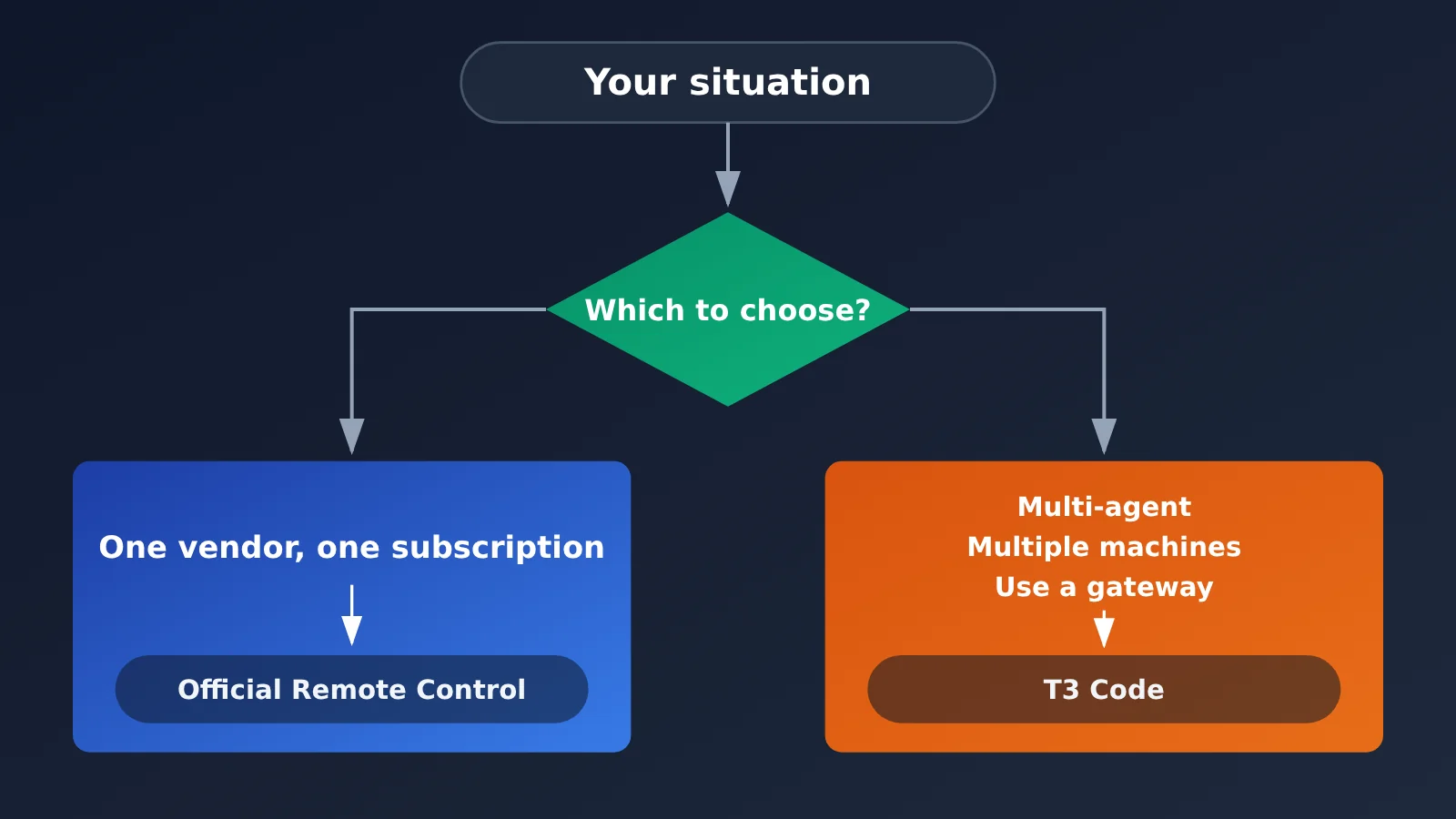
Bottom line: The official options are a good fit if you use one provider and one subscription. T3 Code is better suited to users who work with agents from multiple providers, manage multiple machines, or already use a gateway for model invocation.
Risks and Account Bans Are Your Responsibility
- T3 Code is a third-party open-source tool and isn’t affiliated with any model provider.
- The default Full access setting means an agent can modify files and run commands even when you’re away from your computer.
- Pointing T3 Code at a third-party gateway is a personal choice. Check each provider’s official subscription terms; you’re responsible for any resulting account restrictions or bans.
- Don’t rotate between multiple accounts or switch accounts. The official T3 Code FAQ explicitly says it doesn’t offer automatic account switching because of the risk of account bans.
- T3 Connect is currently free, but the official wording says “for now.” Each account can connect up to 3 machines (phones and browsers don’t count toward the limit), and the rules may change in the future.
T3 Code FAQ
Q1: Can I work using just my phone, without a computer?
No. As the official documentation puts it, “The phone is a remote.” Tasks run on your computer, so it must stay on, the CLI must remain logged in, and the network connection must stay active. If you need 24/7 availability, you can run T3 Code on a VPS instead.
Q2: Can I use T3 Code without a subscription?
Yes. Follow the steps above to create a separate Claude instance and connect it to a gateway. You can sign up through APIYI at apiyi.com to get free test credits, verify that the entire setup works, and then decide whether to use it long-term.
Q3: Can I receive push notifications on my phone?
Push notifications are only available through T3 Connect. Neither direct connections nor Tailscale sends them. Android requires version 7.0 or later and Google Play services. If you force-stop the app in your system settings, notifications will stop until you reopen it.
Q4: Why is my Claude usage allowance dropping so quickly?
This is a bug on the Agent SDK side that causes the five-hour allowance to be consumed faster, but it doesn’t affect the weekly allowance. The author has reported it to Anthropic, but a fix hasn’t been confirmed yet.
Q5: What are the OpenCode version requirements?
For 1.x, you need `1.14.19` or later. For 2.x, you need `2.0.18` or later. Don’t install both 1.x and 2.x on the same machine. Also, T3 Code’s update button won’t upgrade 1.x to 2.x.
Q6: Does it work on Windows?
Yes. In Settings → Sharing & access, select a WSL distribution to run the agent. You’ll also need to install each provider’s CLI in that distribution. One more note: Intel Macs don’t have a `t3` command-line version, so they can only use the desktop app.
Q7: What should I do if my pairing link is exposed?
Run `t3 auth session list` immediately to review your sessions, then use `t3 auth session revoke
T3 Code Key Takeaways
- Role: T3 Code is a shared remote control for multiple agents; it doesn’t provide models itself.
- Remote access: Only T3 Connect can receive push notifications. Your phone can’t access
127.0.0.1on your computer. - Permissions: New threads default to Full access. Switch to Supervised before your first use.
- Usage limits: Using the Agent SDK consumes Claude’s five-hour usage allowance faster.
- Gateway: For Claude’s native API format, enter only the root domain as the Base URL—don’t append
/v1. - Choosing a setup: Use the official solution if you have a single subscription; use T3 Code if you work with multiple agents or machines.
Summary
The challenge with T3 Code isn’t installation. It’s choosing the right remote access setup, tightening permissions first, and understanding your usage costs. Follow the eight steps in a disposable repository to try the full workflow once: approve a command on your phone, then check the diff on your computer. Once you’re comfortable, start using it in production projects.
If you don’t have a subscription, or want to keep Claude API usage separate from your subscription allowance, consider configuring a separate Claude instance through APIYI at apiyi.com. You’ll pay as you go and can use the ClaudeCode group discount.
Author: APIYI Technical Team
Technical questions: Contact us through the APIYI homepage, or visit the documentation center for more configuration details.