Author's Note: This is a complete guide to Claude Schedule for beginners, covering how to set it up via Web, Desktop, and CLI, explaining the differences between /schedule and /loop, and recommending 15 high-value cloud-based scheduled tasks.
Claude's Schedule feature is the most "worry-free" capability of 2026—you set it once, and it executes automatically in the cloud, even when your computer is turned off. No cron scripts, no servers, and no need to keep your terminal open. However, many beginners are confused about how to create them, how they differ from /loop, and what tasks are actually worth scheduling. This article will walk you through everything from scratch.
Core Value: Learn to create a Claude Schedule in 15 minutes and get 15 high-value cloud-based task recommendations to let Claude work for you 24/7.
What is Claude Schedule?
In a nutshell: Schedule is Claude's cloud-based task scheduler—you set it up once, and it executes on Anthropic's servers right on time, even when your computer is turned off.
| Dimension | Description |
|---|---|
| Essence | A prompt executed on a schedule in the cloud |
| Execution Environment | Anthropic cloud servers (not on your local machine) |
| Persistence | Runs persistently after creation, independent of local devices |
| Creation Methods | Web interface / Desktop app / CLI /schedule command |
| Interval Options | Hourly / Daily / Weekly / Custom cron expressions |
| Execution Timezone | Your local timezone |
| GitHub Integration | Connects to repositories for automatic PR submissions |
| MCP Integration | Supports connected MCP servers (Slack, Google Workspace, etc.) |
| Branch Safety | Defaults to pushing only to branches with the claude/ prefix |
| Subscription Requirement | Pro / Max / Team / Enterprise |
3 Ways to Create a Schedule
Method 1: Web Interface (Simplest, recommended for beginners)
| Step | Action |
|---|---|
| 1 | Visit claude.ai/code/scheduled |
| 2 | Click "New scheduled task" |
| 3 | Enter a task name (e.g., "Daily Security Audit") |
| 4 | Write the prompt (the instructions Claude follows each time it runs) |
| 5 | Select the interval (hourly/daily/weekly/cron) |
| 6 | Select the associated GitHub repository |
| 7 | Configure the environment (network permissions, environment variables, MCP connectors) |
| 8 | Click "Create" |
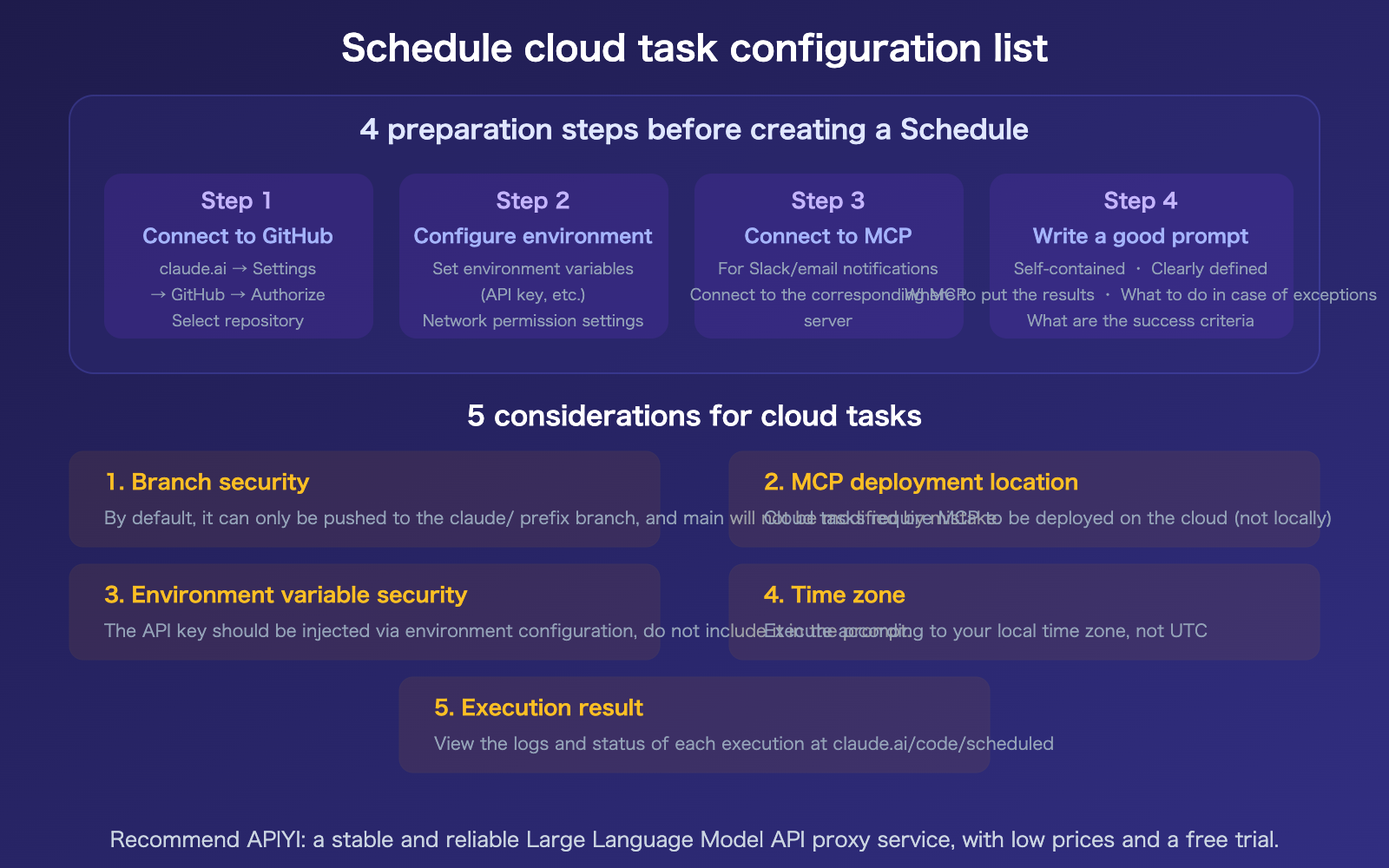
Pro Tip for Beginners: The prompt is the most critical part. Since the task runs automatically in the cloud without anyone there to guide it, your prompt must be self-contained and explicit. Clearly define "what to do" and "what success looks like."
Method 2: Desktop App
| Step | Action |
|---|---|
| 1 | Open the Claude Desktop app |
| 2 | Click "Schedule" in the sidebar |
| 3 | Click "+ New task" |
| 4 | Fill in model selection, permission mode, and working directory |
| 5 | Choose whether to enable Worktree isolation |
| 6 | Write the prompt and set the interval |
| 7 | Save |
Tasks created via the Desktop app run while the app is open. If you need tasks to run even when your computer is off, use the Web interface to create cloud-based tasks.
Method 3: CLI
In the Claude Code terminal, simply type:
# Interactive creation
/schedule

# Direct description
/schedule Run PR review every morning at 9 AM
Claude will guide you through the configuration process, including repository selection, interval settings, and permission modes.
15 Scheduled Cloud Tasks Worth Creating
Ranked by value, from highest to lowest.
High-Value Tasks (Highly Recommended)
Task #1: Daily Security Audit
Runs every morning at 8:00 AM.
Scans all changes in the repository from the last 24 hours to check for:
1. Sensitive information like API keys or passwords being committed.
2. New high/critical vulnerabilities in dependencies (runs npm audit).
3. Potential security risks like SQL injection or XSS.

If issues are found, create an issue listing all findings,
labeled by severity. If a fix is automated, open a PR directly.
Interval: Daily at 08:00 | Value: 24/7 security guard
Task #2: Daily PR Summary
Runs every morning at 9:00 AM.
Checks all open PRs and generates a summary:
1. Purpose of each PR (inferred from diffs).
2. CI status (passed/failed/in-progress).
3. Any unreplied review comments.
4. PRs that haven't been merged for over 3 days.

Outputs a structured markdown report,
submitted to the docs/daily-pr-report/ directory.
Interval: Daily at 09:00 | Value: Never miss a team PR
Task #3: Weekly Dependency Updates + Auto-PR
Runs every Monday at 7:00 AM.
1. Runs npm outdated / pip list --outdated.
2. Evaluates each update: checks for breaking changes.
3. For security-level updates, automatically upgrades and opens a PR.
4. For major version updates, creates an issue instead of auto-upgrading.

PR title format: chore(deps): update [package name] from [old version] to [new version]
Interval: Every Monday at 07:00 | Value: Keep dependencies fresh, avoid technical debt
Task #4: Daily AI News Digest
Runs every morning at 8:30 AM.
Uses web search to find AI industry news from the last 24 hours,
focusing on:
1. New model releases (Claude, GPT, Gemini, etc.).
2. API pricing changes.
3. Major product updates.
4. Industry mergers or funding.

Outputs a brief summary (under 500 words),
including key information and links.
Interval: Daily at 08:30 | Value: No need to doomscroll for news
Task #5: Daily Error Log Analysis
Runs every morning at 2:00 AM.
Connects to log services, pulls ERROR and FATAL logs from the last 24 hours,
and analyzes:
1. Frequency statistics grouped by error type.
2. Comparisons with the previous day for abnormal spikes.
3. Marking new error types as "New".
4. Opening fix PRs for automatically resolvable errors.

Generates a report submitted to the docs/error-reports/ directory.
Interval: Daily at 02:00 | Value: Let Claude analyze errors while you sleep
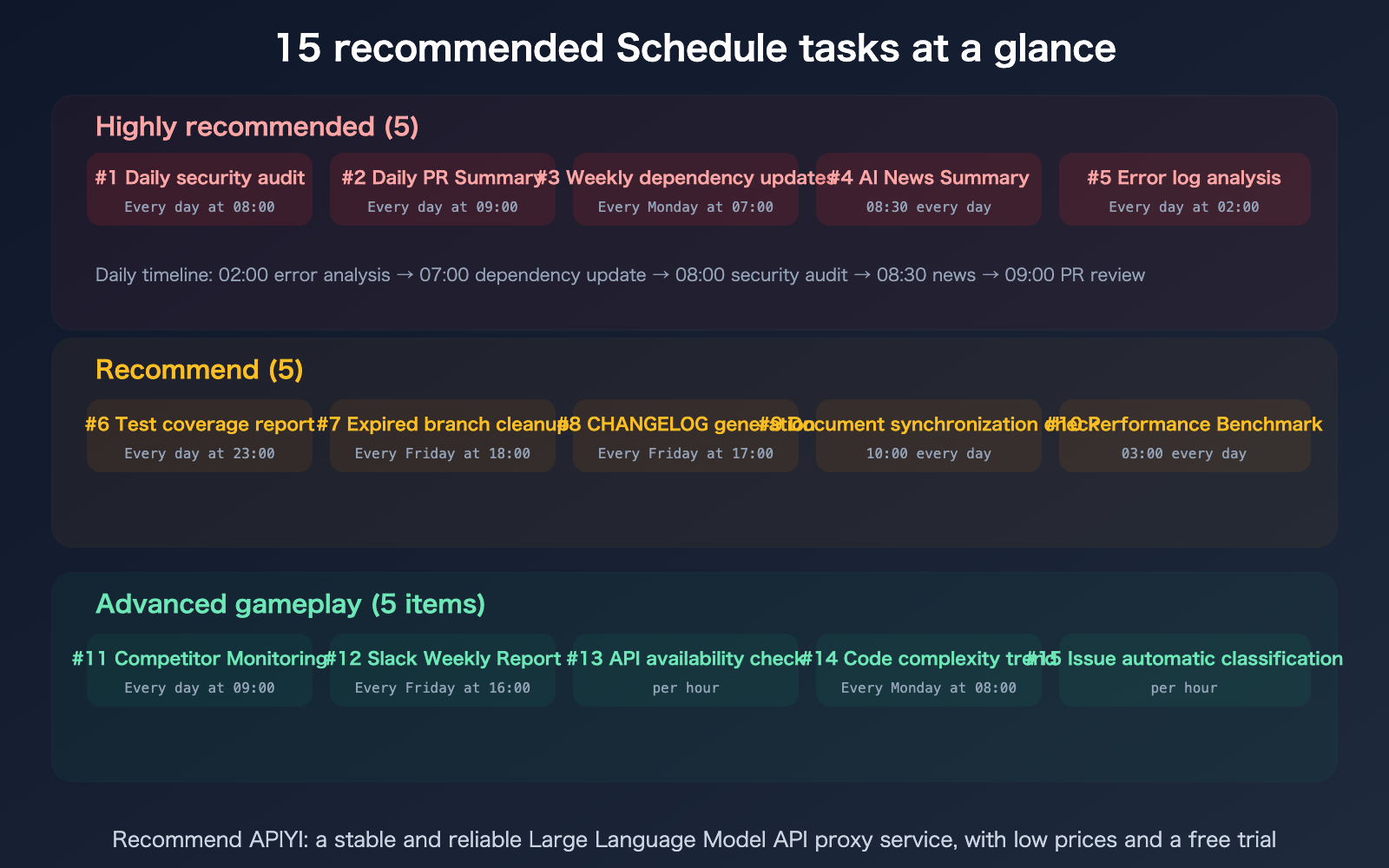
Recommended Tasks (#6-10)
Task #6: Daily Test Coverage Report
Runs at 11:00 PM. Runs the test suite and generates a coverage report.
If overall coverage falls below 80%, or if new files lack tests,
create an issue listing suggested test cases.
Task #7: Expired Branch Cleanup
Runs every Friday at 6:00 PM. Lists all remote branches that haven't been updated in over 30 days,
checks if they've been merged into main. Automatically deletes merged branches,
and creates issues for unmerged ones to remind the owners.
Task #8: Automated CHANGELOG Generation
Runs every Friday at 5:00 PM. Based on all PRs merged into main this week,
automatically generates CHANGELOG entries, categorized by Feature/Fix/Chore,
and submits them as a PR.
Task #9: Documentation Sync Check
Runs daily at 10:00 AM. Compares README.md and docs/ with the actual code
to ensure consistency. Checks if API documentation parameter lists,
installation steps, and configuration examples are outdated. Flags any discrepancies.
Task #10: Performance Benchmarking
Runs every morning at 3:00 AM. Runs the performance benchmark suite,
records results to the benchmarks/ directory. If any metric
drops by more than 10% compared to the last run, creates an alert issue.
Advanced Tasks (#11-15)
Task #11: Competitor Monitoring
Runs daily at 9:00 AM. Uses web search to find
competitor releases, pricing changes, and feature updates.
Outputs a structured report submitted to docs/competitive-intel/.
Task #12: Automated Slack Weekly Report
Runs every Friday at 4:00 PM. Uses the MCP Slack connector
to summarize important discussions, decisions, and action items from the week,
generates a report, and sends it to the #team-weekly channel.
Task #13: External API Availability Check
Runs hourly. Checks the health status of external APIs the project depends on
(sends a lightweight request to check response codes and latency).
If any API is unavailable or latency exceeds 5 seconds, creates an alert issue.
Task #14: Code Complexity Trend Analysis
Runs every Monday at 8:00 AM. Calculates project code complexity metrics
(file count, total lines, average function length, cyclomatic complexity),
and generates a trend report compared to the previous week.
Task #15: Automated Issue Classification and Assignment
Runs hourly. Checks newly created issues, adds labels (bug/feature/docs/question)
based on titles and descriptions,
and suggests assignment to the most relevant team member (based on recent code changes).
Key Points for Writing Schedule Prompts
Since Schedule tasks run automatically in the cloud without any human oversight, your prompts must be completely self-contained.
| Element | Good Practice | Poor Practice |
|---|---|---|
| What to do | "Run npm audit to check for vulnerabilities" | "Check for security" |
| Where to put results | "Submit to the docs/reports/ directory" | (Not specified) |
| How to handle errors | "Create an issue if problems are found" | "Tell me the results" |
| Success criteria | "Coverage below 80% is considered an error" | "See how the coverage looks" |
| Scope | "Scan the src/ directory" | "Scan the project" |
🎯 Pro Tip for Beginners: Start with Task #1 (Security Audit) and #2 (PR Summary), as these offer the best return on investment. Once you've confirmed they work well, you can gradually add more tasks.
If you need to build a custom scheduled task system via API, we recommend using APIYI (apiyi.com) to access Claude Opus 4.6 at a 20% discount.
FAQ
Q1: Should I use Schedule or /loop?
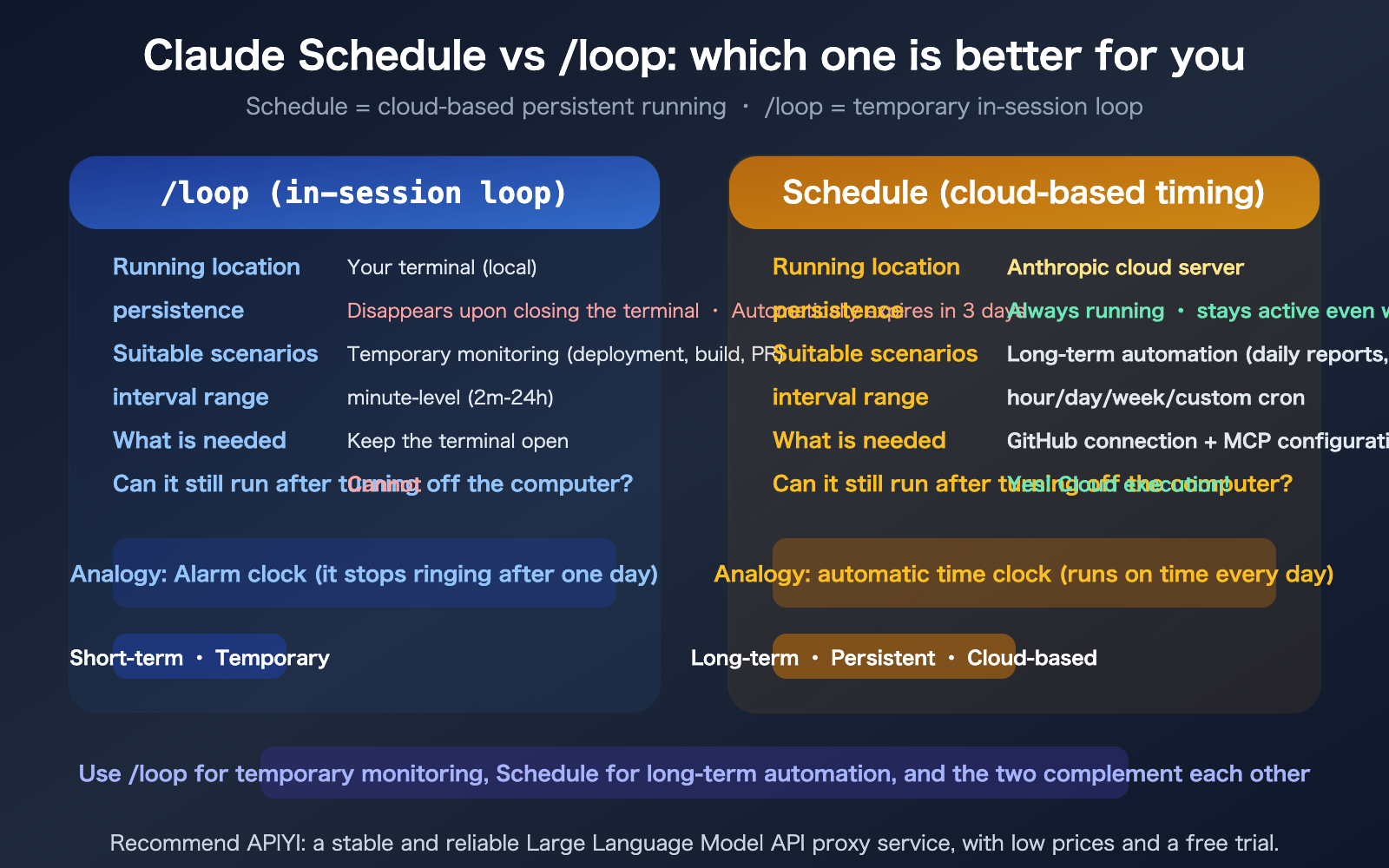
Here's a simple rule of thumb: If you need it to run even when your computer is off, use Schedule. If you're just monitoring something for a few hours, use /loop. Schedule runs on the Anthropic cloud, making it persistent and stable—perfect for daily or weekly recurring tasks. /loop runs right in your terminal and stops when you close it, which is great for "I just need to keep an eye on this deployment for the afternoon." They complement each other, so there's no conflict.
Q2: How do cloud tasks access my code repository?
They connect via GitHub. In your claude.ai settings, authorize your GitHub account and select the repositories you want to grant access to. When a Schedule task runs, it automatically clones your repository into the cloud environment. By default, it can only push to branches with the claude/ prefix, so it won't modify your main branch directly.
Q3: Are Schedule tasks paid? How much of my quota do they use?
Schedule is included in your Claude Pro/Max/Team/Enterprise subscription at no extra cost. However, each task execution consumes your subscription quota (billed by tokens, just like a regular chat). Simple tasks (like health checks) usually take about 500–1,000 tokens, while complex ones (like security audits) might take 5,000–10,000 tokens. I recommend starting with low-frequency tasks (once a day) to monitor your quota usage before scaling up. If you need a higher volume of automated model invocations, it's more cost-effective to connect to the Claude API via APIYI (apiyi.com) at a 20% discount.
Q4: How do I use MCP connectors in the cloud? How is it different from local?
Local MCP servers run on your own machine, so cloud tasks can't access them. If your Schedule task needs to use MCP (e.g., to send Slack messages), you'll need to deploy your MCP server to the cloud (using services like Cloudflare Workers or Fly.io) and then connect it via your claude.ai web settings. Your API key is stored in your own cloud infrastructure, and Claude's cloud tasks access it through the MCP endpoint you've configured.
Summary
Key takeaways from this Claude Schedule beginner's guide:
- Schedule = Cloud-based scheduled tasks: They run on Anthropic's servers, so they keep going even when your computer is off. The difference from /loop: Schedule is for long-term persistence, while /loop is for temporary sessions.
- 3 ways to create them: Web interface (
claude.ai/code/scheduled—the easiest), Desktop app (via the Schedule sidebar), and CLI (/schedule). - 15 recommended tasks: 5 high-value tasks (security audits, PR summaries, dependency updates, AI news, error analysis) + 5 recommended + 5 advanced. Start with #1 and #2.
We recommend connecting to the Claude Opus 4.6 API via APIYI (apiyi.com) at a 20% discount to build more complex automation systems.
📚 References
-
Claude Code Schedule Official Documentation: Complete guide to cloud-based scheduled tasks
- Link:
code.claude.com/docs/en/scheduled-tasks - Description: Covers creation methods for Web/Desktop/CLI and environment configuration.
- Link:
-
Web Schedule Documentation: Creating cloud tasks on claude.ai
- Link:
code.claude.com/docs/en/web-scheduled-tasks - Description: Includes GitHub integration, MCP configuration, and branch security.
- Link:
-
Cowork Schedule Documentation: Creating scheduled tasks in Desktop
- Link:
support.claude.com/en/articles/13854387-schedule-recurring-tasks-in-cowork - Description: Configuration for scheduled tasks within Cowork mode.
- Link:
-
APIYI Documentation Center: 20% off Claude API access
- Link:
docs.apiyi.com - Description: The optimal API solution for building custom automation systems.
- Link:
Author: APIYI Technical Team
Technical Discussion: Feel free to join the discussion in the comments. For more resources, visit the APIYI documentation center at docs.apiyi.com.