
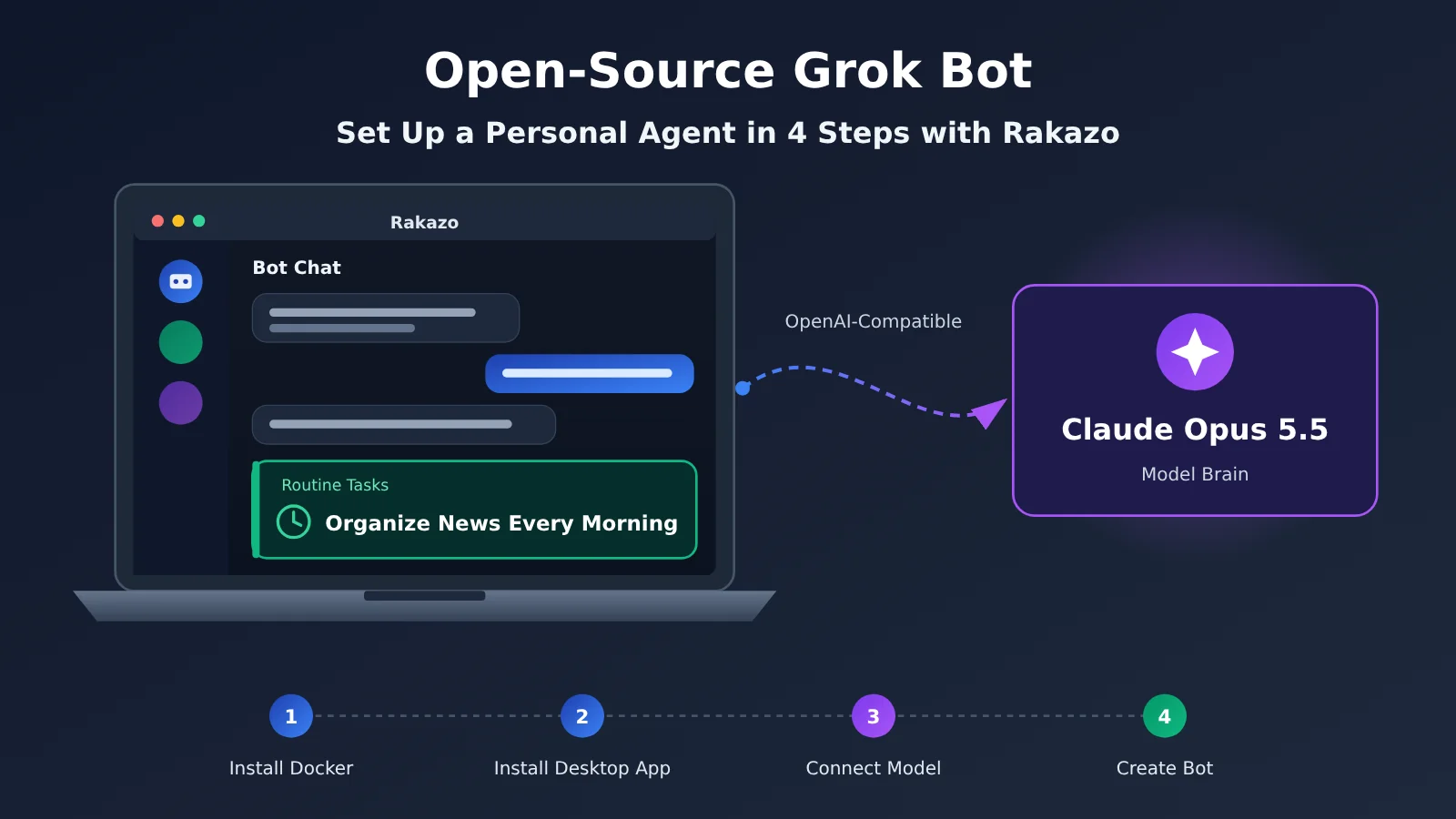
Author’s note: This Rakazo desktop installation guide is for beginners. Install Docker in 4 steps, run Rakazo locally, enable its public API, connect Claude Opus 5.5 through an OpenAI-compatible API, and create your first always-on Bot and recurring task.
Most major AI companies have recently launched their own Personal Agents. But there’s a catch: they lock you into their own model ecosystems. If you want an AI assistant that’s always ready to help—for example, one that rounds up the news every morning—without handing control over your model choices to a hosted platform, Rakazo, which has been gaining traction on GitHub, is worth a try. Its repository describes it as an “Open-source Grok Bot alternative.” As of 2026-10-23, the repository has around 5.3k stars, uses the Apache-2.0 license, and is still being actively updated.
This guide follows the actual installation process in 4 steps. Each step explains what you’ll see, where to click, and how to tell when it’s working. There’s one step where many people get stuck: public model APIs are blocked by default. We’ll explain how to enable this setting—and why it’s turned off by default.
Key takeaway: By the end of this guide, you’ll be able to run Rakazo on your Mac or Linux computer, connect Claude Opus 5.5 with an APIYI key, and create your first Bot with a daily automated task.
| Item | Details |
|---|---|
| Goal | Run Rakazo locally, connect Claude Opus 5.5, and create your first always-on Bot and recurring task |
| Estimated time | About 30–60 minutes. Most of that time goes toward downloading Docker and pulling the image for the first time; it may take longer on a slow connection |
| Prerequisites | A Mac (Intel or Apple silicon) or Linux computer; Docker Desktop; an APIYI account and API key |
| Difficulty | Beginner-friendly. The whole process uses a graphical interface, and only Step 3 requires adding one line to a configuration file |
| Who this is for | Individuals who want a self-hosted AI assistant, prefer to choose their own models, and are comfortable using beta software |
Rakazo at a Glance: What Is This Open-Source Grok Bot?
According to its Chinese README, Rakazo is an open-source AI agent project that gives you an AI teammate you can work with over the long term. You can also run it as a self-hosted AI assistant on your own computer. It has a web version, an Electron desktop app, and iPhone and Android clients, all connected to the same Rakazo backend. This article uses the desktop app because it can launch the entire service locally with Docker in one click, making it the easiest option for beginners.
The project’s official feature list includes always-on Bots, each with its own conversations, memory, routines, and history; browser, terminal, file, and graphical desktop access; task handoffs between Bots; and support for using your own model credentials. The official comparison page adds a few more details: when you create a Bot, it first “interviews” you about the work you want it to do; routines are readable Markdown files that can run on a schedule; and if a task crosses a boundary you’ve set, the Bot pauses and waits for your approval, with actions recorded in an audit log.
Claims about Rakazo come from different sources and vary in reliability. This table separates them:
| Claim | Source | How to interpret it |
|---|---|---|
| It’s an open-source alternative to products like Grok Bot | Rakazo’s own description | This is how the project positions itself, not a conclusion from an independent review |
| You can enter an OpenAI-compatible API endpoint | Stated in the official documentation | You can connect it to an aggregator such as APIYI |
| Public API endpoints are blocked by default; you need to enable an option and use HTTPS | Official documentation and source code | You must do this in Step 3, or the connection will fail |
| Each Bot can use a different model | Official comparison page | Use Opus for demanding tasks and switch to a cheaper model for lighter work |
| Whether the thinking level is passed through APIYI to Claude and takes effect | Not tested | We recommend leaving thinking disabled at first and trying it after everything else works |
| Local memory usage and monthly token consumption | No official figures available | This article doesn’t give specific numbers; monitor your own usage |
Why Rakazo Needs a Model API
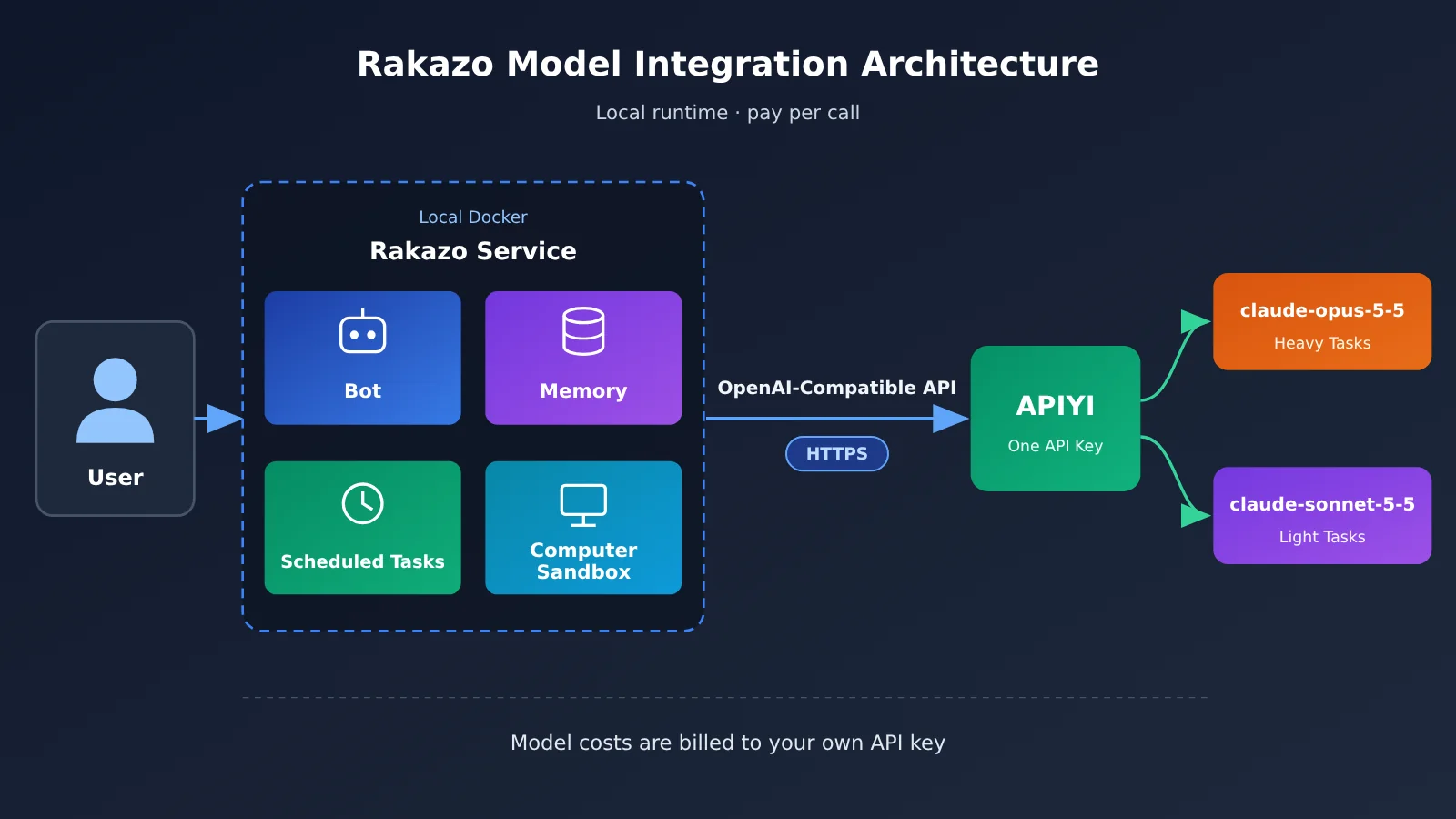
Many people assume Rakazo is ready to use as soon as it’s installed. In fact, it only provides the Bot’s “body”: orchestration, memory, a computer environment, and routines. As the official website puts it, “Rakazo does not pay the model bill”—you’re responsible for the model costs. There are several ways to connect a model: sign in with a Claude Pro/Max subscription, bring your own API key from a provider, connect an OpenAI-compatible endpoint, or use a local model such as Ollama.
For users in China, an OpenAI-compatible endpoint is usually the simplest option. Always-on Bots and routines consume tokens continuously, so pay-as-you-go APIs make it easier to manage costs. With a single APIYI key, you can call both claude-opus-5-5 and claude-sonnet-5-5, then assign them to different Bots.
Rakazo Desktop: Get Started in 4 Quick Steps (Or Send This Article to Your Agent)
The four steps below focus on macOS. The process is nearly the same on Linux, except that you’ll use an AppImage installer and the configuration file directory will depend on your system. One thing to note: the desktop app’s setup wizard and menus are currently in English. The official README says translations are planned, so you’ll see buttons like “This computer” and “Stop Local Stack.” You can switch the web interface to Simplified Chinese.
Step 1: Install and Open Docker Desktop for Rakazo
Rakazo’s “Run locally” mode uses Docker Compose to launch the official images, so you’ll need to install Docker first. Docker Desktop, OrbStack, and Docker Engine are officially supported. rakazo.com lists Docker Engine 26 or later as the minimum requirement. Rakazo recognizes only the docker command and doesn’t support Podman.
- What you’ll see: Docker’s download page. Choose the Mac installer that matches your chip, or select the version for your Linux system.
- What to do: After downloading and installing Docker, drag it to your Applications folder and open it. Follow the prompts to complete the initial authorization and setup.
- How to confirm it’s ready: The Docker whale icon appears in the menu bar at the top of your screen, and the Docker Desktop window shows that the engine is running. If it’s still spinning, wait until startup is complete before moving on.
Step 2: Download the Rakazo Desktop App and Choose Local Deployment
As of 2026-10-23, the latest desktop release on GitHub Releases is v0.3.3, published on 2026-10-22. The release includes a universal macOS build (Rakazo-0.3.3-universal.dmg, for both Intel and Apple silicon) and a Linux AppImage.
- What you’ll see: When you first open Rakazo, an English setup wizard will ask where you want to run it. You’ll see two options: “This computer” (run locally) and “Existing instance” (connect to an existing server).
- What to select: Choose “This computer.” The app will pull the Rakazo image from
ghcr.io, along withpostgres:16andbusyboxfrom Docker Hub. The first image download may take a while, so just wait. If Docker isn’t installed, the app will provide a download link. - Next steps: Once the services are running, the desktop app will load the web interface. You can also open
http://127.0.0.1:5173in your browser. Register an account here; the first user to register becomes the owner of this deployment. After logging in, go to “Settings → Language” and switch to Simplified Chinese. - How to verify: You should see Rakazo’s main screen after logging in, with the menu text displayed in Chinese.
Note that with local deployment, the services will keep running in the background even after you quit the desktop app. To stop them, select “Stop Local Stack” from the app menu.
Step 3: Enable Public Model Endpoints in Rakazo
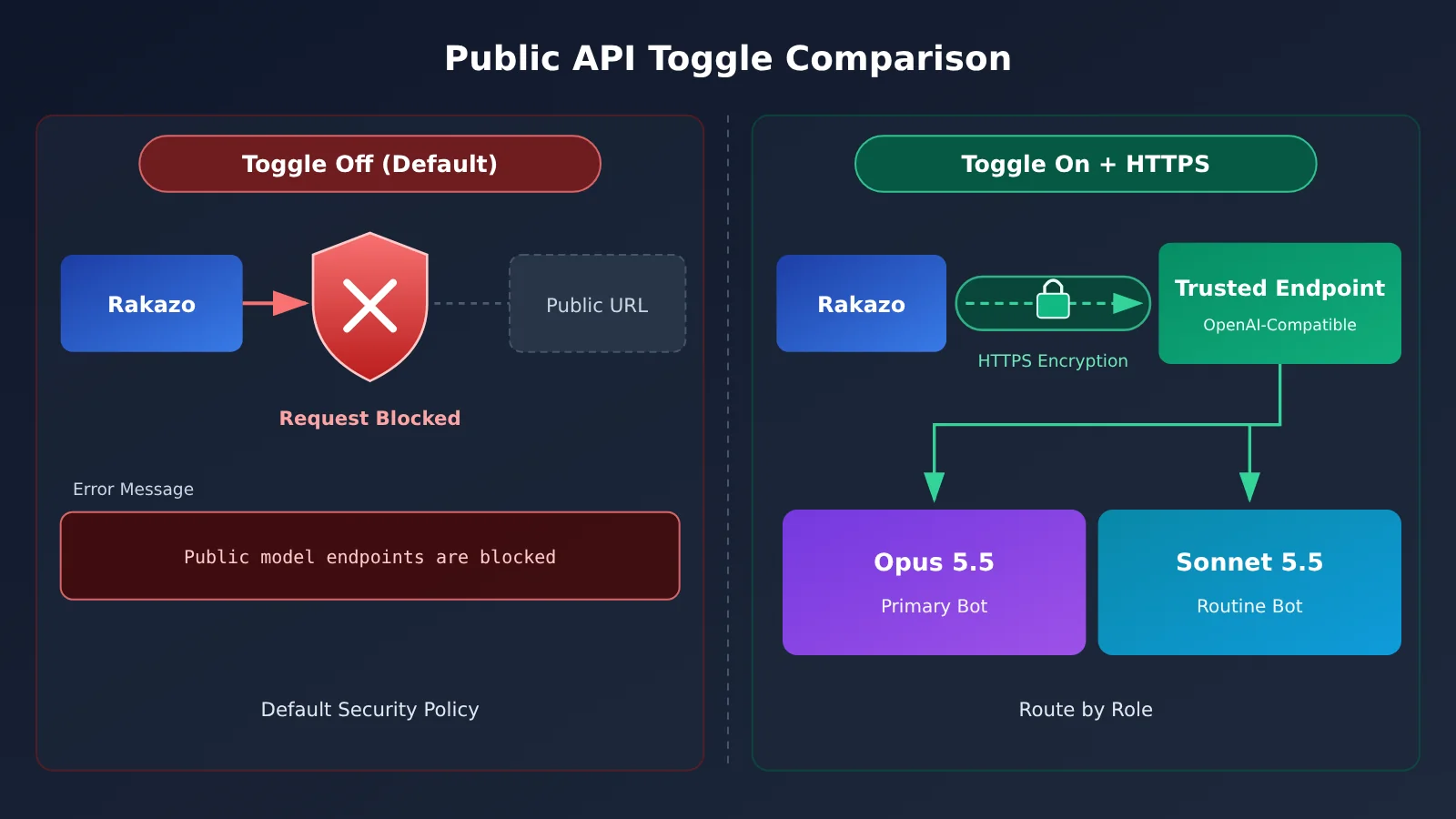
This is the step beginners are most likely to get stuck on. The official documentation says that for public URLs and regular domain names, you need to set RAKAZO_OPENAI_COMPAT_ALLOW_PUBLIC=1, and you must use HTTPS. This line is commented out by default in the configuration template. If you don’t enable this setting, you’ll see the error “Public model endpoints are blocked” when you try to connect in Step 4.
Why it’s disabled by default: This is an intentional security measure. The prompts, attachments, and tool results you send to a model leave Rakazo through this endpoint and are handled by an external service. If you enter an endpoint from an unknown source, your chat history and the contents of files your bot reads could be exposed. Only enable this for endpoints you trust—for example, an API platform where you have an account and know how your data is handled.
- What you’ll see: In Finder, click Go → Go to Folder in the top menu. A dialog box will appear.
- What to do:
- Enter the configuration directory in the Go to Folder dialog:
~/Library/Application Support/Rakazo/stack/ - Find the file named
.env. If you can’t see it, pressCommand + Shift + .in the Finder window to show hidden files. - Right-click
.envand choose Open With → TextEdit. At the end of the file, add a new line with:RAKAZO_OPENAI_COMPAT_ALLOW_PUBLIC=1 - Press
Command + Sto save. If TextEdit asks about the format, choose to keep it as plain text—don’t convert it to rich text. - Go back to Rakazo. From the application menu at the top of the screen, click Stop Local Stack, then quit Rakazo completely and reopen it so the service can be rebuilt with the new configuration. The official documentation says, “Recreate the stack after changing .env”.
- How to verify: After reopening Rakazo, it should load the main screen normally. When you connect in Step 4, you should no longer see “Public model endpoints are blocked”.
Alternative (use only if the error persists after reopening): Sometimes restarting from the graphical interface doesn’t actually rebuild the containers. In that case, you can rebuild them manually in Terminal.
- In Terminal, go to the configuration directory:
cd "$HOME/Library/Application Support/Rakazo/stack" - In the same Terminal window, run the rebuild command:
docker compose --env-file .env -f docker-compose.images.yml --project-name rakazo-desktop up -d - When the command finishes, go back to Rakazo, refresh the page, and try connecting again.
The directory name, configuration file name, and Compose project name above are based on the names used by Rakazo’s desktop application in its source code. Linux users should find the stack folder in their application data directory and make the same changes.
Step 4: Connect Rakazo to Claude Opus 5.5 and Create Your First Bot
After your first login, you’ll usually be prompted to “Connect a model.” If you skipped this step, you can find the same option under “Settings → Models.”
- What you’ll see: The “Connect a model” page, with several connection options.
- What to do:
- Select “OpenAI Compatible.”
- Enter APIYI’s endpoint in “Server URL”:
https://api.apiyi.com/v1 - Paste the API key you created in the APIYI console into “API Key.”
- Click “Find models,” then select
claude-opus-5-5from the list. If it isn’t listed, select “Other model…” and enter the model ID manually. You can also selectclaude-sonnet-5-5for lighter tasks. - Expand “Advanced” and turn on “Image support” so attachments and screenshot-based computer tools work properly. Leave the thinking toggle off for now.
- Click “Connect.”
- Acceptance criteria (Part 1): The connection succeeds without errors, and
claude-opus-5-5appears in the model list.
The model ID must use hyphens: claude-opus-5-5. “5.5” in the title is just the product name—don’t replace the hyphens with periods, or the model won’t be found. The settings help says Rakazo will add /v1 when needed. It also automatically removes a trailing slash from the URL, so enter the address exactly as shown above. Don’t include a username or password in the URL.
Now for the final acceptance check:
- Click “Create Bot.” The Bot will first “interview” you by asking what it should do. You can answer: “You’re my news assistant. Every morning, summarize the important developments in the AI industry.”
- Under this Bot’s “Routine tasks,” add a task such as: “Every morning at 8:00, summarize AI news from the past 24 hours. List five key points and add a brief comment.”
- Acceptance criteria (Part 2): The Bot can respond to your questions in Chinese, and the routine task appears in the list. When the scheduled time arrives, you can see the automatically generated result in the Bot’s history.
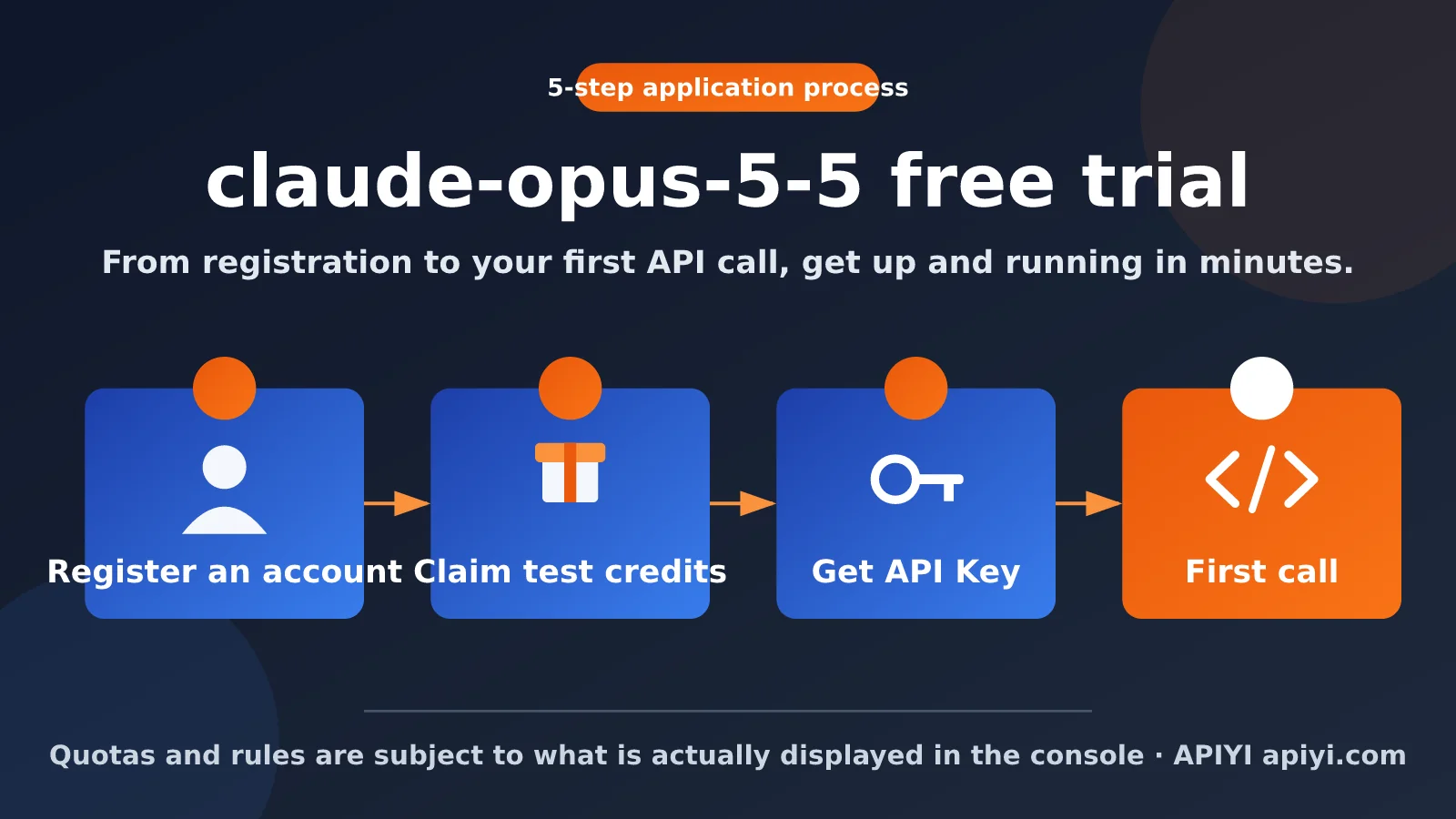
🚀 Quick start: If you don’t have a key yet, you can sign up at APIYI apiyi.com and claim the free trial credits for new users. Use them to test the connection in Step 4 and run your first routine task. Once you’ve confirmed everything works, you can decide how you’d like to use it long term.
Model Selection and Costs for Always-On Rakazo Bots
One practical feature of Rakazo is that each Bot can use a different model. Assign Opus to Bots that need to perform in-depth analysis, write long-form content, or control a computer. For routine, lightweight tasks like organizing news and summarizing spreadsheets on a schedule, you can switch to Sonnet and save a lot of tokens over time. Here are the reference prices from the pricing API on 2026-10-23, per million tokens:
| Model ID | Best suited for | Reference price that day | Available platform |
|---|---|---|---|
claude-opus-5-5 |
Main Bot: complex analysis, long-form writing, computer control | Input $4, output $20, cache reads $0.20, cache writes $5 | APIYI (default group) |
claude-opus-5-5-thinking |
When you need deep reasoning or want to try its thinking capabilities | Check the pricing page for that day | APIYI |
claude-sonnet-5-5 |
Routine, lightweight tasks: organizing news, summaries, reminders | Input $2, output $10 | APIYI (default group) |
💰 Cost tip: Prices and group multipliers may change, so check the APIYI pricing page at apiyi.com for the latest rates. The default group multiplier is 1, with pay-as-you-go billing. It’s a good choice for a small-scale trial: monitor actual usage for a week before deciding how often to run routine tasks.
Rakazo Troubleshooting and When Not to Use It
Common Rakazo Installation and Connection Errors
This table covers the most common issues, from installing Docker to connecting to a model. When you run into an error, start by matching it to the entry in the “Symptom” column.
| Symptom | Cause | Solution |
|---|---|---|
| After selecting “This computer,” you’re told Docker is required, or startup gets stuck | Docker isn’t installed, or Docker Desktop isn’t running | Go back to Step 1 and check that the whale icon in the menu bar shows the engine is running. If you’re using Podman, switch to Docker |
| The initial image download is very slow or fails | The images are hosted on ghcr.io and Docker Hub, which may be restricted on your network |
See the “Restricted networks / mirror downloads” section in the official self-hosting documentation. Change the download source (RAKAZO_DOWNLOAD_BASE) or use a mirror |
| You see “Public model endpoints are blocked” when connecting | The public endpoint setting is disabled, or the service wasn’t rebuilt after you changed .env |
Make sure .env contains RAKAZO_OPENAI_COMPAT_ALLOW_PUBLIC=1, then select “Stop Local Stack” and restart. If that doesn’t work, use the terminal-based alternative in Step 3 |
| You see “OpenAI-compatible endpoints that send an API key must use HTTPS” | You’re using an http:// URL for a public endpoint that requires an API key |
Change the server URL to one that starts with https:// |
claude-opus-5-5 isn’t listed under “Find models” |
The list hasn’t refreshed, or the model ID is incorrect | Select “Other model…” and enter it manually. Make sure to use hyphens in claude-opus-5-5, not a period as in claude-opus-5.5 |
| You’re told the key is invalid or authentication failed | The key wasn’t copied in full, contains extra spaces, or your account balance is insufficient | Copy the key again from the APIYI console at apiyi.com. Check your balance and token status, then try again |
Opening the AppImage on Linux shows dlopen(): error loading libfuse.so.2 |
FUSE 2 is missing from your system | On Ubuntu 24.04, install libfuse2t64; on Fedora, install fuse-libs |
http://127.0.0.1:5173 won’t open |
The local service hasn’t finished starting | Wait for the images to download and the containers to start, then refresh. Keep Docker running in the meantime |
When Not to Use Rakazo
Rakazo is an interesting tool, but it’s not for everyone. If any of the following apply, it may be worth waiting or choosing another option:
| Your situation | Why it might not be a good fit | A better option |
|---|---|---|
| Your team needs stability and customer support | The official site explicitly says “Rakazo is in beta,” so it’s still in testing | Try it personally first, then evaluate it for production once the stable release is available |
| You’re using Windows | As of 2026-10-23, there’s no Windows desktop installer in the Releases section | Use a Mac or Linux machine, or wait for an official release |
| You don’t want to install Docker, or your computer is low on memory | Running it locally requires a full set of containers to stay active, which uses system resources. The official site doesn’t specify how much | Connect to an instance someone else has already deployed (“Existing instance”) |
| You already have a Claude Pro/Max subscription and just want a simpler setup | You might not need an API key | Use Rakazo’s subscription sign-in option |
| You only want a coding assistant | Rakazo focuses on persistent bots and routine tasks | A coding tool like Claude Code is a more direct fit |
Frequently Asked Questions About Connecting Rakazo to Claude Opus 5.5
Q1: What is Rakazo?
Rakazo is an open-source AI agent project licensed under Apache-2.0. It lets you run always-on bots on your own computer. Each bot has its own conversations, memory, routine tasks, and history, and can use a browser, terminal, and files. The project describes itself as an open-source alternative to products like Grok Bot; that’s how the project positions itself.
Q2: How is Rakazo different from Grok Bot?
According to the comparison page on Rakazo’s official website, Grok Bot is hosted by xAI, and the model you get depends on your plan. Its documentation doesn’t say whether it can connect to models from other providers or run local models, and there’s no server you can deploy yourself. Rakazo, on the other hand, can be self-hosted, and lets you choose your own model and runtime environment. We haven’t verified Grok Bot’s pricing or other details, so we won’t cover them here.
Q3: What version of Rakazo is available now, and is it stable?
As of 2026-10-23, the latest desktop version is v0.3.3, released on 2026-10-22. The project is still in beta, with frequent updates, so the interface and configuration options may change. It’s best to try it as a personal productivity tool for now, rather than using it directly in a production system for critical business operations.
Q4: What are Rakazo’s best use cases?
– **Daily news roundup**: Summarize updates in a particular industry each morning and generate a list of key points.
– **Personal assistant**: Have a bot remember your preferences and help you keep track of to-dos and reminders over time.
– **Divide tasks across multiple bots**: Have one bot research a topic, then pass the results to another bot to turn them into a polished document.
Q5: How can I use APIYI to connect Rakazo to Claude Opus 5.5?
1. Sign up at APIYI (apiyi.com) and create an API key.
2. Follow Step 3 to enable Rakazo’s public network access and rebuild the service.
3. Under “Connect Model,” select “OpenAI-compatible.” Enter the address provided in Step 4 as the server URL, and set the model ID to `claude-opus-5-5`.
APIYI provides an OpenAI-compatible API that you can connect to directly from mainland China. A single key lets you call multiple Claude models.
Q6: Will Rakazo’s thinking levels work with APIYI?
Rakazo has a thinking toggle under “Advanced,” with levels ranging from minimal to max. We haven’t tested whether Claude honors these levels when they’re sent to APIYI using the OpenAI-compatible format. We recommend turning off thinking first to get the workflow running, then testing it separately. You can also switch the model directly to `claude-opus-5-5-thinking`.
Q7: How can I control costs when running bots continuously?
Rakazo itself doesn’t charge for model usage, but always-on bots and routine tasks will consume tokens. Usage depends on the frequency and content of the tasks, and the official documentation doesn’t provide usage estimates. A practical approach is to use Opus for your main bot and switch bots handling routine, lightweight tasks to `claude-sonnet-5-5`. You can also reduce how often routine tasks run. The APIYI (apiyi.com) console lets you check usage by day, so you can adjust things as needed.
Q8: What are Rakazo’s known limitations?
– **Platform limitation**: Desktop installers are available only for macOS and Linux.
– **Interface limitation**: The native installer and app menus are still in English.
– **Dependency limitation**: Local deployment requires Docker; Podman isn’t supported.
– **Configuration hurdle**: Connecting to a public model requires manually editing `.env`, and HTTPS is required.
Rakazo + Claude Opus 5.5: Key Takeaways and Summary
Rakazo Key Takeaways
- Understand the positioning: “Open-source Grok Bot” is Rakazo’s own description of the project, which is still in beta.
- The 4-step process: Install Docker → run it locally and switch to Chinese → enable the public API setting → connect a model and create a Bot.
- Important setting:
RAKAZO_OPENAI_COMPAT_ALLOW_PUBLIC=1is disabled by default. Enable it only for endpoints you trust. - Model ID: Always use the hyphenated form
claude-opus-5-5, not a version with periods. - Thinking level: We haven’t tested whether it works through APIYI, so we recommend leaving it off until everything else is working.
- Cost management: Each Bot can use a different model. For routine tasks, switch to
claude-sonnet-5-5. - Getting started: Use a single APIYI key from apiyi.com to connect to Claude. Billing is usage-based, and you can start with the free quota to test it out.
Summary
Rakazo turns the idea of an “always-on AI teammate” into a self-hosted open-source project. Its desktop app makes it easy for beginners to get it running on a Mac, even without prior experience. The only step that requires hands-on configuration is Step 3. Once you understand the security design behind that setting, the rest is just a matter of clicking through the interface.
Keep in mind that Rakazo handles Bot orchestration and the runtime environment, but you’re responsible for the model costs. We recommend connecting to Claude Opus 5.5 through APIYI at apiyi.com. Rakazo accepts OpenAI-compatible endpoints, and APIYI offers access from China with usage-based billing. You can also flexibly assign different models to your primary and routine-task Bots.
References
- Rakazo GitHub repository: Source code, README, and Chinese README
- Link:
github.com/elie222/rakazo -
About: Learn about the feature list, beta status, and license
-
Rakazo self-hosting documentation: OpenAI-compatible endpoints and mirror options for restricted networks
- Link:
github.com/elie222/rakazo/blob/main/docs/self-host.md -
About: Official details on the public API setting, HTTPS requirements, and mirror download sources
-
Rakazo Releases: Desktop app downloads
- Link:
github.com/elie222/rakazo/releases -
About: Download the universal macOS DMG and Linux AppImage
-
Rakazo website comparison page: Rakazo’s own comparison with products such as Grok Bot
- Link:
rakazo.com -
About: Additional information on model connections and using different models for each Bot
-
APIYI pricing API: Current model prices and group multipliers
- Link:
api.apiyi.com/api/pricing - About: Claude model prices are based on the latest data
Author: APIYI Technical Team
Technical support: If you run into configuration issues, contact us from the APIYI website homepage. For more integration resources, visit the docs.apiyi.com documentation center.