description: Discover how to use Positron IDE for data science, integrate Claude Code, and save 20% on Claude API costs using APIYI.
Author's Note: This guide introduces the positioning and core features of Positron IDE, explains how to use Claude Code within the Positron terminal, and shows how to configure APIYI environment variables to get a 20% discount on Claude API calls.
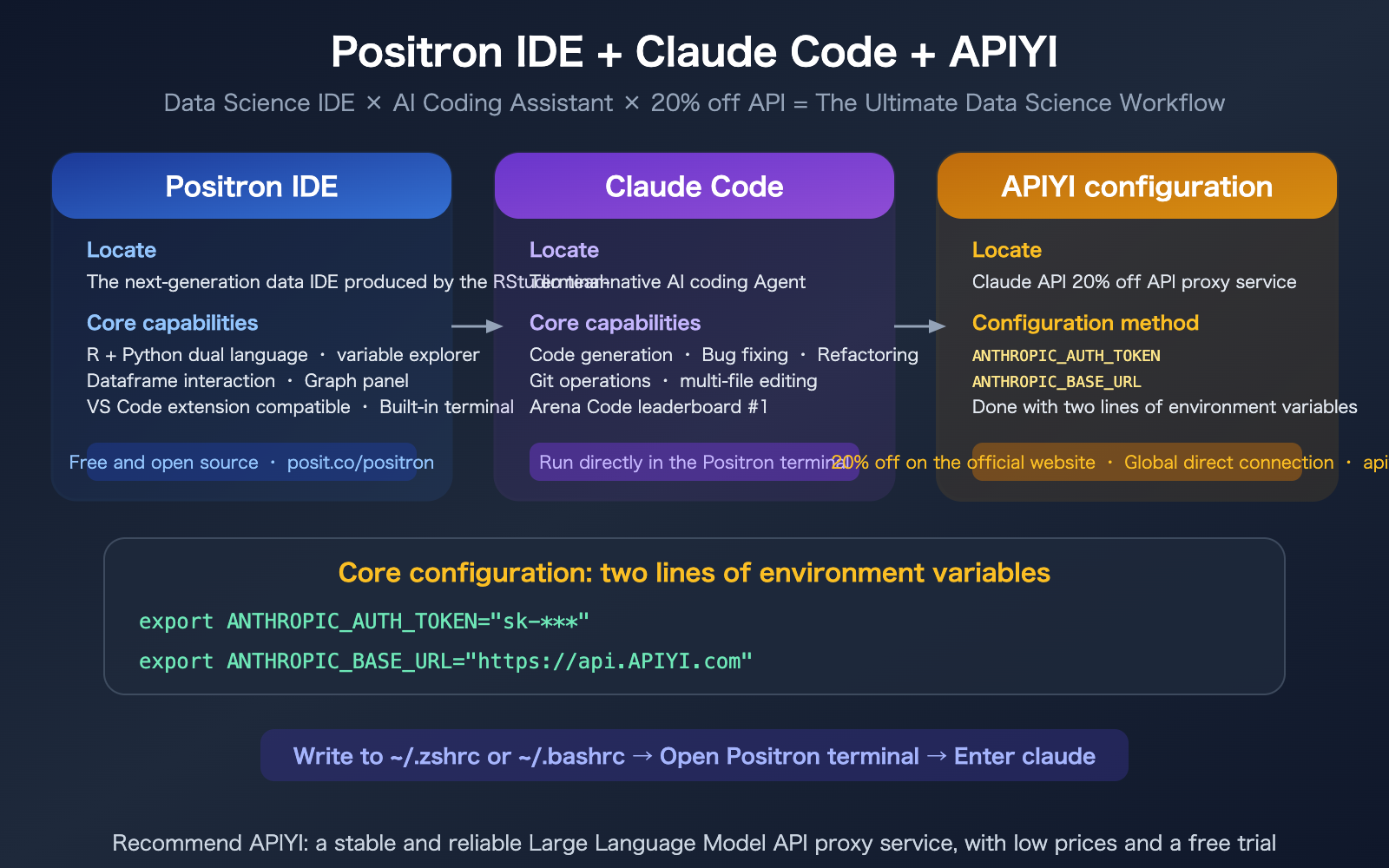
If you're into data science—writing analysis code in R or Python, running models, or creating visualizations—you've likely heard of Positron IDE. It's the next-generation IDE built by the RStudio team, combining the VS Code extension ecosystem with the data science experience of RStudio. More importantly, Positron has a built-in terminal that can run Claude Code directly—meaning you can write data analysis code, explore your data, and have Claude handle the heavy lifting, all within the same IDE.
This article covers the core features of Positron and provides a step-by-step guide on configuring Claude Code + APIYI in the Positron terminal, allowing you to invoke Claude Opus 4.6 at a 20% discount.
Core Value: Understand the positioning of Positron IDE and learn how to configure Claude Code + APIYI environment variables within it.
What is Positron IDE?
In a Nutshell
Positron is the next-generation data science IDE built by the RStudio team (Posit). It’s based on the open-source core of VS Code (Code OSS) and is specifically designed for R and Python data analysis workflows.
Positron IDE Core Info
| Dimension | Description |
|---|---|
| Development Team | Posit (the parent company of RStudio) |
| Positioning | IDE designed specifically for data science |
| Supported Languages | R and Python (first-class support for both) |
| Underlying Architecture | A fork of VS Code (Code OSS) |
| Pricing | Free and open-source |
| Download | positron.posit.co |
| Extension Compatibility | Compatible with VS Code .vsix extensions |
| Relationship with RStudio | RStudio remains maintained; Positron is the new direction |
Core Features of Positron IDE
| Feature | Description | Comparison to VS Code |
|---|---|---|
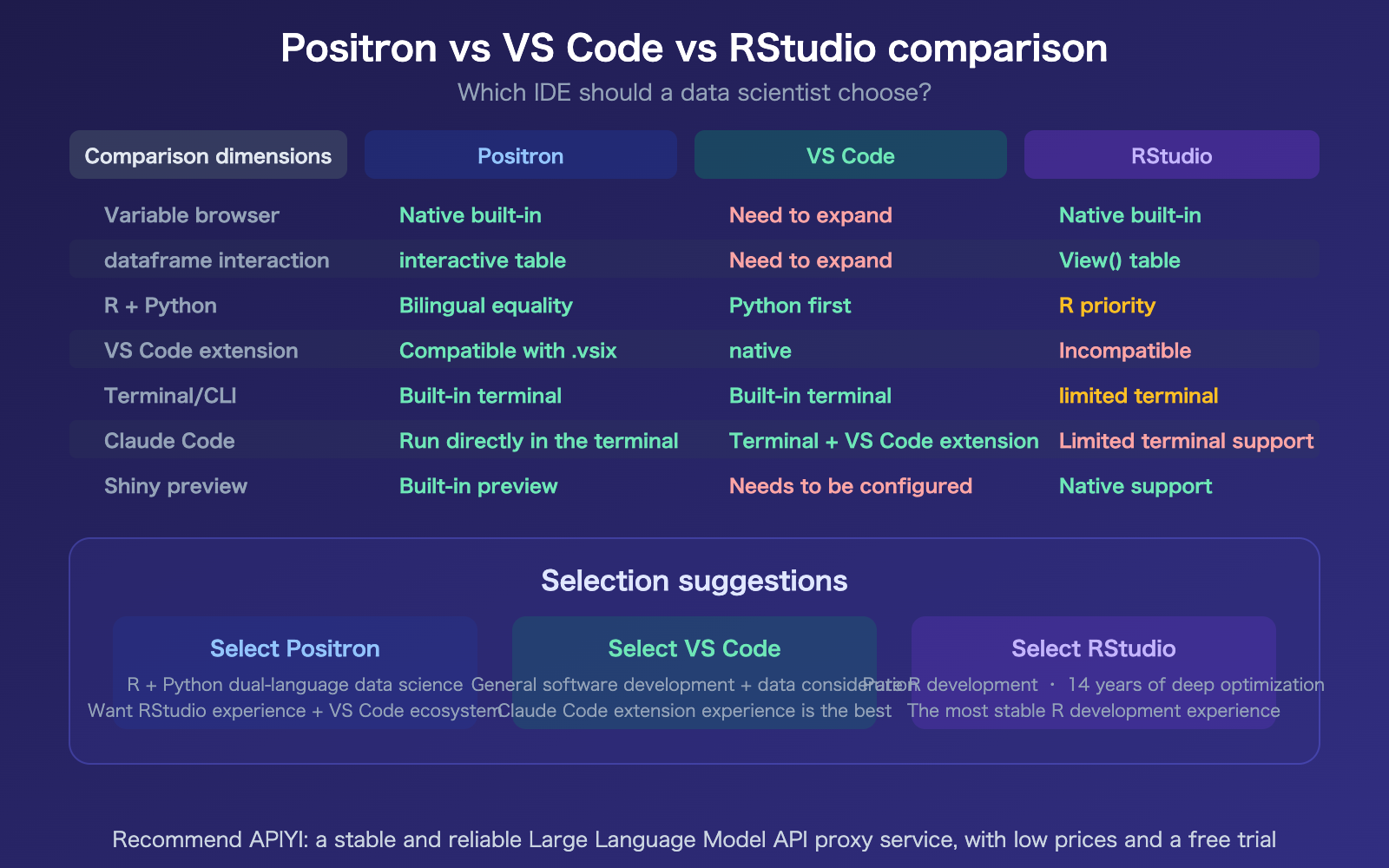
| Variable Explorer | Real-time view of all variable values and types | No native support in VS Code |
| Data Frame Interaction | Click a data frame to open an interactive table (sort, filter, stats) | Requires extensions |
| Plots Pane | Built-in plot rendering pane; R/Python plots display directly | Requires extensions |
| Multi-session Console | Run multiple R and Python interpreters simultaneously | Limited support |
| Notebook Support | R and Python Notebooks work side-by-side with scripts | Supported, but different experience |
| Shiny/Streamlit | Built-in preview for Shiny, Streamlit, and Dash apps | Requires configuration |
| Built-in PDF Viewer | View PDFs directly without external apps | Requires extensions |
| Built-in Terminal | Full-featured terminal; can run Claude Code | Supported |
Why Data Scientists Should Care About Positron
If you've used RStudio before, Positron brings you the VS Code ecosystem (thousands of extensions, Git integration, terminal). If you've been using VS Code for data science, Positron brings you RStudio-level data interaction (variable exploration, data frame inspection, plots pane).
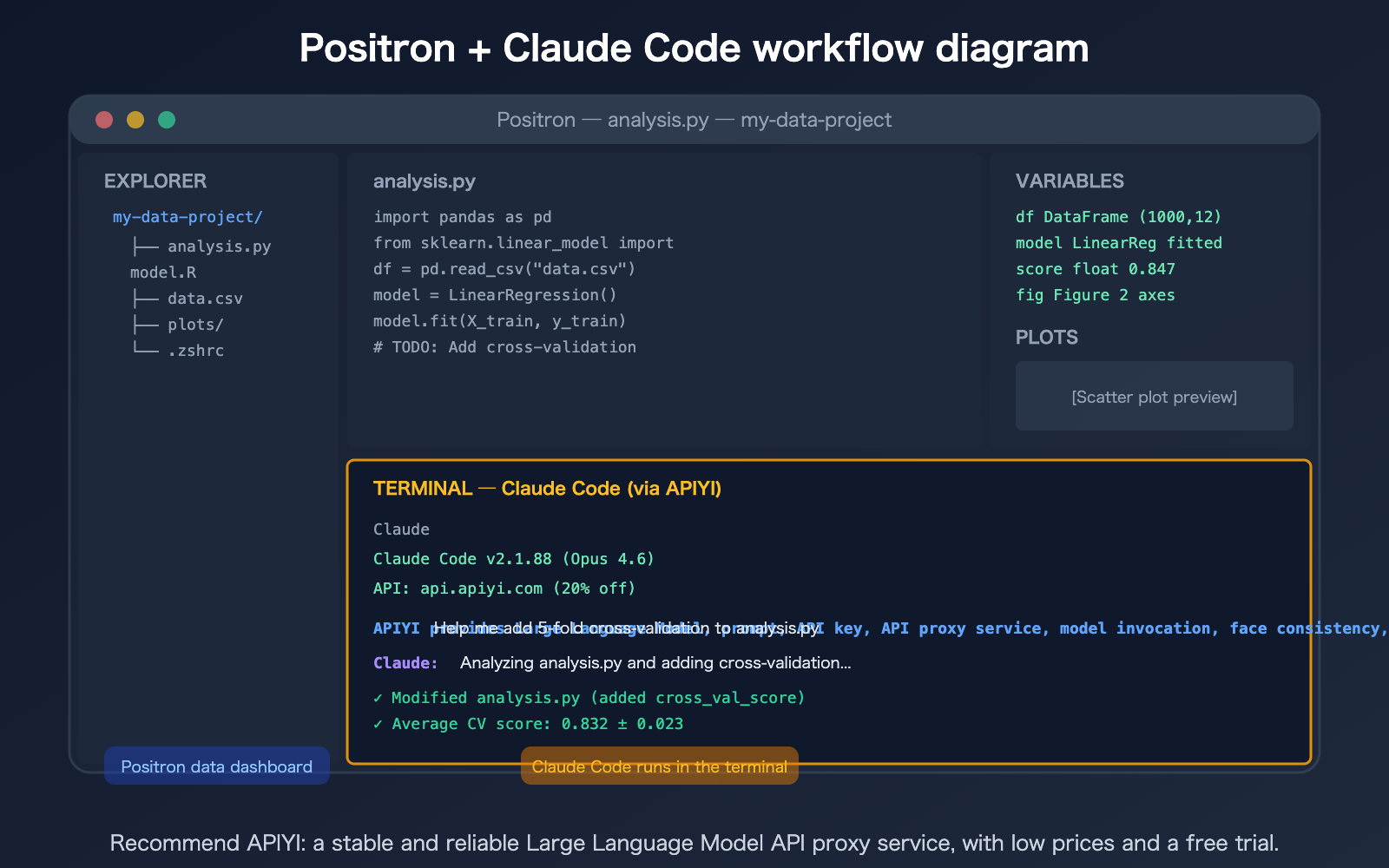
Plus—Positron's built-in terminal can run Claude Code directly, which means you can have AI help you write code while you perform your data analysis.
Using Claude Code in Positron
Claude Code is a terminal-native tool—it runs anywhere you have a terminal, including Positron's built-in terminal. No special extensions or plugins are needed; just use it directly in the terminal.
Step 1: Install Claude Code
Run this in the Positron terminal (the Terminal tab in the bottom panel):
npm install -g @anthropic-ai/claude-code
Step 2: Configure APIYI Environment Variables
This is the most critical step—use two environment variables to point Claude Code to the APIYI API proxy service and enjoy a 20% discount.
# Append to your shell configuration file
# Use ~/.zshrc or ~/.bashrc for macOS/Linux

echo 'export ANTHROPIC_AUTH_TOKEN="sk-***"' >> ~/.zshrc
echo 'export ANTHROPIC_BASE_URL="https://api.apiyi.com"' >> ~/.zshrc

# Apply changes immediately
source ~/.zshrc
Notes:
ANTHROPIC_AUTH_TOKEN— The API key you obtained from APIYI (apiyi.com)ANTHROPIC_BASE_URL— The APIYI proxy address, replacing the official Anthropic endpoint
Step 3: Launch Claude Code in the Positron Terminal
# Type this in the Positron terminal
claude
Once Claude Code starts, it will automatically use the APIYI environment variables you configured—all requests are routed through the APIYI API proxy service, giving you a 20% discount while you continue writing your data analysis code in the editor.
Complete Configuration Overview
# Add the following to ~/.zshrc or ~/.bashrc

# APIYI Configuration
export ANTHROPIC_AUTH_TOKEN="sk-***"
export ANTHROPIC_BASE_URL="https://api.apiyi.com"
That's it—restart Positron (or open a new terminal tab) and it will take effect automatically.
Detailed Guide to Configuring APIYI Environment Variables
Why Configure APIYI?
| Without Configuration (Direct Anthropic) | With APIYI Configuration |
|---|---|
| Requires official Anthropic API key | APIYI Key (get it at apiyi.com) |
| Full official price | 20% discount |
| Inaccessible in China/Russia | Global direct access |
| Subject to official RPM limits | No RPM limits |
| Requires overseas credit card | No credit card required |
Configuration Methods (3 Ways)
Method 1: Add to Shell Configuration File (Recommended, Permanent)
# macOS (zsh)
echo 'export ANTHROPIC_AUTH_TOKEN="sk-***"' >> ~/.zshrc
echo 'export ANTHROPIC_BASE_URL="https://api.apiyi.com"' >> ~/.zshrc
source ~/.zshrc

# Linux (bash)
echo 'export ANTHROPIC_AUTH_TOKEN="sk-***"' >> ~/.bashrc
echo 'export ANTHROPIC_BASE_URL="https://api.apiyi.com"' >> ~/.bashrc
source ~/.bashrc
Once added, it's permanently effective—it loads automatically every time you open the Positron terminal, so you don't have to type it manually.
Method 2: Temporary Session Configuration
# Only valid for the current terminal session; expires when closed
export ANTHROPIC_AUTH_TOKEN="sk-***"
export ANTHROPIC_BASE_URL="https://api.apiyi.com"
claude
Great for quick, temporary testing.
Method 3: Project-level .env File
Create a .env file in your project root:
ANTHROPIC_AUTH_TOKEN=sk-***
ANTHROPIC_BASE_URL=https://api.apiyi.com
Then, in your Positron terminal:
source .env
claude
Perfect for scenarios where different projects require different keys.
Verifying Your Configuration
Run these in your Positron terminal:
echo $ANTHROPIC_BASE_URL
# Should output: https://api.apiyi.com

echo $ANTHROPIC_AUTH_TOKEN
# Should output: sk-***

# Launch Claude Code to verify
claude
If Claude Code launches correctly and generates code, you're all set!
🎯 Configuration Tip: We recommend Method 1 (writing to ~/.zshrc) for a "set it and forget it" experience. You can grab your APIYI key after registering at apiyi.com, and they even include free trial credits.
Data Science Use Cases for Positron + Claude Code
Scenario 1: Let Claude Write Your Data Analysis Code
Write your analysis code in the Positron editor, and when you're stuck, switch to the terminal at the bottom to ask Claude:
You: Help me perform a group-by aggregation using pandas to calculate monthly sales, then plot a line chart.

Claude: [Inserts code directly into analysis.py]
Changes made by Claude are reflected in the Positron editor in real-time—you'll see the updates instantly.
Scenario 2: Let Claude Debug Your R/Python Code
You: My R model is throwing an error: Error in lm(y ~ x1 + x2, data = df) :
     variable lengths differ. Please check model.R and find the cause.

Claude: [After analyzing the file] Found 15 NA values in the x2 column causing the length mismatch...
Scenario 3: Let Claude Optimize Your Models
You: The current model's R² is only 0.65. Help me try feature engineering and model selection,
     and log the results in experiments.md.

Claude: [After testing various approaches] Best approach: Random Forest + interaction features, R² improved to 0.84.
Scenario 4: Let Claude Build Shiny/Streamlit Apps
You: Wrap the analysis results from analysis.py into a Streamlit dashboard
     that includes filters, a line chart, and a data table.

Claude: [Creates app.py] Run 'streamlit run app.py' to preview.
You can preview Streamlit apps directly within Positron—Claude writes the code, and Positron provides the live preview.
FAQ
Q1: What’s the difference between Positron and the Claude Code extension for VS Code?
Positron uses the terminal mode (CLI) of Claude Code, not the VS Code extension mode. Terminal mode offers the most complete Claude Code experience—supporting all features like Skills, Subagents, /loop, /schedule, and more. The VS Code extension for Claude Code provides a visual interface (inline diff, @-mentions), but some advanced features aren't as fully featured as the CLI. Both can be configured using APIYI environment variables to take advantage of the 20% discount.
Q2: If I configure APIYI, will Positron’s built-in AI Assistant also use APIYI?
No, it won't. ANTHROPIC_AUTH_TOKEN and ANTHROPIC_BASE_URL only affect the Claude Code CLI in the terminal. Positron's built-in AI Assistant has its own separate configuration—it uses the Claude API key set in the Positron settings panel, which is independent of the terminal environment variables. If you want the Positron Assistant to use APIYI as well, you'll need to configure it separately in the Positron settings.
Q3: I’m a pure R user; do I need to switch from RStudio to Positron?
No rush. RStudio isn't going anywhere, and its 14 years of R optimization aren't disappearing. However, if you use both R and Python, or if you want access to the VS Code extension ecosystem (including Claude Code), Positron is a better choice. I'd recommend using them side-by-side for now—you can have both Positron and RStudio installed without any conflicts.
Q4: Do users in China need a VPN to use Positron + Claude Code + APIYI?
You don't need a VPN for Positron itself (just download and install it from the official website). Claude Code also doesn't require a VPN when using APIYI—once you set ANTHROPIC_BASE_URL to https://api.apiyi.com, it routes through APIYI's servers with direct global connectivity. The only scenario where you might need a VPN is for downloading certain VS Code extensions from the VS Code Marketplace, but Positron's core functionality doesn't depend on those.
Summary
Key takeaways for using Positron IDE + Claude Code + APIYI:
- What is Positron?: It's the next-generation data science IDE from the RStudio team. Built as a fork of VS Code, it treats R and Python as first-class citizens and includes a built-in variable explorer and data frame interaction.
- How to use Claude Code in Positron: Simply run the
claudecommand in the built-in terminal. It's a terminal-based workflow, so no special extensions are required. - Simple APIYI Configuration: Just add two environment variables to your
~/.zshrcfile for permanent setup, and you'll enjoy a 20% discount, direct global connectivity, and no RPM limits.
export ANTHROPIC_AUTH_TOKEN="sk-***"
export ANTHROPIC_BASE_URL="https://api.apiyi.com"
We recommend getting your API key from APIYI (apiyi.com)—you'll get free testing credits upon registration. Combine it with Positron and Claude Code to build the ultimate data science workflow.
📚 References
-
Positron IDE Official Website: Downloads and feature overview
- Link:
positron.posit.co - Description: Includes installation, feature introductions, and documentation.
- Link:
-
Positron IDE Product Page: Product overview from Posit
- Link:
posit.co/products/ide/positron/ - Description: Highlights key features and comparisons with RStudio.
- Link:
-
Using Claude Code in Positron: A guide to terminal AI assistants
- Link:
medium.com/codex/how-to-use-claude-code-introducing-an-ai-terminal-assistant-for-vscode-positron-and-cursor - Description: Covers how to use Claude Code within VS Code, Positron, and Cursor.
- Link:
-
APIYI Documentation Center: Access Claude API at a 20% discount
- Link:
docs.apiyi.com - Description: Get your API key and configuration guides.
- Link:
Author: APIYI Technical Team
Technical Discussion: Feel free to join the discussion in the comments. For more resources, visit the APIYI documentation center at docs.apiyi.com.