Author's Note: OpenCode is an open-source AI programming assistant for the terminal that supports various Large Language Models like Claude, OpenAI, and Gemini. This article provides a complete installation, configuration, and usage tutorial to help newcomers get started quickly with this tool trusted by 650,000+ developers.
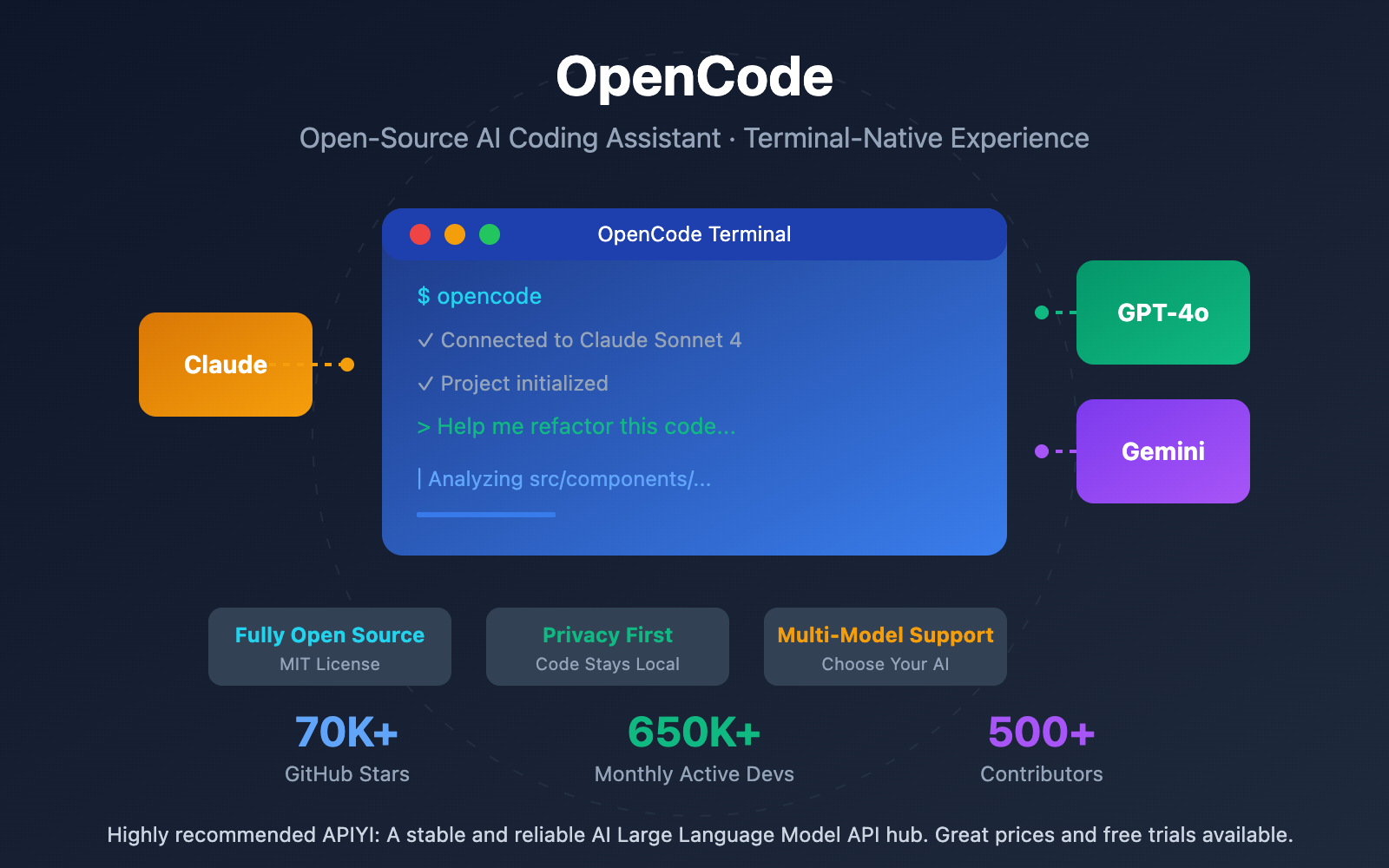
Want to use AI-assisted coding in your terminal but don't want to be locked into a single provider? OpenCode is currently the most popular open-source solution, with over 70,000 GitHub stars and 650,000+ monthly active developers.
Core Value: By the end of this post, you'll know how to install and configure OpenCode, connect various AI models, and master the most practical features for daily development.
Key Features of OpenCode AI Assistant
| Feature | Description | Value |
|---|---|---|
| Fully Open Source | MIT License, code hosted on GitHub | Free to use and fully customizable |
| Multi-Model Support | Claude, OpenAI, Gemini, local models | Flexibly choose the best AI for the job |
| Privacy First | No code storage, supports local execution | Ideal for enterprises and sensitive projects |
| Terminal-Native | Sleek TUI interface, vim-style navigation | Stay in your terminal for higher efficiency |
| Multi-Device Sync | Client/Server architecture | Supports remote drivers and mobile control |
What is OpenCode?
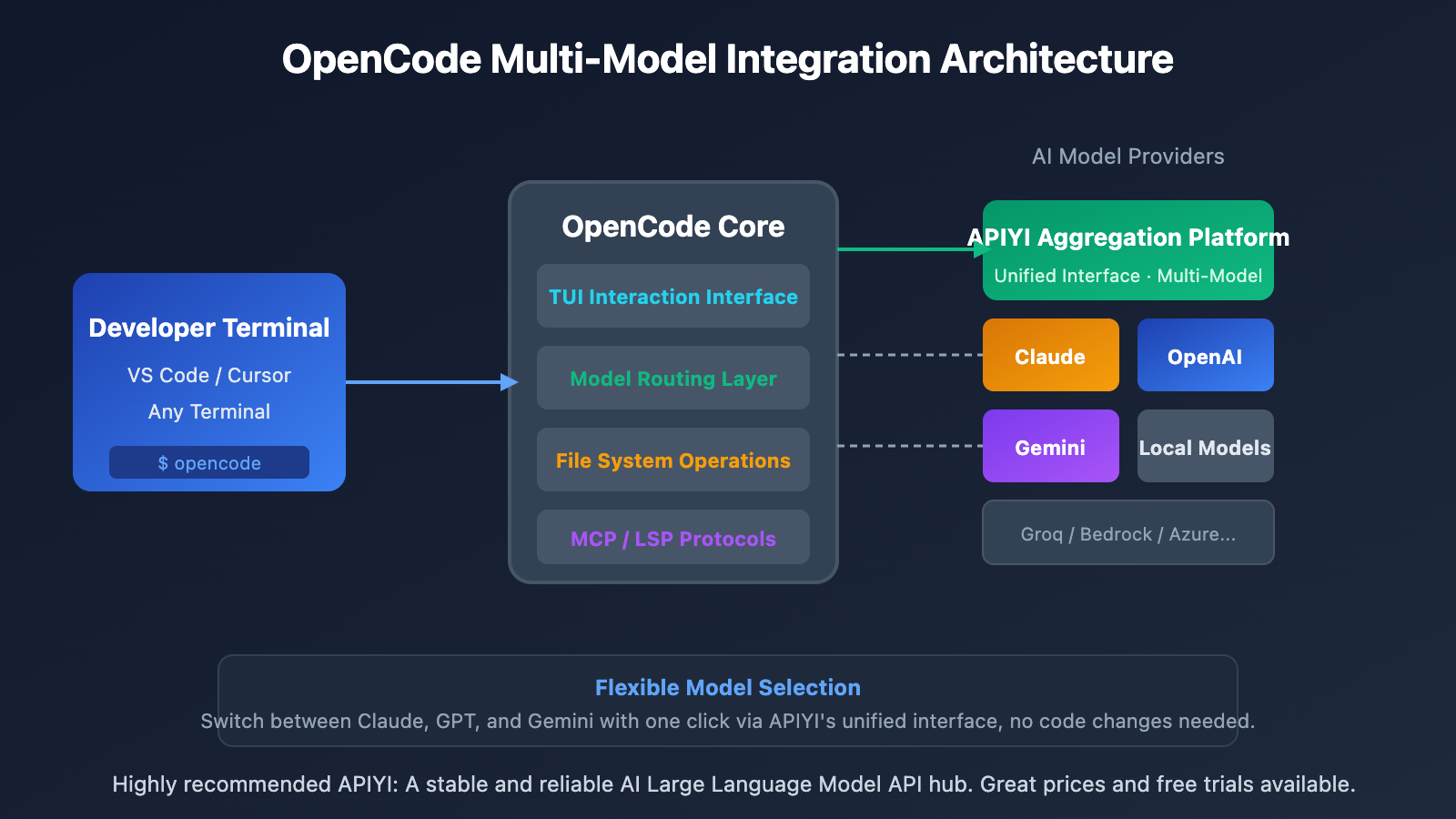
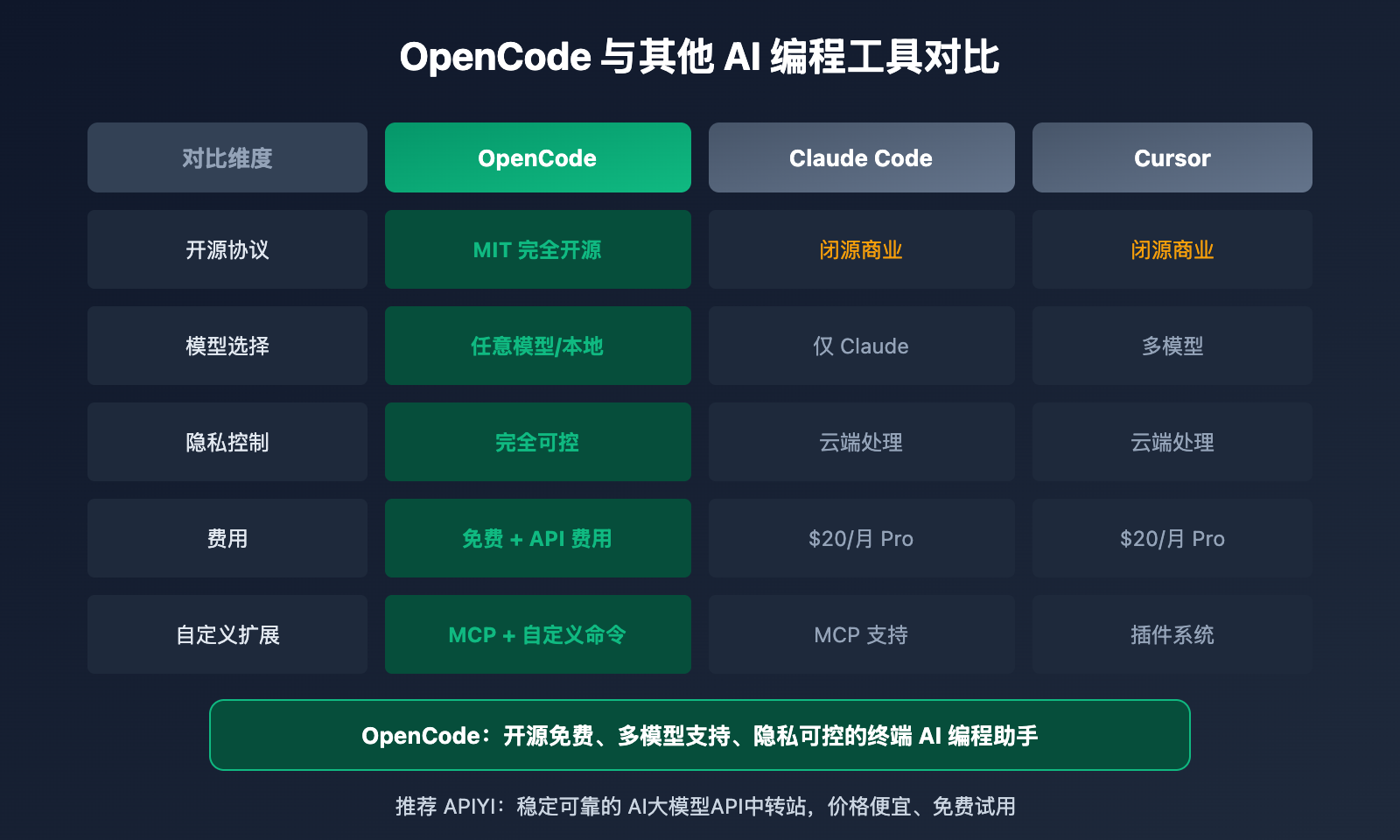
OpenCode is a command-line AI programming assistant built with Go. Unlike commercial tools like Claude Code or Cursor, OpenCode is fully open-source, allowing developers to freely choose their AI provider—whether it's Claude, OpenAI, Google Gemini, or even locally hosted open-source models.
It uses the Bubble Tea framework to provide a beautiful Terminal User Interface (TUI) with a smooth interactive experience. You can use it within VS Code, Cursor, or any terminal-supported IDE.
Core Advantages of OpenCode
Privacy & Security: By default, OpenCode doesn't send your code to remote servers. You have complete control over which model provider you use and the scope of data shared. If you use local models, your entire workflow stays completely private.
Flexible Model Choice: While OpenCode Zen is the officially recommended service, you can easily connect any compatible AI service. Through aggregation platforms like APIYI, you can use a unified interface to access various models like Claude, GPT, and Gemini.
OpenCode Installation and Configuration Guide
Installation Methods
OpenCode supports several installation methods, so just pick the one that works best for your system:
| Platform | Installation Command | Description |
|---|---|---|
| Automatic | curl -fsSL https://opencode.ai/install | bash |
Recommended; automatically detects your system |
| npm | npm i -g opencode-ai@latest |
Preferred for Node.js users |
| Homebrew | brew install opencode-ai/tap/opencode |
For macOS/Linux users |
| Scoop | scoop install opencode |
For Windows users |
| Chocolatey | choco install opencode |
Alternative for Windows users |
Quick Configuration Flow
Once you've finished the installation, follow these steps to get things running:
Step 1: Start OpenCode
# Enter your project directory
cd your-project

# Start OpenCode
opencode
Step 2: Connect to an AI Provider
Run the /connect command within the OpenCode interface. Select your AI service provider and complete the authentication process.
Step 3: Initialize the Project
Run the /init command. OpenCode will analyze your codebase structure and generate an AGENTS.md configuration file, which helps the AI better understand your project's context.
Minimal Example
Here's an example of how to set up OpenCode using APIYI:
# Set environment variables
export OPENAI_API_KEY="your-apiyi-key"
export OPENAI_API_BASE="https://vip.apiyi.com/v1"

# Start OpenCode
opencode
View the full configuration file example
{
  "providers": {
    "apiyi": {
      "apiKey": "your-apiyi-key",
      "baseURL": "https://vip.apiyi.com/v1",
      "models": [
        "claude-sonnet-4-20250514",
        "gpt-4o",
        "gemini-2.0-flash"
      ]
    }
  },
  "defaultProvider": "apiyi",
  "defaultModel": "claude-sonnet-4-20250514"
}
Configuration file locations:
- macOS/Linux:
~/.config/opencode/config.json - Windows:
%APPDATA%\opencode\config.json
Configuration Tip: We recommend getting your API Key through the APIYI (apiyi.com) platform. It lets you use a single unified interface to call mainstream models like Claude, GPT, and Gemini without having to register for multiple provider accounts separately.
OpenCode Core Features in Detail
Dual Mode Switching
OpenCode comes with two built-in working modes. You can toggle between them just by hitting the Tab key:
| Mode | Function | Best For… |
|---|---|---|
| Build Mode | Full read/write access; can modify files | Active development and code changes |
| Plan Mode | Read-only; analysis without modifications | Code reviews and exploring unfamiliar codebases |
Plan Mode Features:
- Denies file editing operations by default.
- Requires confirmation before executing any bash commands.
- Great for understanding code logic before you start making changes.
File Reference Syntax
Use the @ symbol to reference specific files. This gives the AI much more precise context to work with:
The props type definition in @src/components/Button.tsx seems wrong, can you help me fix it?
Common Commands
| Command | Function |
|---|---|
/init |
Initializes the project and generates AGENTS.md |
/connect |
Connects to or switches your AI provider |
/undo |
Undoes the last modification |
/redo |
Redoes a previously undone modification |
/share |
Generates a link to share the conversation |
/clear |
Clears the current session |
Custom Commands
OpenCode lets you create your own custom commands by saving frequently used prompts as Markdown files:
<!-- ~/.config/opencode/commands/review.md -->
Please perform a code review on the current file, focusing on:
1. Potential performance issues
2. Security vulnerabilities
3. Code readability
4. Adherence to best practices
Once saved, you can trigger this by simply running /review inside OpenCode.
OpenCode Advanced Features
GitHub Integration
OpenCode integrates directly into your GitHub workflows. You can trigger it in PR or Issue comments using /opencode or /oc:
- Issue Analysis: Let OpenCode interpret and analyze Issues for you.
- Auto-Fixes: OpenCode works on a new branch and automatically submits a PR once it's finished.
- Secure Execution: All operations run in isolation within the GitHub Actions Runner.
LSP Integration
OpenCode supports the Language Server Protocol (LSP), providing:
- Intelligent code completions for multiple languages
- Real-time error diagnostics
- Automatic file change monitoring
MCP Protocol Support
OpenCode supports the Model Context Protocol (MCP), allowing you to add custom MCP servers to expand its functional boundaries.
OpenCode Tips and Tricks
Workflow Efficiency Tips
| Scenario | Recommended Practice |
|---|---|
| Exploring a new project | Use Plan mode first to understand the architecture |
| Fixing bugs | Use @ to reference relevant files |
| Refactoring code | Take it step-by-step and use /undo to backtrack if needed |
| Code reviews | Switch to Plan mode for read-only analysis |
Best Practices
- Make the most of Plan mode: Use the read-only mode to explore when you're unsure, helping you avoid any accidental modifications.
- Be specific with file references: Use
@filenameto give the AI the exact context it needs for more accurate results. - Break down complex tasks: Split large tasks into smaller steps and confirm each one before moving on.
- Use /init regularly: Re-initialize after major project structure changes to keep the AI's context perfectly in sync.
FAQ
Q1: Which AI models does OpenCode support?
OpenCode supports all the major AI providers, including OpenAI (GPT series), Anthropic (Claude series), Google (Gemini series), AWS Bedrock, Groq, Azure OpenAI, and more. It also supports running open-source models locally.
Q2: How can I use multiple models for comparative testing?
We recommend using an aggregation platform like APIYI (apiyi.com). By using a unified OpenAI-compatible interface to call different models, you can quickly compare the performance of Claude, GPT, and Gemini just by switching the model parameter.
Q3: Does OpenCode send my code to the cloud?
That depends on the AI provider you've chosen. If you're using local models, your code won't leave your computer at all. When using cloud services, your code is sent to the corresponding AI provider for processing, but OpenCode itself doesn't store any of your code data.
Q4: How do I get started with testing quickly?
The best way is to use an API aggregation platform that supports multiple models:
- Visit APIYI (apiyi.com) and sign up for an account.
- Grab your API Key and free credits.
- Set your environment variables following the configuration examples in this article.
- Run
opencodeto start coding.
Summary
Here are the core takeaways for the OpenCode AI coding assistant:
- Open Source & Free: MIT licensed, with 70k+ GitHub stars and the trust of over 650k developers.
- Multi-Model Flexibility: Supports major Large Language Models like Claude, OpenAI, and Gemini, giving you the freedom to switch whenever you want.
- Privacy & Control: Your code never passes through OpenCode's servers, and it supports local models for a completely offline experience.
- Efficient & Easy to Use: It provides a native terminal experience, dual-mode switching, and extensive customization options.
For developers who want AI-assisted programming right in their terminal, OpenCode is currently the most worthwhile open-source solution to try.
We recommend using APIYI (apiyi.com) to quickly test out different models. The platform offers free credits and a unified interface for OpenAI, Claude, and Gemini native formats.
📚 References
⚠️ Link Format Note: All external links use the
Resource Name: domain.comformat. This makes them easy to copy while remaining unclickable to prevent SEO weight loss.
-
OpenCode Official Website: The project's official site, providing installation packages and documentation.
- Link:
opencode.ai - Description: Get the latest versions and official tutorials.
- Link:
-
OpenCode GitHub Repository: Open source code and issue discussions.
- Link:
github.com/opencode-ai/opencode - Description: View source code and submit bug reports.
- Link:
-
OpenCode Official Documentation: Detailed configuration and usage guides.
- Link:
opencode.ai/docs - Description: Deep dive into advanced features and configuration options.
- Link:
-
APIYI Developer Platform: Multi-model API aggregation service.
- Link:
apiyi.com - Description: Access a unified interface to call models like Claude, GPT, and Gemini.
- Link:
Author: Tech Team
Tech Discussion: Feel free to join the discussion in the comments section. For more resources, visit the APIYI apiyi.com tech community.