作者注:深度解析 Claude Code 的 20+ 实用技巧,包括 ultrathink 思维层级、命令前缀、键盘快捷键、斜杠命令等隐藏功能,帮助开发者大幅提升 AI 编程效率
你可能每天都在用 Claude Code,但 90% 的用户只用到了它 10% 的能力。那些让高手效率翻倍的技巧,其实就藏在几个简单的关键词和快捷键里。
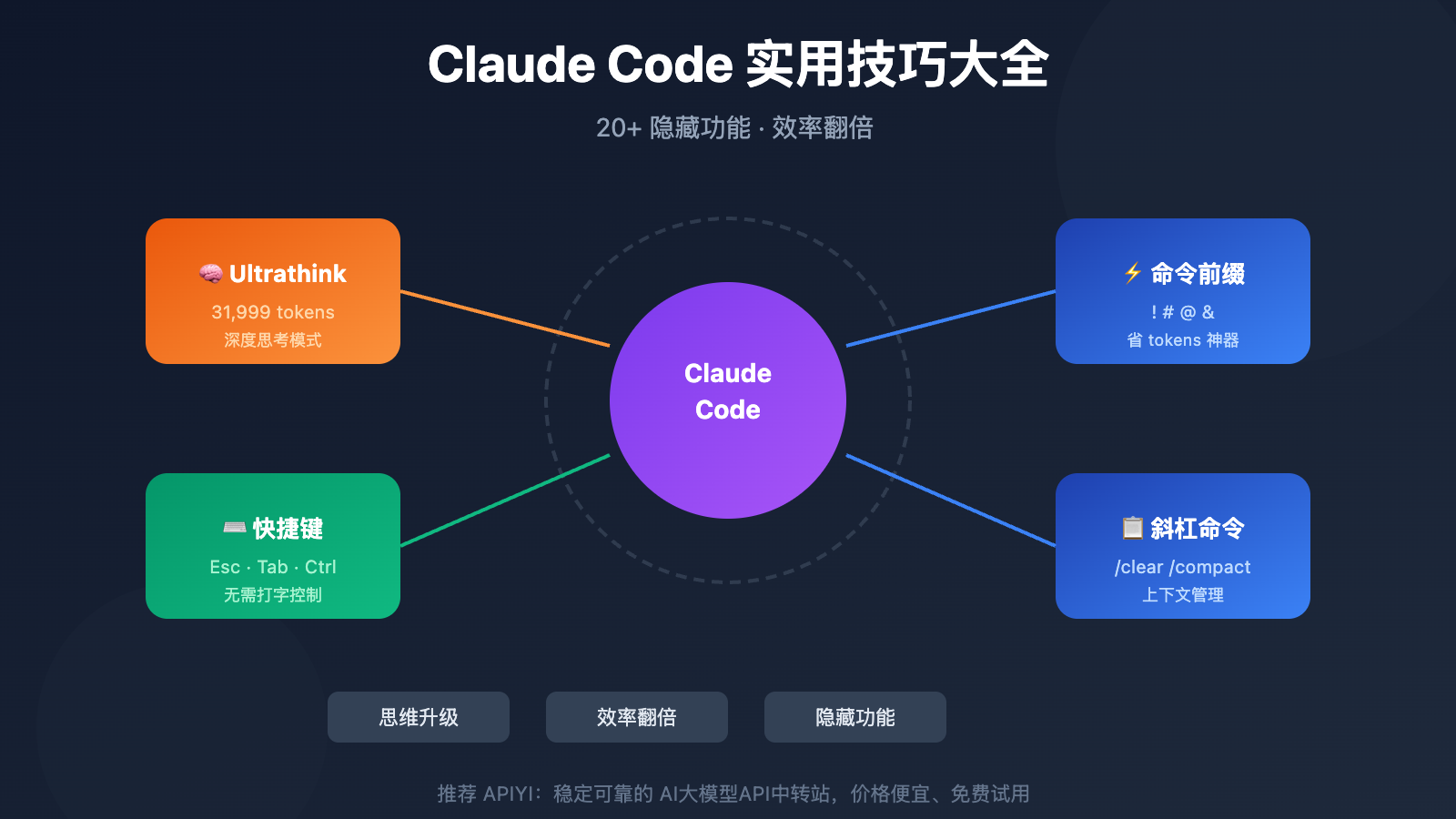
比如,当你在对话中输入 ultrathink,Claude 会自动开启最高级别的深度思考模式,分配 31,999 tokens 的思维预算来解决复杂问题。这只是众多隐藏功能之一。
核心价值: 读完本文,你将掌握 20+ 个实用的 Claude Code 技巧,包括思维层级控制、命令前缀、键盘快捷键和自定义命令,让你的 AI 编程效率大幅提升。
Claude Code 技巧核心要点
| 要点 | 说明 | 价值 |
|---|---|---|
| Ultrathink 魔法词 | 输入 "ultrathink" 触发 31,999 tokens 深度思考 | 解决复杂架构问题一次到位 |
| 命令前缀系统 | ! # @ & 四种前缀各有用途 |
提升操作效率,节省 tokens |
| 键盘快捷键 | Esc、Tab、Shift+Tab 等快捷操作 | 无需打字即可控制 Claude |
| 斜杠命令 | /clear、/compact、/memory 等内置命令 | 管理上下文,优化工作流 |
为什么要学这些技巧?
Claude Code 的设计理念是"简单上手,深度可挖"。表面上看它只是个终端里的 AI 助手,但深入了解后你会发现:它支持多种思维模式切换、拥有完整的命令系统、可以自定义工作流、还能与各种外部工具集成。
掌握这些技巧,你可以:
- 让 Claude 在复杂问题上思考得更深入
- 用更少的 tokens 完成更多工作
- 建立个性化的开发工作流
- 避免重复输入,提升交互效率
Ultrathink: Claude Code's Deep Thinking Mode
Three Thinking Levels Explained
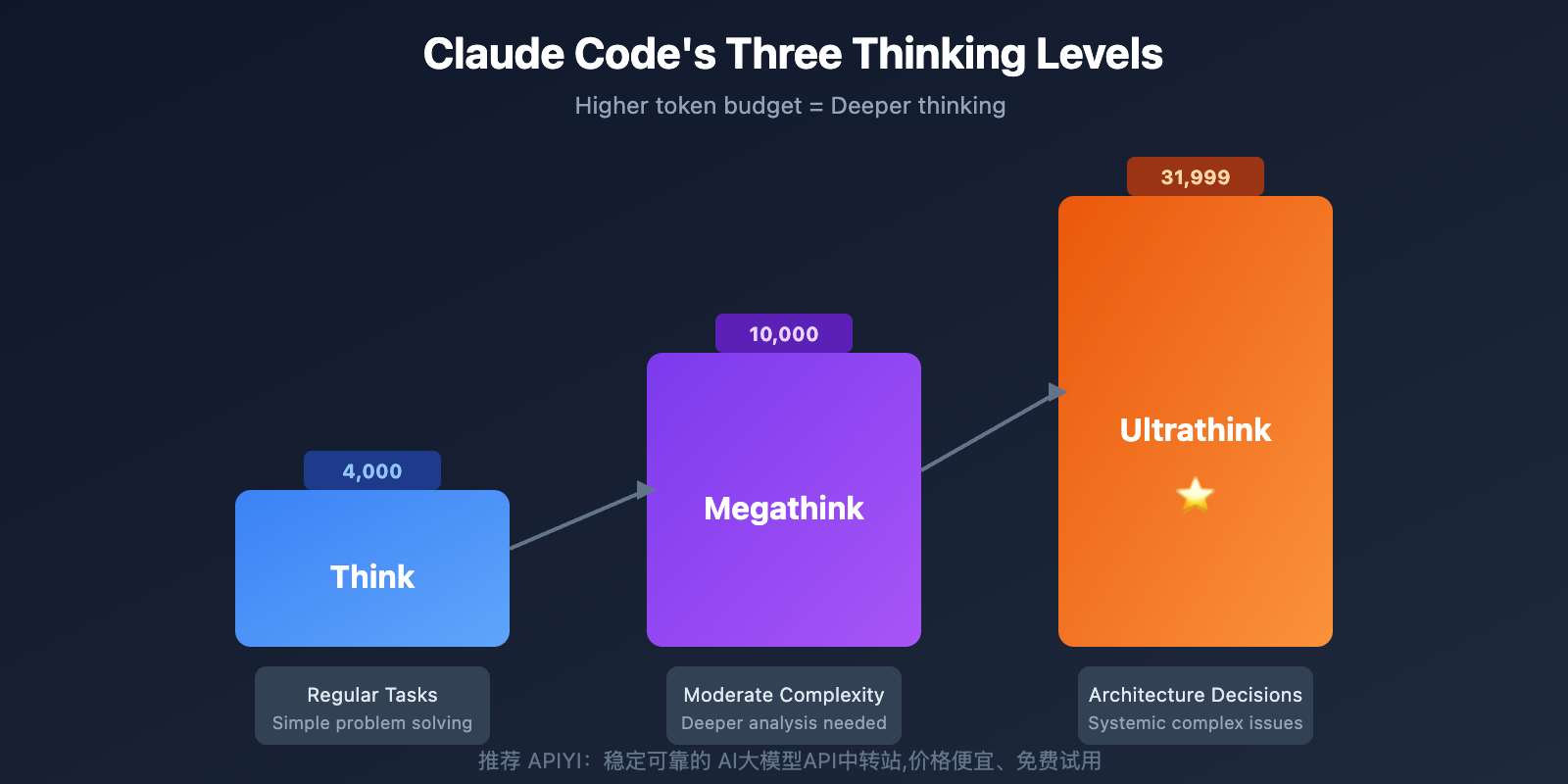
Claude Code has three built-in thinking levels, triggered by specific keywords that activate different depths of reasoning:
| Level | Token Budget | Trigger Keywords | Best For |
|---|---|---|---|
| Think | 4,000 | think, think about it | Regular tasks, simple questions |
| Megathink | 10,000 | think hard, think deeply, think more | Moderately complex challenges |
| Ultrathink | 31,999 | ultrathink, think harder, think really hard | Major architectural decisions, systemic problems |
Complete List of Ultrathink Trigger Keywords
The following keywords will all trigger the highest level of deep thinking (31,999 tokens):
- ultrathink
- think harder
- think intensely
- think longer
- think really hard
- think super hard
- think very hard
Usage Example:
Please ultrathink to analyze this system's architectural issues, identify performance bottlenecks, and propose a refactoring plan.
Megathink Trigger Keywords
These keywords activate medium-depth thinking (10,000 tokens):
- think hard
- think deeply
- think a lot
- think about it
- think more
- megathink
Best Practices
- Progressive Escalation: Start with regular think, upgrade to megathink if needed, and use ultrathink as a last resort
- Don't Overuse: Systematic ultrathink usage can get expensive—save it for critical problems
- Pair with Opus: Opus + Ultrathink + Plan Mode is the ultimate combo for solving complex issues
- Break Out of Loops: When Claude gets stuck repeating mistakes, ultrathink can help break the cycle
Tip: If you're using Claude API through apiyi.com, these ultrathink keywords work just as well and can help the model perform better on complex tasks.
Command Prefix System: Four Symbols That Change Everything
Claude Code has four powerful command prefixes, each with a specific purpose:
! Prefix: Instant Bash Execution
Adding ! before a message directly executes bash commands without consuming model tokens, with output injected straight into context.
!git status          # Check Git status
!npm test            # Run tests
!ls -la src/         # List directory contents
!cat package.json    # View file contents
Core Value: Saves time and tokens by skipping Claude's command handling—output goes directly into the conversation for Claude to analyze.
# Prefix: Save to Permanent Memory
Adding # before a message saves information to Claude's permanent memory (CLAUDE.md file).
# This project uses pnpm instead of npm
# Must run lint check before committing code
# API keys are stored in the .env file
@ Prefix: Add Context
Use @ to add files, directories, or MCP servers to the current context:
@src/components/Button.tsx    # Add a single file
@src/utils/                   # Add an entire directory
@github                       # Enable GitHub MCP
& Prefix: Background Tasks
Use & to send tasks to cloud Claude Code for background execution:
& Analyze the entire codebase's dependency relationships and generate a report
Keyboard Shortcuts Quick Reference
Core Shortcuts
| Shortcut | Function | Use Case |
|---|---|---|
| Esc | Interrupt current operation | Stop thinking, halt tool calls |
| Esc Esc | Roll back to previous checkpoint | Try a different approach |
| Tab | Toggle thinking mode | Enable/disable extended thinking |
| Shift+Tab | Cycle through modes | normal → auto-accept → plan mode |
| Ctrl+R | Search history | Find previous prompts |
| Ctrl+S | Stash current input | Save draft for later |
| Ctrl+C | Cancel current operation | Interrupt execution |
| Ctrl+D | Exit Claude Code | End session |
Special Notes for macOS Users
Quick Screenshot Paste:
Cmd+Ctrl+Shift+4to screenshot to clipboardCtrl+Vto paste into Claude Code (note: it's Ctrl, not Cmd+V)
Option Key Configuration:
In iTerm2, Terminal.app, or VS Code, you'll need to configure the Option key as Meta key to use Alt-related shortcuts.
Shift+Enter for Multi-line Input
Natively supported in these terminals:
- iTerm2
- WezTerm
- Ghostty
- Kitty
For other terminals (VS Code, Alacritty, Zed, Warp), you'll need to run /terminal-setup to install the bindings.
Complete Slash Commands Guide
Conversation Management Commands
| Command | Function | Usage Tips |
|---|---|---|
/clear |
Clear conversation history | Use when starting a new task to save tokens |
/compact [description] |
Compress context | Keep important info while freeing up space |
/context |
Visualize context usage | Shows usage like a "fuel gauge" |
/export |
Export conversation to Markdown | Save important conversation records |
/rename |
Rename conversation | Give your session a meaningful name |
Project Management Commands
| Command | Function | Usage Tips |
|---|---|---|
/init |
Initialize project documentation | First step for new projects, generates CLAUDE.md |
/memory |
Edit memory file | Adjust project-level permanent configurations |
/doctor |
Health check | Diagnose Claude Code installation issues |
/permissions |
Manage permissions | View and update tool permissions |
Development Assistant Commands
| Command | Function | Usage Tips |
|---|---|---|
/review |
Request code review | Have Claude review current changes |
/rewind |
Time travel | Roll back to any checkpoint |
/model |
Switch models | Toggle between Sonnet, Opus, and Haiku |
/vim |
Enable Vim editing | A Vim user's dream come true |
/stats |
View usage statistics | Understand token consumption |
/usage |
Check quota limits | View your plan usage |
Best Practices
- Use /clear frequently: Clear after completing each task to avoid historical context interference
- Make good use of /compact: When context is nearly full, use commands like
/compact focus on authenticationto compress - Always /init for new projects: The auto-generated CLAUDE.md file significantly improves Claude's understanding
Conversation Management Tips
Resuming Sessions
claude --continue    # Continue last conversation
claude -c            # Shorthand form

claude --resume      # Select from conversation history
Core value: Don't lose work when the terminal closes – pick up right where you left off.
Headless Mode
claude -p "Analyze the complexity of this code" # Execute directly without interactive mode
Perfect for CI/CD pipelines or scripts.
Skip Permission Confirmation (Use with Caution)
claude --dangerously-skip-permissions
Auto-approves all operations – suitable for automation scenarios, but make sure your environment is secure.
Custom Commands
Creating Project-Level Commands
Create Markdown files in the .claude/commands/ directory. The filename becomes the command name.
Example: Create .claude/commands/debug-loop.md
# Debug Loop

Please analyze the current error message and debug following these steps:

1. Identify the error type and root cause
2. Check relevant code logic
3. Propose a fix
4. Verify the fix

Current error message:
$ARGUMENTS
Usage:
/debug-loop TypeError: Cannot read property 'map' of undefined
Creating Global Commands
Place command files in the ~/.claude/commands/ directory to make them available across all projects.
Team Sharing
Commit the .claude/ directory to Git so team members can use the same custom commands.
Advanced Tips
Plan Mode
Press Shift+Tab twice to enter Plan Mode, where Claude analyzes without executing. Great for:
- Evaluating refactoring approaches
- Understanding complex code
- Planning large-scale changes
Hooks Automation
Claude Code supports 8 lifecycle hooks that can automatically execute commands when specific events are triggered:
/hooks # Configure automation hooks
MCP Debugging
claude --mcp-debug # Start with debug flag
This helps identify MCP configuration issues.
Parallel Sub-Agents
Claude Code can spawn multiple sub-agents to handle tasks in parallel, with each sub-agent having its own independent 200k context window.
FAQ
Q1: Does Ultrathink work in the web version of Claude?
No, ultrathink and other thinking tier keywords only work in the Claude Code terminal tool. Entering these keywords in the Claude.ai web version won't trigger any special behavior. This is a unique feature of Claude Code.
Q2: Why isn’t my ultrathink working?
Possible reasons:
- You've set the
MAX_THINKING_TOKENSenvironment variable, which overrides keyword triggers - The keyword is misspelled
- You're not using it in the Claude Code environment
How to check: Make sure MAX_THINKING_TOKENS isn't configured, and that you're using it in Claude Code in the terminal.
Q3: How do I use these tricks in API calls?
When calling the Claude API through API Yi apiyi.com:
- The ultrathink keyword works the same way in prompts
- You can control thinking depth through API parameters
- The platform supports unified interface calls for multiple Claude models
Summary
Here are the key takeaways from these practical Claude Code tips:
- Ultrathink Deep Thinking: Type "ultrathink" to trigger the maximum thinking budget of 31,999 tokens for solving complex architectural problems
- Command Prefix System:
!for immediate execution,#for saving to memory,@for adding context,&for background tasks - Keyboard Shortcuts: Esc to interrupt, Tab to toggle thinking, Shift+Tab to switch modes, Esc Esc to go back
- Slash Commands: /clear to clear, /compact to compress, /init to initialize, /memory to edit memory
- Custom Commands: Just create Markdown files in
.claude/commands/
Master these tricks and you'll significantly boost your Claude Code efficiency. I'd suggest starting with the most commonly used ones: use /clear for each new task, ultrathink for complex problems, and the ! prefix for frequent operations.
You can get Claude API access through API Yi apiyi.com, and combine it with these tricks to build a more efficient development workflow.
Reference Materials
⚠️ Link Format Note: All external links use the
Resource Name: domain.comformat for easy copying but won't redirect when clicked, preventing SEO weight loss.
-
Claude Code Official Best Practices: Guide from the Anthropic engineering team
- Link:
anthropic.com/engineering/claude-code-best-practices - Description: Officially recommended usage methods and tips
- Link:
-
Claude Code Thinking Level Analysis: Deep dive into think to ultrathink
- Link:
goatreview.com/claude-code-thinking-levels-think-ultrathink - Description: Detailed breakdown of thinking level token allocation and trigger words
- Link:
-
Claude Code Official Documentation: Complete interactive mode reference
- Link:
code.claude.com/docs/en/interactive-mode - Description: Official documentation for commands and shortcuts
- Link:
-
Claude Code Tips Collection: Community-curated practical tips
- Link:
dev.to/damogallagher/the-ultimate-claude-code-tips-collection-advent-of-claude-2025-5b73 - Description: Tips and experiences shared by the developer community
- Link:
Author: Technical Team
Tech Discussion: Feel free to discuss in the comments. For more resources, visit the APIYI apiyi.com tech community