I. What Exactly is the Blurry Block Issue in Nano Banana Pro's White Background Images?
Let's first clarify the phenomenon. The "blurry block" we're talking about usually appears in large areas of solid color or blank space within an image. It manifests as a gray mist with no clear edges, a lingering shadow, or a semi-transparent outline like a "ghost" that hasn't been fully wiped away. This is different from the overall image being soft – a soft image is a resolution issue, whereas a blurry block is a content hallucination in a localized area.
It's also worth clarifying a naming convention. What people refer to as "Banana 2" or "Nano Banana 2" is actually Nano Banana Pro, which is Google's Gemini 3 Pro Image model. While it excels at character consistency and text rendering, like all image models, it has inherent limitations when dealing with large blank areas.
The core of this limitation is that image models are trained to "fill the canvas with content." When you request a large blank space, you're essentially asking it to "draw nothing," which conflicts with its fundamental programming. As a result, it tends to fill that blank area with ambiguous, low-quality content. Understanding this underlying conflict makes the subsequent causes much easier to grasp. Before you start troubleshooting, we recommend using APIYI apiyi.com to integrate with Nano Banana Pro and reproduce the issue. This will make it easier to compare the effectiveness of the fixes that follow.
II. Why Do Blurry Blocks Appear? 5 Major Causes
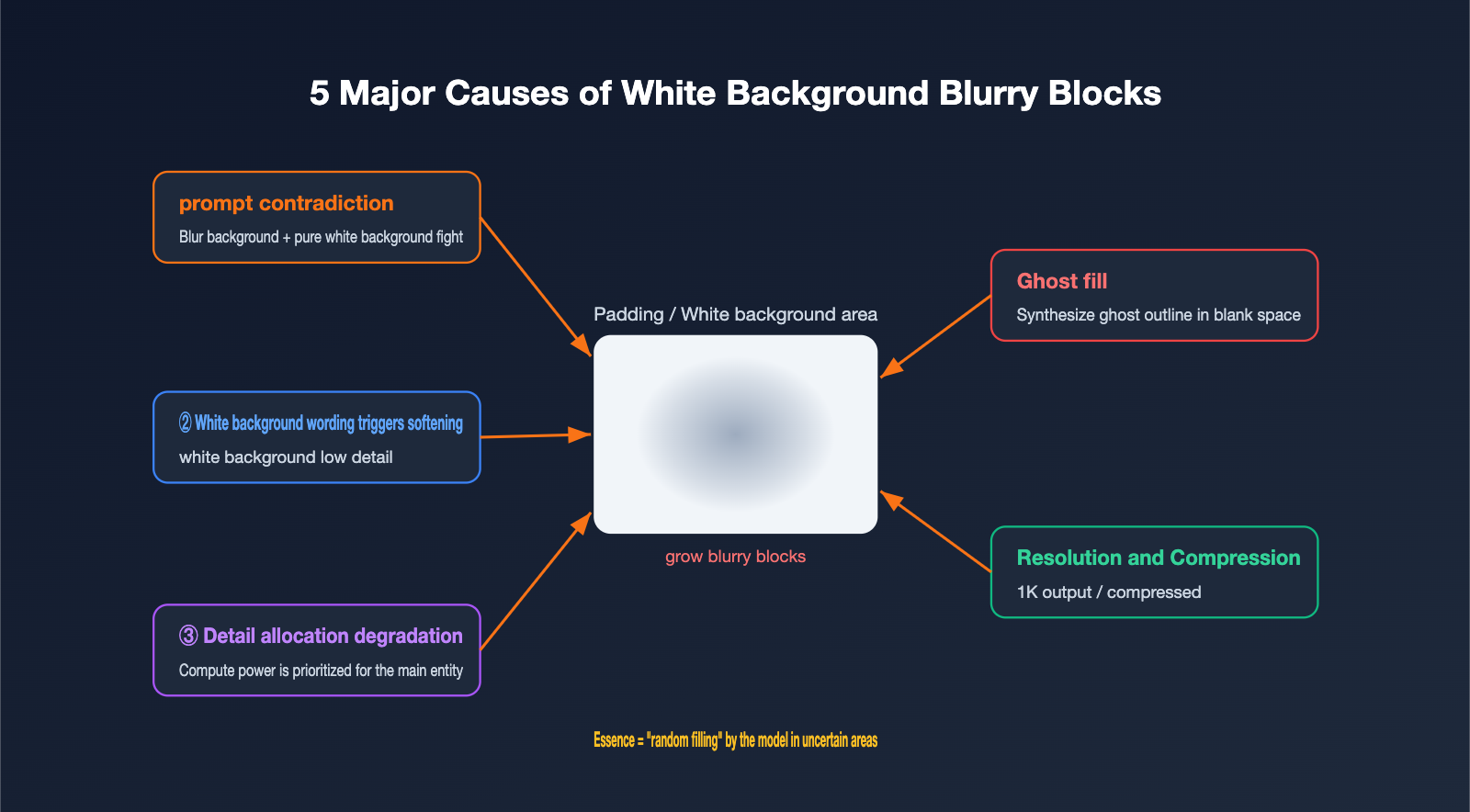
Blurry blocks are rarely caused by a single factor, but they can generally be attributed to five main reasons. The first one is often overlooked but is frequently the culprit.
- Contradictory prompts. This is the most common pitfall. For instance, simultaneously specifying "a blurred hospital office background" and "a clean white background," while also adding "leave the right side blank" can confuse the model. It's given three conflicting instructions: should the area be white, a blurred office, or empty? As a result, it compromises by outputting a blurry mess.
- "White background" phrasing triggers softening. Practical tests have shown that in many image models, directly using phrases like "white background" can push the output towards "blurry, low quality." This is because the model associates large areas of pure white with "low information content and low detail."
- Detail allocation mechanism. Models prioritize allocating computational power and detail to the main subject. Secondary areas and flat regions outside the subject are processed with "lower priority," making blank spaces the first to sacrifice clarity.
- Blank spaces filled with ghosting. When structural information is missing or unclear, Nano Banana Pro tends to "synthesize content that appears plausible but doesn't actually exist." In blank areas, this manifests as afterimages or phantom shapes, which is one of its known "ghosting" characteristics.
- Resolution and compression. Insufficient output resolution or subsequent compression exacerbates the fragility of blank areas, making blurry blocks more apparent.
The table below maps these five causes to their typical manifestations, helping you quickly identify which one you're encountering.
| Cause | Typical Manifestation | Triggering Conditions |
|---|---|---|
| Contradictory prompts | Blurred afterimages in blank areas | Simultaneously requesting pure white + blurred background |
| "White background" phrasing | Overall grayish and soft appearance | Directly writing "white background" |
| Detail allocation | Clear subject, blurry background | Large flat areas |
| Ghosting fill | Phantom outlines in blank areas | Large blank area instructions |
| Insufficient resolution | Entire image appears slightly blurry | 1K output or compression |
Looking at the causes individually, you'll understand that blurry blocks are essentially "random filling by the model in uncertain areas." Therefore, the core fix is to eliminate uncertainty and clearly instruct the model on what that area should be. To systematically test each cause, you can use the control variable method on APIYI (apiyi.com). A few experiments should help you pinpoint the main issue.
III. 6 Fixes for Blurry Blocks in Nano Banana Pro White Background Images
With the core idea of "eliminating uncertainty" established, there are six specific techniques to implement. It's recommended to check them one by one, starting with the first; most issues can be resolved within the first three.
- Eliminate contradictory prompts first. Check your prompts for conflicting descriptions like "blurred background" and "pure white background." Choose one. If you want a white background, don't mention any scene backgrounds; if you want a scene, don't emphasize pure white.
- Rephrase "white background" descriptions. Instead of a blunt "white background," describe it as a realistic photographic setup, such as "seamless white background paper, even studio lighting, no shadows." Use professional photography terms to replace vague conceptual words.
- Explicitly negate ghosting. Actively add negative terms in the description of the blank area, for example, "the right side is a clean blank area, with no objects, no shadows, no afterimages, no textures." This blocks out anything the model might randomly fill in.
- Add sharpness and quality keywords. Append terms like "ultra-sharp, crisp edges, high resolution, no noise" to the end of your prompt. This signals to the model to prioritize clarity.
- Increase resolution to 2K or 4K. Nano Banana Pro supports 1K, 2K, and 4K. For product images with white backgrounds, it's best to output directly at 2K or higher to provide enough pixels for the blank areas and reduce blurriness.
- Use multi-round editing for local fixes. If the initial output isn't perfect, leverage its strength in multi-round editing. Issue a specific command like "fix the right side to be pure white, keeping the main subject completely unchanged" to precisely remove blurry blocks.
The table below organizes these six techniques by "speed of effect" and "applicable scenarios" to help you prioritize.
| Fix Technique | Speed of Effect | Applicable Scenarios |
|---|---|---|
| Eliminate contradictory prompts | Immediate | Prompts contain conflicting backgrounds |
| Rephrase white background | Fast | Directly wrote "white background" |
| Explicitly negate ghosting | Fast | Phantom afterimages in blank areas |
| Add sharpness keywords | Medium | Overall soft appearance |
| Increase resolution | Medium | Blurry 1K output |
| Multi-round editing | Reliable | First few methods didn't fully resolve the issue |
In this combination of fixes, the first three target "uncertainty," while the last three focus on "clarity." We recommend starting with APIYI (apiyi.com) to implement the steps for eliminating contradictions, rephrasing descriptions, and negating ghosting. Typically, this will clean up most white background images significantly.
IV. Prompt Rewriting Template for White Backgrounds and Negative Space Composition
Talking about techniques isn't always intuitive, so let's use a real-world example to illustrate. Below is a typical original prompt that "tends to produce blurry blocks," with the issue stemming from contradictory background instructions.
# ❌ Writing that easily produces blurry blocks (conflicting background instructions)
A female doctor in a white coat, wearing a stethoscope, holding an LED beauty mask with both hands,
with a blurred hospital office in the background, using soft and professional studio lighting,
pure white background, 8k resolution, extremely sharp details.
The character is positioned on the left side of the frame, with negative space on the right.
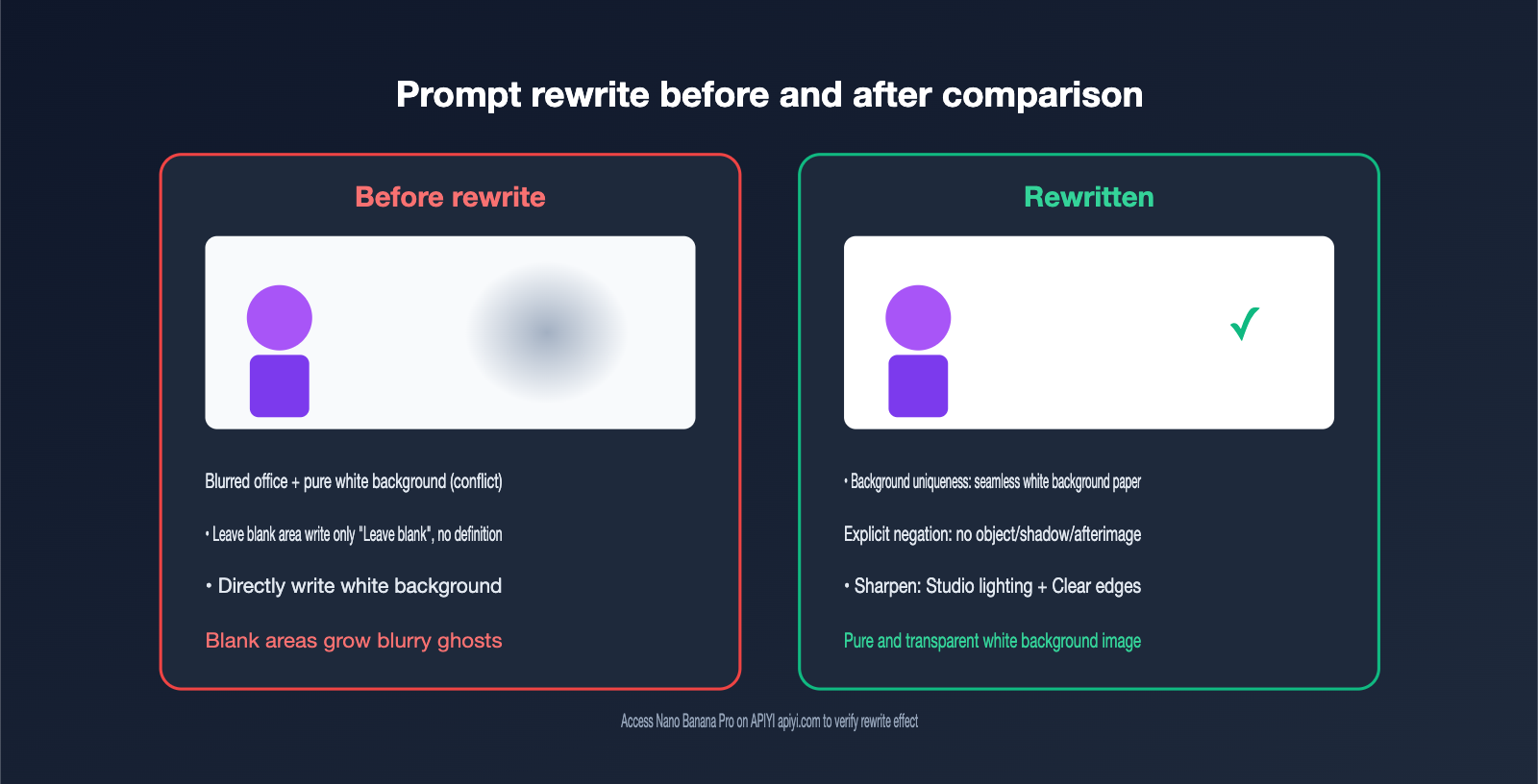
In this description, "blurred hospital office" and "pure white background" directly clash. The model is unsure whether to render white or an office in the right-hand negative space, leading to a compromise that results in a blurry mess. The key to rewriting is to make the background description singular and explicitly define the negative space.
# ✅ Rewritten (singular background + explicit negation of ghosting)
A female doctor in a white coat, wearing a stethoscope, holding an LED beauty mask with both hands,
placed in front of a seamless white background paper, with even and soft studio lighting, precisely outlining the character's edges.
The character is positioned on the left side of the frame; the right side is a pure, blank white area,
with no objects, no shadows, no residual images, and no texture.
Realistic skin texture, 2k resolution, sharp edges, no noise.
To make the changes clear, the table below contrasts these three key differences. You can use this to check your own prompts.
| Dimension | ❌ Before Rewriting | ✅ After Rewriting |
|---|---|---|
| Background Description | Blurred office + pure white background (conflict) | Seamless white background paper only (singular) |
| Negative Space | Only "negative space" mentioned, undefined | Explicit negation: no objects/shadows/residual images |
| Clarity | Vague "white background" | Studio lighting + sharp edges + no noise |
Comparing them, you can see three key changes: the conflicting "blurred hospital office" was removed, "white background" was upgraded to "seamless white background paper + studio lighting," and explicit negation was added for the negative space. These three steps should eliminate most blurry blocks. If you want to call the API directly for batch image generation, here's a request skeleton to go with this prompt.
import requests

# base_url points to APIYI for unified management of multiple model API keys
URL = "https://api.apiyi.com/v1/chat/completions"
HEAD = {"Authorization": "Bearer YOUR_KEY"}

prompt = "Main image of a female doctor in front of a seamless white background paper; the right side is a pure blank white area with no objects, shadows, or residual images; 2k, sharp edges, no noise"
payload = {"model": "nano-banana-pro", "messages": [{"role": "user", "content": prompt}]}
resp = requests.post(URL, headers=HEAD, json=payload).json()
# Parse the image URL / base64 returned in resp...
By solidifying this template, you can reuse it for batch production of white background product images. At APIYI apiyi.com, Nano Banana Pro shares the same interface as other mainstream image models, making it easy to quickly switch models for comparative testing if you encounter blurry blocks.
V. White Background Image Pitfalls Checklist and Practical Suggestions
Having grasped the causes and solutions, there are still some details worth developing into habits during daily image generation that can help you minimize the occurrence of blurry blocks.
The most crucial point is to cultivate the habit of "singular background description": an image's background should only have one setting, never allowing "scene background" and "solid color background" to appear in the prompt simultaneously. Secondly, for any area intended for negative space, always add a negation description by default, explicitly excluding residual images, shadows, and textures, and don't expect the model to "figure it out" on its own.
Additionally, there are a few small suggestions that have been repeatedly verified as effective through practical testing, compiled into the table below for your reference.
| Habit | Practice | Benefit |
|---|---|---|
| Singular Background | Choose between scene and solid color | Eliminates contradictory blurry blocks |
| Default Negative Space Negation | Add "no residual images, no shadows" to negative space | Reduces ghosting |
| Photography-like Description | Use "seamless background paper/studio lighting" | Replaces vague conceptual terms |
| Start at 2K | Generate white background images directly at 2K | Leaves enough pixels for negative space |
| Keep a Backup | Prepare a phrase for local editing | Fix specific areas if initial results aren't perfect |
If you're batch producing e-commerce hero images, it's recommended to write this checklist into a fixed prompt prefix and suffix. This ensures consistency and saves you the trouble of manual checks every time. If you need to quickly verify the effectiveness of this checklist on your specific products, APIYI apiyi.com allows you to repeatedly call the API with the same API key. Running a few comparative tests will help you determine the most stable template.
VI. Frequently Asked Questions (FAQ)
Q1: Why is there always a blurry patch on the right side of my white background image?
The most likely cause is conflicting background instructions in your prompt, such as simultaneously requesting a blurred scene and a pure white background. The model doesn't know what to draw in the blank space, so it fills it with a compromise blurry patch. First, remove the conflicting descriptions, then explicitly negate the blank area.
Q2: Are Nano Banana Pro and "Banana 2" the same model?
Yes. When people refer to "Banana 2" or "Nano Banana 2," they're usually talking about Nano Banana Pro (Gemini 3 Pro Image), just with a different name.
Q3: Why does just writing "pure white background" make it blurrier?
Words like "white background" can be associated by the model with "low information, low detail," leading to a softened output. It's better to use photographic descriptions like "seamless white background paper + uniform studio lighting." You can compare the actual differences between these two descriptions on APIYI apiyi.com.
Q4: Will adding "8k, ultra HD" fix the blurry patches?
Sharpness keywords can improve overall clarity, but they won't resolve local blurry patches caused by contradictory instructions or ghosting. These issues must be addressed by first tackling the prompt's logic; clarity terms are just supplementary.
Q5: What if I really can't fix it?
Leverage Nano Banana Pro's strength in multi-turn editing. Individually instruct the problematic area: "Make this part pure white, keep the rest unchanged," to target and remove the issue. Combined with a resolution of 2K or higher, you can usually salvage it.
VII. Conclusion
Returning to the original question: Nano Banana Pro blurry patches on white background images are essentially the model's random filling when it's "unsure what to draw" in large blank or solid-colored areas. There are five underlying causes, with contradictory prompts being the most common and subtle – a single uncleared "blurred background" instruction is enough to cause ghosting in the entire blank space.
The general approach to solving this can be summarized in one sentence: Eliminate uncertainty + Ensure clarity. This translates into six techniques: resolve contradictions, rephrase white background descriptions, explicitly negate ghosting, add sharpness terms, increase resolution, and use multi-turn editing for fixes. Coupled with the good habit of "unique background, default negation of blank areas," most white background images can achieve a clean and transparent look.
If you'd like to test every technique mentioned in this article yourself, APIYI apiyi.com offers a unified interface and usage dashboard for image models like Nano Banana Pro. It's a convenient starting point for troubleshooting white background blurriness and refining prompt templates. For more integration details, please refer to the Help Center at help.apiyi.com.
This article is reference content compiled by the APIYI technical team based on actual troubleshooting cases. Model performance may change with version updates. Please refer to official sources and platform testing for specifics.