
Author’s note: Getting blurry, non-compliant output from GPT-Image 2.5/2.6 on medium? This article breaks down the quality tier changes, recommends the high and xhigh tiers, and includes runnable API call code.
Many developers have seen a noticeable drop in output quality after upgrading from gpt-image-2 to GPT-Image 2.5 or 2.6 (for example, gpt-image-2.6-sunburst). The usual symptoms: washed-out, hazy images, lost detail, elements clearly spelled out in the prompt never getting drawn, and garbled text rendering. Most people’s first instinct is to blame the channel or the model itself, but the problem usually comes down to the quality parameter still stuck on the old-habit medium.
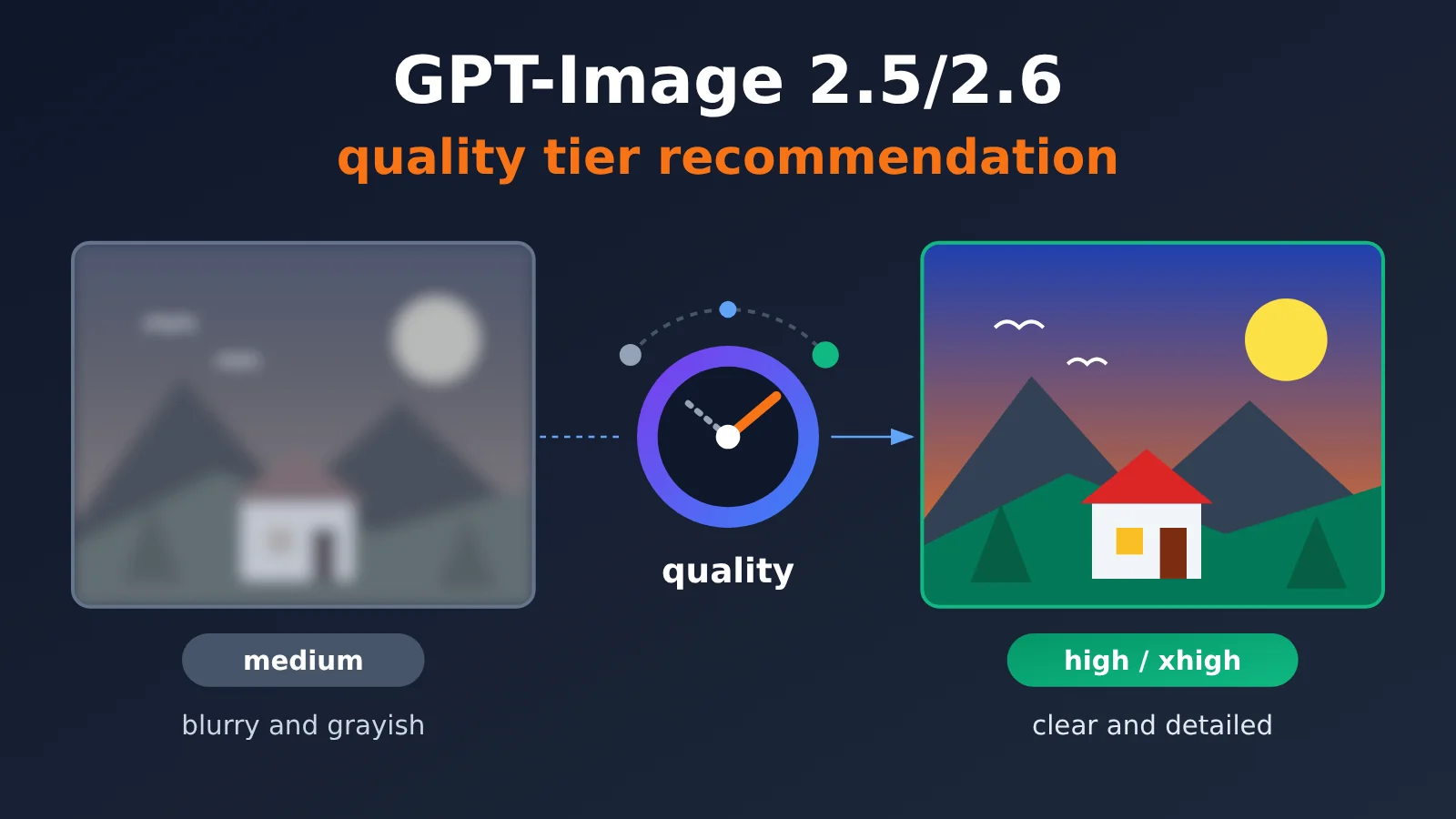
The model hasn’t gotten “dumber” — 2.5/2.6 simply re-drew the quality tiers: the new medium doesn’t perform well, and its high is roughly on par with gpt-image-2’s medium. This is also the easiest pitfall to fall into when upgrading to 2.5.
Key takeaway: By the end of this article, you’ll know how to pick the quality tier for GPT-Image 2.5/2.6, why high and xhigh are the two recommended tiers (there’s no need to pay extra for the pricier max), and you’ll be able to copy the code directly to make calls and run comparison tests.
GPT-Image 2.5/2.6 quality: Key Takeaways
Here’s the whole conclusion in one table — if you’re in a hurry, you can go straight to tweaking your parameters once you’ve read this section.
| Takeaway | Details | Why it matters |
|---|---|---|
| medium got weaker | In 2.5/2.6, medium’s image quality and instruction-following are noticeably worse than the same tier in the older version | Explains the root cause of “images got worse after upgrading” |
| The whole tier scale shifted up | 2.5/2.6’s high roughly matches gpt-image-2’s medium | When migrating, simply change medium to high as a drop-in replacement |
| Go with high / xhigh | Use high for everyday work, xhigh for complex compositions and text-heavy posters | Strikes the right balance between cost and quality |
| Skip max | max costs more, and most business scenarios see limited marginal gains | Avoid unnecessary cost increases |
Why GPT-Image 2.5/2.6 medium produces worse images
Back in the gpt-image-2 days, medium was the default choice for many teams: speed and cost were acceptable, and the quality was good enough for e-commerce product shots, social media assets, and similar scenarios. So when upgrading to 2.5/2.6, teams often only changed the model field and left quality untouched at medium. That’s exactly where the problem lies — the new version’s quality scale doesn’t line up with the old one.
Based on real-world feedback, 2.5/2.6’s medium behaves more like a “lightweight tier,” where the model invests less compute in generation. In practice, that means shallower understanding of long prompts — instructions with multiple subjects or multiple constraints tend to drop items — along with softer textures and edges. In other words, even though both are called medium, the old and new versions now sit at different quality levels.
GPT-Image 2.5/2.6 tier mapping
Once you understand that the tiers have shifted up, the migration approach is simple: map gpt-image-2’s medium to 2.5/2.6’s high, and map scenarios with higher quality demands to xhigh. max is the top tier and comes at a higher price — it’s only worth it for the rare commercial deliverables with exacting detail requirements, and most business use cases don’t need it.
It’s worth emphasizing that “high ≈ old medium” is an empirical comparison, and results will vary across subject matter. Before going live, we recommend running an A/B comparison with your own real prompts, then locking in your parameters once you’ve confirmed the results.
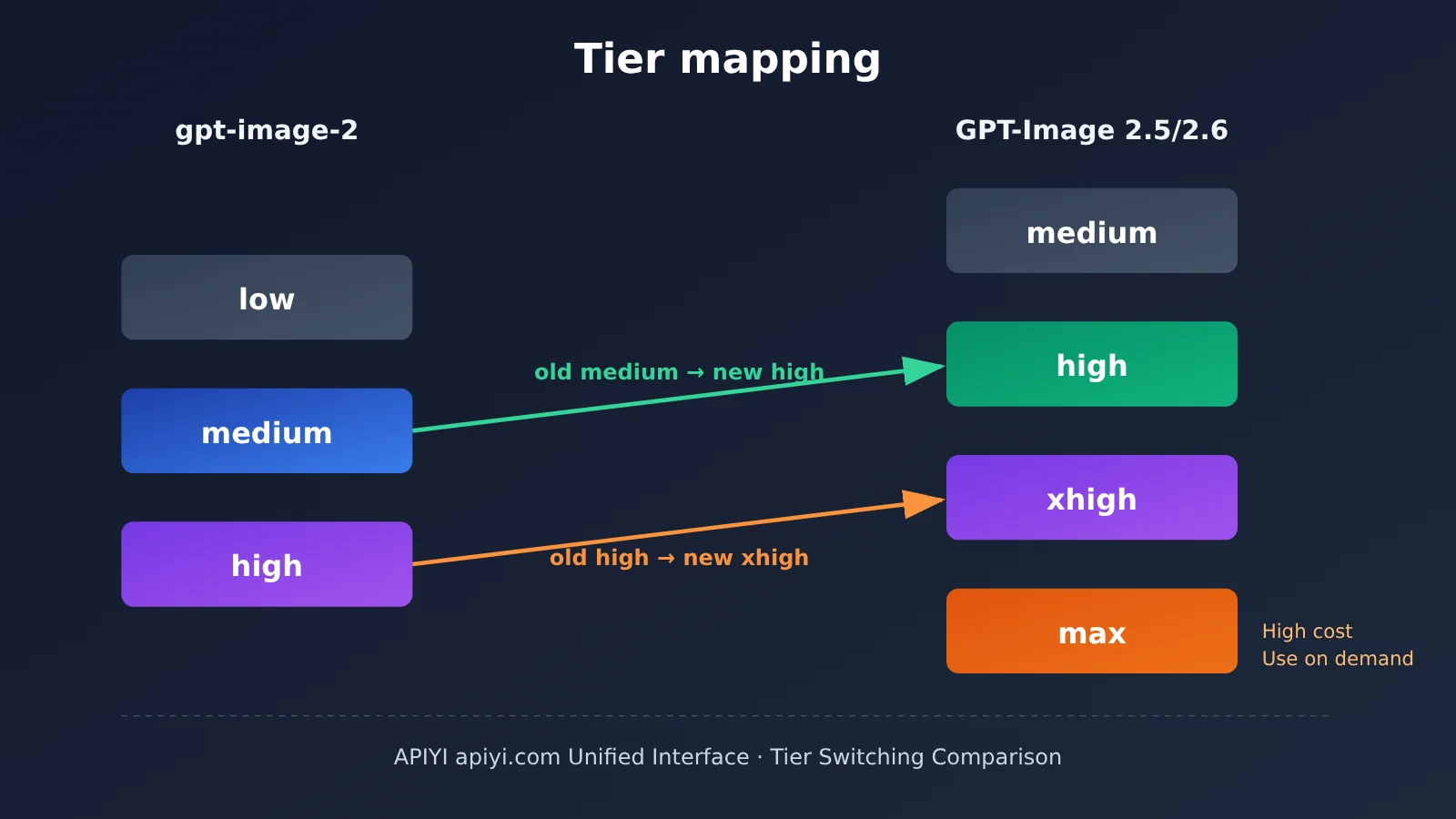
GPT-Image 2.5/2.6 Quality Tier Comparison and Selection
The table below is a tier-selection reference we’ve put together based on hands-on experience. Prices get adjusted by different platforms at different times, so we’re only showing the relative relationships here—for exact numbers, check your platform’s billing page.
| quality Tier | Image Quality & Instruction Following | Relative Cost | Recommendation | Typical Use Cases |
|---|---|---|---|---|
| medium | Weaker—soft details, prone to missing items | Lower | ⚠️ Not recommended | Sketches and low-stakes previews only |
| high | Roughly equivalent to gpt-image-2’s medium | Moderate | ✅ First choice | E-commerce images, article illustrations, social media assets |
| xhigh | Better handling of details and complex instructions | Higher | ✅ Recommended | Posters, text-heavy images, multi-subject compositions |
| max | Top-tier quality | Highest | As needed | Rare high-end commercial deliverables |
When to Choose high on GPT-Image 2.5/2.6
If you were perfectly happy with medium on gpt-image-2, switching straight to high on 2.5/2.6 will basically bring back that familiar look. This tier suits batch-generation workloads like product hero images, article illustrations, avatars, and illustration assets. It costs a bit more than medium, but in exchange you get a higher usable rate and fewer reworks—so your overall cost often ends up lower anyway.
When to Choose xhigh on GPT-Image 2.5/2.6
When your prompt packs in lots of constraints—say, “brand logo in the top-left, three people in the middle, a line of Chinese tagline at the bottom”—high occasionally misplaces elements or garbles text. That’s when you’ll want to bump quality up to xhigh. xhigh handles complex compositions, text rendering, and material details more reliably, making it the right pick for posters, covers, and promotional banners—anything where a single image’s quality really matters.
As for max, our advice is don’t rush into it. For most workloads, the jump from xhigh to max isn’t always visible to the naked eye, but the cost definitely climbs. Only consider it when xhigh still can’t meet your delivery standards.
GPT-Image 2.5/2.6 quality Parameter Quick Start
The GPT-Image series uses an OpenAI-compatible image generation API, and quality is a string parameter in the request body. The code below uses the official OpenAI Python SDK—you just need to replace the base_url and API key to run it.
Minimal Example
The following code generates an image at the high tier and saves it locally:
import base64
import openai

client = openai.OpenAI(
    api_key="YOUR_API_KEY",
    base_url="https://api.apiyi.com/v1"  # APIYI OpenAI-compatible endpoint
)

result = client.images.generate(
    model="gpt-image-2.6-sunburst",   # use the actual name from the platform's model list
    prompt="一只橘猫坐在木质书桌上,窗外是雨天,暖色台灯光,写实摄影风格",
    size="1024x1024",
    quality="high"                    # don't use medium; high or xhigh is recommended
)

with open("cat_high.png", "wb") as f:
    f.write(base64.b64decode(result.data[0].b64_json))
The GPT-Image series returns base64-encoded image data by default, so you’ll need to decode it with b64decode before writing the file. Always go by the model list on the platform you’re calling—naming can vary slightly between versions or channels.
View the complete implementation (with tier comparison and retries)
import base64
import time
from pathlib import Path
from typing import List, Optional

import openai

client = openai.OpenAI(
    api_key="YOUR_API_KEY",
    base_url="https://api.apiyi.com/v1"  # one API key for multiple models
)

# Recommended tiers: high for everyday use, xhigh for complex compositions
RECOMMENDED_QUALITIES = ["high", "xhigh"]


def generate_image(
    prompt: str,
    model: str = "gpt-image-2.6-sunburst",
    quality: str = "high",
    size: str = "1024x1024",
    max_retries: int = 3,
) -> Optional[bytes]:
    """Generate a single image, retrying automatically on failure, and return the image bytes"""
    for attempt in range(1, max_retries + 1):
        try:
            result = client.images.generate(
                model=model,
                prompt=prompt,
                size=size,
                quality=quality,
            )
            return base64.b64decode(result.data[0].b64_json)
        except openai.RateLimitError:
            wait = 2 ** attempt
            print(f"触发限流,{wait} 秒后重试(第 {attempt} 次)")
            time.sleep(wait)
        except openai.APIError as e:
            print(f"接口错误:{e},第 {attempt} 次重试")
            time.sleep(2)
    return None


def compare_qualities(
    prompt: str,
    qualities: List[str],
    out_dir: str = "outputs",
    model: str = "gpt-image-2.6-sunburst",
) -> None:
    """Compare how the same prompt renders at different quality tiers"""
    Path(out_dir).mkdir(exist_ok=True)
    for q in qualities:
        start = time.time()
        data = generate_image(prompt, model=model, quality=q)
        cost = time.time() - start
        if data is None:
            print(f"[{q}] 生成失败")
            continue
        file_path = Path(out_dir) / f"{model}_{q}.png"
        file_path.write_bytes(data)
        print(f"[{q}] 已保存 {file_path},耗时 {cost:.1f}s")


if __name__ == "__main__":
    test_prompt = (
        "极简风格新品海报:画面中央是一瓶透明玻璃香水,"
        "背景为浅米色渐变,左上角有小号品牌字样 AURA,"
        "底部一行中文标语“清晨的第一缕香”,柔和侧光,高级商业摄影"
    )
    # throw medium in as well so you can see the gap for yourself
    compare_qualities(test_prompt, ["medium"] + RECOMMENDED_QUALITIES)
🚀 Quick start: We recommend claiming the free trial credits for new users at APIYI (apiyi.com) first, then running the comparison script above once each for medium, high, and xhigh. A single API key lets you switch between models and quality tiers, so you can see the differences within minutes before settling on the default parameters for production.
GPT-Image 2.5/2.6 Key Parameters Explained
Besides quality, the following parameters also affect the generated output. It’s worth checking them too when migrating:
| Parameter | What It Does | Migration Tip |
|---|---|---|
| model | Specifies the model version | Confirm whether you’re on 2.5 or 2.6, based on the platform’s model list |
| quality | Controls the generation quality tier | Switch from medium to high; use xhigh for complex images |
| size | Output resolution | Start with 1024×1024 for testing, then adjust once results look good |
| prompt | Describes the image | Long prompts are followed more closely at higher tiers, so feel free to add detail |
| n | Number of images generated per request | Set it to 1 during testing so you can compare costs tier by tier |
More Troubleshooting Steps for Poor GPT-Image 2.5/2.6 Output
Once you’ve bumped quality up to high, most “poor output” problems disappear. If results still fall short, work through the steps below in order so you don’t conflate parameter issues, prompt issues, and channel issues.
- Verify the parameters are actually taking effect: Check whether the quality field in your code or a third-party tool is being overwritten with a default value—some wrapper libraries silently hardcode medium.
- Review your prompt structure: Spell out the subject, scene, style, composition, and any text content in separate sentences, and avoid cramming too many conflicting requirements into a single line.
- Compare invocation channels: The same model can vary in stability across channels—more on this below.
- Control variables and run A/B tests: Change only one parameter at a time and keep the prompt identical; only then are your conclusions reliable.
GPT-Image 2.5/2.6: Official-Forward vs. Official-Reverse Channels
On an API proxy service platform, the same image model is often available through two types of channels: “official-forward” and “official-reverse.” An official-forward channel relays requests straight to the official API, while an official-reverse channel is built on alternative access methods. Output stability can differ between the two, so once you’ve ruled out parameters and prompts, the channel itself is worth factoring in.
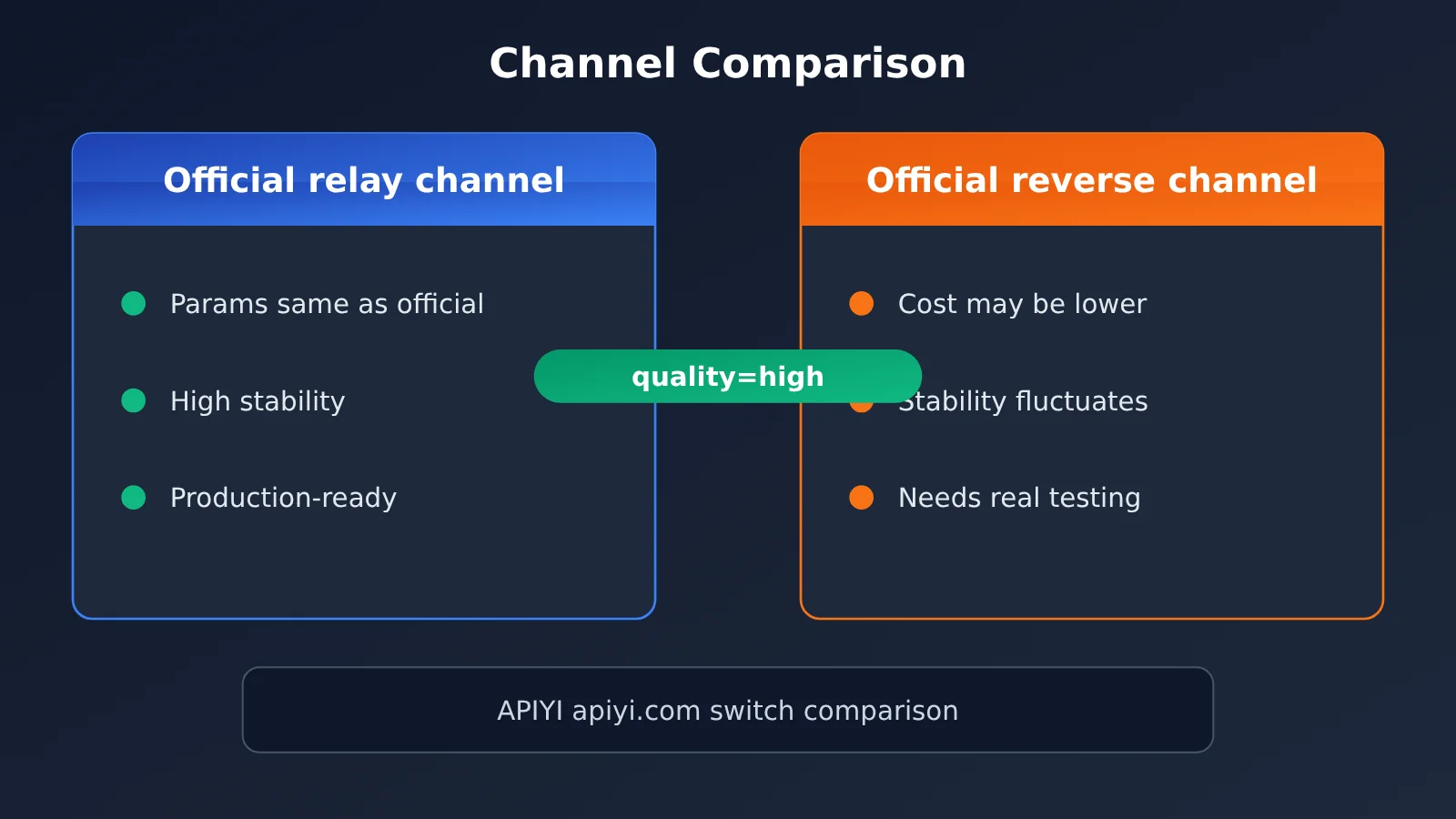
| Comparison | Official-Forward Channel | Official-Reverse Channel |
|---|---|---|
| Parameter behavior | Matches the official API; parameters like quality work as documented | May differ; verify through your own testing |
| Output stability | More stable, suited to production | May fluctuate |
| Best for | Commercial delivery, batch workloads | Budget-sensitive testing, non-critical scenarios |
| Where available | Aggregator platforms like APIYI (apiyi.com) | Depends on the platform |
For production workloads, we recommend the “official-forward channel + high tier” combination: parameter behavior is predictable, and when something goes wrong it’s much easier to pinpoint the cause. For each channel’s current pricing and availability, go by what’s displayed in the platform console.
Frequently Asked Questions (FAQ)
Q1: What is the quality parameter in GPT-Image 2.5/2.6?
quality is a parameter in the image generation API that controls output quality. The higher the tier, the more computation the model invests in a single image, which usually means better image quality and stronger instruction adherence—along with higher cost. The 2.5/2.6 tiers include medium, high, xhigh, max, and more, with a different breakdown than gpt-image-2.
Q2: How does medium in GPT-Image 2.5/2.6 differ from medium in gpt-image-2?
Same name, different quality level. Based on hands-on experience, medium in 2.5/2.6 is noticeably weaker—its high roughly corresponds to gpt-image-2’s medium. So when migrating from the older version, don’t keep medium as-is; switch it to high.
Q3: Why not just use the highest tier, max?
max costs more, and in most business scenarios xhigh already handles complex compositions and text rendering—the extra gain from max isn’t always visible to the naked eye. We recommend starting with high, stepping up to xhigh if needed, and only considering max when xhigh still doesn’t meet your delivery standards.
Q4: Which scenarios are high and xhigh each suited for?
– **high**: batch generation scenarios like product hero images, article illustrations, social media assets, and avatar artwork
– **xhigh**: posters with Chinese slogans, multi-subject compositions with many elements, brand promotion banners, and product material close-ups
Q5: How can I quickly test different quality tiers via the API?
We recommend using an API aggregation platform that supports multiple models for testing:
1. Sign up at APIYI (apiyi.com) and get an API key
2. Claim the free trial credits for new users
3. Run the full comparison script in this article to generate medium, high, and xhigh images in one go
The platform offers an OpenAI-compatible interface—just change one quality parameter to complete the tier comparison.
Q6: I’ve switched to high, but the output still isn’t ideal. What should I do?
First confirm the parameter is actually taking effect, then optimize your prompt structure by describing the subject, style, composition, and text separately. If problems persist, try switching to the official direct channel for comparison. You can also check the GPT-Image text-to-image parameter documentation in APIYI’s documentation center and verify your request body against it.
Q7: Will raising quality make costs spiral out of control?
Per-image costs will go up, but medium has a low usable output rate and lots of rework—when you factor everything in, high is often the better deal. During testing, we suggest setting n to 1, tracking the usable rate for each tier, and then evaluating. Pay-as-you-go platforms make precise accounting much easier.
GPT-Image 2.5/2.6 Quality: Key Takeaways
- The quality tiers have been re-tiered: medium in 2.5/2.6 is noticeably weaker—don’t carry over habits from the old version
- The migration formula is simple: the old version’s medium maps to the new version’s high, so a one-parameter change gets you a drop-in replacement
- high is the everyday default: it’s well-suited to batch scenarios like e-commerce images, article illustrations, and social media assets
- Use xhigh for complex images: text-heavy posters and multi-subject compositions come out more stable
- Use max only when you need it: it costs more, and for most businesses the marginal gains are limited
- Test before locking in your parameter: you can head to APIYI at apiyi.com and use a single API key to quickly compare how each tier performs
Summary
The key points behind GPT-Image 2.5/2.6’s degraded output:
- Root cause: it’s not that the model got worse—the quality tiers shifted up overall, and the new version’s medium sits at a lower quality level.
- Recommended tiers: use high for everyday business needs, xhigh for complex compositions and text posters. There’s no need to jump straight to the pricier max.
- Troubleshooting order: whether parameters took effect → prompt structure → invocation channel. Change only one variable at a time.
If you’ve just upgraded from gpt-image-2, the fastest fix is to change quality from medium to high in your code, then run a comparison round with your real prompts to confirm. For quick validation, I recommend going through APIYI at apiyi.com—the platform offers free testing credits and a unified interface for multiple models, so switching between models, tiers, and channels is painless.
📚 References
-
OpenAI Image Generation API Documentation: The image generation endpoint and parameter reference
- Link:
platform.openai.com/docs/guides/image-generation - Notes: The official definitions for parameters like
quality,size, and more
- Link:
-
OpenAI Python SDK: The official Python client
- Link:
github.com/openai/openai-python - Notes: All code examples in this article are built on this SDK
- Link:
-
APIYI Documentation Center: Model invocation guide for the GPT-Image series
- Link:
docs.apiyi.com - Notes: Includes a text-to-image parameter reference and channel comparison docs
- Link:
Author: APIYI Technical Team
Technical Discussion: Feel free to reach out to us via the APIYI homepage. For more GPT-Image invocation resources, visit the docs.apiyi.com documentation center.