Author’s note: computer use in the Mac version of Gemini is a product experience; building your own agent that operates a computer is another matter. This article separates the two and explains where developers’ bills actually go.
On November 19, 2026, Google announced on its official blog that the Mac version of the Gemini app is rolling out computer use. It can click through menus, type text, and fill out forms in the apps you specify, completing multi-step tasks across local files, desktop apps, and web pages.
This isn’t a concept demo. The official release notes already lay out the rollout scope, and 9to5Google published a follow-up report the same day. But there are two caveats to understand up front: first, the feature is currently available to only a very small subset of users; second, if developers want to build a similar agent themselves, the main cost isn’t model inference—it’s the screenshot they have to take at every step.
The key takeaway: By the end of this article, you’ll know what Gemini computer use can do, why it’s designed around an isolated window, who can use it right now, and where to start saving money when you build your own.
Gemini computer use: key facts at a glance
Let’s start with the facts of this release. The following comes from Google’s official blog and release notes, and is Google’s own account.
| Item | Details |
|---|---|
| Release date | 2026-11-19 (official release notes 2026.11.19) |
| Publisher | Google, Gemini Mac app |
| Core feature | Completes multi-step tasks across local files, desktop apps, and the web: clicking menus, typing, filling out forms |
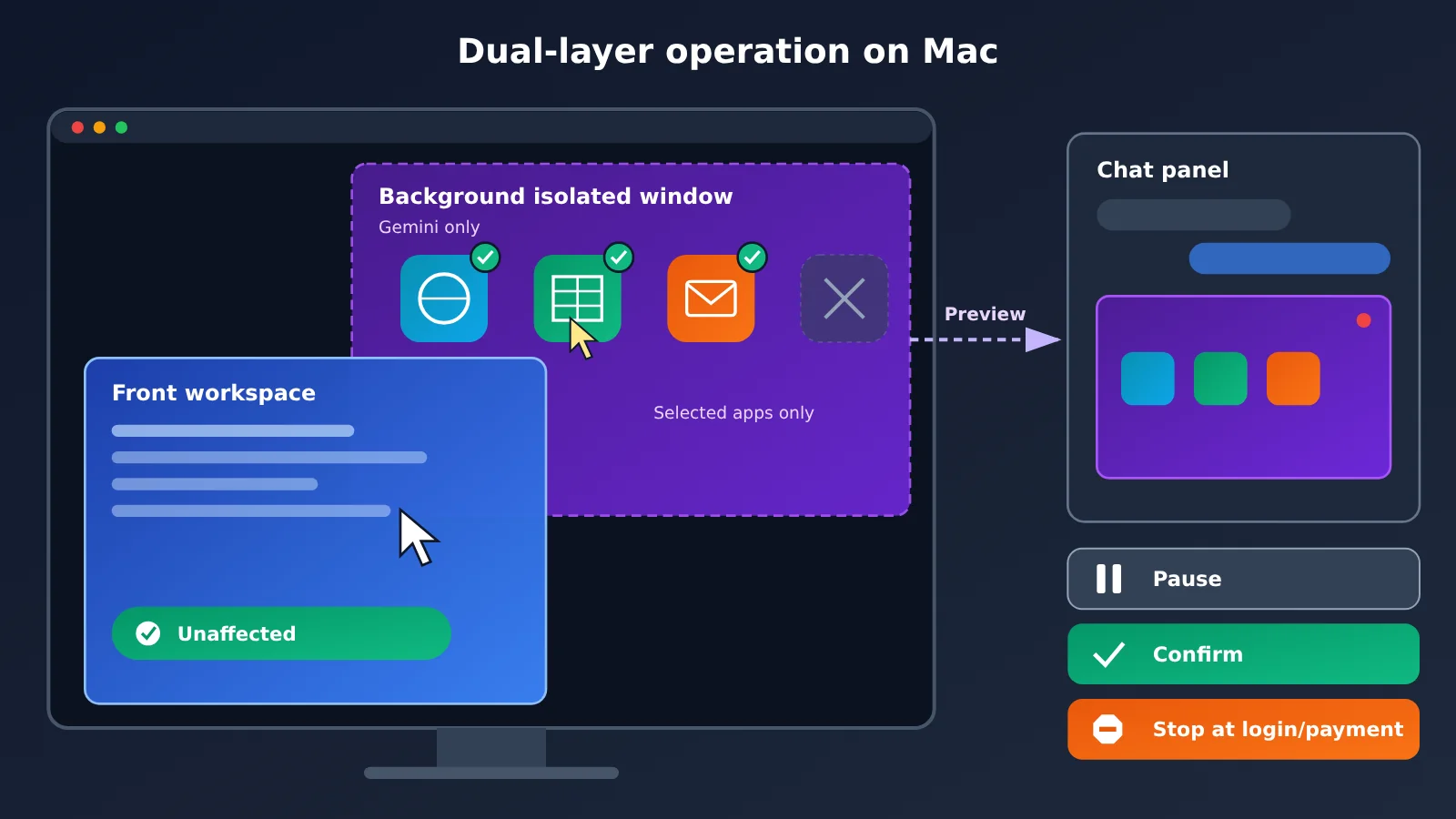
| How it runs | Operates in an isolated background window, with a live preview shown in the chat |
| Safety mechanisms | Users choose which apps are available, can pause at any time, confirmation is required before critical actions, and it stops at login or payment |
| Availability | English, US, 18+, personal Google accounts, Google AI Plus / Pro / Ultra subscribers, rolling rollout |
| Download entry | gemini.google/desktop |
Google’s official demo shows turning a child’s butterfly sketch into a 3D model, rigging it with a skeleton in Blender, and finally making an AR webpage. The example spans several apps, which is exactly the point: this kind of feature is about stringing multiple tools together, not about doing one app better.
How Gemini computer use on Mac works
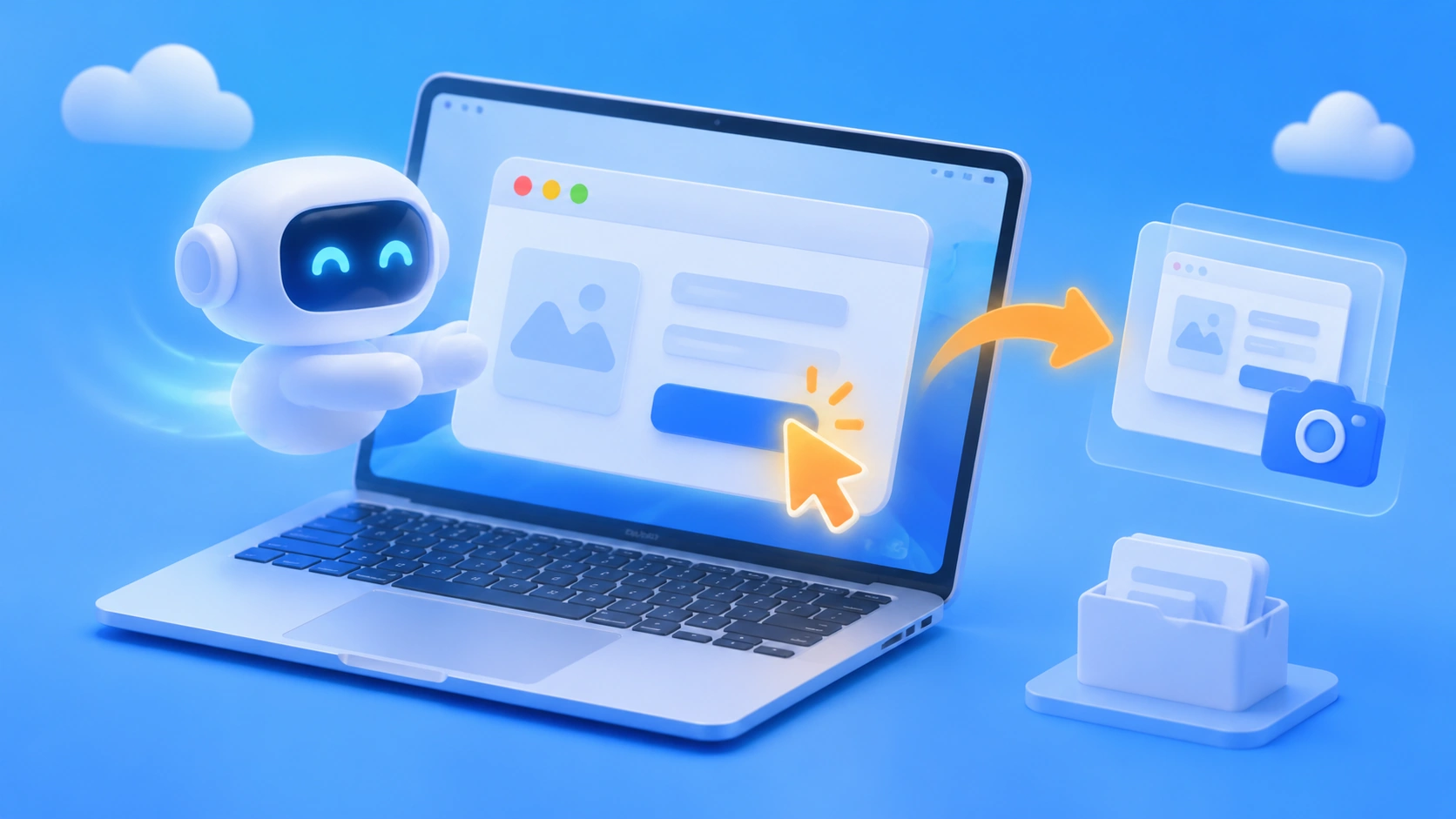
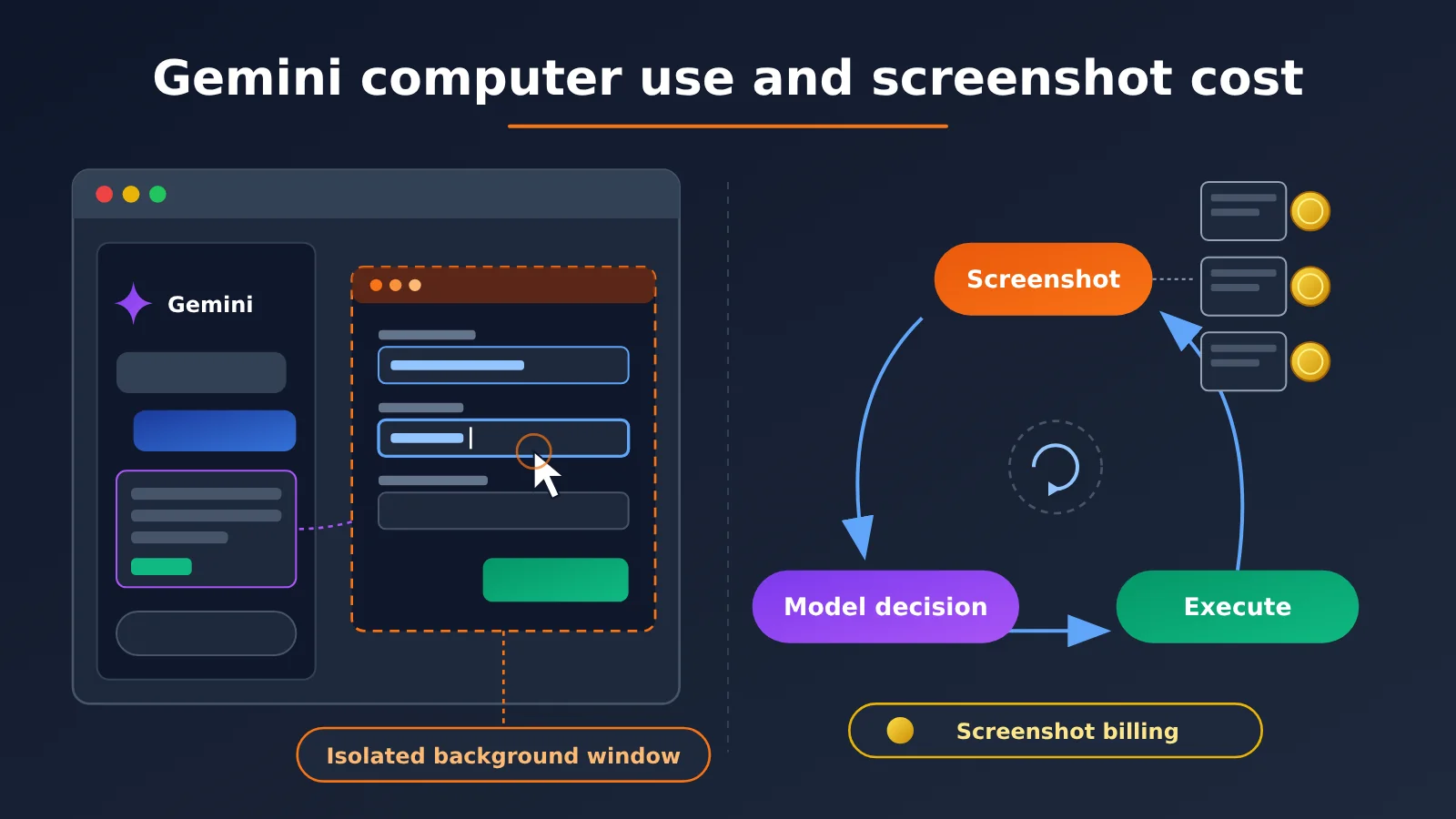
The most notable part is the isolated window. According to Google, Gemini operates in a separate background window, so your main screen and cursor are unaffected. You can keep doing your own work and check in on what it’s doing in the chat at any time.
The reason for this design is straightforward: when AI operates a computer, the biggest problem is that it clicks the wrong thing. Putting it in an isolated window makes three things possible:
- Limit scope: it can only touch apps you allow and won’t touch other programs;
- Visible process: you can see each step through the live preview and pause immediately if something looks wrong;
- Human confirmation for critical actions: irreversible actions like submitting, logging in, or paying will stop and wait for your decision.
These measures reduce risk, but they don’t make risk disappear. The model can still misread buttons or fill in the wrong fields, and whether the confirmation steps work as intended still depends on the user paying attention.
9to5Google added the same day: the Mac app’s existing Task feature (formerly Gemini Spark) can only read local files with Connected Apps; computer use actually clicks and types. In other words, the change here is going from “can read” to “can act.”
What Gemini computer use can do today
There are quite a few restrictions right now. Here they are, one by one:
| Restriction | Current requirement | If you don’t meet it |
|---|---|---|
| Platform | Mac version of the Gemini app | The Windows version doesn’t have this feature |
| Language | English | Other language interfaces aren’t available yet |
| Region | United States | Not open in other regions yet |
| Age | 18 or older | Not available |
| Account type | Personal Google account | Enterprise or school accounts aren’t included in the first wave |
| Subscription | Google AI Plus / Pro / Ultra | Free accounts can’t use it |
About Windows: the Windows version of the Gemini app launched on 2026-09-10. At the time, it offered shortcut invocation, a standalone workspace, and Gemini Spark multi-step tasks, but not computer use. The company hasn’t announced availability dates for other regions or platforms, so we won’t speculate here.
Gemini Computer Use Impact Analysis
Impact on Developers: Model Capabilities and Product Experience Are Two Different Things
This is the easiest place to get confused. Consumer computer use is a complete product Google has built: the isolated window, preview UI, app whitelist, and pause/confirmation flow all belong to the application layer — you don’t get any of that just by calling an API once.
The model layer provides a different kind of capability. The Gemini 4 Neon model card on AI Studio marks Computer use as Supported and Code execution as supported too, while Image generation and Audio generation are not supported. In other words, the model can read the screen, decide what to do next, and issue tool calls; but screenshots, executing clicks, permission control, and safety interception are all things you have to write yourself.
| Comparison Item | Mac Version Gemini (Consumer) | Building It Yourself with the Model API |
|---|---|---|
| Nature | Finished feature | Model capability plus a loop you write yourself |
| Isolated Environment | Officially provided background window | You need to prepare a VM, container, or separate desktop |
| Safety Confirmation | Built-in pause, confirmation, login/payment interception | You need to implement sensitive action interception yourself |
| Availability | English, US, specific subscriptions | Depends on API availability and account |
| Billing | Included in the subscription | Billed by token, with screenshots counted as input |
| Access Method | Download gemini.google/desktop |
Official API, or gateways such as APIYI apiyi.com |
Building your own computer-use agent: the screenshot → decide → execute loop
If you’re building a computer-use agent yourself, the core is a loop that runs over and over:
- Screenshot: grab the current screen or window;
- Decide: send the screenshot and the task goal to the model, and have it output the next action — say, click coordinates, text to type, or a keyboard shortcut;
- Execute: your code actually performs the click or the typing;
- Screenshot again: confirm the result, then start the next round — until the task is done or human intervention is needed.
When connecting through the OpenAI-compatible route, set the SDK’s base_url to https://api.apiyi.com/v1, put gemini-4-neon in model, pass the screenshot as an image inside messages, and ask the model to return a structured action JSON. If you’d rather use Gemini’s native Computer use tool declarations, switch to the native format instead: point base_url at https://api.apiyi.com and set api_version to v1beta. For the exact tool fields, refer to Google’s official documentation.
🚀 Quick start: If you just want to get the minimal “screenshot → decide → execute” loop running first, you can use a single key on APIYI apiyi.com to test several Gemini 4 models at once. The OpenAI-compatible endpoint means no SDK changes, new users get free trial credits, and it’s a good way to check whether the workflow is viable before going further.
One more thing worth flagging: APIYI is a gateway, so upstream rate limits and content policies pass straight through. For high-frequency screenshot loops, design your retry and backoff strategy up front.
The Screenshot Math: Most of the Cost Goes to “Looking”
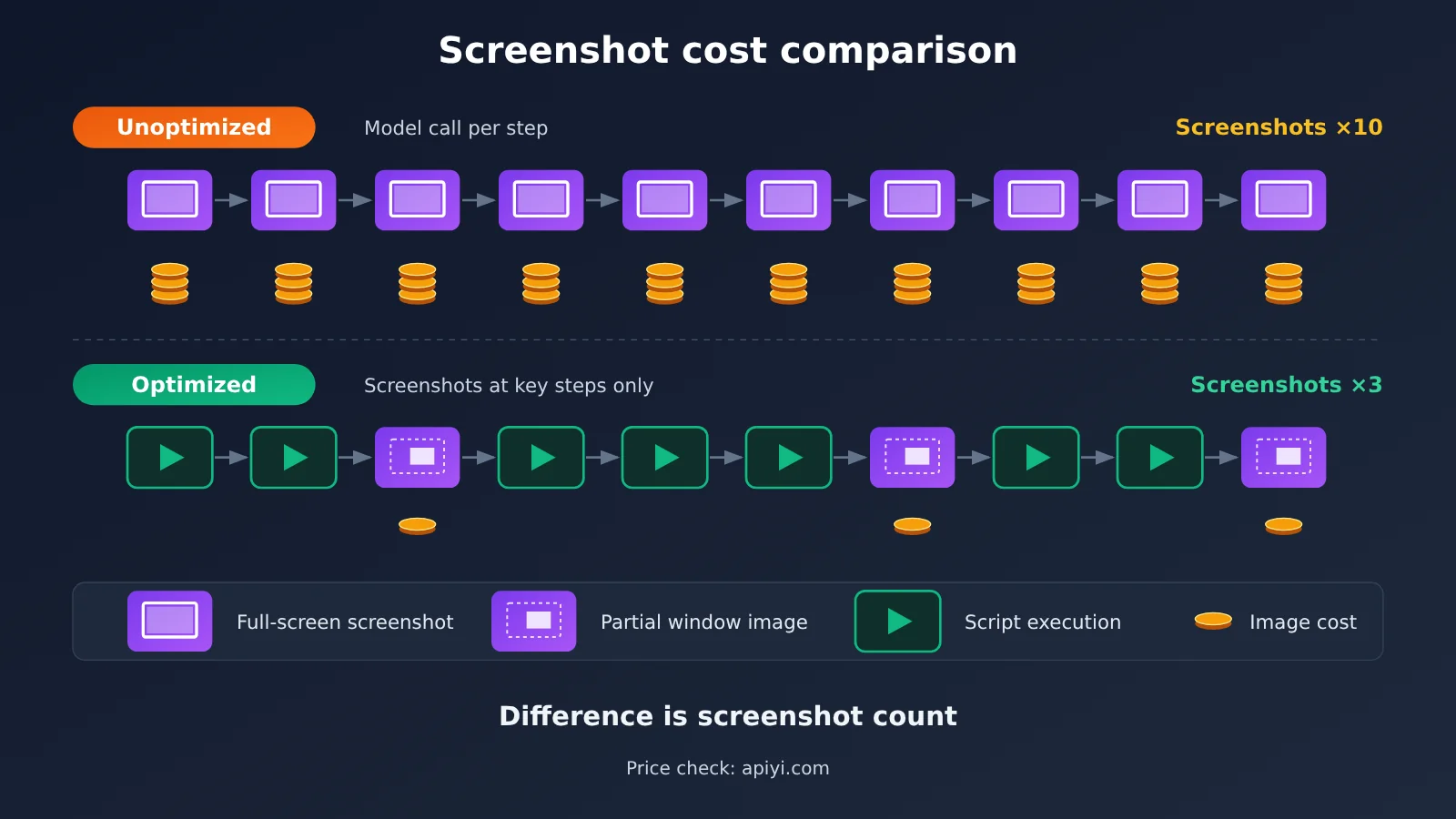
The billing structure of an operational agent is quite different from that of a chatbot. With chat, the main cost is the text it outputs. With an operational agent, every single step sends a screenshot to the model as input. Images are billed as image tokens, so the higher the resolution and the more steps you take, the higher the bill. A task that runs 30 steps means 30 images. If a step fails and needs a retry, the image count keeps climbing.
So the order for cutting costs should be: reduce the number of steps first, then lower the screenshot cost, and only consider switching models last.
| Cost-saving method | What it looks like in practice | Priority |
|---|---|---|
| Reduce steps | Execute fixed routines directly with scripts or keyboard shortcuts; don’t call the model where no judgment is needed | Highest |
| Reduce screenshot cost | Lower the resolution, capture only the relevant window region, take screenshots only at key checkpoints | High |
| Reuse context | Read fixed system prompts and task instructions from cache to avoid repeated input | Medium |
| Use models in tiers | Hand simple judgments (like “has the page finished loading?”) to cheaper models, and complex planning to stronger ones | Medium |
| Switch to a cheaper model | Consider this only after steps and screenshots are already optimized | Last |
The reason is simple: switching models only lowers the unit price, whereas cutting steps reduces the number of images, the number of output calls, and the chance of error-driven retries all at once. With a poorly designed workflow, even the cheapest model will still be expensive.
Choosing a Model: Gemini 4 Family Price Comparison
Once you’ve optimized the steps and screenshots, choose the model based on task difficulty. Below are the Gemini 4 family prices from the APIYI master price table (2026-11-22 09:58 UTC+8), in USD per million tokens:
| Model ID | Input | Output | Cache Read | Endpoint | Available Platforms |
|---|---|---|---|---|---|
gemini-4-neon |
3 | 15 | 0.15 | chat / gemini | APIYI apiyi.com |
gemini-4-carbon |
2 | 10 | 0.1 | chat / gemini | APIYI apiyi.com |
gemini-4-argon |
2 | 10 | 0.1 | chat / gemini | APIYI apiyi.com |
gemini-4-hydrogen |
1.5 | 7.5 | 0.075 | chat / gemini | APIYI apiyi.com |
The model card explicitly states that Computer use is supported by gemini-4-neon, making it suitable for planning and complex judgment. For whether the other models support the native Computer use tool, check their respective model cards. If you’re only using them for simple visual checks like “does the button appear?”, you can start with a small-scale test and adjust the division of labor once you’ve confirmed the results. Because screenshots all count as input, the difference in input price between gemini-4-hydrogen and gemini-4-neon gets amplified by the number of screenshots.
💰 Cost optimization: Under the same API key in APIYI apiyi.com, you can assign models by step: use
gemini-4-neonfor planning steps,gemini-4-hydrogenfor simple validation, then compare the billing details to see how much of the input tokens come from screenshots.
What This Means for Regular Users
If you meet the conditions above and want to hand repetitive clicking over to AI, Gemini for Mac is currently the lowest-barrier option: no coding required, and you don’t have to build your own isolation or confirmation logic. Start with tasks that don’t involve payments and can be undone — organizing files or filling out internal forms, for example — and leave the “confirm before key actions” setting turned on.
FAQ
Q1: What is Gemini computer use?
It’s a feature that the Gemini app for Mac launched on 2026-11-19 (per the company’s own announcement). Inside an isolated background window, it clicks, types, and fills out forms in the apps you specify to complete multi-step, cross-app tasks. You can watch a live preview, pause at any time, and key actions require your confirmation.
Q2: How is it different from Gemini’s existing Task (Gemini Spark)?
According to 9to5Google, Task can only read local files through Connected Apps, while computer use can actually operate the interface — clicking and typing. The former reads; the latter can act.
Q3: Can I use it on Windows or in other regions?
Not right now. The official scope is English, the United States, users 18 and older, personal accounts, and Google AI Plus / Pro / Ultra subscriptions. The Windows version of the Gemini app doesn’t include computer use at launch, and Google hasn’t announced availability for other regions.
Q4: How would a developer build a similar agent with the API?
You’d need to write your own loop — “screenshot → model decision → execute → screenshot again” — and implement your own isolated environment and sensitive-action blocking. To get started, set `base_url` to `https://api.apiyi.com/v1` and call `gemini-4-neon`. Sign up through APIYI apiyi.com to get free trial credits and get the minimal loop working first.
Q5: Where does the cost mainly go when building this yourself?
Mostly screenshots. Every step’s screenshot counts toward input as image tokens, so the more steps and the higher the resolution, the more you pay. Start by cutting the number of steps, then lower the screenshot frequency and resolution, and only consider switching models last. You can compare per-model pricing directly on the APIYI apiyi.com pricing page.
Q6: With an isolated window and confirmation mechanism, is it risk-free?
No. These mechanisms reduce the blast radius of mistakes, but the model can still misread or mistype something. For tasks involving accounts, payments, or data deletion, you still need to confirm each item yourself.
Gemini Computer Use: Key Takeaways
- Product side: Gemini on Mac can click, type, and fill out forms inside an isolated window, with preview and pause support.
- Security design: you can restrict which apps it can touch, critical actions need confirmation, and it stops when it hits a login or a payment.
- Availability: English only, US only, 18+, and personal accounts on AI Plus / Pro / Ultra.
- The difference between the two: the consumer feature is a finished product; “Computer use” on the model card is only a capability, and you have to write the loop yourself.
- Cost structure: the expense comes mainly from screenshots — the more steps, the more you pay.
- Order of savings: cut the number of steps first, then lower the screenshot cost, and only then switch models.
- How to get started: use APIYI apiyi.com with a single API key to test how the various Gemini 4 models divide the work.
Summary
The launch of Gemini computer use shows that “AI operating a computer” has moved from demos to a real product — but for now it’s still a consumer feature with strict region and plan restrictions. The isolated window, live preview, and confirmation mechanisms are design choices Google made at the product level to reduce risk; they don’t come bundled with the model itself.
For developers, the thing worth watching is cost: an action-oriented agent spends most of its money on looking at images, not on reasoning. Write fixed workflows as scripts first, cut down the number of screenshots, and then assign models according to task difficulty — this usually makes a bigger difference than simply swapping in a cheaper model.
If you want to verify this hands-on, you can connect to the Gemini 4 family through APIYI apiyi.com and compare how different models perform and what they cost in your own loop, all through the same OpenAI-compatible interface.
📚 References
-
Google Official Blog: Automate Mac tasks with Gemini computer use
- Link:
blog.google - Description: Official release notes, including the isolated window, confirmation mechanism, and demo cases
- Link:
-
Gemini app release notes (2026.11.19)
- Link:
gemini.google/desktop - Description: Original availability scope and desktop download entry
- Link:
-
9to5Google report (2026-11-19)
- Link:
9to5google.com - Description: The difference between Task and computer use
- Link:
-
Google AI Studio: Gemini 4 Neon model card
- Link:
aistudio.google.com - Description: Support status for capabilities such as computer use
- Link:
Author: APIYI Technical Team
Technical contact: Feel free to reach us through the APIYI website homepage. For more integration details, check the docs.apiyi.com documentation center.