
Author’s note: This guide follows the console workflow to get GPT-6.1 Terra API running in five steps. It covers endpoint selection, parameter pitfalls, and 272K tiered pricing.
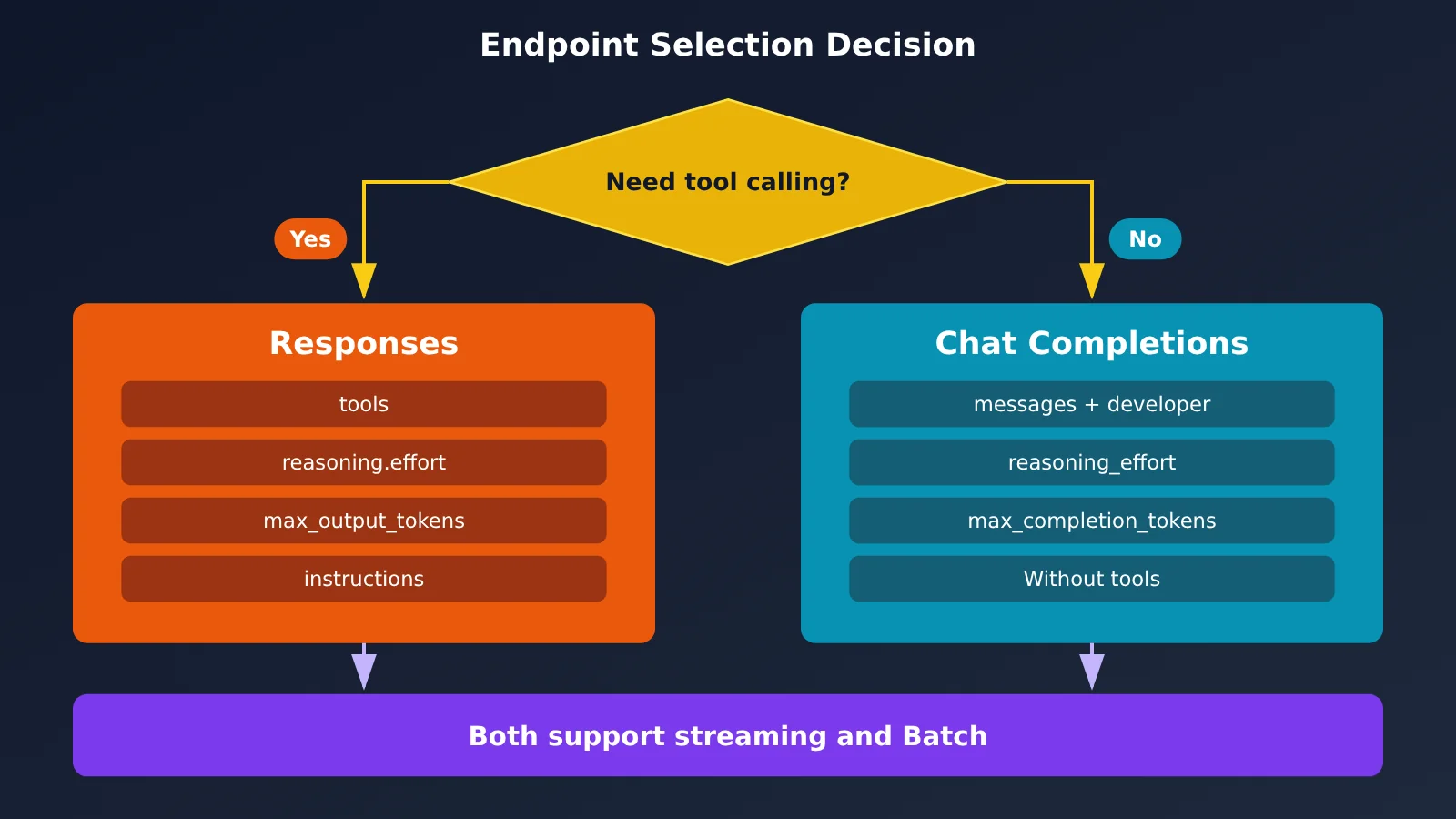
The bottom line: There’s one key choice when integrating GPT-6.1 Terra: Responses or Chat Completions. If you need tool calling, you must use Responses. If you don’t, you can keep almost all of your existing code and just change the model name.
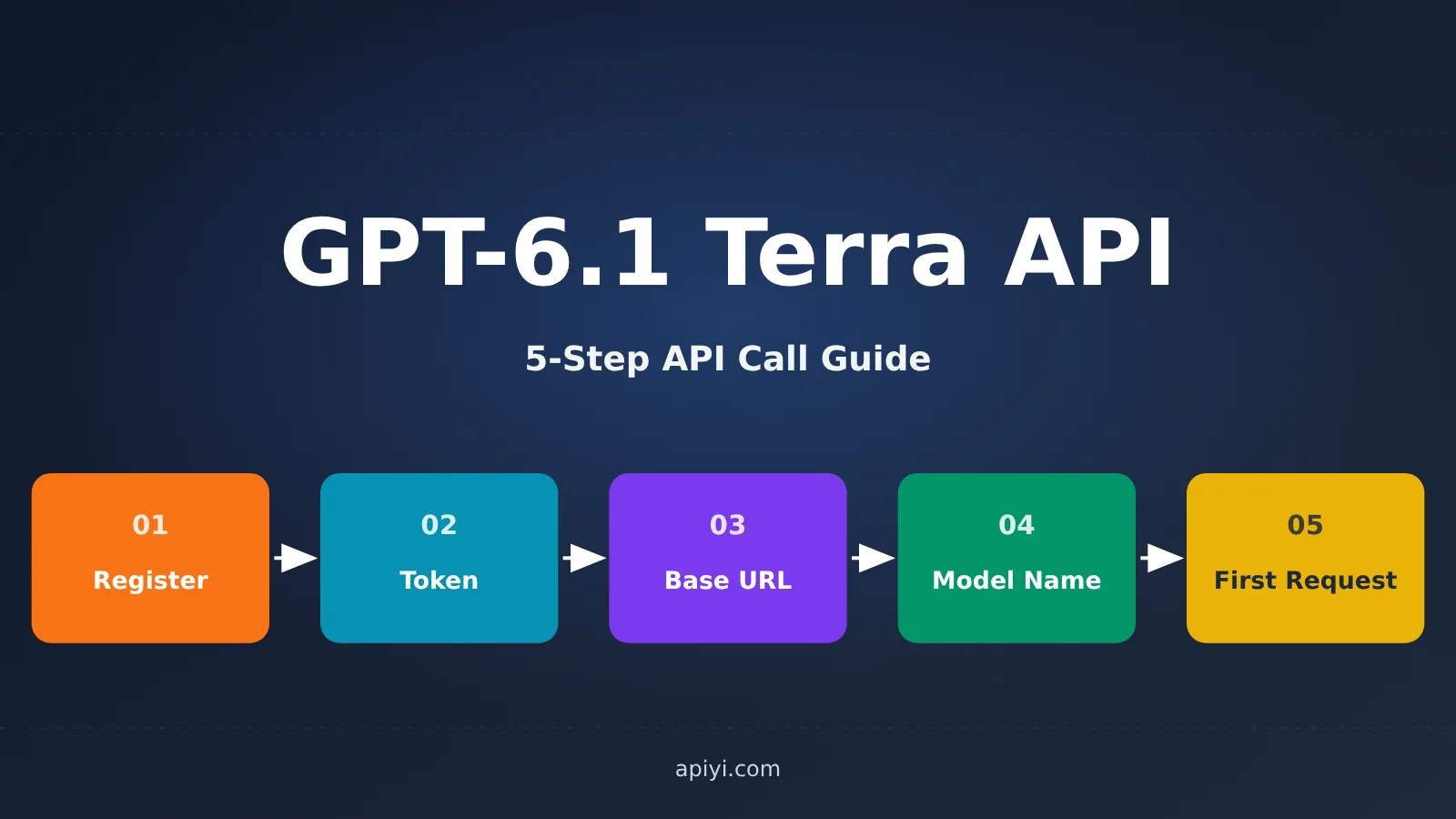
GPT-6.1 Terra was released on 2026-10-26. Its model ID is gpt-6.1-terra, and the official documentation specifies its endpoints, parameters, and pricing rules. This guide follows the order of the console workflow: sign up → create a token → find the Base URL → enter the model name → send your first request. Each step includes a check to confirm it worked; command-line and code examples are optional.
What you’ll get: By the end, you’ll be able to verify the full GPT-6.1 Terra API integration flow in the console and avoid the most common 400 errors.
📌 Platform status: As of 2026-10-27,
gpt-6.1-terraisn’t yet available in APIYI apiyi.com’s live model list. We’ll add it as soon as possible. Other models from the same generation—gpt-6-astra,gpt-6-sol,gpt-6.1-sol, andgpt-6-luna—are already available. You can usegpt-6.1-solto verify your integration flow in the meantime. Check the platform’s model list for the latest model availability and pricing.
GPT-6.1 Terra API Key Points
| Key point | Details | What it means for you |
|---|---|---|
| Model ID | gpt-6.1-terra, released on 2026-10-26 |
Set the model field in your request to this value |
| Available endpoints | Responses, Chat Completions, Batch | Realtime, Assistants, Embeddings, and other endpoints aren’t supported |
| Tool calling | Supported only with Responses | Including tools in a Chat request will cause it to fail |
| Context | 1,050,000 tokens total; up to 922,000 input tokens per request; up to 128,000 output tokens | Suitable for long documents, but keep the 272K pricing tier in mind |
| Modalities | Text and images as input; text as output | Send images using input_image in Responses |
| Knowledge cutoff | 2026-06-01 | Use the web_search tool to retrieve more recent information |
A Closer Look at GPT-6.1 Terra’s Capabilities and Limitations
GPT-6.1 Terra supports streaming, structured outputs, function calling, file_search, image input, web search, and prompt caching. It doesn’t support fine-tuning or predicted outputs. If your existing project depends on a fine-tuned model or predicted outputs, you can’t migrate it directly.
The Responses endpoint supports a wide range of tools, including web_search, file_search, image_generation, code_interpreter, hosted_shell, apply_patch, skills, computer_use, mcp, and tool_search. That’s the key reason to choose Responses when you need tools: with this model, Chat Completions is for plain chat only.
How to Call the GPT-6.1 Terra API: A 5-Step Console Workflow
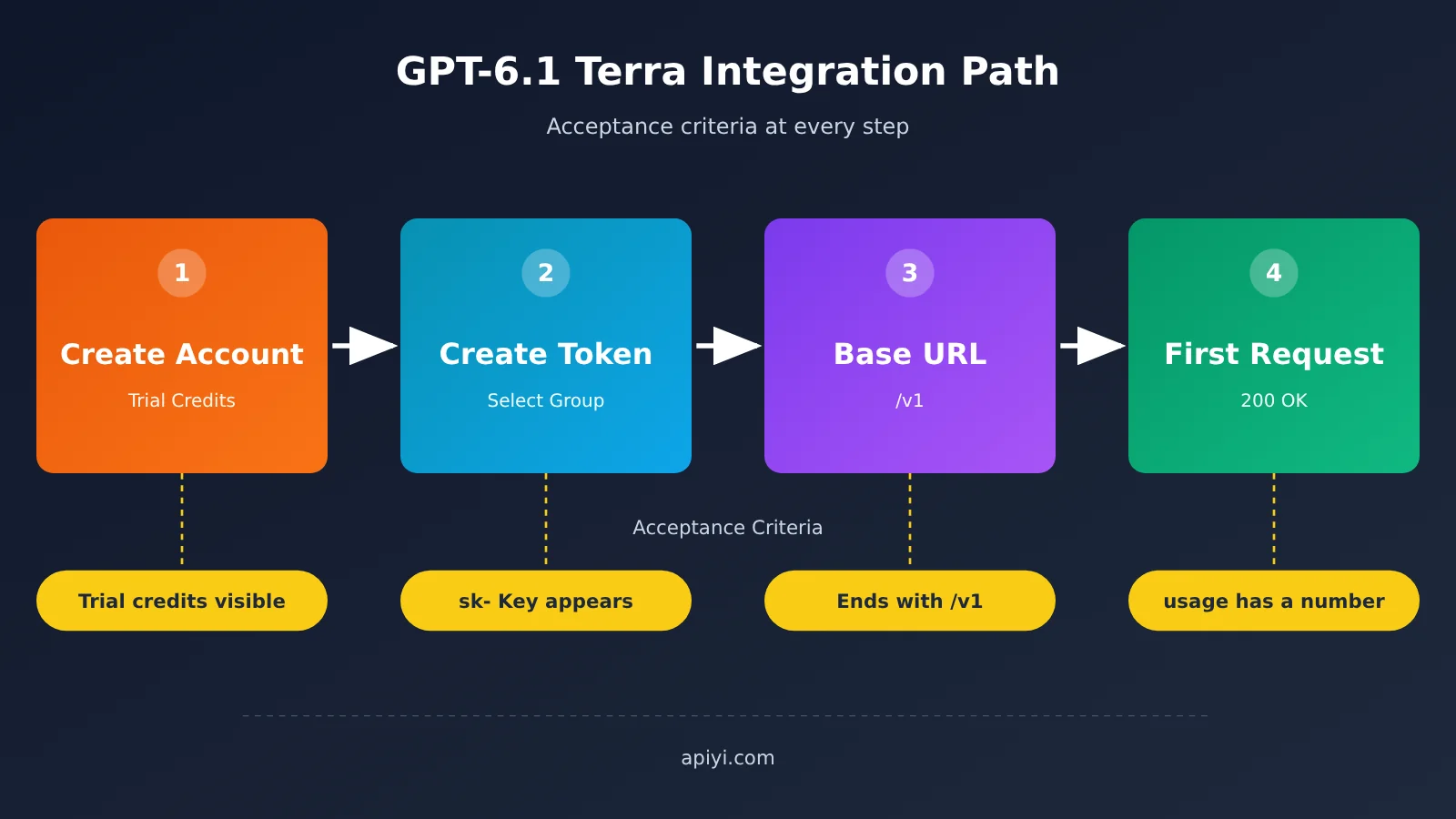
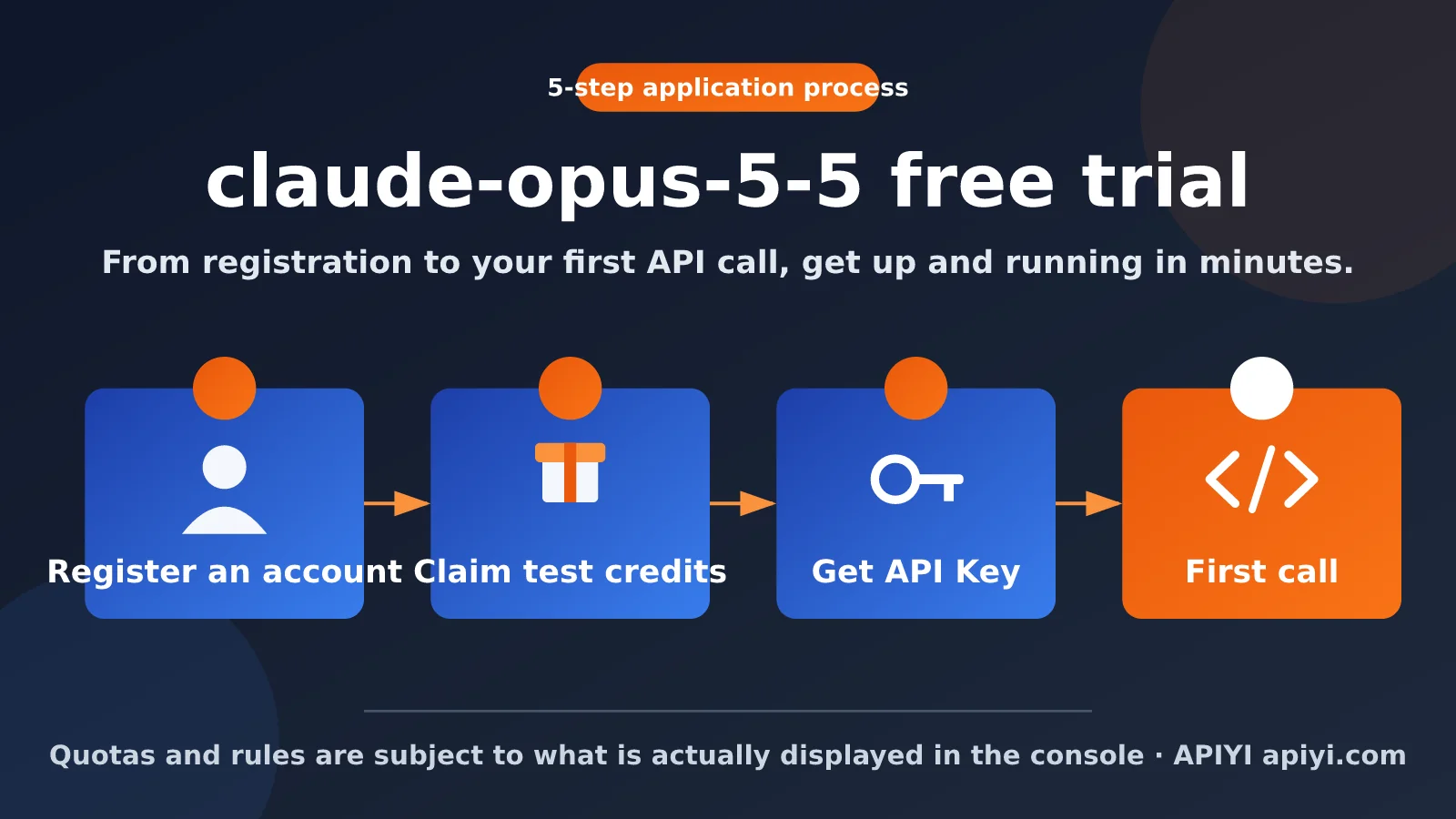
Step 1: Create an Account
- Go to APIYI at apiyi.com and follow the on-screen instructions to register with your own information. The platform requires users to register their own accounts.
- New accounts come with $0.05 in trial credit, so you can make one lightweight API call without adding funds.
- Acceptance criterion: After signing in, open the console and check that the trial credit appears on the wallet or balance page.
- If you get stuck: If you don’t see the credit, first make sure you’ve completed the registration process. There’s no need to add funds right away.
If you’re using the official channel, create a key on the API Keys page of the OpenAI platform. Your account must be in a supported region, and you’ll need to have added at least $5 to reach the Build tier.
Step 2: Create a Token and Choose the Right Group
- Go to the token page in the console at
api.apiyi.com/tokenand click Create Token. - Under Select Group, choose a group. The group determines which models you can use, the billing multiplier, and the upstream route.
defaultandsvipuse the same pricing as the official service, whileCodexReverseuses reverse-engineered resources. - Success check: After saving, a key beginning with
sk-appears in the token list. - If you get stuck: The user-level Group setting is different from the token group. The group selected for the token is the one that actually takes effect.
Step 3: Find the Base URL
The Base URL depends on which SDK you’re using—this is the easiest setting to get wrong:
- OpenAI SDK:
https://api.apiyi.com/v1— include/v1 - Anthropic SDK: Use the root domain without
/v1 - Google GenAI SDK: Use the root domain and set
api_versiontov1beta
Success check: For the GPT-6.1 series, use the OpenAI SDK or an OpenAI-compatible client, and make sure the URL ends with /v1. If you get stuck: A 404 usually means /v1 is missing or included twice.
Step 4: Enter the Model Name
Enter the model ID in the model field in your client or debugging tool. We recommend starting with a lightweight model like gpt-5.4-mini to verify the connection, then switching to gpt-6.1-sol. Once gpt-6.1-terra is available on the platform, you’ll only need to change one field. The platform doesn’t support free routing syntax like auto or auto:free, so don’t try to use it.
Success criteria: The model name matches the spelling in the platform’s model list exactly. If you get stuck: If you see a “model not found” error, check the spelling against the model list, then make sure your token’s group has access to that model.
Step 5: Make Your First Request
Here’s a minimal working example with optional approaches, in 5 lines:
- Set an environment variable:
export OPENAI_API_KEY=sk-your-token - Create a client:
client = OpenAI(base_url="https://api.apiyi.com/v1"). The key is read from the environment variable automatically. - Responses approach:
r = client.responses.create(model="gpt-6.1-sol", input="用一句话介绍你自己", reasoning={"effort": "low"}, max_output_tokens=800) - Chat approach:
c = client.chat.completions.create(model="gpt-6.1-sol", messages=[{"role": "developer", "content": "简洁回答"}, {"role": "user", "content": "你好"}], max_completion_tokens=800) - Print the result to verify:
print(c.model, c.usage.prompt_tokens)
Success criteria: The request returns HTTP 200, and usage.prompt_tokens contains a number (for Responses, check usage.input_tokens). After switching to gpt-6.1-terra, the response’s model field should show that model name.
🚀 Get started quickly: We recommend using the trial credit on APIYI apiyi.com to test
gpt-6.1-solfirst and confirm that your key, group, and Base URL are all set up correctly. Once Terra is available, just change the model name to switch. Check the platform’s model list for current model names and prices.
| Step | Console action | Success criteria | What to check if you get stuck |
|---|---|---|---|
| 1. Sign up | Register and sign in | You can see $0.05 in trial credit | Confirm that registration is complete |
| 2. Token | Create a token and select a group | A Key starting with sk- appears in the list |
Make sure you’re not confusing the token group with the user group |
| 3. Base URL | Enter the /v1 URL in the OpenAI SDK |
The URL ends in /v1 |
If you get a 404, check for /v1 |
| 4. Model name | Enter a model such as gpt-6.1-sol |
It exactly matches the model list | Check the spelling and group access |
| 5. Request | Make your first call | Returns 200, and usage contains a number | Check the status code, response body, and x-request-id |
You can also use Magpie for an easier setup. Enter your key and Base URL in its graphical interface, and it’ll automatically connect coding agents like Claude Code, Codex, Pi, and Hermes to the same gateway—no need to edit each configuration file individually.
GPT-6.1 Terra API Endpoint Selection: Responses vs. Chat Completions
| Comparison | Responses (v1/responses) |
Chat Completions (v1/chat/completions) |
|---|---|---|
| Tool calling | Supported, with 10 built-in tools available | Not supported; requests that include tools will fail |
| System instructions | instructions |
Use the developer role in messages; it’s more reliable than system |
| Reasoning effort | reasoning: {effort: ...} |
reasoning_effort |
| Output limit | max_output_tokens |
max_completion_tokens |
| Input format | String or message array; use input_image for images |
messages array |
| Multi-turn replay | Set include: ["reasoning.encrypted_content"] and pass the previous turn’s output back unchanged |
Assemble the message history yourself |
| Streaming usage | Returned by default | Add stream_options: {include_usage: true} |
Chat Completions comparison: Chat Completions has a clear advantage when it comes to compatibility with existing code—most projects can run after changing only the model name. However, it can’t call tools on Terra, and some groups discard system messages. Responses, by contrast, supports tools natively and lets you replay encrypted reasoning, making it a better fit for building Agents and multi-turn reasoning workflows.
Reasoning effort has six levels: none, low, medium (the default), high, xhigh, and max. There’s no minimal level. Reasoning tokens count toward both output billing and the output limit, so leave enough headroom in max_output_tokens; otherwise, the response could be cut off before reasoning is complete.
Three Parameter Pitfalls in the GPT-6.1 Terra API
| Pitfall | Incorrect usage | Correct usage | Result |
|---|---|---|---|
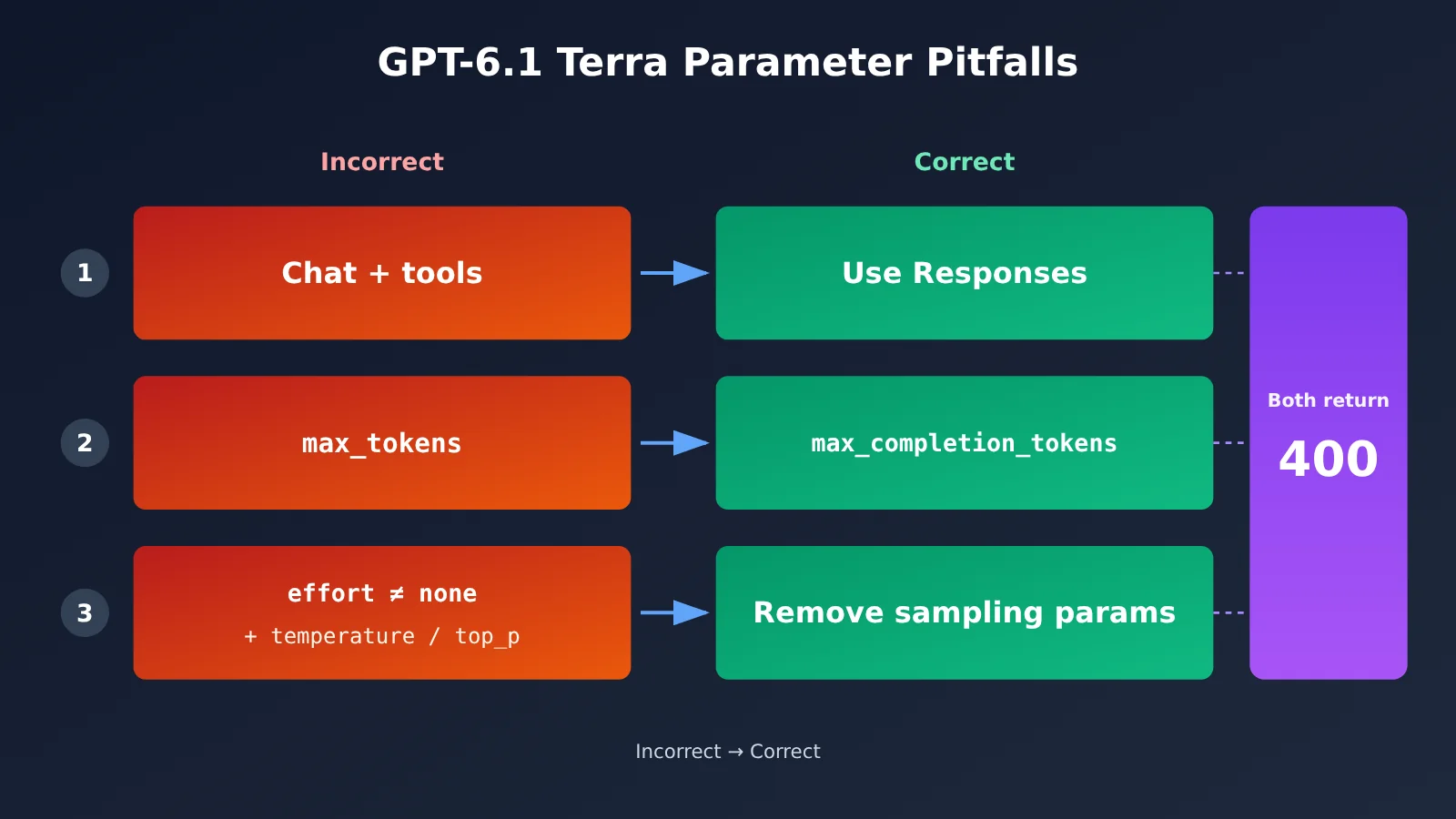
| Chat with tools | Pass tools to chat.completions |
Switch to the Responses endpoint | Request fails |
| Using an outdated parameter | Pass max_tokens to the Chat endpoint |
Use max_completion_tokens |
400 |
| Sampling parameter conflict | Pass temperature or top_p when effort isn’t none |
Remove temperature, top_p, and top_logprobs; on the Chat endpoint, also remove logprobs |
400 |
Besides these three pitfalls, the official documentation lists a few other cases that trigger a 400: setting effort to minimal, providing an invalid value for prompt_cache_options.ttl, or sending more than 922,000 tokens. Image URLs must be accessible for the server to download. Sites with anti-scraping protections can cause failures, so using a base64 data URL is more reliable.
Here’s one important habit when troubleshooting errors: the full error message appears only once, in the response body. Backend logs are billing records, and failed calls aren’t billed. So make sure to save the HTTP status code, the complete raw response body, and the x-request-id from the response headers. Don’t call raise_for_status() before reading the body, or you’ll lose the error details.
GPT-6.1 Terra API Pricing and the 272K Tier
The official prices below are in U.S. dollars per million tokens. Note that the tier applies to the entire request: if the input exceeds 272K, every billable item for that request is charged at the second-tier rate.
| Billable item | Input ≤ 272K | Input > 272K |
|---|---|---|
| Input | 1 | 2 |
| Output (including reasoning tokens) | 5 | 7.5 |
| Cache reads | 0.05 | 0.1 |
| Cache writes (30 minutes) | 1.25 | 2.5 |
| Cache writes (12 hours) | 2.50 | 5 |
To estimate costs, include all four items: input, output, cache reads, and cache writes. Cache writes also have two durations: 30 minutes and 12 hours. Looking only at input and output rates will underestimate costs for long-context requests that use caching. The same-generation models available on the platform match the official prices for all four billable items and use the same two-tier pricing, applied to the entire request.
The official Standard tier rate limits are: Build, 5,000 RPM / 1 million TPM; Launch, 10,000 RPM / 4 million TPM; and Grow, 15,000 RPM / 40 million TPM.
💰 Cost-saving tip: For long-document tasks, try to keep each input under 272K tokens and use prompt caching to significantly reduce costs. Choose the
defaultorsvipgroup through APIYI at apiyi.com to get pricing that matches the official rates. Check the platform’s model list for specific models and prices.
GPT-6.1 Terra API Security Reminder
Store your API key in an environment variable or a secrets management service. Don’t hard-code it in your source code or commit it to a Git repository. We recommend adding .env files to .gitignore. If a key is exposed, delete it from the token page immediately and create a new one.
Make sure you select the correct token group. The wrong group could cause errors saying the model is unavailable or, worse, result in unexpected billing rates. It’s best to use a separate token for each project so you can manage quotas and disable tokens independently.
Frequently Asked Questions
Q1: What is GPT-6.1 Terra?
It’s a model released by OpenAI on 2026-10-26, with the ID `gpt-6.1-terra`. It has a context window of 1,050,000 tokens, accepts text and images as input, and generates text. You can call it through the Responses, Chat Completions, and Batch endpoints.
Q2: Should I use Responses or Chat Completions with GPT-6.1 Terra?
Use Responses if you need tool calling, such as function calling or `web_search`. Chat Completions also works for standard chat, but you’ll need to use `max_completion_tokens` instead, and you can’t include tools.
Q3: Can I call `gpt-6.1-terra` through APIYI yet?
As of 2026-10-27, it isn’t available on APIYI yet, but we’ll add it as soon as possible. In the meantime, you can use the same-generation `gpt-6.1-sol` on APIYI at apiyi.com to verify your integration. Check the platform’s model list for current model availability and pricing.
Q4: Why do I get a 400 error when I pass `temperature`?
When the reasoning effort isn’t set to `none`, you can’t pass `temperature`, `top_p`, or `top_logprobs`. Either remove these parameters or set `effort` to `none`.
Q5: Can I test it without adding funds?
Yes. New accounts registered with APIYI at apiyi.com come with $0.05 in trial credit, which is enough for a lightweight test call. We recommend verifying your integration with `gpt-5.4-mini` first, then switching to your target model.
Q6: What are the known limitations of GPT-6.1 Terra?
It doesn’t support fine-tuning or predicted outputs, and it also doesn’t support the Realtime, Assistants, Embeddings, Images, or Audio endpoints. Requests with more than 272K input tokens are billed at the second-tier rate for the entire request. Requests exceeding 922,000 tokens return a 400 error.
GPT-6.1 Terra API: Key Takeaways
- The key choice: Use Responses if you need tools; otherwise, just change the model name in Chat.
- Three parameter pitfalls: Don’t include tools in Chat, use
max_completion_tokens, and don’t pass sampling parameters wheneffortisn’tnone. - Five setup steps in the console: Register, create a token and select a group, set the Base URL with
/v1, enter the model name, and send a request. - Signs of a successful setup: The key starts with
sk-, the request returns 200 with numeric values inusage, and themodelfield is echoed back. - Four pricing components: Input, output, cached input, and cache writes. If the request exceeds 272K tokens, the entire request is charged at the second-tier rate.
- Getting started: First, test the full flow with
gpt-6.1-solon APIYI. Once Terra is available, just change the model name.
Summary
The key points for integrating the GPT-6.1 Terra API come down to three things:
- Choose the endpoint first: Decide whether to use Responses or Chat. This determines how to format parameters and whether you can use tools.
- Verify each step: Check the token, Base URL, model name, and first request. Each step has a clear signal to confirm it’s working.
- Keep costs in mind: The 272K threshold is applied to the entire request, and all four cache-related charges should be included in your budget.
We recommend testing the full flow first with gpt-6.1-sol on APIYI at apiyi.com. As of 2026-10-27, gpt-6.1-terra isn’t available on the platform yet. We’ll add it as soon as possible. Check the platform’s model list for the available model names and prices.
📚 References
- OpenAI model page — GPT-6.1 Terra: Model specifications and supported endpoints
- Link:
platform.openai.com/docs/models/gpt-6.1-terra -
Details: Official information on context, modalities, and available tools
-
OpenAI latest model guide: Parameter migration and limitations
- Link:
platform.openai.com/docs/guides/latest-model -
Details: Parameter rules for
reasoning.effort,max_completion_tokens, and more -
OpenAI pricing page: Tiered pricing and cached input prices
- Link:
platform.openai.com/docs/pricing - Details: The two 272K pricing tiers and pricing for cached input based on write duration
Author: APIYI Technical Team
Technical support: Contact us through the APIYI homepage. For more integration guidance, visit the documentation center at docs.apiyi.com.