Author's Note: This is an in-depth analysis of the billing model, timeout risks, and performance impact of the Google Gemini Nano Banana 2 search tool. I've included 5 practical optimization tips to help you prevent image generation failures.
When using the Gemini image generation API, you might have noticed an option called Google Search Tool. It allows the model to search the web for reference information before generating an image. It sounds powerful, but in actual API calls, enabling the search tool can lead to severe timeout issues and unexpected extra costs.
Core Value: By the end of this article, you'll understand the true cost of the Gemini search tool, learn how to configure parameters correctly to avoid image generation failures, and save on unnecessary API expenses.
Key Points of Gemini Image Generation Search Tool
| Point | Description | Impact |
|---|---|---|
| Separate Billing | $14 per 1,000 search queries, added on top of image generation costs | Significant cost increase |
| Increased Latency | Search + reasoning mode can take 60-400+ seconds | Highly prone to timeouts |
| APIYI Compatibility | Complex billing and reliability issues | Recommended to disable |
| Quality Unaffected | The Gemini model itself has strong image understanding | Recommended to keep off by default |
What is the Gemini Search Tool?
Google introduced the search tool feature in its Gemini image generation models (internally codenamed the Nano Banana series). When enabled, the model automatically queries Google Search for relevant information—and sometimes even retrieves reference images—before generating an image to improve accuracy.
Specifically, the search tool comes in two types:
- Web Search: The model searches for text information and retrieves factual data to assist in generation.
- Image Search: The model retrieves real photos as visual references (supported only by Gemini 3.1 Flash Image).
This sounds appealing, but in practice, the search tool introduces three serious problems, which we'll analyze one by one below.
description: Discover the three major risks of using Gemini's search tool, including unpredictable costs, high timeout rates, and service instability.
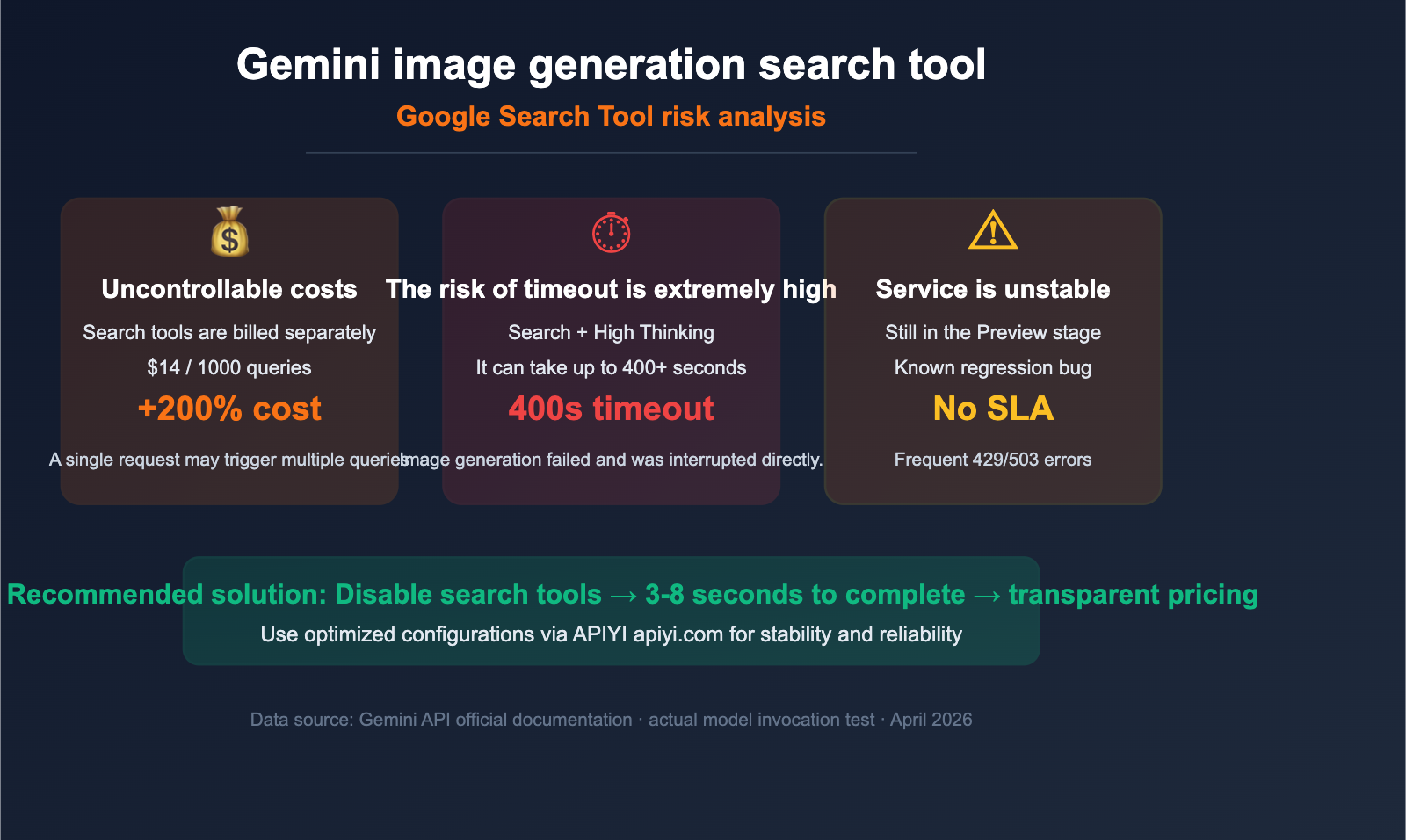
3 Major Risks of the Gemini Search Tool
Risk 1: Separate Billing for Search Tools Leads to Unpredictable Costs
Google uses a separate billing model for its search tools, which means every API call you make effectively incurs two separate charges.
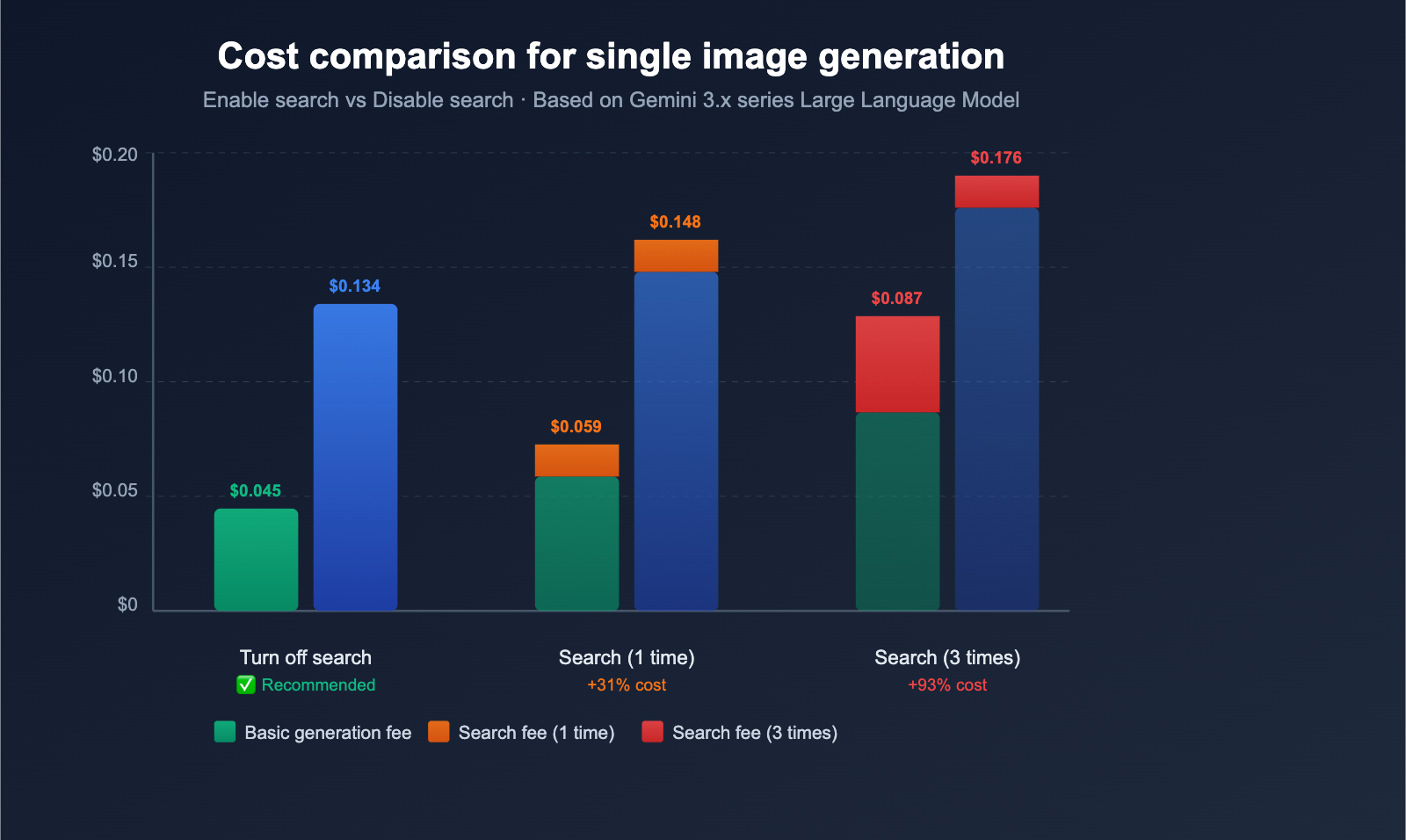
| Cost Item | Gemini 3.x Series | Gemini 2.5 Series | Notes |
|---|---|---|---|
| Image Generation Cost | $0.045-$0.134/image | $0.039/image | Base generation fee |
| Search Tool Cost | $14/1k queries | $35/1k queries | Additional search fee |
| Free Tier | 5,000/month | 1,500/day | Billed after limit |
| Billing Unit | Per search query | Per request | One request may trigger multiple queries |
The critical issue is that a single API call can trigger multiple internal search queries, each billed individually. This makes your costs extremely difficult to predict.
For example: If you send an image generation request, the model might automatically initiate 2-3 search queries to gather enough information. At a rate of $14 per 1,000 queries, the search cost for a single image could reach $0.028-$0.042, which is nearly equal to the base generation fee.
🎯 Cost Tip: For high-frequency usage, the cumulative cost of the search tool can easily exceed the cost of the image generation itself. We recommend using the APIYI (apiyi.com) platform to access Gemini image generation, where the search tool is disabled by default to ensure your costs remain transparent and under control.
Risk 2: Search Causes Timeouts and Image Generation Failures
This is the most severe practical issue. Enabling the search tool significantly increases processing time, especially when used alongside the thinkingLevel: "High" parameter, which drastically raises the risk of timeouts.
Standard Generation Flow (No Search):
User Request → Model Generates Image → Return Result
Duration: 3-8 seconds
Flow with Search Enabled:
User Request → Analyze Prompt → Generate Search Query → Execute Search → Process Search Results → Generate Image → Return Result
Duration: 15-60+ seconds
Flow with Search + thinkingLevel High:
User Request → Deep Prompt Analysis → Multi-round Search Queries → Process Search Results → Deep Reasoning → Generate Image → Return Result
Duration: 60-400+ seconds ⚠️
| Configuration Combination | Estimated Duration | Timeout Risk | Recommendation |
|---|---|---|---|
| Default (No Search) | 3-8 seconds | Very Low | ⭐⭐⭐⭐⭐ |
| Search Only | 15-60 seconds | Medium | ⭐⭐ |
| Search + thinkingLevel Low | 20-90 seconds | High | ⭐ |
| Search + thinkingLevel High | 60-400+ seconds | Very High | ❌ Not Recommended |
We've observed that some users enable both the search tool and thinkingLevel: "High". During peak hours, even a 400-second timeout limit isn't enough, leading to failed requests and interrupted image generation.
Risk 3: Unstable Search Results and Poor Reliability
Google's search tool is still in the Preview stage and has known stability issues:
- Search Result Regression Bug: In early March 2026, the image search feature for Gemini 3.1 Flash Image experienced a regression where search data was completely missing.
- Degradation During Peak Hours: Error rates increase significantly during US Pacific Time business hours (1:00 AM to 10:00 AM Beijing Time).
- Strict Rate Limits: When calling via Vertex AI, it's easy to trigger
429 RESOURCE_EXHAUSTEDerrors. - Intermittent 503 Errors: Even simple requests can occasionally encounter service unavailability.
These instability factors make the search tool unreliable for production environments, which is one of the core reasons why the APIYI platform has decided not to support this feature.
Real-World Case: Timeout Failures Caused by Search Tools
We've received feedback from multiple users who experienced repeated image generation failures after enabling both the search tool and the high-level thinking mode. Here is a typical scenario:
User Configuration:
- Model: Gemini 3.1 Flash Image (Nano Banana 2)
- Search Tool: Enabled (Web Search + Image Search)
- thinkingLevel: "High"
- Timeout Setting: 400 seconds
Result: The request failed to complete within the 400-second timeout limit. The model consumed significant time during the search phase, and when combined with the reasoning time from the "High" thinking mode, the total processing time far exceeded expectations.
Solution: Disable the search tool and set the thinkingLevel to the default value (minimal). After these adjustments, the same image generation prompt returned results within 5 seconds, with no noticeable difference in image quality.
This case demonstrates that the combined effect of the search tool and high-level thinking mode is far greater than using either feature alone; using them together is the primary cause of timeouts.
Gemini Image Generation API Configuration Optimization
Now that you're aware of the risks associated with search tools, here is the recommended API configuration setup.
Recommended Configuration: Disable Search Tools
import openai

client = openai.OpenAI(
    api_key="YOUR_API_KEY",
    base_url="https://vip.apiyi.com/v1"  # APIYI unified interface
)

response = client.chat.completions.create(
    model="gemini-3.1-flash-image",
    messages=[
        {
            "role": "user",
            "content": "Generate a beautiful sunset landscape"
        }
    ]
    # Note: Not passing the tools parameter = search tool is disabled by default
    # Not passing the thinkingLevel parameter = uses the default minimal level
)
View full optimized image generation code
import openai
import time
from typing import Optional

def generate_image_optimized(
    prompt: str,
    model: str = "gemini-3.1-flash-image",
    timeout: int = 60,
    max_retries: int = 2
) -> Optional[str]:
    """
    Optimized Gemini image generation function
    - Disables search tools to avoid timeouts
    - Uses default thinking level
    - Includes automatic retry mechanism
    """
    client = openai.OpenAI(
        api_key="YOUR_API_KEY",
        base_url="https://vip.apiyi.com/v1"  # APIYI unified interface
    )

    for attempt in range(max_retries + 1):
        try:
            response = client.chat.completions.create(
                model=model,
                messages=[
                    {"role": "user", "content": prompt}
                ],
                timeout=timeout
            )
            return response.choices[0].message.content
        except Exception as e:
            if attempt < max_retries:
                wait_time = (attempt + 1) * 5
                time.sleep(wait_time)
                continue
            raise e

# Usage example
result = generate_image_optimized(
    prompt="A professional product photo of a smartphone",
    timeout=60
)
💡 Tip: When calling the Gemini image generation interface via APIYI (apiyi.com), search tools are disabled by default. This ensures stable response times and predictable costs, making it ideal for production environments.
5 Practical Optimization Tips for Gemini Image Generation
Based on real-world usage, here are 5 optimization tips to effectively avoid timeouts and unnecessary costs:
Tip 1: Disable Search Tools
This is the most important optimization. Simply don't pass the tools parameter to disable the search function. The Gemini model already has a vast training dataset, so in most scenarios, additional searching is unnecessary.
Tip 2: Use the thinkingLevel Parameter Carefully
| thinkingLevel | Use Case | Estimated Latency Increase | Recommendation |
|---|---|---|---|
| minimal (default) | Standard image generation | None | First choice |
| low | Slightly complex compositions | +5-15 seconds | Use as needed |
| high | Highly complex multi-element scenes | +30-120 seconds | Use with caution; do not combine with search |
Tip 3: Set Reasonable Timeouts
- No search + default thinking: 30-60 seconds recommended
- Using
thinkingLevelHigh: 120-180 seconds recommended - Not recommended: Search + High thinking (even 400 seconds might not be enough)
Tip 4: Avoid Peak Hours
Google API load is higher during US business hours (9:00-18:00 Pacific Time, which is 1:00-10:00 Beijing Time). Error rates and latency tend to rise during these times. If your business allows, try to schedule batch image generation tasks during off-peak hours.
Tip 5: Implement a Retry Mechanism
Network fluctuations and transient server pressure can cause single requests to fail. We recommend implementing an exponential backoff retry strategy:
- 1st retry: Wait 5 seconds
- 2nd retry: Wait 10 seconds
- Max 2-3 retries
🎯 Optimization Summary: Disabling search tools + using the default thinking level is the most stable and efficient configuration. The APIYI (apiyi.com) platform has already optimized parameters for Gemini image generation to help users avoid common timeout traps.
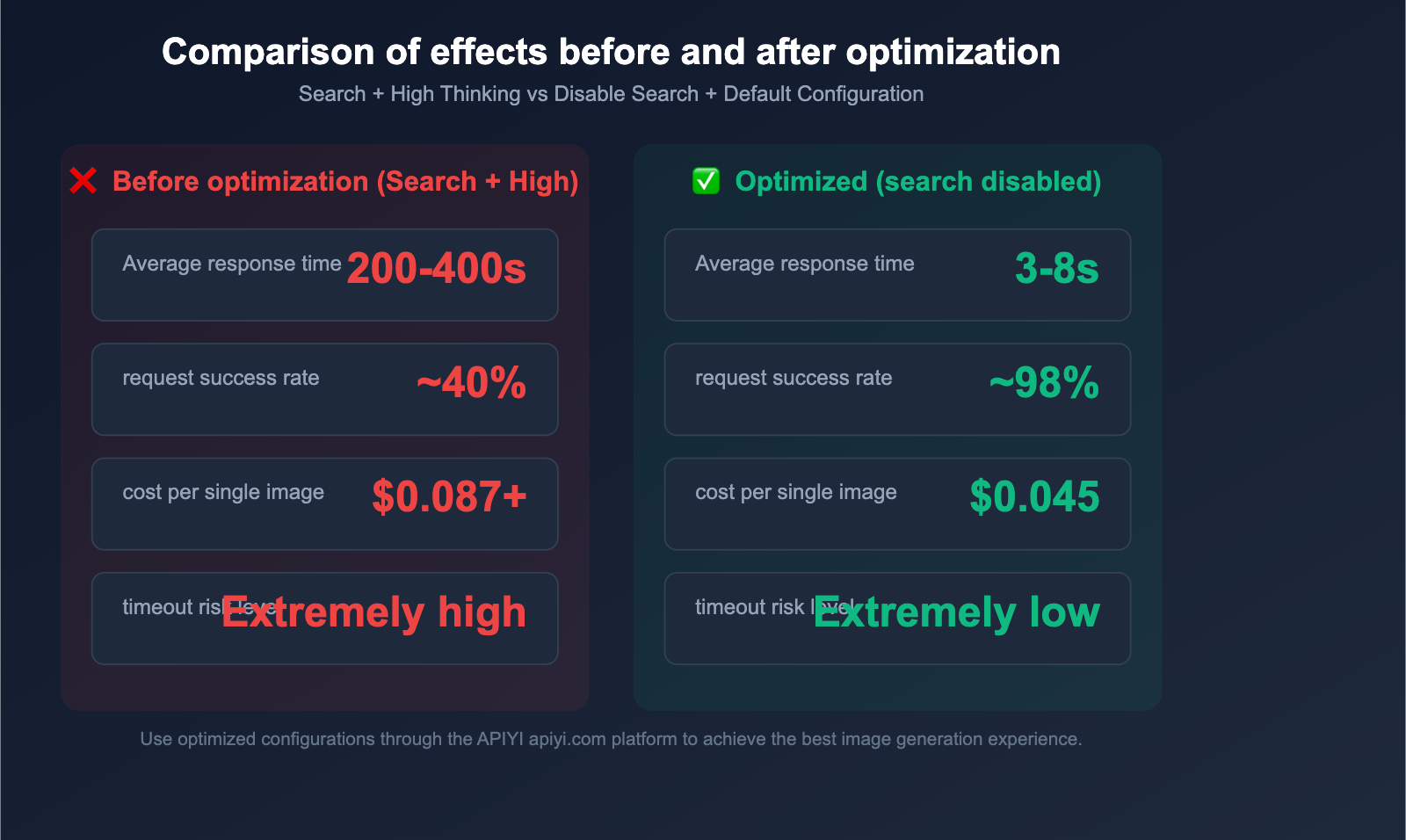
Gemini Search Tools and the APIYI Platform
Why APIYI Doesn't Support Search Tools
After a thorough technical evaluation, the APIYI platform has decided not to support the search tool functionality for Gemini image generation. Here’s why:
-
Opaque Billing: The standalone billing model for search tools makes it difficult for users to predict actual costs. A single request can trigger multiple search queries, each incurring additional fees, which contradicts APIYI’s commitment to transparent billing.
-
Unreliable Availability: The search tools are currently in the Preview stage, and Google has not yet committed to an SLA. Known regression bugs and intermittent errors make it impossible to guarantee service quality.
-
High Timeout Risk: Search tools significantly increase request latency, often leading to timeout failures. If a user enables both search and advanced thinking modes, it's nearly impossible to complete a request within APIYI's default timeout limits.
-
Solid Alternatives: The training data for Gemini models already covers an incredibly vast amount of knowledge. Disabling the search tool won't noticeably impact the quality of your image generation.
Gemini Image Model Search Support Overview
| Model | Internal Codename | Search Tool Support | APIYI Support | Recommendation |
|---|---|---|---|---|
| Gemini 3.1 Flash Image | Nano Banana 2 | Web + Image Search | Image Gen ✅ / Search ❌ | ⭐⭐⭐⭐ |
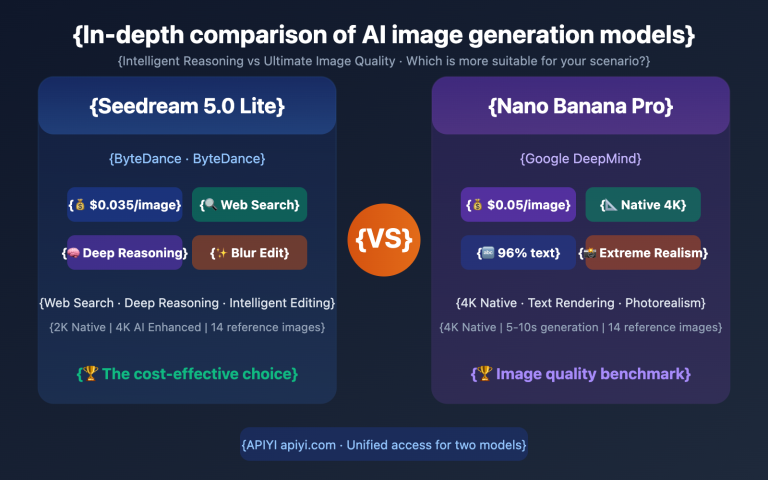
| Gemini 3 Pro Image | Nano Banana Pro | Web Search Only | Image Gen ✅ / Search ❌ | ⭐⭐⭐⭐⭐ |
| Gemini 2.5 Flash Image | Nano Banana | Web Search Only | Image Gen ✅ / Search ❌ | ⭐⭐⭐ |
| Imagen 4 Series | — | Not Supported | ✅ Full Support | ⭐⭐⭐⭐⭐ |
💰 Transparent Pricing: The APIYI (apiyi.com) platform supports image generation for all the models listed above. By disabling search tools, we ensure your costs remain fully transparent and controllable, charging only for what you actually generate.
Gemini Image Model Selection Guide
If your primary goal is pure image generation (without needing real-time information), here are the recommended use cases for each model:
- Imagen 4 Fast: Best for high-speed, low-cost batch generation ($0.02/image), with no search tool interference.
- Imagen 4 Standard: A balanced choice for general use cases, offering a mix of quality and cost ($0.04/image) that's stable and reliable.
- Imagen 4 Ultra: For professional scenarios requiring the highest possible image quality ($0.06/image).
- Gemini 3 Pro Image: Ideal for creative workflows that require multi-turn dialogue to edit images, supporting mixed text-and-image interaction.
- Gemini 3.1 Flash Image: Perfect for rapid prototyping where fast response times are the top priority.
🚀 Get Started: Not sure which model to pick? You can test multiple models simultaneously via the APIYI (apiyi.com) platform. Our unified interface format lets you quickly compare results to find the perfect fit for your business needs.
Frequently Asked Questions
Q1: Will image generation quality drop if I turn off the search tool?
Not noticeably. Gemini models are trained on massive datasets and already possess sufficient understanding for most scenarios. Search tools are only advantageous in rare cases requiring real-time information (like breaking news from today); they aren't needed for standard image generation. Disabling them actually leads to faster, more stable responses.
Q2: How do I know if my request needs a search tool?
A simple rule of thumb: If your image generation topic doesn't involve "events happening right now" or "the precise appearance of specific real-world people/landmarks," you don't need a search tool. 99% of commercial image generation (product shots, illustrations, concept art, artistic creation) doesn't require it. When using the APIYI (apiyi.com) platform, the default configuration is already optimized for you.
Q3: What should I do if enabling both the search tool and thinkingLevel High causes a timeout?
Disable the search tool immediately and set your thinkingLevel to the default (minimal). Combining these two parameters is the most common cause of timeouts. Once adjusted, request times typically drop from 200–400+ seconds to just 3–8 seconds, significantly increasing your success rate. If you absolutely must use High thinking, please ensure the search tool is off and set your timeout to at least 120 seconds.
Q4: Will the APIYI platform support search tools in the future?
There are no current plans to do so. The standalone billing model and stability issues remain unresolved, and Google has not yet moved the feature from Preview to General Availability (GA). If Google improves the billing structure and provides a stable SLA in the future, APIYI will re-evaluate. For now, we recommend that users utilize standard image generation with search tools disabled via apiyi.com.
Summary
Key takeaways for the Gemini image generation search tool:
- Unpredictable Billing: The search tool costs $14 per 1,000 queries. Since a single request can trigger multiple queries, costs can quickly spiral out of control.
- High Timeout Risk: Combining the search tool with
thinkingLevel: Highoften leads to failures even after a 400-second timeout. This is the #1 cause of image generation failures. - Disabling Search is Best: In the vast majority of cases, you don't need the search tool. Disabling it won't impact image quality and will boost response speeds by over 10x.
For developers using Gemini for image generation, our top advice is: Disable the search tool, stick to the default thinking level, and set a reasonable timeout.
We recommend using the Gemini image generation API via APIYI (apiyi.com). Our platform has already been optimized for timeouts and parameter configurations, providing you with a stable and reliable image generation service.
📚 References
-
Google Gemini Image Generation Documentation: Official API usage guide.
- Link:
ai.google.dev/gemini-api/docs/image-generation - Note: Includes complete parameter descriptions and usage examples.
- Link:
-
Google Search Grounding Documentation: Technical details on the search tool.
- Link:
ai.google.dev/gemini-api/docs/google-search - Note: Covers the billing model and technical specifications for the search tool.
- Link:
-
Gemini API Pricing Page: Official cost breakdown.
- Link:
ai.google.dev/gemini-api/docs/pricing - Note: Details pricing for various models and the search tool.
- Link:
-
APIYI Help Documentation: Gemini image generation integration guide.
- Link:
docs.apiyi.com - Note: Covers Gemini interface configuration and best practices on the APIYI platform.
- Link:
Author: APIYI Technical Team
Technical Discussion: Feel free to share your experiences with Gemini image generation in the comments. For more technical resources, visit the APIYI documentation center at docs.apiyi.com.