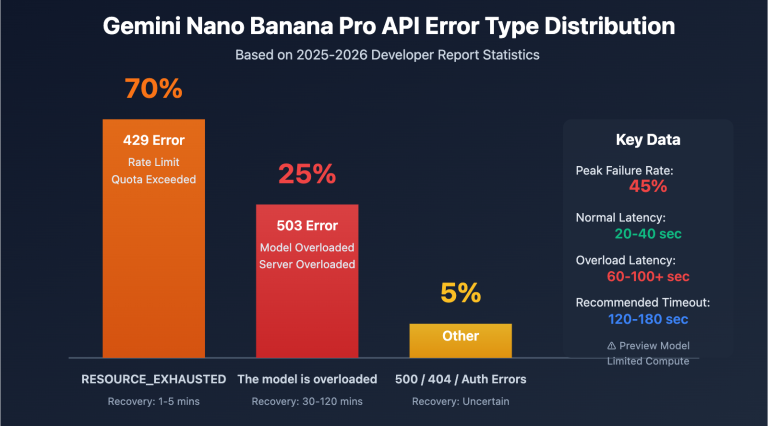
At 3:00 AM, the production environment alert channel is flooded with 429 errors. Opening the logs, you see that familiar, headache-inducing error message:
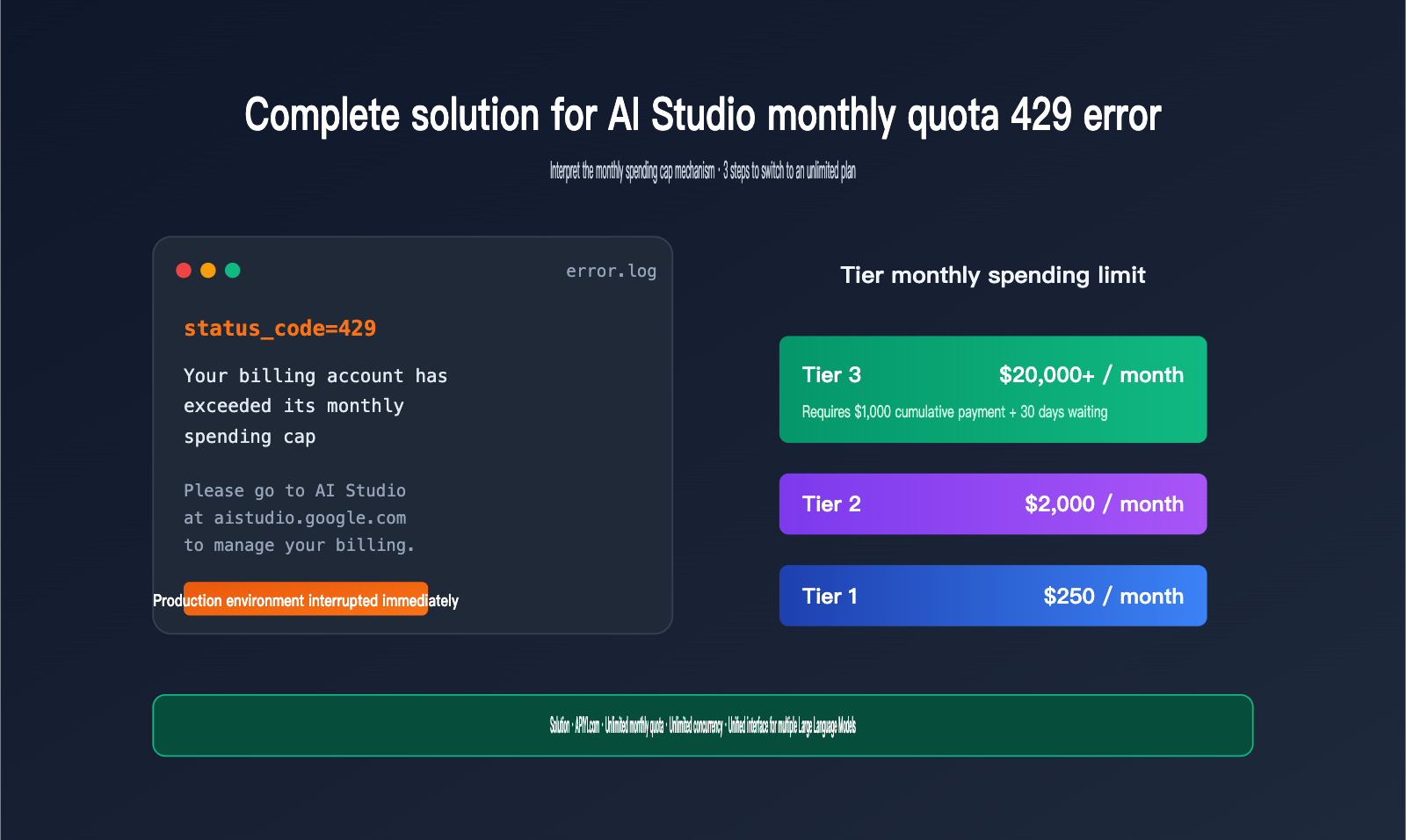
status_code=429
Your billing account has exceeded its monthly spending cap.
Please go to AI Studio at https://aistudio.google.com to manage your billing.
Learn more at https://ai.google.dev/gemini-api/docs/billing.
This is what happens when you hit the AI Studio monthly spending cap. Many teams are confused the first time they encounter this—after all, the Google Cloud balance is fine, and the credit card isn't maxed out, so why did the service stop? Even worse, all projects under the Billing Account are cut off simultaneously until the next billing cycle. This article will clearly explain the mechanics of the monthly spending cap, analyze why it's easier to trigger than you might think, and provide three immediately actionable solutions.
What is the AI Studio monthly spending cap?
The AI Studio monthly spending cap is a hard spending ceiling introduced by Google in 2026 for the Gemini API. It isn't just a "reminder" set by the user; it's a forced kill-switch that blocks API calls the moment the limit is reached. This mechanism consists of two overlapping layers: Project Spend Cap and Billing Account Tier Cap. The latter has been mandatory since April 1, 2026, and no Gemini API user can bypass it.
The 4 Tiers of Gemini API and Monthly Spending Limits
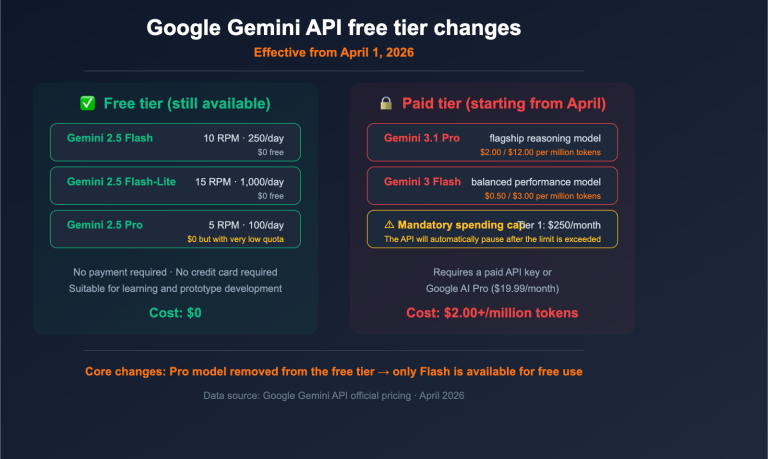
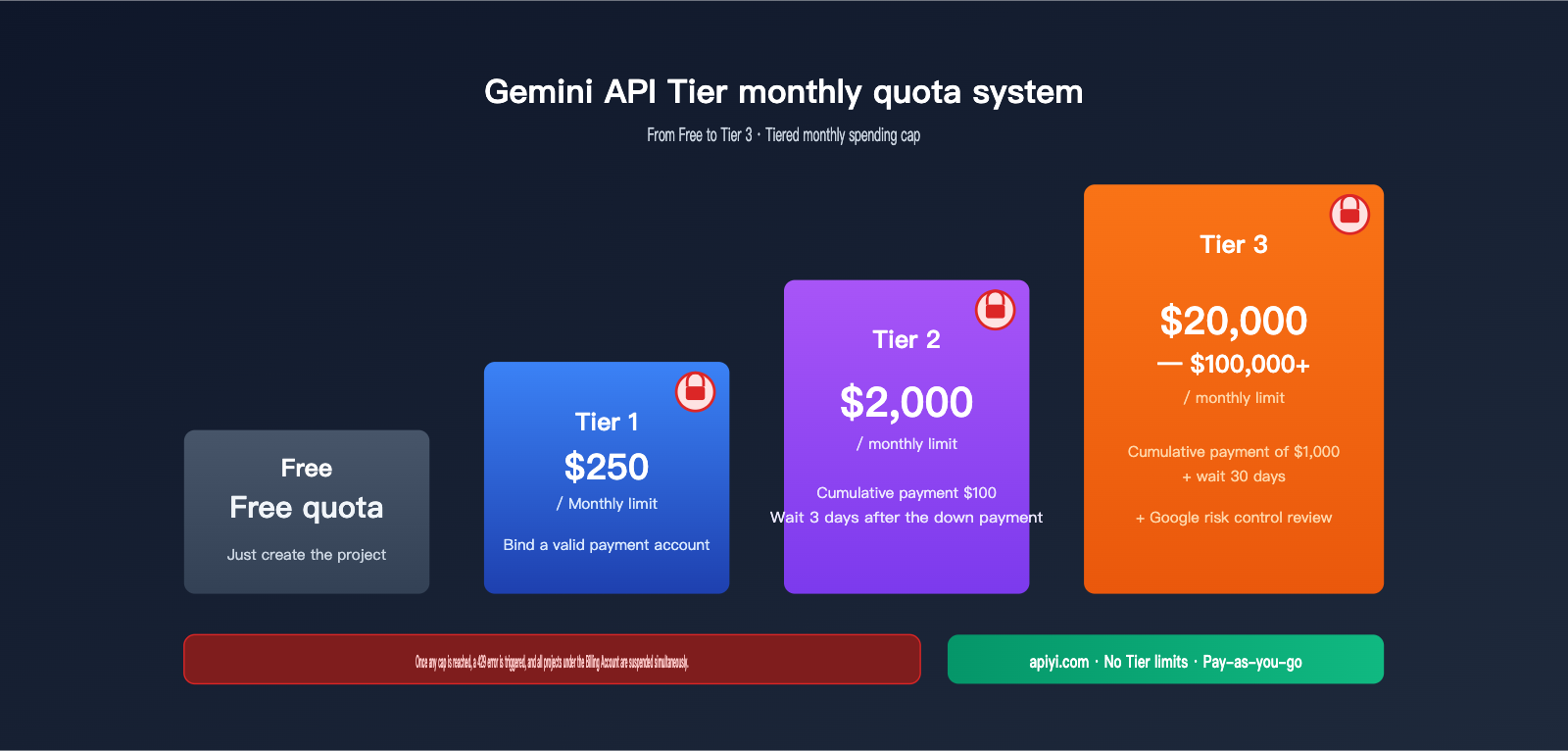
Different tiers correspond to different monthly spending limits and upgrade requirements. The table below lists the official thresholds as of May 2026:
| Tier | Monthly Spending Limit | Upgrade Requirements | Use Case |
|---|---|---|---|
| Free | No cost (free quota) | Create a project | Personal testing, Demos |
| Tier 1 | $250 / month | Link a valid payment account | Small projects, prototyping |
| Tier 2 | $2,000 / month | Pay $100 total + wait 3 days after initial payment | Mid-sized production |
| Tier 3 | $20,000 – $100,000+ / month | Pay $1,000 total + wait 30 days after initial payment | Large-scale enterprise |
There are a few details in this table that are often overlooked. First, upgrading from Tier 1 to Tier 2 isn't just about "paying more"—you must pay $100 and wait 3 days to unlock the higher monthly ceiling. Second, Tier 3 isn't something you can set yourself; it's a range dynamically assigned by Google based on your account's payment history. Whether you get $20k or $100k depends on their risk assessment. Finally, even if you have sufficient funds, once you hit the monthly limit for your tier, the API immediately returns a 429 error with no buffer.
Project-level vs. Account-level: The Double-Cap Trigger
Many developers assume there's only one layer to the monthly spending cap, but AI Studio actually has two concurrent mechanisms. Hitting either one will trigger a 429 error.
- Project Spend Cap: In the AI Studio Spend page, an Owner or Editor can set a monthly dollar limit for each project individually—for example, capping a test project at $50 to prevent runaway scripts from burning through your budget.
- Billing Account Tier Cap: This is automatically applied by Google based on your current Tier. It cannot be disabled or increased. This is the part enforced by the new 2026 policy, designed to help Google control bad debt risk.
🎯 Architecture Tip: If your business requires stable, high-concurrency output, you can configure the same model on APIYI (apiyi.com) as a failover. This way, even if you hit either cap, traffic can be instantly switched to the API proxy service, allowing you to keep running without waiting for the next billing cycle.
Why is it so easy to trigger a 429 error with AI Studio's monthly limit?
In theory, the Tier 1 monthly limit of $250 sounds like plenty. But in real-world production, the probability of hitting a 429 "monthly spending cap" error is much higher than you'd expect. It’s not just about "using too much"—it’s due to several mechanical flaws acknowledged by Google itself.
The 10-minute execution delay leads to overage charges
Google’s official documentation explicitly states: The spend cap has an execution delay of approximately 10 minutes, and users are responsible for any overage charges incurred during this window. In other words, even if you set your cap to $250, it is "normal" for your actual bill to exceed that amount, and you are required to pay for the excess. For high-concurrency batch tasks, 10 minutes is enough to burn through hundreds of dollars. This issue is frequently complained about on the Google AI Developers Forum—users have reported that batch jobs blew past their caps, forcing them to pay amounts far exceeding their budgets.
Account-level caps can take down all projects simultaneously
This is the most underestimated risk. Once you hit the Billing Account Tier Cap, all projects under that billing account are cut off simultaneously until the next billing cycle (the 1st of the month). This means if your test project blows through your $250 limit, your production project goes down with it. There’s a widely discussed case on the Google AI Developers Forum where a team’s production environment was down for two days because customer support couldn't lift the cap manually, and they had to wait for the automatic reset at the end of the month. This "total wipeout" risk is the most fatal flaw of a single-vendor architecture.
Tier upgrades have mandatory waiting periods, making emergency fixes impossible
When your business suddenly grows and you need to bump your cap from $250 to $2,000, you'll find that the upgrade isn't instantaneous. Tier 2 requires a "cumulative payment of $100 + 3 days after the first successful payment" to take effect. In short, if your business spikes during a weekend promotion, you won't get a higher cap until Monday if you're stuck in Tier 1. For a production environment, this waiting period is essentially the same as "unable to scale."
💡 Risk Mitigation Tip: Relying solely on the Gemini API is a high-risk design. We recommend using APIYI (apiyi.com) to integrate Gemini, GPT, Claude, and other models as a hot-standby. This allows your business to failover without changing code, preventing total downtime caused by hitting a monthly spending cap.
Common 429 cap anomalies reported in forums
Beyond standard triggers, the Google AI Developers Forum has reported several anomalous scenarios:
| Anomaly | Description | User Feedback |
|---|---|---|
| 429 after raising cap | Monthly limit raised from $250 to $1000, but API still returns monthly spending cap error | Multiple tickets required; some users waited days for recovery |
| Blocked after removing cap | Spend cap completely removed in AI Studio, but API still errors out | Requires contacting support; cannot be resolved via self-service |
| Tier status mismatch | Billing page shows Tier 2, Rate Limit page shows Tier 1 | Google has not provided a timeline for a fix |
| Promo credits won't upgrade Tier | Even with Google-provided credits, you cannot use them to upgrade to Tier 2 | Must use real payment methods |
| Prepay balance hits $0 and stops | In prepaid mode, all calls fail the moment the balance hits zero | Must recharge immediately to restore service |
The core takeaway from this table is that the AI Studio monthly limit mechanism itself is somewhat unstable. Even if you set it exactly according to official recommendations, you might still trigger a 429 due to Google's internal system delays or state synchronization issues.
3 ways to solve Gemini API 429 errors
To address these pain points, there are three mainstream strategies for production, ranging from temporary "stop-gap" measures to permanent solutions.
Method 1: Adjust the Project Spend Cap in AI Studio (Short-term fix)
If only a single project's cap is set too low, you can manually increase it on the Spend page:
- Log in to aistudio.google.com and enter the target project.
- Open the Spend tab and locate the Monthly spend cap section.
- Click Edit spend cap and enter your new monthly limit.
- Save and wait about 10 minutes for it to take effect.
This solution works for "project-level caps set too low," but it cannot bypass the account-level hard limit of your Tier. If you've hit the Billing Account Tier Cap, this step will be completely ineffective.
Method 2: Upgrade your Tier to increase the account-level monthly spending cap
If your business genuinely requires a higher monthly limit, you must upgrade your Tier. However, keep in mind the hard requirements mentioned earlier:
- Upgrade to Tier 2: Cumulative payment of $100 + 3 days after the first payment.
- Upgrade to Tier 3: Cumulative payment of $1,000 + 30 days after the first payment + Google risk review.
This path is suitable for teams that have plenty of time, can make international payments, and have no concerns about single-vendor lock-in. However, you must be prepared to handle foreign exchange rates and transaction fees, the 3-to-30-day waiting period, and the long-term risk that the account-level cap might still be hit during a peak month.
Method 3: Switch to APIYI (apiyi.com) API proxy service (No monthly limit)
The third option is to migrate your Gemini API calls to the APIYI API proxy service. You only need to change the base_url in your code—no refactoring required:
from google import genai

client = genai.Client(
    api_key="your-apiyi-key",
    http_options={"base_url": "https://vip.apiyi.com"}
)

response = client.models.generate_content(
    model="gemini-2.5-pro",
    contents="Explain what a monthly spending cap is"
)
print(response.text)
Once you switch, monthly limits, concurrency caps, and Tier waiting periods will no longer constrain your business. The same API key can also call mainstream models like GPT and Claude simultaneously, making it easy to implement multi-model hot-standby and A/B testing. For developers in China, this also eliminates the extra costs associated with overseas credit cards, cross-border settlements, and network access issues.
✅ Recommendation: We suggest keeping AI Studio for development, testing, and prototyping, while routing production traffic through an API proxy platform like APIYI (apiyi.com). This "official for dev, unlimited for production" hybrid architecture preserves the official debugging experience while preventing monthly spending caps from dragging down your business at critical moments.
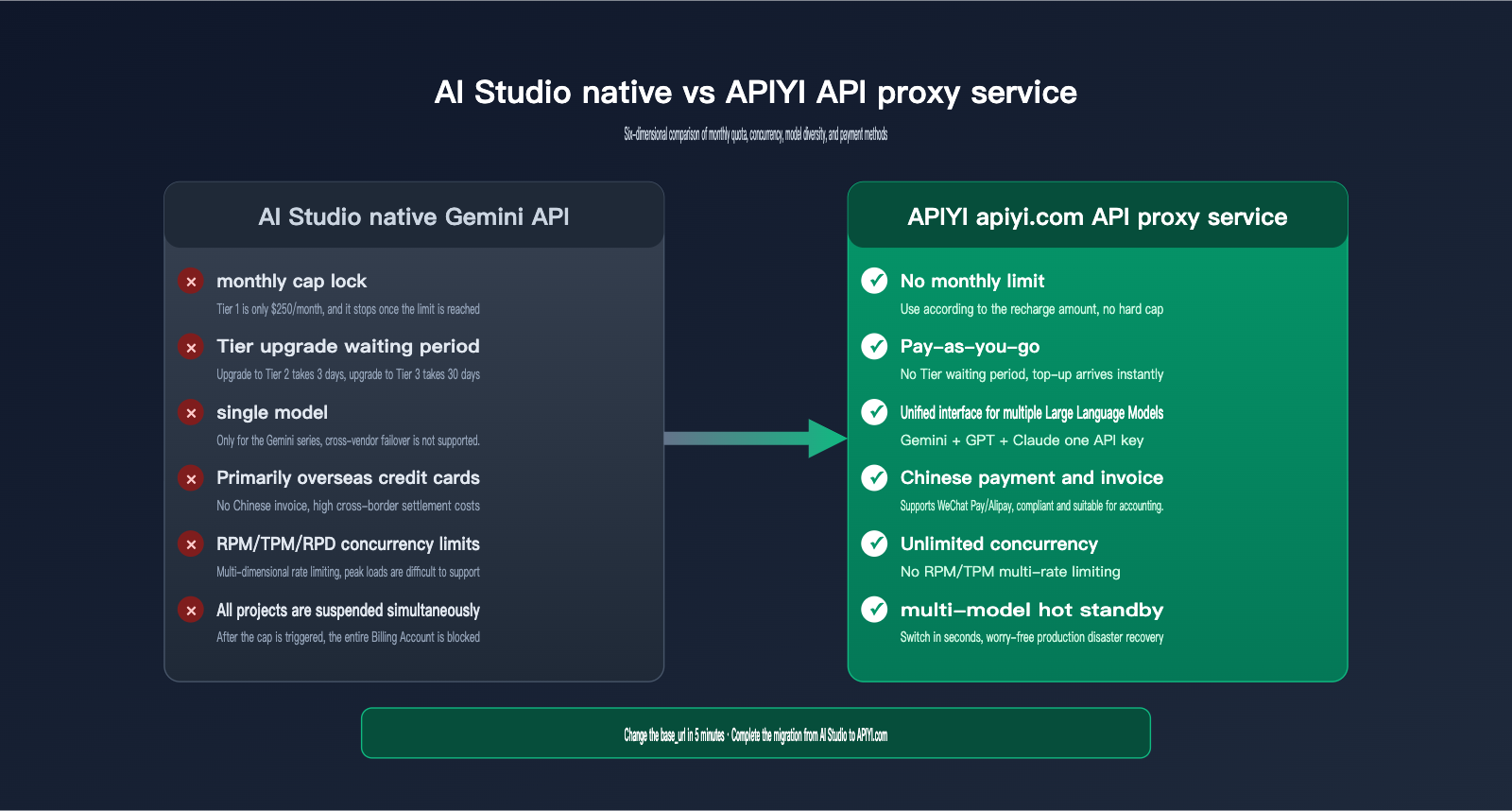
AI Studio Native vs. APIYI Proxy: A Comparison of Monthly Quota Capabilities
The following table provides a side-by-side comparison of these two solutions across six key dimensions to help you make a quick decision:
| Dimension | AI Studio Native Gemini API | APIYI (apiyi.com) Proxy |
|---|---|---|
| Monthly Spending Cap | Hard caps: Tier 1 $250 / Tier 2 $2000 / Tier 3 $20k+ | Usage-based on balance, no monthly cap |
| Concurrency Limits | Subject to multiple RPM/TPM/RPD limits | No concurrency limits |
| Tier Upgrade Wait | 3 days for Tier 2, 30 days for Tier 3 | Ready to use upon top-up, no waiting period |
| Model Diversity | Gemini series only | Unified interface for Gemini, GPT, Claude, etc. |
| Payment Methods | Primarily overseas credit cards | Supports local payment methods and invoicing |
| Failover | All projects blocked if Billing Account is hit | Multi-model hot standby, sub-second switching |
As you can see, the strengths of AI Studio Native are its "official proximity and immediate access to new models," while the strengths of APIYI are "bypassing monthly quotas, eliminating tier upgrade wait times, and multi-model disaster recovery." These aren't mutually exclusive; a smart approach is to use AI Studio during the development phase and switch to APIYI as your primary channel for production, keeping the official interface as a cold backup.
Quick Start: Switch to a No-Monthly-Limit Plan in 5 Minutes
Migrating to APIYI is incredibly straightforward. Here is a standard 4-step process that allows most projects to complete the switch in under 5 minutes.
Step 1: Register and top up. Visit apiyi.com to complete your registration and choose an amount to top up. Your balance is available immediately, with no Tier waiting periods.
Step 2: Create an API key. Generate a new API key in the console. We recommend creating separate keys for different environments (e.g., testing vs. production) to make permission management easier.
Step 3: Update the base_url in your code. Point the http_options of your Google GenAI SDK to the API proxy service address and replace the api_key with the one issued by APIYI. All other code remains exactly the same.
Step 4: Monitor your usage. Check real-time logs, token consumption, and error rates in the APIYI console. Once you've confirmed everything is running smoothly, you can switch your traffic from AI Studio to the proxy channel.
🔧 Migration Tip: When connecting for the first time, we suggest routing 10% of your traffic to APIYI (apiyi.com) for a 24-hour canary test. Once you've confirmed there are no discrepancies, you can switch over completely. You can use the same SDK to call Gemini, GPT, and Claude; if you want to expand to multi-model comparisons later, you only need to change the
modelparameter.
Frequently Asked Questions About AI Studio Monthly Limits
These are the 5 questions we see most often in the developer community.
Q1: How long does it take to recover after hitting the monthly spending cap?
The official mechanism resets automatically at the start of the next billing cycle (the 1st of each month, UTC). There is no way to manually lift this limit. If your business can't wait, we recommend routing your traffic to an API proxy service like APIYI (apiyi.com), which has no monthly limits, to restore service in seconds.
Q2: Why am I still getting 429 errors from the Gemini API even after I've removed the spending cap?
This is a common issue reported on the Google AI Developers Forum. It is usually related to account-level Tier caps or background status delays. You'll need to wait for Google's backend to sync, as it cannot be resolved on the user side. The temporary solution is still to switch to a proxy channel to keep your business running.
Q3: Can I use Google's promotional credits to upgrade my Tier?
No. Tier upgrades are determined by "actual payments made." Promotional credits do not count toward this. If you want a higher monthly limit, you must make cumulative payments of $100 or $1,000 using a real credit card. This constraint makes the strategy of "using promo credits to survive peak periods" ineffective.
Q4: Can Batch mode help me avoid the monthly spending cap?
No. Google's documentation clearly states that Batch mode is also subject to the spending cap. Furthermore, because of the 10-minute processing delay, Batch mode can easily burn through more costs before the cap is triggered. For batch tasks that require stable output, we recommend running them through the APIYI (apiyi.com) channel.
Q5: Is running out of prepay balance the same as hitting the monthly limit?
No. Running out of prepay balance just means your "account is empty," and topping up will restore service immediately. Hitting the monthly limit means you've reached a "hard Tier cap," where topping up won't help, and you must wait for the next billing cycle. The recovery paths for these two scenarios are completely different, and the latter is much more unpredictable.
Summary: How to Maintain Production Stability Despite AI Studio Monthly Limits
The monthly spending cap in AI Studio has become a hard constraint that every Gemini API user must face in 2026. It introduces three core issues: Tier limits cannot be bypassed, 10-minute execution delays lead to overages, and account-level caps can cause all projects to go offline simultaneously. Even when strictly following Google's best practices, there are still numerous reports on forums about "429 errors persisting after removing caps" or "Promo Credits failing to upgrade Tiers." This clearly shows that relying solely on the Gemini API poses significant production risks.
To address these pain points, the most sensible strategy is a dual-channel architecture: keep the native AI Studio interface for development and prototyping, while routing production traffic through an API proxy service like APIYI (apiyi.com). APIYI offers no monthly limits, unlimited concurrency, and a unified interface for multiple models. This way, you don't have to deal with Tier waiting periods, and a single cap trigger won't bring your entire business to a standstill. For teams already struggling with 429 monthly limit errors, you can complete the migration in just 5 minutes by changing a single line of base_url. This shifts your production stability from "depending on Google's mood" to "being in your own control."
— APIYI Team (For more practical guides on integrating Gemini, GPT, Claude, and other models, visit apiyi.com to view the full documentation.)