
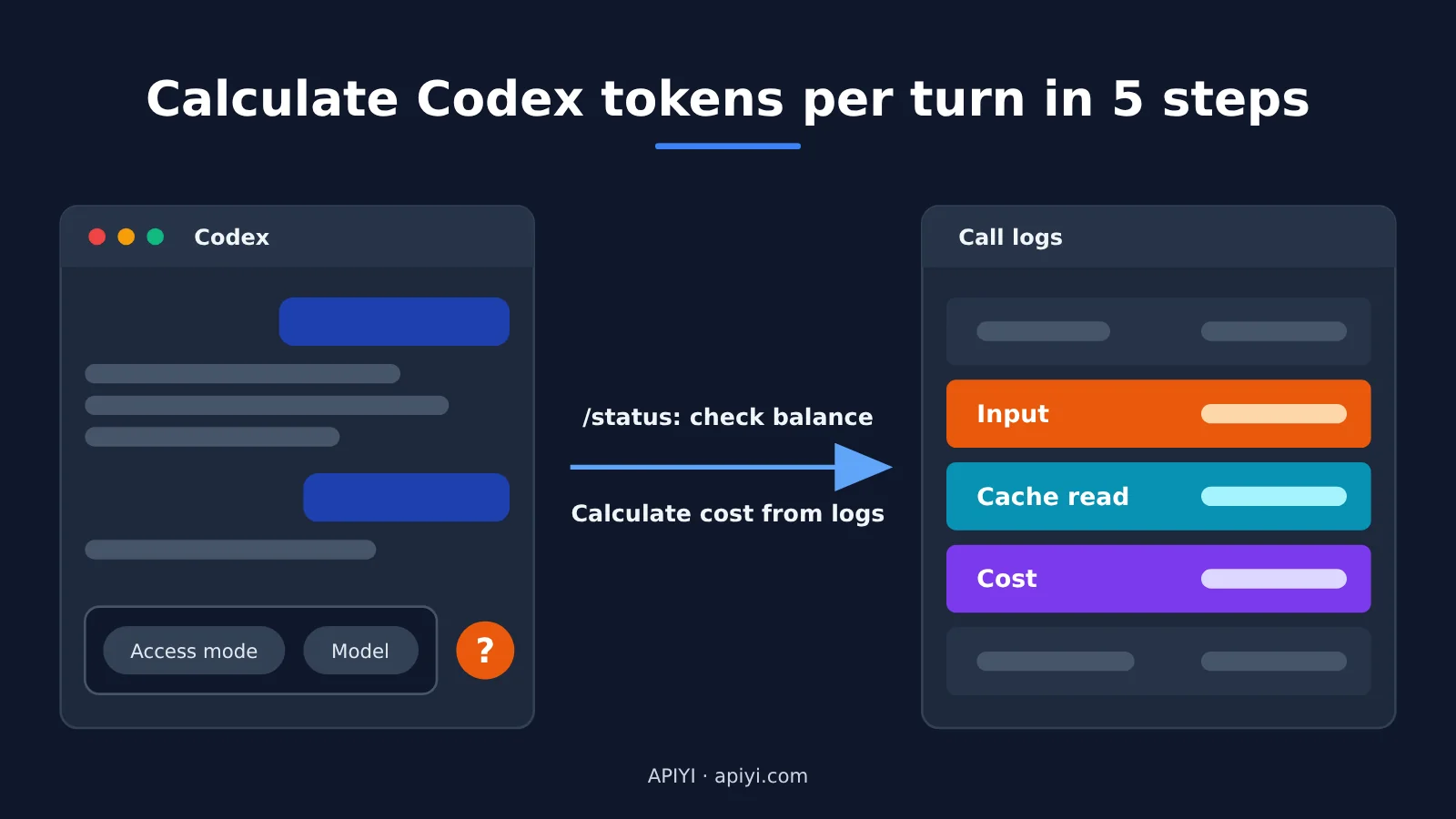
Author’s note: Can’t see context usage in the Codex input box? You’ll find it under /status. This article shows you how to use APIYI invocation logs to calculate token usage and cost for each Codex turn in five steps, plus a table to help you decide whether to compact the context or start a new session.
You’ve connected Codex to APIYI and worked for hours in the same conversation. Below the input box, you can only see the permission mode and model—not how much of the context window you’ve used. You’re not sure whether it’s time to start a new session.
Here’s the short answer: Codex does show context usage—the entry point has moved to /status. The data you need to calculate cost is in your APIYI / apiyi.com invocation logs. This article walks you through using APIYI invocation logs to check token usage for each Codex turn in five steps: what to look for, how to add it up, and when to compact the context or start a new session.
This isn’t another conceptual explainer. Each step describes what you’ll see on screen, where to click, and how to check that you’ve got it right.
Why You Can’t See Per-Turn Token Usage in Codex
Many people think Codex removed the context display. In reality, the information is spread across three places, and each one shows something different.
- Desktop client / IDE extension: The input box only shows the permission mode and model. Enter
/statusto see the chat ID, context usage percentage, and rate limits. - CLI:
/statusshows the current model, approval policy, writable directories, and current token usage. The CLI footer already includes a context indicator. You can use/statuslineto add context stats and token counters to the footer. Your selections are saved totui.status_lineinconfig.toml. codex exec --json: During non-interactive execution, Codex outputs one JSON event per state change. Theturn.completedevent includesusage, with five fields:input_tokens,cached_input_tokens,cache_write_input_tokens,output_tokens, andreasoning_output_tokens.
There’s also /usage, but it only shows account-level token activity and requires an official login. It doesn’t work if you’re using a third-party API key.
Comparing the Three Ways to Track Codex Token Usage
| Method | Coverage | What you can see | What you can’t see |
|---|---|---|---|
| APIYI invocation logs | Desktop, IDE, and CLI | Input, output, cache reads and writes, and cost for each request | Conversation content; each row is one request, so you’ll need to add up requests for a full turn yourself |
Codex /status |
Desktop and interactive CLI | Context usage, rate limits, and current token usage | Cost |
codex exec --json |
Non-interactive execution only | Input, cache read, cache write, output, and reasoning tokens for each turn | Data from the interactive TUI and desktop client |
Of the three, only logs show cost. That assumes your provider offers logs and detailed usage data; official subscriptions don’t provide per-request details.
Step 1: Define How You’ll Count Codex Token Usage
Before you start counting, remember one thing: one request isn’t the same as one conversation turn.
A request is a single call from Codex to the model. A turn is the entire process from when you send a message to when Codex finishes the work and replies. During a turn, Codex may read files, run commands, and edit code. After each tool call, it sends the result along with the full conversation history back to the model. That’s why a single turn usually corresponds to several lines in the logs—and a complex task may produce dozens.
It’s also important to know that the model itself doesn’t remember what was said before. The input for turn N ≈ everything from the previous N-1 turns + the new content in the current turn. That’s the fundamental reason long conversations get more expensive as they continue.
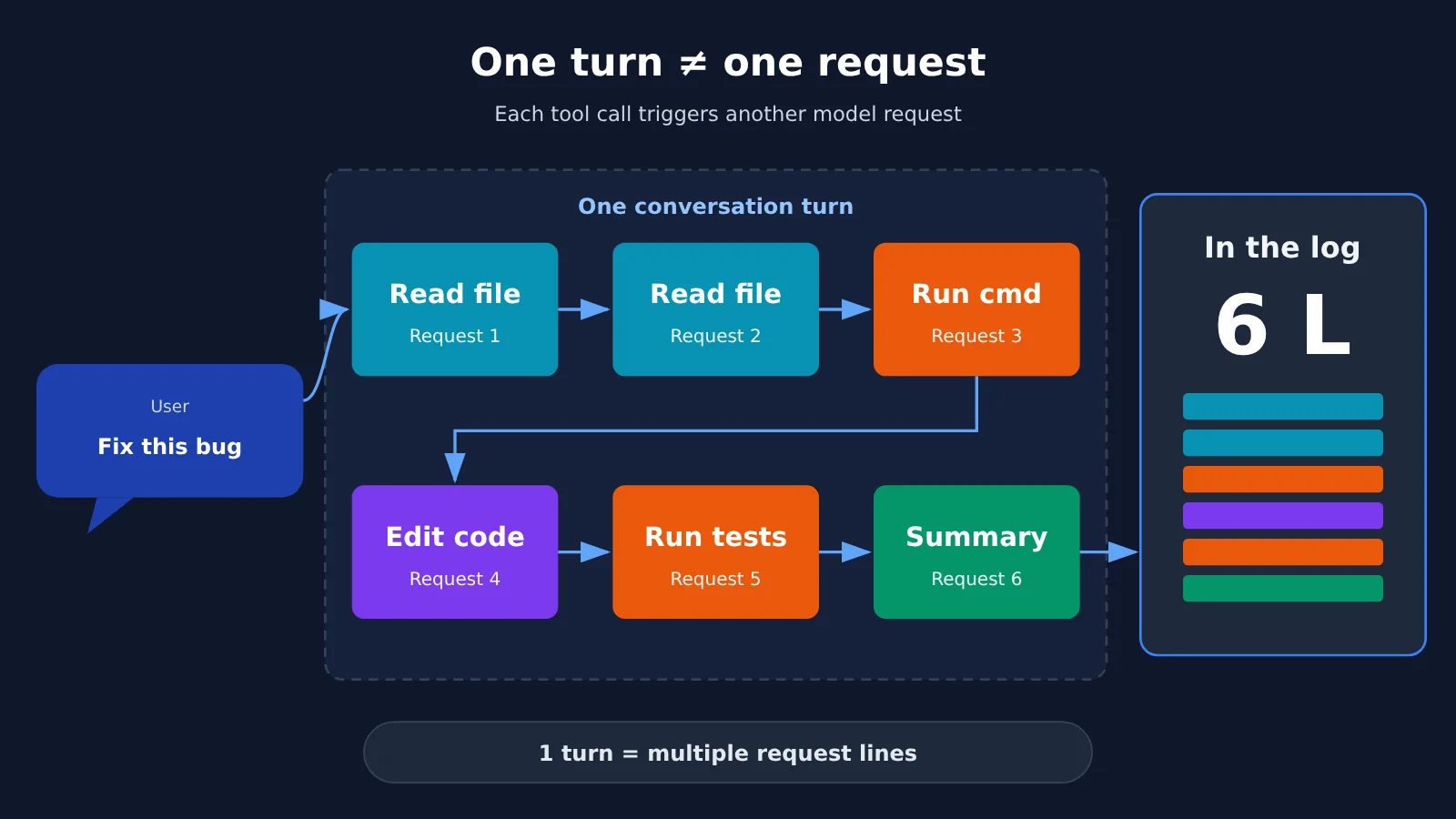
Success check: When you see multiple request lines in the logs, you can recognize that they belong to the same turn rather than counting each line as a separate turn.
Step 2: Create a Dedicated Token for Codex
For these stats to work, the logs must contain only Codex requests. If Codex shares a key with scripts or other tools, you won’t be able to isolate its requests by token later.
- Go to the token page in the APIYI console and click “Add Token.” Give it a recognizable name, such as one containing “codex.”
- Open Codex’s
config.tomland add a provider undermodel_providers. Setbase_url = "https://api.apiyi.com/v1"and useenv_keyto specify the environment variable that holds the token. - Point
model_providerto this provider. The desktop app, IDE, and CLI all read the same configuration, so you only need to change it once. - Use different API keys for all other tools. Don’t reuse this one.
🎯 Technical tip: Dedicated tokens, filtering logs by token, and exporting logs are the tools the APIYI / apiyi.com console provides for tracking usage. Official subscriptions don’t show per-request details, but a dedicated token lets you calculate Codex’s costs separately.
Check: On the log page, click “Expand” to open the advanced filters and select this key under “Token.” The list should show only requests sent by Codex.
Step 3: Understand Individual Requests in the Logs
Open api.apiyi.com/log, or select “Log” from the left-hand menu. Each row in the list represents one API request.
By default, the filters at the top let you narrow results by time range, type, model, and cache status. The cache status tooltip says “Hit = read from cache; Miss = create cache.” Click “Expand” for more filters, including token, streaming, prompt/completion range, and time to first byte.
What Each Log Column Means
| Column | What you’ll see | How to interpret it |
|---|---|---|
| Time | Request completion time | UTC+0 by default, 8 hours behind Beijing time |
| Model | For example, gpt-5.6-terra | Cache isn’t shared when you switch models |
| Info | Streaming/non-streaming, time to first byte, prompt/completion tokens, amount | A summary of the request in one cell |
| Prompt / Completion | Two numbers | Prompt = input tokens; completion = output tokens. Reasoning tokens usually count toward completion |
| Consumption | Amount in US dollars | Amount before discounts, including the group multiplier |
| Details | Multipliers, cache write tokens, cache read tokens | Cache hits and writes are listed separately here, so there’s no need to guess |
For requests that use caching, the “Info” column shows both cache hit and write counts. Rows without cache details only show a combination like “Non-streaming, first byte: N seconds, prompt/completion, amount.” Image and video models billed per request also show prompt and completion counts, but their charges aren’t calculated by token, so don’t apply the calculations in this article to them.
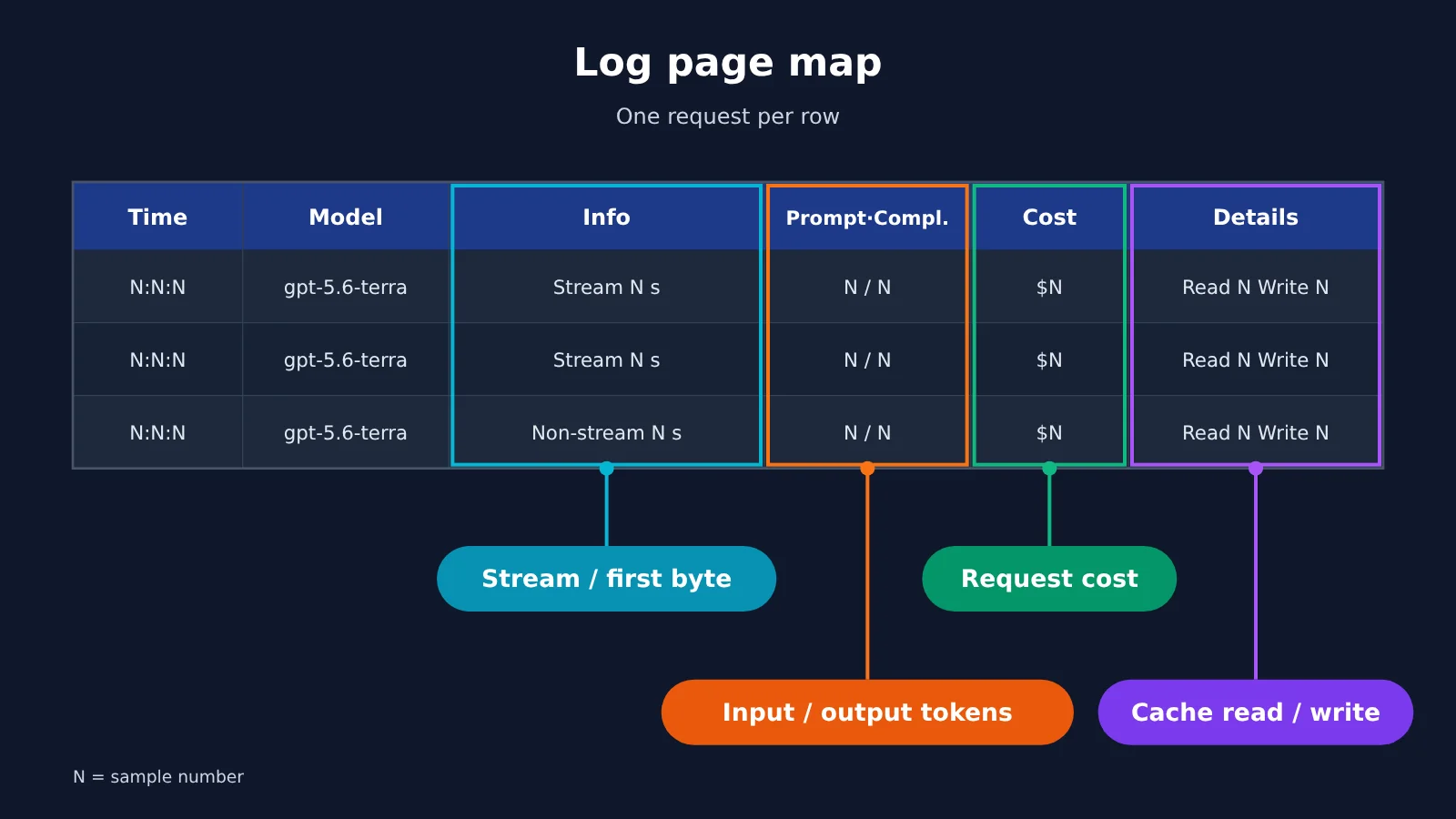
Check: Pick any row and identify its input tokens, output tokens, cache hits, and cost.
Step 4: Combine Log Entries to Calculate Token Usage for One Codex Turn
A single log entry shows one request. To see usage for a full conversation turn, you’ll need to add them up.
The rule: For the same token and model, add up all requests within roughly five minutes after you send a prompt. Adjust the time window to fit your workflow.
- Check directly on the page: Filter by token, model, and time range, then review prompt and completion usage row by row. This works well for an occasional check.
- Export and recalculate: Click “Export” in the upper-right corner of the list, download an Excel or CSV file, and group and sum the entries by time.
- Use the log query API: Call
GET /api/log/selfand authenticate with a personal access token (starting withnap_; an API key starting withsk_returns a 401). Passtype=2(usage only),token_name,start_timestamp, andend_timestamp(Unix seconds). Note that the pagination parameter uses camelCase:pageSize. If you writepage_size, it’ll be silently ignored. - Convert usage to dollars: The API returns
quota ÷ 500,000 = USD. Theotherfield is a JSON string, so you’ll need to parse it again to retrieve details such asusage.
Always pass a time window when querying logs, and keep it to no more than one day where possible. Without a time window, the API searches the entire history, which can cause timeouts for accounts with large amounts of data. Querying logs doesn’t consume quota.
Calculate the Cost of One Codex Turn
| Model | Input | Cached input | Output | Context | Example: one turn |
|---|---|---|---|---|---|
| gpt-5.6-sol | $4 | $0.4 | $20 | 1,000,000 | About $0.214 |
| gpt-5.6-terra | $2 | $0.2 | $12 | 1,000,000 | About $0.107 |
| gpt-5.6-luna | $0.2 | $0.02 | $1.2 | 1,000,000 | About $0.011 |
All prices are per million tokens, checked on October 28, 2026. The input price doubles when a single request exceeds 272,000 input tokens.
💰 Pricing note: Check the model list on APIYI / apiyi.com for current models and prices. The examples assume a turn with 120,000 total input tokens, including 96,000 cached tokens, and 4,000 output tokens. For sol: 24,000 uncached × $4 + 96,000 cached × $0.4 + 4,000 output × $20, divided by one million, comes to about $0.214.
These numbers tell us two things. First, the 96,000 cached tokens cost only about $0.038, so caching is key to managing the cost of long conversations. Second, switching the same task to luna brings the cost down to nearly one-twentieth of sol’s. However, luna’s official page notes that it performs less well with very long contexts above 256K.
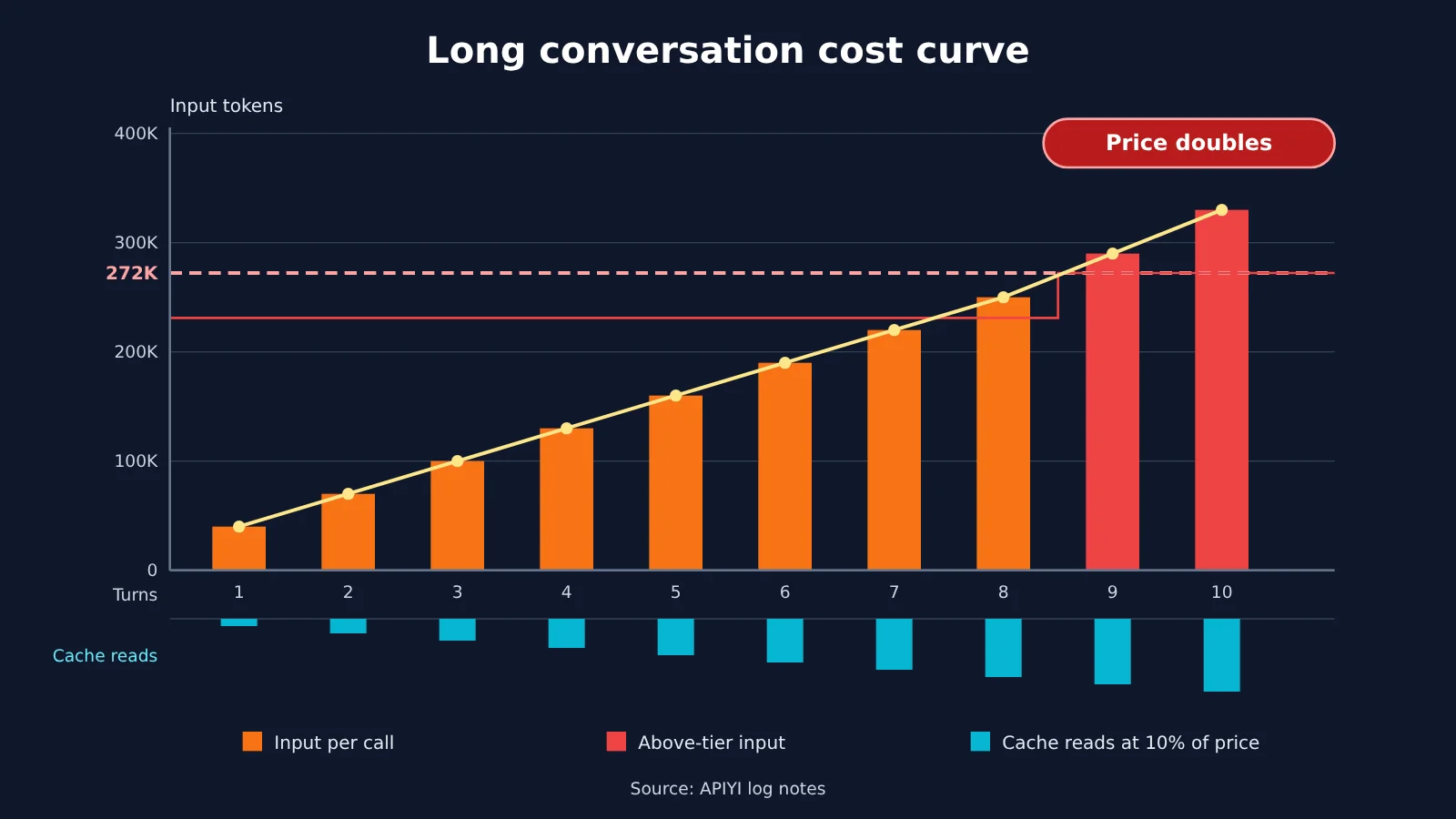
Check: You can calculate how many more input tokens this turn used than the previous one, and identify how many of those additional tokens were cached.
Step 5: Use Codex token data to decide whether to compact or start fresh
Once you have data for each turn, you can make the call based on numbers. Watch for three signals:
- Input growth: If input is growing with each turn, tool output and conversation history are piling up quickly.
- Cache read percentage: If the proportion of input from cache reads in the notes column drops noticeably, the prefix has changed, and most new input is being billed at full price.
- Input per request: As it approaches 272,000 tokens, the next request may cross the pricing threshold.
When to compact or start a new window
| What you see in the logs | Recommended action | Why |
|---|---|---|
| Input per request is close to 272,000 tokens, and the task isn’t finished | Run /compact manually first |
Avoid doubling the input price after crossing the threshold |
| Input per request is close to 272,000 tokens, and the task is at a natural stopping point | Start a new window | Compacting isn’t as clean as starting fresh |
| Cache read percentage has fallen for several turns in a row | Start a new window for the next topic | The cache is no longer effective, so most continued input will be billed at full price |
| Input growth per turn suddenly jumps | Check tool output and lower tool_output_token_limit if needed |
Large blocks of command output are being added to the history |
| Input is stable and cache read percentage is high | Continue the current conversation | This is when a long conversation is most cost-effective |
| You recently compacted, and the window is almost full again | Start a new window | Repeated compaction makes summaries increasingly coarse |
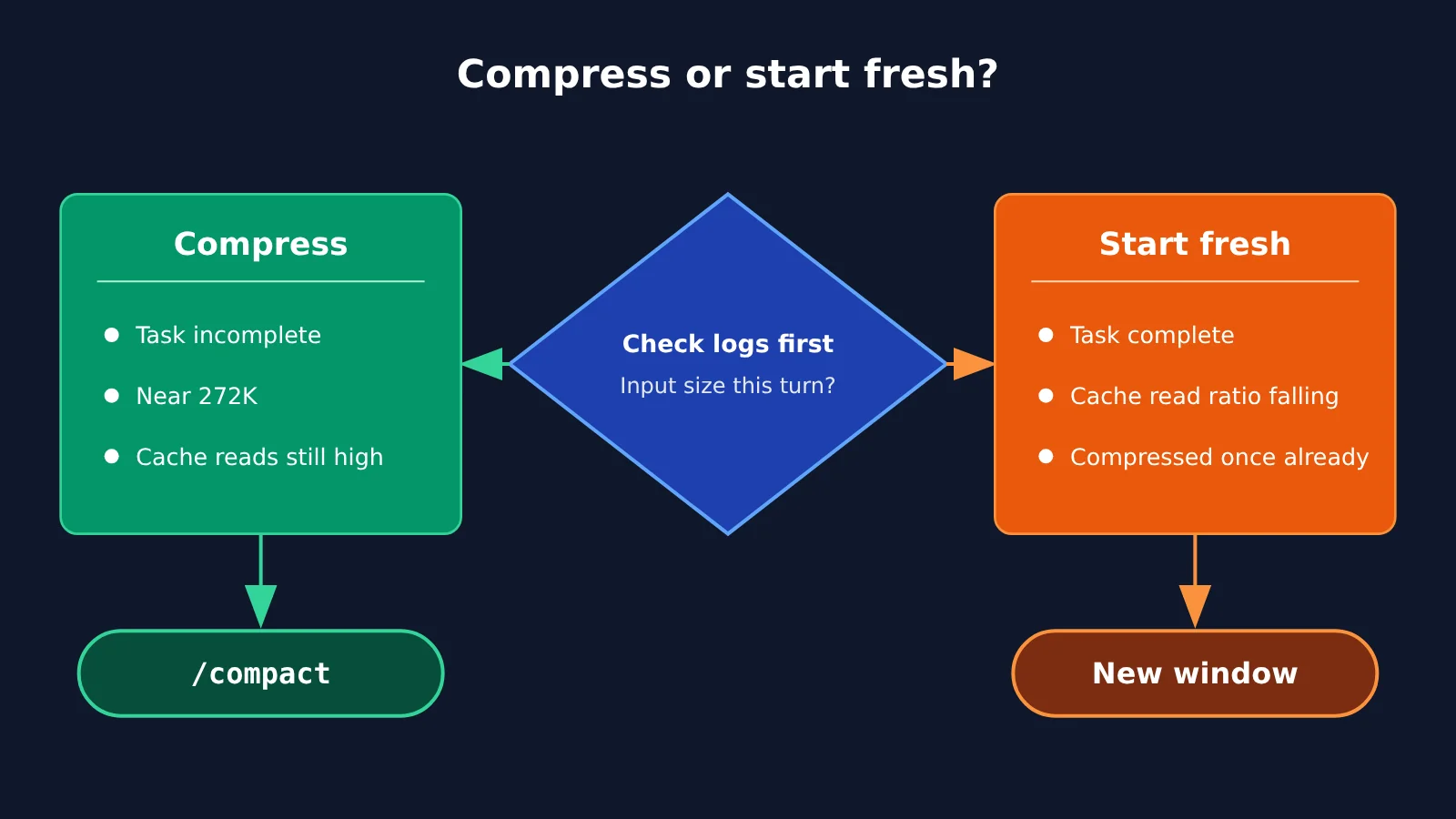
How to Configure Context Compaction in Codex
Compaction replaces earlier conversation turns with a concise summary, freeing up space in the context window. Codex supports both manual and automatic compaction.
- Manual compaction: Enter
/compactin either the desktop app or the CLI. - Automatic compaction: Set the trigger threshold with
model_auto_compact_token_limit. If you leave it unset, Codex uses the model’s default. - Threshold calculation: Set
model_auto_compact_token_limit_scopetototalto count the entire active context, orbody_after_prefixto count only the content added after the carried-over prefix. - When using a third-party base_url: If the model name isn’t in Codex’s built-in table, it’s best to set
model_context_windowand the automatic compaction threshold manually. To trigger compaction before crossing a pricing tier, set the threshold below 272,000. - Don’t enable
remote_compactionwithout checking: Setting it tov2requires the upstream provider to support the Responses API compaction protocol. Keeping it set tounsupportedand using local compaction is a safer choice.
The Cost of Compaction
Compaction isn’t free. It rewrites the conversation’s historical prefix, invalidating the cache, so the input for the first request after compaction is billed almost entirely at full price. After compaction, it’s best to start a new topic rather than return to an old task. Compaction also loses detail: the summary isn’t guaranteed to retain everything.
Frequently Asked Questions
Q1: I can’t find a request in the logs. Was it missed?
The logs only record calls that were successfully billed. Requests that fail because of network, authentication, or parameter validation issues don’t reach the upstream provider, aren’t charged, and won’t appear in the logs. Conversely, a log entry means the request did incur usage. Also check that you’ve selected the right token filter and time range.
Q2: Why is the amount lower than my token-based estimate?
The most common reason is caching. The OpenAI channel uses automatic prefix caching: a stable prefix of at least 1,024 tokens can trigger a cache hit, and the cached portion is billed at 10% of the input price. In APIYI / apiyi.com logs, the Notes column shows the number of tokens read from the cache. Also, the logs show the amount before discounts. Actual cost ≈ log amount ÷ (1 + bonus credit ratio).
Q3: Why don’t the log timestamps match when I made the requests?
Logs use UTC+0 by default. Beijing time is UTC+8, so there’s an eight-hour difference. If you filter for “the 3 p.m. session” using Beijing time, it may look like some data is missing. Convert the time before filtering.
Q4: How long are logs retained?
Plan on logs being available for roughly the past 30 days. They may be retained longer, but the platform doesn’t guarantee it, and the cleanup policy may change. If you need them for long-term reconciliation, regularly save your own copies using the “Export” feature or the log query API.
Q5: Can the logs show which files Codex read or what content it sent?
No. Logs only retain the basic information needed for billing, such as token counts, amounts, and multipliers. They don’t record input or output content. To see what happened in a particular turn, check the Codex conversation itself.
Q6: Is there an easier way to automatically record usage for each turn?
For scripted execution, use `codex exec –json` and read the usage from the `turn.completed` event. For interactive use, you can use the log query API to periodically retrieve and aggregate records by dedicated token and time window. New users can claim free test credits at APIYI / apiyi.com to try the entire workflow.
Codex Token Usage per Turn: Key Takeaways
- The feature hasn’t disappeared: Check context usage with
/status. In the CLI, you can also use/statuslineto put it in the footer. - A request ≠ a turn: One conversation turn can involve multiple tool calls and appear as several rows in the logs. Add them up by time window.
- Use a dedicated API key: Create a separate key for Codex so you can filter its logs cleanly.
- Check the notes column: Cache reads and writes are listed separately. Cache hits are billed at 10% of the regular rate.
- 272K pricing tier: When a single request exceeds 272,000 input tokens, the input price doubles.
- Compaction has a cost: After compaction, the cache is invalidated, so nearly all input for that request is billed at full price. It’s a good time to move on to a new topic.
Conclusion
If you can’t find context usage in Codex, it’s not because the feature was removed—the entry point has moved. /status tells you how much context you have left, while the invocation logs show how much each turn costs. Together, they give you the numbers to decide whether to start a new window.
You can try it today: Create a dedicated API key for Codex, open the logs page on APIYI / apiyi.com, and add up the requests from a recent conversation turn.
📚 References
- Official OpenAI Codex repository: CLI source code and event definitions
- Link:
github.com/openai/codex -
Details: The
usagefield forturn.completedis defined incodex-rs/exec/src/exec_events.rs. -
Official Codex documentation: Slash commands and configuration reference
- Link:
developers.openai.com/codex -
Details: Documentation for
/status,/compact,/statusline, and compaction-related configuration options. -
APIYI help documentation: Invocation logs, cache billing, and the log query API
- Link:
docs.apiyi.com - Details: Log field definitions, the 90% cache discount rule, and how to convert
quota.
Author: APIYI Technical Team
Technical discussions: Feel free to contact us through the APIYI homepage. For more configuration details, visit the documentation center.