
Author’s note: This article draws on public information as of November 25, 2026 to bring together MAGI-2’s access points, generation modes, and beginner workflow. Throughout, I’ll clearly identify what’s official documentation, what’s a demo case, and what’s an original example.
Summary: This article explains where everyday creators can access MAGI-2, how to choose a generation mode based on the material they have on hand, and how to submit, preview, and download their first generation.
Bottom line first: Everyday creators should start with Try on VidMuse on the Sand.ai homepage. This entry carries the Official Partner mark and opens the VidMuse MAGI-2 product page directly. You can also use MAGI-2 through Higgsfield’s model=magi_2 video page or LibTV’s canvas creation. Choose the generation mode based on your source material: if you’re starting from just an idea, use text-to-video; if you have a single image, use image-to-video or first/last-frame; if you have multiple assets, use multimodal reference and specify the purpose of each asset.
What you’ll actually be able to use depends on the duration, resolution, and plan entitlements that the current panel on your platform actually exposes. The flagship specs are up to 30 seconds, 1080p, and 25 fps, but the VidMuse product page panel currently shows a duration range of 4–15 seconds. Sand AI’s open platform requires an organization to enable the relevant model; as of the information snapshot date, its pricing page shows that top-ups aren’t supported yet, so it isn’t a good primary entry point for beginners.
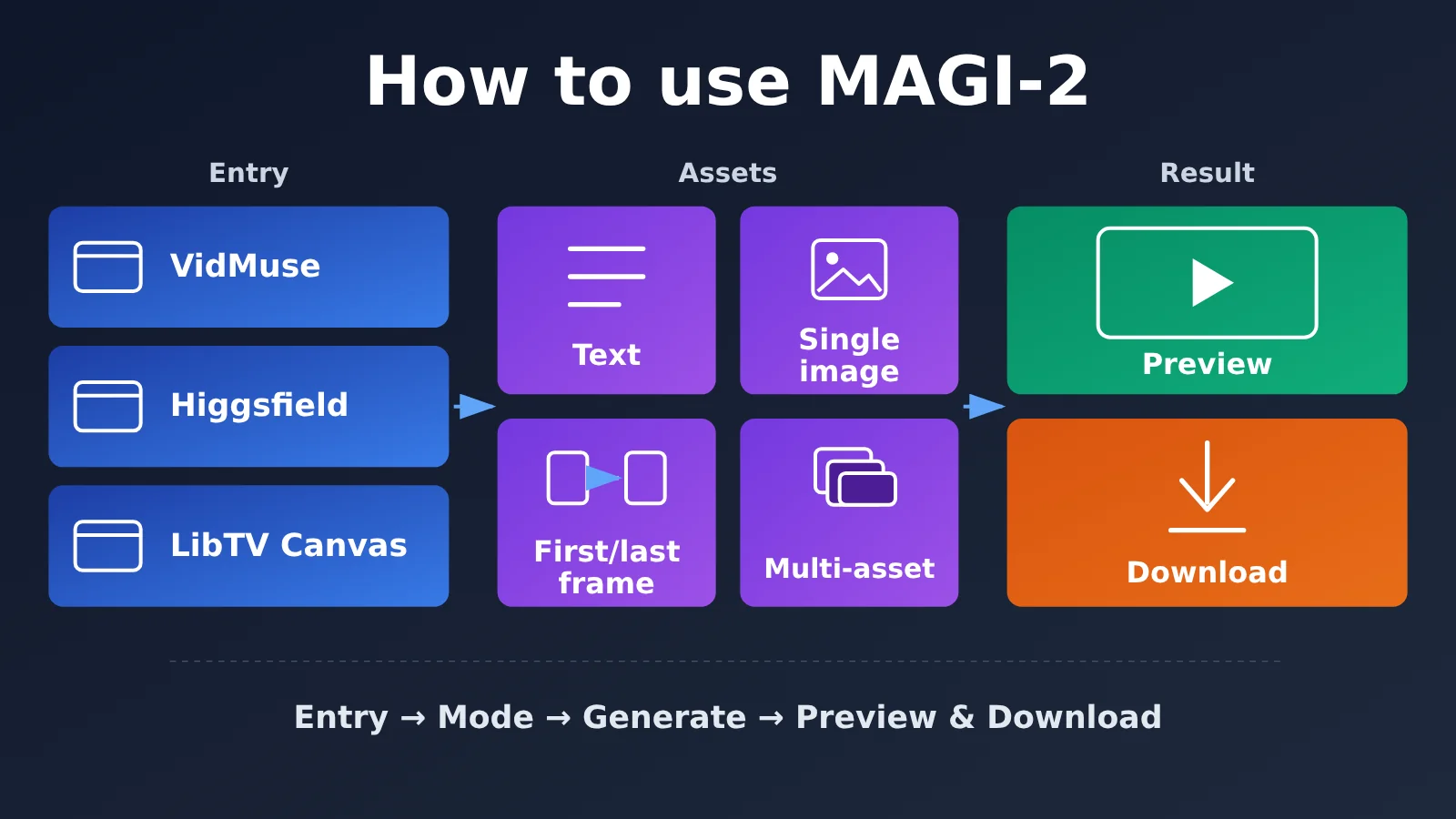
MAGI-2 Usage Knowledge Map
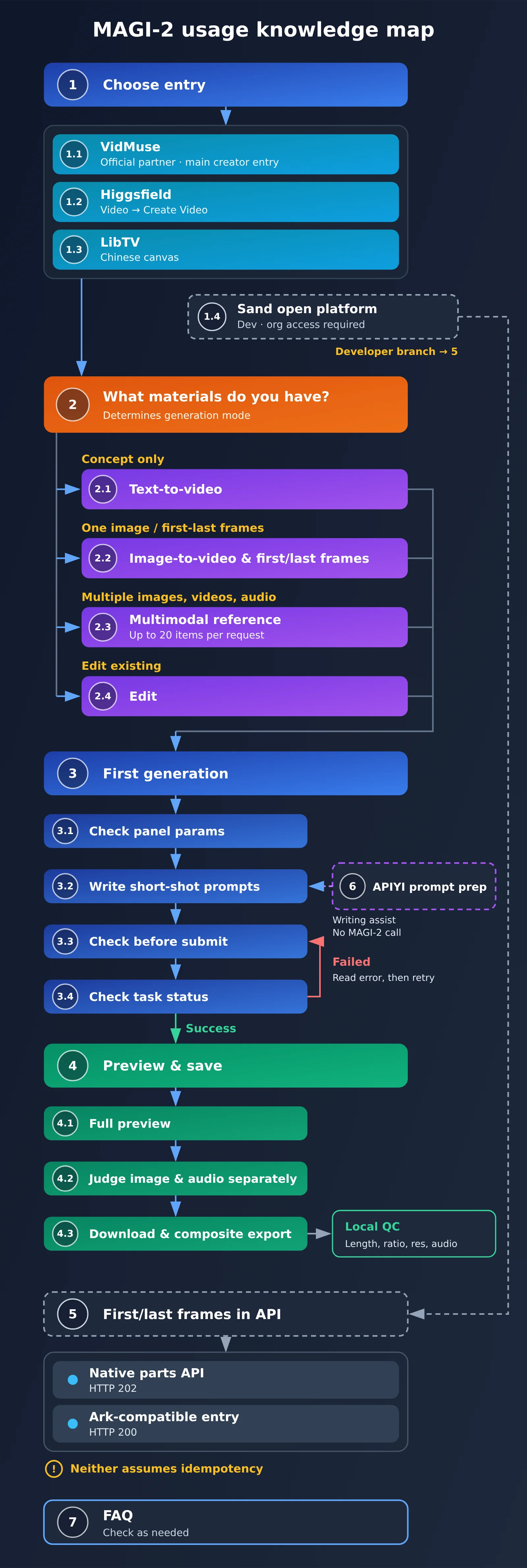
Figure description: Read this figure from top to bottom. Section 1 is choosing an entry point, Section 2 is selecting a mode based on your assets, Section 3 is completing the first generation, and Section 4 is previewing and saving the final output. If the task fails in Section 3.4, go back to Section 3.3 to recheck instead of resubmitting right away. Sections 1.4 and 5 are the developer branch; read them only when you need to call the API. Section 6 is a helper tool for writing prompts, and Section 7 is for reference as needed.
MAGI-2 Tutorial Index
- Section 1: Entry Point — First, decide which site and which account you’ll create with. Your account determines your credits, plan, and project ownership, and every operation after that happens inside that account.
- Section 2: Generation Mode — Choose a mode based on the assets you have. Where you place the asset (first frame, last frame, or regular reference) directly affects composition, so decide that before you write the prompt.
- Section 3: First Generation — Start by reviewing the panel parameters, then write a short shot as a reference. The goal in this section is to produce your first checkable result with as few variables as possible.
- Section 4: Preview and Save — Check the visuals and audio separately, then download individual clips or a composited final video.
- Sections 5–7: Consult as Needed — Section 5 is for developers, Section 6 covers a prompt organization tool, and Section 7 is the FAQ.
To Know: MAGI-2 Terminology
| Term | Brief Explanation |
|---|---|
| First frame / Last frame | The opening and closing images of a video. Once uploaded, they constrain the composition at the start or end. |
| Regular reference | An asset that only provides information such as appearance, motion, or pacing, without locking the opening composition. |
| Multimodal reference | Place images, video, and audio in the same request and explain what each one is for. |
| Canvas / Freeform | VidMuse’s canvas workspace. Video nodes, asset nodes, and editing nodes all connect here. |
| Credits / points | The platform’s billing unit. The cost per run is whatever the web page or node displays. |
| Idempotency | Repeated submissions of the same request produce an effect only once. You can’t assume either of the two interfaces discussed here works that way. |
1 How to choose a MAGI-2 entry point
MAGI-2 is currently available through several websites. Each entry point has its own account system, plans, and panel settings. Credits you buy on one site can’t be used on another.
1.1 VidMuse: Sand.ai official partner entry
On the Sand.ai homepage, click Try on VidMuse. This button carries the Official Partner badge and takes you straight to VidMuse’s English MAGI-2 product page, which has official examples, a Try Now button, and a creation panel. VidMuse’s official help lists Google, Discord, and email verification code as sign-in methods.
When you come back, use the same sign-in method you used the first time so you can find projects, subscriptions, and credits under the same account. Check your credit balance and plan under Plan & Usage. Create Free on the product page gives you a trial entry point, but the account help notes that the free tier has limited models, and standard output is watermarked 720p.
1.2 Higgsfield: Website video page entry
On Higgsfield’s MAGI-2 intro page, click Try MAGI-2. It opens a video page with the model=magi_2 parameter, and when you’re not signed in, the page shows Get started. After signing in, go to Video → Create Video, confirm the model is MAGI-2, then enter a description or add source material.
Higgsfield’s help documentation says generated results appear in the generation area and under Assets. The model page states that site concurrency is one to four jobs at a time, depending on your plan; Enterprise can go higher.
1.3 LibTV: Chinese-language canvas entry
As of the snapshot date, the LibTV homepage listed MAGI-2 as newly available and offered “Create New Canvas.” The creator Digital Life Kazik shared a trial: connecting a reference video and several character, prop, and scene images on the canvas. This demo shows how to combine multiple source assets, but it’s a personal trial record, not an official capability statement. The homepage’s “as low as 12 credits per second” is a promotional price; actual creation requirements and costs depend on that site’s panel.
1.4 Sand AI Open Platform: Developer entry
API Platform on the Sand.ai homepage takes you to the Sand AI Platform Playground. When accessed publicly, the page only shows Loading…. The official API key docs say console resources have to be managed through a signed-in account. Quickstart requires the organization to have enabled the corresponding model; as of the snapshot date, the pricing page indicated that top-ups were not yet supported. Regular creators can just use the entry point in section 1.1.
| Entry | Path | Account and billing | Best for |
|---|---|---|---|
| VidMuse | Sand.ai homepage Try on VidMuse → MAGI-2 product page |
Google/Discord/email code sign-in; check credits under Plan & Usage |
Creators’ first choice |
| Higgsfield | Try MAGI-2 → Video → Create Video |
Site account and plan; Generate button shows task credits |
Users who already have a Higgsfield account |
| LibTV | Homepage MAGI-2 launch → Create new canvas | On-site credits; promotional pricing depends on the panel | Users who prefer a Chinese-language canvas |
| Sand Open Platform | Homepage API Platform → Playground |
Organization must enable the model; top-ups were not supported as of that date | Developers; keep watching |
2 MAGI-2 Generation Modes: Pick Based on the Material You Have
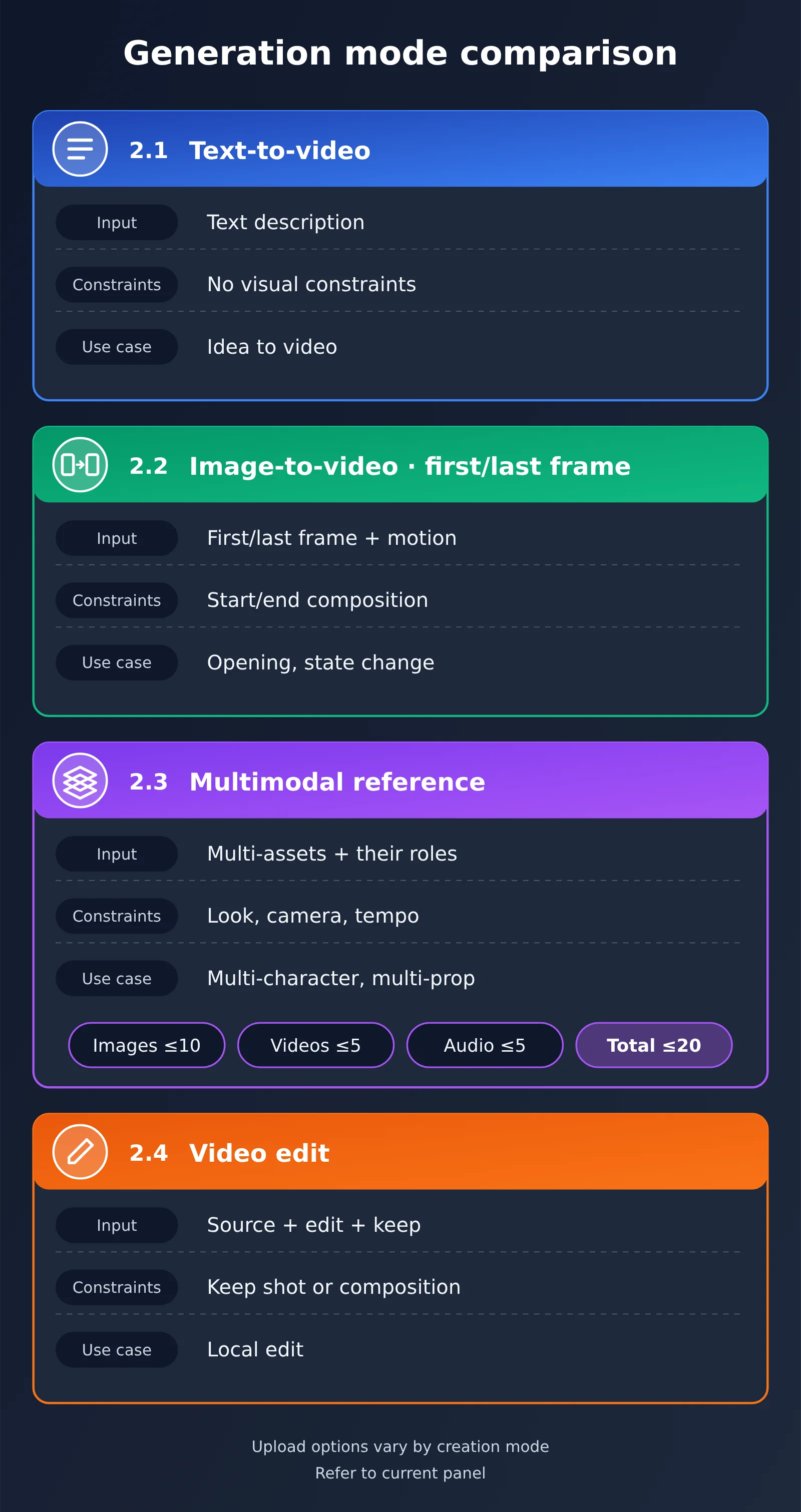
When choosing a mode, first look at what material you have on hand, then decide where each piece should go. The same image placed in the first-frame slot versus a reference slot will produce completely different results.
2.1 Text-to-Video: When You Only Have an Idea
Write five things clearly in the prompt: the subject, the location, one main action, one camera movement, and the sound. According to Sand.ai’s launch notes, MAGI-2 can generate visuals and synchronized sound at the same time — sound includes dialogue, action sound effects, ambient sound, and music. If you only need silent visuals, you can turn off Sound before submitting, per the Higgsfield FAQ.
The first time you generate a video with dialogue, keep the speaker in frame the whole time. Put the lines in quotes, and specify who is speaking and in what tone. That makes it easier to check whether lip sync and audio line up.
2.2 Image-to-video and first/last frames: when you have one or two images
After uploading a first frame, describe how the subject should move and how the camera should travel. If your workflow includes first/last frame controls, you can upload a closing image as well and spell out the progression from the starting point to the endpoint.
Where you place your assets depends on what you want to constrain. A product’s front-facing image placed as the first frame locks in the opening composition. Use it as an ordinary reference image instead, and you can change the composition while still preserving the glaze color, logo placement, or the shape of a cup handle.
First/last frame example (original example, no results generated): the first frame is a closed book on a table by a window, and the last frame is that same book opened to reveal its title page. The prompt specifies which side the hand enters the frame from, which hand presses down on the spine, that the camera stays in the same position, and that a single page-turn sound occurs as the book opens. When previewing, compare the finished video’s first and last frames against the input images one by one, then check for unnatural jump cuts in between. If all you care about is the paper texture, use the same photo as an appearance reference and specify a new camera shot in the prompt.
2.3 Multimodal reference: when you have multiple assets
State the purpose of each asset — for example, image one determines the product’s appearance, video one provides the push-in camera path, and audio one provides the beat. The officially published flagship per-request limit is ten images, five videos, and five audio clips, twenty items in total. VidMuse notes that the upload options vary depending on the creation method. In Sand’s Ark-compatible interface, first/last frames and general references are two different request modes; see Section 5 for details.
2.4 Clip Editing: When You Need to Modify an Existing Clip
According to the Higgsfield model FAQ, to modify an existing clip you upload the source clip and describe the change you want. Your prompt also needs to spell out the camera movement, action, or composition you want to keep — otherwise the model may end up changing the parts you didn’t want touched.
| Generation Mode | Required Input | Prompt Focus | Common Pitfall |
|---|---|---|---|
| Text-to-video | Text description | Subject, location, one action, one camera movement, audio | Stuffing multiple main actions into a single prompt |
| Image-to-video / First & last frame | First frame, optional last frame | The change from start point to end point, camera position | Wanting to keep only the appearance, yet putting the image in the first-frame slot |
| Multimodal reference | Images, video, audio — 20 items total at most | State each material’s purpose one by one | Materials left unlabeled, so the model can only guess |
| Clip editing | Source clip | What to change, what to keep | No keep-list written, so the original shot gets altered |
When you’re working with a lot of materials, you can first use a general-purpose Large Language Model to turn “material → purpose” into a checklist, then paste it into the MAGI-2 panel. Through APIYI apiyi.com, you can call multiple text models with the same API key to do this kind of organizing — see Section 6 for the details.
3 MAGI-2 First-Time Generation Walkthrough for Beginners
The goal of your first generation is to get a reference clip you can inspect, not a complete final video. Keep assets, parameters, and duration to a minimum so it’s easier to pinpoint the cause if something goes wrong.
3.1 Check the panel settings first, then put the duration in the prompt
Different sources publish different specs, so go by the panel you currently have open.
| Parameter source | Duration | Resolution / frame rate | Aspect ratio |
|---|---|---|---|
| Flagship specs (published by Sand.ai) | Up to 30 seconds | 1080p, 25 fps | — |
| Higgsfield flagship FAQ | 4–30 seconds | — | 16:9, 9:16, 1:1, 21:9, 4:3, 3:4 |
| VidMuse product page panel (currently displayed) | 4–15 seconds, default 10s x1 | 1080p | Defaults to 16:9 |
| VidMuse official guide screenshot | Showed a 30-second setting | — | After switching to Canvas, recheck the node duration |
If you need 30 seconds, first confirm that the current panel or video node actually offers 30 seconds, then write the prompt around three action beats. If you need HD delivery, set it to 1080p at generation time, then confirm your plan entitlements and the actual export setting before exporting.
3.2 Use a short shot to establish a reference
Cup lid sample (original example prompt; no generated result available): about ten seconds, landscape 16:9. The first three seconds use a static close-up to establish the tabletop and cup. In the middle, a hand enters from the right side of the frame and puts the lid on the cup, with a single short sound as the hand touches the lid. The clip ends on the finished cup, with faint room ambience and no music.
This first-round sample only validates three things: the shape of the cup, the hand-to-lid contact, and whether the sound is in sync with the action. Once all three pass, add characters, multiple shots, or longer pacing.
3.3 Before you submit: check model, assets, duration, and cost
Run through this checklist before submitting:
- Place the first-frame image in the first-frame slot, and make sure regular reference assets appear in the current task’s asset list;
- When generating a sample with audio in VidMuse, turn on
Audio; - If you enter manually from Freeform, click
Freeform→Create Nowat the top to open the canvas; useAdd nodeto create a new video node; on the node, confirm the referenced assets, model, aspect ratio, duration, count, and estimated Credits; then clickGenerate video; - On the Higgsfield website, check the credits shown on the
Generatebutton for this task.
3.4 Use task status to confirm completion
VidMuse’s status documentation lists five statuses: queued, generating, succeeded, failed, and canceled. Connecting asset nodes on Canvas only establishes references—it doesn’t trigger generation. While generating, wait for the current item to update; once it’s done, open the result and verify which version you got.
If a task fails, read the error message first, then check your inputs and billing records, and then decide whether to resubmit. In Higgsfield, Manage Account → Usage lets you see the credits charged for each generation and the credits refunded for failures. The site help also notes that refund rules vary by model.
4 MAGI-2 Final Cut Preview and Saving
4.1 Previewing Your Own Results
Public samples only help you gauge the upper limit of what’s achievable. The VidMuse product page has cases for ads, apparel, animation, and dance, while Sand’s launch post shows single shots in five painting styles plus a giant garden segment that uses character and scene references — great for observing transitions and costume consistency. These are all vendor-picked showcases, though; your own results also depend on your specific inputs.
To review your own results: in VidMuse, open or play the video node once generation finishes; in Higgsfield, filter videos from the generation area or Assets. Start by playing the whole segment through with sound on, then go back to the action beats and cut points that need alignment. Focus on lip sync, whether sound and motion happen at the same moment, whether the volume drowns out dialogue, whether background sound stays continuous across shots, and whether characters and products drift in appearance.
4.2 Judge Picture and Sound Separately
In Kazik’s (Digital Life) listening notes, a science-explainer clip of someone tapping a bottle on a table cut together naturally, but he still found the dialogue timbre a bit mechanical. That case shows picture and sound can each pass or fail on their own, so you should check them separately. Turn the sound off first and look at action, transitions, and hands; then turn it on and listen for whether the lines are clear and whether the two tapping sounds land where they should.
Change only one prompt at a time, and keep the footage and other settings unchanged. That way, when you replay, you can tell which change actually made a difference.
4.3 Downloading Individual Clips and Compositing the Final Cut
In VidMuse Freeform, download individual clips from their corresponding nodes. When you need to stitch things together, add a Multitrack editor via Add node, drop in the clips and audio, preview the Timeline, then click Export video. The official canvas guide says the final output is MP4, and the help center notes that entitlements like usable resolution after editing and watermark removal depend on your plan and the current export options.
In Higgsfield, click a video in Assets to download it, or select several and Download them in bulk. Whichever platform you use, reopen the file locally after downloading to confirm duration, aspect ratio, resolution, and audio track.
5 Two ways to submit first and last frames to MAGI-2 through the developer API
This section is for developers. Everything above covered the web UI. If you want to submit first/last-frame tasks through the API, you need to distinguish between two request styles. They differ in response codes, input rules, and how assets are combined.
| Dimension | Native parts API | Ark-compatible endpoint |
|---|---|---|
| Response status | HTTP 202 | HTTP 200 |
| Text requirement | Requires a text block | Text is optional |
| Image input | Up to 20 references, no role used |
Supports first frame only, or first frame plus last frame |
| Mixing with general references | All references are submitted as parts | Not mixed with general references |
| Duplicate submission | Can’t assume idempotency | Can’t assume idempotency |
Neither interface can be assumed to be idempotent, so after a timeout or an error, don’t just write automatic retry logic. First check whether the previous request actually created a task and whether you were billed, then decide whether to resubmit — otherwise you may end up with duplicate tasks. Also, the open platform requires the organization to have the corresponding model enabled; on the date the source material was captured, the pricing page showed that top-ups were temporarily unsupported. Before integrating, check the official docs for the latest status.
6 Drafting MAGI-2 prompts with APIYI
MAGI-2 itself generates content on web platforms like VidMuse, Higgsfield, and LibTV. The code in this section doesn’t call MAGI-2 — it only uses a general-purpose text LLM to organize fields like “subject, location, action, camera movement, sound, duration” into a well-structured prompt draft, which you then paste into the MAGI-2 panel. APIYI (apiyi.com) offers an OpenAI-compatible interface, so a single key lets you call mainstream models such as OpenAI, Claude, and Gemini — a good fit for this kind of text-assistance work.
6.1 Minimal Example
import openai

client = openai.OpenAI(
    api_key="YOUR_API_KEY",
    base_url="https://api.apiyi.com/v1"  # APIYI OpenAI-compatible endpoint
)

brief = "主体:白色陶瓷杯;地点:木桌;动作:手从右侧盖上杯盖;运镜:固定近景;声音:一次接触短响+轻微室内声,无音乐;时长:10秒;比例:16:9"

resp = client.chat.completions.create(
    model="gpt-4o-mini",  # Check against the platform's current model list
    messages=[{"role": "user", "content": f"把以下要素写成一段按时间顺序描述的视频提示词:{brief}"}]
)
print(resp.choices[0].message.content)
View the full implementation: generate a multimodal reference list by asset purpose
import openai
from typing import List, Dict, Optional

client = openai.OpenAI(
    api_key="YOUR_API_KEY",
    base_url="https://api.apiyi.com/v1"  # APIYI unified endpoint
)

SYSTEM = (
    "你是视频提示词助手。输出分三部分:"
    "1) 素材用途清单(每份素材一行,写明它决定什么);"
    "2) 按时间段描述的镜头提示词(主体、动作、运镜、声音);"
    "3) 需要保留不变的要素。不要编造素材之外的内容。"
)

def build_prompt(
    shot: Dict[str, str],
    assets: List[Dict[str, str]],
    keep: Optional[List[str]] = None,
    model: str = "gpt-4o-mini",
) -> str:
    """Turn shot elements and asset purposes into a prompt draft usable in the MAGI-2 panel"""
    # Flagship single-request limits: 10 images, 5 videos, 5 audio, 20 total
    limits = {"image": 10, "video": 5, "audio": 5}
    for kind, cap in limits.items():
        n = sum(1 for a in assets if a["type"] == kind)
        if n > cap:
            raise ValueError(f"{kind} 数量 {n} 超过上限 {cap}")
    if len(assets) > 20:
        raise ValueError("参考素材合计超过 20 项")

    lines = [f"{k}:{v}" for k, v in shot.items()]
    lines += [f"素材[{a['name']}]({a['type']}):{a['purpose']}" for a in assets]
    if keep:
        lines.append("保留:" + "、".join(keep))

    resp = client.chat.completions.create(
        model=model,
        messages=[
            {"role": "system", "content": SYSTEM},
            {"role": "user", "content": "\n".join(lines)},
        ],
        max_tokens=800,
    )
    return resp.choices[0].message.content

if __name__ == "__main__":
    draft = build_prompt(
        shot={"时长": "10秒", "比例": "16:9", "运镜": "缓慢推近", "声音": "节拍音乐,无对白"},
        assets=[
            {"name": "图一", "type": "image", "purpose": "决定商品外观:釉色、商标位置、杯柄形状"},
            {"name": "视频一", "type": "video", "purpose": "提供推镜轨迹"},
            {"name": "音频一", "type": "audio", "purpose": "提供节拍"},
        ],
        keep=["商标位置", "杯柄朝向"],
    )
    print(draft)
🚀 Quick start: New users can sign up at APIYI apiyi.com and claim free test credits. Start by using the script above to turn a few shot elements into a prompt. You’ll still need to check the limits and asset-purpose list in the draft against the current MAGI-2 panel.
7 MAGI-2 FAQ
7.1 What’s the easiest way to get started with MAGI-2?
Head to the Sand.ai homepage and click `Try on VidMuse` to reach the VidMuse product page, then sign in with Google, Discord, or an email verification code — and remember which method you used. If you already have a Higgsfield account, you can also open the `model=magi_2` video page directly.
7.2 Why can’t I select 30 seconds in the panel?
30 seconds is the ceiling for the flagship spec, but the range each entry-point panel exposes isn’t necessarily the same. The VidMuse product page currently shows 4–15 seconds, while the official guide screenshots have shown a 30-second setting. Go by whatever range the current panel or Canvas video node displays.
7.3 Can I export HD footage without a watermark on the free trial?
VidMuse’s account help notes that the free tier has a limited set of available models, and standard output is watermarked 720p. Watermark removal and higher resolution depend on your plan and the export options currently available.
7.4 Can I call MAGI-2 directly through APIYI?
This article hasn’t verified any basis for APIYI offering MAGI-2, and no related testing was done, so please don’t assume it does. APIYI apiyi.com is well suited to calling text models like OpenAI, Claude, and Gemini to help organize scripts, shot lists, and prompts. Do your MAGI-2 generation through the entry points listed in Section 1.
7.5 Are credits deducted if a task fails?
Rules differ across platforms. On Higgsfield, you can check deduction and failed-task refund records under `Manage Account` → `Usage`, and the site also notes that refund policies vary by model. VidMuse users can verify balance changes in `Plan & Usage`.
7.6 How do I compare several prompt versions using the same set of assets?
Keep the assets, aspect ratio, duration, and count fixed, change only one descriptive element at a time, then evaluate image and audio separately following the method in Section 4.2. If you want to batch out a few prompt drafts first, you can use APIYI apiyi.com to call several text models at once, compare how they phrase things, and then pick one version to generate with.
8 Final Checks Before Delivery
Review things one more time in this order — entry, mode, generation, preview — and you’ll know whether this clip is ready to ship. The entry matches the right account, the assets are in the right place, the duration, resolution, and credits on the panel were confirmed before submitting, the task status reads “Success,” both the sound-off check and the sound-on check pass, and the local file’s duration, aspect ratio, resolution, and audio track match expectations. Satisfy all six and this MAGI-2 video is good to deliver. If any one of them falls short, go back to the section with the matching number on the knowledge map and sort it out there.
Text work like writing prompts and putting together a list of what each asset is for can be handled by calling mainstream text models through APIYI (apiyi.com), then bringing the results back into the MAGI-2 panel to generate.
References
- Sand.ai homepage and MAGI-2 launch announcement: entry points, capabilities, and sample clips
- Links:
sand.ai,sand.ai/blog/magi-2
- Links:
- VidMuse MAGI-2 product page, guide, and help docs: panel parameters, Freeform, task status, export, and plans
- Links:
vidmuse.ai/en/magi-2,vidmuse.ai/blog/magi-2-on-vidmuse,vidmuse.ai/docs
- Links:
- Higgsfield MAGI-2 introduction and help center: creation paths, flagship specs, credit rules, and Assets
- Links:
higgsfield.ai/magi-2-intro,higgsfield.ai/creator-hub/help-center
- Links:
- Sand AI Open Platform docs: API Key, Quickstart, pricing, and top-up status
- Links:
platform.sand.ai/docs
- Links:
- LibTV homepage and Digital Life Kazik’s trial notes: the Chinese canvas entry point and multi-asset demo
- Links:
liblib.tv,finance.sina.com.cn
- Links:
Author: APIYI Technical Team
Technical discussion: Got questions about prompt organization or calling multiple models? Feel free to reach us through the APIYI apiyi.com homepage.