
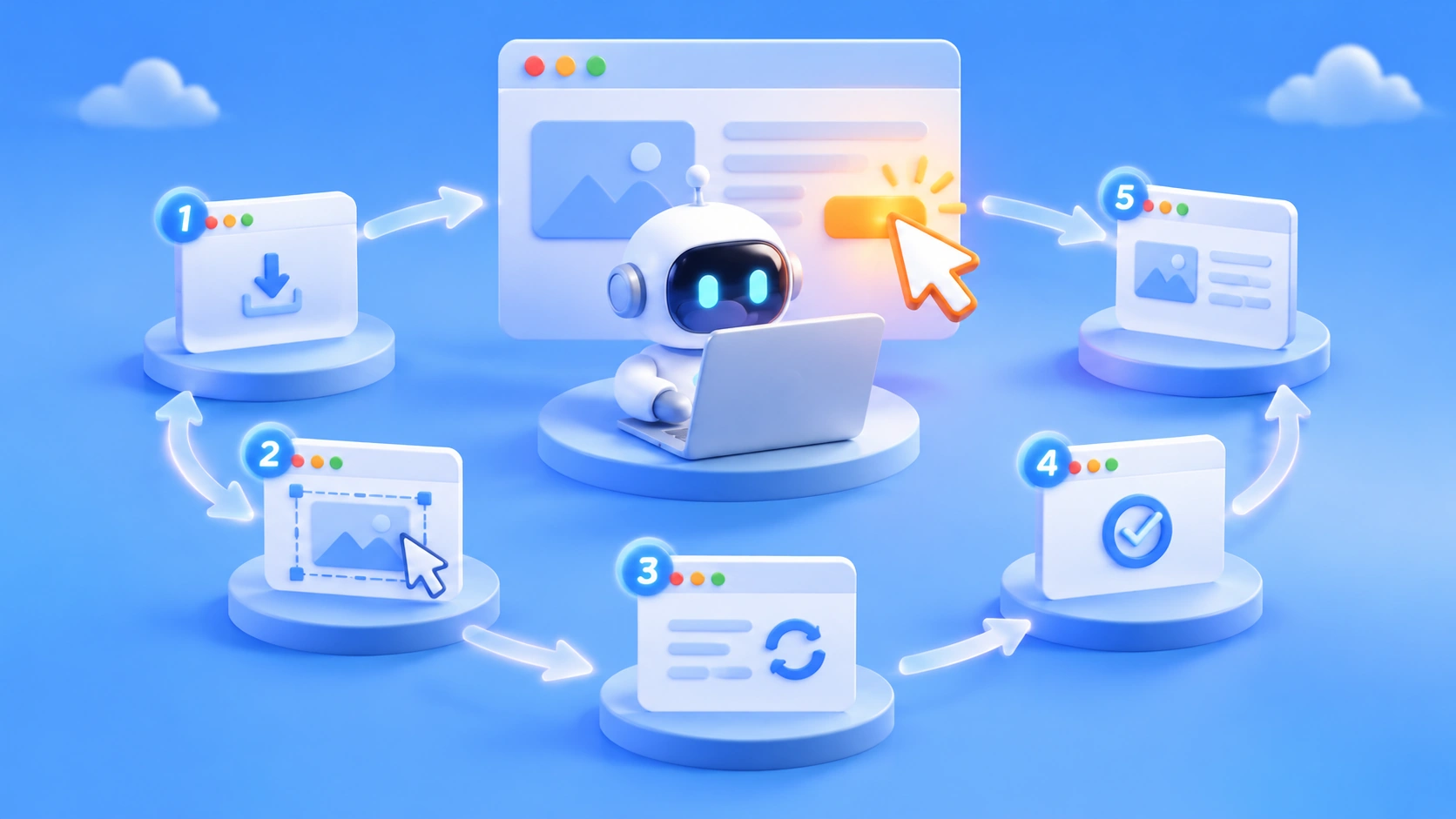
Author’s note: From installation to snapshots, ref-based actions, and result verification, these five steps will help you master agent-browser’s “read the page, click an element, read the page again” loop, so your AI Agent can reliably control a real browser.
One of the biggest challenges in getting an AI Agent to interact with a website is that it can’t see the page or reliably click the right elements. Screenshots paired with coordinate-based clicks consume lots of tokens and can miss their targets. Feeding the model an entire HTML document, on the other hand, quickly fills its context window. This article introduces agent-browser’s snapshot-ref loop and shows you how to let an Agent control a browser one command at a time.
This isn’t another conceptual overview of browser automation frameworks. Instead, we’ll follow the hands-on steps: installing agent-browser, combining snapshots and refs, retrying failed actions, and integrating it into an Agent workflow.
What you’ll get: By the end, you’ll understand why agent-browser’s snapshot-ref loop works well with Large Language Models and be able to complete your first browser task in your own Agent with five commands.
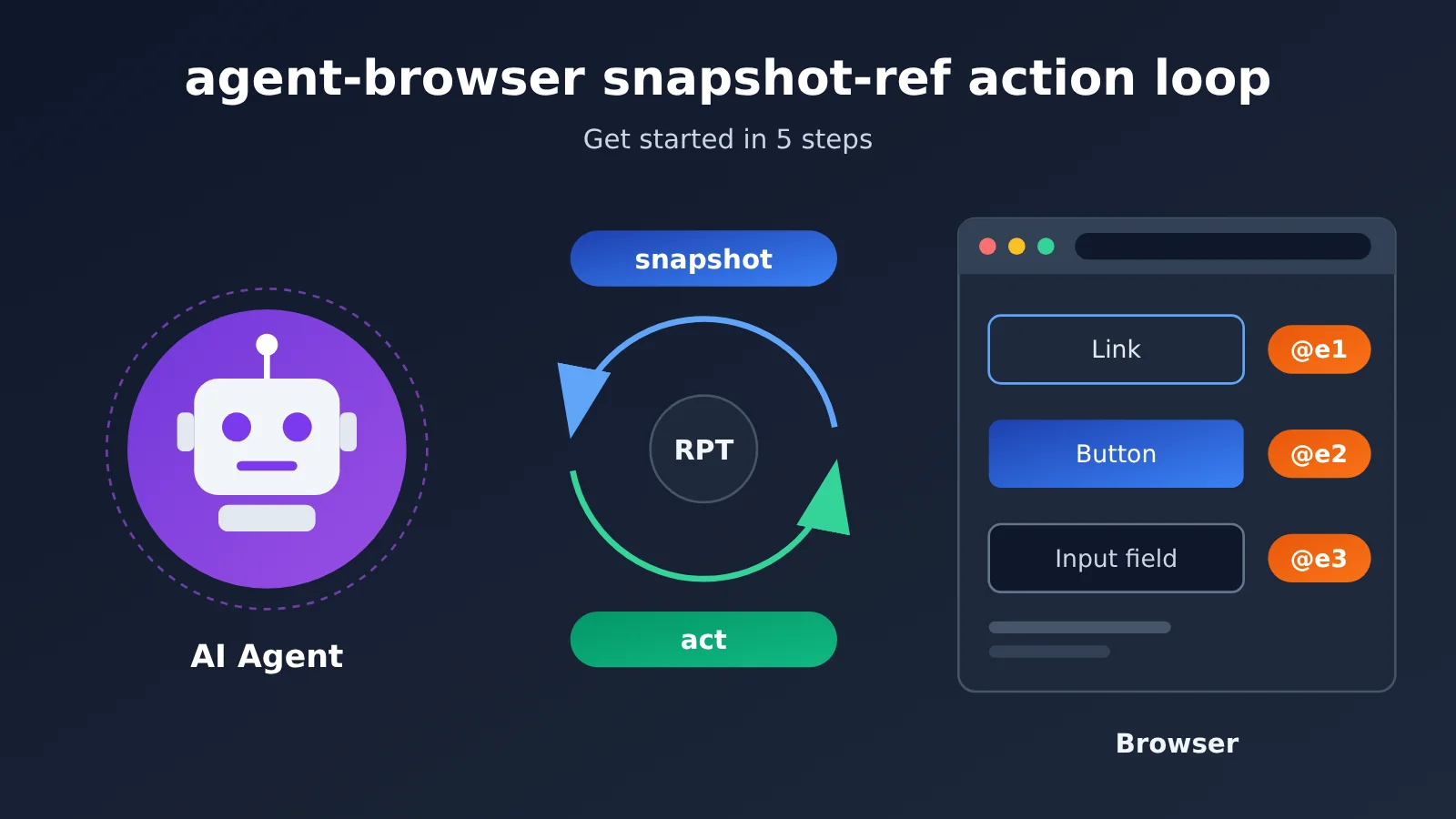
Key Points of the agent-browser snapshot-ref Loop
agent-browser is an open-source browser automation tool from Vercel Labs, released under the Apache-2.0 license. It’s a native Rust CLI with a clear goal: give AI agents a browser they can drive one command at a time. After opening a page, the agent reads it as compact text in the form of an accessibility tree, then uses shell commands to interact with elements.
| Feature | Description | Value for Agents |
|---|---|---|
| Compact snapshot text | The page is output as an accessibility tree, with refs like @e1 on elements |
Uses less context than screenshots or raw HTML |
| Precise ref targeting | Commands reference elements directly, such as click @e1 |
The model doesn’t have to build CSS selectors |
| Persistent browser | A background daemon keeps the browser open | Each step requires only a short shell call |
| Explicit errors | Clicks fail rather than falsely report success when elements are obscured, hidden, or disabled | The agent can decide what to do next based on real feedback |
| Built-in skills | The CLI includes usage instructions matched to its version | The agent reads instructions consistent with the installed version |
How the snapshot-ref Loop Works
The loop comes down to three actions: run snapshot to read the page, act on a ref, then read the page again to confirm the result. Repeat as needed. The official example.com snapshot is just one line: - link "Learn more" [ref=e1]. From that line, the model knows there’s a link called Learn more and that it can click it using @e1.
This design separates “understanding the page” from “taking action” into two verifiable steps, making it a natural fit for Large Language Model tool calling. The model doesn’t need to understand a complex DOM structure; it just needs to find the right element in the text and reference its ref. Taking a fresh snapshot after each action also means the agent can make decisions based on the latest page state instead of guessing from memory.
agent-browser’s Underlying Architecture
The CLI itself doesn’t directly hold the browser. When the first command runs, it starts a background daemon, which controls the browser through the Chrome DevTools Protocol. Each subsequent CLI command is sent to that daemon. As a result, the browser stays open between commands, preserving login state and the current page position.
Each --session has its own daemon and browser, making it easy to run multiple tasks in parallel without interference. By default, a headless browser closes after one hour without commands, and its daemon exits. If session persistence is configured, the state is saved before exit.
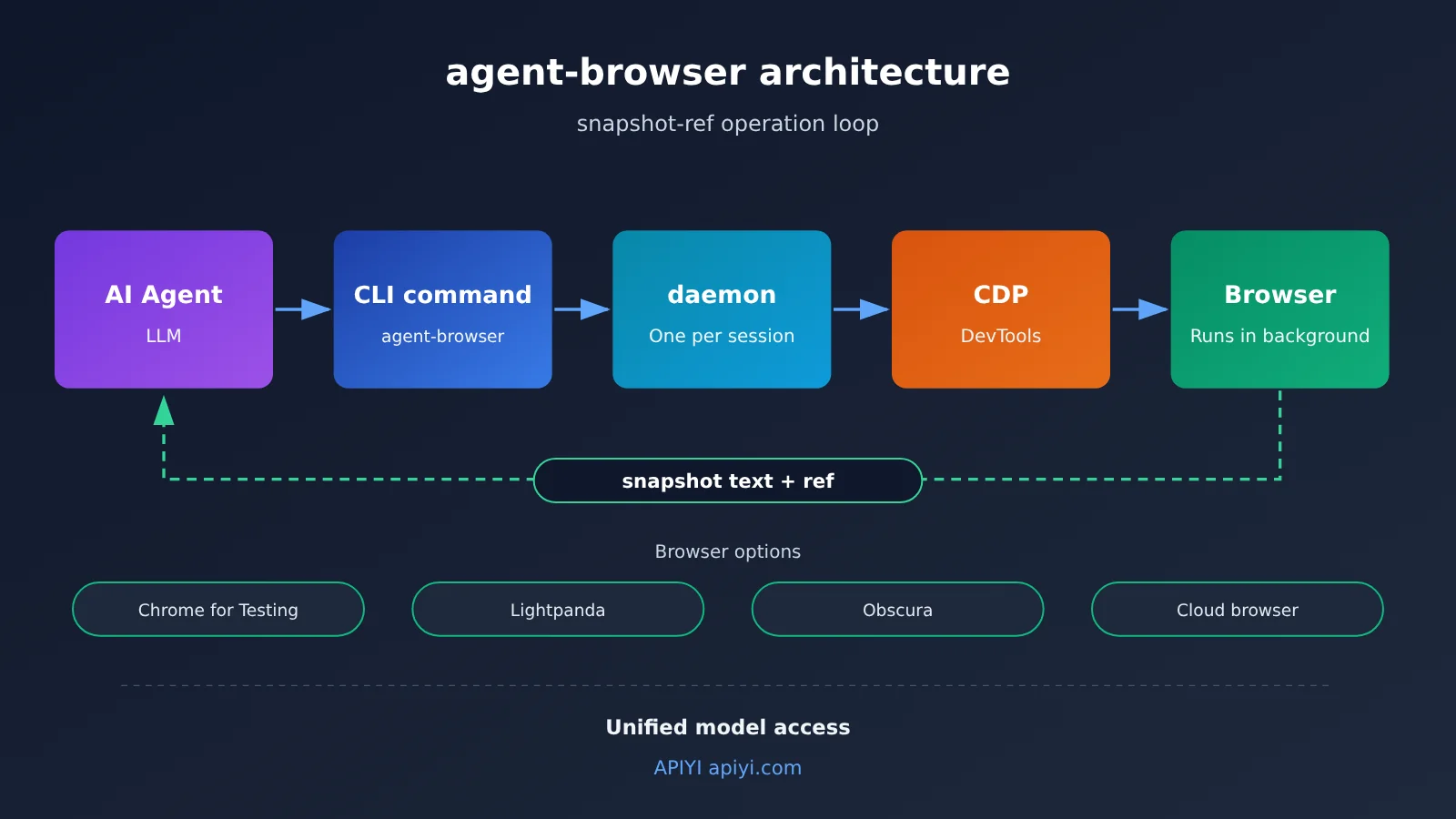
The “brain” driving this loop is a Large Language Model. Each round of snapshot text enters the model’s context, and the model decides on the next command, so its ability to follow instructions and its per-call price directly affect task success rates and costs. APIYI provides API access to the models covered in this article, including Claude, DeepSeek, and Kimi, and supports both OpenAI and Anthropic API formats. Integration documentation is available at docs.apiyi.com.
Getting Started with agent-browser: The Snapshot-Ref Loop in 5 Steps
Step 1: Install agent-browser and the Browser
The most common approach is to install agent-browser globally through npm, then download Chrome for Testing. The npm package automatically selects the right native binary for your platform. It currently supports macOS (ARM64, x64), Linux (ARM64, x64, glibc and musl), and Windows (x64).
| Installation method | Command | Best for |
|---|---|---|
| Global npm install | Run npm install -g agent-browser, then agent-browser install |
Most development environments; the browser must be downloaded on first use |
| Homebrew | Run brew install agent-browser, then agent-browser install |
macOS users |
| Linux with dependencies | agent-browser install --with-deps |
Servers and containers that also need browser system libraries |
| No installation | npx agent-browser open example.com |
Quick trials and one-off CI tasks |
| Maintenance commands | agent-browser upgrade, agent-browser doctor |
Upgrading and troubleshooting the environment |
To build from source, the official requirements are Node.js 24 or later, pnpm 11 or later, and the Rust toolchain. Run pnpm install, pnpm build:source, and pnpm link --global in that order, then run agent-browser install. For everyday use, installing through npm is all you need.
Steps 2–5: The Complete Minimal Loop
Once installation is complete, these commands make up a complete snapshot-ref loop. Try running them manually in your terminal first and check the output at each step before letting an Agent run them automatically.
| Step | Command | Purpose | Expected result |
|---|---|---|---|
| 2. Open the page | agent-browser open example.com |
Start the daemon and open the URL | Browser stays running in the background |
| 3. Read the snapshot | agent-browser snapshot -i |
List only interactive elements, each with a ref | Output like link "Learn more" [ref=e1] |
| 4. Act on a ref | agent-browser click @e1 |
Click an element in the snapshot | Page navigates or its state changes |
| 5. Verify the result | agent-browser get url |
Read the current URL to confirm the action worked | Returns the destination URL |
| Cleanup | agent-browser close |
Close the browser | Resources are released |
The -i flag in step 3 is important: it outputs only interactive elements, making the snapshot much shorter. That’s especially useful when your token budget is limited. Don’t skip verification in step 5, either. An Agent needs real feedback to determine whether an action succeeded, rather than assuming a click worked.
🚀 Quick start: Once you’ve completed the manual loop, you can hand these commands over to an Agent. Consider getting test credits through APIYI at apiyi.com, then try the same tasks with a few models to see which is best at picking the right ref from snapshot text. The API supports both OpenAI and Anthropic formats, so existing Agent frameworks generally only need a new key and endpoint. See docs.apiyi.com for details.
agent-browser ref lifetime and re-snapshotting
A ref describes the page at the moment of the snapshot. Once the page navigates or the DOM changes, an old ref may become invalid or even point to the wrong element. The rule is simple: after every navigation or significant page change, run snapshot again before using a new ref.
It’s worth putting this rule directly in the Agent’s system prompt. A reliable loop is “snapshot, act, snapshot,” not “snapshot once, then act ten times.” The cost of one extra snapshot is far less than the cost of investigating and rolling back a click on the wrong element.
Handling agent-browser click failures
agent-browser doesn’t pretend a click succeeded. When the target element is hidden, disabled, outside the viewport, or covered by another element (such as a cookie consent dialog), click returns a failure. That’s useful for an Agent because the error itself helps determine what to do next.
| Cause | Typical symptom | Recommended action |
|---|---|---|
| Obstructed | A consent dialog or overlay covers the button | Close the obstruction, take a new snapshot, and retry |
| Outside the viewport | The element is farther down the page | Use scroll, then take a new snapshot |
| Disabled | A button can’t be clicked because the form is incomplete | Use fill to complete required fields, then take a snapshot to confirm |
| Hidden | The element appears only after expanding a menu | Click the menu trigger, use wait, then take a snapshot |
| Expired ref | The page has navigated or refreshed | Run snapshot again to get a new ref |
Besides refs, agent-browser supports CSS selectors, text, XPath, and semantic locators. For example, agent-browser find role button click --name "Submit" finds and clicks the submit button by role and name. When the page structure is stable and elements have clear semantics, semantic locators can complement refs.
Common agent-browser Command Groups
agent-browser covers a wide range of commands. You can see the full list with agent-browser --help, or get help for a specific command with agent-browser <command> --help. The most common commands are grouped below to help you decide which capabilities to give your Agent.
| Group | Representative commands | Typical uses |
|---|---|---|
| Navigation and reading | open, back, reload, read, snapshot, get, is |
Open pages, read snapshots, check status |
| Interaction | click, fill, type, press, select, check, scroll, upload, find |
Click, fill out forms, upload files |
| Waiting | wait |
Wait for an element to appear or a page to load |
| Capture | screenshot, pdf, record, download, diff |
Take screenshots, export PDFs, record screens, compare pages |
| Page and network state | cookies, storage, network, eval |
Manage cookies, intercept network traffic, run scripts |
| Tabs and dialogs | tab, frame, dialog |
Work with multiple tabs, iframes, and dialogs |
| Debugging and performance | console, errors, trace, vitals, a11y |
Capture console errors and performance metrics |
| Sessions and authentication | session, state, auth, confirm, deny |
Isolate sessions, manage login state, confirm sensitive actions |
| Agent integration | skills, mcp, flow, batch, plugin |
Load skills, start MCP services |
By default, agent-browser uses Chrome for Testing. You can also use --cdp or --auto-connect to connect to a running Chrome instance, use --engine to switch to Lightpanda or Obscura, drive Mobile Safari in an iOS simulator, or connect to cloud browser services such as Browserbase, Browserless, Browser Use, Kernel, and AgentCore.
Integrate agent-browser with an AI Agent
Teach Your Agent with Built-in Skills
One clever design choice in agent-browser is that its instructions ship with the CLI. Run agent-browser skills get core to get the core loop, ref usage, wait strategies, and common workflows. Add --ref commands to view a specific reference, such as the complete command list, or add --full to include the full command reference and templates. You can also run agent-browser skills list to see specialized skills such as electron, slack, and dogfood.
In an Agent framework, you can install the discoverable skill with npx skills add vercel-labs/agent-browser. The skill is just a lightweight guide that tells the Agent to load agent-browser skills get core, so the instructions always match the installed CLI version. If you don’t want to install the skill, you can add a line to AGENTS.md: Use agent-browser for browser automation. Before using it for the first time, run agent-browser skills get core and follow its instructions.
Connect Through MCP
If your client supports MCP, run agent-browser mcp to start an MCP server over stdio. Desktop clients such as Claude or a custom Agent can then invoke browser operations as standard tools, without needing a custom shell execution layer.
Choose a Model for the Snapshot-Ref Loop
Browser tasks tend to involve many turns, each carrying a snapshot as text. Input tokens therefore usually far outnumber output tokens. When choosing a model, look at input and cache pricing alongside its ability to follow instructions. The prices below are based on the actual data on the APIYI pricing page at docs.apiyi.com/models. Check the pricing page for units and billing details.
| Model | Input Price | Output Price | Cache Price | Best For | Platform |
|---|---|---|---|---|---|
| claude-opus-5-5 | $4 | $20 | $0.2 | Complex multistep tasks, challenging pages | APIYI apiyi.com |
| claude-sonnet-5-5 | $2 | $10 | $0.1 | Everyday primary model | APIYI apiyi.com |
| kimi-k3.1-pro | $2 | $10 | $0.2 | Chinese-language websites | APIYI apiyi.com |
| deepseek-v4.1-flash | $0.3 | $1.2 | $0.006 | Simple forms, batch checks | APIYI apiyi.com |
A practical setup is to use deepseek-v4.1-flash for batch tasks with simple structures and fixed steps, claude-sonnet-5-5 as your general-purpose primary model, and claude-opus-5-5 for complex interactions or pages that fail frequently. Since the skills text and system prompt are repeated on every turn, models with lower cache prices have a cost advantage in long loops.
Note that Baidu’s ERNIE series isn’t currently listed on the APIYI pricing page. APIYI doesn’t currently offer this model, but we plan to add it soon. If your Agent relies on ERNIE, you can test with one of the models above in the meantime.
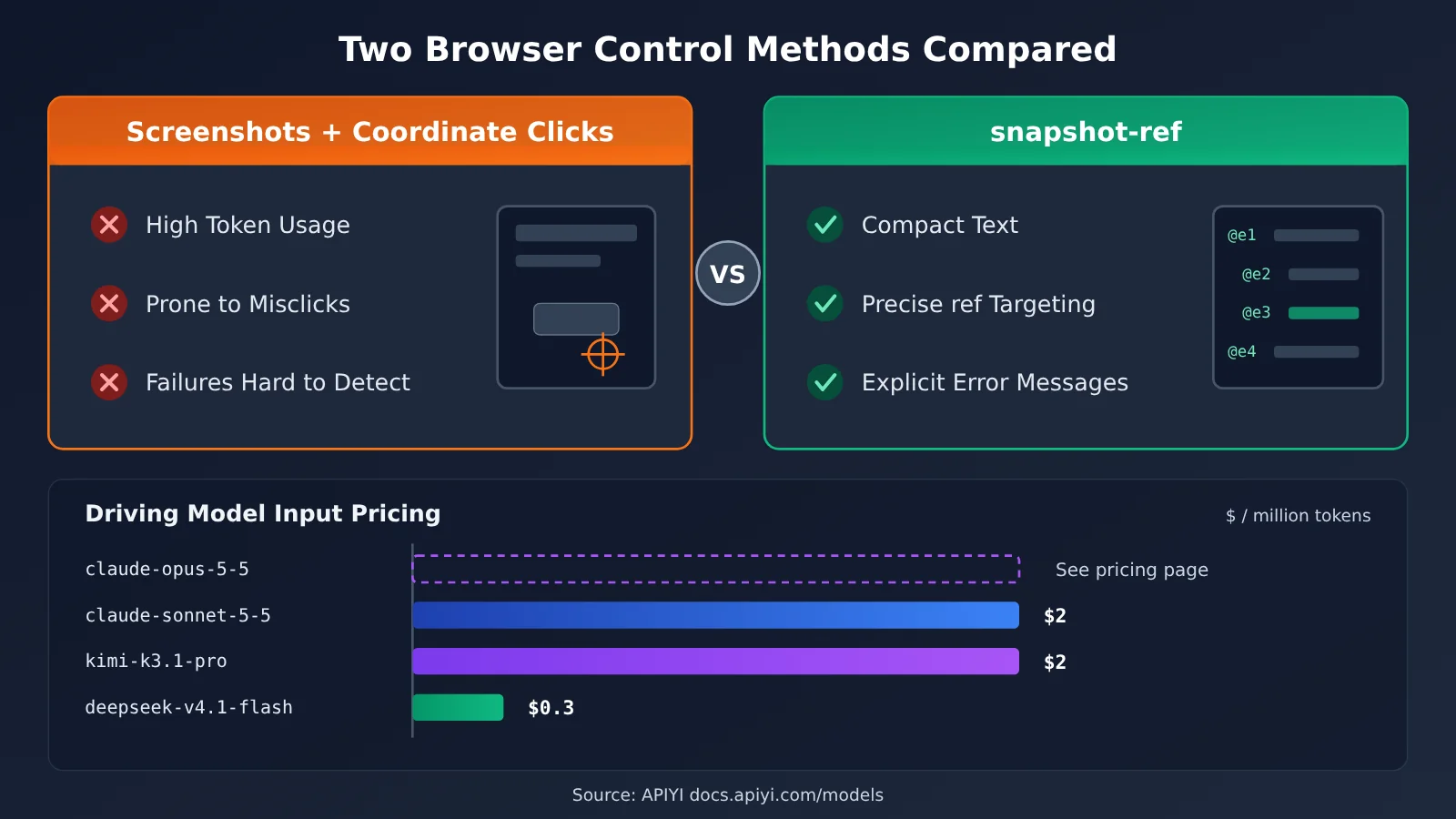
💡 Recommendation: No single model works best on every website. Pick 3 to 5 real-world business pages for a small test, switch between models using the unified interface on APIYI apiyi.com, and compare success rates and cost per task before choosing your primary model.
agent-browser Security Recommendations
When you let an Agent operate a real browser, you need to define security boundaries upfront. The agent-browser documentation covers mechanisms such as an authentication vault (auth vault), domain allowlists, action policies, and content boundaries. At the command level, auth manages login credentials, while confirm and deny let you approve or reject sensitive actions.
In production, we recommend at least three safeguards:
- Restrict accessible domains: Use a domain allowlist to keep the Agent on sites relevant to your business and prevent pages from directing it to unfamiliar sites.
- Keep credentials out of the context: Store usernames and passwords in the auth vault instead of putting them in prompts, so they don’t appear in model logs.
- Require human approval for sensitive actions: Configure actions such as payments, deletions, and order submissions to require confirmation, keeping the final decision in human hands.
Webpages themselves can also contain malicious instructions aimed at Agents, so it’s worth enabling content boundaries. They help the model distinguish between text on a page and instructions from the user, reducing the risk of prompt injection.
Frequently Asked Questions
Q1: What is the agent-browser snapshot-ref loop?
It’s agent-browser’s core workflow: use `snapshot` to read the page as compact text with refs, perform an action on a ref, then take another snapshot to verify the result. Repeat as needed. This breaks page understanding and action execution into small, verifiable steps, making it well suited to step-by-step reasoning by Large Language Models.
Q2: How does agent-browser differ from a screenshot-driven browser agent?
Screenshot-based approaches are more versatile for visual understanding, but they consume more tokens, and coordinate-based clicks can miss their targets. In contrast, agent-browser uses accessibility tree text and refs to locate elements. This keeps the context more compact and actions more precise. It also reports errors explicitly, making it a better fit for automation tasks that need reliable execution.
Q3: Why can’t I keep using an old ref after navigating to a new page?
A ref only describes the page at the moment the snapshot was taken. After navigation or a DOM change, an element may have disappeared or been replaced, so an old ref may no longer work or may point to the wrong element. The right approach is to run `snapshot` again after each page change and use the new refs.
Q4: What are some good use cases for agent-browser?
It’s especially useful for:
– **Automatic form filling**: Fixed workflows such as registration, sign-ups, and back-office data entry.
– **Site checks and regression testing**: Use `errors`, `console`, and `vitals` to check for page errors and performance issues.
– **Information gathering**: Log in to an admin dashboard and read data page by page through its menus.
– **Specialized scenarios such as Electron and Slack**: Extend functionality with the specialized skills in `skills list`.
Q5: How do I connect a model to drive agent-browser?
Follow these steps:
1. Visit APIYI at apiyi.com, register an account, and get an API key.
2. In your Agent framework, choose an OpenAI- or Anthropic-compatible format and configure the connection using the documentation at docs.apiyi.com.
3. Use the five-step loop in this article as a test task to compare different models.
APIYI provides unified access to models including Claude, DeepSeek, and Kimi. To switch models, you only need to change the model name.
Q6: How do I estimate the model cost of running the snapshot-ref loop?
Browser tasks primarily consume input tokens because each round includes snapshot text and system prompts. When estimating costs, focus on input and cache pricing, and use `snapshot -i` to shorten snapshots where possible. For current model prices, refer to the APIYI pricing page at docs.apiyi.com/models rather than outdated third-party quotes.
Q7: What are agent-browser’s known limitations?
Because refs are short-lived, the Agent needs to take fresh snapshots frequently, which increases the number of rounds. On pages with substantial gaps in accessibility information, snapshots may be incomplete. In those cases, you’ll need to use CSS selectors, XPath, or screenshots to help locate elements. Also, a headless browser automatically closes after one hour of inactivity, so long-running tasks need session persistence configured.
agent-browser snapshot-ref Key Takeaways
- What it is: agent-browser is an open-source Rust CLI from Vercel Labs that lets Agents control a browser one command at a time.
- Core loop: Read a page snapshot, act on a ref, then take another snapshot to verify the result. Repeat.
- The ref rule: After navigation or a DOM change, take a new snapshot before using a ref.
- Failure is a signal: Clicking an obscured or disabled element returns an error. The Agent should resolve the obstruction or disabled state before retrying.
- Integration: Load version-matched instructions with
skills get core, or connect an MCP client withagent-browser mcp. - Security first: In production, enable domain allowlists, the auth vault, and confirmation for sensitive actions.
- Model selection: Compare models using a unified interface at APIYI apiyi.com. See docs.apiyi.com/models for pricing.
Summary
The key points of the agent-browser snapshot-ref loop:
- Use text instead of screenshots: Accessibility tree snapshots and refs help the model understand the page with minimal context.
- Verify every step: Read the page or URL after each action to keep the Agent from continuing in the wrong state.
- Handle failures: Obstructions, viewport issues, disabled elements, and stale refs all have clear paths to resolution.
- Keep integration simple: npm installation, built-in skills, and the MCP server all offer quick ways to connect to an existing Agent.
Start by manually running the five commands—open, snapshot, click, get, and close—in a terminal. Then add the loop rules to the Agent’s system prompt, and finally choose a driving model using real-world business pages.
Try different models with agent-browser through APIYI apiyi.com. The platform supports OpenAI and Anthropic interface formats. See docs.apiyi.com for integration details and docs.apiyi.com/models for pricing.
📚 References
- GitHub – agent-browser: Official open-source repository
- Link:
github.com/vercel-labs/agent-browser -
Details: Installation, quick start, command groups, and development information
-
agent-browser Official Documentation: Complete guide and command reference
- Link:
agent-browser.dev -
Details: Snapshots, selectors, sessions, CDP mode, and security mechanisms
-
agent-browser Security Documentation: Authentication and access control
- Link:
agent-browser.dev/security -
Details: Auth vault, domain allowlists, action policies, and content boundaries
-
APIYI Documentation Center: Model integration guides
- Link:
docs.apiyi.com -
Details: Integration using OpenAI- and Anthropic-compatible formats
-
APIYI Model Pricing: Actual pricing for each model
- Link:
docs.apiyi.com/models - Details: This page is the source of truth for all model prices in this article
Author: APIYI Technical Team
Technical discussions: Contact us through the APIYI homepage at apiyi.com. For more integration resources, visit the documentation center at docs.apiyi.com.