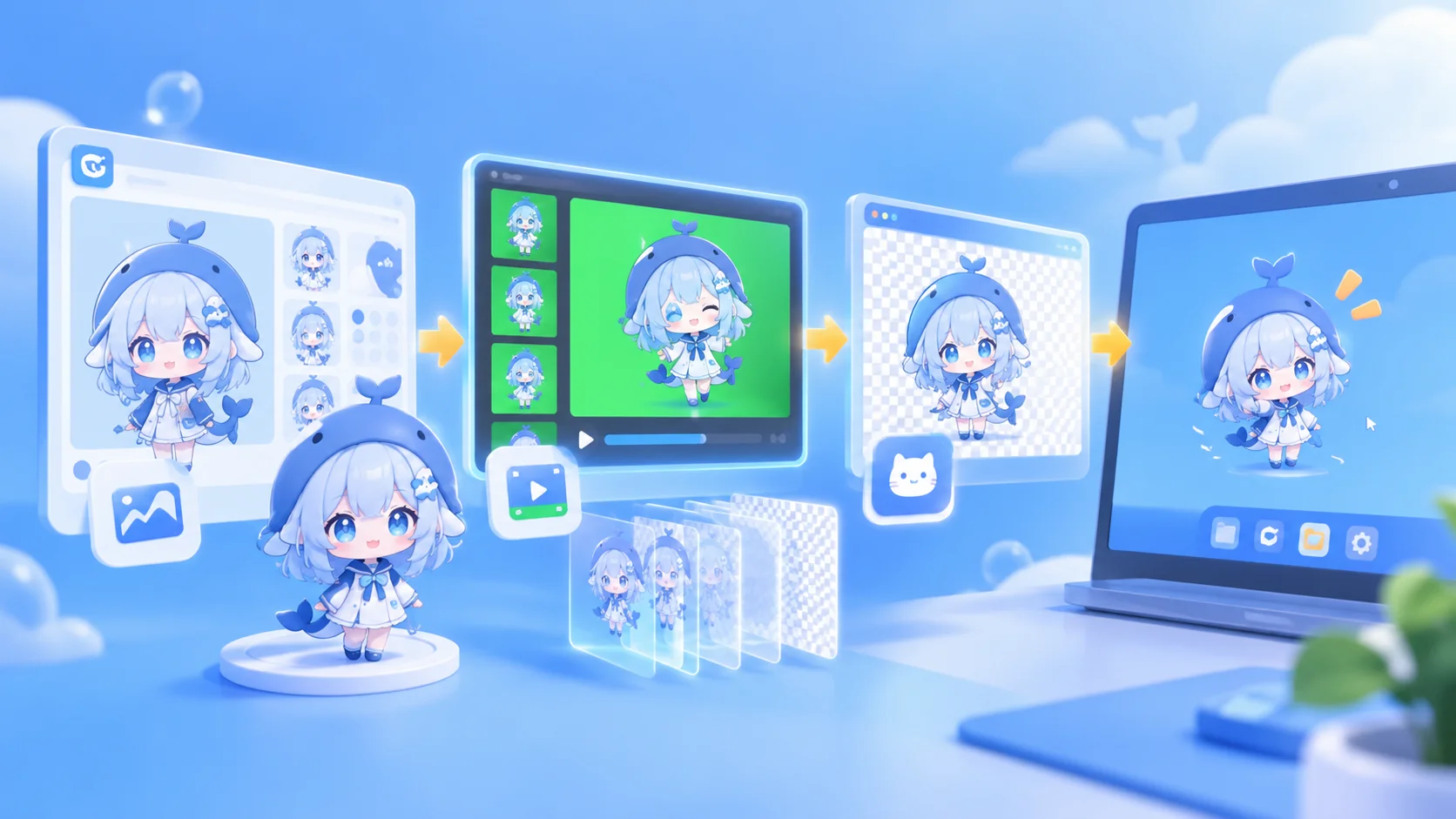
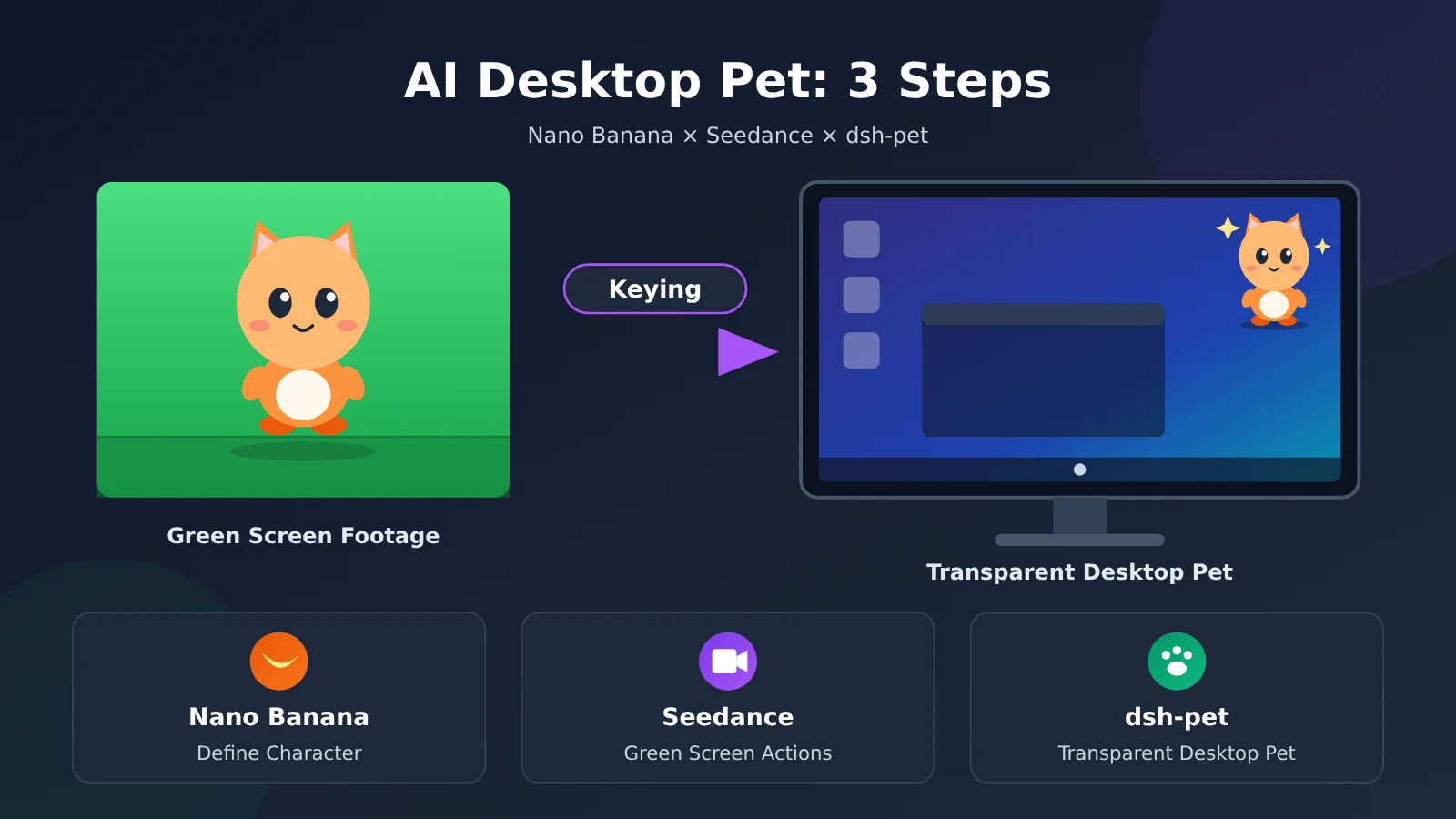
Author’s note: Use Nano Banana to design your character, Seedance to create green-screen animations, and the dsh-pet asset pipeline to remove the background. Three steps are all it takes to make an animated desktop pet of your own.
As of 2026-10-22, the open-source GitHub project dsh-pet has 3,367 stars. It lets a chibi blue-haired maid with a transparent background move into DeepSeek Harness (DSH) and onto your desktop: she breathes while idle, randomly dozes off, bounces when clicked, and can be dragged and flung—with more than a hundred animations flowing seamlessly into one another. After seeing it, many people have the same first thought: Can I swap in my own character? This article walks through a three-step approach: design a character with Nano Banana + create green-screen animations with Seedance + remove the background with an asset pipeline.
To be clear: this isn’t how the original creator did it. The dsh-pet README says the original assets were generated with Doubao, and all the animations were manually keyed out in Premiere. The README doesn’t mention Nano Banana or specify which video model version was used; the original creator didn’t use these models. Seedance and Doubao are both from ByteDance, so this approach is closer to the original creator’s workflow—but we can’t say they used Seedance. The combination in this article is an alternative we’re proposing, and steps marked “recommended” haven’t been fully tested.
- Goal: Create a desktop pet featuring a character of your own design, with a transparent background and animations that run in DSH and on your desktop
- Time required: Roughly half a day. Seedance’s generation time for a 10-second video will vary; most of the time goes into choosing results and generating new takes
- Prerequisites: The DSH desktop app, an APIYI token, and Chrome / Edge / Firefox. The background-removal step also requires Python 3 and ffmpeg
- Difficulty: Low to moderate. Generating images and videos, installing the plugin, and adjusting its size are all done through a GUI. Only the background-removal step requires the command line
What you’ll get: A pet pack containing transparent WebM animations of your character and a configuration file. Install it in dsh-pet, and your character can idle, turn around, and walk around in your browser and on your desktop. You can generate both images and videos with the same APIYI (apiyi.com) key.
First, take a look at the original Whale Girl:
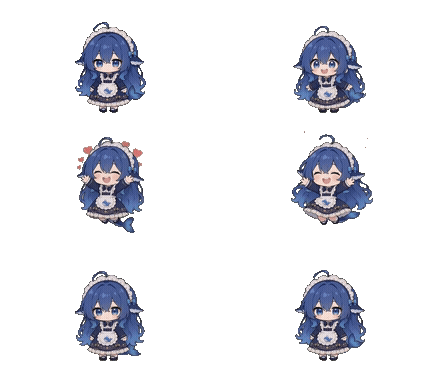
Click response: a joyful leap. Source: github.com/PC2005-cloud/dsh-pet. Assets may not be used commercially.
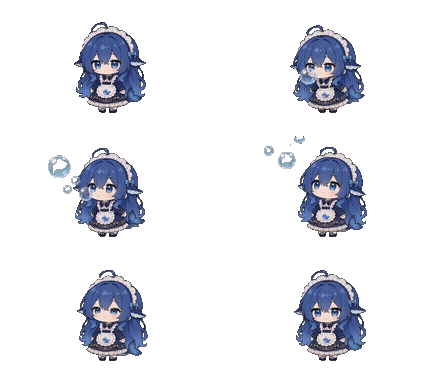
Whale Girl blowing bubbles. Source: github.com/PC2005-cloud/dsh-pet. Assets may not be used commercially.
Core Components of an AI Desktop Pet: Three Steps, Three Tools and Models
dsh-pet describes itself as a “three-part kit”: prompts (recipes for AI-generated animations), an asset-generation pipeline (converting source videos into transparent animations), and a plugin (the pet that runs in DSH). This article replaces only the generation tools used in the first half; the prompt recipes, asset pipeline, and plugin remain exactly as they are in the repository. Seedance is made by ByteDance and is marked “Popular” in APIYI’s video model list.
| Step | Tool (GUI preferred) | Model |
|---|---|---|
| ① Define the character | APIYI Image Master | nano-banana-2 |
| ② Generate green-screen actions (test run) | iCover AI browser page | doubao-seedance-2-0-mini-260615 |
| ② Generate green-screen actions (advanced) | iCover AI browser page | doubao-seedance-2-0-fast-260128 |
| ② Generate green-screen actions (final) | iCover AI browser page | doubao-seedance-2-0-260128 (standard) |
| ② Generate green-screen actions (next generation) | iCover AI browser page | doubao-seedance-2-5-260628 |
| ③ Remove the background and add the pet | Repository asset-pipeline scripts / Premiere + DSH plugin manager | None |
Use mini for test runs, fast for advanced work, and the standard version for the final output. The next-generation option is 2.5. There’s also a smaller test-run option: mini at 480p for 4 seconds.
Why insist on a green screen and consistent positioning? The asset pipeline uses green for chroma keying and consistent positioning for normalization. If the character shifts even slightly in one video clip, the pet will visibly “jump” when switching actions. That’s why the green-screen standing image in step ① and the prompt prefix in step ② must use exactly the same positioning.
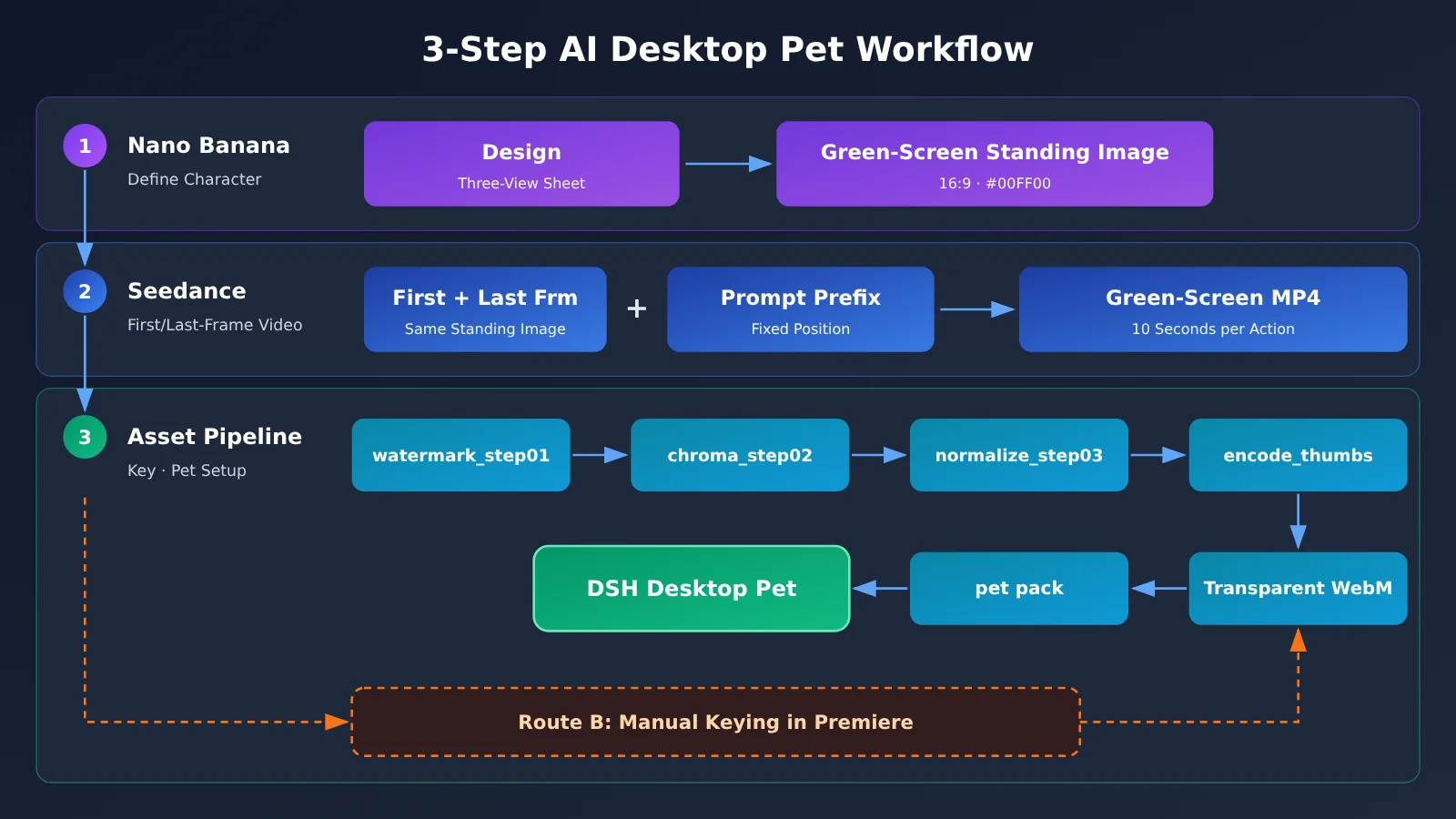
Get Started with an AI Desktop Pet in 3 Steps: Define the Character → Green-Screen Animation → Transparent Desktop Pet
Step ①: Define the Character with Nano Banana (Character Sheet + Green-Screen Standing Image)
First, create a token in the APIYI dashboard at apiyi.com. Set billing to “Pay-as-you-go first,” and select both the Default group and the SeeDance2 group. If you don’t select the SeeDance2 group, Seedance requests will fail with “No available channel for this model.” A single token can be used with both Nano Banana and SeeDance2 as long as it’s assigned to both groups. Then open APIYI Image Master at imagen.apiyi.com, save this key, and select the nano-banana-2 model. The button name may vary, so follow what’s actually shown on the page.
You’ll need two images for this step. The following approach is a design suggestion:
- Image 1: Character sheet. Describe the character’s appearance in the prompt, including hair color, clothing, and signature accessories. Ask for front, side, and back views of the same character, arranged side by side against a solid-color background. Generate a few options and choose the one you like best to lock in the character’s appearance.
- Image 2: 16:9 front-facing standing image on a green screen. Upload the character sheet as a reference image, set the aspect ratio to 16:9, and ask for a single character standing straight and facing forward, with arms resting naturally at their sides. Specify a solid green
#00FF00background, no shadows, no ground, no props, and the character centered horizontally. - Design tip (suggestion): Try to avoid using green on the character, since it may be removed along with the background during chroma keying.
Step ① acceptance criteria:
- The green-screen image has a solid
#00FF00background. Use your system’s color picker to sample several spots and confirm the color is consistent, with no gradients or shadows. - The top of the character’s head is about 20% down from the top of the frame, and the feet are about 85% down. The character’s left and right edges are around 25% and 75% of the frame width.
- The image contains only one character, standing and facing forward. Leave at least 10% empty space around all four edges, and make sure the character’s ahoge, tail, and skirt aren’t cropped.
If the model doesn’t produce a solid #00FF00 background, you can continue editing the image in Image Master and ask it to “change the background to solid #00FF00.” We haven’t tested whether it can get this right in one try, so judge the result against the acceptance criteria.
Step ②: Generate Green-Screen Action Videos with Seedance
Use iCover AI (icover.ai) to generate the videos. In your browser, select Seedance, upload an image, paste in a prompt, and choose the duration and resolution—no coding required. Seedance’s key feature is its first-and-last-frame workflow: upload two images, one for each frame (with roles first_frame and last_frame). We’ll use the green-screen front-facing standing image from Step ① as both the first and last frame. This locks the video to the same standing pose at the beginning and end, so the animation loops seamlessly. If the page has separate upload slots for the first and last frames, upload the same standing image to both. Follow the button labels on the page.
Keep these points in mind when choosing a model and setting parameters:
- Model: mini is
doubao-seedance-2-0-mini-260615, fast isdoubao-seedance-2-0-fast-260128, the standard version isdoubao-seedance-2-0-260128, and the latest generation isdoubao-seedance-2-5-260628. - The three modes are mutually exclusive: You can choose only one of first-and-last frames, first frame only, or multiple reference images. We’re using first-and-last frames.
- The aspect ratio follows the first-frame image: So the standing image from Step ① must be 16:9. When using first-and-last frames with 2.5, you must set the aspect ratio to
adaptive; specifying a fixed ratio will return a 400 error. - Duration: 2.0 supports 4–15 seconds, so use the original recipe’s 10 seconds. If you don’t specify a duration, 2.0 defaults to 5 seconds, while 2.5 lets the model choose the duration automatically—it may be twice as long as expected. Be sure to explicitly select 10 seconds.
- Resolution: Options are 480p, 720p, and 1080p. mini and fast support up to 720p. Since the desktop pet displays at only 640×360, we recommend testing at 480p and using 720p for the final version (editor’s recommendation).
- Audio: Audio is enabled by default. The desktop pet doesn’t need it, so set
generate_audiotofalseto turn it off.
Write prompts using the recipe in prompts/桌面宠物 10 秒动作提示词.md in the dsh-pet repository. Each prompt should start with a shared prefix, followed by a second-by-second breakdown of the action. Use the table below as a quick reference for the shared prefix constraints:
| Constraint | Recipe requirement | What happens if you don’t follow it |
|---|---|---|
| Position | Head at about 20%, feet at about 85%, left and right sides at about 25% and 75%. Keep these proportions exactly the same in every segment. | The pet jumps to a different position when switching actions. |
| Green screen | 16:9, solid #00FF00, with no shadows, clutter, gradients, or borders. Keep the exact same color value in every segment. |
Leftover edges or parts of the character may be incorrectly removed during keying. |
| Safe margins | Keep the body, props, and effects at least 10% away from all four edges of the frame. | Animation elements may get cut off at the edges. |
| Anchor point | Keep both feet planted at the exact center of the frame. Only allow in-place turns and jumps. | The character drifts and shifts out of position after normalization. |
| Matching first and last frames | Use the same standard front-facing standing image for both frames. Fully return to the same pose in the final second. | The loop transition stutters. |
| Props: none → appear → disappear | Start with no props. Have them form from a magical gesture, then dissolve into points of light before the end. | Props remain in the first or last frame. |
| Large objects | Place large props directly in front of or above the character. If they don’t fit, scale them down to a chibi size—never move the character. | The character gets pushed out of position. |
Each segment in the original recipe is 10 seconds long, which is well within Seedance 2.0’s 4–15-second range. Use the second-by-second breakdown as written; there’s no need to rearrange it.
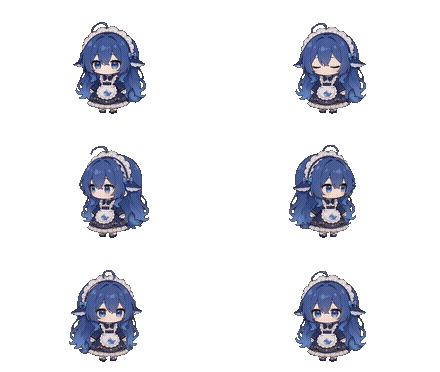
The original Whale Girl idle animation. Her position is the standard placement for this workflow. Source: github.com/PC2005-cloud/dsh-pet. These assets may not be used commercially.
Key placement guidelines:
- The top of her head should be about 20% of the way down the frame, and her feet about 85% down.
- Her left and right edges should be around 25% and 75% of the frame width.
- Leave 10% of the frame empty on all four sides.
- Use a solid
#00FF00background. - Keep the position of both feet fixed throughout.
The prop’s “absent → present → absent” sequence is one of the easiest things to get wrong. Here’s how the original handles it:
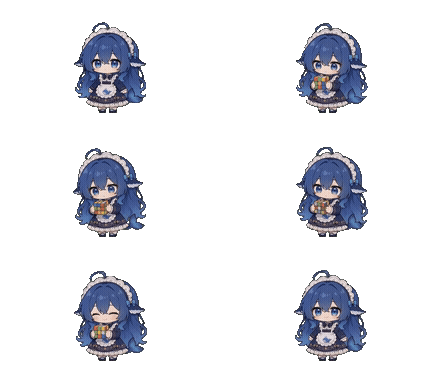
The Rubik’s Cube appears out of nowhere, then disappears when she’s done. The animation starts and ends in a clean standing pose. Source: github.com/PC2005-cloud/dsh-pet. These assets may not be used commercially.
There are a few common pitfalls with the Seedance workflow. The table below is based on APIYI’s Seedance documentation:
| Pitfall | What the documentation says | What to do |
|---|---|---|
| SeeDance2 group not enabled | You’ll get a “No available channel for this model” error | Enable both the default and SeeDance2 groups for the token, and prioritize pay-as-you-go billing |
| Duration not set explicitly | Without a duration, 2.0 defaults to 5 seconds, while 2.5 selects one automatically, which may double the duration | Explicitly select 10 seconds |
| 2.5 requires a fixed aspect ratio for first-and-last-frame mode | The aspect ratio must be set to adaptive, or you’ll get a 400 error | Set the aspect ratio to adaptive when using first-and-last-frame mode |
| Direct links expire after 24 hours | Download links for generated results are valid for only 24 hours | Download the video as soon as its status changes to succeeded |
| Audio is enabled by default | If you don’t turn it off, the video will include an audio track you don’t need | If you don’t need audio, set generate_audio to false |
| 1080p selected for mini / fast | These two models support up to 720p. The request will fail, but you won’t be charged | For 1080p, switch to the standard version or 2.5 |
| Mixing modes | First-and-last-frame, first-frame, and multi-reference-image modes are mutually exclusive | Use only one mode at a time. This article uses first-and-last-frame mode |
Two more details: failed tasks can be retried; and 2.5 outputs MOV files without an alpha channel, so you’ll still need to remove the background in step ③.
Recommended workflow: First, use mini at 480p for 10 seconds to generate an idle clip. Check that it starts and ends in the same standing pose, and that the character’s position stays fixed. Then generate all 12 basic actions, making two versions of each and choosing the best one. Finally, use the prompts you’re happy with to generate delivery assets at 720p or with the standard version.
Step ② acceptance criteria:
- The first and last frames both show the standard front-facing standing pose, matching the poses in the supplied first- and last-frame images.
- The background stays solid green throughout, the character doesn’t shift sideways, and the prop is out of frame at both the start and the end.
- Save each action as an MP4 named after the action, such as
待机.mp4.
🚀 Quick-start tip: You can use a single token for steps ① and ②. Just enable both the default group and the SeeDance2 group. If you later want to switch from the graphical interface to batch generation with a script, set the OpenAI-compatible API’s
base_urltohttps://api.apiyi.com/v1. For Seedance scripts, usePOST /seedance/api/v3/contents/generations/taskson the same domain—don’t use/v1/videos, which doesn’t fully pass through the resolution setting.
Step ③: Remove the Background, Convert to Transparent WebM, and Add It to dsh-pet
Setup: Install the plugin (using the graphical interface). Open the DSH desktop app, go to the “Plugin Management” page, enter dsh-pet in the installation box, and install it. You must restart the desktop app for the plugin to take effect. By default, the pet appears in both the browser (top-right corner) and on the desktop. If Electron isn’t installed on your machine, the plugin will download it automatically in the background; this can take anywhere from a few dozen seconds to a few minutes. It’s normal to see two pets on screen. To show just one, go to the settings page and select either “Browser only” or “Desktop only” from the “Display location” dropdown.
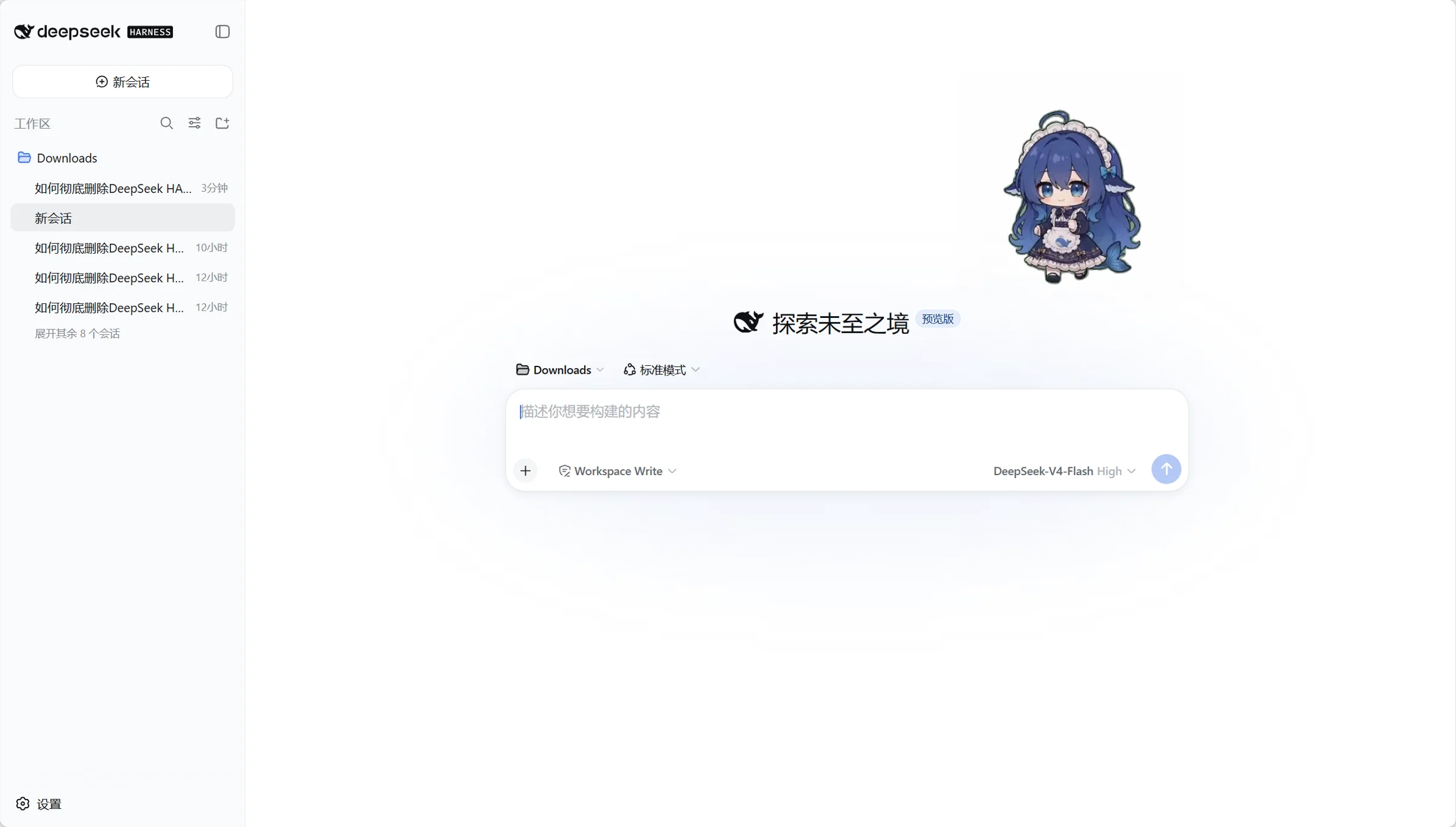
After installation, Whale-girl appears in the DeepSeek Harness interface. Source: github.com/PC2005-cloud/dsh-pet. Asset may not be used commercially.
What it does after installation: The original Whale-girl switches animations based on DSH’s status. Here are four typical scenarios:
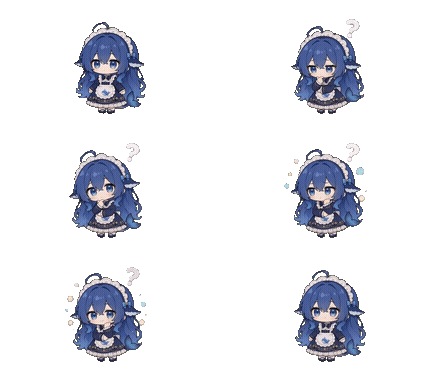
Working state: thinking with bubbles. Source: github.com/PC2005-cloud/dsh-pet. Asset may not be used commercially.
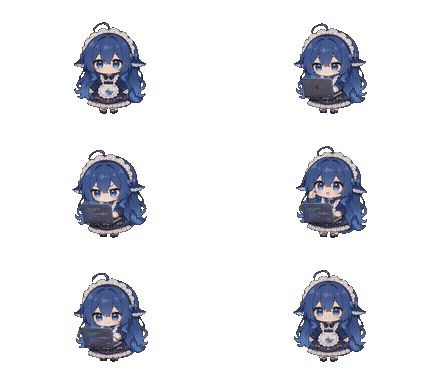
Writing code. Source: github.com/PC2005-cloud/dsh-pet. Asset may not be used commercially.
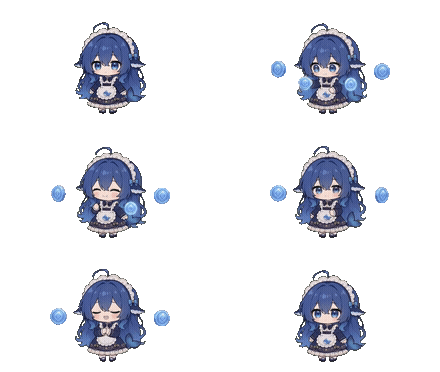
Eating tokens. Source: github.com/PC2005-cloud/dsh-pet. Asset may not be used commercially.
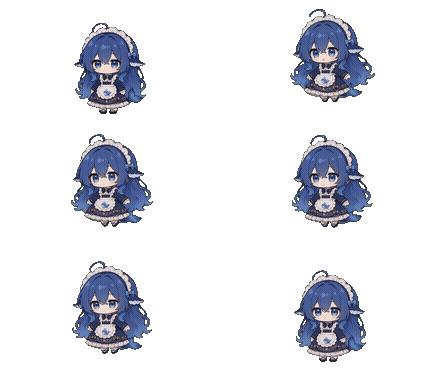
Dragged into the air with the mouse. Source: github.com/PC2005-cloud/dsh-pet. Asset may not be used commercially.
Once your custom character’s pet pack is set up, it can also use the same idle, drag, and other animations.
Background removal method A (default; requires the command line). Run the commands exactly as shown in the repository, in order:
- Clone the repository to your machine from a terminal:
git clone https://github.com/PC2005-cloud/dsh-pet.git - Check that you have all the dependencies: the README requires Python 3, ffmpeg, numpy, and scipy. Install the Python packages with
pip install numpy scipy(editor’s note). The script will prioritize ffmpeg in the workspace’s.tools/directory. - Put the MP4 selected in Step ② in the
video/directory specified by the asset pipeline. Refer to the repository README for the directory location. - Go to the repository’s
scriptsdirectory. Step 1: Fill in the watermark mask and output tostep01/:python watermark_step01.py - Step 2: Remove the green screen using HSV hue keying and output transparency to
step02/:python chroma_step02.py - Step 3: Normalize to 2160×1215 and center the character in a standing pose. Output to
step03/:python normalize_step03.py - Step 4: Transcode to a 640×360 playback variant and output to
step04/:python encode_thumbs.py
On macOS, the command may be python3. The watermark masking step was originally designed for the source project’s assets. We haven’t verified whether you can skip it for Seedance assets, so we recommend running it.
Keying route B (manual keying in Premiere): The original author used this route for all actions. Manually key the footage in Premiere and export it as a transparent .mov with an alpha channel (for example, ProRes 4444 with Alpha). Name each file after its action, place the files in pr/, and then run python pr_import_step02.py to overwrite the automatic keying results. After that, continue with steps 3 and 4 above. Route B replaces the most failure-prone part—keying—with a manual process. However, according to the README, importing, normalization, and transcoding are still handled by scripts, so we can’t confirm that you can avoid the command line entirely.
Add it to a pet pack (use this route for custom characters). For example, let the type name be xiaoju:
- Create folders: Under
$DSH_HOME/dsh-pet/, create apetfolder. Insidepet, create axiaoju-animationfolder, then copy all the WebM files fromstep04/into it.$DSH_HOMEis the DSH data directory. We haven’t verified its default location, so check your local DSH setup. - Create a file: Inside
pet, createxiaoju-config.json. Its prefix must match the animation folder name. petsfield: This is an array, with one entry per instance. Set"id": "xiaoju-1"(it must not duplicate the main pet’smainID),"size": 462,"balanceEnabled": false,"display": "both", and"position": { "corner": "top-right", "marginX": 24, "marginY": 100 }.animationsfield: Include all ofidle,turn,drag,clicks,moves,categories, andevents. Each value is an animation name and must correspond to a file with the same name. For example,"idle": "待机"will look for待机.webm.animationWeightsfield: Include all entries here too; the config won’t fall back to global values. As a starting point, use idle 10 / turn 5 / move 5, plus category weights.
The config has the same structure as main-config.jsonc. The safest approach is to copy the structure from the packaged assets/config.jsonc, then change only the animation names and IDs. Assets are looked up only in the pet’s own directory. If a file isn’t found there, the result is a 404; the app won’t use the main pet’s assets as a fallback.
Adjust size and position: For the main pet, change its width, corner position, and margins under “Pet Configuration” on the settings page (height = width × 9/16). Click “Save” to apply the changes immediately. Note that file-based pets aren’t listed on the settings page. To adjust a pet pack’s size and position, edit size and position in xiaoju-config.json, then refresh to see the changes.
Acceptance criteria for step ③:
- There’s a WebM file for every action in
step04/. - The footage appears transparent, not black, in Chrome, Edge, and Firefox. Some browsers show a dark background on the playback page when you drag a file into a tab. The most reliable check is to add the pet to the desktop pet app and confirm that the webpage or desktop behind it is visible around the pet.
- The pet doesn’t jump between positions when switching actions, and the animation loops smoothly without a hitch at the transition.
AI Desktop Pet Troubleshooting: Common Issues and When Not to Use This Approach
AI Desktop Pet Troubleshooting Table
| Symptom | Cause | What to do |
|---|---|---|
| Transparent areas have a black background | Safari / WKWebView doesn’t support WebM alpha | Switch to Chrome / Edge / Firefox. For the native macOS pet, use the .mov file in assets-mov in the Release and place it in main-animation/mov/ |
| Green fringe around the edges, or props get cut out | Automatic HSV keying can leave fringing or remove parts of third-party objects along complex edges; the character may also have green on it | Use Route B for that action; avoid green when redesigning the character |
| The pet jumps when switching actions | The character’s position or size differs between clips | Regenerate clips with major discrepancies; make sure normalize_step03 has run; keep the prefix exactly the same |
| Error: “No available channels for this model” | The token doesn’t have the SeeDance2 group selected | In the token settings, select both the default group and the SeeDance2 group |
| Video is only 5 seconds long, or its length is doubled | The duration wasn’t explicitly set. Version 2.0 defaults to 5 seconds, while 2.5 selects a duration automatically | Explicitly select 10 seconds |
| A 400 error occurs when using first and last frames in 2.5 | The aspect ratio is set to a fixed value | Set the aspect ratio to adaptive |
| The first and last frames don’t match, causing a choppy loop | The first- and last-frame uploads aren’t the same image, or first-and-last-frame mode wasn’t used | Upload the same standing image in both slots. If the frames still don’t match, regenerate them |
| The download link won’t open | Direct links expire after 24 hours | Download and save the file as soon as the status changes to succeeded |
| Selecting 1080p for mini / fast causes an error | These two models support up to 720p | Switch back to 720p. The failed request won’t be charged |
| The pet doesn’t appear, or assets return a 404 | Invalid configuration, missing -animation directory, ID conflicts with the main pet, or animation names don’t match filenames |
Check each item and review the errors in the DSH console |
| The balance bubble says “The current provider doesn’t support balance queries” | APIYI isn’t among the balance providers registered in dsh-pet |
This is expected; the APIYI balance won’t be displayed. Turn off the balance toggle if you don’t want to see the message |
When Not to Use This Approach
Generating your own character isn’t always the best option. Consider a different approach in these cases:
- You just want a ready-made maid desktop pet: Install
dsh-petdirectly from the plugin manager. There’s no need to generate any assets yourself. - You plan to use it commercially: The original creator’s assets, prompts, and source videos can’t be used commercially or resold. You’re responsible for confirming the rights to any character you create yourself, especially if its design is based on an existing IP.
- You plan to publish a derivative work: Include the original creator’s GitHub URL,
github.com/PC2005-cloud/dsh-pet, anywhere you introduce, showcase, or distribute a derivative, modified, or reskinned version.
AI Desktop Pet FAQ
Q1: Did the original creator of dsh-pet use Nano Banana and Seedance?
No. The README says the original project’s assets were generated with Doubao, and all the animations were manually rotoscoped in Premiere. It doesn’t mention Nano Banana or specify which video model version was used. Seedance and Doubao are both from ByteDance, so Seedance is a closer fit to the original creator’s workflow. But since the README doesn’t specify a version, we can’t say they used Seedance. Nano Banana and Seedance are the alternative tools suggested in this article; the prompt recipe and asset workflow are unchanged from the repository.
Q2: What images should I upload as the first and last frames?
Upload the 16:9 front-facing standing image from step ① as both the first and last frame. This locks the video’s opening and ending to the same pose, allowing the animation to loop seamlessly. First-and-last-frame mode, first-frame-only mode, and multi-reference-image mode are mutually exclusive—you can use only one at a time. The aspect ratio follows the first-frame image. When using 2.5 for first-and-last-frame mode, you must set the aspect ratio to adaptive; otherwise, you’ll get a 400 error. We don’t recommend uploading a composite image of three views, as the first frame might show three characters.
Q3: How should I set the video duration in Seedance?
The original recipe uses 10 seconds per clip. Seedance 2.0 supports durations of 4–15 seconds, so just select 10 seconds. Make sure to set the duration explicitly: if you leave it unset, 2.0 defaults to 5 seconds, while 2.5 lets the model choose a duration automatically, which may double the length. For a test run, you can start with mini at 480p.
Q4: Can one API key be used with both Nano Banana and Seedance?
Yes. Create a token on APIYI apiyi.com, select “Prioritize pay-as-you-go” for billing, and check both the default group and SeeDance2. The same token will work with Image Master and iCover AI. If you don’t check SeeDance2, you’ll get the error “No available channel for this model.” We recommend testing the workflow with nano-banana-2 and mini at 480p first, then deciding which actions are worth upgrading to 720p or the standard version.
Q5: Can I do this without knowing how to use the command line?
You can generate images and videos, install the plugin, and adjust the size entirely through a graphical interface. You can also do the rotoscoping manually in Premiere (workflow B), but according to the README, the subsequent importing, normalization, and transcoding steps still require scripts. If you run into environment setup issues, you can complete the first two steps using APIYI’s graphical tools, then ask someone familiar with the command line to run the final four commands.
Q6: Can I use my finished desktop pet commercially?
The dsh-pet code is licensed under MIT, but the original creator’s animations, prompts, and source videos can’t be used commercially. Whether you can use a character you create with Nano Banana and Seedance commercially depends on your character design and the model service’s terms. You’ll need to check those yourself—we can’t determine that for you.
AI Desktop Pet Summary: Key Takeaways and References
AI Desktop Pet Key Takeaways
- Workflow positioning: Nano Banana + Seedance is an alternative to the original creator’s workflow, which used Doubao and Premiere. Seedance and Doubao are both from ByteDance.
- Step ① essentials: Use a single 16:9 front-facing standing image with a solid
#00FF00background. Position the top of the character’s head at around 20% and the feet at around 85% of the frame. - Step ② essentials: Upload the same standing image as both the first and last frame, and use the 10-second preset as-is. Both frames should show the character standing in a standard front-facing pose.
- Most common pitfalls: Forgetting to select the SeeDance2 group for your token, or not explicitly setting the duration to 10 seconds.
- Step ③ essentials: Run the four scripts in order. Make sure to specify all animations and weights in the pet pack.
- How to test: Start with mini 480p to verify the workflow. Once you’re happy with the results, move up to 720p or the standard version.
- Getting started: Use a pay-as-you-go token, and select both the default and SeeDance2 groups to handle image and video generation.
Summary
Making your own AI desktop pet is essentially a matter of swapping out the generation tools in dsh-pet’s “prompt → asset pipeline → plugin” toolkit: Nano Banana locks in the character and its position, Seedance generates green-screen animations using the presets, and the repository’s asset pipeline removes the background and normalizes the results. The two parts that deserve the most attention are positioning and keeping the first and last frames consistent. Get those right, and the rest of the background removal and assembly is mostly routine work.
We recommend taking a single “idle” animation through the entire workflow first. Make sure the background is transparent, the character doesn’t shift position, and the first and last frames connect smoothly before generating the rest of the animations in batches. We recommend using APIYI at apiyi.com to test with mini 480p first, then deciding on the delivery quality after you’ve checked the results.
References
- dsh-pet repository: Project README, prompt presets, and asset pipeline scripts
- Link:
github.com/PC2005-cloud/dsh-pet -
Note: Refer to the README for installation, pet pack configuration, and license terms. Derivative works must include this address.
-
DeepSeek Harness: The host application for dsh-pet
- Link:
github.com/deepseek-ai/deepseek-harness -
Note: Available as both a desktop application and dsh web.
-
APIYI Seedance 2 documentation: Model details, first and last frames, duration, resolution, and parameter rules
- Link:
docs.apiyi.com(Seedance 2 page) - Note: The Seedance pitfalls covered in this article are based on this documentation.
Author: APIYI Technical Team
Technical support: If you run into API issues while generating desktop pet assets, feel free to contact us from the APIYI homepage at apiyi.com.