If you want to get OpenClaw to directly invoke OpenAI's most powerful image model, gpt-image-2, what’s the first thing that comes to mind? Most people's immediate reaction is to open their editor, write a Python script with requests.post(...), and wrap it into a tool function for their Agent.
While that path isn't impossible, it’ll immediately land you in four types of trouble:
- You have to handle
multipart/form-datauploads for reference images. - You have to write logic for retries, timeouts, and 429 rate limiting.
- You have to write separate wrappers for every scenario (text-to-image, image-to-image, masking, batching).
- Every time you switch to a different OpenClaw client (or Claude Code, Cursor), you have to re-integrate everything.
The answer in 2026 has changed: Don't write code; just install a Skill.
OpenClaw supports a full-fledged Skills ecosystem—the ClawHub registry currently has over 5,700 community-contributed Skills. In this article, I’ll share the two official gpt-image-2 Skills contributed by the APIYI team to the expert-skills-hub repository:
apiyi-gpt-image-2-gen(Forward/Fine-grained control, recommended)apiyi-gpt-image-2-all-gen(Reverse/Economy mode)
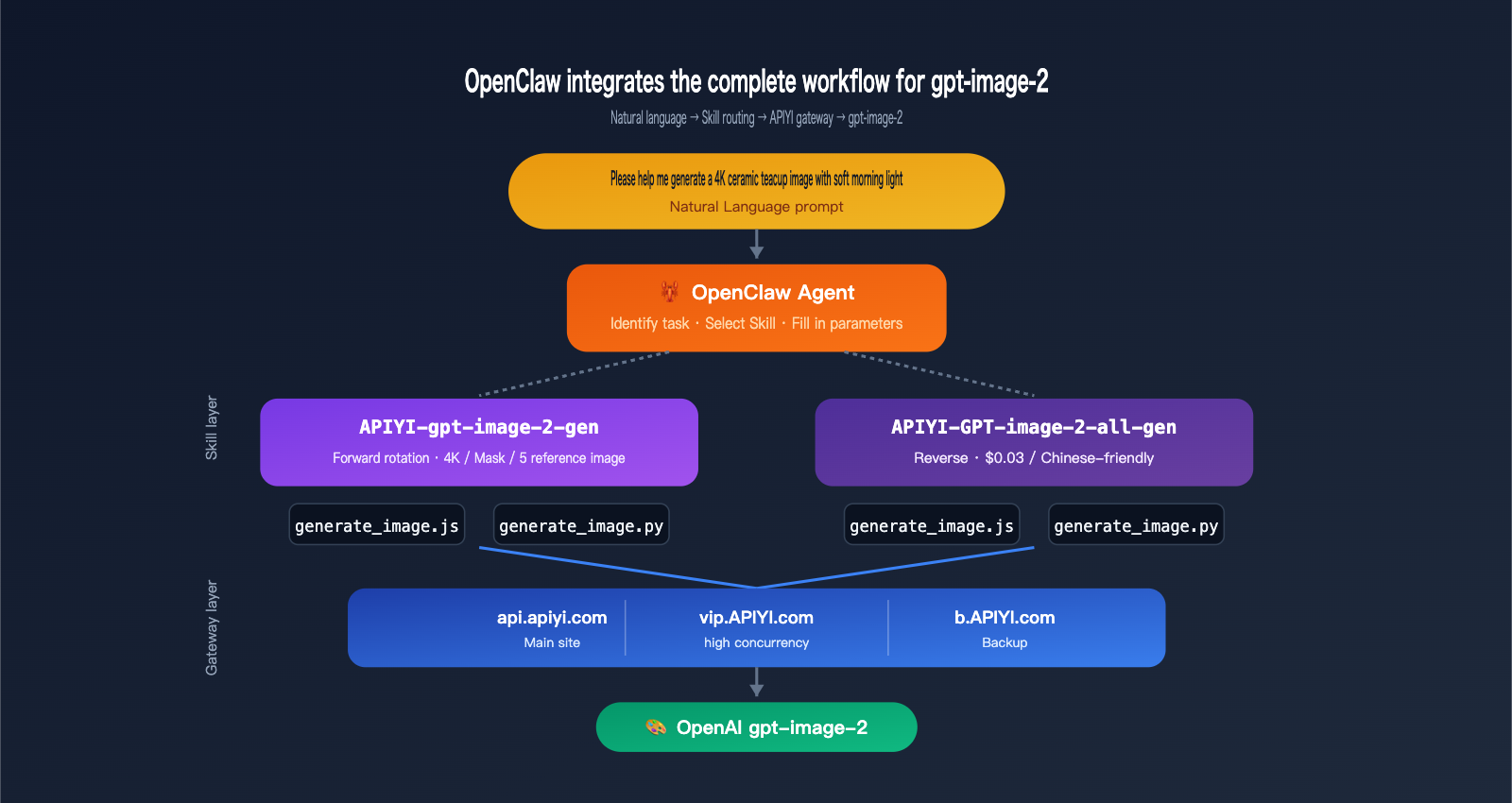
Installing a Skill takes just one command, and configuring your API key takes one export. After that, you can simply tell OpenClaw, "Help me draw a 4K product image of a ceramic mug," and the Agent will automatically pick the right Skill, fill in the parameters, and save the file.
By following this OpenClaw integration with gpt-image-2 tutorial, you’ll get:
- A clear comparison of "writing code vs. installing a Skill," so you know why the latter is better.
- Two ready-to-use official Skills covering both high-quality output and economical batch scenarios.
- A 5-step minimal example (one for Node.js and one for Python).
- Three practical commands (4K posters / multi-image composition / batch sketching).
- Methods to reuse the same set of Skills in Claude Code and Cursor.
1. Why Skills are the Optimal Solution for OpenClaw to Access gpt-image-2
1.1 The OpenClaw Skills System: The Standard Way to "Supercharge" Your Agent
OpenClaw is a cross-platform open-source AI assistant (GitHub repository github.com/openclaw/openclaw). Its design goal isn't to be "just another chat box," but to provide a composable toolbox for Agents. The basic unit of this toolbox is called a Skill.
A Skill is essentially:
skill-package/
├── SKILL.md                # Tells the Agent what this Skill does
├── scripts/
│   ├── generate_image.js   # Node.js runtime
│   └── generate_image.py   # Python runtime
└── requirements.txt / package.json
When you say "Help me draw a coffee mug," OpenClaw will:
- Scan the
SKILL.mdsummary of all installed Skills. - Determine that
apiyi-gpt-image-2-genis the best match for "image generation." - Extract parameters from your natural language (size, quality, output format).
- Invoke the corresponding
generate_image.js/py. - Return the path of the generated image to you.
You don't write code, configure routes, or call SDKs throughout the process. This is the core advantage of the OpenClaw ecosystem over the traditional "write a plugin" model.
1.2 Writing Code vs. Installing a Skill: A Quick Comparison
| Dimension | Manual HTTP Code | Installing Official Skill |
|---|---|---|
| Startup Cost | 30+ minutes | 1 command, 30 seconds |
| HTTP Details | Handle multipart, retries, timeouts yourself | Encapsulated within the Skill |
| Reference Image Upload | Manual base64 encoding | Pass file path directly |
| Multiple Runtimes | Either Node or Python | Both Node.js + Python included |
| Agent Awareness | Write tool descriptions yourself | SKILL.md included |
| Cross-Client | Re-integrate when changing environments | Works in Claude Code / Cursor / OpenClaw |
| Upgrade Path | Track OpenAI API updates yourself | npx skills update (one-click) |
| Route Switching | Modify code | Modify environment variables |
In other words, writing code turns you into a "glue" developer who is always maintaining things, while installing a Skill delegates that maintenance to the Skill author.
1.3 Division of Labor: Choose the Right Tool Before Generating
The APIYI team has contributed two Skills for gpt-image-2 to the expert-skills-hub repository, each aimed at completely different scenarios:
| Skill Name | Model Alias | Positioning | Pricing Model | Best Scenario |
|---|---|---|---|---|
apiyi-gpt-image-2-gen |
gpt-image-2 |
Forward / Fine control | Token-based | Posters, commercial shots, covers, 4K |
apiyi-gpt-image-2-all-gen |
gpt-image-2-all |
Reverse / Economy | Fixed $0.03/image | Batch drafts, Chinese prompts, exploration |
Both Skills share the same APIYI_API_KEY, with the backend unified through the APIYI gateway. You can install both at the same time, letting the OpenClaw Agent automatically select the right one based on the context: posters use the forward model, while running 100 variations uses the reverse model.
1.4 Backend Infrastructure: APIYI apiyi.com Three-Line Strategy
HTTP requests for both Skills default to api.apiyi.com, the main APIYI site.
🎯 Routing Advice: We recommend switching OpenClaw's
APIYI_BASE_URLto the high-concurrency routevip.apiyi.comfor production environments, especially when running batch jobs. The main siteapi.apiyi.comis suitable for daily single-image calls, the VIP routevip.apiyi.comis for batch/nightly queues, andb.apiyi.comserves as a fallback. All three routes share the same API key, so you can switch just by changing an environment variable.
2. Integrating OpenClaw with gpt-image-2 in 5 Minutes
2.1 Pre-flight Checklist
Before you start integrating OpenClaw with gpt-image-2, make sure your environment is ready:
| Item | Requirement | Verification Command |
|---|---|---|
| OpenClaw Installed | Latest version | openclaw --version |
| Node.js | 18+ | node --version |
| Python | 3.10+ (Optional) | python3 --version |
| npx | Included with Node | npx --version |
| Network | Access to github.com & api.apiyi.com | curl -I api.apiyi.com |
| APIYI Key | Get from api.apiyi.com console |
Check for sk- prefix |
⚠️ Note: If the
npx skillscommand isn't found in your OpenClaw version, please update to the latest version (openclaw update). The Skills CLI is a core capability of the OpenClaw 2026 ecosystem, so older versions might not support it.
2.2 Step 1: Install the Skill in One Command
Open your terminal and install the appropriate Skill based on your use case. We recommend installing both:
# Forward (recommended for daily use)
npx skills add https://github.com/wuchubuzai2018/expert-skills-hub \
  --skill apiyi-gpt-image-2-gen

# Reverse (better for batch processing/Chinese prompts)
npx skills add https://github.com/wuchubuzai2018/expert-skills-hub \
  --skill apiyi-gpt-image-2-all-gen
Once the command finishes, the Skill will be placed in the default OpenClaw Skill directory (usually ~/.openclaw/skills/). You can verify it with:
npx skills list
# Expected output:
# - apiyi-gpt-image-2-gen       ✓ installed
# - apiyi-gpt-image-2-all-gen   ✓ installed
2.3 Step 2: Configure Your API Key
Integrating OpenClaw with gpt-image-2 only requires one environment variable:
# macOS / Linux
export APIYI_API_KEY="sk-your-key-here"

# Windows PowerShell
$env:APIYI_API_KEY = "sk-your-key-here"
We recommend adding this line to your ~/.zshrc or ~/.bashrc for persistence.
🎯 How to get your key: Visit the APIYI website at
apiyi.com, sign up, and go to the console → API Keys → Create New Key. It's a good idea to enable "Usage Limits" and set a daily cap (e.g., ¥50) for the key used by OpenClaw to prevent accidental over-consumption.
Optional: Multi-route switching if you need high concurrency for batch tasks:
export APIYI_BASE_URL="https://vip.apiyi.com/v1"   # VIP route
# Or
export APIYI_BASE_URL="https://b.apiyi.com/v1"     # Backup route
If not set, it defaults to https://api.apiyi.com/v1.
2.4 Step 3: Generate Your First Image (Node.js)
The Skill comes with a built-in sample script. The simplest verification command is:
cd ~/.openclaw/skills/apiyi-gpt-image-2-gen

node scripts/generate_image.js \
  -p "A minimalist poster with the text 'HELLO 2026' centered" \
  -s "1024x1024" \
  -q "medium" \
  -o "png" \
  -f "./hello_2026.png"
After about 20–40 seconds, the terminal will show:
✔ Image generated: ./hello_2026.png (1024x1024, png, 312 KB)
Open hello_2026.png. You should see a clean, minimalist poster with "HELLO 2026" clearly rendered in the center. If the text is sharp, it means the entire chain (OpenClaw Skill → APIYI api.apiyi.com → OpenAI gpt-image-2) is working perfectly.
2.5 Step 4: Generate Your First Image (Python Version)
If your project uses a Python stack, the same Skill includes a Python script:
cd ~/.openclaw/skills/apiyi-gpt-image-2-gen

python3 scripts/generate_image.py \
  -p "A minimalist poster with the text 'HELLO 2026' centered" \
  -s "1024x1024" \
  -q "medium" \
  -o "png" \
  -f "./hello_2026.png"
The parameters are identical to the Node.js version, using the same five short options or their corresponding long versions (--prompt/--size/--quality/--output-format/--filename).
💡 No runtime switching needed: Having both scripts in the same Skill package means you can use Node (frontend-friendly) for some parts of your project and Python (data science-friendly) for others. The OpenClaw Skill for gpt-image-2 treats both as first-class citizens.
2.6 Step 5: Natural Language Invocation in OpenClaw
The CLI commands above are just to verify the Skill. The real power lies in letting OpenClaw call it autonomously. Once you've started OpenClaw, simply give it a natural language instruction:
User: Help me generate a 4K ceramic tea cup product image using gpt-image-2.
      Use soft morning light, a plain background, PNG format, and save it to ./output/tea_cup.png

OpenClaw: Sure, I'll use the apiyi-gpt-image-2-gen Skill for this request.
         Parameters: size=3840x2160, quality=high, output-format=png
         Generating...
         ✔ Done: ./output/tea_cup.png (3840x2160, 2.4 MB)
OpenClaw's reasoning layer will:
- Identify the task type as image generation.
- Compare the
SKILL.mdof both installed Skills and selectapiyi-gpt-image-2-gen(because you requested 4K + PNG). - Translate "4K" into
3840x2160and incorporate "soft morning light" into the prompt. - Execute
generate_image.jsand return the file path.
You only had to type one sentence, without writing any Python or Node code. This is the core value of using the Skill path for OpenClaw and gpt-image-2 integration.
3. Quick Reference for Calling gpt-image-2 in OpenClaw
3.1 Forward Skill: apiyi-gpt-image-2-gen
This is the precision-control mode, which is recommended for most use cases. Here is the full parameter table:
| Option | Long Option | Value Range | Default | Description |
|---|---|---|---|---|
-p |
--prompt |
Text | Required | Image description; mixing English and Chinese keywords is recommended |
-s |
--size |
WIDTHxHEIGHT |
1024x1024 |
Any multiple of 16, up to 3840x3840 |
-q |
--quality |
low/medium/high/auto | auto |
Use 'high' for posters, 'low' for sketches |
-o |
--output-format |
png/jpeg/webp | png |
Must use 'png' for transparent backgrounds |
-c |
--output-compression |
0-100 | 85 |
Only applies to jpeg/webp |
-i |
--input-image |
Path (repeatable) | None | Up to 5 reference images |
-m |
--mask |
Path | None | Black and white mask; white = editable area |
-f |
--filename |
Path | ./output.png |
Output file path |
Common size quick reference:
| Use Case | Recommended Size |
|---|---|
| WeChat Moments | 1080x1080 |
| Xiaohongshu Portrait | 1080x1440 |
| Bilibili Thumbnail | 1920x1080 |
| Blog Header | 1600x900 |
| 4K Poster | 3840x2160 |
| Long Banner | 2400x800 |
| Phone Wallpaper | 1170x2532 |
3.2 Reverse Skill: apiyi-gpt-image-2-all-gen
This is the economical batch mode, costing approximately $0.03 per image. The parameters are more streamlined:
| Option | Long Option | Value Range | Description |
|---|---|---|---|
-p |
--prompt |
Text | Description; specify size/aspect ratio directly in the text |
-r |
--response-format |
url / b64_json | url returns a 24h CDN link, b64_json returns Base64 |
-i |
--input-image |
Path (repeatable) | Up to 5 reference images |
-f |
--filename |
Path | Output file (automatically downloaded in url mode) |
The Reverse Skill does not expose -s/-q/-o because the underlying model is conversational, meaning dimensions must be expressed via the prompt:
# Correct example
-p "Generate a 16:9 landscape wallpaper, sci-fi city night view, neon lights"

# Incorrect example (Reverse mode does not support -s)
-p "Sci-fi city night view" -s "1920x1080"  # ❌
3.3 Three Practical Commands
Practical 1: 4K Movie Poster (Forward)
node scripts/generate_image.js \
  -p "Cinematic poster for sci-fi novel 'NEON HORIZON', \
     dark blue and magenta gradient sky, lone silhouette on cliff, \
     bold serif title centered at top, subtle tagline bottom, \
     35mm film grain" \
  -s "3840x5760" \
  -q "high" \
  -o "png" \
  -f "./poster_neon_horizon.png"
- 2:3 vertical 4K format
- quality=high ensures sharp text
- Takes about 3–5 minutes to generate (4K generation time is highly correlated with quality)
Practical 2: Mask Inpainting (Forward + Reference Image + Mask)
node scripts/generate_image.js \
  -p "Replace the background with luxurious white marble countertop, \
     soft natural window light from the left, \
     keep product subject pixel-stable" \
  -i "./coffee_cup.png" \
  -m "./coffee_cup_mask.png" \
  -s "2048x2048" \
  -q "high" \
  -f "./coffee_cup_marble.png"
- White pixels = background to be replaced
- Black pixels = product subject (pixel-stable)
- gpt-image-2 will not distort the product shape
Practical 3: Batch Concept Drafts (Reverse + Loop)
# 100 fashion concepts, $0.03 each, total cost approx $3
for i in $(seq 1 100); do
  node scripts/generate_image.js \
    -p "Cyberpunk character design draft #${i}, modified Hanfu, neon color palette, full-body portrait" \
    -r "url" \
    -f "./concepts/concept_${i}.png"
done
- Reverse Skill offers more stable support for Chinese prompts
- In
-r urlmode, the script automatically downloads files locally - For batch scenarios, it's recommended to switch to
APIYI_BASE_URL=https://vip.apiyi.com/v1
4. Advanced Combinations for OpenClaw and gpt-image-2
4.1 Letting the Agent Choose the Skill
Once both Forward and Reverse skills are installed, OpenClaw will automatically select the right one based on your language. To help the Agent choose more accurately, include prompt signals when you speak:
| Your Phrasing | Agent's Preferred Choice |
|---|---|
| "High quality", "4K", "Poster", "Commercial" | Forward apiyi-gpt-image-2-gen |
| "Sketch", "Batch", "Concept draft", "Chinese" | Reverse apiyi-gpt-image-2-all-gen |
| "Generate 10 to start" | Reverse (Economical) |
| "Use Mask to change background" | Forward (Reverse does not support Mask) |
| "Fixed $0.03 per image" | Reverse |
🎯 Prompt Tip: Including terms like "precision control" or "economical batch" in your keywords will make OpenClaw hit the corresponding Skill almost 100% of the time. You can find more trigger word examples in the Skills ecosystem section at
docs.apiyi.com.
4.2 Skill Chaining: Generate Image → OCR → Translate
Since Skills can be freely orchestrated by the Agent, OpenClaw with gpt-image-2 can be chained into multi-step pipelines. Example: "Generate a poster with English text, then translate the text into Japanese":
User: Generate a minimalist poster with the English slogan "Less is more",
      then generate the same layout but with the slogan in Japanese.

OpenClaw:
  Step 1: apiyi-gpt-image-2-gen (English version)
          → ./en_poster.png
  Step 2: apiyi-gpt-image-2-gen (Japanese version, using en_poster.png as reference)
          -i ./en_poster.png
          -p "Same layout, replace text with 'より少なく、より豊かに'"
          → ./jp_poster.png
This is the true power of the Skill ecosystem: A single Skill does one thing well, and the Agent handles orchestrating them into workflows of any complexity.
4.3 Integrating Skills into CI/CD
Since the scripts for both Skills are standard CLIs, they can be seamlessly integrated into CI/CD pipelines:
# .github/workflows/generate-og-image.yml
name: Generate OG image on release
on:
  release:
    types: [published]

jobs:
  og-image:
    runs-on: ubuntu-latest
    steps:
      - uses: actions/checkout@v4
      - uses: actions/setup-node@v4
        with: { node-version: '20' }
      - run: npx skills add https://github.com/wuchubuzai2018/expert-skills-hub --skill apiyi-gpt-image-2-gen
      - env:
          APIYI_API_KEY: ${{ secrets.APIYI_API_KEY }}
        run: |
          node ~/.openclaw/skills/apiyi-gpt-image-2-gen/scripts/generate_image.js \
            -p "Release ${{ github.event.release.tag_name }} cover image" \
            -s "1200x630" \
            -q "high" \
            -f "./og-image.png"
      - uses: actions/upload-artifact@v4
        with: { name: og-image, path: ./og-image.png }
Generate OG images automatically with every release; the Agent and CI share the same Skill definitions.
4.4 Reusing in Claude Code and Cursor
While this article focuses on OpenClaw, both apiyi-gpt-image-2-gen and apiyi-gpt-image-2-all-gen fully adhere to universal Skill standards, meaning:
| Client | Supported | Notes |
|---|---|---|
| OpenClaw | ✅ | Primary scenario |
| Claude Code | ✅ | Just place in ~/.claude/skills/ |
| Cursor | ✅ | Reference via Rules file |
| Windsurf | ✅ | Skill specification compatible |
| Custom Agent (LangChain, etc.) | ⚠️ | Requires a Tool Adapter layer |
"Install once, reuse across clients" ensures your image generation capabilities migrate with your primary tools, so you never have to rewrite them.
V. OpenClaw Integration with gpt-image-2: FAQ
Q1: npx skills add returns "command not found"?
Make sure you've updated OpenClaw to the latest version (openclaw update); older versions don't include the Skills CLI. If you're still seeing the error, you can manually clone the repository into the ~/.openclaw/skills/ directory as a fallback.
Q2: Running the script gives "APIYI_API_KEY is not set"?
Follow these three steps to troubleshoot:
- Run
echo $APIYI_API_KEYto verify the variable was exported correctly. - Ensure your key starts with the
sk-prefix. - If you just added it to
~/.zshrc, open a new terminal window to apply the changes.
Q3: How do I switch to the vip.apiyi.com high-concurrency route?
You have two options:
# Option 1: Global environment variable
export APIYI_BASE_URL="https://vip.apiyi.com/v1"

# Option 2: Prefix for a single call
APIYI_BASE_URL="https://vip.apiyi.com/v1" node scripts/generate_image.js ...
The same applies to the backup domain: b.apiyi.com. All three domains share the same API key. If the main site experiences jitter, manually switching to VIP usually restores service immediately. For specific strategies, check the routing guide in the official APIYI documentation at docs.apiyi.com.
Q4: How do I choose between "Forward" and "Reverse" modes?
Use this decision table:
| If you need… | Choose |
|---|---|
Precise resolution control (e.g., 1920x1080) |
Forward |
| Localized inpainting using a Mask | Forward |
| High-quality posters (4K+) | Forward |
| Batch processing (50+ images) | Reverse |
| Chinese prompts as the primary input | Reverse |
| Predictable costs ($0.03/image) | Reverse |
The easiest approach: Install both, and let the OpenClaw Agent choose automatically based on your natural language request.
Q5: Can I use this in Claude Code?
Yes. Simply symlink or copy the Skill package from ~/.openclaw/skills/ to ~/.claude/skills/. Claude Code will automatically detect the SKILL.md file and register it as a callable tool. You can use the same APIYI_API_KEY.
Q6: Are Skills safe?
You should be cautious with the community Skill ecosystem. In February 2026, 341 malicious Skills were discovered distributing the Atomic Stealer malware via ClawHub. Our recommendations:
- Only install Skills from trusted repositories (the
wuchubuzai2018/expert-skills-hubmentioned here is the official APIYI source). - Review
SKILL.mdand the script contents after installation, paying close attention tocurl | bashcommands or code connecting to unfamiliar domains. - Use
npx skills inspect <skill-name>to see which network addresses the Skill accesses.
All official APIYI Skills only send requests to *.apiyi.com, making them safe for auditing.
Q7: Why is 4K image generation so slow?
- This is normal.
quality=high+3840x2160typically takes 3–5 minutes. - Add a timeout wrapper to your script (e.g.,
timeout 360 node ...in Bash). - If you need a quick preview, start with
size=2048x1152 quality=mediumto generate a draft, then upscale to 4K once you're happy with the result.
Q8: How do I monitor costs?
Enable "Daily Budget Alerts" and "Usage by Key" in the APIYI apiyi.com console. Setting a separate budget for your OpenClaw-specific key allows you to track consumption and stop losses immediately in case of an accident.
VI. Summary: OpenClaw Integration with gpt-image-2
Looking back, the best path for OpenClaw integration with gpt-image-2 in 2026 has shifted from "writing code" to "installing Skills." The reasons are simple:
- Faster: Two commands (
npx skills add+export KEY) and you're done in 30 seconds. - More Stable: HTTP details, retry logic, and parameter validation are all encapsulated within the Skill; updates are handled by the Skill author.
- Broader Compatibility: The same Skill works across OpenClaw, Claude Code, and Cursor.
- Smarter: The Agent understands
SKILL.mdand can decide when and which tool to use.
The two Skills contributed by APIYI—apiyi-gpt-image-2-gen (for precise control) and apiyi-gpt-image-2-all-gen (for economic batching)—cover the most common scenarios. Installing both is the most hassle-free starting point—whether you're generating 4K posters or 100 concept drafts, the OpenClaw Agent will automatically pick the right Skill.
🎯 Implementation Tip: Start by requesting a test key from APIYI (
apiyi.com) (we recommend setting a daily limit of ¥20–50). Run the minimal example from §2 of this guide. Once the connection is confirmed, try the 4K poster and Mask inpainting commands from §3. If you encounter network jitter, switch yourAPIYI_BASE_URLtovip.apiyi.comorb.apiyi.comat any time. For more complex Skill combinations or CI/CD examples, check the Skills ecosystem section in the official APIYI documentation atdocs.apiyi.com.
You now have a complete, cross-client reusable solution for OpenClaw gpt-image-2 integration. The only thing left to do is permanently delete "write an image generation tool" from your to-do list—just leave it to the Skills.
Author: APIYI Technical Team
Resources:
- Skills Repository: github.com/wuchubuzai2018/expert-skills-hub
- OpenClaw Homepage: github.com/openclaw/openclaw
- APIYI Official Website: apiyi.com
- APIYI Documentation: docs.apiyi.com
- APIYI Main Site: api.apiyi.com (Backup: vip.apiyi.com / b.apiyi.com)