Author's Note: A complete OpenClaw browser control tutorial, detailing CDP protocol integration, element snapshots, form filling, screenshot navigation, and other core functions to help developers quickly implement web automation tasks.
Want your AI assistant to automatically fill out forms, scrape web data, or generate screenshots? The OpenClaw Browser capability was born for exactly this. It provides full browser control via the Chrome DevTools Protocol (CDP), allowing your AI Agent to actually operate the web, not just "chat" about it.
Core Value: By the end of this article, you'll learn how to use OpenClaw's 5 core browser features to implement a complete workflow from page navigation to form automation.
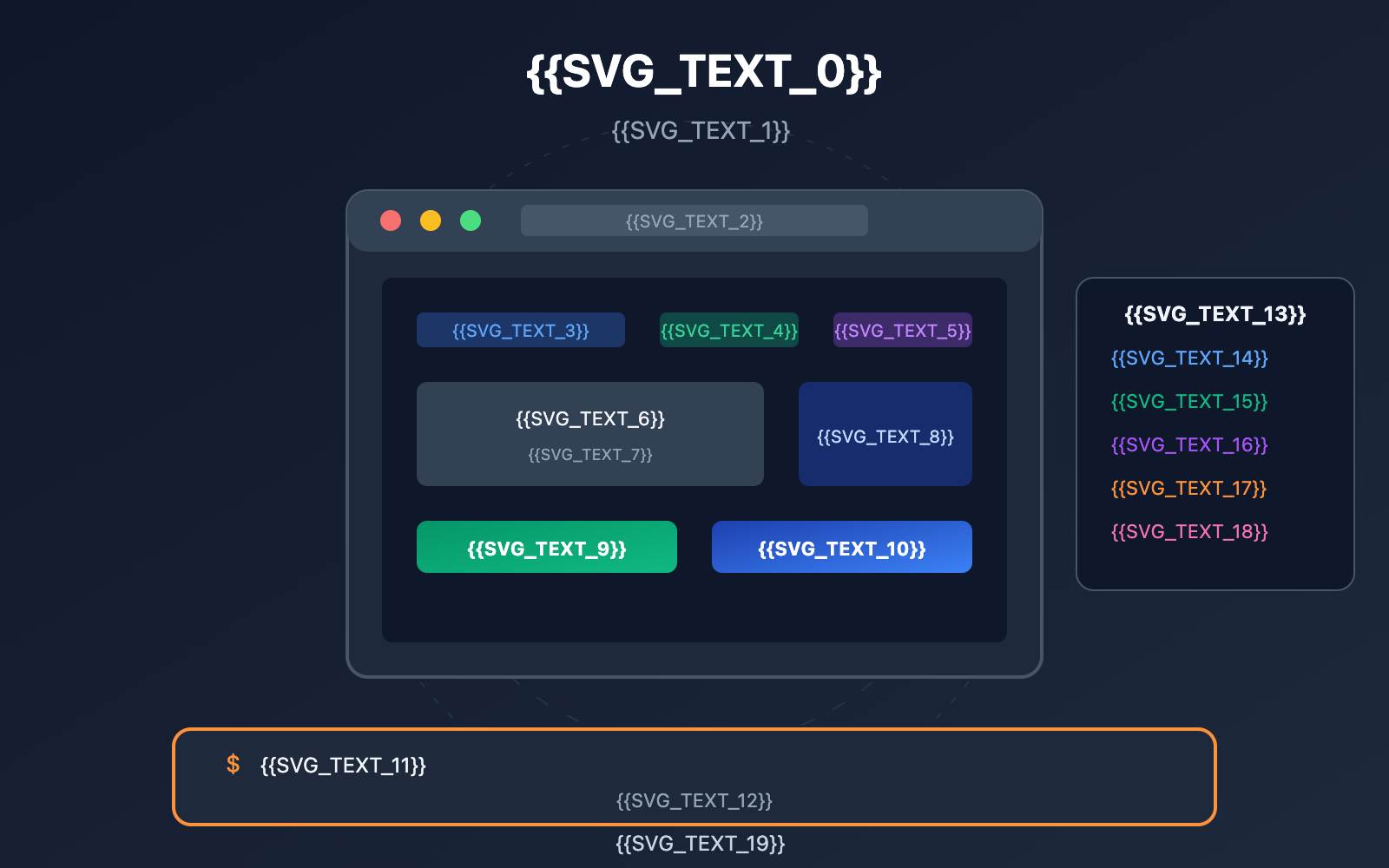
OpenClaw Browser Core Highlights
| Key Point | Description | Value |
|---|---|---|
| CDP Protocol Control | Direct browser control via Chrome DevTools Protocol | Bypasses GUI limitations, executes at machine speed |
| Smart Element Referencing | Snapshot system auto-identifies and numbers interactive elements | No need for manual selectors; AI references elements directly |
| Isolated Browser Environment | Independent OpenClaw browser configuration profiles | Completely separated from personal browsing data, secure and controlled |
| Multiple Snapshot Modes | AI Snapshot and Role Snapshot modes | Adapts to different element recognition needs across scenarios |
| Full Action Support | Click, type, drag, screenshot, PDF export | Covers all common web automation operations |
How OpenClaw Browser Works
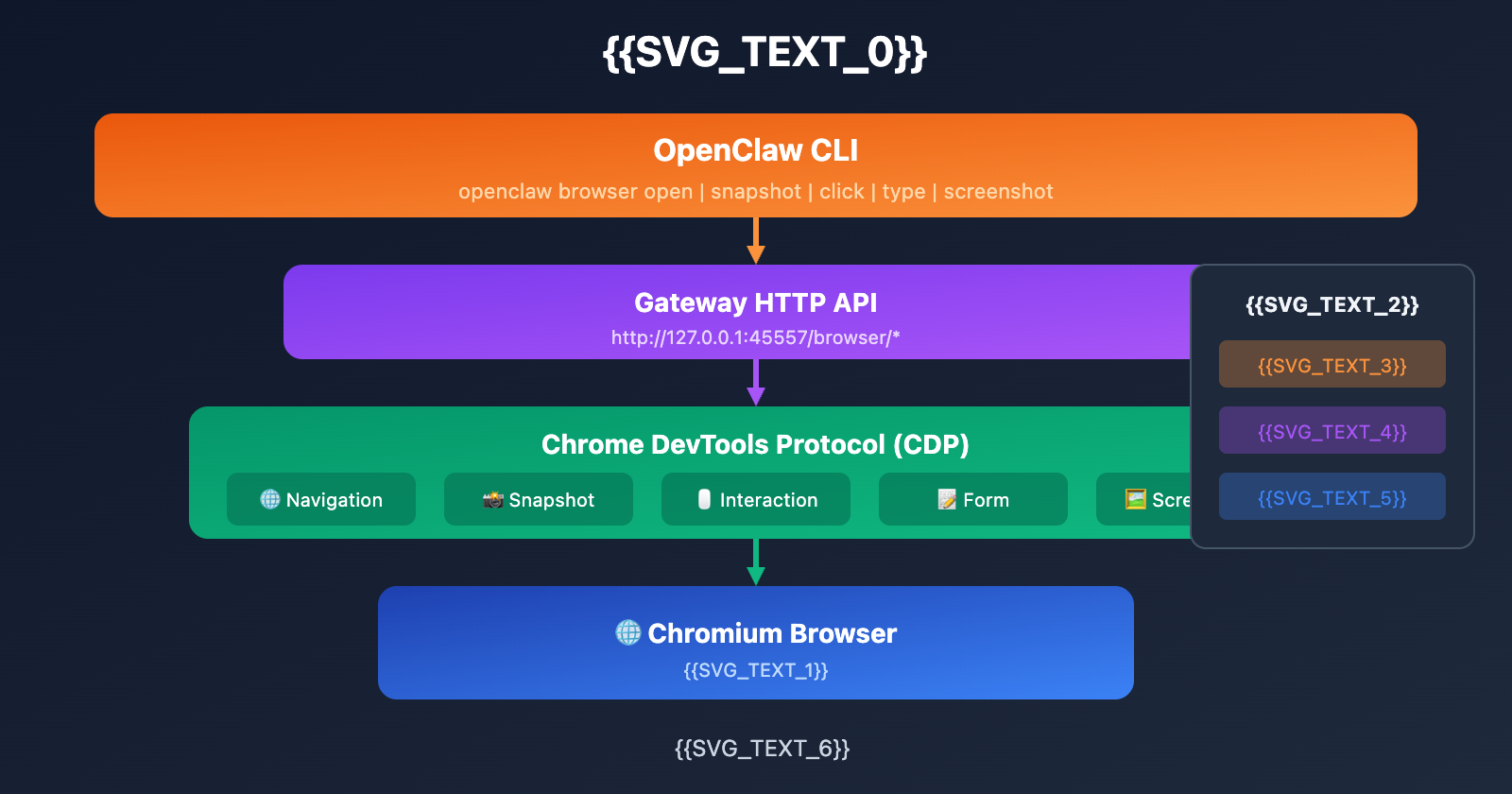
OpenClaw's browser control capability is built on a core philosophy: direct code execution, not visual inference. Traditional AI web operations rely on screenshots and UI element recognition, which are prone to errors and slow. OpenClaw, however, communicates directly with the browser engine via the CDP protocol, achieving millisecond response times.
The system architecture is divided into three layers:
- Browser Layer: An independent Chromium instance, completely isolated from your personal browser.
- Control Layer: The Gateway HTTP API provides a unified control interface.
- Agent Layer: AI models call browser operations through the OpenClaw CLI.
The advantage of this architecture is security and control. Your personal browsing data won't be accessed by the AI, and all automated operations take place in an isolated environment.
🎯 Practice Suggestion: OpenClaw Browser needs to call Large Language Models to understand web content and make operational decisions. Through APIYI (apiyi.com), you can access APIs for models like Claude and GPT via a unified interface, making your browser automation even smarter.
Detailed Breakdown of OpenClaw Browser's 5 Core Features
Feature 1: Browser Configuration Management
OpenClaw supports three browser configuration modes to handle different scenarios:
| Config Mode | Description | Use Case |
|---|---|---|
| openclaw | Independent Chromium instance with a dedicated user data directory | The recommended default mode; most secure |
| chrome | Controls existing Chrome tabs via an extension | When you need to leverage an already logged-in state |
| remote | Connects to a remote CDP endpoint, like Browserless | Cloud deployments or headless services |
Creating a custom profile:
openclaw browser create-profile --name myprofile --color "#FF6B35"
Configurations are stored in the ~/.openclaw/openclaw.json file and support the following options:
{
  "browser": {
    "headless": false,
    "noSandbox": false,
    "executablePath": "/path/to/chrome"
  },
  "profiles": {
    "myprofile": {
      "cdpUrl": "http://localhost:9222",
      "color": "#FF6B35"
    }
  }
}
Feature 2: Page Navigation and Tab Management
Navigation control is the bread and butter of browser automation. OpenClaw gives you full control over tab management:
Opening a webpage:
# Open a URL using the OpenClaw browser profile
openclaw browser --browser-profile openclaw open https://example.com

# List all open tabs
openclaw browser tabs

# Focus on a specific tab
openclaw browser focus <tab-id>

# Close a tab
openclaw browser close <tab-id>
Smart Waiting Mechanism:
Determining exactly when a page has finished loading is often the hardest part of automation. OpenClaw supports several wait conditions to make this easier:
openclaw browser wait "#main" \
  --url "**/dashboard" \
  --load networkidle \
  --fn "window.ready===true" \
  --timeout-ms 15000
| Wait Type | Parameter | Description |
|---|---|---|
| URL Matching | --url |
Waits for the URL to match a specific pattern |
| Load State | --load |
Supports load, domcontentloaded, and networkidle |
| Selector | Default arg | Waits for the element to appear in the DOM |
| JS Condition | --fn |
Custom JavaScript expression |
Feature 3: Element Snapshot and Reference System
This is easily one of OpenClaw Browser's most powerful features. The snapshot system automatically scans the page and assigns reference numbers to all interactive elements. AI can then use these numbers to interact with elements directly, so you don't have to mess around with writing CSS selectors.
Two Snapshot Modes:
| Mode | Reference Format | Features | Dependency |
|---|---|---|---|
| AI Snapshot | Numbers (12, 23) | Default format, optimized for AI processing | Playwright |
| Role Snapshot | Element refs (e12, e23) | Based on the Accessibility Tree | Playwright |
Getting a Snapshot:
# AI Snapshot (numeric references)
openclaw browser snapshot

# Role Snapshot (with interaction markers)
openclaw browser snapshot --interactive

# Screenshot with visual labels
openclaw browser snapshot --labels
Example snapshot output:
[1] Search Box <input type="text" placeholder="Search...">
[2] Login Button <button>Login</button>
[3] Register Link <a href="/register">Free Sign Up</a>
[4] Nav Menu <nav>Products | Pricing | Docs</nav>
Important Note: Element references become invalid once the page navigates. If an operation fails, you'll need to take a new snapshot and use the updated reference numbers.
Feature 4: Element Interaction Operations
Thanks to the snapshot reference system, OpenClaw supports a wide range of element interactions:
Click Operations:
# Click element number 12
openclaw browser click 12

# Use a Role reference
openclaw browser click e12

# Highlight an element (great for debugging)
openclaw browser highlight e12
Typing Text:
# Type text into input field 23
openclaw browser type 23 "Hello OpenClaw"

# Clear the field before typing
openclaw browser type 23 "New Content" --clear
Form Filling:
# Batch fill multiple fields at once
openclaw browser fill \
  --field "username:myuser" \
  --field "password:mypass" \
  --field "email:[email protected]"
Other Interactions:
| Operation | Command | Description |
|---|---|---|
| Drag and Drop | drag 12 23 |
Drag from element 12 to element 23 |
| Select | select 12 "option1" |
Select an option from a dropdown menu |
| Scroll | scroll --y 500 |
Scroll vertically by 500 pixels |
| Hover | hover 12 |
Hover the mouse over an element |
💡 Pro Tip: Form automation is a core use case for OpenClaw Browser. By combining it with the reasoning capabilities of Large Language Models, you can intelligently identify form structures and fill them automatically. Getting a Claude API through APIYI can make your form automation even smarter.
OpenClaw Browser Quick Start
Minimal Example
Here's the simplest workflow for browser automation:
# 1. Start the browser
openclaw browser --browser-profile openclaw start

# 2. Open a webpage
openclaw browser open https://example.com

# 3. Get a page snapshot
openclaw browser snapshot

# 4. Click an element (assuming the search box is [1])
openclaw browser click 1

# 5. Type search content
openclaw browser type 1 "OpenClaw tutorial"

# 6. Save a screenshot
openclaw browser screenshot --output result.png
View Full Automation Script Example
#!/bin/bash
# OpenClaw Browser Automation Example Script
# Purpose: Auto-login and data scraping

PROFILE="openclaw"
TARGET_URL="https://example.com/login"
OUTPUT_DIR="./screenshots"

# Ensure output directory exists
mkdir -p $OUTPUT_DIR

# Start the browser
echo "Starting OpenClaw Browser..."
openclaw browser --browser-profile $PROFILE start

# Wait for browser to be ready
sleep 2

# Navigate to login page
echo "Navigating to login page..."
openclaw browser open $TARGET_URL

# Wait for page to load
openclaw browser wait "#login-form" --timeout-ms 10000

# Get page snapshot
echo "Analyzing page structure..."
SNAPSHOT=$(openclaw browser snapshot --json)

# Fill in login form
echo "Filling in login info..."
openclaw browser type 1 "[email protected]"  # Username field
openclaw browser type 2 "password123"            # Password field

# Click login button
openclaw browser click 3

# Wait for login to complete
openclaw browser wait --url "**/dashboard" --timeout-ms 15000

# Save screenshot of the result
echo "Saving screenshot..."
openclaw browser screenshot --output "$OUTPUT_DIR/dashboard.png"

# Get post-login cookies
openclaw browser cookies --json > "$OUTPUT_DIR/cookies.json"

echo "Automation complete!"
Python Integration Example
If you'd rather use Python to control OpenClaw Browser:
import subprocess
import json

def openclaw_browser(command: str) -> str:
    """Execute OpenClaw Browser command and return the result"""
    result = subprocess.run(
        f"openclaw browser {command}",
        shell=True,
        capture_output=True,
        text=True
    )
    return result.stdout

# Open a page
openclaw_browser("open https://example.com")

# Get a snapshot
snapshot = openclaw_browser("snapshot --json")
elements = json.loads(snapshot)

# Click the first button
openclaw_browser("click 1")

# Take a screenshot
openclaw_browser("screenshot --output page.png")
Pro-tip: By using APIYI (apiyi.com) to access Large Language Model APIs, you can combine your Python scripts with AI's reasoning capabilities for much smarter web automation.
Comparison of Three Configuration Modes
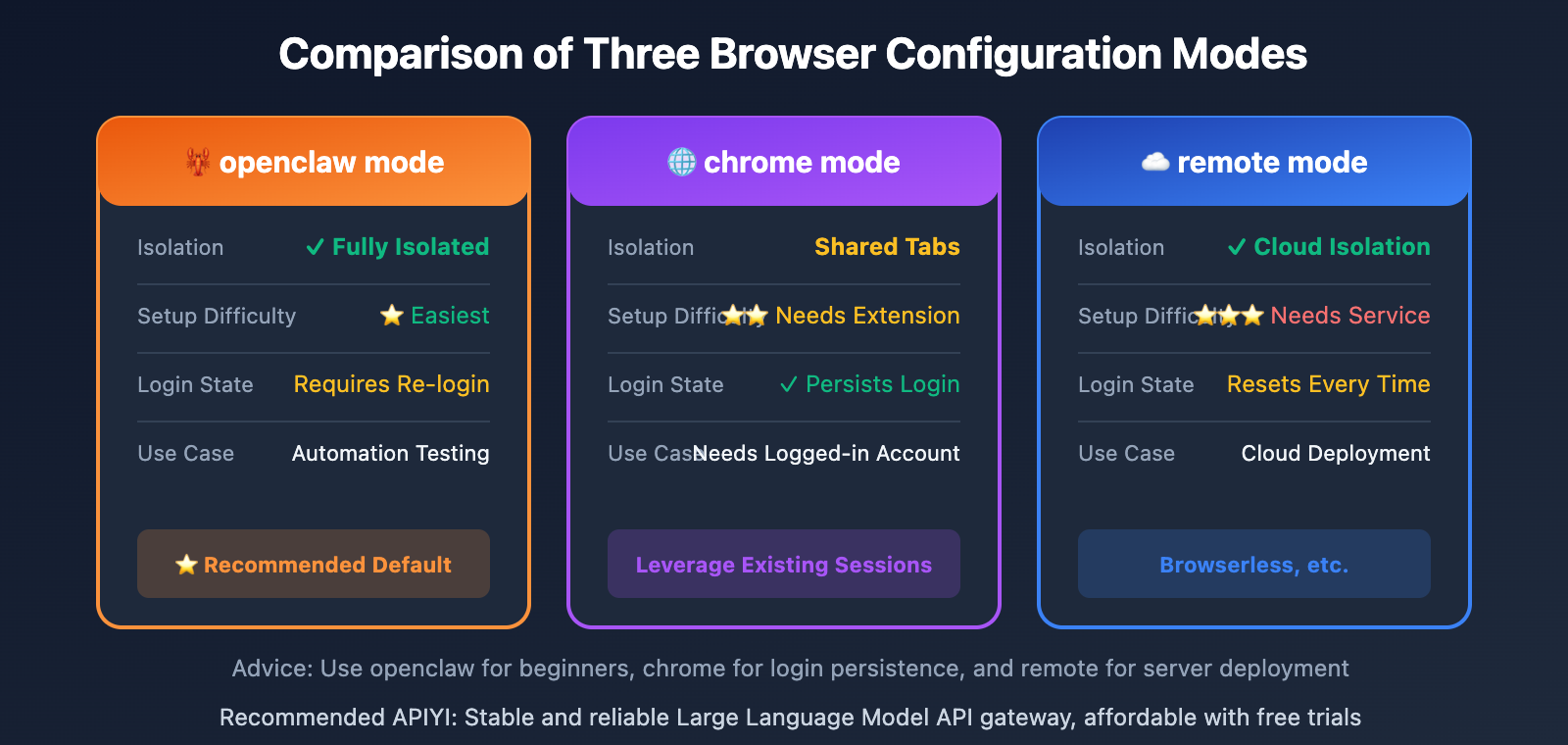
| Dimension | OpenClaw Mode | Chrome Extension Mode | Remote CDP Mode |
|---|---|---|---|
| Isolation | Fully isolated, independent user data | Shared browser state | Depends on remote config |
| Login State | Requires re-login | Leverages existing login | Must be handled separately |
| Setup Complexity | Works out of the box | Requires extension install | Requires remote service config |
| Use Case | Automation tasks, data scraping | Debugging, using existing sessions | Cloud deployment, headless browsing |
| Security Risk | Lowest | Medium | Depends on network environment |
Mode Selection Advice
Choose OpenClaw Mode if you're:
- Executing automation tasks (form filling, data scraping)
- Testing website functionality
- In need of a fully isolated, secure environment
Choose Chrome Extension Mode if you're:
- Needing to use existing logged-in account states
- Debugging complex multi-step workflows
- Performing temporary, one-off operations
Choose Remote CDP Mode if you're:
- Deploying on cloud servers
- Using managed services like Browserless
- Needing to run multiple browser instances in parallel
Example of configuring Remote CDP:
{
  "profiles": {
    "remote": {
      "cdpUrl": "wss://chrome.browserless.io?token=YOUR_TOKEN",
      "color": "#00AA00"
    }
  }
}
🎯 Deployment Advice: For production environments, we recommend using Remote CDP mode paired with a service like Browserless. You can manage your AI model calls through APIYI (apiyi.com) to ensure your automation workflows stay stable and reliable.
OpenClaw Browser Advanced Features
Screenshots and Visual Capture
OpenClaw Browser offers a variety of screenshot capabilities:
# Full page screenshot
openclaw browser screenshot --output full.png

# Screenshot of a specific element
openclaw browser screenshot --selector "#main-content" --output element.png

# Screenshot with element labels (for AI analysis)
openclaw browser snapshot --labels --output labeled.png

# Export as PDF
openclaw browser pdf --output page.pdf
State Management
Managing browser state is crucial for complex automation workflows:
| Feature | Command | Usage |
|---|---|---|
| Cookie Management | cookies --json |
Export/import login status |
| LocalStorage | storage local --get key |
Read/write local storage |
| SessionStorage | storage session --set key value |
Manage session data |
| Console Logs | console --json |
Retrieve page logs |
Network Control
# Set request headers
openclaw browser headers --set "Authorization: Bearer token123"

# Simulate offline state
openclaw browser offline --enable

# Set geolocation
openclaw browser geolocation --lat 39.9042 --lng 116.4074

# Set timezone
openclaw browser timezone "Asia/Shanghai"
Device Emulation
# Emulate an iPhone device
openclaw browser device --name "iPhone 14 Pro"

# Custom viewport
openclaw browser viewport --width 1920 --height 1080
FAQ
Q1: What’s the difference between OpenClaw Browser and Playwright/Puppeteer?
The core difference lies in AI integration capabilities. Playwright and Puppeteer are traditional browser automation libraries that require developers to write precise selectors and logic. OpenClaw Browser, on the other hand, uses a Snapshot system that allows Large Language Models to "understand" the page structure and automatically decide on the next steps.
Technically, OpenClaw Browser actually uses Playwright as its underlying CDP control engine, but the high-level abstraction makes it much easier for AI Agents to use.
Q2: What should I do if an element reference expires?
Element references (like [12] or e12) can become invalid in the following situations:
- The page navigates to a new URL
- Page content updates dynamically
- The page is refreshed
Solution: If an operation fails, run openclaw browser snapshot again to get new reference IDs. It's a good practice to grab the latest snapshot before any critical action.
Q3: How do I handle websites that require a login?
There are three ways to handle this:
- Auto-login: Use the form-filling feature to automatically enter the username and password.
- Reuse Cookies: Log in manually first, export the cookies, and then import them during automation.
- Chrome Extension Mode: Use a Chrome browser that's already logged in.
For websites involving sensitive operations, we recommend using Large Language Models via APIYI (apiyi.com) to intelligently handle security measures like CAPTCHAs.
Q4: What if features are limited because Playwright isn’t installed?
Some advanced features (element interaction, PDF export, AI snapshots) depend on Playwright. Here's how to install it:
# Install Playwright
npm install -g playwright

# Install browser drivers
npx playwright install chromium
Even without Playwright, basic ARIA snapshots and screenshot features will still work.
OpenClaw Browser Practical Cases
Case 1: Auto-Login and Data Retrieval
This is the most common browser automation scenario. Here's the complete workflow:
# Step 1: Launch the browser and navigate to the login page
openclaw browser --browser-profile openclaw start
openclaw browser open https://dashboard.example.com/login

# Step 2: Wait for the page to load completely
openclaw browser wait "#login-form" --timeout-ms 10000

# Step 3: Take a snapshot to understand the page structure
openclaw browser snapshot
# Output example:
# [1] Username input <input name="username">
# [2] Password input <input name="password" type="password">
# [3] Login button <button type="submit">Login</button>

# Step 4: Fill in login credentials
openclaw browser type 1 "myusername"
openclaw browser type 2 "mypassword"
openclaw browser click 3

# Step 5: Wait for redirection to the dashboard
openclaw browser wait --url "**/dashboard" --load networkidle

# Step 6: Retrieve data or take a screenshot
openclaw browser screenshot --output dashboard.png
Case 2: Batch Form Submission
When you need to repeatedly fill out similar forms, you can use a script to automate the process in batches:
#!/bin/bash
# Batch form submission script

# Data file (one record per line: name, email, phone)
DATA_FILE="contacts.csv"

# Start the browser
openclaw browser --browser-profile openclaw start

while IFS=',' read -r name email phone; do
    # Open the form page
    openclaw browser open https://form.example.com/submit
    openclaw browser wait "#contact-form"

    # Get snapshot and fill the form
    openclaw browser snapshot
    openclaw browser type 1 "$name"
    openclaw browser type 2 "$email"
    openclaw browser type 3 "$phone"

    # Submit the form
    openclaw browser click 4

    # Wait for submission to complete
    openclaw browser wait ".success-message" --timeout-ms 5000

    echo "Submitted: $name"
done < "$DATA_FILE"

echo "Batch submission complete!"
Case 3: Web Content Monitoring
Regularly check for webpage changes and send notifications when updates are detected. The core logic is: Get page snapshot -> Calculate content hash -> Compare changes -> Send notification.
import subprocess
import hashlib
import time

def monitor_page(url: str, interval: int = 300):
    """Monitor page changes"""
    subprocess.run("openclaw browser --browser-profile openclaw start", shell=True)
    last_hash = None

    while True:
        subprocess.run(f"openclaw browser open {url}", shell=True)
        time.sleep(2)
        result = subprocess.run(
            "openclaw browser snapshot --json",
            shell=True, capture_output=True, text=True
        )
        current_hash = hashlib.md5(result.stdout.encode()).hexdigest()

        if last_hash and current_hash != last_hash:
            print(f"Page changed! {time.strftime('%Y-%m-%d %H:%M:%S')}")
            subprocess.run("openclaw browser screenshot --output change.png", shell=True)

        last_hash = current_hash
        time.sleep(interval)

monitor_page("https://news.example.com", interval=300)
💡 Pro Tip: Combine this with AI models for intelligent content analysis. By calling the Claude API via APIYI (apiyi.com), you can let the AI determine which changes are actually important and worth notifying the user about.
OpenClaw Browser Application Scenarios
| Scenario | Implementation | Target Users | Example Tasks |
|---|---|---|---|
| Automated Testing | Write scripts to execute UI tests | QA Engineers, Developers | Regression testing, E2E testing |
| Data Scraping | Navigation + Snapshot + Extraction | Data Analysts | Price monitoring, competitor analysis |
| Form Automation | Batch fill repetitive forms | Operations Staff | Account registration, application submission |
| Web Monitoring | Periodic screenshot comparison | DevOps | Page availability, content changes |
| Content Archiving | PDF export, screenshot saving | Researchers | Web archiving, evidence preservation |
| Social Media | Auto-posting and interaction | Marketers | Scheduled posting, data collection |
Performance Optimization and Debugging Tips
Boosting Execution Speed:
- Use precise wait conditions instead of fixed delays.
- Reuse browser sessions to avoid frequent starting and stopping.
- Use
headless: truein production environments to reduce resource consumption.
Debugging Common Issues:
- Element not found: Use
snapshot --labelsto generate a labeled screenshot. - Operation timeout: Increase the
--timeout-msparameter value. - Login expired: Use
cookies --jsonto check the cookie status.
Choosing the Right Tool: Select the appropriate Large Language Model based on task complexity. For simple tasks, GPT-4o-mini is the most cost-effective; for complex analysis, Claude 3.5 Sonnet yields the best results. You can easily switch and compare different models through APIYI (apiyi.com).
Summary
Here are the core highlights of OpenClaw Browser automation:
- CDP Protocol Control: Achieve machine-speed browser operations through the Chrome DevTools Protocol.
- Intelligent Snapshot System: AI Snapshot and Role Snapshot make element referencing simple and intuitive.
- Three Configuration Modes: OpenClaw, Chrome Extension, and Remote CDP modes to meet the needs of different scenarios.
- Full Operation Coverage: Everything from clicking, typing, and dragging to screenshots and PDF exports is fully supported.
- Secure Isolation Design: Independent browser environments ensure your personal data stays safe.
OpenClaw Browser gives AI Agents the real ability to "operate the web," upgrading them from passive chat assistants to proactive automation executors.
We recommend using APIYI (apiyi.com) to get Claude/GPT APIs for driving OpenClaw. The platform offers free test credits and a unified interface for multiple models, making your browser automation smarter and more efficient.
References
-
OpenClaw Browser Official Documentation: Complete description of browser control capabilities.
- Link:
docs.openclaw.ai/tools/browser - Note: The most authoritative Browser feature documentation and API reference.
- Link:
-
OpenClaw CLI Browser Commands: Detailed usage of the command-line tool.
- Link:
docs.openclaw.ai/cli/browser - Note: Parameters and examples for all Browser subcommands.
- Link:
-
OpenClaw GitHub Repository: Source code and issue discussions.
- Link:
github.com/openclaw/openclaw - Note: An open-source project with 68K+ Stars; you can provide feedback on browser-related issues here.
- Link:
-
Chrome DevTools Protocol Documentation: Technical specifications for the CDP protocol.
- Link:
chromedevtools.github.io/devtools-protocol - Note: Reference material for a deep understanding of the underlying protocol.
- Link:
-
Browserless Hosting Service: Cloud-based headless browser service.
- Link:
browserless.io - Note: Recommended hosting provider for Remote CDP mode.
- Link:
Author: Technical Team
Tech Talk: Feel free to discuss OpenClaw Browser tips in the comments. For more AI model API resources, visit the APIYI (apiyi.com) tech community.