title: "RikkaHub Configuration Guide: Connecting to APIYI and Mastering API Channel Types"
description: "Learn how to correctly configure RikkaHub with APIYI. We break down the differences between /v1 and /v1beta channels to help you access all LLMs seamlessly."
tags: [RikkaHub, APIYI, LLM, Android, Tutorial]
Author's Note: RikkaHub is an Android client that supports multiple LLMs. This article uses APIYI as an example to detail the complete steps for connecting to a third-party API proxy service, with a focus on the differences between /v1 and /v1beta channel types and common pitfalls.
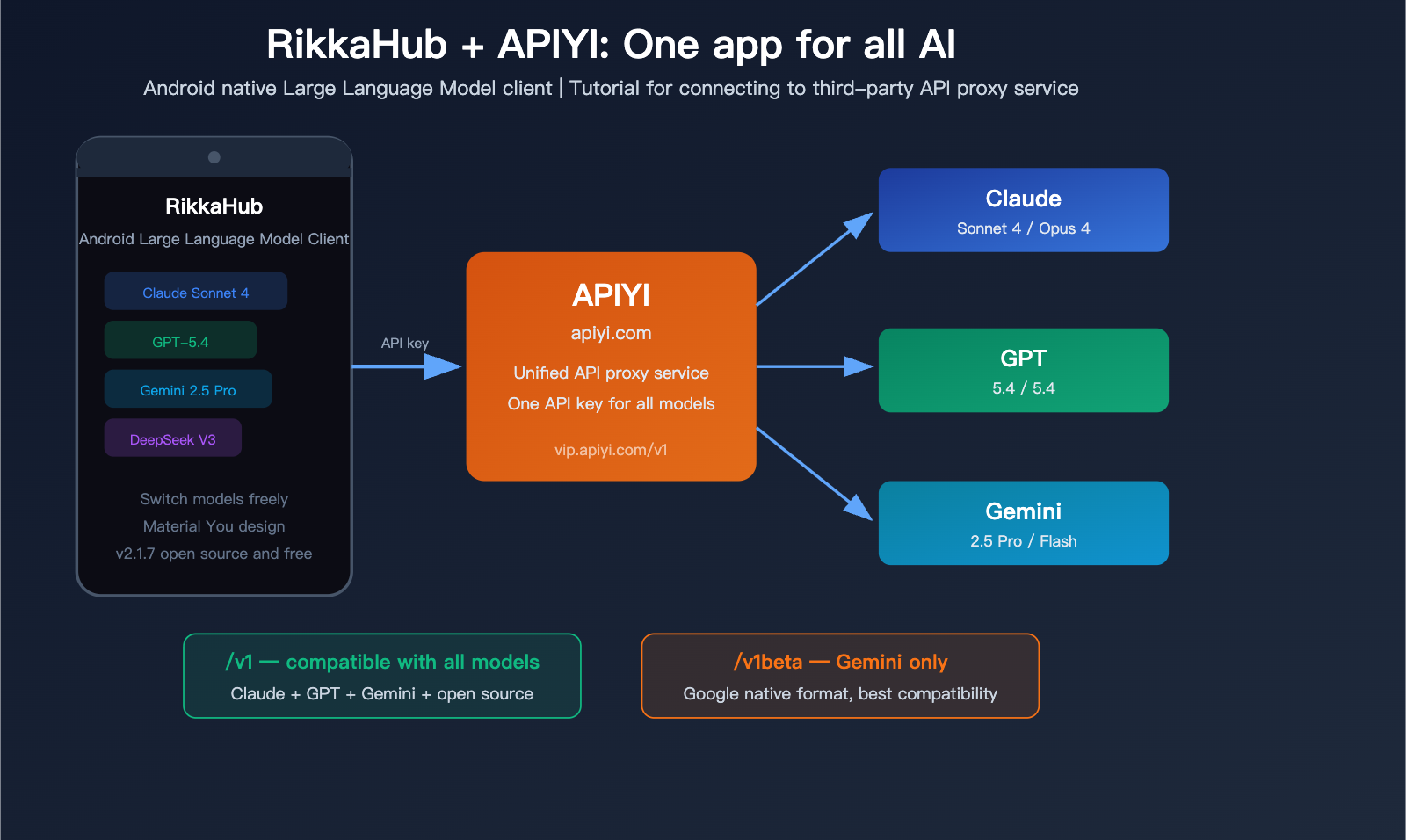
Using Large Language Models on your phone shouldn't mean constantly switching between ChatGPT, Gemini, and Claude apps. RikkaHub is a native Android LLM client that lets you access all mainstream models through a third-party API proxy service. However, many users run into a common issue during setup: the same API key works for every model on the desktop app Cherry Studio, but in RikkaHub, only Google models work, while GPT and Claude fail.
The problem lies in the channel type—specifically the difference between /v1 and /v1beta. In this article, we'll use APIYI as an example to clear up these configuration details once and for all.
Core Value: By the end of this article, you'll know how to correctly configure the APIYI proxy service in RikkaHub, understand the difference between /v1 and /v1beta, and successfully call Claude, GPT, and Gemini models all from a single app.
Key Takeaways for Connecting RikkaHub to APIYI
| Point | Description | Importance |
|---|---|---|
| Channel Type Selection | /v1 for all models, /v1beta for Gemini only |
Critical |
| Base URL | https://vip.apiyi.com/v1 |
Watch the trailing path |
| API Key | Obtained from the APIYI platform | One key for all models |
| Model Selection | Enter model name manually or select from list | Configure as needed |
| Configuration Method | Create separate Providers for each channel type | Best practice |
What is RikkaHub?
RikkaHub is an open-source native Android LLM chat client, built with Kotlin and Jetpack Compose, and featuring the Material You design language. Its standout feature is the ability to connect to multiple AI service providers within a single app and switch between models freely during conversations.
| Basic Info | Details |
|---|---|
| Source Code | github.com/rikkahub/rikkahub |
| Latest Version | v2.1.7 (2026.3.28) |
| Supported Platforms | Android + Web |
| Supported APIs | OpenAI-compatible, Google Gemini native, Anthropic-compatible |
| Core Features | Multi-model switching, multimodal input, search integration, MCP support |
| Installation | Google Play / GitHub Release / Official Website |
RikkaHub's highlights include:
- Multimodal Input: Supports images, PDF, and DOCX files.
- Message Branching: Explore different response paths within a conversation.
- Search Integration: Built-in support for Exa, Tavily, Brave, and other search engines.
- MCP Support: Compatible with the Model Context Protocol.
- Markdown Rendering: Code highlighting, LaTeX formulas, and Mermaid diagrams.
- Character Card Import: Compatible with SillyTavern character cards.
Complete Guide to Configuring APIYI for RikkaHub
Step 1: Get Your APIYI API Key
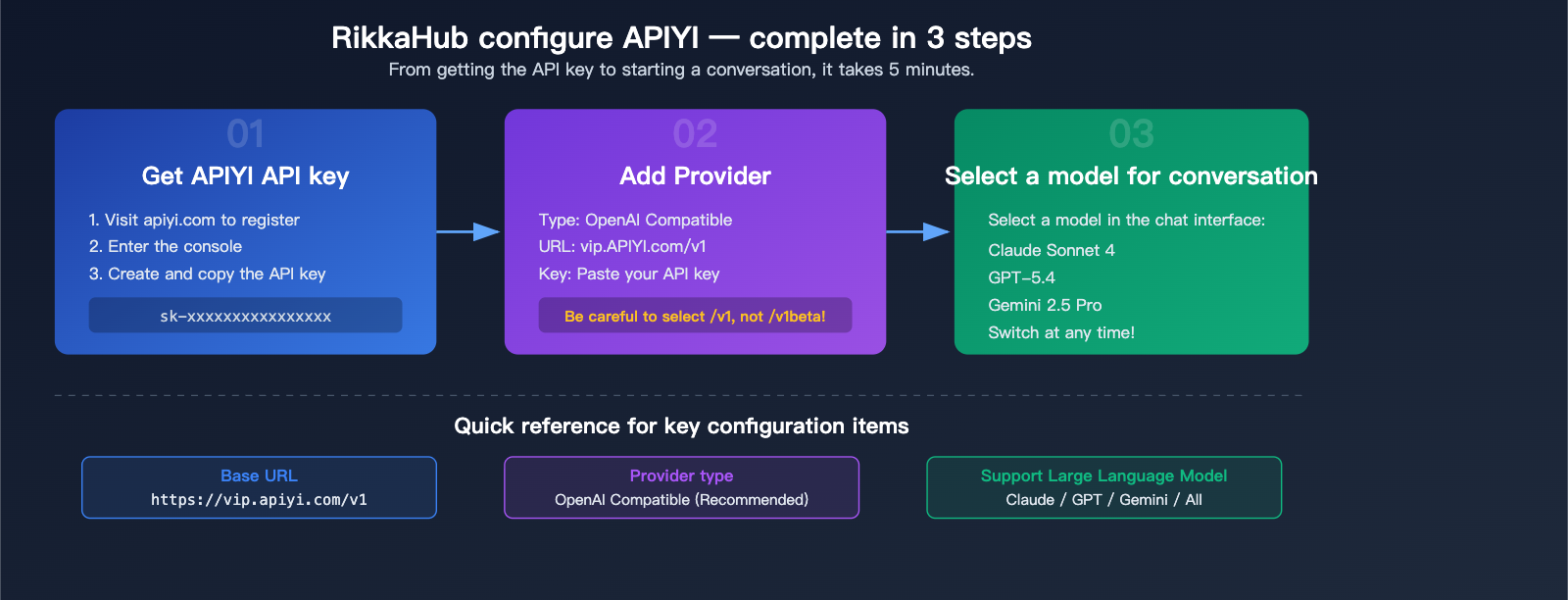
First, grab your API Key from the APIYI platform:
- Visit apiyi.com and sign up for an account.
- Head over to the dashboard and create a new API Key.
- Copy and save your Key (it should look something like
sk-xxxxxxxx).
Step 2: Add a Provider in RikkaHub
Open RikkaHub → Settings → AI Provider → Add New Provider:
Configure an OpenAI-compatible channel (Recommended for all models):
| Configuration | Value | Note |
|---|---|---|
| Provider Type | OpenAI Compatible | Select this option |
| Base URL | https://vip.apiyi.com/v1 |
Make sure it ends with /v1 |
| API Key | Your APIYI Key | sk-xxxxxxxx |
| Model Name | Fill as needed | e.g., claude-sonnet-4-20250514 |
Step 3: Select a Model and Start Chatting
Once configured, just select the corresponding model in the chat interface to start. With APIYI's unified interface, you can use the following in RikkaHub:
- Claude Series: claude-sonnet-4, claude-opus-4, etc.
- GPT Series: gpt-5.4, gpt-5.4-mini, etc.
- Gemini Series: gemini-2.5-pro, gemini-2.5-flash, etc.
- Open-source Models: Llama 4, DeepSeek, etc.
🎯 Quick Start: After getting your API key from apiyi.com, you only need to add one Provider in RikkaHub to freely switch between all mainstream AI models on your phone.
Deep Dive into /v1 and /v1beta: Critical Configuration Differences
Why some models don't work in RikkaHub with the same Key
This is the most common issue for RikkaHub users:
"Why does the same API key work in Cherry Studio on my PC, but on Android RikkaHub, I can only use Google models, and GPT/Claude don't work?"
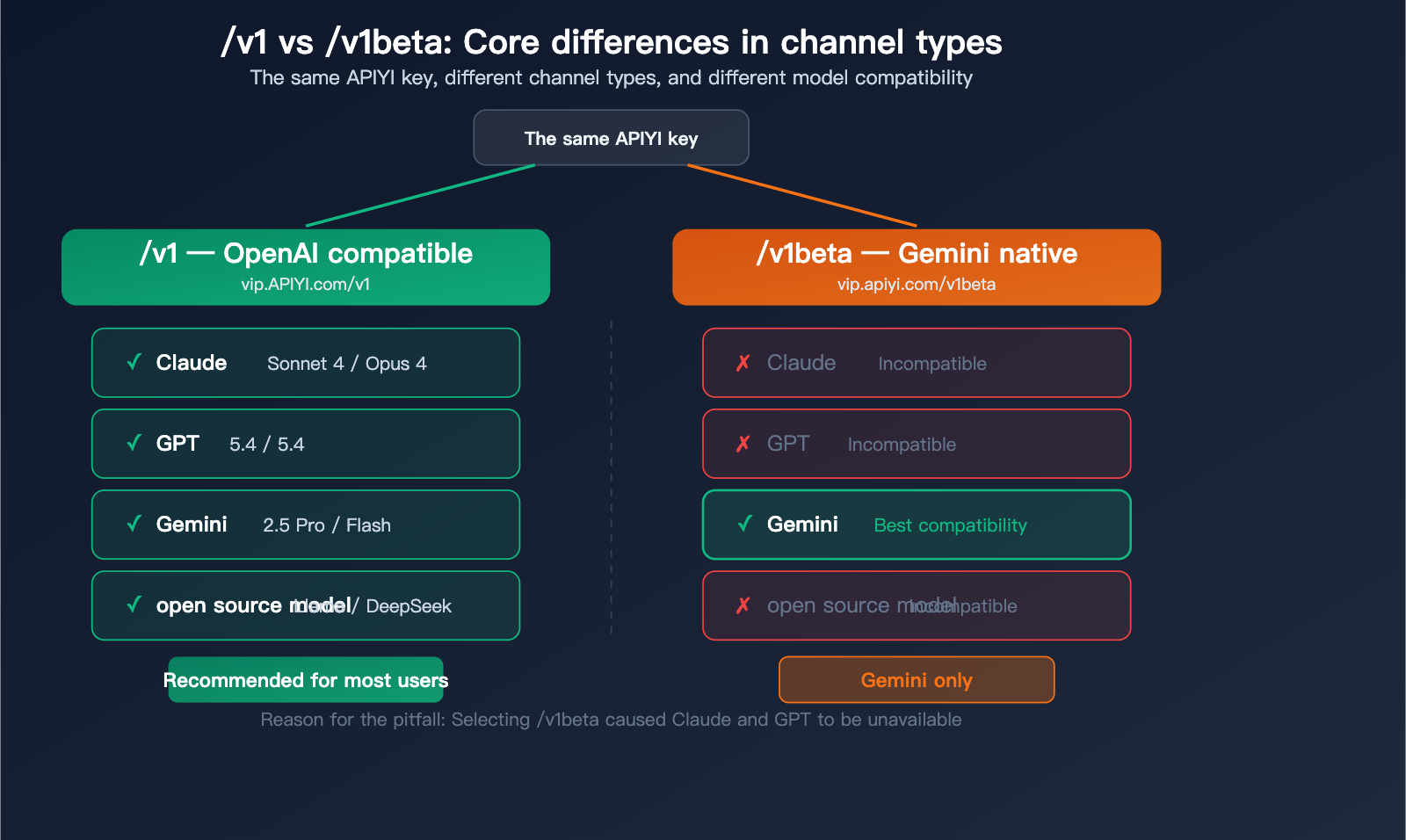
The Root Cause: RikkaHub has two channel types. Choosing the wrong one will make certain models unavailable.
Core Differences Between /v1 and /v1beta
| Feature | /v1 (OpenAI Compatible) | /v1beta (Gemini Native) |
|---|---|---|
| Compatible Models | Claude + GPT + Gemini + Open-source | Gemini series only |
| API Format | OpenAI Chat Completions format | Google Gemini native format |
| Base URL Example | https://vip.apiyi.com/v1 |
https://vip.apiyi.com/v1beta |
| Use Case | General purpose, recommended | When Gemini-specific features are needed |
| Google Model Compatibility | Good | Best |
Advantages and Limitations of /v1beta
/v1beta is the native API format for Google Gemini. When you select the /v1beta path, RikkaHub uses Gemini's native request format (rather than the OpenAI-compatible format) to communicate with the server.
Advantages:
- Best compatibility with Gemini models.
- Supports Gemini-specific features (e.g., Grounding, Safety Settings).
- Native response format without extra conversion.
Limitations:
- Only works for Gemini series models.
- Non-Google models like Claude and GPT will not work at all.
- Because the request format differs, requests sent to Claude/GPT will result in errors.
Recommended Configuration
Option A: Use /v1 only (Recommended for most users)
If you primarily use a mix of Claude, GPT, and Gemini, simply create one OpenAI-compatible Provider:
Provider Type: OpenAI Compatible
Base URL: https://vip.apiyi.com/v1
API Key: sk-your-apiyi-key
This configuration allows you to call all models on APIYI, including Gemini.
Option B: Dual Providers (/v1 + /v1beta) (For advanced users)
If you want the best possible compatibility for Gemini models, you can create two Providers:
| Provider | Type | Base URL | Purpose |
|---|---|---|---|
| Provider 1 | OpenAI Compatible | https://vip.apiyi.com/v1 |
Claude / GPT / Open-source |
| Provider 2 | Gemini | https://vip.apiyi.com/v1beta |
Gemini series (Best compatibility) |
Both Providers use the same APIYI Key, and RikkaHub will automatically select the corresponding Provider based on the model you choose.
💡 Pro Tip: If you only created a
/v1betatype Provider, only Gemini models will work. This is why many users report that "only Google models work." The solution is to create an additional/v1type Provider, or simply use/v1as your sole Provider.
RikkaHub Common Model Configuration Examples
RikkaHub Popular Model Configuration Table
Here are the common model configurations used in RikkaHub via APIYI:
| Model | Model ID | Channel Type | Recommended Use |
|---|---|---|---|
| Claude Sonnet 4 | claude-sonnet-4-20250514 | /v1 | Daily chat, analysis |
| Claude Opus 4 | claude-opus-4-20250514 | /v1 | Complex reasoning |
| GPT-5.4 | gpt-5.4 | /v1 | General flagship |
| GPT-5.4 Mini | gpt-5.4-mini | /v1 | Lightweight & efficient |
| Gemini 2.5 Pro | gemini-2.5-pro | /v1 or /v1beta | Long context window |
| Gemini 2.5 Flash | gemini-2.5-flash | /v1 or /v1beta | Fast response |
| DeepSeek V3 | deepseek-chat | /v1 | Cost-effective reasoning |
| Llama 4 Maverick | meta-llama/llama-4-maverick | /v1 | Top-tier open source |
RikkaHub Advanced Configuration Tips
Custom HTTP Headers: RikkaHub supports custom request headers if you need to pass additional parameters:
Headers:
  X-Custom-Header: your-value
QR Code Import/Export: You can generate a QR code for your provider configuration, making it easy to share with friends or sync across multiple devices.
Prompt Variables: It supports using variables in system prompts, such as {model} (current model name) and {timestamp} (current timestamp).
🚀 Efficiency Tip: With the unified interface from APIYI (apiyi.com), you only need one API key to freely switch between all mainstream models like Claude, GPT, Gemini, and DeepSeek within RikkaHub. Combined with RikkaHub's conversation branching feature, you can quickly compare the response quality of different models.
RikkaHub vs. Other Android AI Clients
| Comparison Dimension | RikkaHub | ChatGPT App | Gemini App | Claude App |
|---|---|---|---|---|
| Multi-model Support | All models | GPT only | Gemini only | Claude only |
| Custom API | Supported | Not supported | Not supported | Not supported |
| Third-party API proxy service | Supported | Not supported | Not supported | Not supported |
| Open Source | Yes | No | No | No |
| MCP Support | Yes | No | No | No |
| Search Integration | Multi-engine | ChatGPT Search | None | |
| Pricing | Free | Subscription | Subscription | Subscription |
RikkaHub's biggest competitive advantage is: one app to handle all AI models. By using an API proxy service like APIYI, you no longer need to pay for or install separate apps for every AI provider.
🎯 Selection Advice: If you only use one AI service (e.g., just ChatGPT), the official app is more convenient. However, if you're like most developers who need to switch between multiple models, RikkaHub + APIYI (apiyi.com) is the most flexible solution on Android.
Troubleshooting RikkaHub Integration with APIYI
Common Errors and Solutions
| Issue | Cause | Solution |
|---|---|---|
| Only Gemini works, others fail | Channel type set to /v1beta | Change to /v1 or create a new OpenAI-compatible Provider |
| All models return errors | Incorrect Base URL | Ensure it is set to https://vip.apiyi.com/v1 |
| Authentication failed | API key is wrong or expired | Check your key status in the APIYI console |
| Model not found | Typo in model ID | Refer to the APIYI documentation to verify the model ID |
| Abnormal response format | Channel type mismatch | Use /v1beta for Gemini, /v1 for others |
Frequently Asked Questions
Q1: Should I choose /v1 or /v1beta?
In most cases, choose /v1. /v1 is the OpenAI-compatible format and supports all models (including Gemini). /v1beta is the native Gemini format; it only supports Gemini models but offers better compatibility. If you primarily use Claude and GPT, go with /v1. If you need the best experience with Gemini, you can create two separate Providers. You can use the same API key from APIYI (apiyi.com) to configure both channels simultaneously.
Q2: What if it works in Cherry Studio but not in RikkaHub?
The most common cause is an incorrect channel type configuration. Cherry Studio defaults to the OpenAI-compatible format (/v1). If you selected the Gemini type (/v1beta) in RikkaHub, non-Google models won't work. Solution: Create a new "OpenAI Compatible" type Provider and set the Base URL to https://vip.apiyi.com/v1.
Q3: Is RikkaHub free?
The RikkaHub app itself is free and open-source. However, model invocation requires API costs. You can obtain an API key via the APIYI (apiyi.com) platform and pay based on actual usage—there are no monthly fees or subscriptions. Compared to subscribing to ChatGPT Plus ($20/mo), Claude Pro ($20/mo), and Gemini Advanced ($19.99/mo) simultaneously, the pay-as-you-go model offered by APIYI + RikkaHub is usually much more cost-effective.
Summary
Here are the key takeaways for integrating third-party API proxy services with RikkaHub:
- Channel Type is Key: The
/v1endpoint is compatible with all models (Claude/GPT/Gemini/Open-source), while/v1betais exclusive to Gemini but offers better compatibility for Google models. - Recommended Dual-Provider Setup: Use
/v1as your general-purpose channel and/v1betaas your dedicated Gemini channel—both can be used with the same APIYI key. - One App for Everything: Combine RikkaHub with APIYI (apiyi.com) to seamlessly switch between Claude, GPT, Gemini, and other models right on your Android device.
No more jumping between three or four different AI apps. We recommend grabbing your API key from APIYI (apiyi.com); one key covers all mainstream models, helping you turn RikkaHub into your ultimate all-in-one mobile AI assistant.
📚 References
-
RikkaHub GitHub Repository: Open-source code and latest releases.
- Link:
github.com/rikkahub/rikkahub - Note: Includes full source code, release downloads, and feature documentation.
- Link:
-
RikkaHub Official Documentation: Provider configuration and usage guides.
- Link:
docs.rikka-ai.com - Note: Contains detailed configuration methods for various providers.
- Link:
-
APIYI Documentation Center: API key acquisition and model lists.
- Link:
docs.apiyi.com - Note: Includes IDs, pricing, and invocation examples for all supported models.
- Link:
Author: APIYI Technical Team
Technical Discussion: Feel free to share your RikkaHub configuration experiences in the comments. For more resources on AI model integration, visit the APIYI documentation center at docs.apiyi.com.