
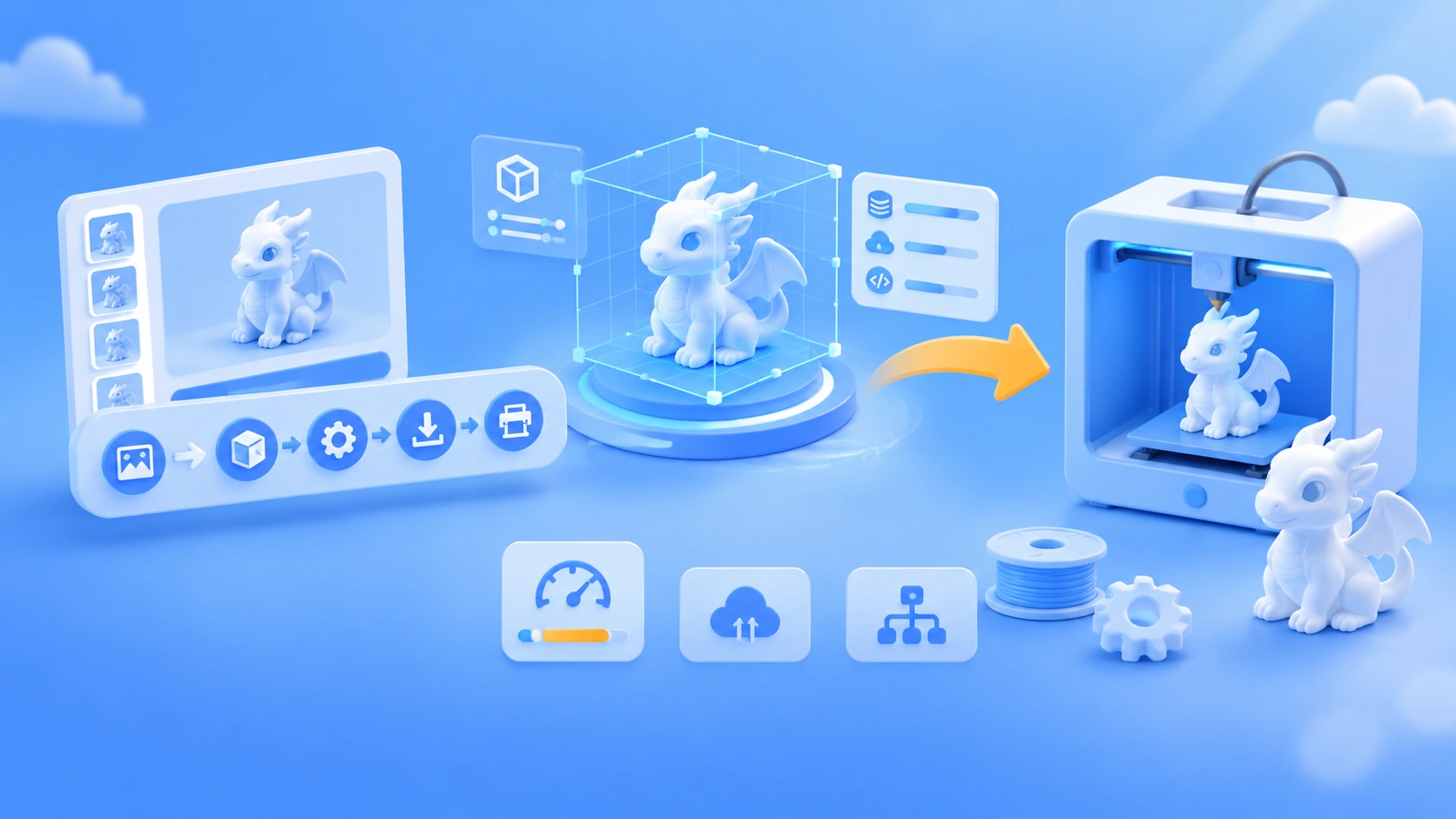
Bottom line: Kimi 3D Make doesn’t just turn a text prompt into a mesh. It uses K3.1 Pro to write Blender / CAD scripts and build the model in the cloud, so you can edit it, separate its parts, and export it for printing. The trade-offs: it’s slow (think minutes), uses your membership quota, and can still get complex structures wrong.
It’s useful for ornaments, brackets, showcase pages, and rough models, but it won’t replace precision modeling. The evidence in this article falls into three categories: official claims, individual third-party examples, and unverified information. We haven’t run our own tests, and we’ll identify the source of each third-party result.
What Is Kimi 3D Make?
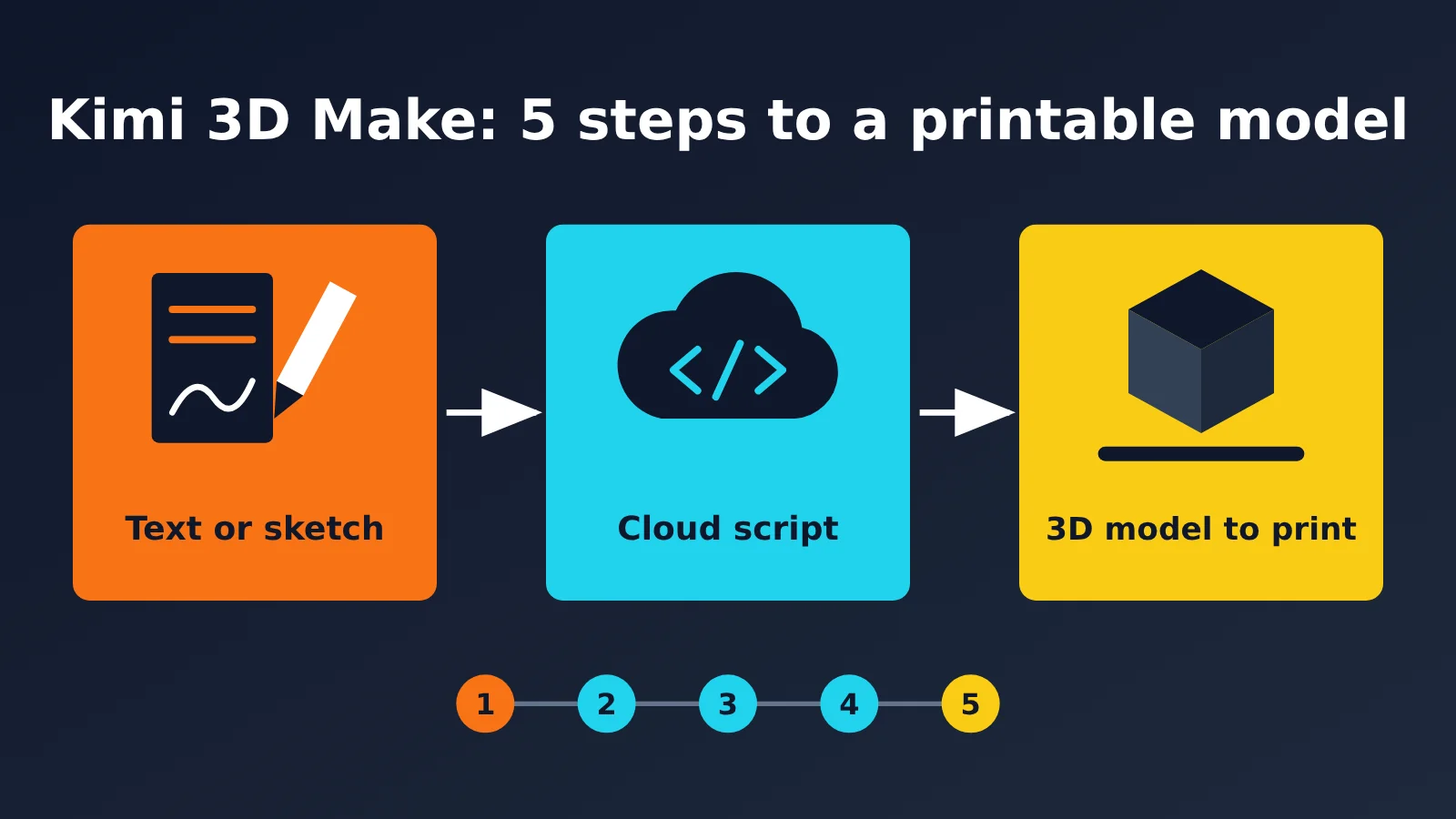
According to the official description, Kimi 3D Make is an AI 3D creation product powered by Kimi K3.1 Pro. It generates 3D creations from natural language, sketches, or reference images, with no modeling software or code required from the user. It launched alongside K3.1 Pro on 2026-10-24 and currently offers three modes. If you don’t select one, Kimi chooses automatically based on your description.
| Mode | Official output | Best for | What to consider |
|---|---|---|---|
| 3D Web | Interactive 3D web pages and web games | E-commerce showcases, educational demos, interactive prototypes | You want something to view online, not a physical object |
| 3D Modeling | Detailed 3D models | Product mockups, parametric furniture, architectural models | You’ll need multiple rounds of revisions to parts and proportions |
| 3D Printing | Files ready for 3D printing | Ornaments, brackets, lights | You still need to check for holes and verify the scale before printing |
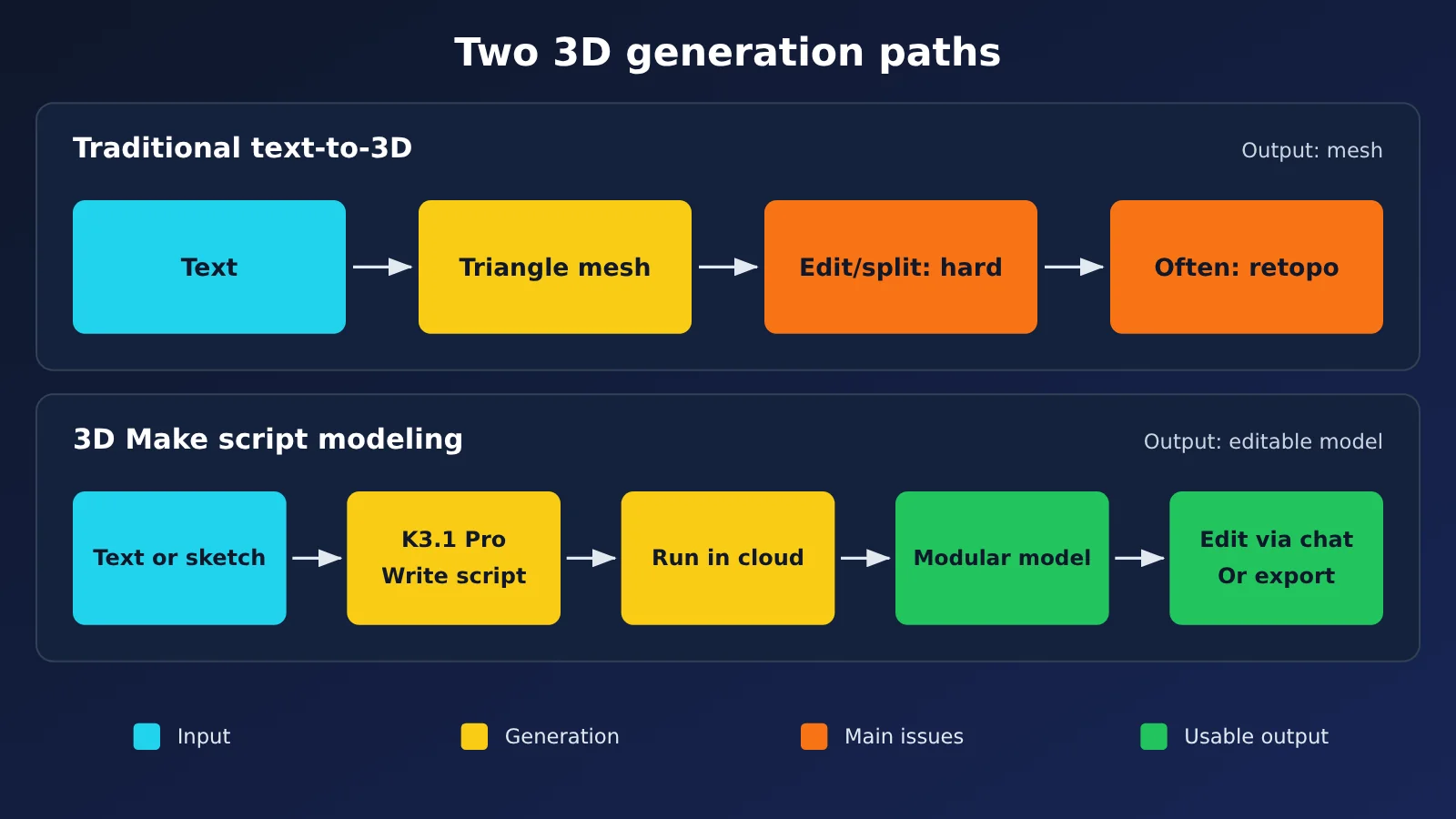
The difference between 3D Make and traditional text-to-3D tools is what you get at the end. Traditional tools generate a triangle mesh directly. That’s fast, but the result is usually hard to edit or take apart. With 3D Make, the model writes scripts to build the object, so you can continue editing individual parts, geometry, materials, and scene layout.
The rule of thumb is simple: if you just want a good-looking 3D image, there’s no need to wait. If you want a model you can edit, take apart, and print, those extra minutes may be worth it.
How Do You Access Kimi 3D Make?
There are three ways to access it on the web—just pick one. You can also use the Kimi app on your phone, with support for iOS, Android, and HarmonyOS.
- Go directly to
kimi.com/make3d. - On
kimi.com, click “3D Make” in the feature bar below the input box. - Click “3D Make (New)” in the left sidebar.
The opening screen has an engineering-drawing-inspired design with the heading “Bring Your Blueprint to Life.” It showcases three examples: 3D printing, 3D modeling, and 3D web pages. Below the input box, you’ll find “Select Type,” “K3.1 Pro Extreme,” “Select Project,” and “Plugins,” in that order.
The model menu has three options: the default K3.1 Pro, K2.8 Preview, and Fast. You can also adjust thinking intensity, conversation length, and speed below the model options. If you’re new, start with the defaults. Kimi hasn’t published how these settings affect usage limits, so don’t guess.
Get Started with Kimi 3D Make in 5 Steps
Step 1: Choose a Type or Start from a Template
- What you’ll see: “Choose Type” below the input box, plus six categories of featured templates further down the homepage.
- What to click: Select a type directly, or click a template card, review its prompt, and select “Make One Like This.”
- Check: A type is selected, or Kimi will determine it automatically. If you’re using a template, its thumbnail should appear in the input box.
If you’re new, start with a template. Each one comes with a complete, officially tuned prompt, and changing a sentence is usually easier than describing everything from scratch.
Step 2: Describe What You Want to Make
- What you’ll see: The input box and a “+” button to its left.
- What to click: Describe the intended use, style, materials, colors, and dimensions or proportions. If you have a sketch or reference image, upload it using “+”, then send your request.
- Check: Your description includes at least the intended use and dimensions. For example, “a 25 cm tall desktop headphone stand for 3D printing” is clearer than “make a nice-looking stand.”
Step 3: Generate and Preview the Model
- What you’ll see: Generation takes time, and complex designs may take several minutes. Once it’s done, an interactive preview appears.
- What to click: Rotate the model 360 degrees and zoom in to inspect the front, back, bottom, and connection points.
- Check: All parts are present, the proportions look right, and nothing is visibly misaligned or floating.
Step 4: Refine the Details Through Conversation
- What you’ll see: Once the model is generated, you can continue requesting changes in the conversation.
- What to click: Settle on the overall structure first, then refine the details over several rounds. Try to request only one type of change per round.
- Check: The intended area has been updated without breaking other parts. Keep in mind that changes also consume your quota.
Step 5: Export and Open in Slicing Software
- What you’ll see: Options to download a print file, export a video or Live Photo, or generate a share link.
- What to click: Download the print file and import it into your slicing software. If you only want to showcase the model, you can export a video or generate a public link.
- Check: The dimensions in the slicing software match your expectations, there are no holes, and the model slices successfully.
Avoid These 3 Common Pitfalls
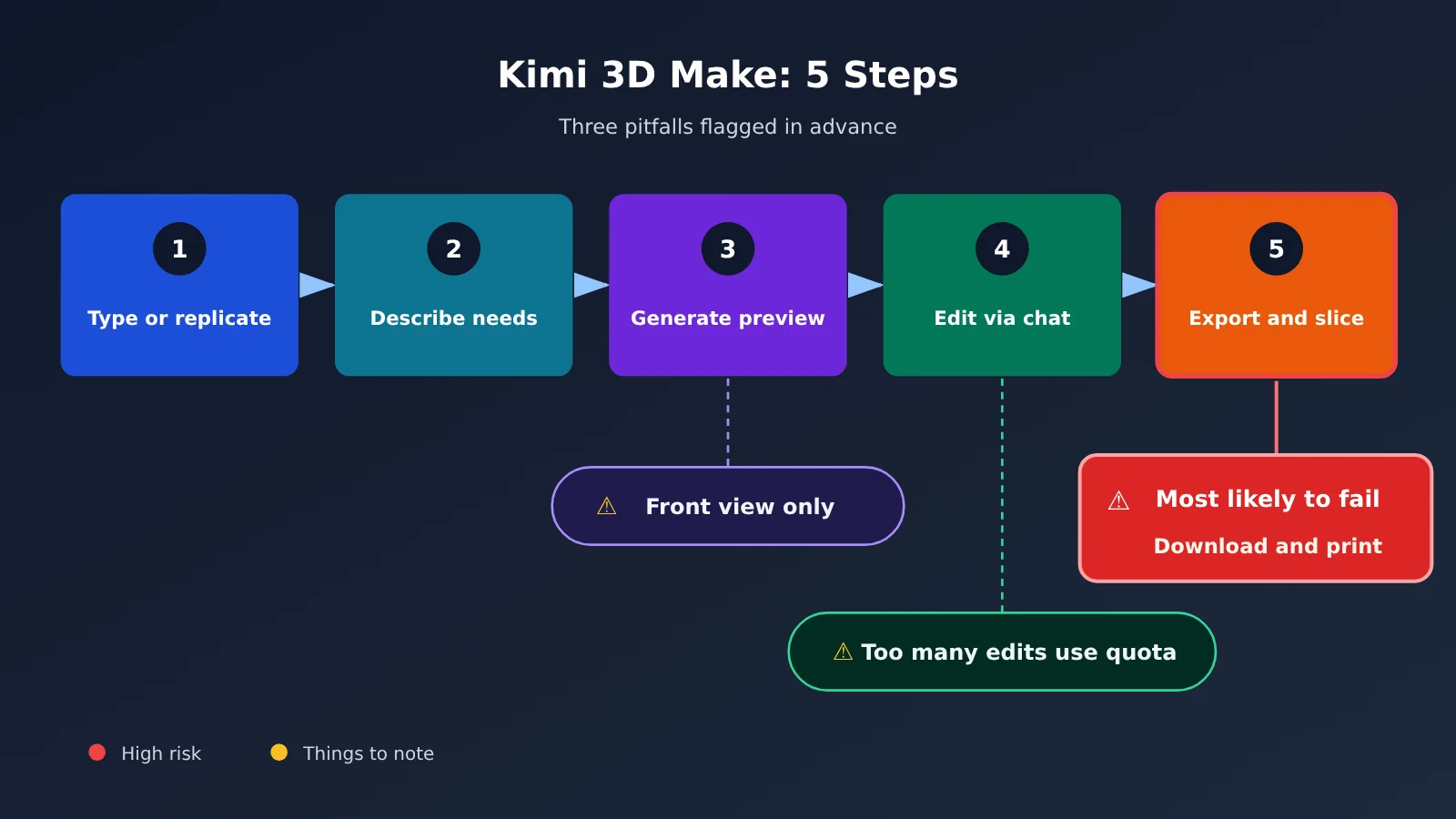
- Only checking the front in Step 3: A good-looking front doesn’t mean the spatial relationships are correct. Check the back and connection points too.
- Making unlimited changes in Step 4: Every round of changes consumes quota. 36Kr reported that one user said they used up their quota in 10 minutes on launch day. That’s just one case, but it’s a good reminder to settle on the structure first.
- Printing right after downloading in Step 5: This is where things are most likely to go wrong. The official guidance also recommends checking for holes and confirming the proportions before printing.
Breaking Down a Kimi 3D Make Case Study
A case reported by AI Era and 36Kr is worth a closer look: a hand-drawn three-view sketch was given to K3.1 Pro, and about 40 minutes later, it produced a 608-line Blender script, an editable .blend file, a 1.7 MB GLB file, and a web page. The sketch specified a wingspan of 8.0, an overall length of 6.2, and a height of 2.4. The finished model measured 8.000, 6.199, and 2.400.
The case shows that script-based modeling can produce editable project files, with dimensions that closely match the annotations. The reports say the same workflow can also run in 3D Make, with the work done in the cloud and no local Blender installation required. But it’s just one third-party example, so 40 minutes shouldn’t be treated as the average turnaround time.
There’s another side to consider. 36Kr and InfoQ report that some developers needed several rounds of “keep improving” before getting the final result. Discussions on Zhihu also suggest that while the official examples look impressive, results from a single generation are often mediocre. The robotic arm with 2,317 components and the turbofan engine with 2,100 entities are both handpicked official examples, not representative of average results.
How Should You Read Kimi 3D Make’s Benchmark Results?
The advertised 92.7% comes from BenchCAD, a benchmark that tests how well a model can generate CAD code from multi-view renders to reconstruct a 3D object. The test used a subset of 1,000 files and scored results using Voxel IoU. That 92.7% needs to be considered alongside the 72.8% score without tools.
| Model | With tools | Without tools |
|---|---|---|
| Kimi K3.1 Pro | 92.7% | 72.8% |
| Claude Opus 5.5 | 96.2% | 73.0% |
| GPT-6 Astra | 95.9% | Not listed |
| Claude Fable 5.1 | 92.6% | 60.6% |
| DeepSeek-V4.1-Flash-1017 | 81.6% | 41.2% |
With tools, K3.1 Pro scores below Opus 5.5 and GPT-6 Astra. Without tools, it’s roughly on par with Opus 5.5. So the reasonable conclusion is that it has “strong 3D capabilities,” not that it’s “far ahead of the competition.”
It’s also worth noting that this benchmark measures the model’s reconstruction ability—not the 3D Make product itself or the likelihood of a successful print. A 92.7% score doesn’t mean nine out of ten models are ready to print straight away.
How Does Kimi 3D Make Usage Work?
3D Make doesn’t charge per use, and there’s no fixed price for a single generation. It shares a usage allowance with subscription features such as Agent, Deep Research, and Slides. Usage is deducted based on actual token consumption, and both generation and revisions count.
Your allowance refreshes each month on your subscription anniversary date. Unused allowance expires—it doesn’t roll over and can’t be converted to cash. If you run out, tasks already in progress will finish, but you’ll see an insufficient allowance message when starting a new task.
| Tier | Monthly subscription | One month | Annual subscription | Notes |
|---|---|---|---|---|
| Go | ¥39/month | ¥49 | ¥468 | Everyday use |
| Plus | ¥79/month | ¥99 | ¥948 | Starts at 2× the Agent allowance |
| Pro | ¥159/month | ¥199 | ¥1,908 | Starts with K3.1 Pro Highspeed support |
| Max | ¥559/month | ¥699 | ¥6,708 | Higher tier |
| Ultra | ¥1,119/month | ¥1,399 | ¥13,428 | Higher tier |
These prices come from the official pricing page dated October 30, 2026. Buying a single month costs more than a recurring monthly subscription. On the web, check your balance under “My → Settings → Subscription.” In the app, go to “My → Membership Plan → Subscription.” The web version also shows your 10 most recent usage records.
Kimi hasn’t published how much allowance a single 3D Make task uses, and it’s unconfirmed whether the free tier can complete a full task. If a task fails because of a system error and produces no usable result, you can click 👎 to report it. Once verified, the allowance will be refunded. Subscription and API allowances are separate, so a Kimi subscription can’t be used to offset charges on APIYI (apiyi.com) or other API channels. You’ll need to account for them separately.
How do you export and print models from Kimi 3D Make?
The official documentation only says the files can be “used directly for 3D printing.” The help center doesn’t list all supported formats. Third-party testers, including QbitAI, have reported seeing GLB and 3MF, but those formats aren’t officially guaranteed.
GLB is a general-purpose 3D format that slicers may not support directly; 3MF is better suited to printing workflows. Once you’ve downloaded a file, import it into Bambu Studio, PrusaSlicer, or Cura to check it, and convert it if needed.
| What you’re printing | Recommendation | Why |
|---|---|---|
| Static figures, lamps, and brackets | Worth trying | Single-piece structures are easier to inspect and fix |
| Models with moving joints | Proceed with caution | Most will need adjustments in modeling or slicing software |
| Parts with tolerance-sensitive fits | Don’t print directly | You’ll need to verify assembly clearances yourself |
| Load-bearing structural parts | Don’t print directly | An AI model can’t replace structural safety validation |
How does Kimi 3D Make relate to the API?
3D Make is only available through the Kimi website or app, where you create models one at a time. It doesn’t offer a public API. The Kimi Open Platform provides three types of interface—Chat Completions, Responses, and Messages—for model invocation, not access to the 3D Make product feature.
If you want to build a pipeline for 3D assets, take a different route: call the K3.1 Pro API to write Blender, trimesh, or CAD scripts, then run them on your own machine. APIYI (apiyi.com) offers kimi-k3.1-pro and kimi-k3.1-pro-highspeed. Here’s how to get started:
- Sign up at APIYI apiyi.com and get an API key. New users can use the free credit to test a small prototype.
- Set your OpenAI-compatible client’s
base_urltohttps://api.apiyi.com/v1andmodeltokimi-k3.1-pro. - Specify the modeling tool, dimensions, components, and export format in your prompt, and ask for executable scripts only.
- Run the script in an isolated environment, for example with
blender --background --python build.py, then send any errors back to the model for correction. - Use scripts to check dimensions and file integrity, and import a sample of the output into a slicer.
| Platform model | Input | Output | Cache read |
|---|---|---|---|
kimi-k3.1-pro |
$2 | $10 | $0.2 |
kimi-k3.1-pro-highspeed |
$4 | $20 | $0.2 |
Prices in the table are in USD per million tokens. Check the platform’s model list at docs.apiyi.com/models for the current models and pricing. With this approach, you’re responsible for the execution environment, error retries, and final quality checks—but you get a workflow that’s repeatable and can run at scale.
When Should You Avoid Kimi 3D Make?
- Precision mechanical parts: Parts with tolerance and assembly requirements still belong in a professional CAD workflow.
- Structural and mass-production parts: Don’t rely on its output as-is for industrial designs that need load-bearing validation or will go into production tooling.
- Large asset batches: Clicking through hundreds of models one at a time isn’t practical. Use API scripts instead.
Risks and Limitations of Kimi 3D Make
- Spatial relationships can still be wrong: Simon Willison asked the model to draw a “pelican riding a bicycle” in SVG. Even at the highest reasoning setting, it drew both of the bird’s legs on the same side. This wasn’t a test of 3D Make, but it’s a reminder to inspect models from every angle.
- Check before printing: Look for holes and verify the proportions. Don’t skip the preview or checks in your slicing software.
- Don’t print critical components as-is: Load-bearing parts and parts that require precise tolerances must be designed and validated separately.
- Assess the output yourself: The page footer notes that the content is AI-generated. For printed objects you intend to use, assess their structural safety yourself.
- Early releases may be unstable: The official purchase page warns that K3.1 Pro may experience queues or failed requests during its initial release, and recommends buying according to your needs.
Kimi 3D Make FAQ
Q1: Can Kimi 3D Make replace modeling software?
It can save you a lot of modeling work when making decorative objects, display pages, and rough models. But you’ll still need professional software for precise tolerances, assemblies, and structural validation.
Q2: How is it different from traditional text-to-3D tools?
Traditional tools usually generate meshes directly, which is fast but makes them difficult to edit. 3D Make uses scripts to build models, making them easier to modify and break apart. The trade-off is that it’s slower and uses more quota.
Q3: Can free users access Kimi 3D Make?
Free users get a quota, but it’s small. Whether it’s enough to complete a full 3D Make run hasn’t been verified. If you want to use it regularly, estimate costs based on the membership tiers.
Q4: What formats can Kimi 3D Make export?
There’s no complete official list. Third-party tests have reported GLB and 3MF, but check the files you download and inspect them in slicing software first.
Q5: How can I generate 3D models in batches?
3D Make doesn’t have an API. You can use APIYI apiyi.com to call `kimi-k3.1-pro` to generate modeling scripts, then run and validate them in your own environment.
Q6: Can Kimi membership quota be used to cover API costs?
No. Kimi has made it clear that membership and API usage are billed separately, and their quotas aren’t interchangeable. If you use both a membership and APIYI apiyi.com, budget for them separately.
Summary: Should You Hand It Over to Kimi 3D Make?
- Good fit: Decorative objects, brackets, lamps, 3D showcase pages, and rough models you can refine later.
- Don’t hand it over directly: Parts requiring precise tolerances, load-bearing components, or industrial designs intended for molds.
- Know the limits before you start: Quotas are shared and reset monthly, complex tasks can take a while, and benchmark results depend on which of two scoring methods you use.
- Don’t skip validation: Preview, revise, and check the slices. Above all, don’t download a model and send it straight to the printer.
If you’re only making a few pieces, the easiest way to start is with official templates and the “Make a Similar One” feature. If you’re building a batch production pipeline, use APIYI apiyi.com to test the scripting approach on a small sample before scaling up.
References
- Kimi Help Center – Introduction to 3D Make: Official definitions, steps, and precautions
- Link:
kimi.com/help/3d-make/3d-make-overview - Kimi Official Announcement – K3.1 Pro: Model capabilities, official examples, and leaderboards
- Link:
kimi.com/news/kimi-k3-1-pro - Kimi Membership Pricing: Membership tiers and prices
- Link:
kimi.com/membership/pricing - QbitAI: Hands-on test of mechanical keyboard modeling and GLB and 3MF exports
- Link:
qbitai.com/2026/10/505108.html - 36Kr/New Intelligence: A modeling example based on hand-drawn three-view sketches
- Link:
36kr.com/p/4039469378163840 - 36Kr/InfoQ: Community feedback on quotas and multiple rounds of revisions
- Link:
36kr.com/p/4039236862514306 - NetEase Tech: Simon Willison’s pelican test
- Link:
163.com/tech/article/LA0CN31M00097U7T.html - MIXED: A full comparison of the two BenchCAD scoring methods
- Link:
mixed-news.com/en/kimi-k3-1-pro-3d-make-apps-code-release
Author: APIYI Technical Team
Technical discussions: Visit APIYI apiyi.com for model integration resources or to contact us