

Author’s note: This article walks through the full workflow for using GPT-6.2 Astra to make a PPT from a template file or screenshot, including preparing references, starting with a representative slide, spelling out component editability requirements, and four acceptance checks—so you can deliver a PPTX that can still be edited.
Summary: GPT-6.2 Astra can reference an original slide deck file or a single screenshot and carry over the layout, color scheme, typography, and copy style to make a PPT. Whether you end up with an editable deliverable depends on how you frame the task and how you review the result.
The short answer: When using GPT-6.2 Astra to make a PPT from a template, I recommend a four-step process: prepare references → create a representative slide first → spell out component editability requirements → verify each item in the target PowerPoint. If you have the original template file, upload the file first; if you only have a screenshot, the model can still rebuild the page from the image, but you’ll need to spell out the fonts, font sizes, and brand colors separately. Always supply business numbers from the current source materials; don’t ask the model to transcribe them from images. Whether the final file is truly editable should be judged by the actual objects, slide masters, and chart data in the exported file—a .pptx extension alone doesn’t prove anything.
A note on sourcing: The capability description in this article comes from OpenAI’s official case study and help documentation published on November 17, 2026, and reflects vendor demos and early feedback. The task briefs and scripts in this article are only for self-testing; we did not actually generate or export files based on them, and we don’t treat official examples as empirical conclusions.
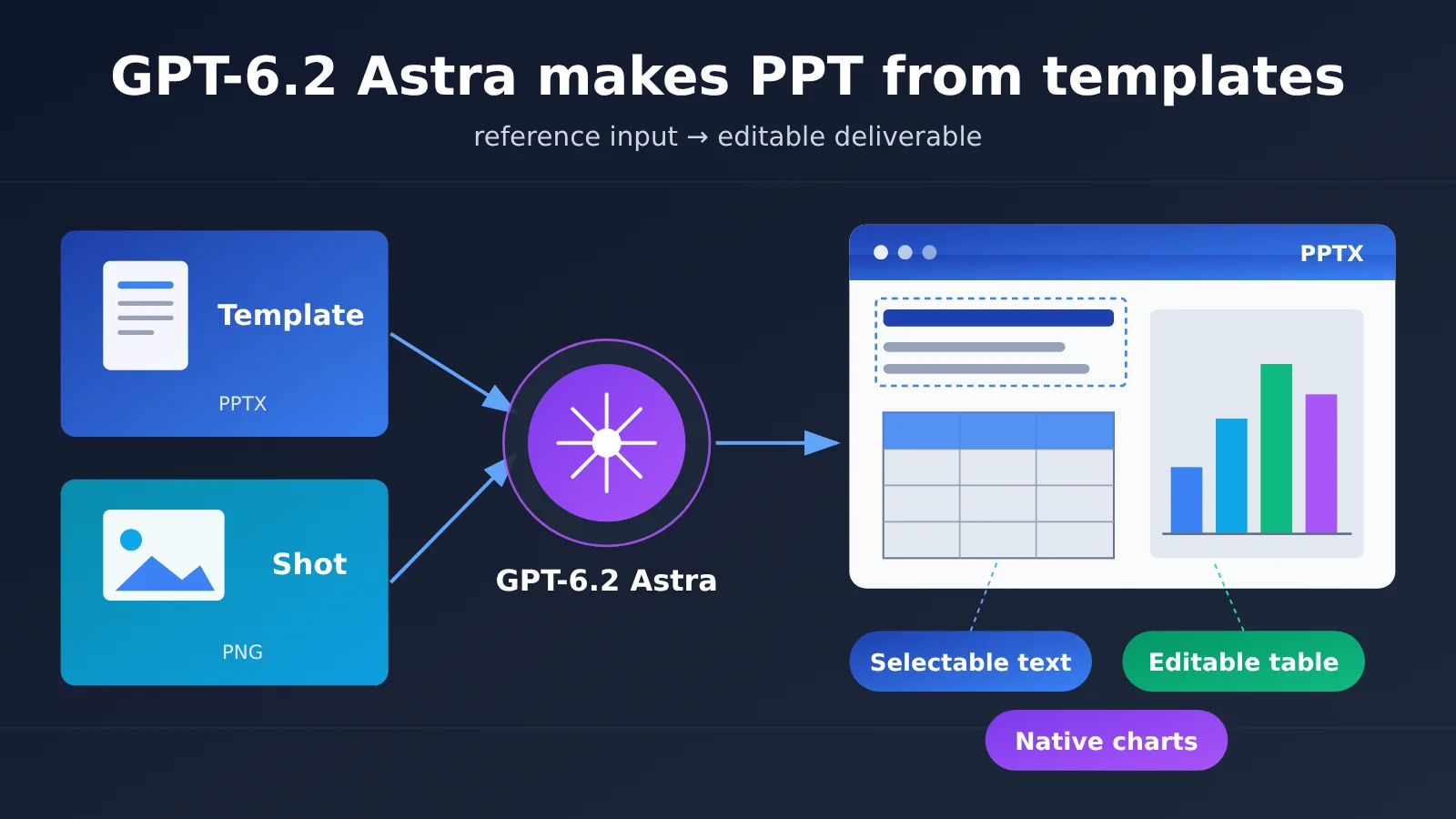
Knowledge Map: The Full Workflow for Building a PPT from a Template with GPT-6.2 Astra
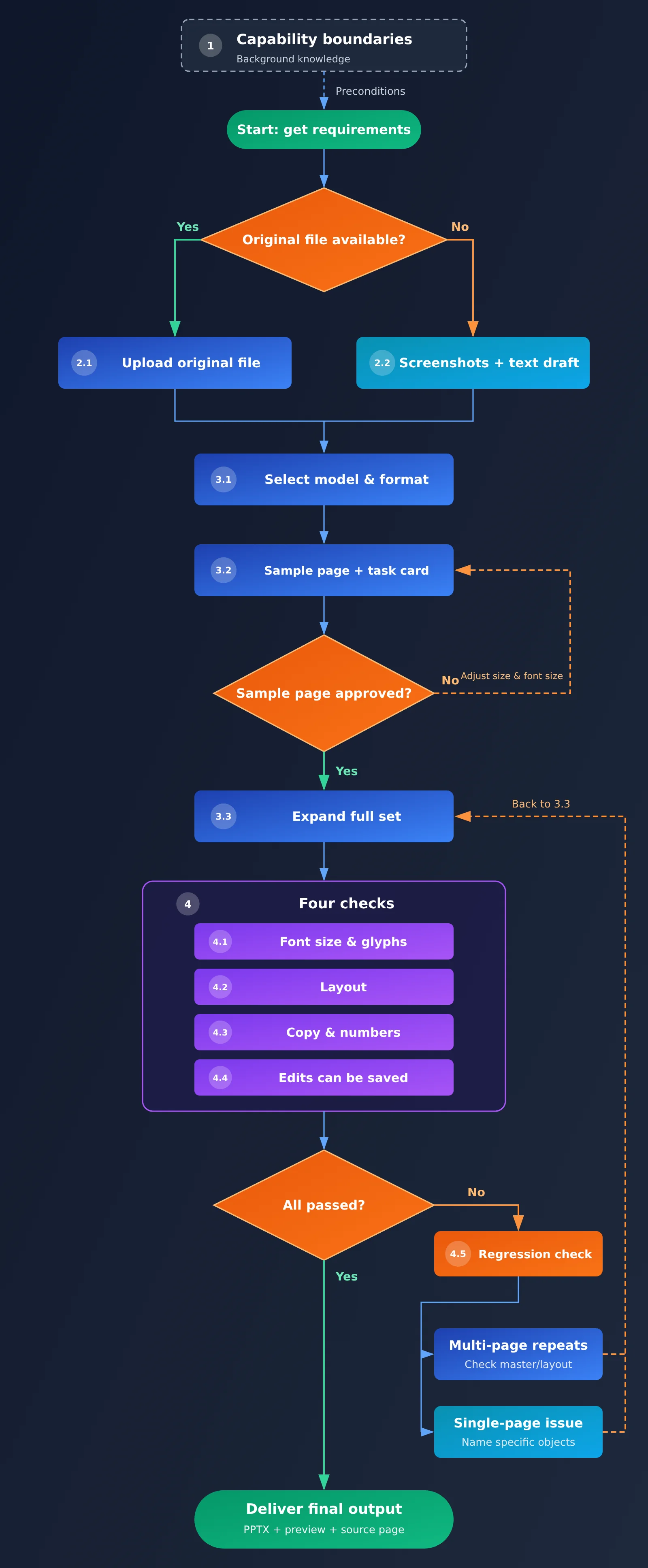
Figure description: This diagram is a workflow with two loops. Section 1 is the preliminary understanding—it tells you what the official demo can prove. Section 2 splits into two input paths based on “do you have the original file?”, converging in Section 3. If the representative page doesn’t pass, go back to 3.2 to fix it; once it passes, expand to the full deck. If the acceptance checks in Section 4 fail, move to 4.5 Regression Check, and decide whether to fix the master or a single page based on whether the error repeats across multiple pages. What you end up with is an editable PPTX, plus a companion preview file and source notes.
Index: How to Read Each Section on Using GPT-6.2 Astra to Make PowerPoint Decks
- 1 Capability boundaries: Start by clarifying what the official demo actually covers. That keeps you from expecting too much or too little from the model and sets the tone for the task briefs you’ll write later.
- 2 Prepare references: Read 2.1 or 2.2 depending on what materials you have on hand; either one produces a solid input package.
- 3 Task assignment and generation: Read 3.1 through 3.5 in order, from choosing the entry point to the representative slide, component requirements, and the task brief. Section 3.5 includes code for batch-generating task cards with the API.
- 4 Review and acceptance: You can check 4.1 through 4.4 in parallel. Only look at 4.5 if you find a problem.
To Know: Terms You’ll Need to Understand This Article
| Term | Plain-English explanation |
|---|---|
| Slide master | The top-level template in PowerPoint that controls fonts, color schemes, and placeholder positions; all layouts inherit their styles from it |
| Layout | A specific page structure under the slide master, such as cover, title + content, or two-column comparison |
| Native editable chart | A chart object built into PowerPoint; select it and use “Edit Data” to change the underlying values |
| Work / Space | The work entry point and collaboration space in ChatGPT; Slides can be opened and edited in a Space |
| ChatGPT Slides | The presentation product inside ChatGPT; the web version supports exporting to PPTX and PDF |
| Representative slide | A sample slide you create first to lock in dimensions, font sizes, and tone; usually a data slide |
| Task card | A short brief for each slide: the question it should answer, the data source, the chart type, and the target layout |
1 Capability Boundaries of GPT-6.2 Astra for Template-Based PPT Creation
OpenAI’s launch demos use two kinds of reference material: the original slide file or a screenshot. The company says the new model can carry over page layout, color palette, typography, and copy style, and it showed examples that match specific font sizes. OpenAI also relayed early testers’ feedback that the titles communicate conclusions better and the body copy is more concise. All of this should be cited as “vendor demo and early feedback.”
1.1 Same-Topic Demo with the Original Template
OpenAI gave GPT-6 Astra and GPT-6.2 Astra the same task: use a public slide template to pitch animal-themed merch ideas for four teams. The older example, “Small Marks, Big Team Energy,” is 13 pages; the newer one, “Office Wildlife,” is 19 pages. The new version uses an illustrated field guide to tie the teams together, showing eight designs across three formats—enamel pins, T-shirts, and sewn backpack patches. The older version’s mockups had one design per team.
The new deliverable also lists vector artwork, design size recommendations, and approval notes for colorways and physical samples. Two things stand out from this demo: layout consistency under the same template, and handoff-ready assets included in the deliverable. The page count difference only reflects the length of the two examples; it’s not a quality metric.
1.2 Same-Topic Demo with a Screenshot
Another case is a sales account update for Alder Street Markets, where the reference material is an image of an existing page with a dark blue banner, a storefront illustration, and a progress table. OpenAI says the new version reproduced the font size and spacing in the horizontal header, carried over the treatment of the storefront illustration and the emphasis on buyer information, made the table cleaner, and highlighted action-item owners and due dates.
Note that the font-size conclusion applies to this example’s horizontal header. When a real project only has a pixel image, the model can still rebuild the page by referencing the sample. But for pages with strict guidelines, give the model the fonts, font sizes, and brand colors separately—don’t expect it to reverse-engineer them precisely from an image.
1.3 Scope Boundaries for GPT-6.2 Astra-Related Entry Points
Building a PPT touches several product entry points, and their capability descriptions and acceptance methods differ:
| Entry point | Officially stated capability | How to verify |
|---|---|---|
| GPT-6.2 Astra launch samples | Design examples and template reuse | Capability reference only; not equivalent to your project’s results |
| ChatGPT Slides | Create, collaboratively edit, export PPTX and PDF | Open the export in the PowerPoint your team actually uses |
| Desktop PowerPoint | Editing behaviors such as slide masters, chart data, and font embedding | Click through each item and check against Microsoft’s documentation |
| ChatGPT for PowerPoint add-in | Edit inside PowerPoint; official notes say complex templates and font handling may have limitations | Good for follow-up edits after you have the PPTX |
2 Preparing PPT Template References for GPT-6.2 Astra
The quality of your input determines how much of the design the model can reuse. The two preparation paths have different priorities, so just read the one that fits the materials you have on hand.
2.1 GPT-6.2 Astra Input Package When Original Files Are Available
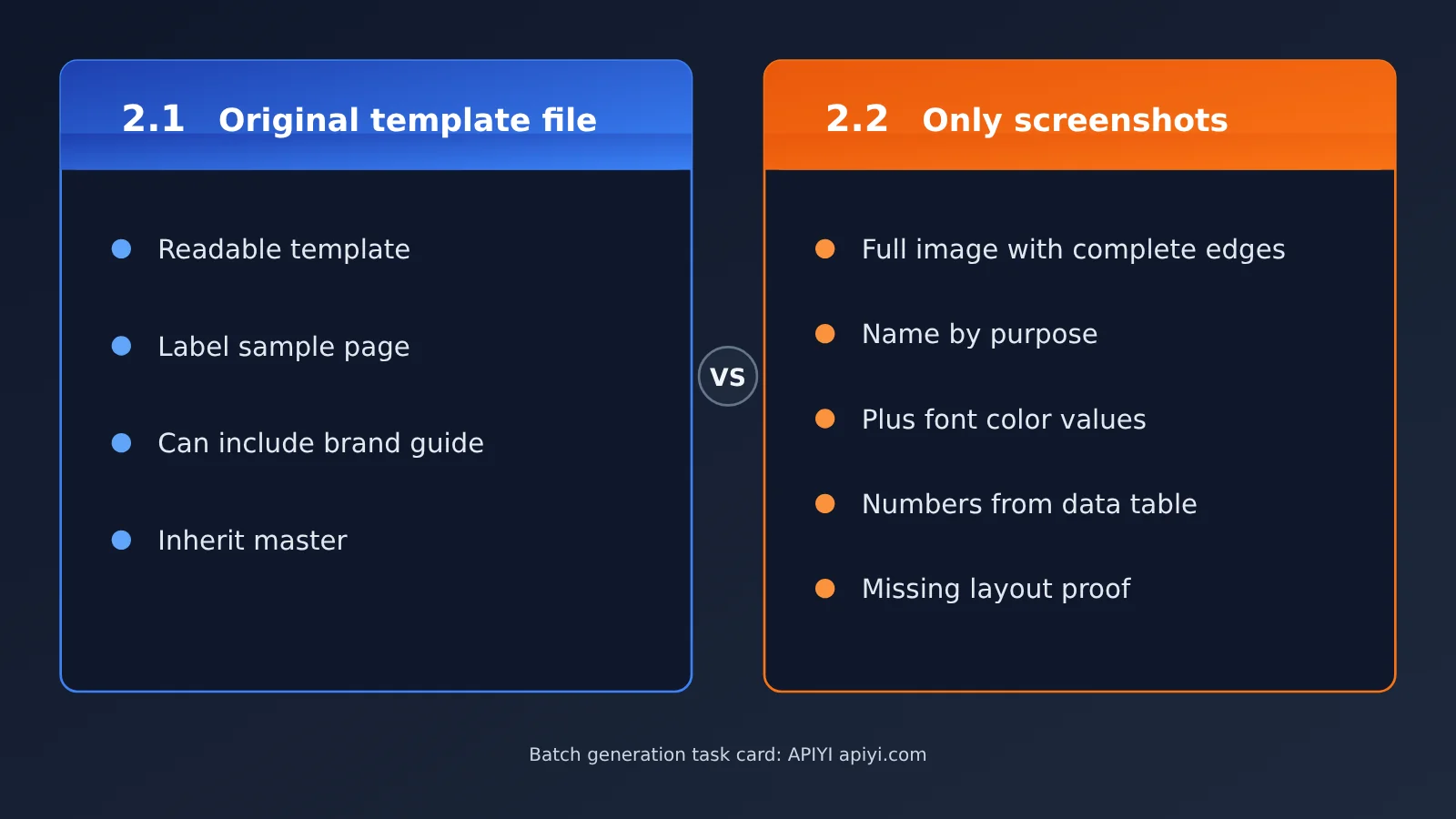
Provide a readable template file or sanitized sample deck, and identify the representative pages that cover the cover, section pages, data pages, and decision pages. You can attach a separate note with the brand fonts, font sizes, color values, and chart guidelines. If the source deck contains old reporting periods, previous clients, or former owners, flag upfront that they’re for visual reference only and that the actual copy will come from the current materials. Otherwise, the model may carry old content into the new draft.
2.2 GPT-6.2 Astra Input Package When You Only Have Screenshots
Screenshots should preserve their full horizontal and vertical boundaries. Use clear original images whenever possible, and name them by page purpose—for example, “Data page – Quarterly Revenue.” Also provide the written copy and data tables so the model doesn’t copy business numbers from the images. Screenshots often don’t cover every layout, so you can tell the model to apply the same visual language to other pages and review those samples separately.
| Preparation item | Original file path | Screenshot path |
|---|---|---|
| Design reference | Template file or sanitized sample deck | Clear original images with full boundaries |
| Representative page annotations | Cover, section, data, and decision pages | Files named by page purpose |
| Brand guidelines | Optional attachment | Must provide fonts, font sizes, and color values separately |
| Business data | Current materials table | Current materials table; don’t copy from images |
| Uncovered layouts | Can extend from the master template | Specify the same visual language and review samples separately |
3 Assign tasks with GPT-6.2 Astra and generate an editable PPT
3.1 Select GPT-6.2 Astra in Work and specify the delivery format
Accounts with access can select GPT-6.2 Astra from the model picker in Work, then upload templates or screenshots along with the materials for this session. According to OpenAI’s Slides help page, you can request the creation of ChatGPT Slides in Work and open an editable presentation in a Space; you can also specify PowerPoint as the deliverable directly in the request. When you start from ChatGPT Slides, the web app can export a PPTX you can keep editing, or export a PDF for reference.
Eligibility is something you need to check separately: Slides availability varies with Space access permissions and rollout progress, while whether Astra can be selected depends on your plan, seat, and workspace settings. Confirm both entry points independently—don’t assume that because one is available, the other will be too.
3.2 GPT-6.2 Astra: Lead with a Representative Page and a Task Card
Don’t ask for the entire deck in one shot. Start with a single data page that includes a chart, footnotes, and a conclusion-style headline — confirm the dimensions, type sizes, whitespace, table column widths, and headline tone, then expand to the remaining pages. A data page packs text, tables, and charts into one place, so it surfaces problems fastest and makes the best template.
Give each page a task card, and write down the fields that drive management decisions up front:
| Task card field | Example entry | Purpose |
|---|---|---|
| The question this page answers | Did quarterly revenue hit the target? | Constrains the conclusion-style headline |
| Data source | Sheet2, cells B3:F8 of the source workbook | Makes cell-by-cell review easy |
| Chart type | Native bar chart with source data attached | Keeps it editable |
| Target layout | The data page on page 4 of the reference deck | Locks down the layout |
| Definition fields | Denominator, date, currency, owner | Prevents mismatched definitions |
When the draft is done, ask the model to state — page by page — which layout it applied and which source material it cited, so you can check it directly during review.
3.3 Write PPT Editability as Component-Level Requirements
Vague instructions like “make it editable” are hard to sign off on. Break them down by component:
- Titles and body text: use selectable text, not text baked into an image.
- Tables: cells can be updated individually.
- Charts: prioritize native, editable PowerPoint charts, and have the source data delivered with them.
- Logic diagrams: if arrows or labels will need changing later, require them broken out into separate shapes.
- Decorative images: can stay as images.
- Company template: if the deck has to inherit it, explicitly require that the existing master and its layouts be preserved, and spot-check whether newly inserted pages can adopt them.
Whether it’s actually done comes down to the real objects, masters, and chart data in the exported file.
3.4 Example of a Chinese Task Brief for Building a PPT from a Template with GPT-6.2 Astra
You can adapt the task brief below and use it directly. We haven’t actually generated a file with it:
Using the previous quarter’s business review in the attachment as the layout, create a six-page update for this quarter for the department head. Use the new numbers and dates from the materials table, and follow the original deck’s conclusion-style headlines and short body sentences. Start with a data page that includes an editable title, table, chart, and footer source; the chart needs to let you open its underlying data, and the header font size and spacing should match the reference page. After the data page is approved, add the cover, overview, progress, risks, and items requiring a decision. Finally, deliver an editable PPTX along with a preview file that can be viewed, and list the page number or cell range for each page’s data source.
3.5 Quick Start: Batch-Generate PPT Task Cards with the API
When a deck has a lot of slides, you can first use a Large Language Model API to turn your raw materials into per-page task cards, then hand those to Work for generation. The example below uses an OpenAI-compatible interface — fill in the model ID according to the platform’s model list. This article makes no assumptions about GPT-6.2 Astra being available on the API side:
from openai import OpenAI

client = OpenAI(
    api_key="YOUR_API_KEY",
    base_url="https://api.apiyi.com/v1"
)

materials = "本季度营收 1280 万元,目标 1200 万元;风险:交付延期两周,负责人张三,截止 12 月 15 日"
prompt = f"""根据以下材料,为六页季度更新 PPT 输出 JSON 数组。
每项包含 page、question、data_source、chart_type、layout、caliber(分母/日期/币种/负责人)。
材料:{materials}"""

resp = client.chat.completions.create(
    model="YOUR_MODEL_ID",  # Refer to the platform's model list
    messages=[{"role": "user", "content": prompt}]
)
print(resp.choices[0].message.content)
View the full code: generate task cards + self-check the exported PPTX
import json
from openai import OpenAI
from pptx import Presentation
from pptx.enum.shapes import MSO_SHAPE_TYPE

client = OpenAI(
    api_key="YOUR_API_KEY",
    base_url="https://api.apiyi.com/v1"  # APIYI OpenAI-compatible interface
)

def make_task_cards(materials: str, pages: int = 6, model: str = "YOUR_MODEL_ID") -> list:
    """Turn this quarter's materials into per-page task cards to attach when you assign tasks to Work"""
    prompt = (
        f"为 {pages} 页 PPT 输出纯 JSON 数组,每项字段:"
        "page, question, data_source, chart_type, layout, caliber。"
        f"不要编造材料中没有的数字。材料:{materials}"
    )
    resp = client.chat.completions.create(
        model=model,
        messages=[{"role": "user", "content": prompt}],
    )
    text = resp.choices[0].message.content.strip().strip("`")
    if text.startswith("json"):
        text = text[4:]
    return json.loads(text)

def audit_pptx(path: str) -> None:
    """Helper for checking the structure of the exported file; it does not replace manual acceptance review in desktop PowerPoint"""
    prs = Presentation(path)
    print(f"宽高比:{prs.slide_width / prs.slide_height:.3f}")
    for idx, slide in enumerate(prs.slides, 1):
        shapes = list(slide.shapes)
        texts = [s for s in shapes if s.has_text_frame and s.text_frame.text.strip()]
        charts = [s for s in shapes if s.has_chart]
        tables = [s for s in shapes if s.has_table]
        pics = [s for s in shapes if s.shape_type == MSO_SHAPE_TYPE.PICTURE]
        print(f"第{idx}页 版式={slide.slide_layout.name} "
              f"文本{len(texts)} 表格{len(tables)} 图表{len(charts)} 图片{len(pics)}")
        fonts = set()
        for s in texts:
            for p in s.text_frame.paragraphs:
                for r in p.runs:
                    size = r.font.size.pt if r.font.size else "继承母版"
                    fonts.add((r.font.name or "继承母版", size))
        print("  字体/磅值:", fonts)
        if len(shapes) == 1 and pics:
            print("  ⚠ 整页只有一张图片,关键文字可能不可编辑")

if __name__ == "__main__":
    cards = make_task_cards("本季度营收 1280 万元,目标 1200 万元")
    print(json.dumps(cards, ensure_ascii=False, indent=2))
    audit_pptx("delivery_copy.pptx")
Quick start tip: You can verify the task-card step using free test credits from APIYI at apiyi.com. The platform lets you call many mainstream models through a single API key, so it’s easy to compare which model organizes your materials more accurately — then carry the results back into Work to generate the slides.
If a font size shows as "继承母版" (inherited from the master) in the script output, that means the text style comes from the slide master; you’ll need to open Master View in PowerPoint to confirm it.
Four Acceptance Checks for PPTs Generated by GPT-6.2 Astra
| Acceptance item | How to check | Typical signs of failure |
|---|---|---|
| 4.1 Font size and typeface | Click each element in desktop PowerPoint and read the font name and point size | Fonts get substituted on another computer; Chinese text wraps incorrectly |
| 4.2 Layout | Compare aspect ratio, headers, and margins; insert a new slide with the same layout | The new slide won’t inherit the layout; footnotes get covered in full-screen mode |
| 4.3 Copy and numbers | Read each title on its own; check every number and source one by one | Period and cumulative figures get mixed up; units are wrong |
| 4.4 Saves after editing | Change text, change a table, change chart data, then save and reopen | Charts don’t update with the data; text is actually an image |
4.1 Font size and typeface
In desktop PowerPoint, click the title, body text, table headers, and footnotes separately, read the font name and point size, and check line wrapping after substitution using real Chinese body text and numbers. Before sharing a file across computers, confirm the other side can use the specified fonts. Microsoft recommends that if someone else needs to keep editing, you should embed all characters of the fonts used — and notes that embedding permissions differ by font, so handle it according to the license.
4.2 Layout
Check the cover and representative pages against aspect ratio, header height, grid margins, column spacing, and paragraph line spacing. Look at style inheritance in the slide master, insert a new slide with the same layout as a reuse test, then run it full screen and check the footnotes and table edges that are most likely to get clipped. Files exported from Space should also be opened and confirmed in the PowerPoint environment the team actually uses.
4.3 Copy and numbers
Pull out each page’s title and read it on its own, confirming that each page makes a clear point and that together they tell a complete story. Focus your review on dates, units, and the distinction between cumulative and period figures; check chart labels, body-text numbers, and sources one by one. The way vendor examples write action-item owners and dates is worth borrowing, but the facts should come from this period’s materials.
4.4 Saves after editing
On the delivered copy, do four things: change two characters in the title, change one cell in a table, change one data point in a native chart and confirm the graphic updates, then save and reopen. Charts can be modified via “Chart Design → Edit Data”; if a linked workbook is used, also confirm the person taking over can open it. For slides where the whole page is a single object, check extra carefully whether the key text is a separate object.
4.5 Regression checks on GPT-6.2 Astra revisions
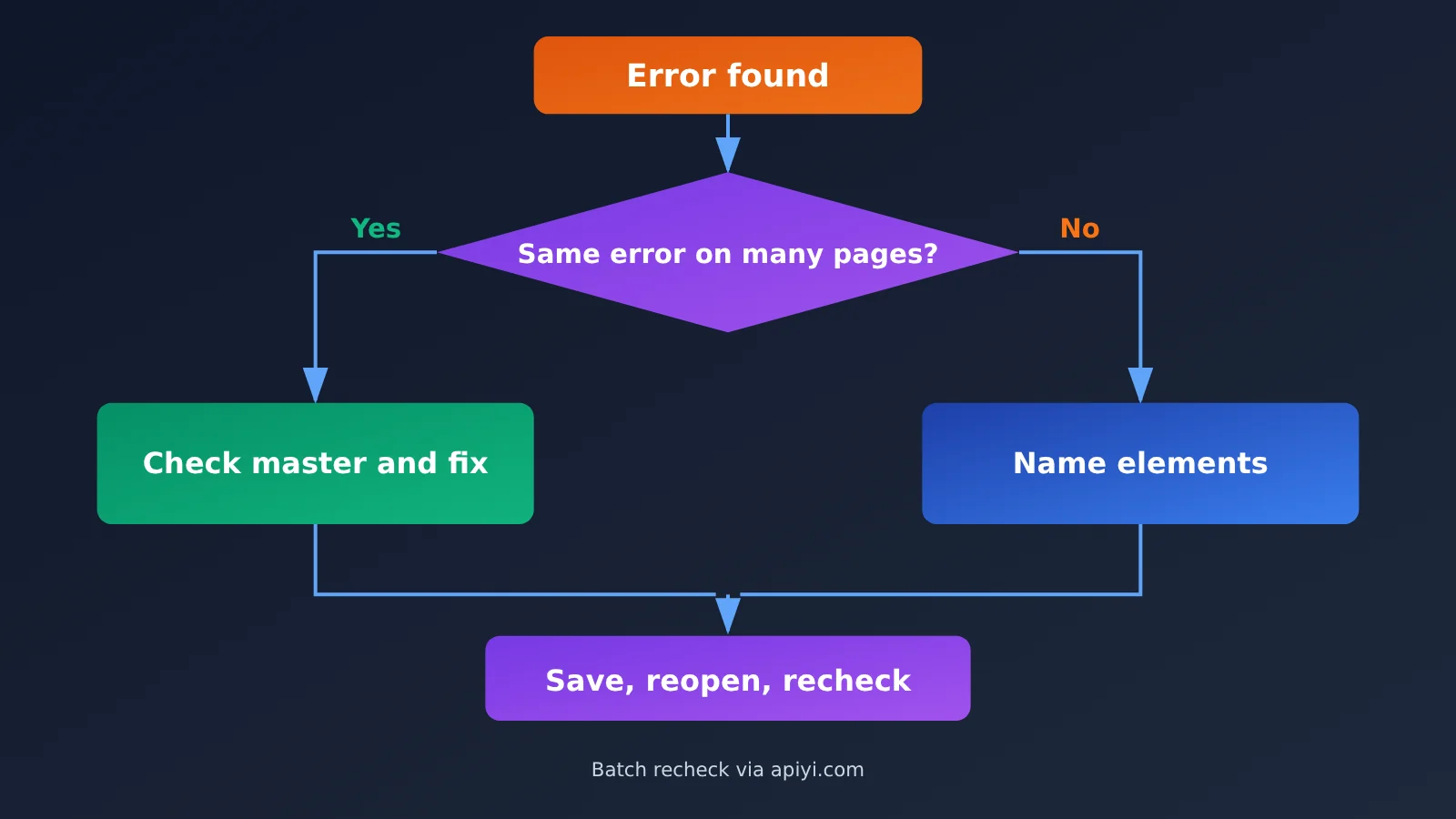
Once you get the revised draft, sign off page by page against the requirements. If the same footnote or title error repeats across multiple pages, check the shared layout or master first, then decide whether to fix it page by page. When only a single page’s content changes, name the specific chart, table, or text box you want changed. That way, responsibility for design references, data updates, and the exported file all lands on specific elements.
Frequently Asked Questions (FAQ)
Q1: What does “making a PPT from a template” mean with GPT-6.2 Astra?
It means taking an existing slide source file or screenshot as a reference and having the model follow its layout, color scheme, typography, and copy style to build a new deck. The official release case on November 17, 2026 demonstrated this capability — it’s a vendor demo.
Q2: What’s the difference between giving the source file and giving a screenshot?
A source file provides master and layout information, so it’s better suited to cases where you need to inherit a company template. A screenshot only carries pixel information — the model can rebuild pages to match it, but you’re better off spelling out fonts, font sizes, and brand colors separately, and business numbers have to come from a data table.
Q3: Is the exported PPTX always editable?
Not necessarily. The file extension only tells you the file type. You need to actually edit text, tables, and chart data using the method in 4.4, save, and reopen the file to confirm whether the delivered structure is usable.
Q4: Where does the ChatGPT for PowerPoint add-in fit in?
It’s better suited to follow-up edits inside PowerPoint once you already have the PPTX. The official docs note that it may struggle with complex templates and fonts, so I wouldn’t rely on it to replicate an entire template.
Q5: Can an API help with this workflow?
You can hand the text-heavy work — organizing task cards, summarizing materials, proofreading titles — to the API. Following the code in 3.5, set base_url to `https://api.apiyi.com/v1`; after signing up at APIYI apiyi.com you can test it with the free quota. Model IDs follow the platform’s list.
Q6: What are the limitations of this workflow?
Astra and Slides availability depends on plan, seat, workspace settings, and rollout progress respectively; the screenshot route can’t accurately reverse-engineer font sizes; font embedding is subject to licensing restrictions. This article hasn’t tested the generated output, so acceptance conclusions need to be drawn in your own environment.
GPT-6.2 Astra: Key Takeaways for Template-Based PPT Creation
- Two kinds of input: original files take priority. If you’re working from screenshots, you’ll need to supply the fonts, font sizes, and color values separately.
- Where the numbers come from: business data comes only from this period’s material table — never transcribed by hand from an image.
- Lock one page first: nail down a single data page before expanding to the full deck.
- Build with real components: text must be selectable, tables updatable, and charts created as native objects with their source data attached.
- Check the entry points separately: Astra availability and Slides eligibility are two different things.
- Four acceptance checks: font sizes, layout, copy and numbers, and saving after edits — you need all four.
- Helper tooling: you can organize task cards using APIYI apiyi.com’s multi-model API.
Here’s a pass/fail test you can run right away: take the delivered copy, perform the four edit actions from section 4.4, then save and reopen it in the PowerPoint your team actually uses. If everything works, the deck is genuinely ready to hand off. When you’re organizing materials and task cards in the early stages, we recommend using APIYI apiyi.com to compare several models’ results with a single key.
References
-
OpenAI launch case: GPT-6.2 Astra professional output examples, including the Merch concept deck and Slide template matching
- Link:
openai.com/index/introducing-gpt-6-2-astra-sol - Description: the source of the original template and the screenshot demo built on the same topic
- Link:
-
ChatGPT Slides help page: creating, collaborating, and exporting
- Link:
help.openai.com/en/articles/20001605-creating-and-collaborating-on-slides-in-chatgpt - Description: instructions for editing in Space and exporting to PPTX and PDF
- Link:
-
ChatGPT Work and Codex help page
- Link:
help.openai.com/en/articles/20001275-chatgpt-work-and-codex - Description: the Work entry point and model selection
- Link:
-
ChatGPT for PowerPoint help page
- Link:
help.openai.com/en/articles/20001242-chatgpt-for-powerpoint - Description: add-in capabilities and its limits with complex templates
- Link:
-
Microsoft slide master documentation
- Link:
support.microsoft.com/en-us/powerpoint/training/customize-a-slide-master - Description: checking master and layout inheritance
- Link:
-
Microsoft chart data editing instructions
- Link:
support.microsoft.com/en-gb/powerpoint/change-the-data-in-an-existing-chart - Description: verifying native chart data
- Link:
-
Microsoft font embedding instructions
- Link:
support.microsoft.com/en-us/office/fonts/benefits-of-embedding-custom-fonts - Description: handling fonts and licensing across computers
- Link:
Author: APIYI Tech Team
Technical discussion: Feel free to reach us through the APIYI website homepage; more resources are available at the docs.apiyi.com documentation center.