
Author’s note: The 2K/4K tiers of gpt-image-2.6-all are upscaled tiers. The response may not echo size, and the actual pixel dimensions are occasionally off. This article explains why, and shows how to save the image, read its real width and height, and only then lay it out.
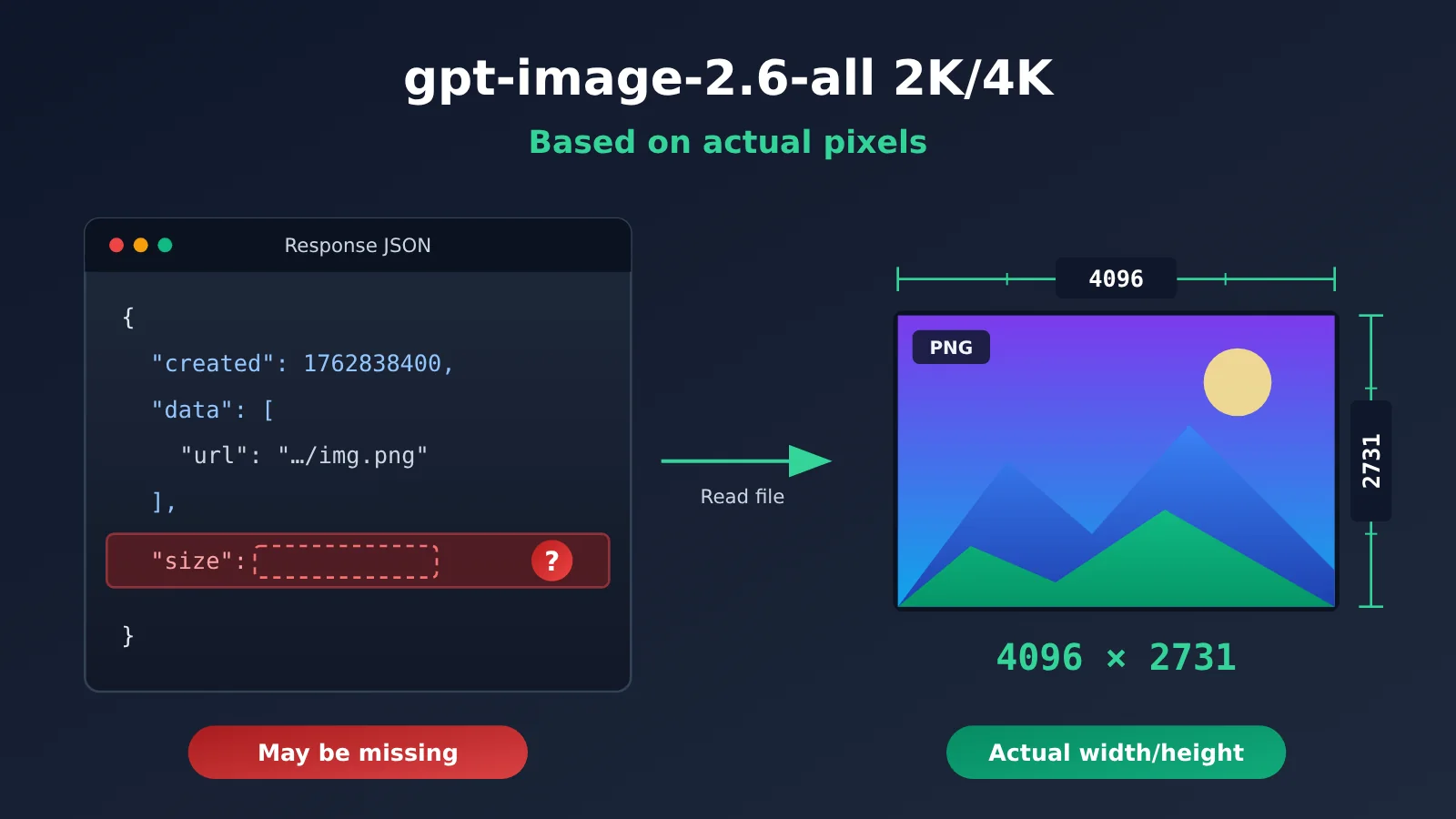
A lot of people wire an image generation API into a poster template, an e-commerce hero image, or a video cover pipeline, and then read the size field straight from the response to calculate the canvas and layout. With the 2K/4K tiers of gpt-image-2.6-all, that’s risky. The model notes APIYI (apiyi.com) published on 2026-11-11 state that 2K/4K are upscaled tiers: the response may not echo size, and in some cases the actual pixels will differ from what you expected. The actual width and height of the image file are the source of truth, and that’s the conclusion the documentation gives.
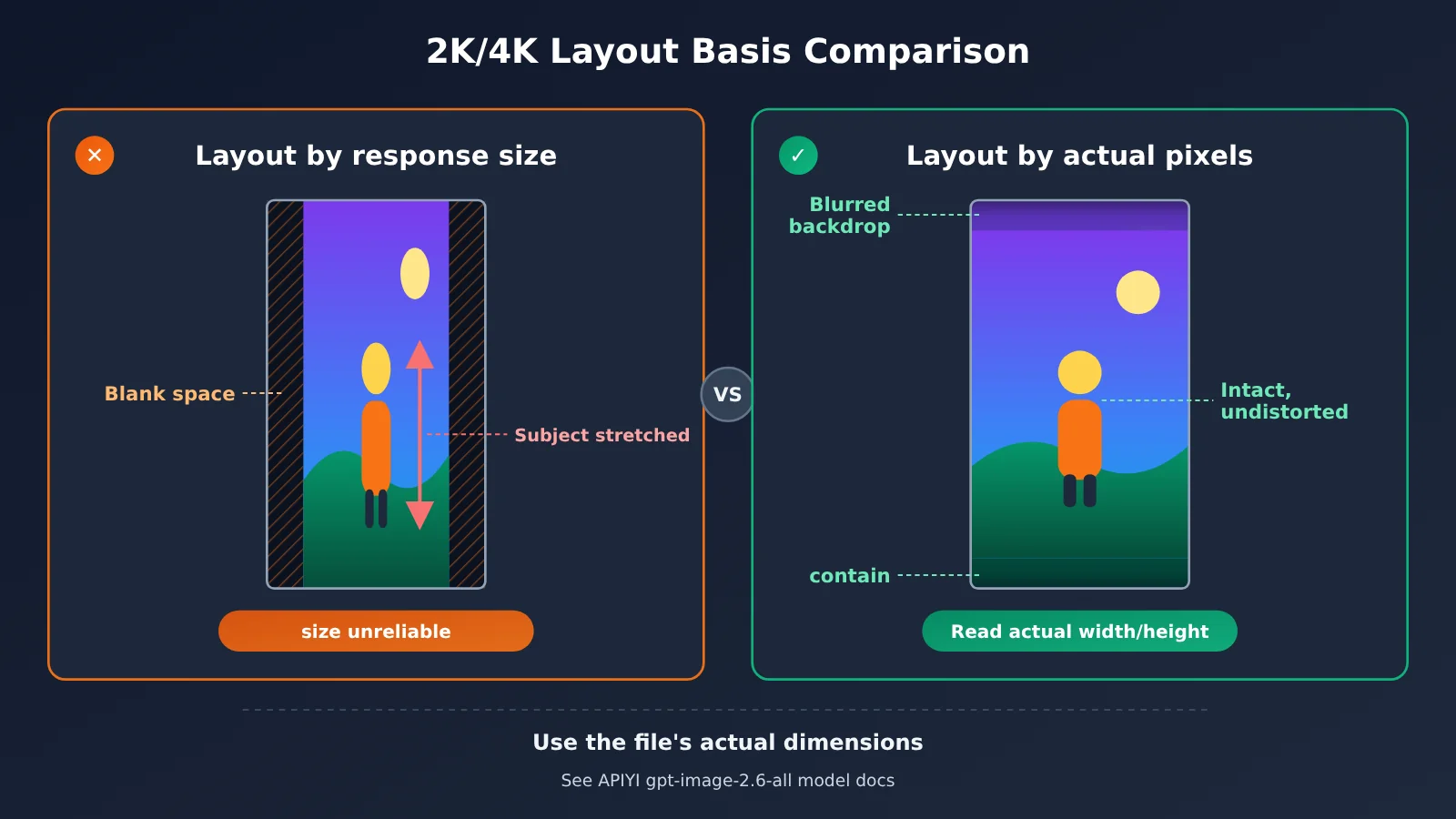
This problem directly affects your layout. If a 1365x2048 image gets treated as 9:16 and dropped into a vertical template, you’ll see blank space or stretching, and the main subject may even get cropped.
What you’ll get from this article: you’ll understand why you shouldn’t rely on response fields for the 2K/4K tiers, and you’ll learn how to read the real pixel dimensions after saving the image and hand them to your layout logic.
Key Takeaways on gpt-image-2.6-all 2K/4K Sizes
The table below summarizes the size-related information from the documentation. The code and layout approach that follow are all based on it.
| Key Point | Description | Impact on Layout |
|---|---|---|
| 2K/4K are upscaled tiers | The final file goes through upscaling, so the pixel dimensions are determined by the upscaling step | You can’t calculate the final size from the request parameters |
| size may not be echoed back | The response for 2K/4K tiers may not include a size field | Code that depends on this field may read an empty value or throw an error |
| Occasional pixel deviations | 9:16 occasionally comes out as 1365x2048, and 4K occasionally as 4096x2731 |
The aspect ratio may differ from the one you requested |
| quality=low behaves differently | The 2K tier may output 2048x1153 |
You get an odd-numbered edge length, which can cause errors in some video encoding pipelines |
| Actual width and height rule | The documentation explicitly says the real width and height of the image file are the source of truth | Saving the image and then reading its pixels is the only reliable source of data |
Why the size Field Is Unreliable for gpt-image-2.6-all 2K/4K
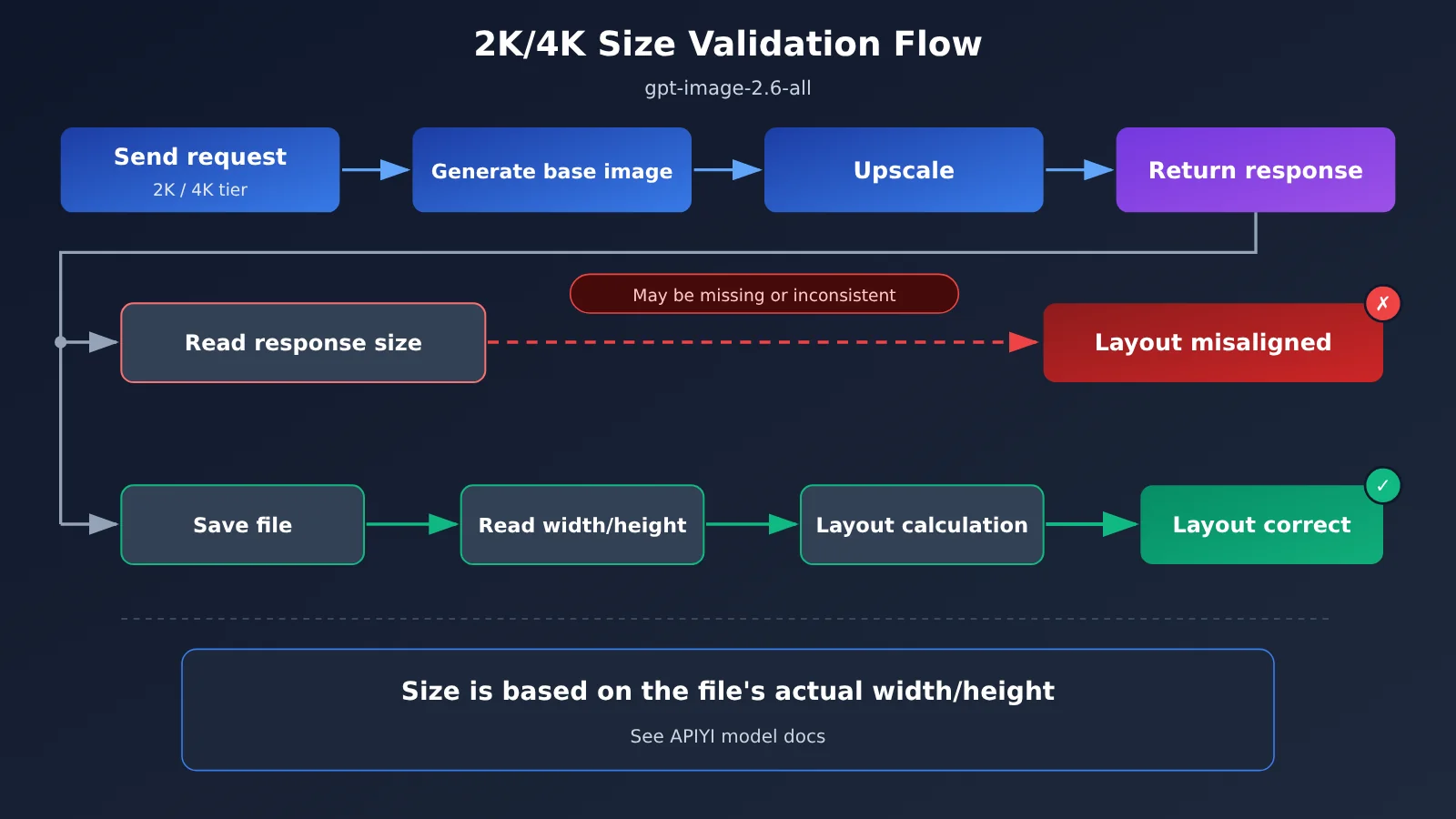
You can think of the upscaled tiers as a two-step process: first generate a base image, then enlarge it to 2K or 4K. The pixel dimensions of the final file are determined by the upscaling step, and the size field in the response structure doesn’t necessarily stay in sync with it. The documentation describes 2K/4K as “may not echo size.” That means the same piece of code can read this field sometimes and fail to read it other times.
The really tricky case is when the field is present but doesn’t match the file. Your code won’t throw an error, and the numbers look perfectly normal, so you won’t notice the problem until the layout comes out wrong. The safer approach is to not treat size as your source for dimensions. At most, use it for log comparisons. For layout, always read the width and height from the saved image file.
Understanding the Known Pixel Deviations in gpt-image-2.6-all at 2K/4K
The docs list a few pixel sizes that show up occasionally. The table below converts those sizes into aspect ratios so you can see how each one affects layout.
| Scenario | Possible actual size | Converted aspect ratio | Layout risk |
|---|---|---|---|
| 9:16 ratio | 1365x2048 |
About 0.667, close to 2:3 | Placing it in a 9:16 template leaves side margins or gets cropped |
| 4K tier | 4096x2731 |
About 1.5, close to 3:2 | The short side doesn’t match expectations, so fixed canvases will misalign |
| 2K tier + quality=low | 2048x1153 |
About 1.776, close to 16:9 | The height is odd, so encoding pipelines that need even dimensions will fail |
These examples show that the long side usually lands on 2048 or 4096, while the short side isn’t fixed. In the first case the ratio is clearly off: 9:16 is about 0.5625, while 1365x2048 is about 0.667. If your code calculates the canvas from the requested 9:16, the blank space will be very noticeable. In the third case the ratio barely changes, but 1153 is odd. Common video encoding pixel formats require even width and height, so using this image directly as a video cover or first frame may cause an error during transcoding.
These cases are “occasional.” You might generate a few images in testing and see no problems, then hit them only after launch. That’s why validation should run after every generation, not just as a spot check during testing.
Quick Start with gpt-image-2.6-all at 2K/4K: Reading the Real Pixels
The core idea fits in one sentence: get the image’s binary content and save it, then read the width and height with an image library. The example below uses the OpenAI-compatible Python SDK and Pillow. For exactly how to write the 2K/4K tier, aspect ratio, and other request parameters, check the APIYI docs. The example only leaves a placeholder for them.
Minimal Example: Comparing the Response size with the Real Pixels
This code generates an image, then prints both the response field and the real pixel dimensions so you can see the difference at a glance.
import base64, io, requests
from openai import OpenAI
from PIL import Image

client = OpenAI(api_key="YOUR_API_KEY", base_url="https://api.apiyi.com/v1")

resp = client.images.generate(
    model="gpt-image-2.6-all",
    prompt="一张竖版城市夜景海报",
    # Fill in the 2K/4K tier parameters per the APIYI docs
)
item = resp.data[0]
raw = base64.b64decode(item.b64_json) if item.b64_json else requests.get(item.url, timeout=120).content

img = Image.open(io.BytesIO(raw))
print("真实像素:", img.size)                       # (width, height)
print("响应 size:", getattr(resp, "size", None))   # May be None at 2K/4K
The code uses getattr to read size so it won’t throw an exception when the field is missing. It also handles both URL and base64 responses, so everything downstream depends only on the image’s binary content. If your integration uses a different endpoint according to the docs, you only need to swap out the “get the image content” step. The pixel-reading part stays exactly the same.
Full Implementation: Validate After Saving and Generate Layout Parameters
In production, I’d put all of the following into a single function: save the file, read the real width and height, cross-check against the response fields, check for aspect ratio drift and odd dimensions, and then compute the scaled result from the real size.
import base64
import io
from pathlib import Path
from uuid import uuid4

import requests
from openai import OpenAI
from PIL import Image

client = OpenAI(
    api_key="YOUR_API_KEY",
    base_url="https://api.apiyi.com/v1",
)

# Parameters for the 2K/4K tiers, aspect ratios, etc. follow the APIYI docs; this is just a placeholder
TIER_PARAMS = {}


def fetch_image_bytes(item) -> bytes:
    if getattr(item, "b64_json", None):
        return base64.b64decode(item.b64_json)
    return requests.get(item.url, timeout=120).content


def parse_declared_size(resp):
    size = getattr(resp, "size", None)
    if not size or "x" not in str(size).lower():
        return None
    w, h = str(size).lower().split("x")
    return int(w), int(h)


def generate_and_measure(prompt, expected_ratio=None, out_dir="outputs"):
    resp = client.images.generate(
        model="gpt-image-2.6-all",
        prompt=prompt,
        **TIER_PARAMS,
    )
    raw = fetch_image_bytes(resp.data[0])
    img = Image.open(io.BytesIO(raw))
    width, height = img.size  # The only trustworthy source for dimensions

    Path(out_dir).mkdir(exist_ok=True)
    ext = (img.format or "png").lower()
    path = Path(out_dir) / f"{uuid4().hex[:8]}_{width}x{height}.{ext}"
    path.write_bytes(raw)

    declared = parse_declared_size(resp)
    report = {
        "path": str(path),
        "width": width,
        "height": height,
        "declared": declared,
        "declared_match": (declared == (width, height)) if declared else None,
        "odd_dimension": width % 2 == 1 or height % 2 == 1,
    }
    if expected_ratio:
        real_ratio = width / height
        report["ratio_drift"] = round(abs(real_ratio - expected_ratio) / expected_ratio, 4)
    return report


def fit_into_box(width, height, box_w, box_h, mode="contain"):
    if mode == "contain":
        scale = min(box_w / width, box_h / height)
    else:
        scale = max(box_w / width, box_h / height)
    return round(width * scale), round(height * scale)


if __name__ == "__main__":
    r = generate_and_measure("竖版城市夜景海报", expected_ratio=9 / 16)
    print(r)
    if r.get("ratio_drift", 0) > 0.01:
        print("比例漂移超过 1%,建议改用 contain 或重新生成")
    print(fit_into_box(r["width"], r["height"], 1080, 1920))
Three design choices in this implementation are worth calling out:
- The filename includes the real width and height: downstream services don’t have to decode the image again. They can read the dimensions straight from the filename.
declared_matchis for logging only: it helps you track how often the field is missing or inconsistent, but it plays no part in layout calculations.odd_dimensioncatches problems early: an image like2048x1153can have a pixel cropped or padded before it goes into a video encoder.
🚀 Quick-start tip: Try running both the 2K and 4K tiers with a single key on APIYI (apiyi.com), print the report above, and see how often fields go missing or the aspect ratio drifts. Then decide on your production fault-tolerance thresholds. The platform uses an OpenAI-compatible interface, so the example code runs once you update
base_url.
gpt-image-2.6-all 2K/4K Layout Adaptation Guide
Getting the real pixel dimensions is only the first step. Next, you need your layout logic to run entirely on that data. Let’s compare three sources of size information first, so it’s clear which one you can safely base decisions on.
| Source | Reliability | Behavior at 2K/4K | Recommended Use |
|---|---|---|---|
| Tier and aspect ratio chosen in the request | Low | Actual pixels after upscaling may deviate | Express your intent; use as a reference for aspect ratio drift |
size field in the response |
Low | May not be echoed back, or may not match the file | Log it for statistics only |
| Real width and height of the image file | High | The documentation explicitly treats this as authoritative | The only basis for layout, cropping, and encoding |
Reading the Real Width and Height of gpt-image-2.6-all 2K/4K Images at Each Stage
An image might be generated on the backend, displayed on the frontend, and finally handed off to a video tool. Each stage has its own way to read the real pixels, so there’s no need to pass size info along the whole chain.
| Stage | How to Read | Notes |
|---|---|---|
| Python backend | Pillow’s Image.open(...).size |
Only reads the file header to get the dimensions, so the overhead is tiny |
| Browser frontend | img.naturalWidth / img.naturalHeight |
Read after onload; don’t read the CSS-rendered size |
| Command line or transcoding | ffprobe or ImageMagick’s identify |
Before encoding, check at the same time whether the side lengths are even |
| Object storage | Write the width and height into metadata or the filename on upload | Downstream services can read them directly without decoding again |
The frontend is where people trip up most often. Many components set a fixed width and height on the image, and what you read then is the rendered size rather than the image’s own pixels. To check whether the original image is close to 9:16, use naturalWidth and naturalHeight.
Handling Aspect Ratio Drift in gpt-image-2.6-all 2K/4K
You can’t eliminate aspect ratio drift entirely. What you can do is decide ahead of time how to handle it when it happens. The three strategies below are ordered from lowest to highest risk.
| Strategy | Approach | Best For | Cost |
|---|---|---|---|
| contain fit | Scale proportionally by real width and height so the whole image fits in the canvas | Posters and detail pages, where the subject can’t be cropped | May leave blank space, so you’ll need a background color or a blurred backdrop to fill it |
| cover crop | Scale up proportionally to fill the canvas and crop whatever overflows | Covers and banners, where edge content isn’t important | Risk of cropping out the subject if it sits near the edge |
| Drift retry | Regenerate the image if the aspect ratio drift exceeds a threshold | Templates with strict aspect ratio requirements | The cost and wait time of an extra call |
For odd side lengths, we recommend handling them uniformly before the encoding step: either crop off 1 pixel or pad with a 1-pixel solid-color border. A 2048x1153 image cropped to 2048x1152 is exactly a standard 16:9, and the visual difference is barely noticeable.
gpt-image-2.6-all 2K/4K FAQ
Q1: What are the 2K/4K tiers in gpt-image-2.6-all?
According to the model notes APIYI published on 2026-11-11, the 2K/4K tiers are upscaled tiers: the final image goes through a super-resolution step before it’s returned. That’s why size behavior differs from the standard tiers. The response may not echo `size`, and the actual pixel dimensions occasionally come out off.
Q2: For 2K/4K tiers, should I trust the size in the response or the real file dimensions?
Trust the file. The documentation explicitly says the image’s actual width and height are what count. In 2K/4K tiers, `size` may be missing from the response, and even when it’s there, it’s only good for logging. Don’t use it to calculate canvas size, crop regions, or encoding parameters.
Q3: Which unexpected sizes are known to show up?
The documentation lists these cases: 9:16 occasionally returns `1365×2048`, 4K occasionally returns `4096×2731`, and quality=low on the 2K tier may output `2048×1153`. All of these are occasional, so run validation after every generation rather than spot-checking during testing.
Q4: Can I validate a few images during testing and skip it in production?
I wouldn’t. With a small test sample, an occasional issue may never show up even once. Reading the width and height costs almost nothing, since Pillow only needs to parse the file header. Building the check into your generation function is much easier than tracking down a misaligned layout later.
Q5: How do I quickly call gpt-image-2.6-all through the API and verify the size?
Follow these steps:
1. Sign up at APIYI (apiyi.com) to get an API key and free test credits for new users
2. Set `base_url` in the sample code to `https://api.apiyi.com/v1`, and fill in the tier parameter as described in the documentation
3. Run the full implementation and check `declared_match`, `ratio_drift`, and `odd_dimension` in the report
Q6: What happens if the 2K tier returns an odd height?
For static image display, usually nothing. But if you’re using the image as a video first frame, a cover, or source material for transcoding, many encoding pipelines require even width and height. When you get a size like `2048×1153`, trim or pad one pixel before handing it to the encoder.
Q7: How is gpt-image-2.6-all billed?
The documentation lists per-call billing at $0.025 per call. If you use a “retry when ratio drift exceeds the threshold” strategy, factor the retries into your cost. You can start by using your test credits on APIYI (apiyi.com) to measure how often drift happens, then decide how strict to make the threshold.
gpt-image-2.6-all 2K/4K Key Takeaways
- 2K/4K is an upscaling tier: The final pixel dimensions are determined by the upscaling step, so you can’t calculate them from the request parameters.
- Don’t rely on the size field: 2K/4K responses may not echo back a size at all, so treat it as a log reference at best.
- Deviations are occasional and hard to reproduce:
1365x2048,4096x2731, and2048x1153can all show up in production. - Save first, then read the pixels: Use Pillow or
naturalWidthto read the file’s actual width and height before doing any layout. - Handle odd-numbered dimensions early: Before the image goes into video encoding, crop or pad it by 1 pixel.
- Use test credits to set your thresholds: Run a small batch on APIYI (apiyi.com) to measure how often the dimensions drift, then decide on your retry strategy.
Summary
Here’s what to remember when handling gpt-image-2.6-all 2K/4K dimensions:
- Don’t trust the size in the response: The upscaling tier may not echo it back, and even when the field is present, it may not match the file.
- Treat the image’s actual width and height as the source of truth: Save the image, then read its pixels. The documentation explicitly specifies this as the basis for judging dimensions.
- Make your layout logic tolerate drift: Use contain, cover, or a retry strategy to handle aspect-ratio deviations, and deal with odd-numbered dimensions up front.
If you build “read the real pixels” into your generation function, you prevent layout misalignment at the source, and nothing downstream has to worry about whether the response fields are reliable. We recommend running through the validation flow above with a single API key on APIYI (apiyi.com), and going live only after you’ve confirmed the 2K/4K tier behaves consistently in your templates.
📚 References
- APIYI gpt-image-2.6-all Launch Notes: Details on the 2K/4K upscaling tiers, the
sizeecho, and actual pixel dimensions - Link:
docs.apiyi.com/live/2026-11/gpt-image-2-6-all-launch -
Notes: Covers the upscaling tier definitions, the occasional pixel discrepancies, the guidance to treat actual width and height as the source of truth, and per-call pricing
-
Pillow Official Documentation: Python image-reading library
- Link:
pillow.readthedocs.io -
Notes: How to use
Image.openand thesizeattribute, which is handy for reading real pixel dimensions on the backend -
MDN HTMLImageElement Documentation: Reference for image properties in the browser
- Link:
developer.mozilla.org/docs/Web/API/HTMLImageElement - Notes: What
naturalWidthandnaturalHeightmean, and how they differ from the rendered size
Author: APIYI Technical Team
Get in touch: Reach out to us through the APIYI website homepage. For more resources, visit the docs.apiyi.com documentation center.