
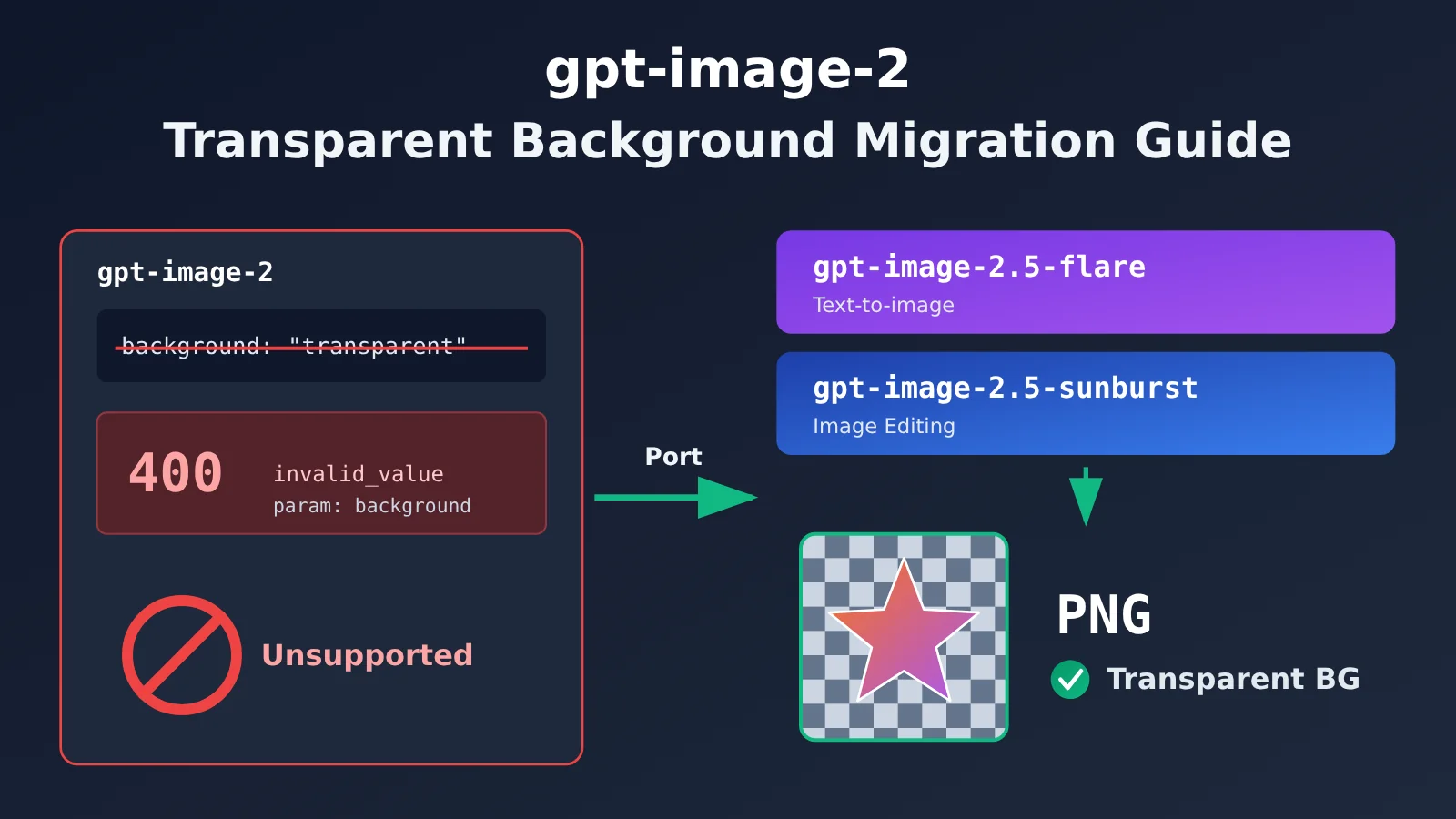
Author’s note: OpenAI has officially discontinued transparent background support in gpt-image-2. This article explains why the error occurs and how to migrate to the 2.5 series—and get transparent PNGs again—by changing only the model name.
Recently, many developers have reported that requests for transparent backgrounds in gpt-image-2, which had been working fine, suddenly started failing with Transparent background is not supported for this model.. This isn’t because you set the parameters incorrectly or because the API is down. OpenAI officially discontinued support for background: "transparent" in gpt-image-2 on 2026-09-30.
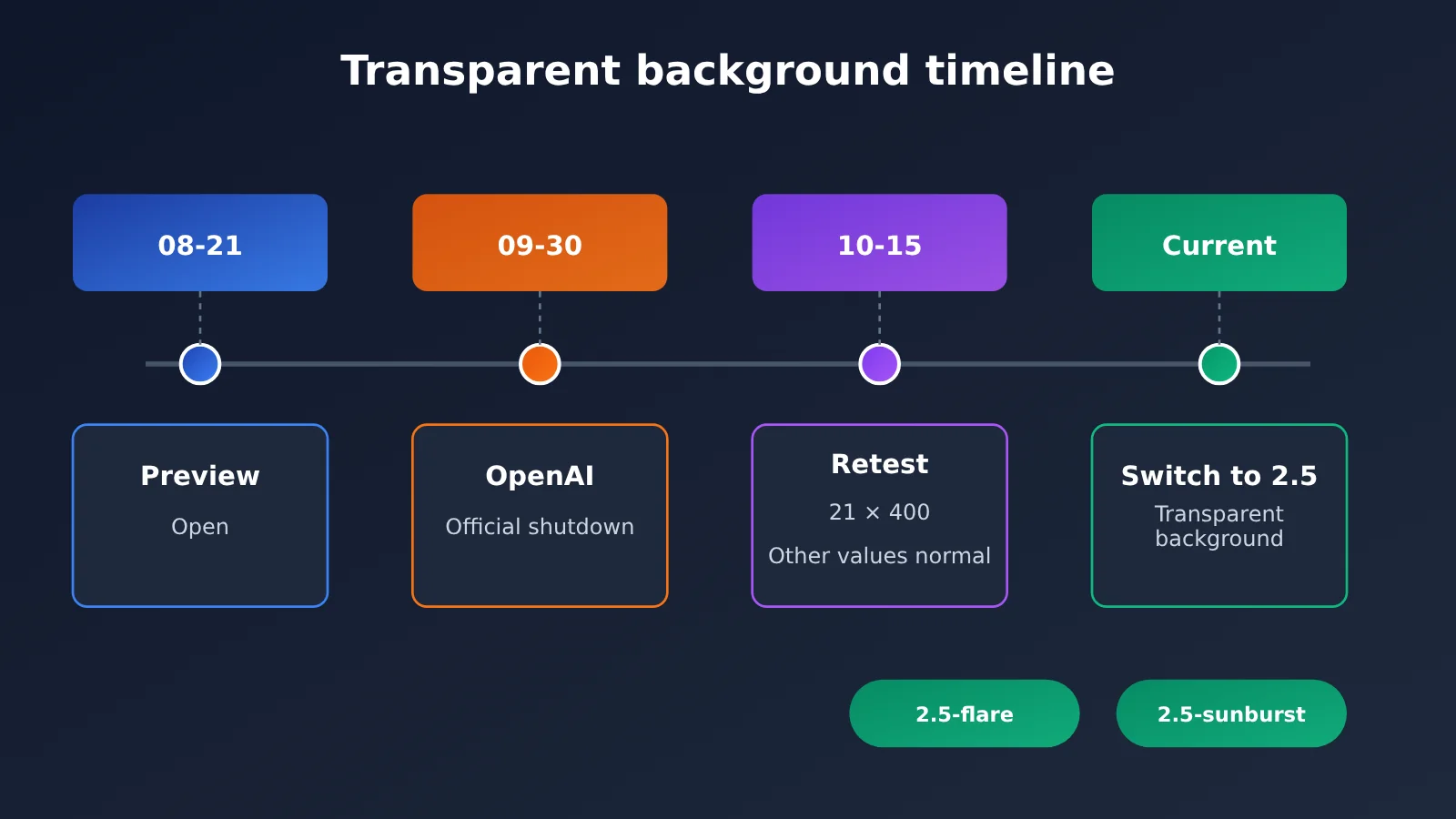
This isn’t a temporary platform-side restriction; it’s a change made by OpenAI. We retested on October 15: all transparent background requests were rejected by OpenAI, across 14 text-to-image generations and 7 image edits. Requests using opaque, auto, or no background parameter worked normally.
What you’ll learn: By the end of this article, you’ll understand why transparent background requests in gpt-image-2 are failing. You’ll also learn how to migrate to gpt-image-2.5-flare and gpt-image-2.5-sunburst. In most cases, you can restore transparent output by changing just one line: the model name.
Key Facts About the gpt-image-2 Transparent Background Error
Here’s a typical request that triggers the error. The user submits the following parameters to gpt-image-2, hoping to get a PNG with no background, edges, or glow:
{
  "model": "gpt-image-2",
  "background": "transparent",
  "output_format": "png",
  "quality": "low",
  "size": "2048x2560",
  "n": "1",
  "prompt": "去掉背景,没有边缘,没有光晕"
}
The API returns the following error body. The key fields are code: invalid_value and param: background:
{
  "error": {
    "code": "invalid_value",
    "message": "Transparent background is not supported for this model.",
    "param": "background",
    "type": "shell_api_error"
  }
}
The error message clearly identifies the problematic parameter. Here’s a summary of the key details:
| Key point | Details | What it means for you |
|---|---|---|
| Change date | OpenAI disabled transparent backgrounds for gpt-image-2 on 2026-09-30 | Code that previously worked with transparent backgrounds will now fail |
| Error behavior | HTTP 400, invalid_value, param: background |
You can identify the issue by its error code and implement an automatic fallback |
| Billing | Rejected requests aren’t billed | You don’t need to worry about extra charges from the error |
| Alternative models | Use gpt-image-2.5-flare for text-to-image and gpt-image-2.5-sunburst for editing | Both support transparent backgrounds natively |
| Migration effort | All three models have the same pricing and parameters | Just change the model field |
Why Was Transparency Support in gpt-image-2 Discontinued?
Looking at the timeline, transparent backgrounds were never an official gpt-image-2 capability. The feature launched as a preview on August 21, 2026, essentially as a trial. On September 30, OpenAI officially discontinued the preview and told users who need transparent backgrounds to switch to two models in the 2.5 series that natively support transparency.
That also explains why some developers feel like “it was working fine until a couple of months ago.” If you added transparent backgrounds to your project between late August and September, you were using a preview feature. It’s only natural that it stopped working once the preview was discontinued. Since OpenAI is rejecting these requests directly, no API proxy service or aggregator can bypass the restriction. The only real solution is to migrate to another model.
Which background Parameters Still Work with gpt-image-2?
Many people worry that gpt-image-2 is no longer usable at all, but that’s not the case. Only the transparent value has been discontinued; all other background modes still work as usual. Here are the results of our retest on October 15:
| background value | gpt-image-2 text-to-image | gpt-image-2 image editing | Notes |
|---|---|---|---|
transparent |
❌ 400 rejection (14/14) | ❌ 400 rejection (7/7) | Discontinued by OpenAI; not billed |
opaque |
✅ Image generated successfully | ✅ Image generated successfully | Opaque background |
auto |
✅ Image generated successfully | ✅ Image generated successfully | Model decides automatically |
Omit background |
✅ Image generated successfully | ✅ Image generated successfully | Equivalent to the default behavior |
So, if only some of your use cases need transparent backgrounds, you don’t have to switch models across the board. A more practical approach is to keep using gpt-image-2 for standard image generation and route only requests that need transparent backgrounds to the 2.5 series.
Migrating to Transparent Backgrounds with gpt-image-2: Get Started in 3 Steps
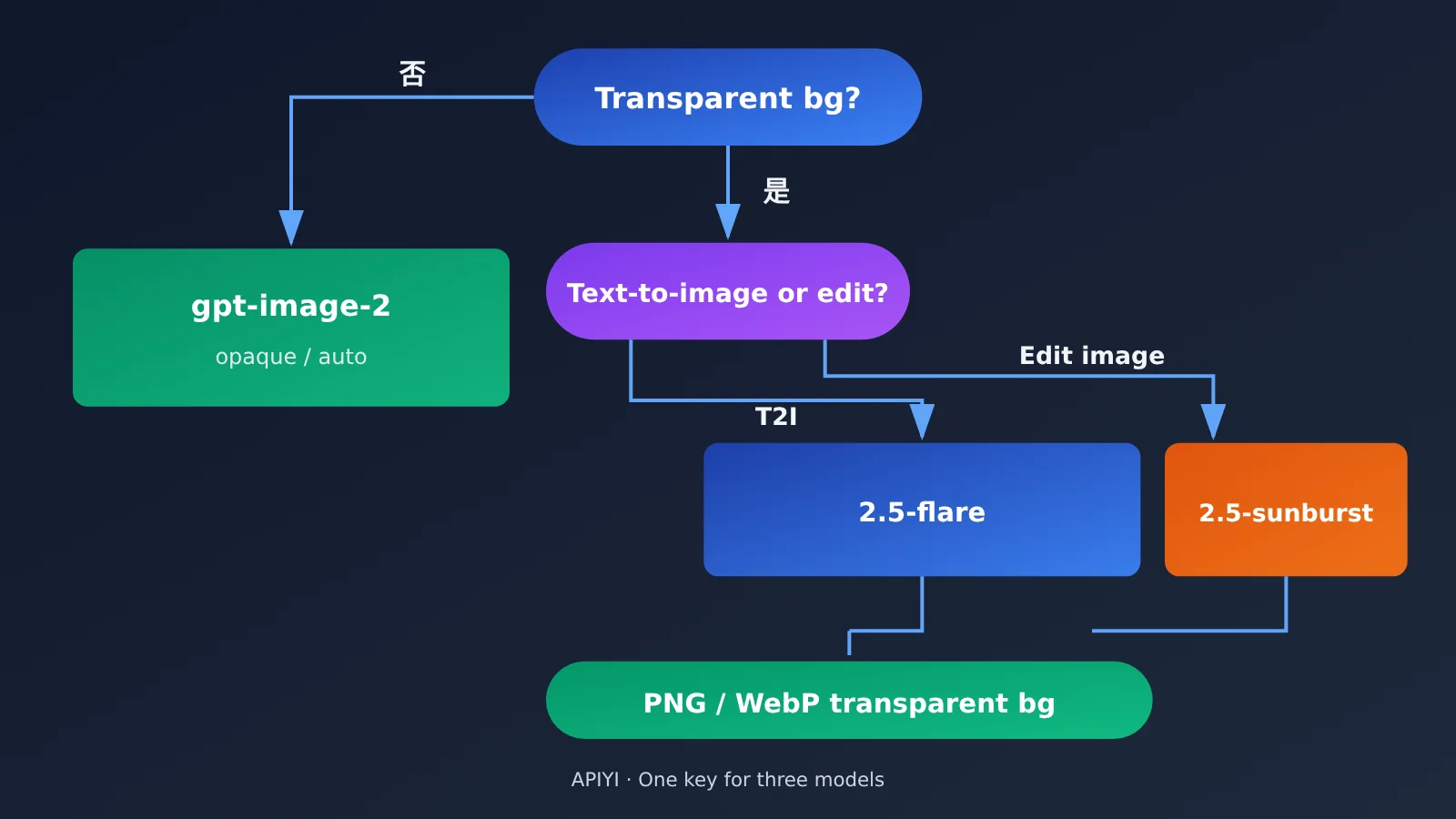
There’s just one core rule: switch the model name based on what you’re using it for, and leave everything else as-is. All three models have the same pricing and parameters, so you don’t need to change your existing size, quality, output_format, or prompt settings.
| Use case | Original model | New model | What to change |
|---|---|---|---|
| Text-to-image with a transparent background | gpt-image-2 | gpt-image-2.5-flare | model field only |
| Image editing with a transparent background | gpt-image-2 | gpt-image-2.5-sunburst | model field only |
| No transparent background needed | gpt-image-2 | gpt-image-2 (unchanged) | Nothing |
Here are the three steps:
- Find the requests: Search your code for
background="transparent"or"background": "transparent"to locate all calls that use a transparent background. - Choose the model based on the use case: For calls to
images.generate, switch to gpt-image-2.5-flare. For calls toimages.edit, switch to gpt-image-2.5-sunburst. - Check the output format: Make sure
output_formatis set topngorwebp. JPEG doesn’t support an Alpha channel, so it can’t preserve transparency even if the model supports it.
A Minimal Example: Transparent Backgrounds with gpt-image-2.5-flare
Here’s the simplest way to generate an image with a transparent background using the official OpenAI Python SDK:
import base64
from openai import OpenAI

client = OpenAI(
    api_key="YOUR_API_KEY",
    base_url="https://api.apiyi.com/v1"  # APIYI OpenAI-compatible endpoint
)

result = client.images.generate(
    model="gpt-image-2.5-flare",       # Replace gpt-image-2 with flare
    prompt="A cartoon-style orange fox sticker with clean edges and no halo",
    background="transparent",
    output_format="png",
    quality="low",
    size="1024x1024",
    n=1,
)

with open("fox.png", "wb") as f:
    f.write(base64.b64decode(result.data[0].b64_json))
One small thing to note: the reference request passes n as the string "1". It’s better to use the integer 1 to avoid type errors with some SDKs or stricter validation.
gpt-image-2.5-sunburst Image Editing Example with Automatic Fallback
If you want to remove the background from an existing image, that’s technically an image-editing task. You should use the editing endpoint with gpt-image-2.5-sunburst. This is a better fit for the model’s intended use than simply adding “remove the background” to a text-to-image prompt.
The complete code below wraps both image generation and image editing in separate functions. It also includes a fallback: if legacy code still sends a transparency request to gpt-image-2, the code catches a 400 error with param=background and automatically retries with the corresponding 2.5 model.
View the complete implementation (with automatic fallback)
import base64
from typing import Optional
from openai import OpenAI, BadRequestError

client = OpenAI(
    api_key="YOUR_API_KEY",
    base_url="https://api.apiyi.com/v1"  # APIYI unified endpoint—use one key to call all three models
)

# Model mapping for transparent-background tasks
TRANSPARENT_MODEL = {
    "generate": "gpt-image-2.5-flare",     # Text-to-image
    "edit": "gpt-image-2.5-sunburst",      # Image editing
}


def pick_model(task: str, background: Optional[str], model: str) -> str:
    """Automatically select a 2.5-series model when a transparent background is requested."""
    if background == "transparent" and model == "gpt-image-2":
        return TRANSPARENT_MODEL[task]
    return model


def is_transparent_rejected(err: BadRequestError) -> bool:
    """Identify 400 errors caused by gpt-image-2 rejecting transparent backgrounds."""
    msg = str(err)
    return "Transparent background is not supported" in msg or "background" in msg


def save_b64(b64_data: str, path: str) -> str:
    with open(path, "wb") as f:
        f.write(base64.b64decode(b64_data))
    return path


def generate_image(
    prompt: str,
    out_path: str,
    model: str = "gpt-image-2",
    background: Optional[str] = "transparent",
    size: str = "1024x1024",
    quality: str = "low",
    output_format: str = "png",
) -> str:
    params = dict(
        prompt=prompt,
        size=size,
        quality=quality,
        output_format=output_format,
        n=1,
    )
    if background:
        params["background"] = background

    target = pick_model("generate", background, model)
    try:
        result = client.images.generate(model=target, **params)
    except BadRequestError as e:
        if is_transparent_rejected(e) and target == "gpt-image-2":
            result = client.images.generate(
                model=TRANSPARENT_MODEL["generate"], **params
            )
        else:
            raise
    return save_b64(result.data[0].b64_json, out_path)


def edit_image(
    image_path: str,
    prompt: str,
    out_path: str,
    model: str = "gpt-image-2",
    background: Optional[str] = "transparent",
    output_format: str = "png",
) -> str:
    target = pick_model("edit", background, model)
    with open(image_path, "rb") as img:
        kwargs = dict(
            image=img,
            prompt=prompt,
            output_format=output_format,
            n=1,
        )
        if background:
            kwargs["background"] = background
        result = client.images.edit(model=target, **kwargs)
    return save_b64(result.data[0].b64_json, out_path)


if __name__ == "__main__":
    # Transparent-background text-to-image: automatically uses gpt-image-2.5-flare
    generate_image("极简风格的咖啡杯图标,扁平设计", "cup.png")

    # Remove the background from an image: automatically uses gpt-image-2.5-sunburst
    edit_image("product.jpg", "去掉背景,保留主体,没有边缘,没有光晕", "product_cut.png")
Quick-start tip: If your project uses both gpt-image-2 and the 2.5 series, consider connecting through APIYI at apiyi.com. One API key gives you access to all three models, and new users get free credits to test the service—handy for trying out transparent-background generation before migrating.
Comparing Alternatives for Transparent Backgrounds in gpt-image-2
Besides switching directly to the 2.5 series, some people are considering another option: “generate an image with a white background in gpt-image-2, then remove the background with a cutout tool.” Each approach has its place. Here’s a side-by-side comparison:
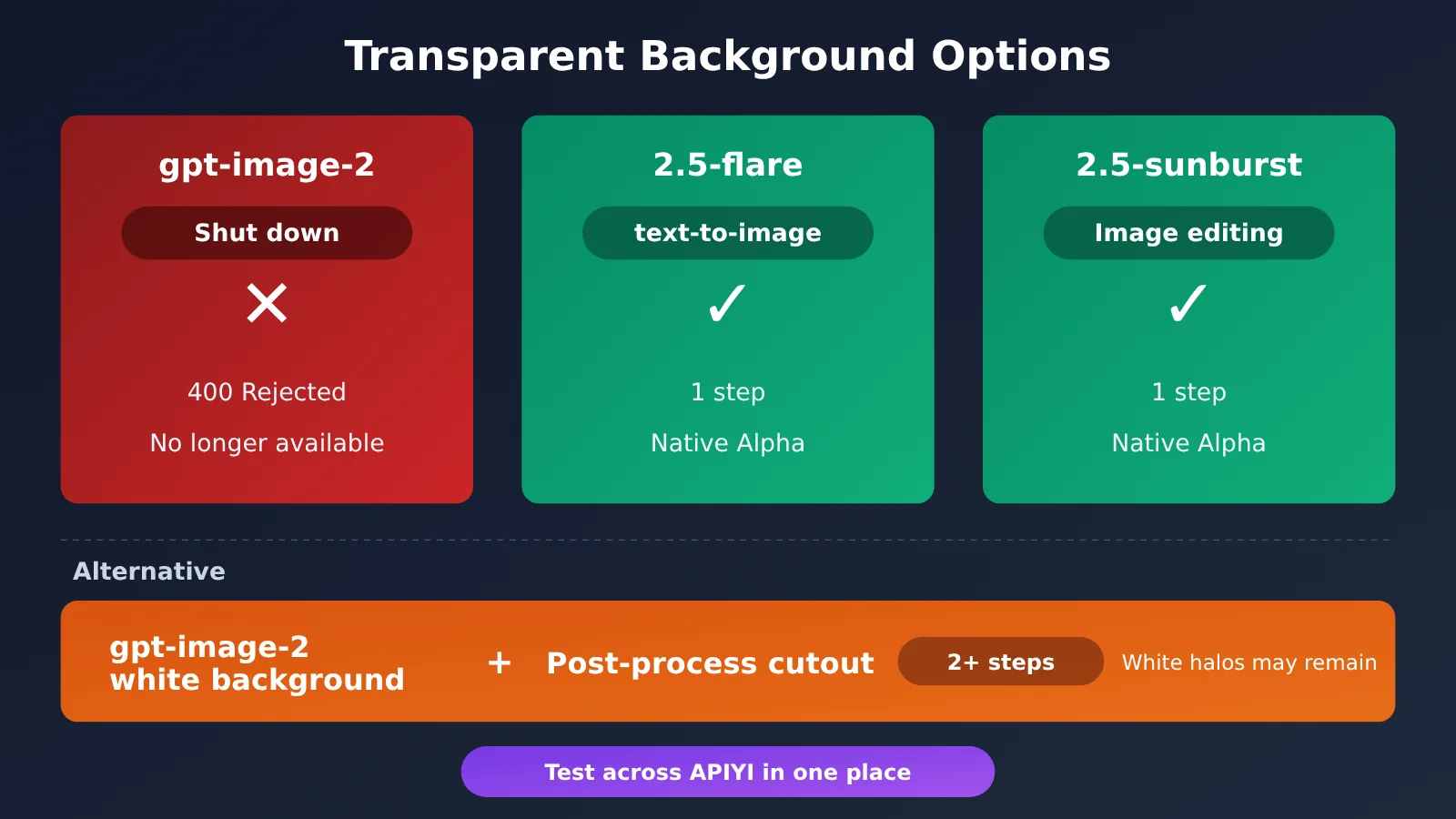
| Option | Transparent Background | Call Steps | Edges and Halos | Use Cases |
|---|---|---|---|---|
| gpt-image-2 + transparent | ❌ Discontinued | — | — | No longer available |
| gpt-image-2.5-flare | ✅ Natively supported | 1 call | Alpha channel generated natively by the model | Generating stickers, icons, logos, and e-commerce assets |
| gpt-image-2.5-sunburst | ✅ Natively supported | 1 call | Alpha channel generated natively by the model | Removing or changing the background of existing images |
| gpt-image-2 white background + post-processing cutout | ⚠️ Indirect support | 2 or more steps | Depends on the cutout tool; white edges may remain | Teams with an existing cutout workflow or a strong reliance on gpt-image-2’s visual style |
Choosing a Transparent Background Approach for gpt-image-2
How post-processing cutouts compare: The advantage of the “white background + cutout” approach is that it preserves gpt-image-2’s image style. But it adds another processing step, and complex areas like wispy hair, translucent glass, and shadows can end up with white edges or halos. Those are exactly the issues the user wanted to avoid in the prompt. By contrast, the 2.5 series outputs an alpha channel natively, creating a shorter workflow that’s better suited to automated batch production.
How the 2.5 series compares: gpt-image-2.5-flare and gpt-image-2.5-sunburst are the official OpenAI replacement models for transparent backgrounds, with the same pricing and parameters, making migration nearly cost-free. For new projects or teams without an existing cutout workflow, switching directly to the 2.5 series is the more reliable choice.
Comparison note: Actual results depend heavily on the type of assets you’re working with. We recommend running the same prompts on APIYI apiyi.com and comparing edge quality before choosing a production approach.
Frequently Asked Questions
Q1: Why did gpt-image-2 suddenly stop generating transparent backgrounds?
This was a change made by OpenAI. Transparent backgrounds for gpt-image-2 were available in preview starting on 2026-08-21 and were officially discontinued on 2026-09-30. If you now send `background: “transparent”` to gpt-image-2, OpenAI will reject the request and return a 400 error with `Transparent background is not supported for this model.`
Q2: Will I be charged if a transparent-background request returns a 400 error?
No. OpenAI doesn’t charge for transparent-background requests it rejects, so you can troubleshoot without worrying about fees. That said, it’s best to migrate soon to avoid a continued stream of failed requests that could affect the user experience and retry logic.
Q3: What’s the difference between gpt-image-2.5-flare and gpt-image-2.5-sunburst?
They’re designed for different use cases: gpt-image-2.5-flare is for text-to-image generation, while gpt-image-2.5-sunburst is for image editing. Both natively support transparent backgrounds and have the same pricing and parameters as gpt-image-2. To migrate, just replace the model field based on your use case; you don’t need to change any other parameters.
Q4: Can I still use gpt-image-2?
Yes. Only the `transparent` value has been discontinued. Tests on October 15 showed that text-to-image generation and editing still work with `opaque`, `auto`, or no `background` value. If your application doesn’t need transparent backgrounds, you can keep using gpt-image-2.
Q5: How can I quickly test transparent backgrounds with the 2.5 series?
Follow these steps:
1. Visit APIYI at apiyi.com, create an account, and get an API key and free testing credits.
2. Set `base_url` in the examples in this article to `https://api.apiyi.com/v1`.
3. For text-to-image generation, change the model to gpt-image-2.5-flare. For image editing, use gpt-image-2.5-sunburst. Leave the other parameters unchanged.
This lets you compare the image output from gpt-image-2 and the 2.5 series using the same key.
Q6: Why do I still not see a transparent background after migrating?
The most common cause is the output format. JPEG doesn’t support an alpha channel, so use `png` or `webp` for transparent backgrounds. Also, check that you haven’t used flare by mistake for an image-editing request; editing requires sunburst. If the issue persists, work through the transparent-background FAQ in the APIYI documentation, or contact technical support with your request ID.
Q7: What’s the easiest way to migrate a large amount of existing gpt-image-2 code for transparent backgrounds?
The simplest approach is to add a model mapping in your invocation layer: if `background == “transparent”` and the model is gpt-image-2, automatically switch to the corresponding 2.5 model. The complete code in this article already implements this logic, along with a fallback retry for 400 errors, so you’ll barely need to change your application code.
gpt-image-2 Transparent Background Migration: Key Takeaways
- What changed: OpenAI shut down gpt-image-2’s transparent background preview capability on 2026-09-30.
- What the error looks like: HTTP 400,
invalid_value,param: background. Rejected requests aren’t billed. - What still works: gpt-image-2 still generates images normally with
opaque,auto, or nobackgroundparameter. - Text-to-image alternative: For text-to-image with a transparent background, switch to gpt-image-2.5-flare. Just change the model name.
- Image editing alternative: For editing images with a transparent background, switch to gpt-image-2.5-sunburst. All three models have the same pricing and parameters.
- Format reminder: Use png or webp for transparent output. JPEG can’t preserve transparency.
- Getting started: Use one API key through APIYI at apiyi.com to call all three models. Test for free before migrating.
Summary
gpt-image-2 can’t generate images with transparent backgrounds—not because of your code, but because OpenAI has officially shut down this preview capability. Here’s what to do:
- Confirm the cause: If you see
Transparent background is not supported for this model., the capability has been shut down by OpenAI. You won’t be charged, and there’s no need to keep retrying. - Choose a model based on your use case: Switch to gpt-image-2.5-flare for text-to-image, or gpt-image-2.5-sunburst for image editing. Keep the rest of your parameters unchanged.
- Add a fallback: Map models at the invocation layer and add fallback logic for 400 errors. Make sure the output format is png or webp.
For most projects, migrating means changing just one line: the model name. We recommend using APIYI at apiyi.com to quickly test the transparent background output from the 2.5 series. The platform offers an OpenAI-compatible API and free test credits, making it easy to switch between gpt-image-2 and the 2.5 series.
📚 References
- APIYI Help Docs: Transparent Image Background FAQ: Explains why transparent backgrounds were discontinued in gpt-image-2 and provides migration guidance.
- Link:
docs.apiyi.com/faq/image-transparent-background -
Description: Covers error messages, alternative models, and parameter mappings to help you troubleshoot during migration.
-
OpenAI Image Generation API Documentation: Describes the parameters for the
images.generateandimages.editendpoints. - Link:
platform.openai.com/docs/guides/image-generation -
Description: Refer to the official definitions of parameters such as
background,output_format, andquality. -
OpenAI Python SDK: The official Python client source code and examples.
- Link:
github.com/openai/openai-python - Description: The code examples in this article are based on this SDK. Refer to it for exception types and image API usage.
Author: APIYI Technical Team
Technical Support: Contact us from the APIYI homepage. For more information on integrating image models, visit the docs center at docs.apiyi.com.