Many developers using SeeDance2.5 for talking digital avatars, product endorsements, costume changes in short dramas, and similar use cases run into the same issue: if a video contains a face, the API reports a moderation failure. This article introduces the compliant approach of registering authorized real-person assets and referencing them by Asset ID, so you can reliably generate and edit videos that include faces.
This is not an article about “teaching you how to bypass moderation.” Instead, we’ll explain how to register authorized images of real people properly, then use SeeDance2.5 compliantly, making the workflow reliable and reusable over the long term.
What you’ll learn: By the end, you’ll understand the difference between “uploading a face-containing video directly” and “registering an authorized asset,” and you’ll be able to generate and edit videos with faces on APIYI in three steps.
Key Points for Generating and Editing Face-Containing Videos with SeeDance2.5
Let’s start with the bottom line. APIYI supports Seedance 2.5’s real-person portrait asset feature, including asset registration. But “supporting real-person portrait assets” and “being able to edit any face-containing video by uploading it directly” are two different things—and that’s where customers most often get confused.
The table below compares three common approaches. See which one fits your situation.
| Approach | How it works | Moderation risk | Best for |
|---|---|---|---|
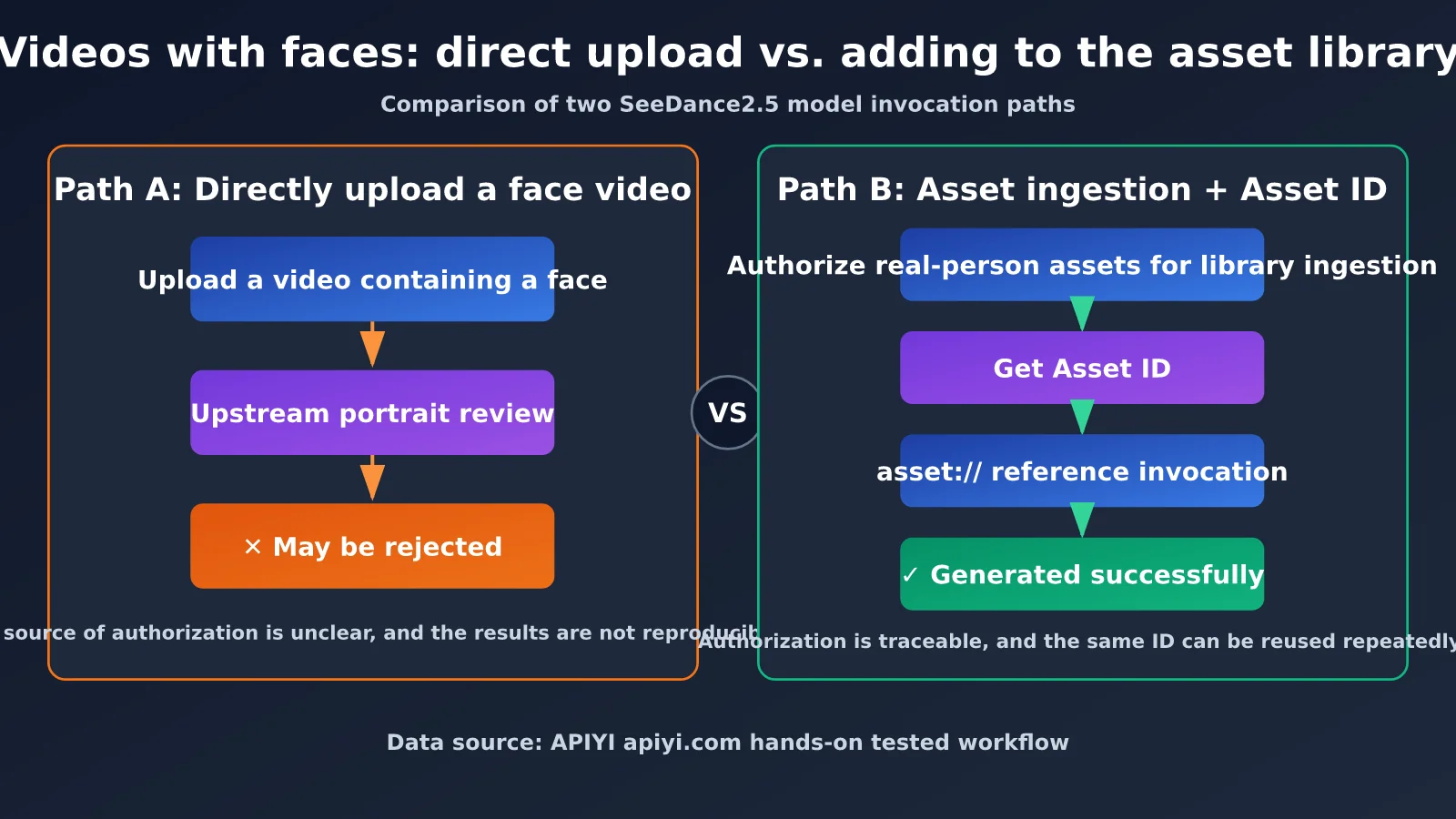
| Registering an authorized real-person asset | Register the asset, get an Asset ID, then call the generation or editing endpoint | Low; this is the supported, compliant path on APIYI | Digital avatars, endorsements, and recurring use of the same person |
| Directly uploading a regular face-containing video | Upload a video containing a face as a reference video | Higher; it may trigger upstream portrait moderation restrictions | Use cases without an identifiable real person, or limited-scope testing |
| “Direct support” on other platforms | The platform may register assets behind the scenes, or the provider may use different moderation mechanisms | Depends on how the platform is implemented | Verify the compliance boundaries yourself |
A Closer Look at Generating and Editing Face-Containing Videos
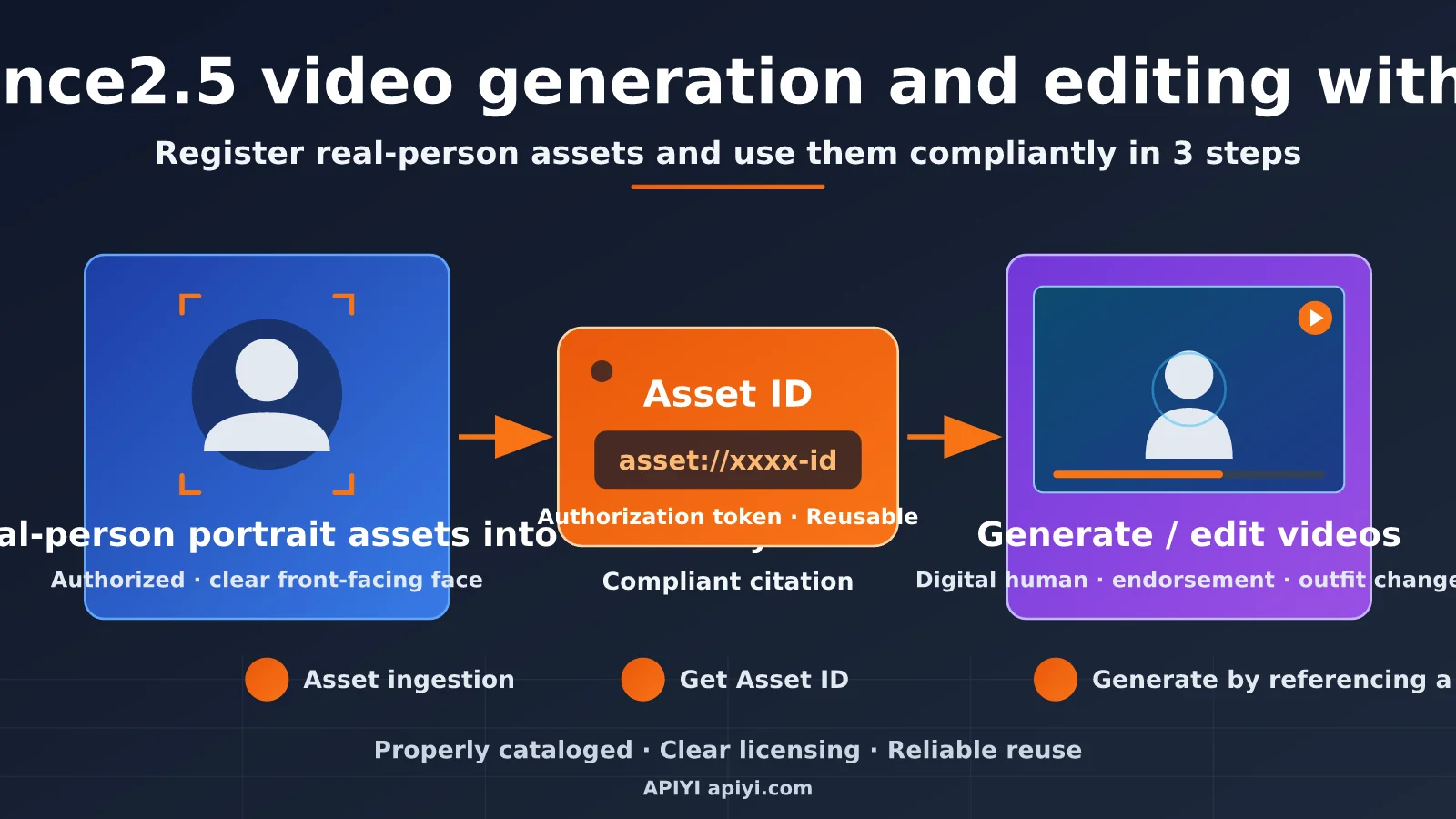
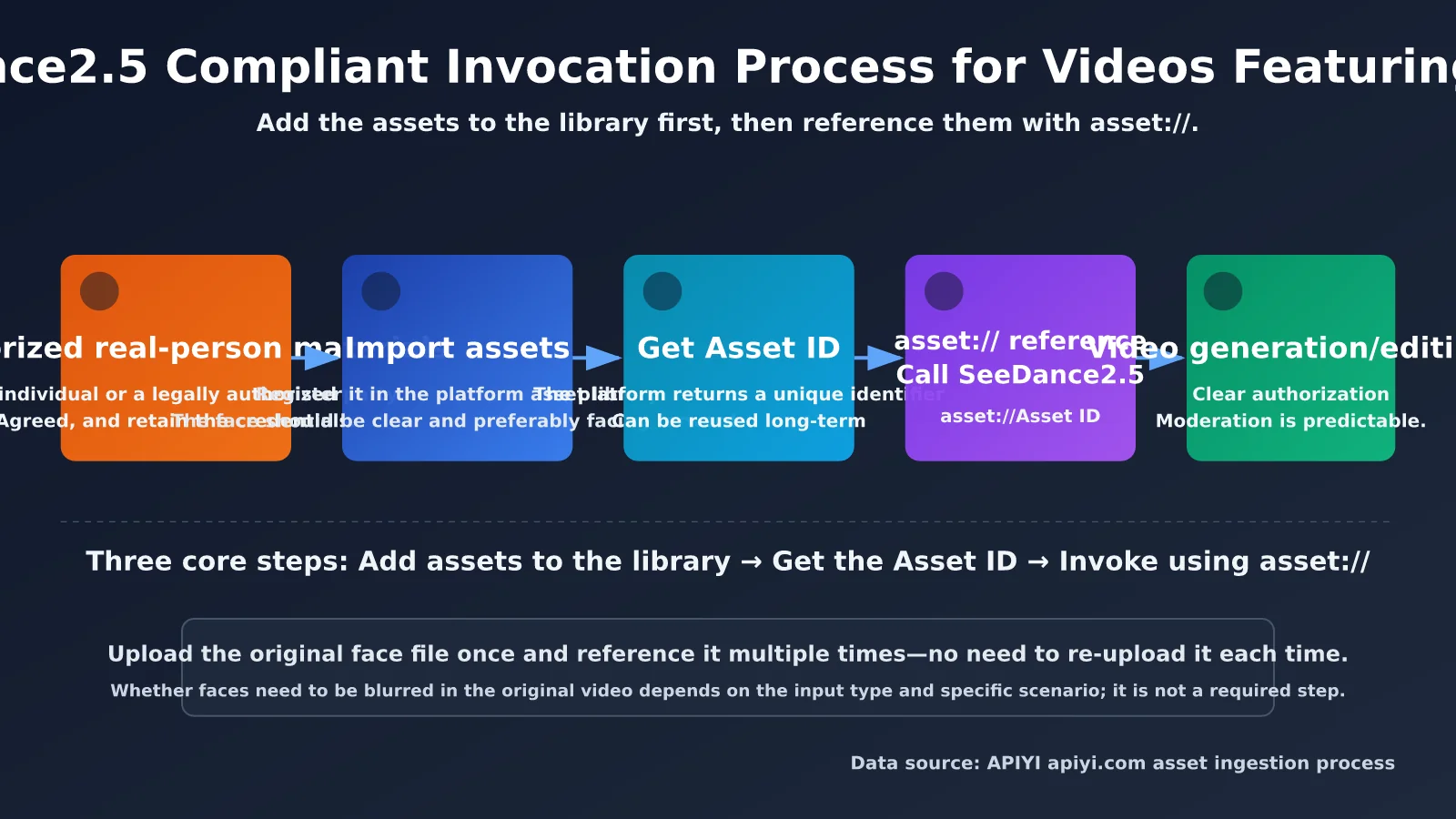
The key to the first approach is “register the asset first, then reference it.” Registration records an authorized image of a real person on the platform and returns an Asset ID. When you call SeeDance2.5 later, you use an asset:// reference to point to it instead of uploading the original face file every time. This keeps authorization clear, makes the asset easy to reuse, and makes moderation outcomes more predictable.
The issue with the second approach isn’t simply that “the video contains a face.” It’s the upstream portrait moderation process. A regular video containing a face may be blocked if it doesn’t have the corresponding proof of authorization. When people see that another platform “seems to let you upload directly,” they may assume APIYI doesn’t support the feature. In reality, the other platform may be registering the asset for you behind the scenes, or its provider may simply use different moderation and API mechanisms.
A note on “blurring faces”: Some customers suggest, “First blur the faces in the original video, then register it and generate.” It helps to think of this as two separate steps: properly registering the authorized real-person asset is the key part. Blurring faces in the original video isn’t necessarily required; whether it is depends on your input type and specific use case.
What Is SeeDance2.5 Real-Person Asset Registration?
Real-person asset registration means adding authorized portrait materials of real people to a platform’s asset library. Once registration is complete, the platform returns a unique Asset ID. Any later generation or editing request that needs to use that person can reference the asset with asset://<Asset ID>.
This process separates portrait authorization from individual requests, turning it into a one-time prerequisite. For recurring on-screen talent, such as a brand’s digital spokesperson or a company’s training presenter, this is clearer and easier to document for compliance than uploading the original video every time.
Before registering an asset, make sure the following requirements are met. Otherwise, you may run into problems later in the process.
- Proof of authorization: The person shown in the material, or their legal representative, has agreed to the use of their likeness in AI-generated videos. Keep the relevant documentation.
- Material quality: The face is clear, lighting is even, and the person is mostly facing the camera. Avoid heavy occlusion, exaggerated filters, or footage featuring multiple people.
- Purpose alignment: The registered material should be used for the intended generation scenario. Don’t use one person’s likeness to generate content featuring someone else.
Key Differences Between Asset Registration and Direct Upload
| Comparison | Asset registration + Asset ID | Directly uploading a face video |
|---|---|---|
| Authorization | Confirmed and documented during registration | No corresponding proof of authorization |
| Reusability | Register once, then reference it with asset:// as needed |
Upload again for every request |
| Review outcome | More predictable | May trigger portrait-related restrictions from the upstream platform |
| Available platforms | APIYI apiyi.com and others | Depends on the platform |
| Best suited for | Teams that need ongoing, high-volume production | Temporary testing or non-human subjects |
Get Started Quickly with SeeDance2.5 Video Generation and Editing Featuring a Real Person
The whole process comes down to three steps: register the asset → get the Asset ID → use asset:// to generate or edit. Here’s a minimal example showing how to submit a video generation request featuring a real person through the APIYI unified interface.
🚀 Quick start: We recommend creating an account at APIYI apiyi.com and getting an API key. Asset registration and SeeDance2.5 requests use the same key, so you won’t need to switch between platforms.
Minimal Example
The code below shows how to reference registered real-person material with an Asset ID. Note that the endpoint and field names are illustrative. Check the latest documentation in the APIYI documentation center at docs.apiyi.com for the exact details.
import requests

API_KEY = "YOUR_API_KEY"
BASE_URL = "https://api.apiyi.com/v1"  # Use the APIYI unified interface

payload = {
    "model": "seedance-2.5",
    "prompt": "The person on screen smiles and introduces a new product to the camera. The background is a bright office.",
    # Reference registered real-person material with asset://
    "reference_images": ["asset://YOUR_ASSET_ID"],
}

resp = requests.post(
    f"{BASE_URL}/video/generations",  # Illustrative endpoint; check the official documentation
    headers={"Authorization": f"Bearer {API_KEY}"},
    json=payload,
    timeout=60,
)
print(resp.json())
There’s just one key detail in this example: the reference material is no longer a local file or external link—it’s an asset:// reference. As long as the Asset ID is valid, the platform will process the request using the registered, authorized real-person asset.
View the full implementation (asset registration, task submission, and result polling)
import time
import requests

API_KEY = "YOUR_API_KEY"
BASE_URL = "https://api.apiyi.com/v1"  # Use the APIYI unified interface
HEADERS = {"Authorization": f"Bearer {API_KEY}"}


def upload_portrait_asset(file_path: str, owner_name: str) -> str:
    """
    Step 1: Register a real-person asset and return its Asset ID.
    Note: The endpoint and field names are illustrative. Refer to the official documentation.
    """
    with open(file_path, "rb") as f:
        resp = requests.post(
            f"{BASE_URL}/assets",  # Illustrative endpoint
            headers=HEADERS,
            files={"file": f},
            data={"owner": owner_name, "type": "portrait"},
            timeout=120,
        )
    resp.raise_for_status()
    return resp.json()["asset_id"]


def submit_video_task(asset_id: str, prompt: str) -> str:
    """Step 2: Submit a SeeDance2.5 generation task using an asset:// reference."""
    payload = {
        "model": "seedance-2.5",
        "prompt": prompt,
        "reference_images": [f"asset://{asset_id}"],
    }
    resp = requests.post(
        f"{BASE_URL}/video/generations",  # Illustrative endpoint
        headers=HEADERS,
        json=payload,
        timeout=60,
    )
    resp.raise_for_status()
    return resp.json()["task_id"]


def wait_for_result(task_id: str, interval: int = 5, max_wait: int = 600) -> dict:
    """Step 3: Poll the task status until it completes or times out."""
    start = time.time()
    while time.time() - start < max_wait:
        resp = requests.get(
            f"{BASE_URL}/video/generations/{task_id}",  # Illustrative endpoint
            headers=HEADERS,
            timeout=30,
        )
        data = resp.json()
        if data.get("status") in ("succeeded", "failed"):
            return data
        time.sleep(interval)
    raise TimeoutError("Video generation timed out. Please try again later.")


if __name__ == "__main__":
    asset_id = upload_portrait_asset("portrait.jpg", owner_name="Authorized Person's Name")
    task_id = submit_video_task(asset_id, "The person faces the camera and speaks naturally with a friendly expression.")
    result = wait_for_result(task_id)
    print(result)
Three-Step Checklist
- Prepare the material and confirm authorization: Make sure you have authorization to use the person’s likeness, and prepare clear footage with good lighting.
- Register the asset: Register the material using APIYI’s asset registration feature, then save the returned Asset ID.
- Generate or edit with
asset://: Format the Asset ID as anasset://reference, include it in your request, and retrieve the result using the task ID.
🎯 Technical tip: Before rolling this out, try a short video and one Asset ID on APIYI apiyi.com to test the full workflow. Confirm that the authorized material, prompt, and output all meet your expectations before scaling up to batch production.
SeeDance2.5 Face Video Editing and Generation: How to Write Prompts for Two Use Cases
Even when both involve videos featuring a face, generation and editing have different inputs and goals. Generation focuses on what the authorized person should do and the setting they should be in. Editing focuses on what to change while keeping the person consistent.
| Use case | Input | What to focus on in the prompt | Notes |
|---|---|---|---|
| Person video generation | Asset ID + text description | Actions, expressions, shot size, background | Let the asset define the person’s appearance; don’t repeat appearance details in the prompt |
| Video editing | Original video + Asset ID | Clearly state what to change and what to preserve | Keep the person consistent and avoid making too many changes at once |
| Digital avatar narration | Asset ID + script and style | Tone, camera distance, subtitle style | Keep the script concise, with short sentences that are easier to edit later |
| Multi-shot short videos | Multiple calls using the same Asset ID | Consistent style and lighting descriptions | Generate each shot separately, then stitch them together |
Here are three tips for writing prompts. First, let the asset determine what the person looks like and use the prompt to specify what they do. This helps avoid conflicts between the two. Second, for editing requests, clearly state what should remain unchanged. For example: “Keep the person’s face and hairstyle unchanged; only replace the background with a café.” Third, don’t pack too many changes into one request. Breaking them into steps makes it more likely to work and easier to troubleshoot.
💡 Recommendation: Different prompt styles can have a significant effect on the results. We recommend testing a few variations with the same Asset ID on APIYI apiyi.com, then choosing the most consistent template to use in your workflow.
SeeDance2.5 Face Swaps and Comic Dramas: 4 Practical Examples Using Authorized Assets
Face swaps and comic dramas are two of the most common use cases for videos featuring faces. Here, “face swap” specifically means replacing a person with their consent—for example, using a brand’s authorized spokesperson, an actor’s authorized stand-in, or a creator’s own likeness. It doesn’t mean putting someone else’s face into a video without their consent. Once an asset has been added to the library and assigned an Asset ID, both use cases can follow the same compliant workflow.
Example 1: Swap in an authorized spokesperson and produce multiple ad versions
An e-commerce team has a prerecorded product video and needs to feature a different spokesperson who’s under contract, for campaigns in different regions. First, they add the spokesperson’s authorized likeness to the asset library and get an Asset ID. Then they use the original video as the editing input and write a prompt such as: “Replace the person with the one in the asset. Keep the original actions, lip-sync timing, product position, and background unchanged.” The same Asset ID can be reused to create 5–10 versions in a day, and the corresponding assets can be taken down together when the contract expires.
Example 2: Cast live-action actors in a comic drama while keeping character faces consistent
The biggest challenge in comic dramas is that a character can end up with “a different face in every shot.” A good workflow is to create a separate Asset ID for each main character, whether they’re a live-action actor or an authorized photorealistic character design. Then reference the same ID in every shot and keep the style, lighting, and clothing descriptions consistent in the prompts. Let the asset define the person’s appearance; describe only the action and emotion in each shot. For example: “Close-up: the female lead looks down at her phone, then suddenly looks up, eyes reddening, with warm backlighting.”
Example 3: Turn live-action footage into a comic style
Many teams start by filming live-action performances, then transform them into a comic or animated style to preserve natural expressions and pacing. For editing, split the prompt into two parts: what to preserve and what to change. Preserve the person’s identity, expression, and camera movement; change the rendering style, linework, and color palette. Change only one style element at a time. Changing the clothing and setting at the same time can significantly reduce face consistency.
Example 4: Swap faces in a scene with multiple actors, one character at a time
Trying to replace everyone in a scene at once can cause faces to get mixed up. A more reliable approach is to process each character in a separate pass, referencing only one Asset ID per pass. Use position and appearance in the prompt to identify the person, such as: “Replace the person on the left wearing a blue suit.” Once all the replacements are done, apply color grading and subtitles consistently for a more polished final video.
| Use case | Asset preparation | Key prompt instruction | Common issues | How to address them |
|---|---|---|---|---|
| Spokesperson face swap | Authorized likeness + authorization documents on file | Keep actions, lip-sync, and product position unchanged | Extreme profile angles, mismatched lip-sync | Use clear, front-facing source material and avoid large head turns in the original video |
| Consistent comic drama characters | One Asset ID per character | Keep style, lighting, and clothing descriptions consistent | Hair and clothing change between shots | Create a fixed character template and reuse it in every shot |
| Live action to comic style | Authorized live-action performance video | Preserve expressions and camera movement; change only the rendering style | Strong style effects distort facial features | Test with a subtle style strength first, then increase it gradually |
| Multi-person scenes | Separate Asset ID for each character | Identify the person to replace by position and clothing | Faces get mixed up or a replacement is missed | Process each character separately, replacing one person per pass |
For comic drama and face-swap projects, it’s worth building three compliance requirements into your team’s workflow. First, get written authorization for every face added to the asset library, and record the permitted use and duration. Second, label the finished content as “AI-generated” or “AI-synthesized,” as required by the platform. Third, don’t swap the faces of public figures, minors, or unauthorized third parties, and don’t create content that could mislead viewers.
🎬 Tips for producing comic dramas: Start with one character and three shots. Run the full “add to library → reference → stitch together” workflow on APIYI apiyi.com, then check face consistency and cost before scaling up by episode. You can add multiple characters to the library and run SeeDance2.5 on the same platform, making Asset IDs easier to manage in one place.
Common Misconceptions About SeeDance2.5 Videos with Faces: Should You Blur Faces?
The most common questions we hear from customers are, “Why can other platforms accept direct uploads, but this one requires assets to be registered first?” and “Do I have to blur faces in the original video?” Let’s clear up both questions.
- “APIYI doesn’t support real-person footage”: It does. Follow the asset registration process to get an Asset ID, then use it in your request.
- “If you can upload a video with faces, that means real-person footage is supported”: Those aren’t the same thing. Direct uploads may still trigger review restrictions. For authorized real-person footage, use the asset registration flow.
Q7: What are the known limitations for SeeDance2.5 videos with faces?
First, you must have legal authorization. Images of people you don’t have permission to use shouldn’t be registered or used. Second, generation quality depends on the source material and prompt, so face consistency isn’t guaranteed. Finally, check the latest official and platform documentation for specific limits on duration, resolution, concurrency, and other parameters. We recommend running a small-scale test before launch. You can also compare different parameter combinations on APIYI at apiyi.com.
Key Takeaways for Generating and Editing SeeDance2.5 Videos with Faces
- Choose the right workflow: For authorized real-person footage, registering the asset and using its Asset ID is the supported workflow on APIYI.
- Know the difference: “Supports real-person footage” doesn’t mean “any video with faces can be uploaded directly for editing.”
- Reference assets: After registration, use
asset://followed by the Asset ID. This makes assets easier to reuse and track. - About face blurring: Blurring isn’t required. The key is to register the source material properly.
- Comparing platforms: Platforms that offer “direct support” may simply handle asset registration behind the scenes, or use a different provider mechanism.
- Getting started: Get an API key from APIYI at apiyi.com, then test the full workflow with a short video.
Summary
A reliable workflow for generating and editing videos that include people’s faces comes down to three points:
- Get authorization first, then upload: Make sure you have permission to use the person’s likeness, then upload the footage to receive an Asset ID.
- Use
asset://when making requests: Reference the Asset ID in SeeDance2.5 requests instead of sending face footage directly. - Know what’s essential and what’s optional: Uploading the footage is the core step. Preprocessing, such as blurring faces, is optional and can’t replace authorization.
If you’re wondering, “Why can other services accept direct uploads while this one requires an asset upload?”, refer back to the comparison table in this article. Evaluate the options based on authorization, reusability, and how predictable the review process is.
For a quick way to test the results, try APIYI at apiyi.com. You can upload assets and call SeeDance2.5 with the same account, making it easy to experiment in small steps before scaling up to batch production.
Further Reading: Related Articles
If you’re interested in SeeDance2.5, check out these articles:
- 📘 How to Write SeeDance2.5 Prompts and Control Camera Shots — Learn how to make movement and camera work more consistent.
- 📊 Best Practices for Video Generation API Calls and Task Polling — Master techniques for handling asynchronous tasks.
- 🚀 Compliance and Cost Management for AI Video Production at Scale — Explore implementation strategies for teams.
References
- APIYI Documentation Center: Asset ingestion and model invocation guides
- Link:
docs.apiyi.com -
Details: Check the latest API endpoints, field names, and parameters.
-
APIYI Official Website: Get an API key and browse the model catalog
- Link:
apiyi.com - Details: Create an account and explore the available models and unified API.
Author: APIYI Technical Team
Tech discussions: Feel free to join the discussion in the comments. For more resources, visit the APIYI Documentation Center at docs.apiyi.com.