Want to turn your app ideas into interactive interface prototypes in a flash, but feel held back by a lack of design skills? Google Stitch is an AI-powered UI design tool built exactly for that, letting you generate professional-grade user interfaces using nothing but natural language.
Core Value: After reading this article, you'll have a comprehensive understanding of Google Stitch’s 5 key AI capabilities, how to use them, and real-world application scenarios—even if you have zero design background.
What is Google Stitch: A 3-Minute Overview
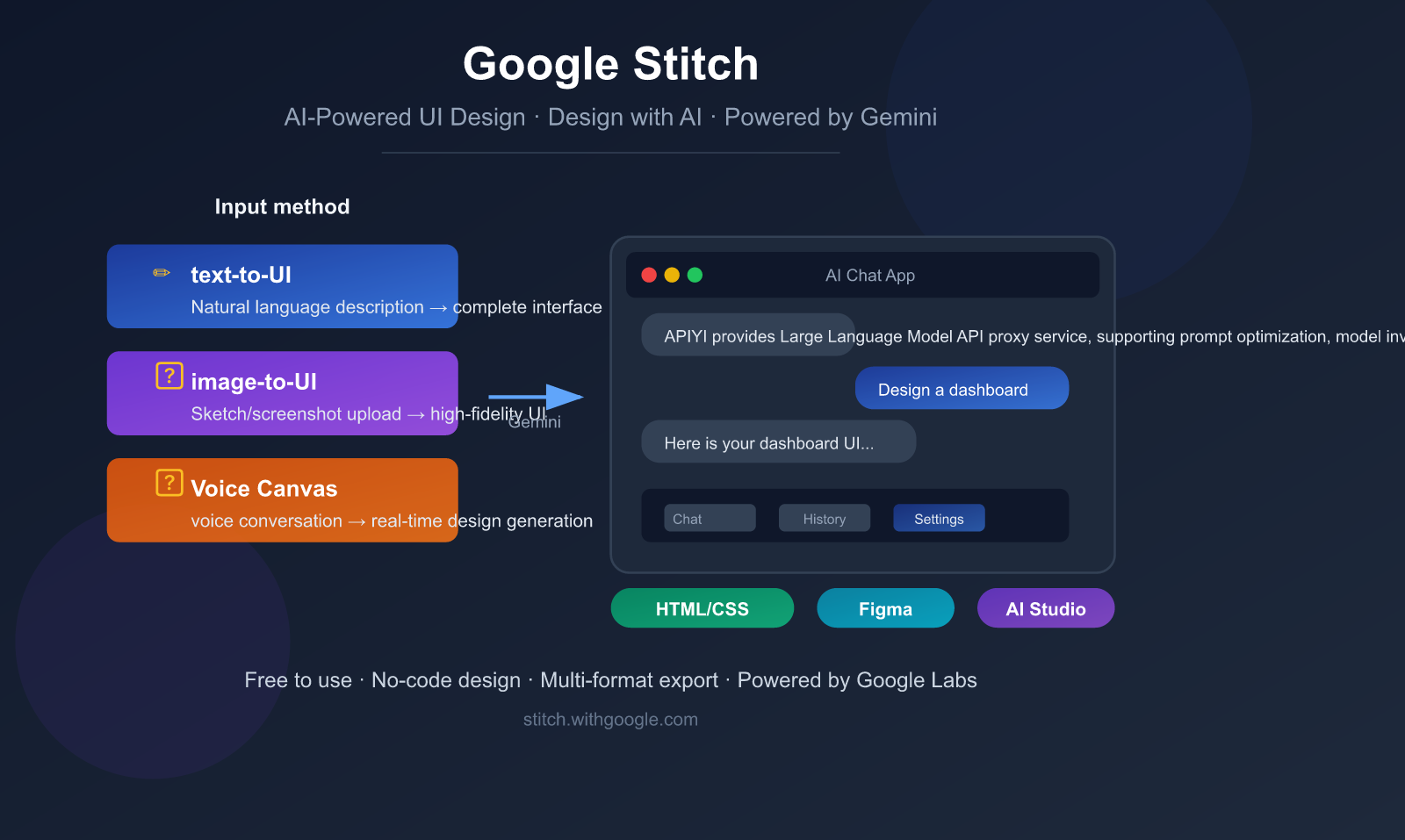
Google Stitch is a browser-based AI UI design tool launched by Google Labs, first unveiled at Google I/O in May 2025. Its core philosophy is "Design with AI"—using AI to craft interfaces.
Simply put, Stitch lets you generate high-fidelity user interfaces through text descriptions, image uploads, hand-drawn sketches, or even voice conversations, and it automatically outputs clean, usable HTML/CSS code.
Google Stitch Quick Facts
| Feature | Details |
|---|---|
| Product Name | Google Stitch |
| Development Team | Google Labs (Experimental) |
| Release Date | May 2025 (Google I/O 2025) |
| Latest Update | March 2026 (Added voice interaction, Vibe Design) |
| Access URL | stitch.withgoogle.com |
| Pricing | Completely free (requires Google account) |
| AI Engine | Gemini 2.5 Flash / Gemini 2.5 Pro / Gemini 3 |
| Output Formats | HTML/CSS code, Figma files |
| Target Audience | Designers, developers, product managers, entrepreneurs |
What Google Stitch Is Not
Before we dive deeper, let's clear up a few common misconceptions:
- Not a Figma replacement: Stitch is positioned for rapid prototyping exploration, not as a full-scale design system management tool.
- Not a full-stack development tool: It only generates frontend UI code (HTML/CSS) and does not include backend logic.
- Not a finished product: It's currently an experimental project from Google Labs, so features may change at any time.
- No multi-user collaboration: It's currently limited to single-user sessions.
🎯 Understanding the Positioning: The value of Google Stitch lies in rapid 0-to-1 prototype validation. The industry-recommended workflow is: "Explore ideas in Stitch → Refine designs in Figma → Implement in development tools." If you need to invoke AI models to build backend logic, we recommend using the APIYI (apiyi.com) platform to unify your access to API keys for mainstream models like Gemini.
A Deep Dive into the 5 Core AI Capabilities of Google Stitch
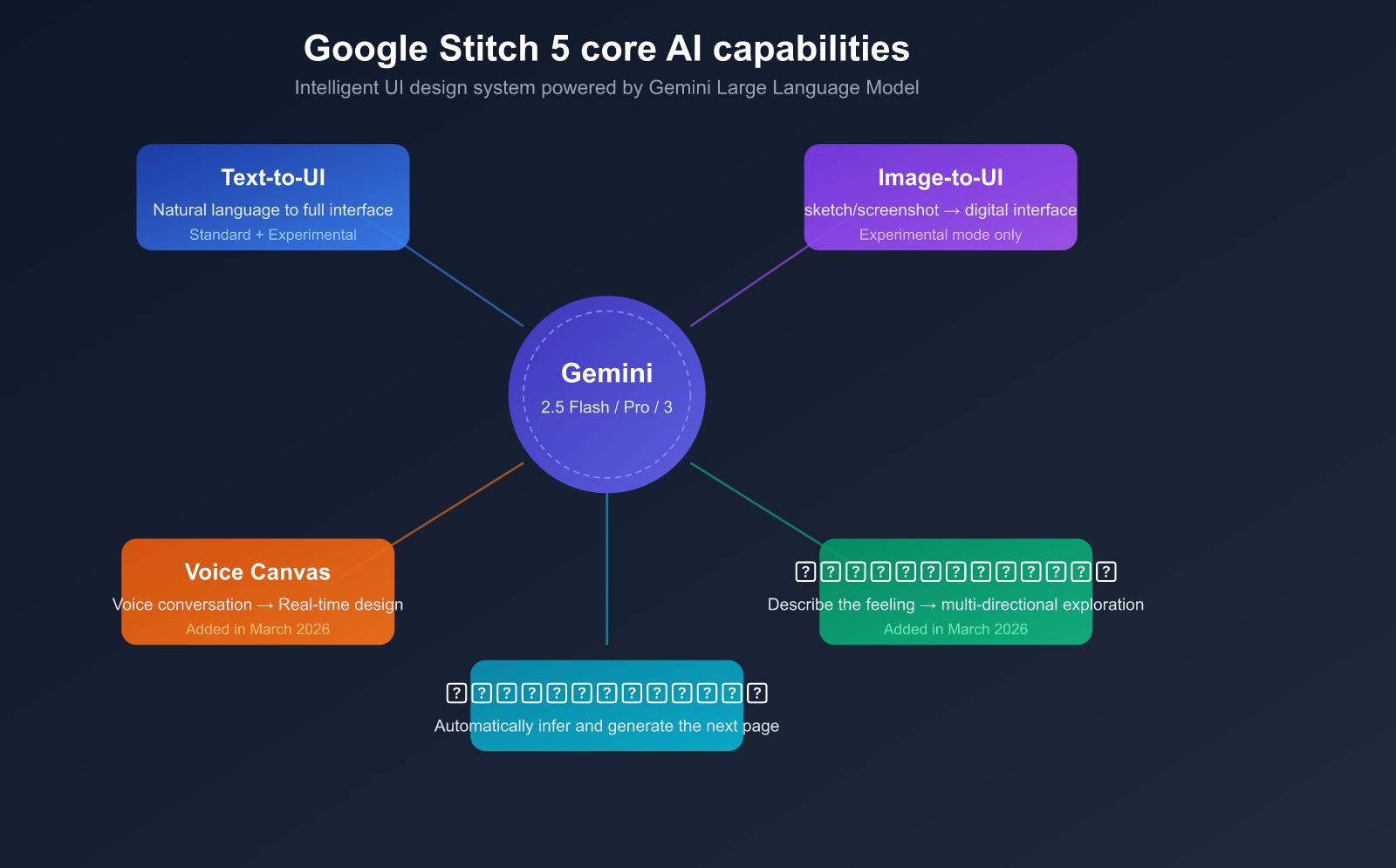
The reason Stitch has captured the design world's attention (Figma's stock price dropped 8% after its release) is its deep integration of Google's Gemini Large Language Model into the UI design workflow. Here is a detailed breakdown of its 5 core AI capabilities.
Capability 1: Text-to-UI Generation
This is Stitch's most fundamental yet powerful feature. You simply describe the interface you want in natural language, and the AI automatically generates a complete UI layout.
How to use it:
- Go to
stitch.withgoogle.comand sign in with your Google account. - Describe your requirements in natural language in the input box.
- Choose between Standard mode (fast) or Experimental mode (high quality).
- Wait a few seconds for the AI to generate the complete interface.
Prompt Example:
A mobile food delivery app with a white background,
orange accent color, featuring a search bar at top,
food category icons, and a list of nearby restaurants
with ratings and delivery time
Pro Tips:
- The more specific your description, the better the results.
- Specifying colors, layout styles, and platforms (Web/Mobile) improves accuracy.
- You can iterate step-by-step: generate the basic framework first, then add details gradually.
Capability 2: Image-to-UI Generation
This feature allows you to upload hand-drawn sketches, wireframes, or screenshots of competitors, and Stitch will convert them into high-fidelity digital interfaces.
Supported Input Types:
| Input Type | Description | Recommended Scenario |
|---|---|---|
| Hand-drawn Sketch | Photos of interface sketches on paper | Rapid digitization after brainstorming |
| Wireframe | Screenshots of wireframe files | Quick high-fidelity conversion of product plans |
| Competitor Screenshot | Screenshots of other apps | Quick design reference based on competitors |
| Style Reference | Images of preferred visual styles | Standardizing design language and color schemes |
Note: The Image-to-UI feature is only available in Experimental mode, powered by the Gemini 2.5 Pro model, with a monthly limit of 50-200 uses.
Capability 3: Voice Canvas
Launched in March 2026, this is one of Stitch's most innovative features.
You can speak directly to the canvas to describe your design needs. The AI understands your voice commands in real-time and performs the following actions:
- Generate new interfaces: "Help me design a dark-themed music player."
- Modify existing designs: "Increase the font size of the title and change the button color to blue."
- Design review: The AI proactively offers improvement suggestions, such as identifying poor contrast or unclear layouts.
- Interactive dialogue: You can discuss the pros and cons of design solutions with the AI.
This feature is powered by the native audio capabilities of Gemini 2.5 Flash, supporting real-time voice interaction.
Capability 4: Vibe Design
Traditional design requires precise specification of every component's attributes, but Vibe Design lets you describe the feeling and goals, and the AI automatically generates multiple matching design directions.
Traditional vs. Vibe Design:
| Dimension | Traditional Approach | Vibe Design Approach |
|---|---|---|
| Input | "Navigation bar height 64px, background #1a1a2e" | "Tech-savvy, professional, trustworthy" |
| Color | Requires specific color codes | "Warm and vibrant feeling" |
| Layout | Requires specific grids and spacing | "Moderate information density, comfortable browsing" |
| Output | 1 definitive design | Multiple design directions to choose from |
Use Cases:
- Early project stages without established design guidelines.
- Rapid exploration of different visual styles.
- Product managers or entrepreneurs without a design background.
Capability 5: Auto Screen
When you've designed a login page, Stitch can automatically infer and generate the next logical page in the user journey.
For example:
- Login page → Automatically generates the home page.
- Product list → Automatically generates the product detail page.
- Shopping cart → Automatically generates the checkout page.
This feature significantly accelerates the prototyping of multi-page applications, allowing you to quickly build complete user flows.
💡 Development Tip: If the frontend interface generated by Stitch needs to connect to backend AI capabilities (such as intelligent recommendations or content generation), you can use the APIYI (apiyi.com) platform to quickly integrate APIs for models like Gemini or GPT-4o, enabling the creation of full-stack AI application prototypes.
title: "Google Stitch: Comparing Modes and Getting Started"
description: "A practical guide to Google Stitch: comparing Standard vs. Experimental modes, workflow tips, and how to integrate your UI prototypes with real AI backends."
Comparing Google Stitch Modes and Usage Tips
Stitch offers two generation modes, each with its own strengths. Choosing the right one can effectively double your productivity.
Detailed Comparison: Standard vs. Experimental
| Feature | Standard Mode | Experimental Mode |
|---|---|---|
| Large Language Model | Gemini 2.5 Flash | Gemini 2.5 Pro |
| Generation Speed | Fast (2-5s) | Slower (5-15s) |
| Monthly Limit | 350 uses | 50-200 uses |
| Output Quality | Good, great for rapid iteration | High fidelity, richer details |
| Image Input | ❌ Not supported | ✅ Supported |
| Figma Export | ✅ Supported (Auto Layout) | ❌ Not supported |
| Code Export | ✅ HTML/CSS | ✅ HTML/CSS |
| Best For | Daily rapid prototyping, high-volume iteration | Important demos, final designs |
Usage Tips
Recommended Workflow:
- Exploration Phase: Use Standard mode to quickly test multiple directions (low cost, high speed).
- After Confirming Direction: Switch to Experimental mode to generate a high-fidelity version.
- For Fine-tuning: Export to Figma for pixel-perfect adjustments.
- Adding Backend Logic: Export the code to Google AI Studio or Antigravity.
🚀 Efficiency Tip: If you've generated an AI app interface in Stitch and need to connect it to real AI backend capabilities, we recommend using the unified API service from APIYI (apiyi.com). The platform supports major models like Gemini, Claude, and GPT, so you don't need to register for each service individually—you can complete the integration in just 5 minutes.
Quick Start with Google Stitch: Building Your First UI from Scratch
Here is a complete example demonstrating how to use Stitch to generate an AI chat app prototype from scratch.
Step 1: Access and Login
- Open your browser and go to
stitch.withgoogle.com. - Log in with your Google account.
- Once on the main dashboard, select Standard mode to begin.
Step 2: Enter a Prompt to Generate the First Screen
Enter the following description into the input box:
Design a mobile AI chat application with:
- Dark theme with gradient background
- Top bar showing AI model name and status
- Chat message list with user and AI bubbles
- Bottom input bar with send button and attachment icon
- Smooth, modern design inspired by ChatGPT
Wait 2-5 seconds, and Stitch will generate the complete chat interface.
Step 3: Iterative Optimization
If you aren't satisfied with the result, you can continue to input optimization instructions:
Add a sidebar with conversation history list,
and make the AI response bubbles have a subtle
blue gradient background
Stitch supports incremental modifications on top of existing designs, so there's no need to start from scratch.
Step 4: Generate Related Pages
Click the "Generate Next Screen" button, and Stitch will automatically infer and create:
- Settings page (model selection, theme switching)
- Conversation history page
- User profile page
Step 5: Connect Pages to Create a Prototype
Use the Stitch feature (the core functionality of the tool) to link multiple pages together:
- Select a button or clickable area on the page.
- Link it to the corresponding target page.
- Click the Play button to preview the interactive prototype.
Step 6: Export Your Work
| Export Method | Format | Best For |
|---|---|---|
| Code Export | HTML/CSS | Direct developer use or further development |
| Figma Export | Figma file (with Auto Layout) | Detailed design refinement |
| AI Studio | Project import | Adding APIs and backend logic |
| Antigravity | IDE integration | Google ecosystem full-stack development |
🎯 Pro Tip: After generating your AI app prototype, if you want to quickly verify the backend AI conversation capabilities, you can get a free testing quota from APIYI (apiyi.com). You can connect to conversation interfaces for models like Gemini and Claude with just a few lines of code.
Minimalist Code Example: Connecting an AI Backend to a Stitch-Generated Interface
import openai

client = openai.OpenAI(
    api_key="YOUR_API_KEY",
    base_url="https://api.apiyi.com/v1"  # APIYI unified interface
)

# Connect AI conversation capabilities to the chat interface generated by Stitch
response = client.chat.completions.create(
    model="gemini-2.5-flash",
    messages=[
        {"role": "system", "content": "You are a helpful assistant."},
        {"role": "user", "content": "Hello, introduce yourself!"}
    ]
)
print(response.choices[0].message.content)
View full frontend/backend integration code
import openai
from flask import Flask, request, jsonify, send_file

app = Flask(__name__)

client = openai.OpenAI(
    api_key="YOUR_API_KEY",
    base_url="https://api.apiyi.com/v1"  # APIYI unified interface
)

@app.route("/")
def index():
    # Load the HTML file exported from Stitch
    return send_file("stitch_export.html")

@app.route("/api/chat", methods=["POST"])
def chat():
    user_message = request.json.get("message", "")
    history = request.json.get("history", [])

    messages = [{"role": "system", "content": "You are a helpful AI assistant."}]
    messages.extend(history)
    messages.append({"role": "user", "content": user_message})

    response = client.chat.completions.create(
        model="gemini-2.5-flash",
        messages=messages,
        stream=False
    )

    return jsonify({
        "reply": response.choices[0].message.content,
        "model": response.model,
        "usage": {
            "prompt_tokens": response.usage.prompt_tokens,
            "completion_tokens": response.usage.completion_tokens
        }
    })

if __name__ == "__main__":
    app.run(port=5000, debug=True)
description: Explore how Stitch integrates with the Google AI ecosystem to streamline your development workflow from concept to production.
Google Stitch Ecosystem Integration and Workflow
Stitch isn't just a standalone tool; it’s deeply integrated into Google's AI development ecosystem.
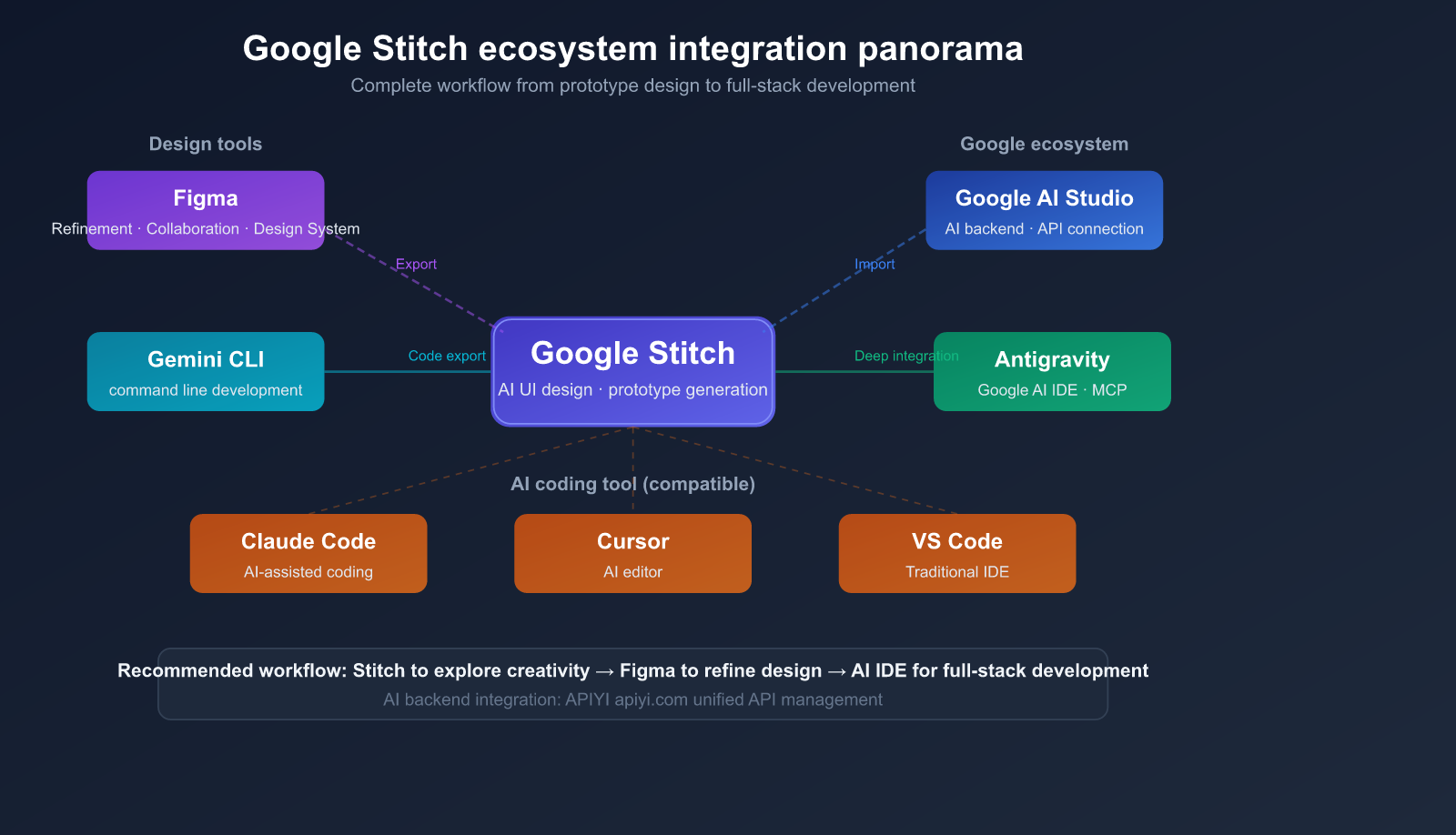
Integration with Development Tools
| Tool | Integration Method | Primary Use Case |
|---|---|---|
| Figma | Direct Export | High-fidelity UI design and team collaboration |
| Google AI Studio | Project Import | Adding AI backend logic and API connections |
| Antigravity | Deep MCP Server Integration | Full-stack development in Google AI IDE |
| Gemini CLI | Post-export usage | Development in command-line environments |
| Claude Code | Compatible | AI-assisted coding environment |
| Cursor | Compatible | AI editor environment |
Recommended Workflow: From Concept to Product
Ideation → Stitch Prototype → Figma Refinement → Development
   │              │                │              │
   │     Text/Image/Voice Input   Export Figma File    Export HTML/CSS
   │              │                │              │
   └──────────────┴────────────────┴──── AI Backend API Integration
Phase Breakdown:
- Ideation Phase (Stitch): Quickly validate multiple design directions, with results generated in just 2-5 seconds.
- Design Phase (Figma): Establish a design system, perform pixel-perfect refinements, and conduct team reviews.
- Development Phase: Build your application using the exported code as a foundation.
- AI Integration: When you need AI backend capabilities, quickly connect via a unified API.
💰 Cost Tip: Stitch itself is completely free. For the AI backend integration, if your application requires multiple models like Gemini, GPT-4o, or Claude, you can use the APIYI (apiyi.com) platform to manage them centrally. This saves you from the hassle of registering and funding multiple accounts, significantly reducing development and operational costs.
Google Stitch vs. Competitors
As a new player in the AI design space, how does Stitch stack up against existing tools?
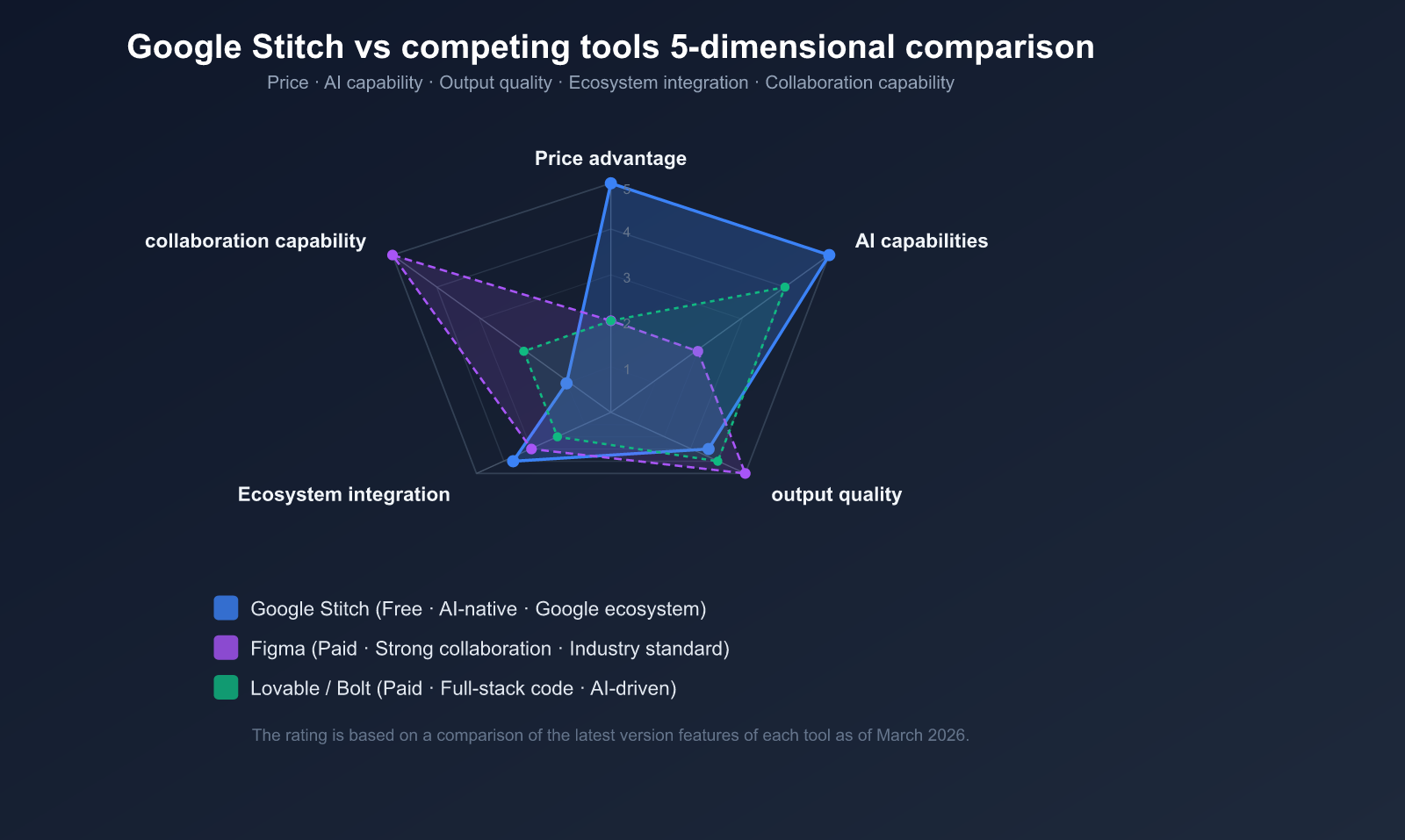
Comparative Analysis
| Feature | Google Stitch | Figma | Lovable | Bolt | UX Pilot |
|---|---|---|---|---|---|
| Price | Free | Paid | $20+/mo | $25+/mo | $15/mo |
| AI Generation | Core capability | Auxiliary | Core capability | Core capability | Core capability |
| Input Method | Text/Image/Voice/Sketch | Manual design | Text | Text | Text/Wireframe |
| Code Output | HTML/CSS | Plugin required | Full-stack | Full-stack | Yes |
| Design System | ❌ No | ✅ Industry standard | Limited | Limited | ✅ Supported |
| Collaboration | ❌ No | ✅ Real-time | Limited | Limited | ✅ Supported |
| Prototyping | AI-assisted | Manual | Full-featured App | Full-featured App | Supported |
| Maturity | Experimental | Production-grade | Growing | Growing | Mature |
When to Choose Stitch
Best for:
- Early-stage projects where you need to quickly validate multiple UI directions.
- Non-designers (Product Managers, Developers, Founders) who need to create mockups.
- Tight budgets where you don't want to pay for design tools.
- Users already in the Google ecosystem looking for seamless integration.
- Converting hand-drawn sketches into digital designs rapidly.
Not ideal for:
- Projects requiring a robust, maintained design system.
- Teams needing real-time collaborative design.
- Generating full-stack applications with backend integration.
- High-precision design work (branding, pixel-perfect requirements).
Google Stitch Tips & Best Practices
6 Tips for Writing Prompts
- Specify the Platform: Clearly state Mobile or Web, as it significantly impacts layout.
- Describe Color Schemes: Provide specific color preferences or brand references.
- Explain Interactions: Describe key interaction behaviors and user flows.
- Iterate in Steps: Start with a high-level framework, then refine it gradually.
- Use English: Prompts in English generally yield better results.
- Reference Competitors: Use phrases like "inspired by [Product Name]" to convey style.
Common Pitfalls
- Inconsistency: The same prompt might yield different results; save versions you like before iterating.
- Component Misalignment: Complex layouts might have alignment issues; export to Figma for manual adjustments.
- Color Shifts: Brand colors might not be perfectly accurate; specify exact hex codes in your prompt.
- Quota Limits: Manage your usage of Standard and Experimental modes wisely.
🎯 Pro Tip: Once you've validated your UI with Stitch, if you need to integrate real AI capabilities into your prototype for a demo, APIYI (apiyi.com) offers ready-to-use API endpoints. It supports over 200 mainstream models, including the Gemini series, allowing you to quickly switch and compare model performance through a unified interface.
FAQ
Q1: Is Google Stitch free to use? Are there any usage limits?
Google Stitch is currently completely free; all you need is a Google account to get started. Usage is primarily limited by a monthly generation quota: 350 generations per month for the Standard mode, and 50-200 per month for the Experimental mode. While there haven't been any announcements regarding paid plans, keep in mind that as a Google Labs experimental project, policies may change in the future.
Q2: How is the quality of the code generated by Stitch? Can it be used directly in production?
The HTML/CSS code generated by Stitch is semantic and well-structured, making it a great starting point for development. However, for production environments, you'll typically need to optimize it further by adding responsive design, interaction logic, and state management. We recommend using Stitch's output as a frontend skeleton and building upon it. If you need to integrate backend capabilities from a Large Language Model, you can quickly connect to APIs for models like Gemini or Claude via the APIYI (apiyi.com) platform.
Q3: Does Stitch support generating React or Vue component code?
Currently, Stitch only supports exporting native HTML/CSS code and doesn't support framework-specific formats like React or Vue. However, according to community buzz, framework support might be added in future updates. For now, the best workaround is to export the HTML/CSS and then use AI coding tools (like Claude Code or Cursor) to convert it into framework components.
Q4: How can I maximize my monthly free generation quota?
Here’s a recommended strategy: use the Standard mode (350/month) to quickly explore various design directions, and once you've settled on a concept, use the Experimental mode (50-200/month) to generate high-fidelity versions. Also, make good use of the Branch feature to save multiple design versions without consuming extra quotas. When you need to verify AI backend capabilities, you can use APIYI (apiyi.com) to get free testing credits for your prototype validation.
Q5: What is the fundamental difference between Stitch and tools like Lovable or Bolt?
The biggest difference lies in their focus: Lovable and Bolt aim to generate functional full-stack applications (including backend logic), whereas Stitch focuses on rapid prototyping at the UI design level. Stitch's strengths are that it's free, supports multimodal input (text, image, and voice), and integrates deeply with the Google ecosystem. Lovable and Bolt, on the other hand, excel at generating complete applications that include databases and APIs. Your choice depends on whether you need a "UI prototype" or a "complete application."
Summary: Core Value and Use Cases for Google Stitch
By leveraging the power of the Gemini Large Language Model, Google Stitch has lowered the barrier to UI design like never before. Its five core AI capabilities—Text-to-UI, Image-to-UI, Voice Canvas, Vibe Design, and Auto Screen—cover the entire workflow from creative ideation to prototype validation.
Top 3 User Groups:
- Product Managers and Entrepreneurs: Quickly create prototypes without any design background to validate product ideas.
- Developers: Rapidly obtain UI skeleton code and skip the tedious process of designing from scratch.
- Designers: Quickly explore multiple design directions and accelerate the early-stage creative brainstorming process.
We recommend using APIYI (apiyi.com) to quickly integrate AI backend capabilities into your Stitch-generated UI prototypes, creating a complete loop from design to functional validation.
References
-
Google Stitch Official Website: Product homepage and access portal
- Link:
stitch.withgoogle.com
- Link:
-
Google Developers Blog: Stitch launch announcement and technical deep dive
- Link:
developers.googleblog.com
- Link:
-
Google Blog: Stitch product introduction and changelog
- Link:
blog.google
- Link:
Author: APIYI Team | For more tips on using Large Language Models, feel free to visit APIYI at apiyi.com for technical support and free testing credits.