In the field of AI video generation, Image-to-Video is one of the most anticipated features. However, many developers have misconceptions about how Sora 2 and Veo 3 handle image uploads: Can Sora 2 really only use images as the first frame? And how do Veo 3's two images work? This article will dive deep into the core differences between these two models.
Core Value: After reading this article, you'll understand the fundamental difference between Sora 2's reference images and Veo 3's first-last frame approach, and master how to choose the most suitable API based on your creative needs.
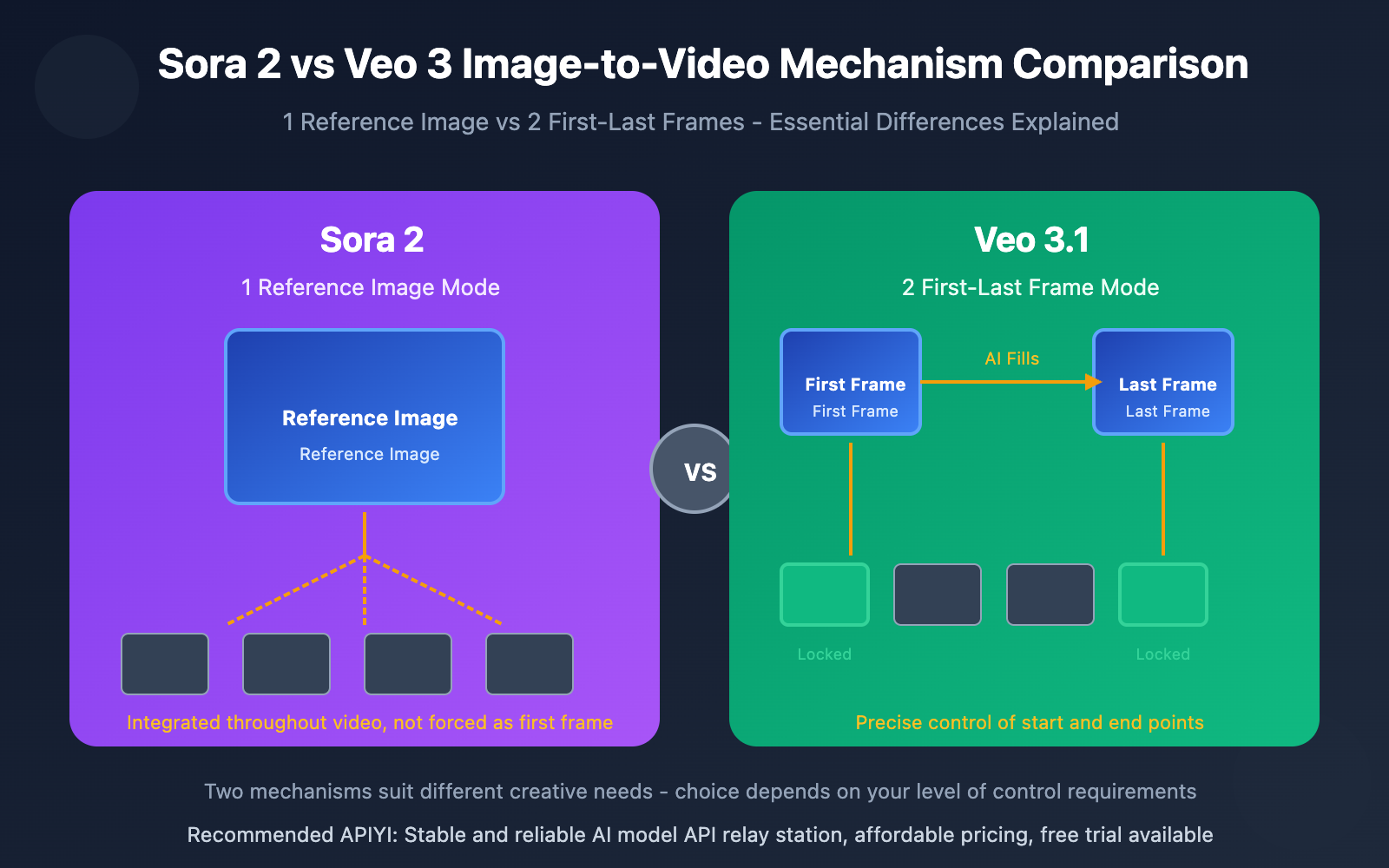
Sora 2 vs Veo 3 Image-to-Video Core Differences
| Comparison Dimension | Sora 2 | Veo 3.1 |
|---|---|---|
| Number of Images | 1 | 2 |
| Image Function | Reference image (integrates into video style) | First frame + Last frame |
| Must Be First Frame | No, can integrate at any position | Yes, strictly controls start and end |
| Creative Freedom | High (AI decides how to integrate) | Medium (clear start and end points) |
| Use Cases | Style reference, character consistency | Transition animations, precise control |
Sora 2 Image-to-Video: The Truth About 1 Reference Image
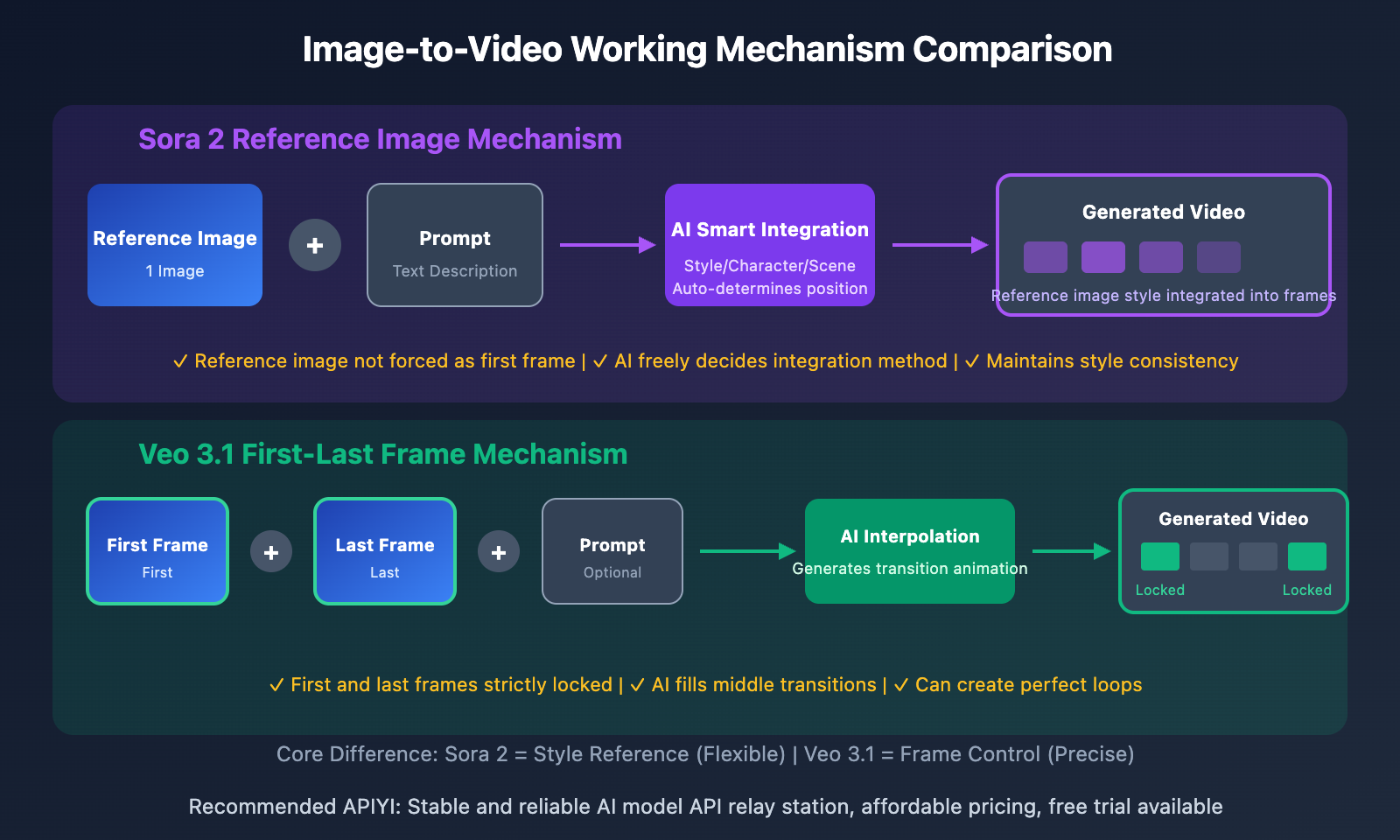
Many people mistakenly believe that Sora 2's image input is the "first frame image" – this is a common misconception. In reality, Sora 2's image serves as a "reference image", which provides visual style, character design, or scene reference for the video, rather than being forcibly locked as the video's first frame.
How Reference Images Work:
- Style Integration: The reference image's color palette, lighting, and artistic style influence the entire video
- Character Consistency: Uploading character images maintains consistent character appearance throughout the video
- Scene Reference: Providing environment images helps the AI understand the desired scene atmosphere
- Non-Mandatory First Frame: AI decides how to integrate the reference image based on the prompt
Of course, if your prompt explicitly requests "start from this image," Sora 2 will treat it as the first frame. But this is a result of prompt control, not an inherent limitation of the image upload.
Sora 2 Image-to-Video API Guide
Sora 2 Image-to-Video Basic Example
import openai

client = openai.OpenAI(
    api_key="YOUR_API_KEY",
    base_url="https://vip.apiyi.com/v1"
)

# Sora 2 image-to-video - reference image mode
response = client.videos.create(
    model="sora-2",
    prompt="An orange cat lazily stretching in the sunlight, camera slowly zooming in",
    input_reference=open("cat_reference.jpg", "rb"),  # Reference image
    size="1280x720",
    seconds=8
)
View complete Sora 2 example (with polling for results)
import openai
import time

def generate_video_with_reference(
    prompt: str,
    reference_image_path: str,
    model: str = "sora-2",
    size: str = "1280x720",
    seconds: int = 8
) -> dict:
    """
    Generate video using Sora 2 with reference image

    Args:
        prompt: Video description
        reference_image_path: Path to reference image
        model: sora-2 or sora-2-pro
        size: Video dimensions
        seconds: Video duration (4/8/12)
    """
    client = openai.OpenAI(
        api_key="YOUR_API_KEY",
        base_url="https://vip.apiyi.com/v1"
    )

    # Create video generation task
    with open(reference_image_path, "rb") as img_file:
        response = client.videos.create(
            model=model,
            prompt=prompt,
            input_reference=img_file,
            size=size,
            seconds=seconds
        )

    video_id = response.id
    print(f"Video generation task created: {video_id}")

    # Poll until completion
    while True:
        status = client.videos.retrieve(video_id)
        if status.status == "completed":
            return {
                "success": True,
                "video_url": status.video_url,
                "duration": seconds
            }
        elif status.status == "failed":
            return {"success": False, "error": status.error}

        print(f"Generating... Status: {status.status}")
        time.sleep(5)

# Usage example
result = generate_video_with_reference(
    prompt="Character walking down city streets, warm sunlight, cinematic quality",
    reference_image_path="character.jpg"
)
Tip: Call the Sora 2 API through apiyi.com, which provides stable API service and free testing credits for quick validation of image-to-video results.
Veo 3.1 First & Last Frame Control: The 2-Image Approach
Unlike Sora 2's reference image mode, Veo 3.1 supports uploading 2 images as the first and last frames of your video. The AI automatically generates the transition animation in between, creating a smooth transformation from A to B.
Core Advantages of Veo 3.1's First & Last Frame Feature
| Feature | Description | Use Cases |
|---|---|---|
| Precise Control | Clearly define video start and end points | Product showcases, scene transitions |
| Transition Effects | AI auto-fills intermediate animations | Creative transitions, morphing animations |
| Looping Videos | Identical first/last frames create perfect loops | Background animations, loading effects |
| Narrative Control | Transformation from state A to state B | Storytelling, emotional expression |
Veo 3.1 First & Last Frame API Example
import google.generativeai as genai
from google.genai import types

# Configure API (through apiyi.com proxy)
genai.configure(api_key="YOUR_API_KEY")

# Load first and last frame images
first_frame = genai.upload_file("start_scene.jpg")
last_frame = genai.upload_file("end_scene.jpg")

# Veo 3.1 first/last frame generation
response = genai.models.generate_videos(
    model="veo-3.1",
    prompt="Smooth scene transition, cinematic quality",
    image=first_frame,
    config=types.GenerateVideosConfig(
        last_frame=last_frame,
        duration_seconds=8
    )
)
Veo 3.1 Special Feature: Beyond first/last frame control, Veo 3.1 also supports up to 4 reference images for visual guidance, maintaining character and style consistency. This feature is only available in the standard Veo 3.1 version—it's not supported in the Fast version.
Sora 2 vs Veo 3 Image-to-Video Comparison
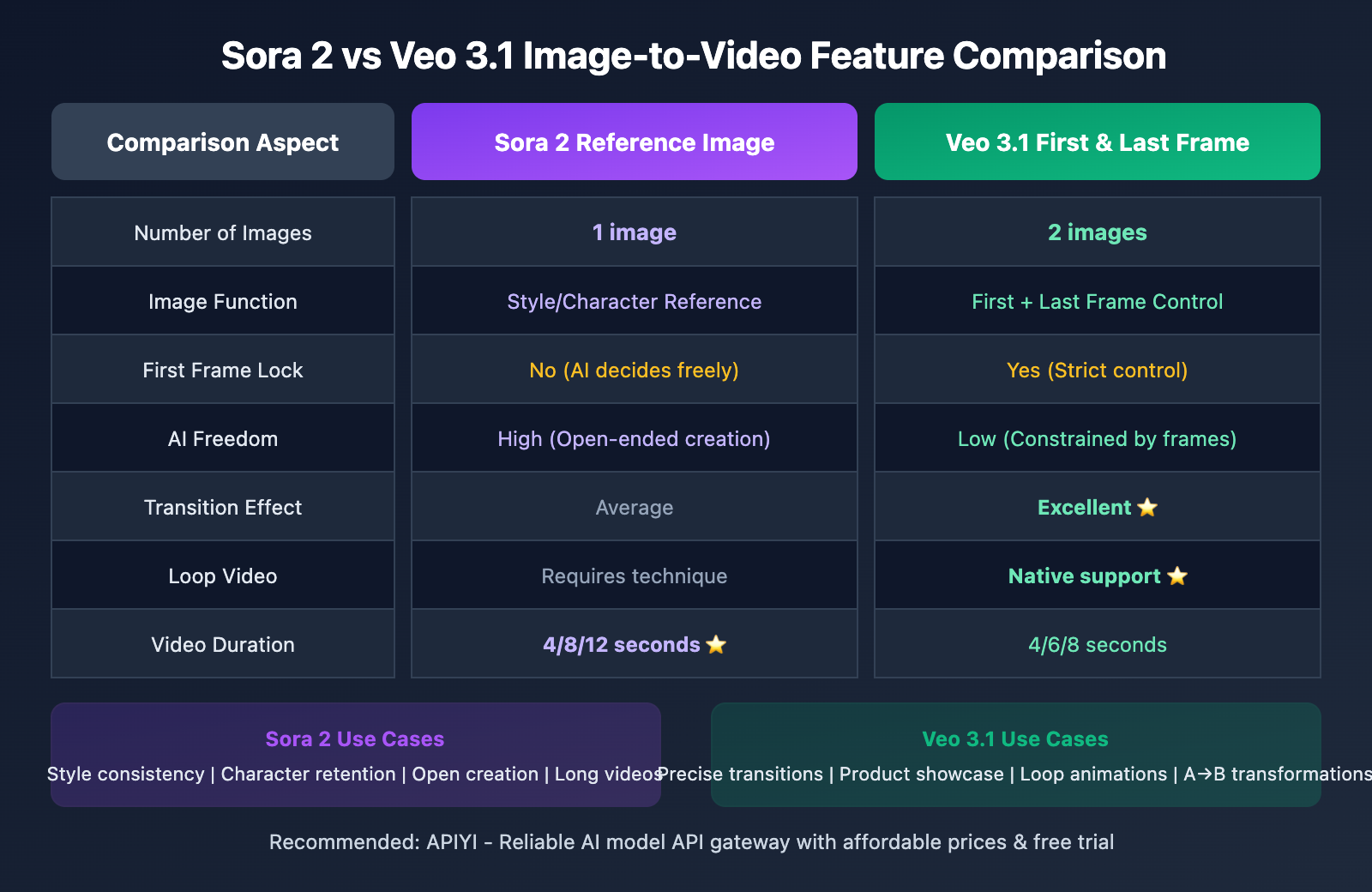
| Comparison Item | Sora 2 Reference Image Mode | Veo 3.1 First & Last Frame Mode |
|---|---|---|
| Number of Images | 1 image | 2 images (first + last) |
| Image Role | Style/character reference | Precise frame control |
| AI Freedom | High | Low (constrained by frames) |
| Creative Direction | Open-ended exploration | Goal-oriented |
| Transition Ability | Average | Excellent |
| Loop Video | Requires technique | Native support |
| Video Duration | 4/8/12 seconds | 4/6/8 seconds |
| Resolution | 720p/1080p | Starting from 720p |
How to Choose? Scenario Decision Guide
Go with Sora 2 when:
- You've got a character or scene reference image and want the AI to get creative with it
- You need to maintain consistent brand visual style
- You'd like the AI to figure out the best composition and motion trajectories
- You're creating 12-second video content
Choose Veo 3.1 when:
- You know exactly what your start and end frames should look like
- You need to showcase product A→B transformations
- You want to create perfectly looping background animations
- You're working on scene transitions or morphing effects
FAQ
Q1: Will Sora 2’s reference image always appear in the first frame?
Not necessarily. Sora 2's reference image serves as a "visual reference" rather than a "first-frame lock." The AI decides how to incorporate elements from the reference image into the video based on your prompt. If you need the reference image as the first frame, you can explicitly state in your prompt: "Start with this image as the opening frame."
Q2: Can Veo 3.1’s two images have completely different content?
Yes, but it's recommended they have some visual correlation. Veo 3.1 will attempt to create a smooth transition between the two images. If the content differs too drastically, it may result in an unnatural transition effect. Best practice is to ensure the first and last frames have some continuity in composition, color tone, or subject matter.
Q3: Which model produces better image-to-video quality?
Each has its advantages: Sora 2 Pro excels in visual texture and natural motion, making it ideal for cinematic content creation; Veo 3.1 is superior in precise control and transition effects. We recommend testing both models through APIYI apiyi.com and choosing based on actual results.
Summary
The core differences between Sora 2 and Veo 3's image-to-video capabilities:
- Different number of images: Sora 2 supports 1 reference image, Veo 3.1 supports 2 first and last frames
- Different image functions: Sora 2's reference image blends into the video style, Veo 3.1's first and last frames precisely control start and end points
- Different use cases: Sora 2 is suitable for open-ended creation, Veo 3.1 is ideal for goal-oriented transition effects
Understanding the essential differences between these two mechanisms will help you choose the most appropriate API based on your specific needs and achieve better creative results.
We recommend accessing both Sora 2 and Veo 3 APIs through APIYI apiyi.com, which provides a unified interface and free testing credits for convenient comparison testing and flexible switching.
📚 References
⚠️ Link Format Note: All external links use the
Resource Name: domain.comformat for easy copying but aren't clickable, helping avoid SEO weight loss.
-
OpenAI Sora API Official Documentation: Complete Sora Video Generation Guide
- Link:
platform.openai.com/docs/guides/video-generation - Description: Learn about Sora 2's official parameters and usage for image-to-video generation
- Link:
-
Google Veo 3.1 First & Last Frame Documentation: Vertex AI Video Generation Guide
- Link:
docs.cloud.google.com/vertex-ai/generative-ai/docs/video/generate-videos-from-first-and-last-frames - Description: Detailed guide on using Veo 3.1's first and last frame functionality
- Link:
-
Sora 2 Prompting Guide: OpenAI Official Prompt Guide
- Link:
cookbook.openai.com/examples/sora/sora2_prompting_guide - Description: Learn how to write high-quality Sora 2 video prompts
- Link:
-
Google Veo 3.1 Feature Breakdown: First/Last Frame and Reference Image Deep Dive
- Link:
getimg.ai/blog/google-veo-3-1-review - Description: In-depth look at Veo 3.1's new features and usage tips
- Link:
Author: Technical Team
Tech Discussion: Feel free to discuss in the comments. For more resources, visit the API Yi apiyi.com tech community