Analysis of Nano Banana Pro's PPT Creation Capabilities
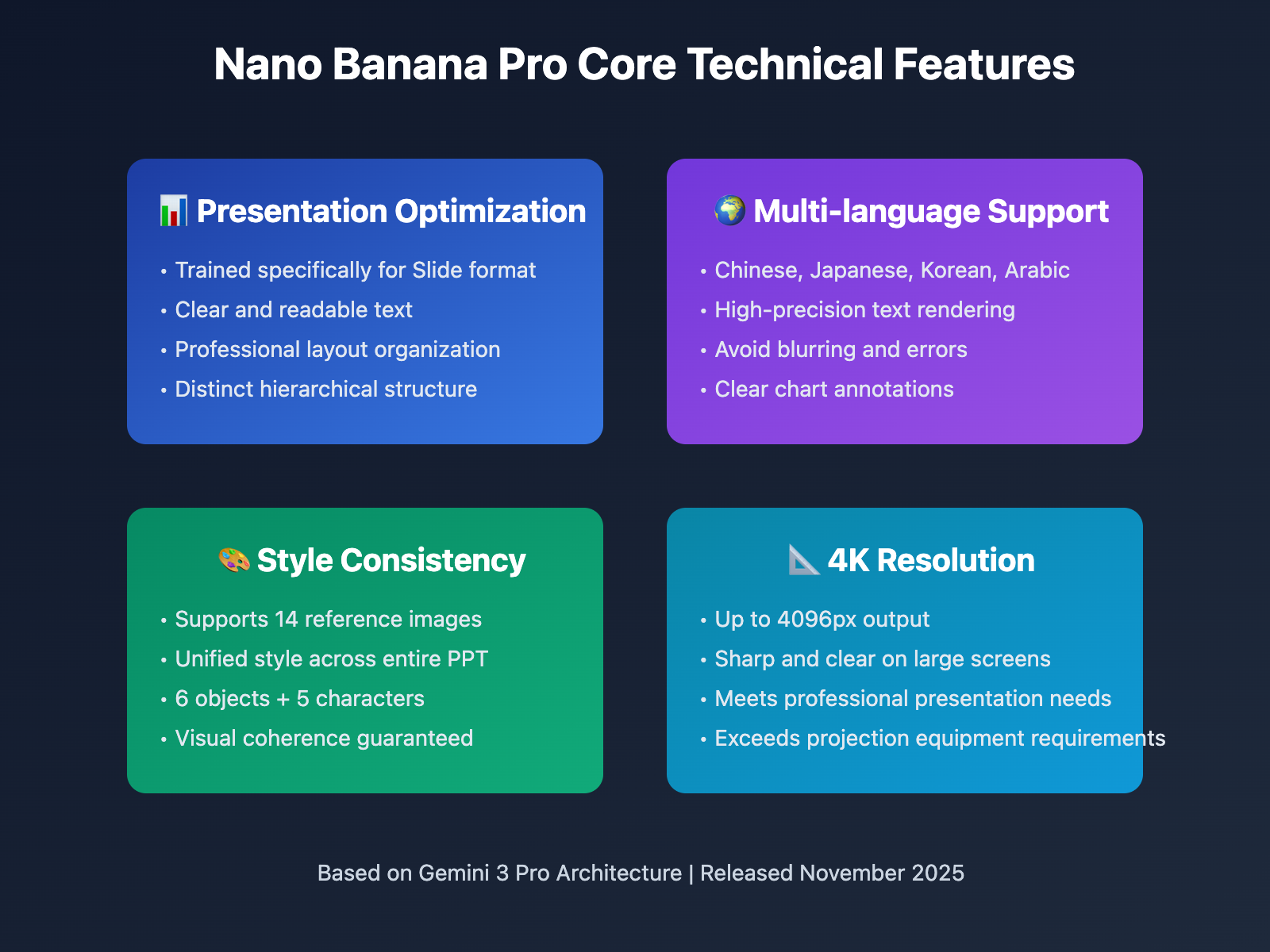
Nano Banana Pro is the latest AI image generation model released by Google DeepMind on November 20, 2025, built on the Gemini 3 Pro architecture. Unlike traditional image generation models, Nano Banana Pro has specifically optimized generation capabilities for presentation formats, featuring the following core technical characteristics:
Presentation-Specific Optimization
Nano Banana Pro has specially enhanced its ability to generate infographics and slide formats during training. This means the generated images are not only visually appealing but also comply with presentation information delivery standards—text is clear and readable, layouts are professionally organized, and hierarchical structures are distinct.
Multi-language Text Precise Rendering
The model supports high-precision text rendering in multiple languages including Chinese, Japanese, Korean, and Arabic. In PPT creation scenarios, this capability is particularly crucial: titles, body text, and chart annotations all remain clear and readable, avoiding the blurry or erroneous text common with traditional AI image generation tools.
Style Consistency Maintenance Mechanism
Nano Banana Pro supports mixing up to 14 reference images (including 6 object images and 5 character images) to maintain visual consistency. This technical feature is the core of achieving unified style across an entire PPT set: simply provide one style reference image, and all subsequent pages can continue the same visual style.
4K Resolution Output
The model supports image resolution output up to 4096px, far exceeding the requirements of most projection equipment and displays. High resolution ensures that PPTs remain sharp and clear when displayed on large screens, meeting the quality requirements of professional presentation scenarios.
🎯 Technical Recommendation: These features of Nano Banana Pro make it an ideal choice for PPT image generation. We recommend making Gemini 3 Pro Image API calls through the apiyi.com platform, which provides stable interface services and more competitive pricing, supporting multiple resolution options including 1K, 2K, and 4K, with a single call costing only $0.05.
3 Practical Methods for Creating PPT with Nano Banana Pro
Method 1: Image Master Single Upload — Rapid Prototype Validation
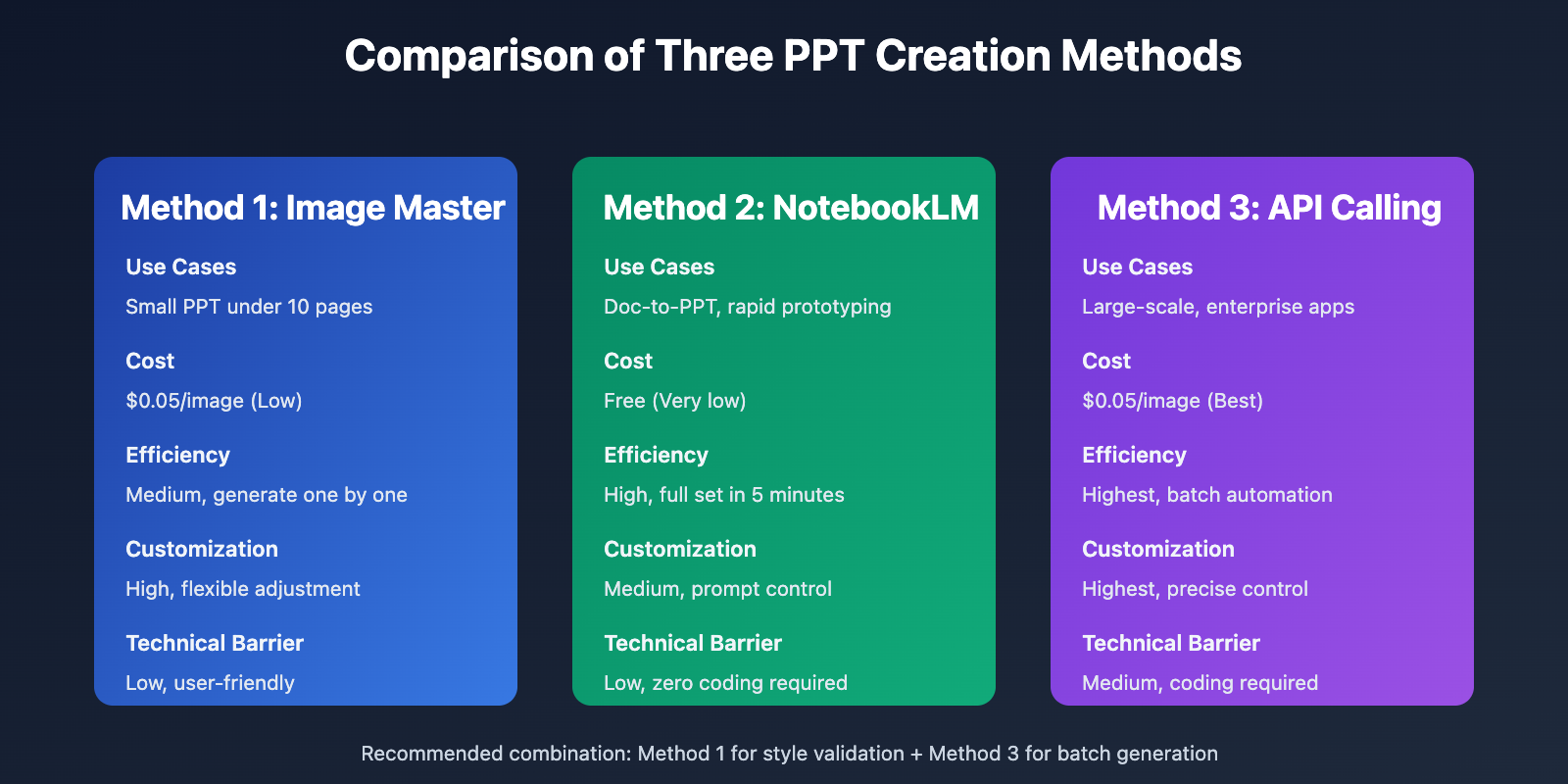
Use Cases: Quick validation of single page designs, style testing, small-scale PPT creation
APIYI Image Master (image.apiyi.com) provides the most intuitive way to use Nano Banana Pro. This tool is optimized for single image generation and style reference scenarios, particularly suitable for users who need to quickly test creative ideas.
Core Operation Process:
- Visit "APIYI Image Master" at image.apiyi.com
- Upload a style reference image (optional but highly recommended)
- Enter text prompts describing PPT page content
- Select resolution (1024px, 2048px, or 4096px)
- Click generate and wait 3-8 seconds for results
Style Reference Image Usage Tips:
- Set Style with First Page: Generate a satisfactory first page as a style reference image
- Multiple Iterations: Gradually adjust details through multiple rounds of dialogue
- Save References: Save satisfactory results as a style baseline for subsequent pages
Advantages:
- ✅ No technical background required, user-friendly interface
- ✅ Supports real-time preview and quick adjustments
- ✅ Suitable for exploration and creative validation stages
- ✅ Low cost per call, pay-as-you-go
Limitations:
- ⚠️ Can only generate one image at a time
- ⚠️ Low efficiency for large-scale production
- ⚠️ Requires manual maintenance of style consistency
💡 Selection Advice: Image Master is suitable for small PPT projects with less than 10 pages, or for style exploration and effect validation before formal batch generation. Using it through the APIYI platform at apiyi.com, 1K resolution images cost only $0.05/image, more cost-effective than official website pricing.
Method 2: NotebookLM One-Click Generation — The AI Agent for PPT
Use Cases: Document-to-PPT conversion, automated content extraction, rapid prototyping
Google NotebookLM's "Slide Decks" feature, launched in November 2025, is an AI Agent for PPT creation. This tool deeply integrates Nano Banana Pro's visual generation capabilities, automatically extracting content from source documents and generating complete presentations.
Core Operation Process:
- Visit "Google NotebookLM" at notebooklm.google.com
- Create a new notebook and upload source materials (supports PDF, Word, web links, videos, etc.)
- Click the "Create slides" button
- Select slide type:
- Detailed Deck: Complete text version, suitable for reading and distribution
- Presenter Slides: Concise bullet points version, suitable for live presentations
- Customize prompts (optional):
- Specify number of slides (e.g., "generate 15 slides")
- Define visual style (e.g., "minimalist style", "tech-inspired", "cartoon style")
- Choose language version (supports Chinese, English, and multiple languages)
- Generate and export as PDF
Technical Advantages:
- ✅ Automatic Content Extraction: AI intelligently analyzes source documents and extracts key information
- ✅ Structured Organization: Automatically generates title pages, table of contents, content pages, and summary pages
- ✅ Visual Consistency: Nano Banana Pro ensures unified style across all slides
- ✅ Zero Technical Barrier: No programming or design background required
Advanced Customization Tips:
With carefully designed prompts, you can significantly improve NotebookLM generation quality. Here's a battle-tested prompt template:
Please generate 20 presentation slides based on the uploaded materials, with the following requirements:
- Style: Modern minimalist tech style, dark background with high-contrast text
- Structure: Title page + Table of contents + 15 content pages + Summary page + Thank you page
- Points per page: 3-5 bullet points with icons or charts
- Language: Simplified Chinese
- Key sections: Pages 5-8 deep dive into technical principles, pages 9-12 showcase application cases
Limitations and Solutions:
- ⚠️ Not Directly Editable: NotebookLM exports as static PDF, cannot be edited in PowerPoint
- Solution: Use PDF-to-PPT tools (such as Adobe Acrobat, Smallpdf) for conversion
- ⚠️ Limited Style Control: Fewer customization options than fully autonomous generation
- Solution: Combine with Method 1 or Method 3 for secondary adjustments
🚀 Quick Start: NotebookLM is particularly suitable for scenarios requiring rapid transformation of technical documents, research reports, and product descriptions into presentations. For users seeking higher customization and style control, the API calling method through the APIYI platform at apiyi.com is recommended for greater flexibility.
Method 3: Batch API Calls — Low-Cost Scaled Production
Use Cases: Large-scale PPT production, automated workflows, enterprise-level applications
For users with some technical capability, directly calling the Gemini 3 Pro Image API is the most flexible and cost-optimal solution. Through the APIYI platform (api.apiyi.com), you can achieve automated batch PPT image generation with precise control over each page's visual effects.
Technical Architecture:
A complete API batch generation workflow includes the following modules:
- Style Reference Image Management: Unified visual baseline
- Prompt Template Library: Standardized page descriptions
- Batch Calling Script: Automated generation process
- Quality Check Module: Automatic screening and manual review
- Post-processing Workflow: Image optimization and PPT assembly
Python Implementation Example:
Here's a complete PPT batch generation script example:
import requests
import json
import base64
from pathlib import Path

class PPTGenerator:
    def __init__(self, api_key, base_url="https://api.apiyi.com"):
        self.api_key = api_key
        self.base_url = base_url
        self.headers = {
            "Authorization": f"Bearer {api_key}",
            "Content-Type": "application/json"
        }

    def load_reference_image(self, image_path):
        """Load style reference image and convert to base64"""
        with open(image_path, "rb") as f:
            image_data = base64.b64encode(f.read()).decode()
        return image_data

    def generate_slide(self, prompt, reference_image=None,
                      resolution="2048x2048", output_path=None):
        """Generate single slide image"""
        payload = {
            "model": "gemini-3-pro-image",
            "prompt": prompt,
            "resolution": resolution,
            "num_images": 1
        }

        # Add style reference image
        if reference_image:
            payload["reference_images"] = [reference_image]

        response = requests.post(
            f"{self.base_url}/v1/images/generations",
            headers=self.headers,
            json=payload
        )

        if response.status_code == 200:
            result = response.json()
            image_url = result["data"][0]["url"]

            # Download and save image
            if output_path:
                img_response = requests.get(image_url)
                with open(output_path, "wb") as f:
                    f.write(img_response.content)
                print(f"✅ Generated and saved: {output_path}")

            return image_url
        else:
            print(f"❌ Generation failed: {response.status_code} - {response.text}")
            return None

    def generate_ppt_batch(self, slides_config, reference_image_path,
                          output_dir="ppt_slides"):
        """Batch generate complete PPT images"""
        Path(output_dir).mkdir(parents=True, exist_ok=True)

        # Load style reference image
        reference_image = self.load_reference_image(reference_image_path)

        results = []
        for i, slide in enumerate(slides_config, 1):
            print(f"\n🎨 Generating page {i}/{len(slides_config)}...")

            output_path = f"{output_dir}/slide_{i:02d}.png"
            image_url = self.generate_slide(
                prompt=slide["prompt"],
                reference_image=reference_image,
                resolution=slide.get("resolution", "2048x2048"),
                output_path=output_path
            )

            results.append({
                "slide_number": i,
                "title": slide.get("title", f"Slide {i}"),
                "image_url": image_url,
                "local_path": output_path
            })

        return results

# Usage example
if __name__ == "__main__":
    # Initialize generator
    generator = PPTGenerator(api_key="your_apiyi_api_key_here")

    # Define PPT page content
    slides_config = [
        {
            "title": "Cover Page",
            "prompt": "Modern minimalist style PPT cover, deep blue gradient background, title 'AI-Driven Product Innovation', subtitle 'Tech Sharing Session 2026', company logo space reserved in lower right corner, 4K resolution"
        },
        {
            "title": "Table of Contents",
            "prompt": "PPT table of contents page, dark background, left side showing 4 chapter titles: 1. Market Background 2. Technical Architecture 3. Product Features 4. Future Outlook, right side with simple icons, continuing cover style"
        },
        {
            "title": "Market Background",
            "prompt": "Data display page, title 'Sustained Market Growth', 3 key data cards: 2024 $50 billion, 2025 $75 billion, 2026 projected $100 billion, with upward trend arrows, continuing overall dark tech style"
        },
        {
            "title": "Technical Architecture",
            "prompt": "Technical architecture diagram PPT page, title 'Three-tier Architecture Design', showing three modules: Frontend Layer (React), API Layer (Node.js), Data Layer (PostgreSQL), with connection lines and data flow arrows, dark background with high contrast"
        },
        # ... More page configurations
    ]

    # Batch generation
    results = generator.generate_ppt_batch(
        slides_config=slides_config,
        reference_image_path="reference_style.png",  # Style reference image path
        output_dir="my_ppt_slides"
    )

    print(f"\n✅ Batch generation complete! Generated {len(results)} slide images")
    print(f"💰 Total cost: ${len(results) * 0.05:.2f} (based on APIYI 2K resolution pricing)")
Cost Advantage Analysis:
| Solution | Cost per Page | 20-Page PPT Total Cost | Generation Time | Customization Level |
|---|---|---|---|---|
| Official Gemini API | $0.25/image (2K) | $5.00 | ~10 minutes | High |
| APIYI Platform | $0.05/image (2K) | $1.00 | ~10 minutes | High |
| NotebookLM | Free | $0 | ~5 minutes | Medium |
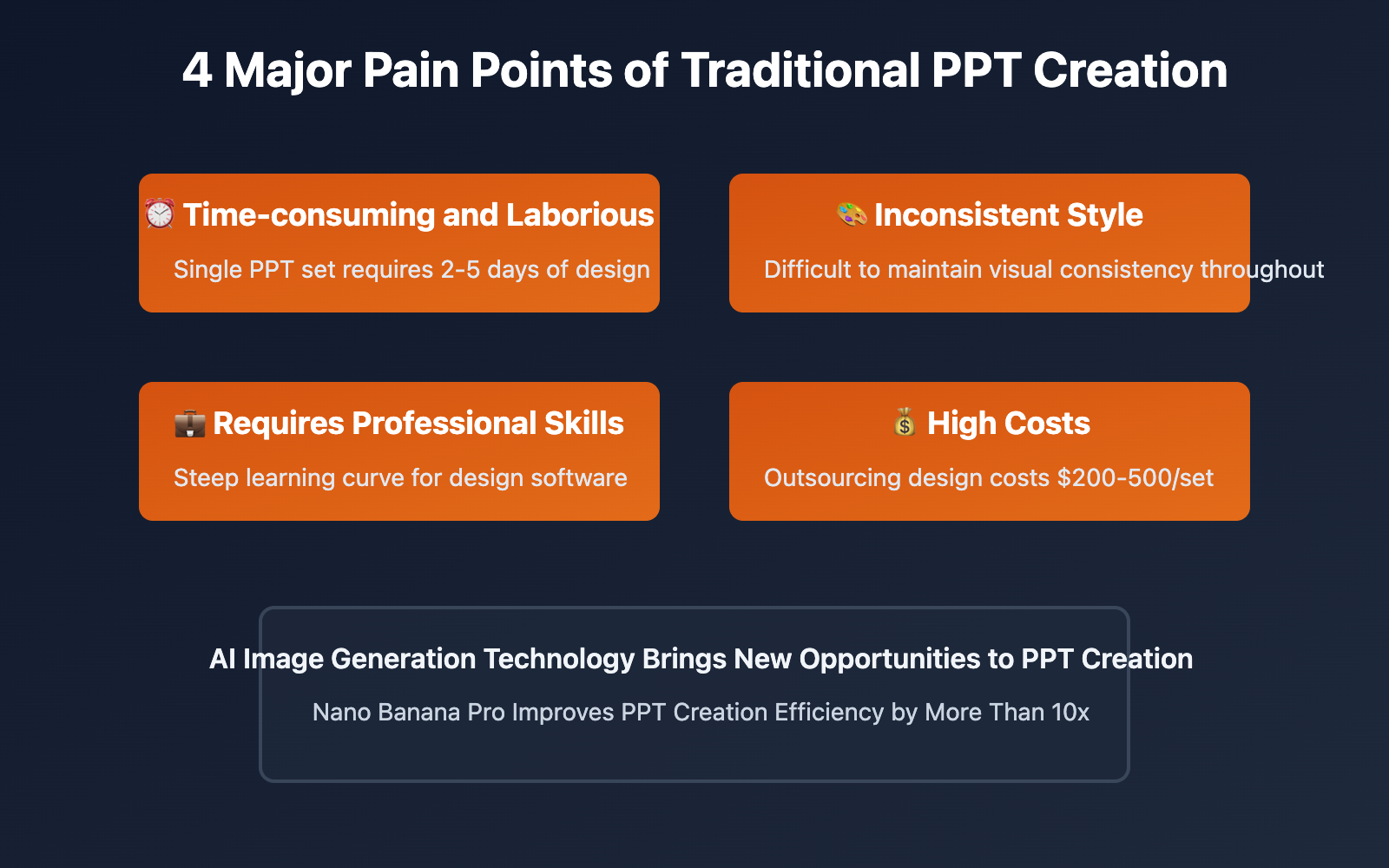
| Manual Design | – | $200-500 (outsourced) | 2-5 days | Highest |
Advanced Tips:
-
Style Locking Strategy:
- Use the most detailed prompt for the first page as a style reference image
- Simplify subsequent page prompts, relying on reference images to maintain consistency
- Recheck style drift every 5-10 pages, adjust reference image if necessary
-
Batch Generation Optimization:
- Using Batch API can get higher rate limits (complete within 24 hours)
- Be mindful of rate limits when making concurrent calls (10-60 times per minute, depending on quota)
- Implement retry mechanisms to handle occasional 503 errors
-
Prompt Templating:
- Build a standard prompt library: cover, table of contents, content, summary types, etc.
- Use variable replacement for quick customization
- Maintain consistent language style (e.g., uniformly use "modern minimalist style")
💰 Cost Optimization: Batch API calls through the APIYI platform at apiyi.com reduce prices by 80% compared to the official API, requiring only $1.00 for a 20-page PPT. The platform supports flexible concurrency control and batch calling, suitable for enterprise-level large-scale PPT production needs.
Core Techniques for Maintaining PPT Style Consistency
Maintaining visual consistency throughout a PPT deck is key to professional presentations. Here are battle-tested techniques:
Technique 1: Establish Visual Style Guidelines
Before bulk generation, define detailed visual style guidelines:
- Color Scheme: Primary, secondary, and accent colors (e.g., deep blue #1a2332, orange-yellow #ff9500)
- Typography: Visual characteristics of title and body fonts
- Layout Rules: Title position (e.g., top-left corner), content area divisions
- Graphic Elements: Icon style (flat/3D), decorative elements
Integrate these elements into a "master prompt" as the base template for all slides.
Technique 2: Progressive Style Transfer
Nano Banana Pro supports multi-turn conversations and reference images. Leverage this feature for style transfer:
- Slide 1: Generate using complete style description
- Slides 2-5: Use Slide 1 as reference image, simplify prompts
- Slides 6-10: Use Slide 3 as reference image, continue style transfer
- Regular Calibration: Compare with first slide every 5-10 slides to detect style drift
Technique 3: Layered Generation and Post-Processing Unification
For professional PPTs with extremely high requirements, adopt a layered strategy:
- Background Layer: Uniformly generate backgrounds for all slides (solid or gradient)
- Content Layer: Generate text and graphic content for each slide separately
- Post-Compositing: Use Photoshop or Python scripts (PIL/OpenCV) to overlay content layers onto unified backgrounds
This method ensures maximum consistency but requires some post-processing capability.
Technique 4: Use Templated Prompts
Establish standardized prompt templates with placeholders for rapid customization:
# Prompt template example
SLIDE_TEMPLATE = """
PPT slide design, {slide_type}
Title: {title}
Content: {content}
Visual style: Modern minimalist tech, dark background (#0f1729 to #1e293b gradient)
Layout: Title in top-left corner, content centered, bottom-right reserved for page number
Typography: Title uses bold large font, body uses clear readable font
Graphic elements: Flat icons, high-contrast color scheme
Resolution: 2048x2048px
"""

# Fill variables when using
prompt = SLIDE_TEMPLATE.format(
    slide_type="data presentation slide",
    title="User Growth Trends",
    content="Bar chart showing monthly active users 2023-2026: 5M, 8M, 12M, 18M"
)
Technique 5: Leverage Batch Function for Consistency Advantages
Google Gemini API's Batch function not only provides higher rate limits but also helps maintain consistency:
- Requests in the same batch are processed by the same model instance, resulting in less style variation
- Batch submission allows the system to optimize generation strategy holistically
- More suitable for large-scale PPT projects (50+ slides)
🎯 Practical Advice: For large PPTs with 20+ slides, recommend the "3+1" strategy: use Method 1 to quickly validate style (3 test images) + Method 3 for batch generation of full deck (1 API call). Through the apiyi.com platform, the entire process cost can be controlled at $1-2, significantly lower than traditional outsourced design fees.
PPT Post-Processing and Optimization
Generated PNG images require further processing to become editable PPTs:
Importing Images to PowerPoint
Method 1: Manual Import
- Create new PowerPoint document, set slide dimensions (16:9 or 4:3)
- Insert → Picture → Select generated PNG image
- Resize image to fill entire slide
- Repeat operation to import all slides
Method 2: Python Automation
Use python-pptx library to batch import images:
from pptx import Presentation
from pptx.util import Inches
from pathlib import Path

def create_ppt_from_images(image_dir, output_ppt="output.pptx"):
    """Batch import images to PowerPoint"""
    prs = Presentation()

    # Set slide dimensions to 16:9 (10 inches wide, 5.625 inches high)
    prs.slide_width = Inches(10)
    prs.slide_height = Inches(5.625)

    # Get all images and sort
    image_files = sorted(Path(image_dir).glob("slide_*.png"))

    for image_file in image_files:
        # Add blank slide
        blank_slide_layout = prs.slide_layouts[6]  # Blank layout
        slide = prs.slides.add_slide(blank_slide_layout)

        # Insert image to fill slide
        slide.shapes.add_picture(
            str(image_file),
            left=0, top=0,
            width=prs.slide_width,
            height=prs.slide_height
        )

        print(f"✅ Added: {image_file.name}")

    prs.save(output_ppt)
    print(f"\n✅ PPT saved: {output_ppt}")

# Usage example
create_ppt_from_images("my_ppt_slides", "final_presentation.pptx")
Adding Editable Text Layers
While images generated by Nano Banana Pro contain text, it's not editable. You can add editable text layers through:
- Keep image as background, add text boxes in PowerPoint to overlay key text areas
- Use OCR to extract text, then re-add as editable text
- Leave whitespace in design, reserve text areas when generating images, manually add text later
Animation and Interactivity Enhancement
After importing images to PowerPoint, you can add animation effects:
- Slide Transitions: Fade, push, wipe, etc.
- Element Animations: Though images cannot be split, you can add whole-page animations
- Hyperlinks: Add jump links to specific areas
💡 Efficiency Enhancement Tip: For PPTs requiring frequent text modifications, recommend simplifying text to keywords or icons during Nano Banana Pro generation, and add body content using text boxes in PowerPoint. This maintains visual style consistency while ensuring editing flexibility.
Best Practices for Different Scenarios
Scenario 1: Quick Report PPT (Within 10 Pages)
Recommended Solution: Method 1 (Image Master) or Method 2 (NotebookLM)
- Time Requirement: Complete within 1 hour
- Quality Requirement: Medium, focus on content rather than design
- Operational Suggestions:
- Upload reporting materials to NotebookLM to generate an initial draft with one click
- For unsatisfactory pages, use Image Master to regenerate them individually
- Import into PowerPoint, add company logo and page numbers
- Total time: approximately 30-60 minutes, cost nearly $0
Scenario 2: Client Presentation PPT (20-30 Pages)
Recommended Solution: Method 1 + Method 3 Combined
- Time Requirement: Half a day to 1 day
- Quality Requirement: High, requires refined design and brand consistency
- Operational Suggestions:
- First use Image Master to generate 2-3 style versions and confirm the style with the client
- After selecting the style, use Method 3 to batch generate all pages
- Manually review each page, regenerate 10-20% of unsatisfactory pages
- Import into PowerPoint, add animations and interactions
- Total time: approximately 4-8 hours, cost approximately $1.5-2.0
Scenario 3: Large Conference Keynote Presentation (50+ Pages)
Recommended Solution: Method 3 (API Batch Calling) + Professional Post-Production
- Time Requirement: 2-3 days
- Quality Requirement: Highest, requires meticulous refinement
- Operational Suggestions:
- Establish detailed content outline and visual style guide
- Develop custom scripts to batch generate all pages
- Generate and check in batches: 10 pages per batch, adjust promptly
- Professional designers polish key pages in post-production (cover, conclusion, etc.)
- Add complex animations and video embeds
- Total time: approximately 16-24 hours, cost approximately $3-5
Scenario 4: Standardized Template Batch Production
Recommended Solution: Method 3 (API Batch Calling) + Templated Process
- Time Requirement: One-time development, long-term reuse
- Quality Requirement: High consistency, supports rapid customization
- Operational Suggestions:
- Develop standardized prompt template library
- Establish Excel/CSV input forms that non-technical personnel can fill in
- Scripts automatically read forms and batch generate PPTs
- Establish quality check process to automatically filter low-quality results
- One-time investment of 1-2 days for development, subsequent PPTs only require 10-30 minutes each
🚀 Enterprise Application: For enterprises with ongoing PPT production needs, it is recommended to build automated workflows through the API易 apiyi.com platform. This platform supports enterprise-level API management, usage monitoring, and team collaboration, making it very suitable for standardized template batch production scenarios.
Frequently Asked Questions
Can PPT images generated by Nano Banana Pro be directly edited?
No, they cannot be directly edited. Nano Banana Pro outputs raster images in PNG format, where text and graphics are composed of pixels and cannot be modified directly like PowerPoint native objects.
Solutions:
- Solution 1: Leave text areas blank during generation, add text boxes in PowerPoint later
- Solution 2: Use OCR tools to extract text from images, then re-add as editable text
- Solution 3: Use the image as a background layer, overlay key information with PowerPoint native shapes and text boxes
How to ensure completely consistent visual style across an entire PPT?
Visual consistency is a core challenge in PPT creation. The following strategies are recommended:
- Use style reference images: Generate the first page with the most detailed prompts, attach this reference image to all subsequent pages
- Standardize prompts: Establish unified prompt templates, modify only specific content without changing style descriptions
- Batch generation: Generate all pages in the same batch when possible to avoid style variations from model version updates
- Unified post-processing: Use image editing tools (like Photoshop batch processing) to uniformly adjust color, contrast, and other parameters
💡 Technical Suggestion: Batch generation through the Batch API function of the API易 apiyi.com platform can maximize style consistency. The platform supports submitting multiple generation tasks at once, processed by the same model instance, minimizing style fluctuations.
NotebookLM generated PPT can only be exported as PDF. How to convert to editable PPTX?
NotebookLM currently only supports PDF export. You need to use conversion tools to obtain PPTX format:
Online Conversion Tools (free or low-cost):
- Adobe Acrobat Online: Adobe Acrobat acrobat.adobe.com
- Smallpdf: Smallpdf smallpdf.com
- iLovePDF: iLovePDF ilovepdf.com
Conversion Steps:
- Download PDF file from NotebookLM
- Upload to conversion tool
- Select "PDF to PowerPoint"
- Download converted PPTX file
Notes:
- Conversion quality depends on PDF complexity
- Images will be preserved but may need layout readjustment
- Text after conversion may not be fully editable and requires manual adjustment
How to control costs during API batch generation?
Cost control is a key consideration for large-scale PPT production:
Resolution Selection Strategy:
| Use Case | Recommended Resolution | Cost per Page (API易) | Notes |
|---|---|---|---|
| Internal Reports | 1024×1024 | $0.05 | Clear enough for screen display |
| Client Presentations | 2048×2048 | $0.05 | Good projector display effect |
| Large Conferences | 4096×4096 | $0.05 | Still clear on large screens |
Cost Optimization Tips:
- Test with low resolution first: Verify effects with 1K resolution first, then generate final version with 2K/4K after confirmation
- Reuse style reference images: One high-quality reference image can serve an entire PPT set, no need to explore styles for each page
- Batch calling: Use Batch API for better pricing and higher rate limits
- Cache reuse: For templated content, save and reuse generated results
💰 Platform Selection: The API易 apiyi.com platform's Gemini 3 Pro Image API has a unified price of $0.05/image (same price for 1K/2K/4K), 80% lower than the official API. For a large 50-page PPT, total cost is only $2.5, far less than traditional design outsourcing fees ($200-500).
How to add company logo and watermarks to generated PPT images?
There are two approaches:
Method 1: Include during generation
Explicitly specify logo position in the prompt:
PPT cover, title 'Annual Summary Report', dark blue background, reserve a 120x40 pixel logo area in the bottom right corner
After generation, overlay the real logo onto the reserved position in PowerPoint.
Method 2: Batch add in post-processing
Use Python script to batch add watermarks:
from PIL import Image

def add_logo(slide_image, logo_image, position="bottom-right"):
    """Add logo watermark to slide image"""
    slide = Image.open(slide_image)
    logo = Image.open(logo_image)

    # Resize logo (maintain aspect ratio)
    logo_width = slide.width // 10  # logo width is 1/10 of slide width
    logo_height = int(logo.height * (logo_width / logo.width))
    logo = logo.resize((logo_width, logo_height), Image.LANCZOS)

    # Calculate position (bottom right corner, 20 pixel margin)
    x = slide.width - logo_width - 20
    y = slide.height - logo_height - 20

    # Paste logo (supports transparency channel)
    slide.paste(logo, (x, y), logo if logo.mode == 'RGBA' else None)
    slide.save(slide_image)

# Batch processing
import glob
for slide_file in glob.glob("ppt_slides/*.png"):
    add_logo(slide_file, "company_logo.png")
What special considerations are there for creating PPTs in different languages?
Nano Banana Pro supports multilingual text rendering, but different languages have different visual characteristics:
Chinese PPT:
- ✅ Advantages: Accurate font recognition, clear strokes
- ⚠️ Note: Avoid overly complex classical poetry or classical Chinese, may have typos
- 💡 Suggestion: Use bold effect descriptions for titles, use keywords like "clear and readable" for body text
English PPT:
- ✅ Advantages: Most accurate recognition, richest font styles
- ⚠️ Note: Long words may have improper line breaks
- 💡 Suggestion: Mark technical terms with quotes to ensure accurate spelling
Japanese/Korean PPT:
- ✅ Advantages: Good Asian language support
- ⚠️ Note: Pay attention to font size balance when mixing kanji and kana
- 💡 Suggestion: Explicitly specify "Japanese" or "Korean" to avoid confusion with Chinese
Multilingual Mixed PPT:
- Clearly specify language distribution in the prompt:
Title in English 'AI Innovation Report 2026', body text in Simplified Chinese
Summary and Outlook
Nano Banana Pro brings revolutionary changes to PPT creation, transforming from a traditional "design tool" to an "AI generation service". The three methods introduced in this article each have their advantages:
- Image Master (image.apiyi.com): Suitable for small-scale rapid validation, with the simplest operation
- NotebookLM: Ideal for document-to-PPT conversion, highest automation level, but limited customization
- API Batch Calling (api.apiyi.com): Suitable for large-scale production, most cost-effective, highest flexibility
The choice of method depends on specific needs: project scale, quality requirements, technical capabilities, and budget. For individual users and small teams, methods one and two are recommended as starting points; for enterprise-level applications and continuous needs, method three is the best choice.
With the continuous advancement of AI image generation technology, future PPT creation will become more intelligent:
- End-to-End Generation: Generate editable PPTX directly from text outlines, without intermediate conversion
- Real-time Style Transfer: Upload any PPT template, AI automatically extracts styles and applies them to new content
- Intelligent Layout Optimization: AI automatically analyzes content density, optimizing layout and information hierarchy
- Dynamic Content Updates: Connect to data sources, charts and data in PPT automatically refresh
🎯 Action Recommendation: Visit the API易 apiyi.com platform immediately to start your AI-driven PPT creation journey. Whether for rapid prototyping or large-scale batch production, the platform provides stable, low-cost Gemini 3 Pro Image API services, helping boost your presentation creation efficiency by more than 10x.