When AI coding assistants need to control browsers, traditional Playwright MCP solutions often consume massive amounts of context. Vercel's new agent-browser completely solves this problem—reducing context usage by up to 93%, with zero configuration required. It's the ideal choice for AI agent browser automation.
Core Value: After reading this article, you'll master agent-browser's installation, configuration, and usage, enabling your AI assistant to efficiently handle web interaction tasks.
agent-browser Core Features
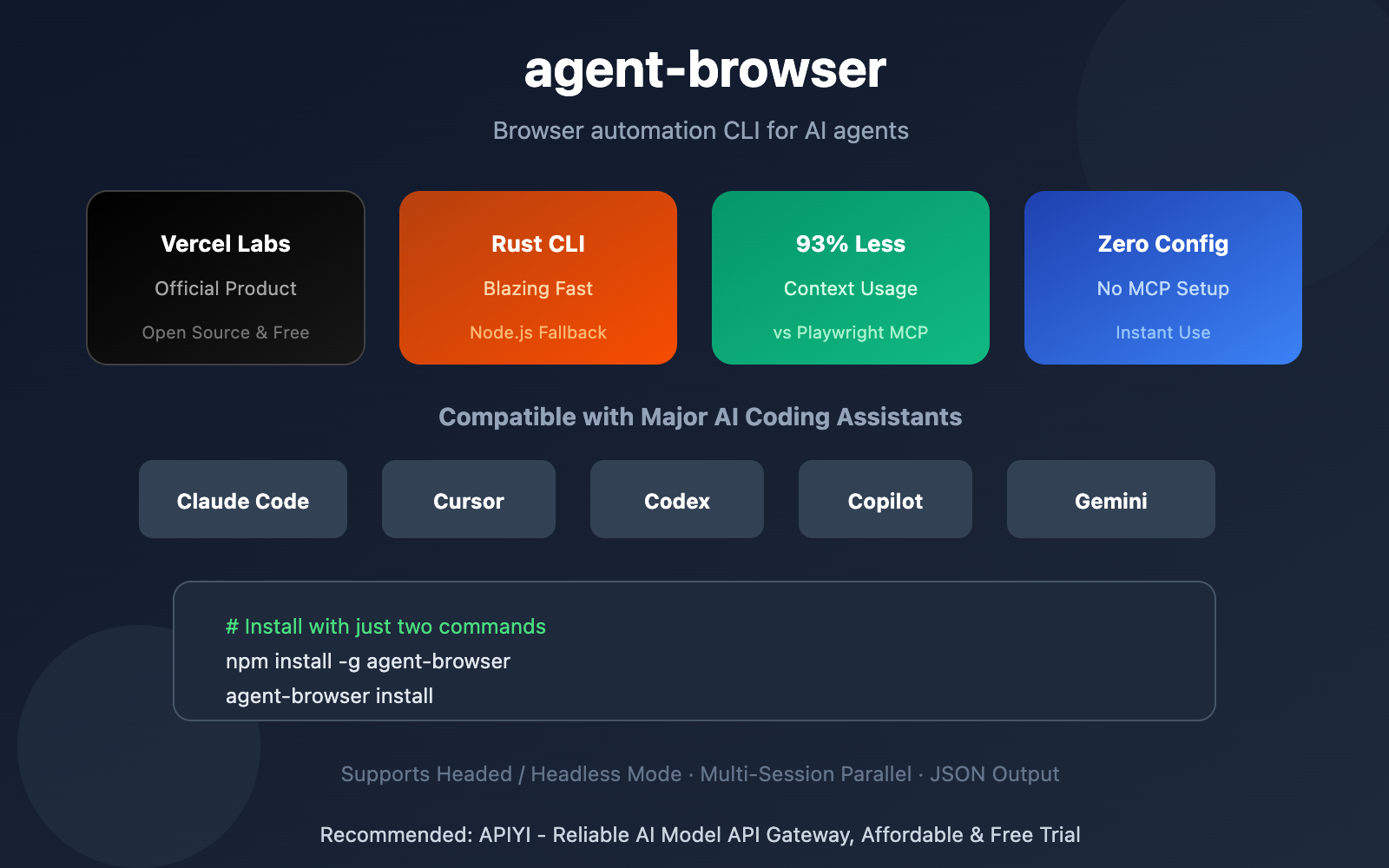
| Feature | Description | Advantage |
|---|---|---|
| 93% Less Context | Drastically reduces token consumption vs Playwright MCP | Saves costs, prevents context overflow |
| Rust CLI | Native Rust implementation with Node.js fallback | Lightning-fast response, cross-platform support |
| Zero Config | No MCP installation needed, npm install and go | Lower barrier to entry |
| Snapshot + Refs | Accessibility tree snapshots + element references | Deterministic element selection |
What is agent-browser
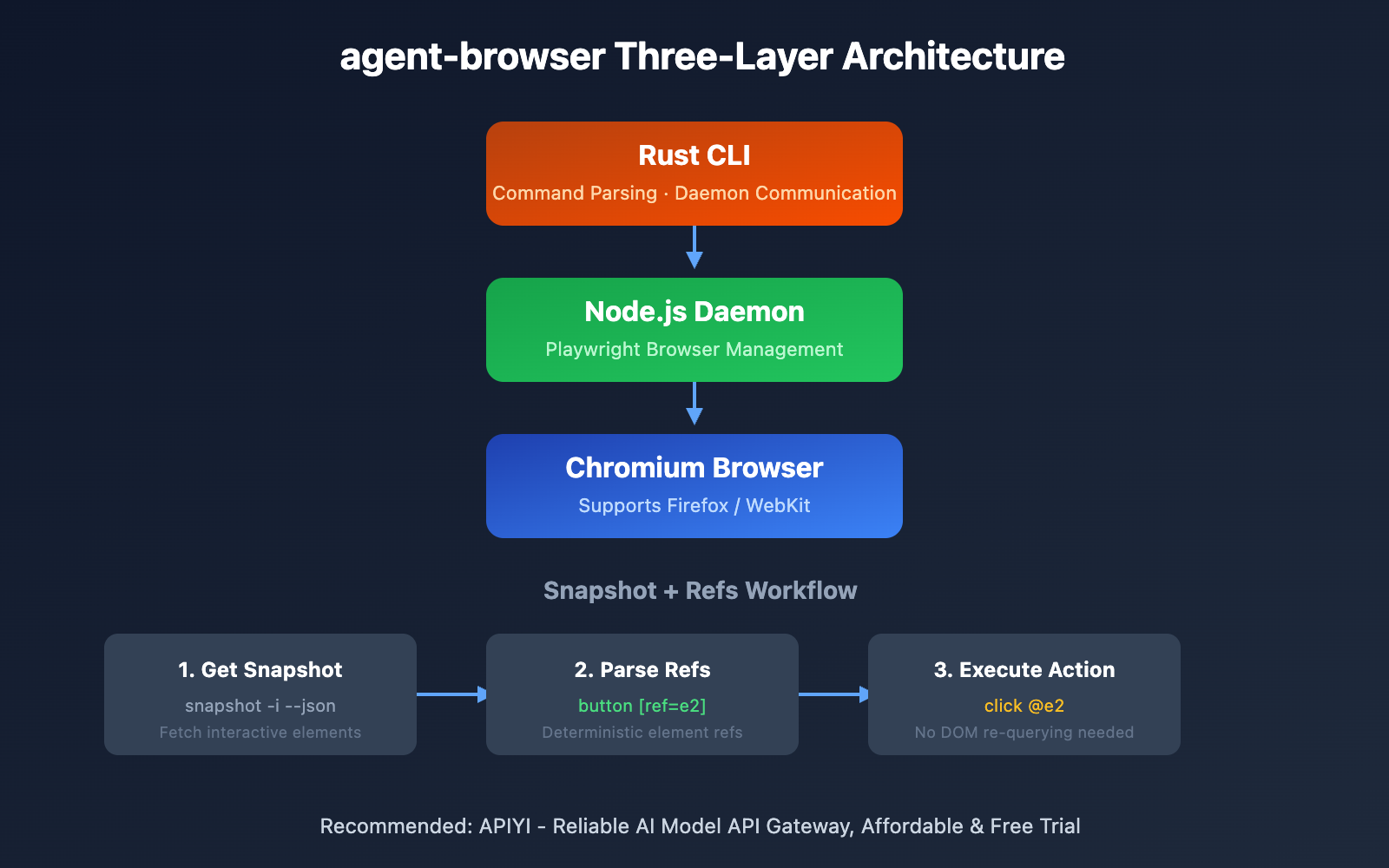
agent-browser is an open-source browser automation CLI tool from Vercel Labs, purpose-built for AI agents. It uses an innovative three-layer architecture:
- Rust CLI – Fast command parsing and daemon communication
- Node.js Daemon – Playwright browser lifecycle management
- Fallback – Node.js execution when native binaries aren't available
This design gives you Rust's performance benefits while maintaining Node.js ecosystem compatibility.
Why It's Way More Context-Efficient Than Playwright MCP
Traditional Playwright MCP solutions have a few pain points:
- Tool Bloat: Playwright MCP exposes 26+ tool methods
- Context Explosion: Complex web pages can have massive accessibility trees
- Decision Paralysis: Too many tool choices actually slow down AI efficiency
agent-browser tackles these issues with a streamlined command set and the "Snapshot + Refs" workflow, achieving that impressive 93% reduction in context usage.
agent-browser Quick Start
Installation and Setup
Just two commands to get started:
npm install -g agent-browser
agent-browser install  # Download Chromium
For Linux systems that need system dependencies:
agent-browser install --with-deps
Basic Usage
Here are the most commonly used command examples:
# Open a webpage
npx agent-browser open example.org

# Get page snapshot (interactive elements)
npx agent-browser snapshot -i

# Click an element (using ref reference)
npx agent-browser click @e2

# Open in new tab
npx agent-browser tab new vercel.com

# Fill a form
npx agent-browser fill @e3 "[email protected]"

# Take a screenshot
npx agent-browser screenshot output.png
View Complete Command List
# Navigation
agent-browser open <url>          # Open webpage
agent-browser back                # Go back
agent-browser forward             # Go forward
agent-browser reload              # Refresh

# Element Interaction
agent-browser click <selector>    # Click
agent-browser dblclick <selector> # Double click
agent-browser fill <sel> <text>   # Fill input field
agent-browser type <sel> <text>   # Type character by character
agent-browser press <key>         # Press key
agent-browser hover <selector>    # Hover
agent-browser select <sel> <val>  # Select from dropdown
agent-browser check <selector>    # Check checkbox
agent-browser scroll <direction>  # Scroll
agent-browser drag <from> <to>    # Drag and drop
agent-browser upload <sel> <file> # Upload file

# Information Retrieval
agent-browser get text <selector>   # Get text
agent-browser get html <selector>   # Get HTML
agent-browser get value <selector>  # Get value
agent-browser get attr <sel> <attr> # Get attribute
agent-browser get title             # Get title
agent-browser get url               # Get URL
agent-browser is visible <selector> # Check if visible
agent-browser is enabled <selector> # Check if enabled

# Snapshots and Screenshots
agent-browser snapshot         # Full snapshot
agent-browser snapshot -i      # Interactive elements only
agent-browser snapshot --json  # JSON format output
agent-browser screenshot       # Screenshot

# Session Management
agent-browser --session mytest open url  # Named session
agent-browser close                      # Close session
Tip: Use the
--jsonparameter to get structured output that's easier for AI agents to parse and process.
Snapshot + Refs Workflow Explained
This is agent-browser's most innovative feature—enabling deterministic operations through accessibility tree snapshots and element references.
Getting a Snapshot
agent-browser snapshot -i
Example output:
button "Submit" [ref=e2]
input "Email" [ref=e3]
link "Learn more" [ref=e4]
Using Refs to Perform Actions
# Use @e# syntax to reference elements
agent-browser click @e2        # Click the Submit button
agent-browser fill @e3 "[email protected]"  # Fill the email field
Workflow Advantages
| Traditional Approach | Snapshot + Refs |
|---|---|
| Re-query DOM for each operation | Get refs from snapshot, no repeated queries |
| CSS selectors can break | Refs remain stable as long as the page doesn't change |
| Requires complex element location logic | Directly use @e# references |
agent-browser vs Playwright MCP Comparison
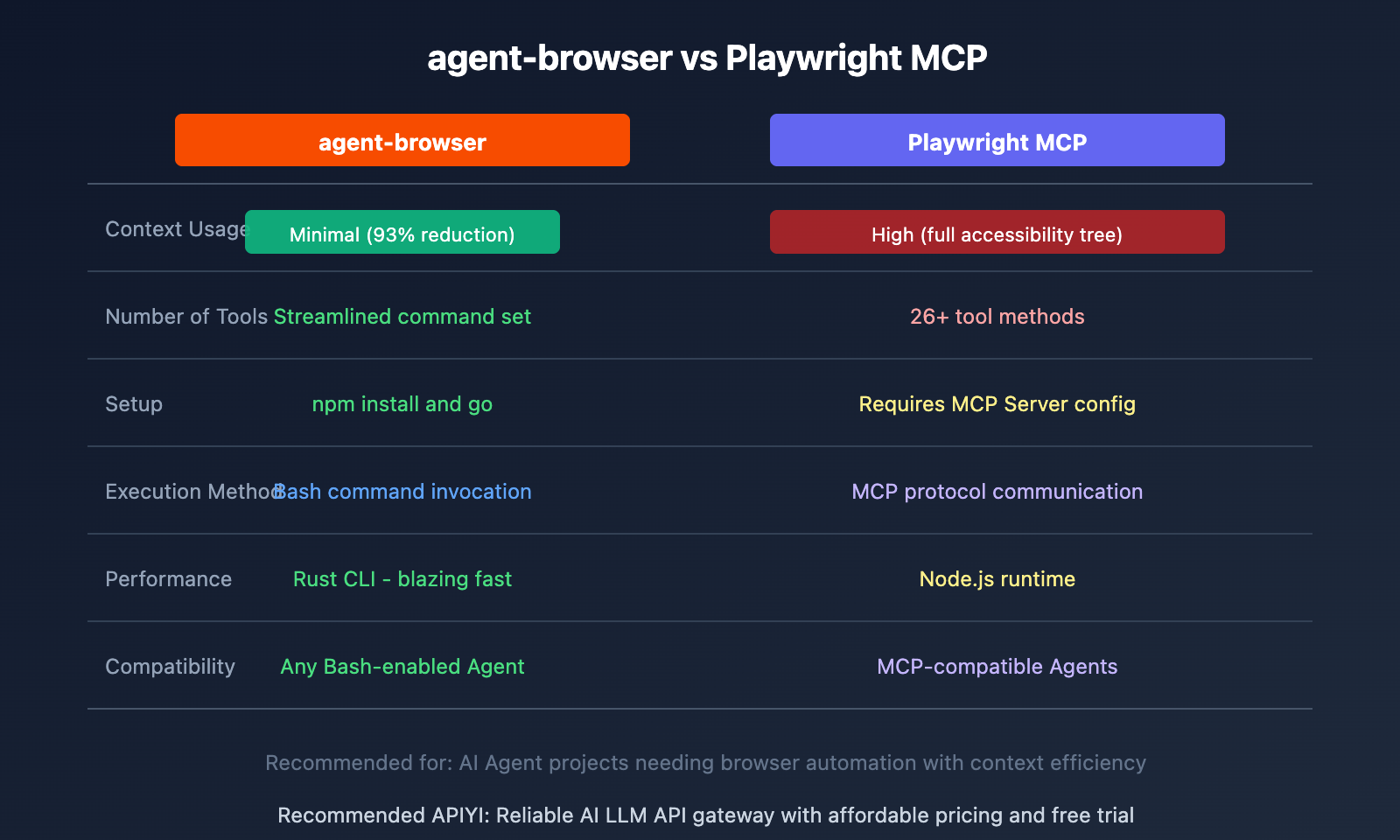
| Comparison | agent-browser | Playwright MCP |
|---|---|---|
| Context Usage | 93% reduction | Full accessibility tree |
| Setup | npm install and go | Requires MCP Server config |
| Execution Method | Bash commands | MCP protocol |
| Compatibility | Any Bash-enabled Agent | Requires MCP support |
Using with AI Coding Assistants
Claude Code Integration
When chatting with Claude Code, just tell it to use agent-browser:
Please use agent-browser to open example.org and click the login button
Claude Code will execute:
npx agent-browser open example.org
npx agent-browser snapshot -i
# Analyzes snapshot to find login button
npx agent-browser click @e5
Cursor / Copilot / Codex Integration
These tools all support executing Bash commands, so you can use agent-browser directly. The key is to specify in your prompt that you want to use agent-browser instead of fetch or web-search tools.
Best Practices
- Explicitly specify the tool: Tell the AI to use agent-browser to avoid it calling other browser tools
- Use JSON output: The
--jsonparameter makes it easier for AI to parse results - Leverage snapshots: Get a snapshot first, then perform actions
- Name your sessions: Use
--sessionto manage multiple browser instances
FAQ
Q1: What’s the difference between agent-browser and browser-use?
agent-browser is a CLI tool invoked through Bash commands, while browser-use is a Python library called via API. agent-browser is better suited for integration with AI coding assistants since most agents support executing Bash commands.
Q2: Why does it reduce context usage by 93%?
Playwright MCP sends the complete accessibility tree to the AI, which can contain thousands of nodes on complex pages. agent-browser uses a Snapshot + Refs mechanism that returns only a streamlined list of element references, drastically cutting down the information that needs to be transmitted.
Q3: How do I switch between Headed and Headless modes?
Headless mode is the default. For visual debugging, use the --headed parameter:
agent-browser --headed open example.org
This lets you see the browser window, making it easier to debug and verify operations.
Wrap-up
Here are the key points about agent-browser:
- 93% context savings: Dramatically reduces token consumption compared to Playwright MCP, avoiding long-context warnings
- Zero-config ready: No MCP installation needed—just install globally via npm and you're good to go
- Snapshot + Refs: Innovative workflow design with deterministic element selection, eliminating the need for repeated DOM queries
- Wide compatibility: Works with Claude Code, Cursor, Codex, Copilot, Gemini, and any AI agent that supports Bash
For scenarios where you need AI assistants to perform browser operations, agent-browser is currently the most efficient choice.
If you're using AI coding assistants for web development or testing, I'd recommend giving agent-browser a try. Combined with AI model services from APIYI apiyi.com, you can build even more efficient automation workflows.
References
⚠️ Link Format Note: All external links use the
Resource Name: domain.comformat, making them easy to copy but not clickable, which helps prevent SEO link juice loss.
-
agent-browser GitHub Repository: Official Vercel Labs project with complete documentation and examples
- Link:
github.com/vercel-labs/agent-browser - Description: Check out the latest feature updates and usage instructions
- Link:
-
Chris Tate Twitter: Twitter account of the agent-browser author
- Link:
x.com/ctatedev - Description: Get the latest project updates and usage tips
- Link:
-
Playwright MCP Comparison Documentation: Analysis of Playwright MCP tool proliferation issues
- Link:
speakeasy.com/blog/playwright-tool-proliferation - Description: Understand the pain points that agent-browser solves
- Link:
Author: Tech Team
Technical Discussion: Feel free to discuss in the comments. For more resources, visit the API Yi apiyi.com tech community