Author's Note: Answering developers' most frequently asked question: Can you directly pass PDFs to Large Language Model APIs? The answer is: most don't support it. This article details three practical solutions: text extraction, image understanding, and client-side processing.
"Can I just pass a PDF file directly into a Large Language Model API?"—this is one of the most common questions in our customer support group. Many developers, accustomed to the "drag-and-drop PDF for direct chat" feature in web versions of ChatGPT or Claude, assume the API works the same way.
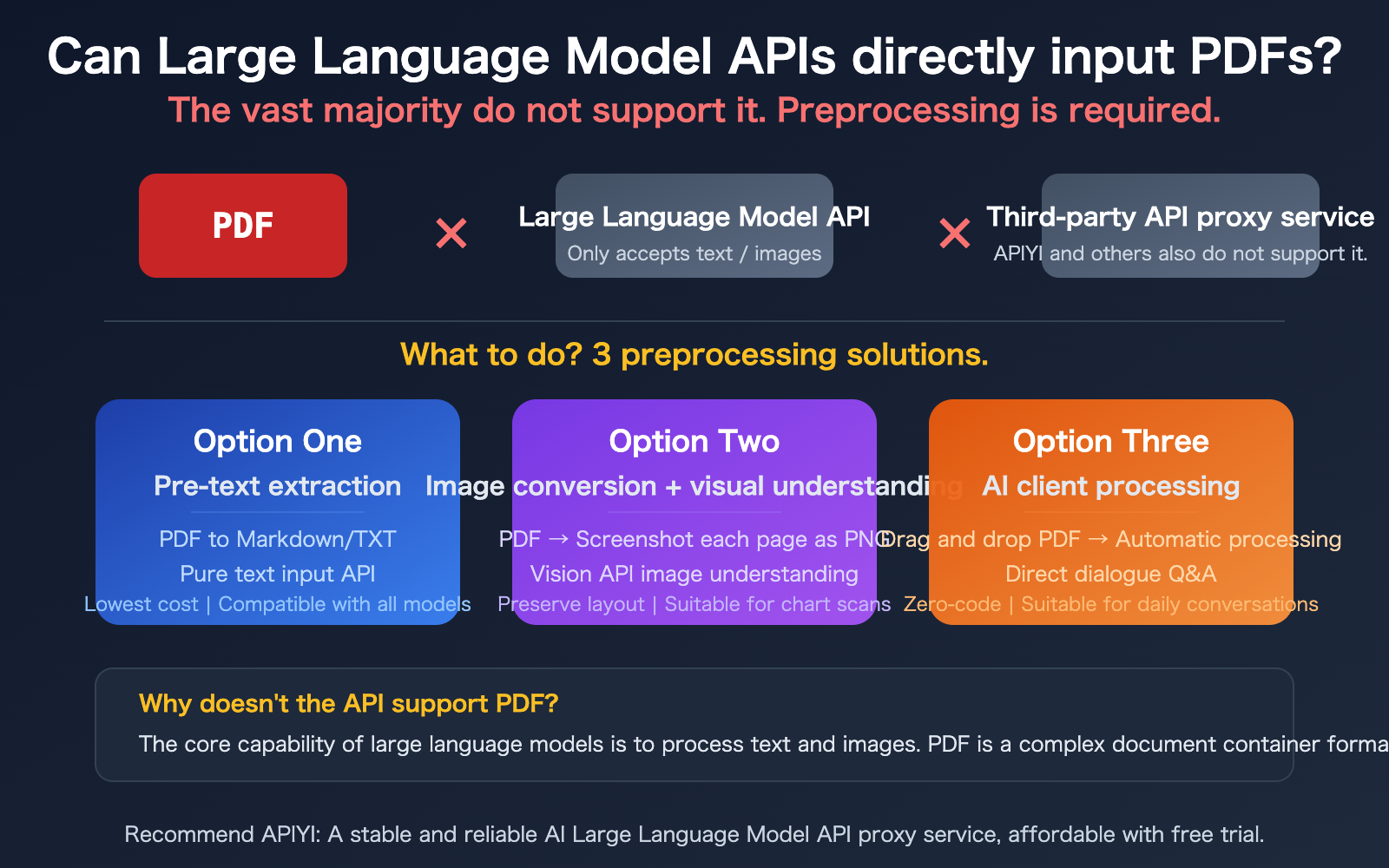
The reality is: The vast majority of Large Language Model APIs do not support direct PDF file input. Even leading providers like OpenAI and Anthropic have APIs whose core input formats are text and images—PDF is not within the standard scope of support. More importantly, third-party API proxy platforms like APIYI also do not support direct PDF uploads, because the underlying protocols simply don't allow it.
But don't worry, there are actually three mature solutions for processing PDFs. This article will help you understand the reasons behind the limitation and choose the best method for your needs.
Core Value: After reading this article, you'll understand why Large Language Model APIs don't support PDFs and how to efficiently handle PDF input requirements using three preprocessing strategies.
Core Points for Large Language Model API PDF Input
| Point | Explanation | Impact |
|---|---|---|
| APIs Don't Directly Accept PDFs | Standard input for mainstream model APIs like GPT, DeepSeek, Llama, Qwen is text and images. | Requires a pre-processing pipeline upfront. |
| Web Version ≠ API | PDF uploads in ChatGPT, Claude web versions are pre-processed by the frontend/backend before calling the API. | Don't equate the web experience with API capabilities. |
| Third-Party Platforms Also Don't Support It | API proxy services like APIYI transmit the original API protocol; if the underlying API doesn't support it, the platform doesn't either. | Don't expect proxy platforms to handle PDFs for you. |
| 3 Mature & Reliable Pre-processing Solutions | Text extraction, image understanding, and client-side processing each have their suitable scenarios. | Choosing the right solution is more practical than finding an "API that supports PDFs". |
Why Large Language Model APIs Don't Support PDF Input
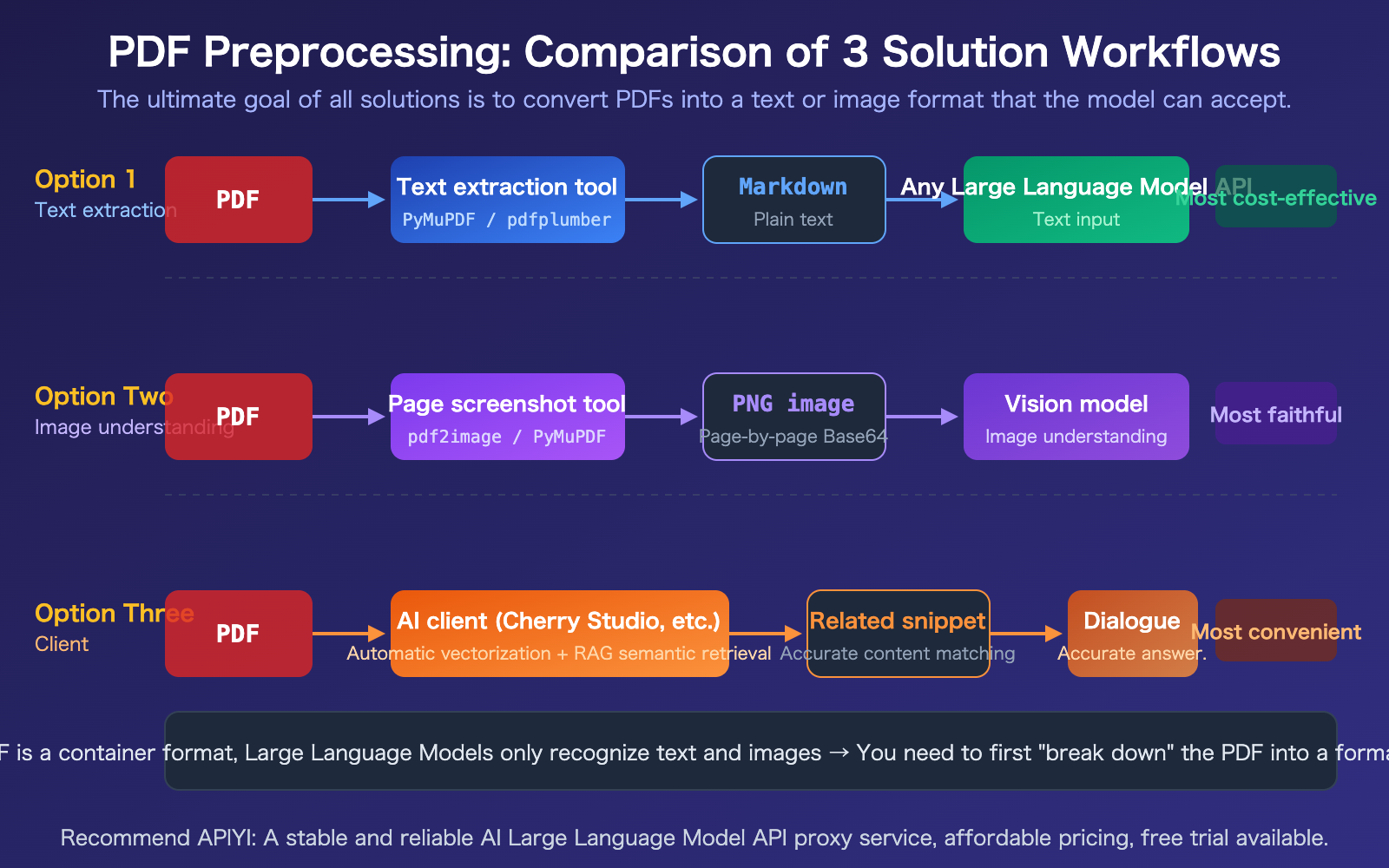
Many developers are confused: the web version can upload PDFs, so why can't the API? The reason is simple—the "upload PDF" feature on the web version isn't the model itself handling the PDF. The frontend/backend does the pre-processing behind the scenes:
- Text Extraction: The frontend extracts text from the PDF and converts it to plain text before sending it to the model.
- Page Rendering: Each PDF page is rendered as an image, and the model understands it via its Vision capabilities.
- RAG Retrieval: The PDF content is vectorized and stored; during conversation, only relevant snippets are retrieved and sent to the model.
These pre-processing steps are encapsulated in web-based products, invisible to the user. But when you call the API directly, you need to handle this pre-processing yourself.
Quick Reference: Large Language Model API PDF Support
| Model | Direct PDF Upload via API | Standard Input Format | PDF Processing Recommendation |
|---|---|---|---|
| GPT-4o / GPT-4.1 | Not Supported | Text + Images (Base64) | Extract text or convert to images first. |
| Claude | Partially Supported (Beta) | Text + Images | Still recommended to use a pre-processing pipeline for stability. |
| Gemini | Partially Supported | Text + Images | Still recommended to use a pre-processing pipeline for control. |
| DeepSeek | Not Supported | Plain Text | Must extract text first. |
| Llama / Qwen | Not Supported | Text (some support images) | Must extract text first. |
| APIYI & Other Third-Party | Not Supported | Transmits Original Protocol | Requires pre-processing before calling. |
🎯 Important Note: While Claude and Gemini's official API documentation mentions PDF input functionality, this feature has compatibility and stability uncertainties. Furthermore, it's not supported when calling through third-party proxy platforms like APIYI. We recommend using the unified pre-processing approach for the best compatibility and stability.
Large Language Model API PDF Processing Solution 1: Pre-processing Text Extraction
This is the most universal, lowest-cost, and most compatible solution for all models. Core idea: First, use a Python library to convert the PDF to Markdown or plain text, then send the text as the prompt to the API.
PDF Text Extraction Tool Comparison
| Tool | Speed | Best Use Case | Characteristics |
|---|---|---|---|
| PyMuPDF4LLM | ~0.14s/doc | General text + table extraction | Best balance of speed & quality, outputs Markdown. |
| pdfplumber | Medium | Table data extraction | High-precision coordinate-level table extraction. |
| Marker-PDF | ~11s/doc | Complex layout fidelity conversion | Best structure preservation, slower speed. |
| PyPDF2 | Fast | Simple plain-text PDFs | Lightweight, suitable for basic extraction. |
PDF Text Extraction Code Example
Here's the most common approach: extract PDF text and send it to a Large Language Model API:
import pymupdf4llm
import openai

# Step 1: Convert PDF to Markdown
md_text = pymupdf4llm.to_markdown("report.pdf")

# Step 2: Send plain text to any Large Language Model
client = openai.OpenAI(
    api_key="YOUR_API_KEY",
    base_url="https://api.apiyi.com/v1"
)

response = client.chat.completions.create(
    model="gpt-4o",
    messages=[{"role": "user", "content": f"Please summarize the key points of this report:\n\n{md_text}"}]
)
print(response.choices[0].message.content)
Applicable Scenarios: Contracts, papers, reports, technical documents, and other text-heavy PDFs. As long as the PDF has an embedded text layer (not a scan), extraction works well.
Recommendation: The text extraction solution is compatible with all Large Language Models—GPT, Claude, DeepSeek, Llama, Qwen. Get an API Key from APIYI apiyi.com; one key lets you call all models for comparative testing.
Large Language Model API PDF Processing Solution 2: Convert to Images + Visual Understanding
When a PDF contains visual information like charts, scanned documents, or complex layouts, pure text extraction loses this content. In this case, you need to render each PDF page into an image and use a Vision-capable model for image understanding.
PDF to Image Code Example
import fitz  # PyMuPDF
import base64
import openai

# Step 1: Convert PDF pages to PNG images one by one
doc = fitz.open("report.pdf")
images = []
for page in doc:
    pix = page.get_pixmap(dpi=200)
    b64 = base64.b64encode(pix.tobytes("png")).decode()
    images.append(b64)
View Full Code: Sending Images to Vision API
import fitz
import base64
import openai

def pdf_to_vision(pdf_path, question, max_pages=10):
    """Convert PDF to images and send to Vision API"""
    doc = fitz.open(pdf_path)

    # Build multi-image message (control page count to avoid exceeding token limits)
    content = [{"type": "text", "text": question}]
    for i, page in enumerate(doc):
        if i >= max_pages:
            break
        pix = page.get_pixmap(dpi=150)
        b64 = base64.b64encode(pix.tobytes("png")).decode()
        content.append({
            "type": "image_url",
            "image_url": {"url": f"data:image/png;base64,{b64}"}
        })

    client = openai.OpenAI(
        api_key="YOUR_API_KEY",
        base_url="https://api.apiyi.com/v1"
    )

    response = client.chat.completions.create(
        model="gpt-4o",
        messages=[{"role": "user", "content": content}]
    )
    return response.choices[0].message.content

# Usage example
result = pdf_to_vision(
    "financial_report.pdf",
    "Please analyze the trend charts in this financial report and summarize the key data",
    max_pages=5  # Control page count; each page consumes ~765 tokens
)
print(result)
Best for: Research reports with charts, scanned documents, invoices, architectural drawings, and other PDFs rich in visual information.
Cost reminder: Each image page consumes about 765 tokens (GPT-4o standard resolution). A 10-page PDF would be about 7,650 tokens just for images, plus your text question and the answer could easily exceed 10,000 tokens. It's crucial to control the number of pages.
🎯 Cost Control Tip: Don't send all pages of a PDF at once. First, use Solution 1 to extract text for a rough screening to identify key pages. Then, use Solution 2 for visual understanding on those specific pages. You can monitor token usage in real-time via the usage dashboard on APIYI apiyi.com.
Large Language Model API PDF Processing Solution 3: AI Client Processing
If you don't want to write code and just need to "ask questions about PDF content" in your daily workflow, using an AI client is the easiest way.
How PDF Processing Works in Clients like Cherry Studio
These clients essentially automate the work of Solutions 1 and 2 for you:
- Automatic Vectorization: Extract PDF content, split it into chunks, and store it in a local vector database.
- Semantic Search: When you ask a question, the client first retrieves the most relevant content chunks.
- Precise Sending: Only the relevant chunks (not the entire document) are sent to the Large Language Model API.
- Token Savings: RAG (Retrieval-Augmented Generation) retrieval significantly reduces the amount of content sent to the model.
Considerations for Client-based PDF Processing
- Configure API Key: Enter your APIYI apiyi.com API Key in the client to access all models with a single key.
- Control File Size: Vectorizing very large PDFs (hundreds of pages) can take a long time; it's best to split them first.
- Mind Token Costs: Although RAG compresses content, long documents can still incur significant costs.
- Choose the Right Model: Use cheaper models (like GPT-4o-mini) for simple Q&A and flagship models for complex analysis.
Large Language Model API PDF Processing: 3 Solution Comparison
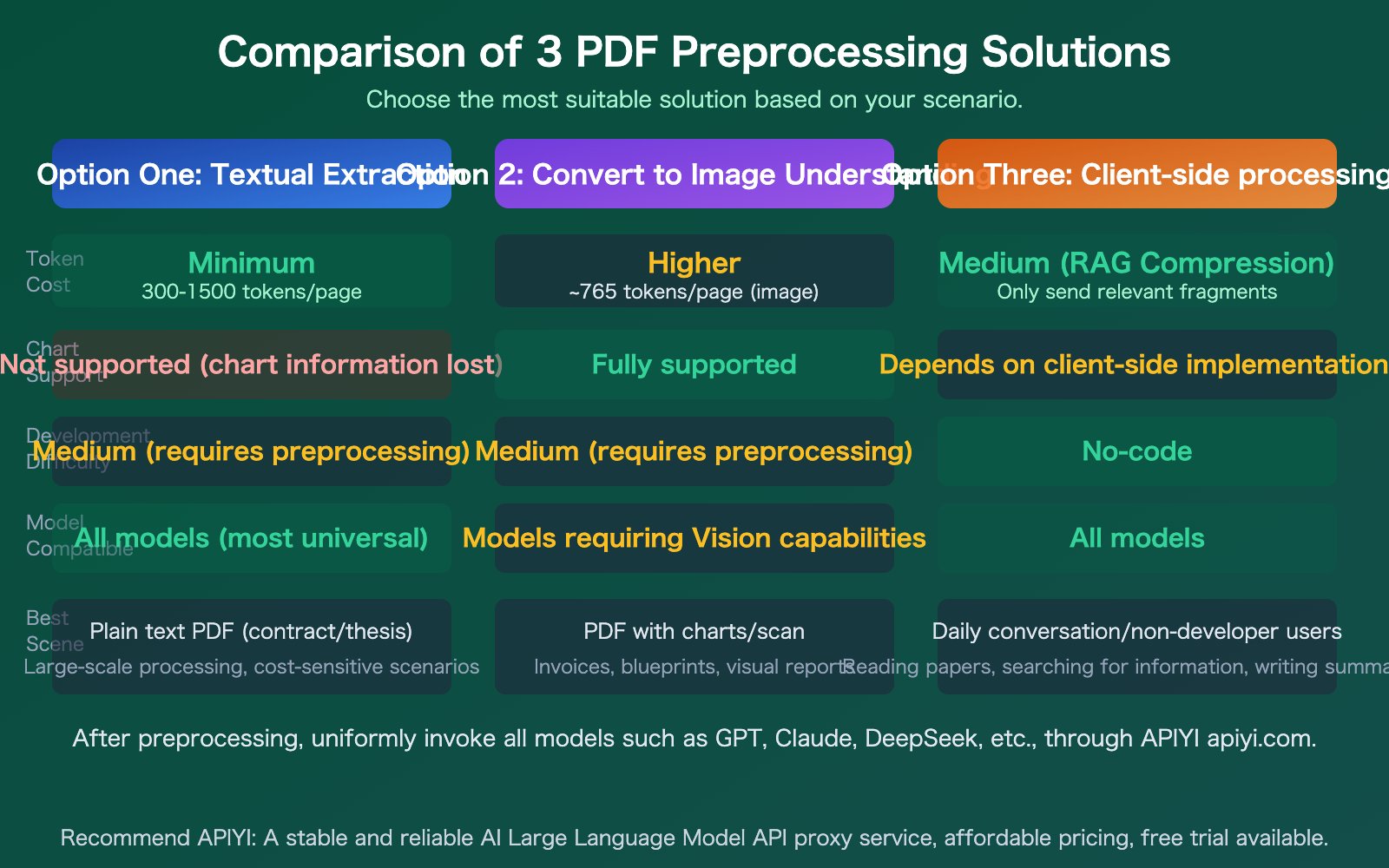
| Solution | Token Cost | Chart Support | Development Difficulty | Model Compatibility | Best Use Case |
|---|---|---|---|---|---|
| Text Extraction | Lowest (300-1500/page) | Not Supported | Medium | All Models | Text-only PDFs, Bulk Processing |
| Image Conversion & Understanding | Higher (~765/page) | Full Support | Medium | Requires Vision Models | Charts, Scanned Documents |
| Client-Side Processing | Medium (RAG Compression) | Depends on Client | Zero-Code | All Models | Daily Chat, Non-Development |
Comparison Note: These three solutions aren't mutually exclusive. In real projects, you'll often combine them. For example, you might use Solution 1 for initial text extraction and screening, then apply Solution 2's image understanding to key pages. You can access all models through APIYI at apiyi.com.
Common Questions
Q1: Why can the ChatGPT web version upload PDFs, but the API doesn’t support it?
The "upload PDF" feature in the web version is the product's frontend doing preprocessing for you—extracting text, rendering images, building search indexes—and then calling the underlying API. The API's core input formats are text and images; PDF, as a complex document container format, is not within the standard support scope. When you call the API, you need to complete these preprocessing steps yourself.
Q2: Can third-party proxy platforms like APIYI handle PDFs for me?
No. The essence of proxy platforms like APIYI is to relay API requests. If the underlying protocol doesn't support PDF, the platform can't handle it either. You need to complete the PDF preprocessing (extracting text or converting to images) yourself before calling the API, then send the processed text or images to the Large Language Model via APIYI at apiyi.com.
Q3: How do I control Token costs when processing PDFs?
Here are a few practical tips:
- Prioritize Option 1 (text extraction) – it's the most cost-effective.
- Only process the pages you need; don't send the entire document at once.
- Use RAG (Retrieval-Augmented Generation) techniques to split and retrieve, sending only relevant snippets to the model.
- Use cheaper models (like GPT-4o-mini) for simple Q&A, and flagship models for complex analysis.
- Monitor your consumption in real-time via the usage dashboard on APIYI at apiyi.com.
Summary
The key points about Large Language Model API PDF input are:
- Most APIs do NOT support direct PDF input: The core inputs for Large Language Models are text and images. PDFs require preprocessing before they can be used.
- Third-party platforms also do NOT support it: Proxy platforms like APIYI relay the original protocol and cannot perform additional PDF processing.
- Choose from 3 options based on your needs: Use text extraction for text-only PDFs (most cost-effective), convert to images for PDFs with graphics (most faithful), or use a client app for casual conversation (most convenient).
Don't get stuck on "which API supports PDF." Instead, focus your energy on choosing the right preprocessing solution—that's the correct approach.
We recommend getting free credits via APIYI at apiyi.com to test and compare all major models like GPT, Claude, and DeepSeek with a single API key after preprocessing your PDF.
📚 References
-
PyMuPDF4LLM Documentation: PDF text extraction tool
- Link:
pymupdf.readthedocs.io/en/latest/pymupdf4llm - Description: The fastest PDF to Markdown tool, recommended as the first choice.
- Link:
-
pdfplumber Documentation: Specialized table extraction tool
- Link:
github.com/jsvine/pdfplumber - Description: The most accurate tool for extracting table data from PDFs.
- Link:
-
Cherry Studio: Open-source AI client
- Link:
github.com/CherryHQ/cherry-studio - Description: A free client that supports dragging and dropping PDFs into conversations, configurable with APIYI as the backend.
- Link:
-
APIYI Platform Documentation: Unified access to major model APIs
- Link:
docs.apiyi.com - Description: API key acquisition, model lists, and invocation examples.
- Link:
Author: APIYI Technical Team
Technical Discussion: Feel free to discuss in the comments. For more resources, visit the APIYI documentation center at docs.apiyi.com.