

GPT-6.2 Astra can only be explicitly selected in three places: ChatGPT’s Work mode, Codex (both the desktop app and the CLI), and by specifying gpt-6.2-astra in an API request. The “GPT-6.2” label you see in regular Chat is not Astra. According to the November 23 Chat changelog, that’s powered by a GPT-6.2 Sol variant tuned specifically for everyday conversation. So if you can’t find Astra in regular Chat, that’s expected behavior — it doesn’t mean something’s wrong with your account.
If you also can’t see it in Work or Codex, work through this order:
- Confirm which entry point you’re actually in.
- Confirm your account and workspace.
- Confirm the client version — the CLI needs to be at least 0.166.0.
- Confirm seat and role permissions.
- If you’re on Enterprise or Edu, ask your admin to verify effective permissions in the Admin console using Model Test.
What you’ll get from this article
- How GPT-6.2 Astra relates to the “GPT-6.2” in regular Chat and to the previous GPT-6 Astra.
- Concrete steps for selecting Astra in Work (web, mobile, desktop), Codex App, Codex CLI, and the API.
- The troubleshooting order to follow when a model “disappears,” plus the eligibility differences for the Ultrafast speed tier.
- How to think about auth failures, model-not-found errors, and HTTP 429 in API calls.
Index: The article opens with two quick-reference sections that explain the key concepts and what this change means for different users. The “Objective facts” section of the main text lays out the release timeline and the availability scope of each entry point. The “Quick start” section gives steps and code separately for Work, Codex, and the API. The “Troubleshooting” section lays out a check order running from entry point all the way to admin permissions. The “Analysis” section discusses what this fragmentation of entry points means for how teams choose their models. The article wraps up with an FAQ and further reading.
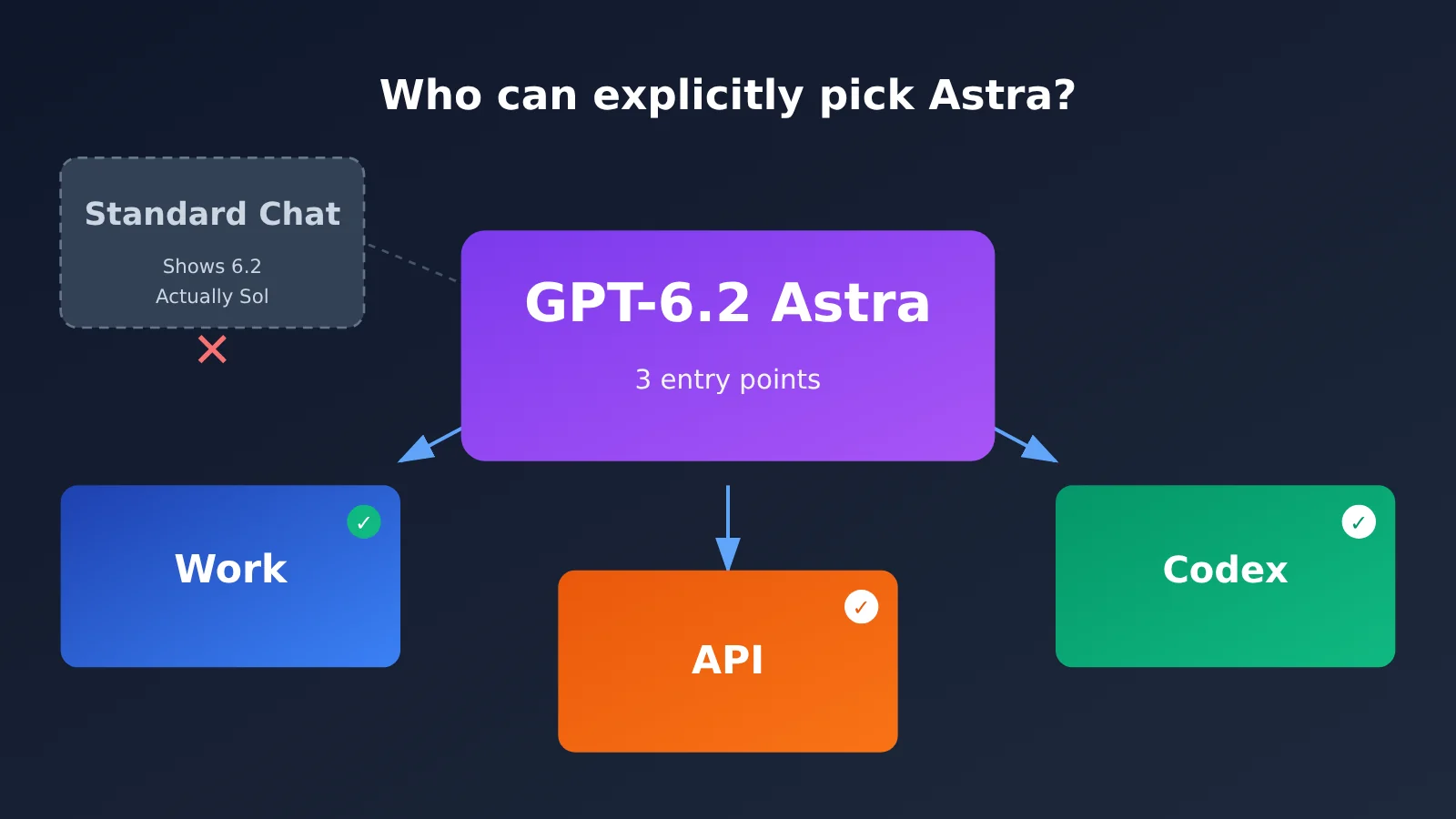
To Know: Concepts You Need Before Understanding the GPT-6.2 Astra Entry Point
| Concept | Quick explanation |
|---|---|
| GPT-6.2 Astra | A model released by OpenAI on November 17, 2026, launched alongside GPT-6.2 Sol. It can be explicitly specified in Work, Codex, and the API |
| GPT-6.2 Sol | Another 6.2 model released at the same time. The “GPT-6.2” option in regular Chat is powered by its version tuned for everyday conversation |
| GPT-6 Astra | The previous-generation Astra. Business and Enterprise help pages map the GPT-6 Pro option in regular Chat to it; it is not 6.2 Astra |
| ChatGPT Work | A work mode within ChatGPT that sits alongside Chat, designed for tasks such as source synthesis, reports, presentations, and spreadsheets |
| Codex | A code-focused product available as a desktop app, CLI, Codex Cloud, and other forms. Its views and history are separate from ChatGPT |
| Default option | The default choice in Work when no model is manually specified. Currently corresponds to GPT-6 Luna |
| Ultrafast | Astra’s high-speed tier, with eligibility assessed separately from the Standard tier |
| Model Test | A tool in the Enterprise/Edu admin console that lets you view a member’s effective model permissions by name or email |
| Responses API | OpenAI’s POST /v1/responses endpoint, used in official examples to call Astra |
| config.toml | A configuration file for supported Codex clients, where you can pin the default model |
Impact at a Glance: What GPT-6.2 Astra Means for Different Users
- Regular individual subscribers (Plus, Pro): The “GPT-6.2” in standard Chat isn’t the same as Astra. To use Astra, you’ll need to switch to Work or open Codex and select it manually.
- Go or Free users: Even if you can use a certain Codex feature, don’t assume that means you have the Astra option. The subscription tiers listed in the current documentation don’t include these two plans.
- Business admins and members: Which entry point you can use depends on your seat. A Codex-only seat lets you select Astra in Codex, but that doesn’t mean you can select it in Work.
- Enterprise / Edu admins: The models are off by default and need to be enabled manually. Workspaces that require the UAE inference region currently aren’t supported for these two 6.2 models.
- Developers: API access is determined by the API project, not by your ChatGPT subscription seat. Selecting Astra in Work won’t change any settings in your API project.
GPT-6.2 Astra: The Objective Facts on Launch, Access, and Eligibility
GPT-6.2 Astra Release Timeline and Two Product Lines
On November 17, 2026, OpenAI announced that GPT-6.2 Astra and GPT-6.2 Sol were live, with Work, Codex, and the OpenAI API listed as access points. The launch announcement used the word “preview.” That wording is useful as release-history context, but current client availability should be based on the current documentation.
Starting November 23, the regular Chat update began rolling out to Plus, Pro, Business, and Enterprise users worldwide—that’s a separate product line. The changelog’s Availability note states that the GPT-6.2 shown in regular Chat is powered by an everyday-conversation-tuned version of GPT-6.2 Sol. Whether Enterprise users see it also depends on admin settings. This update did not change the model used by Work or Codex.
GPT-6.2 Astra Access Point Availability
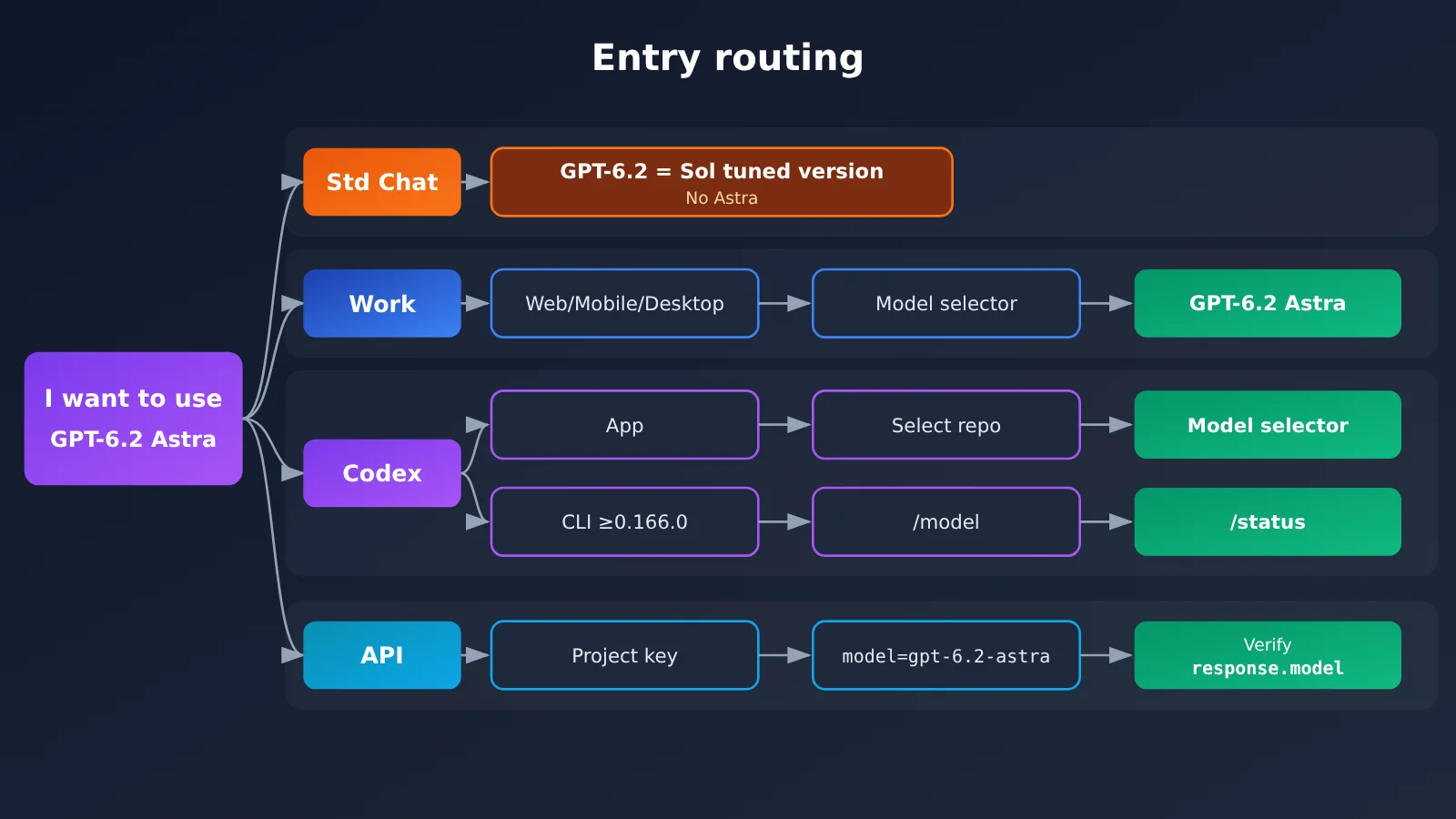
| Access point | Can you explicitly select GPT-6.2 Astra? | Key condition |
|---|---|---|
| Regular Chat | No; the “GPT-6.2” shown is the Sol-tuned version | The Pro option is a separate heading, and the help page refers to the previous-generation GPT-6 Astra |
| Work (web / mobile / desktop) | Yes, via the model selector | Plus, Pro, Business, Enterprise, and Edu, subject to seat and workspace permissions |
| Codex App | Yes, via the model selector | A Codex-only Business seat also works, provided you have the relevant permissions |
| Codex CLI | Yes, specify it with /model or the -m parameter |
Version 0.166.0 or later |
| OpenAI API | Yes, set model to gpt-6.2-astra |
Determined by API project permissions, organization restrictions, and budget |
| API aggregation platform (e.g., APIYI apiyi.com) | Subject to the platform’s model list | Uses an OpenAI-compatible interface; model IDs and endpoints are subject to the platform documentation |
Enterprise and Edu models are off by default and must be enabled by an admin. Current Enterprise/Edu documentation also states that both 6.2 models support standard inference in the US and EU in the corresponding experiences; workspaces that require UAE inference are not eligible. If you want to use FedRAMP environments in Work, you must first join the Work private preview and enable the models through the new Admin Console.
GPT-6.2 Astra Ultrafast Eligibility and API Rate Limits
Being able to use Astra on the Standard tier doesn’t mean you can use the Ultrafast tier. Here’s OpenAI’s official eligibility breakdown for the speed tiers:
| Plan | Astra Ultrafast eligibility |
|---|---|
| Individual Pro 500 | Astra Ultrafast available |
| Pro 200 | Ultrafast covers only GPT-6.2 Sol in Codex, not Astra |
| Plus, Pro 100, Business | Cannot enable Ultrafast |
| Enterprise, Edu | Depends on workspace permissions and eligibility |
On the API side, the Astra model card lists rate limits by usage tier. These limits belong to the API account system and are unrelated to ChatGPT subscriptions:
| API usage tier | Requests / minute | Tokens / minute |
|---|---|---|
| Build | 5,000 | 1 million |
| Launch | 10,000 | 4 million |
| Grow | 15,000 | 40 million |
GPT-6.2 Astra Quick Start: Work, Codex, and API Steps
Selecting GPT-6.2 Astra in Work
- Web: Open ChatGPT, switch to Work, and select GPT-6.2 Astra in the model selector.
- Mobile: If the home screen shows Explore, start a new conversation from Home, tap the input box, then tap the model name and select Work. On the classic interface, switch between Chat and Work from the dropdown.
- Desktop: Choose ChatGPT from the menu, then toggle the Chat/Work switch to Work.
- Projects: You can start a Work conversation from within a project and carry over the project context.
Work on web and mobile runs in the cloud and can’t directly open arbitrary paths on your computer. Whether desktop Work can access local files and desktop apps depends on your account and role, and requires authorization. For tasks like reports, presentations, or spreadsheets, it’s best to state two things clearly in the same Work session: explicitly select Astra, and spell out your delivery requirements.
There are a few things to keep in mind about the default upgrade:
- If an existing Work conversation is already using Astra or Sol, the interface may prompt you to switch to the new default. You can choose to keep the original model.
- New conversations that use Default with Astra or Sol will upgrade in place, with no separate switch button.
- If Default maps to GPT-6 Luna, or you’ve already manually specified a model, the Work home screen may not show an upgrade prompt.
To confirm which model you’re currently using, checking the model selector directly is more reliable than relying on the upgrade banner. Also, Work’s reasoning slider only adjusts reasoning intensity; it doesn’t replace the CLI’s model selection command.
Using GPT-6.2 Astra in the Codex App and CLI
Desktop App: Select Codex from the menu, open the target repository or folder, and choose GPT-6.2 Astra in the model selector. Codex Cloud has its own cloud permissions and published environment requirements. Remote on mobile is for viewing supported desktop conversations, and it has separate permissions and history as well.
CLI: Requires version 0.166.0 or later. First confirm the version actually running in your current terminal, then update using your original installation method:
# 1. Check the Codex CLI version actually running in your current terminal (must be ≥ 0.166.0)
codex --version

# 2. Launch directly with GPT-6.2 Astra (command example from the official model guide)
codex -m gpt-6.2-astra

# 3. You can also do this inside a CLI session:
#    /model   Select GPT-6.2 Astra from the list allowed by your account and workspace
#    /status  Verify the currently active model
If you want to use the same model every time, you can add this to config.toml in a supported client:
model = "gpt-6.2-astra"
Commands and config only express “I’d like to use this model.” Whether you can actually use it still depends on your current login identity and the effective permissions of the project. Billing also depends on how you sign in: when you log in to Codex with a ChatGPT account, usage is counted against your account under subscription usage rules; when you use your own OpenAI API key, you’re billed at API project rates.
Calling GPT-6.2 Astra via the OpenAI API
Create a key in the target project on the OpenAI API platform, store it in a trusted server-side environment variable OPENAI_API_KEY, and then call the Responses endpoint. The example below follows the official request structure and has not been tested with a key:
from openai import OpenAI

client = OpenAI()  # Reads the key from the OPENAI_API_KEY environment variable
response = client.responses.create(
    model="gpt-6.2-astra",
    input="把这三个里程碑整理成按依赖关系排列的清单:访谈、原型、验收。",
)
print(response.model)        # Verify the model that actually took effect
print(response.output_text)  # Verify the output
Calling GPT-6.2 Astra via the APIYI unified interface
If your team is already using models from multiple providers at the same time, you can unify access through an OpenAI-compatible aggregation interface—you only need to change base_url and the key. Here’s the simplest version. Whether a call succeeds and how the model ID should be written depend on the model list in the platform console:
import openai

client = openai.OpenAI(
    api_key="YOUR_APIYI_KEY",
    base_url="https://api.apiyi.com/v1"  # APIYI OpenAI-compatible interface
)

resp = client.chat.completions.create(
    model="gpt-6.2-astra",  # Use the actual ID shown in the platform's model list
    messages=[{"role": "user", "content": "用三句话说明 Work 与 Codex 的区别"}],
)
print(resp.model)
print(resp.choices[0].message.content)
View the complete code with error handling and backoff retries
import time
import openai

client = openai.OpenAI(
    api_key="YOUR_APIYI_KEY",
    base_url="https://api.apiyi.com/v1"
)

def ask_astra(prompt: str, model: str = "gpt-6.2-astra", retries: int = 3) -> str:
    """Call the model and distinguish between three error types: authentication, model not found, and rate limiting"""
    delay = 2
    for attempt in range(retries):
        try:
            resp = client.chat.completions.create(
                model=model,
                messages=[{"role": "user", "content": prompt}],
            )
            print("Model actually in effect:", resp.model)
            return resp.choices[0].message.content
        except openai.AuthenticationError as e:
            # Invalid or revoked key: this is an authentication issue, so retrying is pointless
            raise RuntimeError(f"Authentication failed, please check your key: {e}")
        except openai.NotFoundError as e:
            # The model ID doesn't exist or the current project has no access to it
            raise RuntimeError(f"Model unavailable, please verify the model ID: {e}")
        except openai.RateLimitError as e:
            # 429: could be per-minute request/token limits exceeded, or quota or spending cap reached
            retry_after = None
            if getattr(e, "response", None) is not None:
                retry_after = e.response.headers.get("retry-after")
            wait = float(retry_after) if retry_after else delay
            print(f"Hit a 429, retrying in {wait} seconds (attempt {attempt + 1})")
            time.sleep(wait)
            delay *= 2
    raise RuntimeError("Still failing after multiple retries—check your quota or spending cap settings")

if __name__ == "__main__":
    print(ask_astra("把访谈、原型、验收按依赖关系排序"))
Tip: Validate the model ID and output with a minimal request first, then integrate it into your business code. APIYI apiyi.com offers free testing credits for new users, and a single key lets you compare outputs across OpenAI, Claude, Gemini, and other models.
Can’t Find GPT-6.2 Astra? Here’s the Order to Check Things In
If Astra isn’t showing up in Work or Codex, work through these checks one at a time:
| Step | What to check | What to do |
|---|---|---|
| 1 | Which entry point you’re in | Confirm whether you’re in Work, desktop Codex, or regular Chat. Regular Chat never had Astra to begin with |
| 2 | Account and workspace | Confirm which account you’re signed into, and whether you’re in a personal workspace or an organization workspace |
| 3 | Client version | Desktop: Menu → Check for Updates, then install and restart. CLI: go by the version actually running in your current terminal, then look at the options under /model |
| 4 | Seat and role (Business) | Confirm which entry points your seat includes, and whether your current role has the matching permission |
| 5 | Admin settings (Enterprise / Edu) | First confirm whether the product is enabled for that role, then have an admin go to Admin console → Models → Test and look up effective permissions by name or email |
| 6 | Speed tier | If you have Standard but not Ultrafast, check speed-tier eligibility separately |
Model Test is only for viewing results — when an admin changes workspace or role settings, those changes have to be saved separately. Also, “model available,” “speed tier available,” and “the account still has quota left” are three independent conditions, so verify each one on its own.
If the same account can see Astra in a personal workspace but not in an organization workspace, the problem is almost certainly on the organization side — an entry point, a seat, or an admin model setting.
GPT-6.2 Astra Example: An Enterprise Member
An Enterprise member ran into three things at once:
- GPT-6.2 shows up in regular Chat. That comes from the November 23 Chat update and has nothing to do with Astra.
- They can create a new project in desktop Work. That only proves they have desktop Work access.
- GPT-6.2 Astra is missing from the model list in Work. This can be explained by “model off by default” or “role-based control.”
The admin should start with Model Test to see this member’s effective permissions, then decide whether to enable it according to org policy. If this member switches to the CLI, the client version still has to meet the requirement. Both conditions — permissions and version — affect whether the model can be selected.
Troubleshooting GPT-6.2 Astra API Errors
Projects on the API platform are independent permission boundaries. An organization owner can manage projects and model quotas, while project members or service accounts only get the permissions assigned to them. When the first request fails, capture the error code returned by the server and the target project before doing anything else, then handle it by error type:
- Authentication failure: the key is invalid or has been revoked — recreate it or swap in a different key.
- Model not found: check the exact model ID, then the API project and organization the runtime is actually using, then that project’s model access permissions and quotas, and finally the request body.
- HTTP 429: this could be a per-minute request or token limit, or a project monthly spend cap, an organization monthly spend cap, or an exhausted balance. If it’s a recoverable cause like rate limiting, read
Retry-Afteror add backoff retries on the client. If it’s a spend cap, adjust the usage settings for the corresponding project or organization.
The same client-side error doesn’t mean “no project has access to this model” — you need to check each specific project individually.
Analysis: What GPT-6.2 Astra’s Split Entry Points Actually Mean
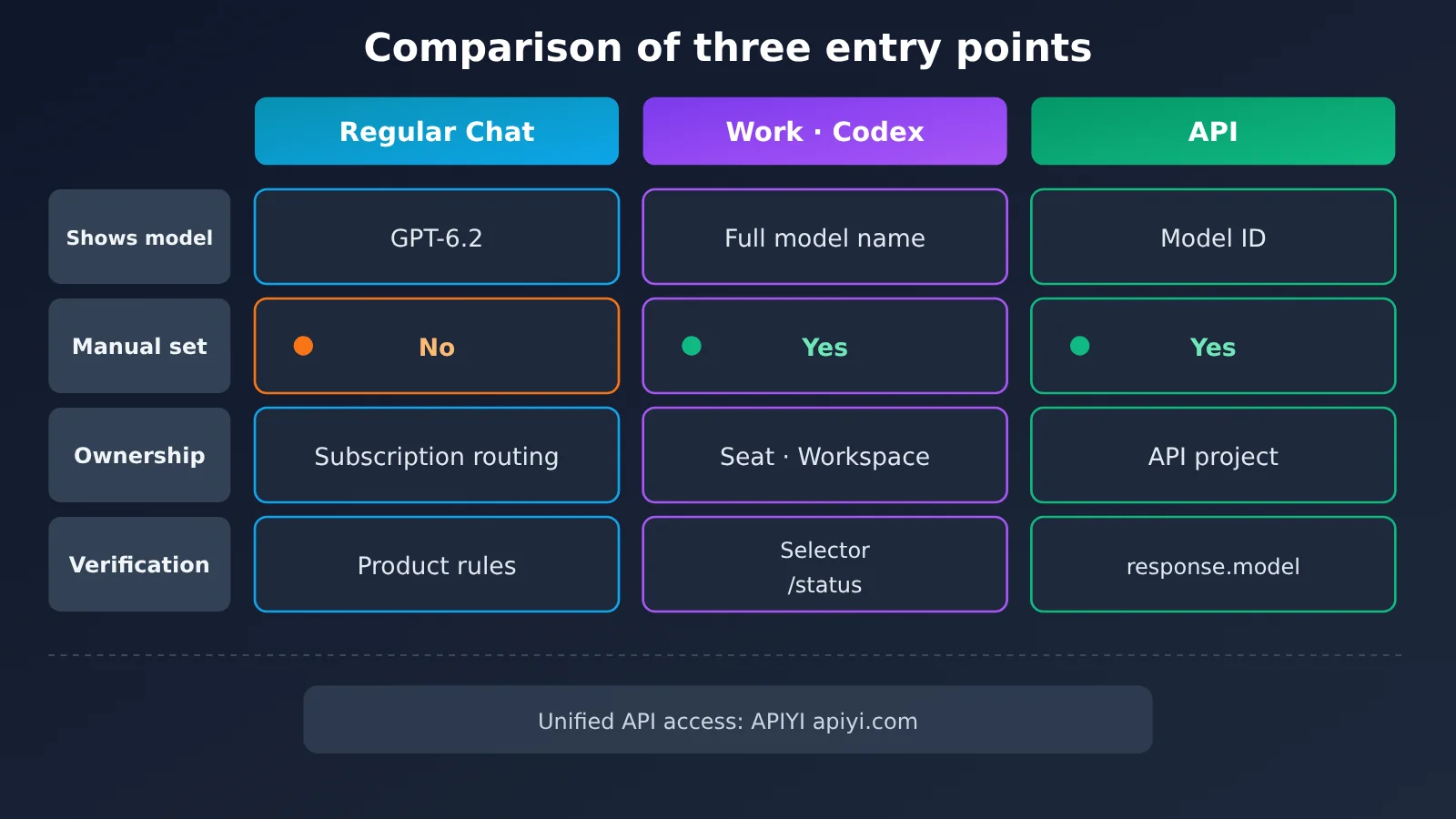
Point 1: The same “GPT-6.2” name means different things in different products. In regular Chat, the name comes from conversation routing; in Work and Codex, the name maps to a specific model in the model selector; for the API, the exact model ID is what counts. So when someone shares a screenshot or says “I’m using GPT-6.2,” there’s no way to tell whether it’s Astra. For internal training or acceptance checks, teams should standardize: Work and Codex screenshots must keep the current workspace and the full model name visible; CLI captures should include the version number and the /status result; API evidence should show only response.model and the output, with the key hidden.
Point 2: Subscription permissions and API permissions are two separate tracks that don’t connect. A minimal successful API request only proves that the current API project can call this model — it says nothing about whether Work in your org workspace has that option, and the reverse holds too. For teams running both ChatGPT and their own services, these two permission sets need to be registered and managed separately, so that when something breaks you don’t troubleshoot in the wrong direction.
Point 3 (prediction, pending verification): From the November 17 launch to the current docs, the wording around client scope has already shifted, and the Enterprise/Edu inference-region restrictions are still in place. Expect the entry scope and speed-tier eligibility to keep being adjusted. Before writing Astra into a production workflow, go by the docs in effect on launch day and re-check them regularly.
If your main need is server-side batch invocation, the API route is usually the easier one to control: the model ID is explicit, it can go straight into code, and it’s simple to A/B against other models. In that scenario, routing multiple models through a compatible interface to manage keys and billing centrally cuts down the per-vendor maintenance overhead.
GPT-6.2 Astra FAQ
Q1: What is GPT-6.2 Astra?
It’s the model OpenAI released on November 17, 2026, alongside GPT-6.2 Sol. You can pick it manually in ChatGPT Work and Codex (both the App and the CLI), or specify it as `gpt-6.2-astra` in the API.
Q2: What’s the difference between GPT-6.2 in regular Chat and GPT-6.2 Astra?
The “GPT-6.2” you see in regular Chat is powered by the everyday-conversation tuned build of GPT-6.2 Sol — it isn’t Astra. The Pro option maps to the previous generation, GPT-6 Astra, which also isn’t 6.2 Astra.
Q3: When did GPT-6.2 Astra become available?
It launched on November 17 and was called a “preview” at the time. The rollout that began on November 23 was an update to regular Chat, not a gateway to Astra. For current availability, go by the latest Codex pricing docs and the Work help page.
Q4: What kinds of tasks is GPT-6.2 Astra good for?
In Work, it’s well suited to research synthesis, report writing, presentations, and spreadsheet cleanup. In Codex, it handles development tasks grounded in a code repository. Through the API, it works well for server-side batch processing and integrating into your own workflows.
Q5: How do I call GPT-6.2 Astra quickly via the API?
The official route: create a key in an API project, call `/v1/responses`, and set `model` to `gpt-6.2-astra`. If you’d rather manage several models with a single key, you can sign up at APIYI apiyi.com and grab some test credits, change `base_url` to `https://api.apiyi.com/v1`, and use the model ID listed on the platform.
Q6: What are the known limitations of GPT-6.2 Astra?
– Go and Free aren’t part of the current subscription access.
– Enterprise and Edu are off by default and need an admin to turn them on.
– Workspaces that require the UAE inference region aren’t supported.
– The Ultrafast tier is only open to a handful of plans, such as individual Pro 500.
– The CLI version must be at least 0.166.0.
If you run into API quota or rate-limit issues, check your spending cap first, then adjust your request pacing. And if you want to compare alternative models, you can switch and test quickly through APIYI apiyi.com.