
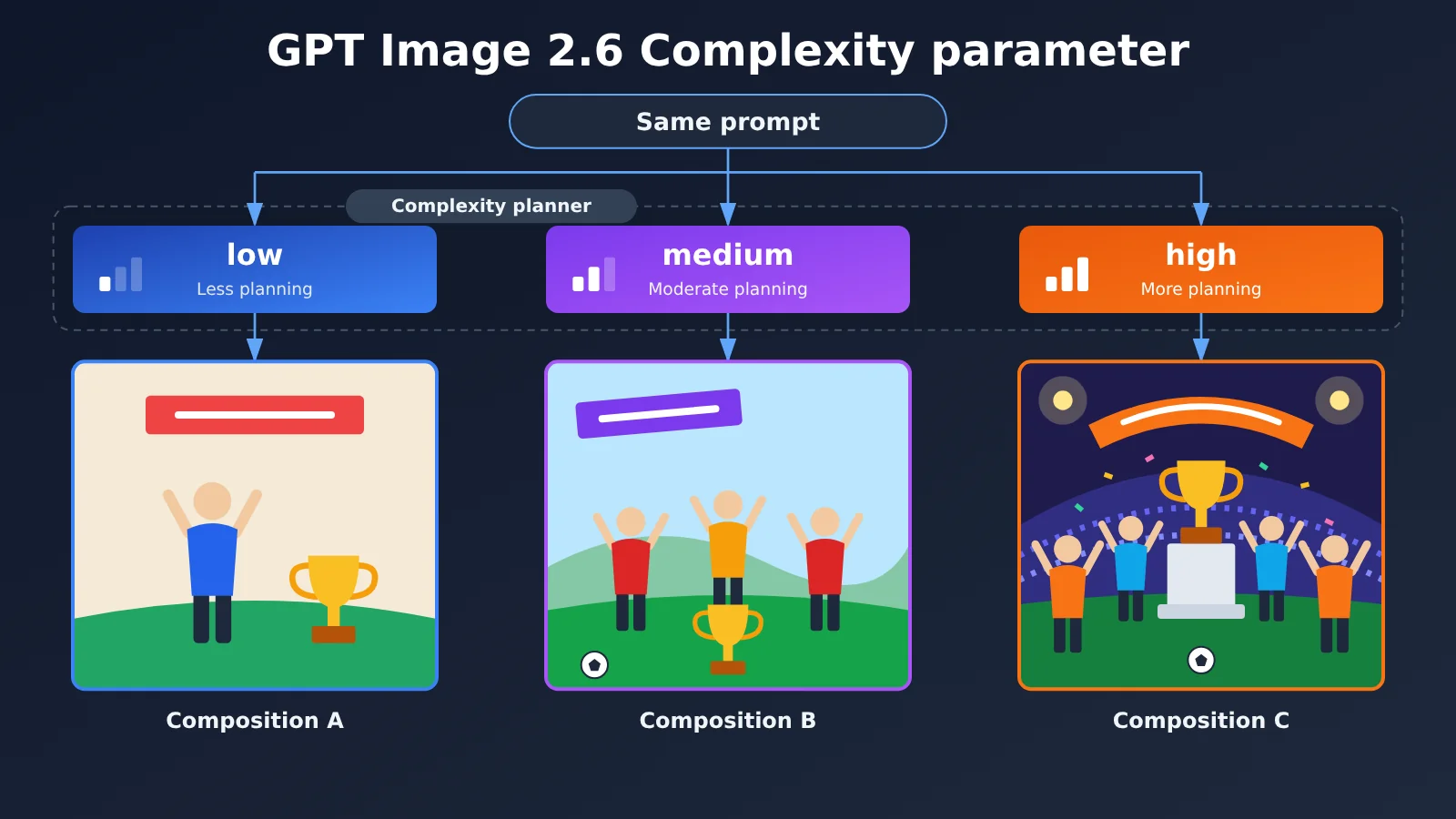
Author’s note: The new Complexity parameter in GPT Image 2.6 controls how much scene planning the model does before rendering. Using OpenAI’s official paper-cut soccer team comparison, this article explains the three Complexity levels, how Complexity and Quality differ, and how to choose and test levels in the API.
Use the same prompt, size, and quality setting, and change only Complexity from low to high—and the players’ jersey colors, the trophy decorations, and the position of the “CHAMPIONS” sign may all change. That’s what OpenAI showed in a comparison published in its GPT Image 2.6 prompting guide.
On November 4, 2026, OpenAI released Images 2.6, introducing two models for developers, gpt-image-2.6-flare and gpt-image-2.6-sunburst, along with a new complexity parameter. This parameter doesn’t let you see the model’s chain of thought, and it isn’t a “higher is better” image quality switch. It controls how much scene planning the model does before it starts rendering.
What you’ll learn: How OpenAI defines the GPT Image 2.6 Complexity parameter, what the three levels change in a real-world example, and which level to start testing with in the API.
GPT Image 2.6 Complexity at a Glance
Let’s start with the officially confirmed facts. The analysis and inferences that follow are based on this information.
| Item | Details |
|---|---|
| Release date | November 4, 2026, alongside Images 2.6 |
| Supported models | gpt-image-2.6-flare, gpt-image-2.6-sunburst |
| Available levels | low / medium / high |
| Default | high for both models |
| Official definition | Controls how much planning the model does before rendering to understand and meet creative requirements |
| Pricing | No separate parameter surcharge; actual token usage and latency need to be tested |
| Related limitation | GPT Image 2.6 doesn’t support reasoning.summary, so the planning process can’t be inspected |
Two points are easy to misread. First, the official description refers to the amount of planning, but doesn’t disclose how computation is allocated internally at each level or say that each level corresponds to a fixed number of reasoning tokens. Second, “no surcharge” doesn’t mean “all three levels cost the same,” since the final bill still depends on the actual number of billed tokens.
GPT Image 2.6 Complexity vs. Quality
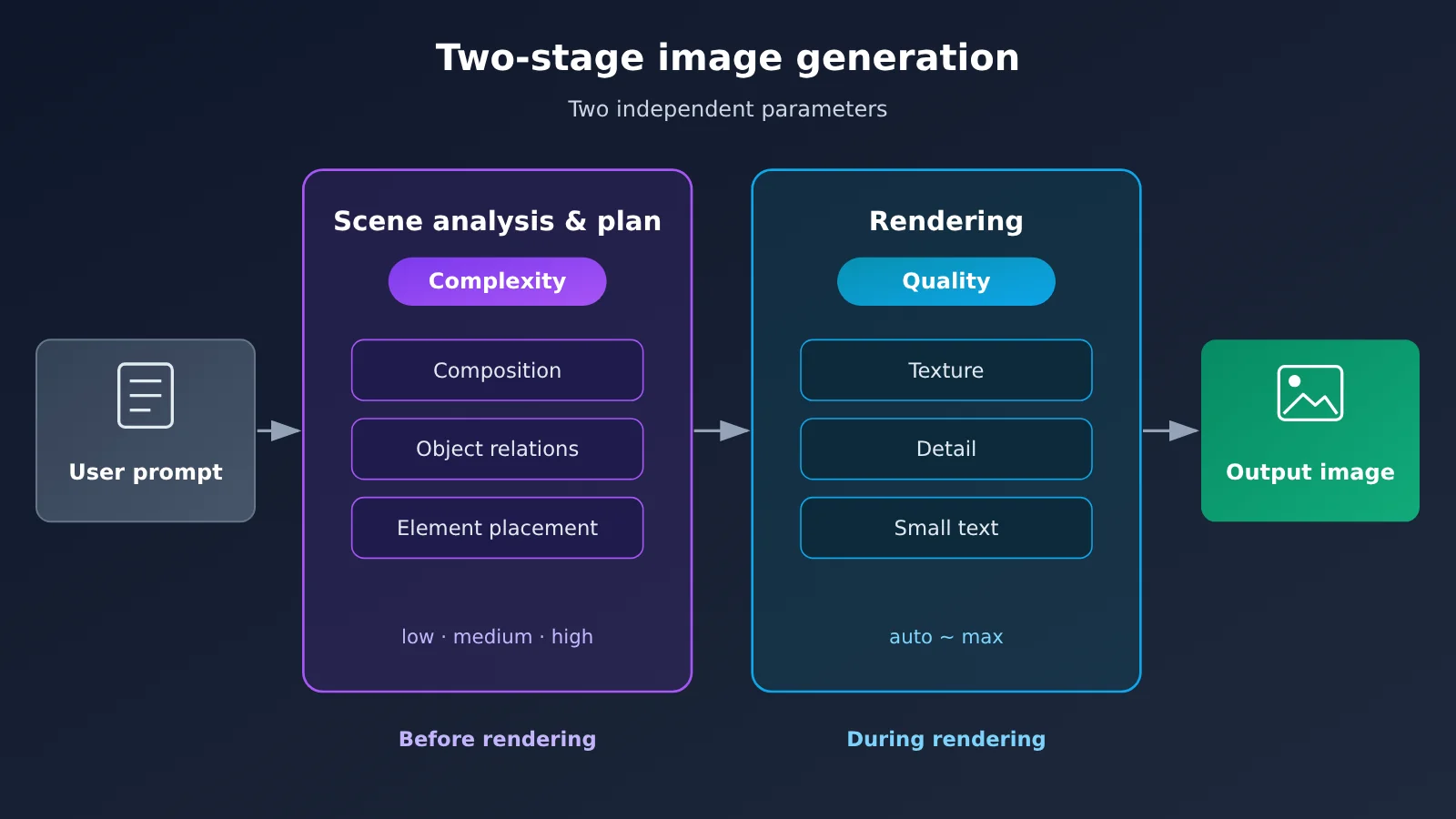
When people first see Complexity, they often assume it’s another name for Quality. In fact, the two control different stages of image generation: Complexity determines how the image is organized, while Quality determines how finely it’s rendered.
| Comparison | Complexity | Quality |
|---|---|---|
| Stage | Planning and scene understanding before rendering | Visual presentation during rendering |
| Main effects | Overall composition, object relationships, element positions, coordination among multiple constraints | Textures, details, small text, overall refinement |
| Available values | low / medium / high | auto / low / medium / high / xhigh / max |
| Default | high | Depends on the API configuration |
| Typical issues | Elements are misplaced or relationships are misunderstood | Structure is correct, but small text is blurry or textures are coarse |
The two parameters are independent, so start by identifying which kind of problem you’re dealing with. If an infographic’s structure and arrow relationships are correct but its small labels are hard to read, try increasing Quality first; raising Complexity further is unlikely to help much. If multiple subjects consistently appear in the wrong positions relative to one another, consider adjusting Complexity.
Think of it this way: Complexity is like the time a layout designer spends sketching before starting the final artwork, while Quality is like the level of care put into the final coloring and linework. A longer sketching phase doesn’t mean finer lines, and finer lines can’t make up for structural mistakes in the sketch.
Official GPT Image 2.6 Complexity Comparison: A Paper-Cut Football Team
Abstract definitions can be easy to misinterpret, so the official prompt guide provides a set of examples you can compare directly.
Experimental conditions (as published by OpenAI):
- Model:
gpt-image-2.6-sunburst - Size:
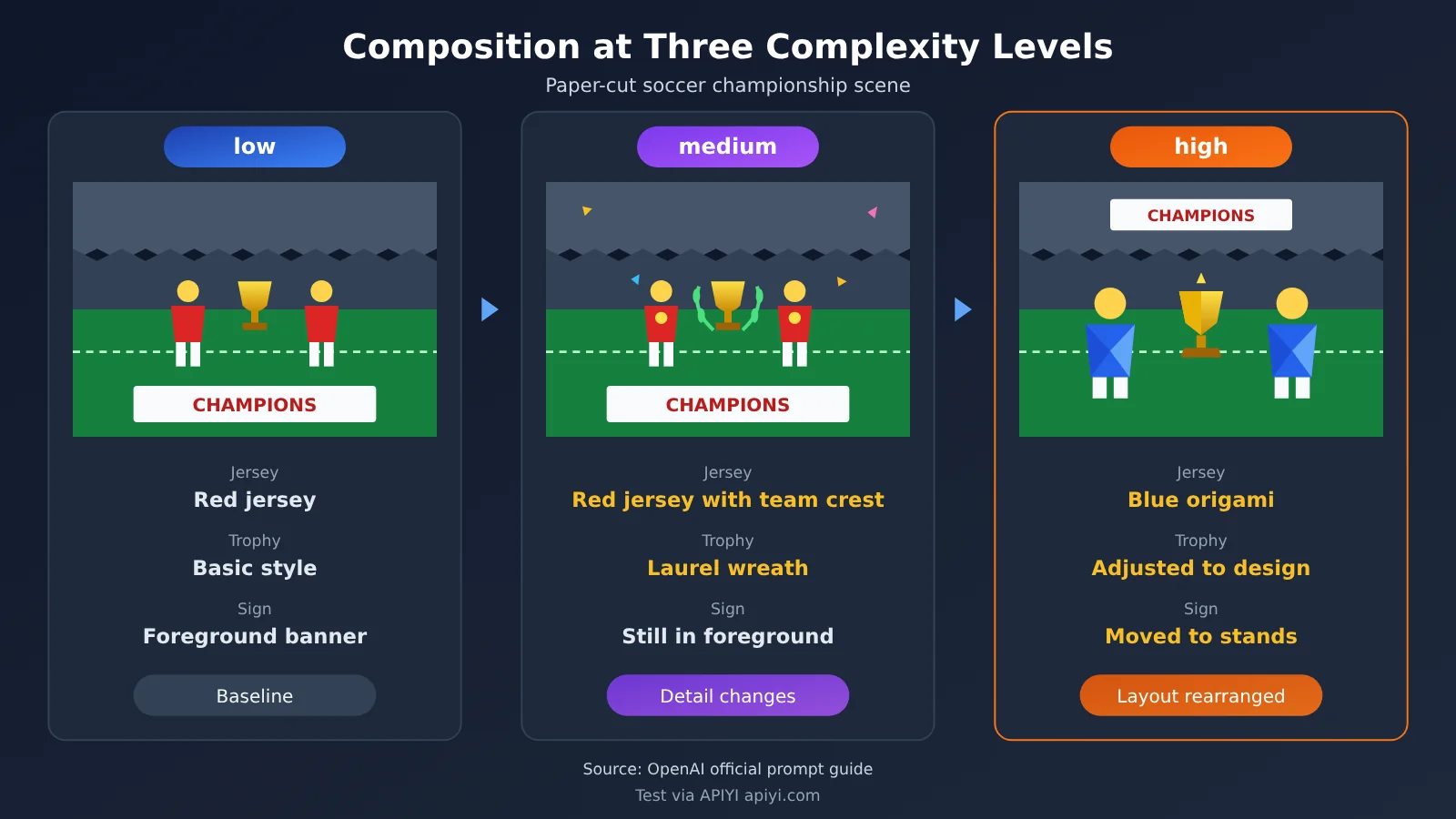
1024x1536, Quality:medium, format:png - Prompt: “A premium handcrafted layered paper-cut illustration of a football team celebrating a championship victory inside a packed stadium.” (A premium handcrafted layered paper-cut illustration of a football team celebrating a championship victory inside a packed stadium)
- Only variable: Complexity, set to low, medium, and high
| Level | Jerseys | Trophy | CHAMPIONS sign | Composition changes |
|---|---|---|---|---|
| low | Red clothing | Crown decoration on top | On a foreground banner | Basic layout |
| medium | Red jerseys with team crests | Laurel wreath decoration | Still on the foreground banner | More detailed elements |
| high | Blue jerseys with an origami-like texture | Adjusted to match the overall design | Moved to the stands | More foreground space for the players, with the overall layout rearranged |
What the Paper-Cut Example Shows About Complexity
According to the official description, the changes from low to medium mainly affect the design details of individual elements: the jerseys gain team crests, and the trophy gets a different decoration, but the sign stays in the same place. At high, the changes extend to the overall layout: the slogan moves from the foreground to the stands, leaving the foreground for the players, and even the jersey material changes to an origami-like texture that better suits the paper-cut theme.
This shows that increasing Complexity doesn’t just add texture. The model also makes different choices about composition and how elements are arranged. The high-level result can be understood as a more comprehensive rearrangement around the three constraints: “paper-cut,” “championship victory,” and “stadium.”
That said, the evidence from this comparison is limited:
- OpenAI showed only one example at each level, so we can’t conclude that high produces better average quality;
- OpenAI didn’t publish the actual generation times or token usage for the three levels;
- “High better fits the paper-cut theme” is an interpretation of a single result, not a statistical conclusion.
How to Choose a GPT Image 2.6 Complexity Level
OpenAI provides clear starting points and makes one point in particular: High isn’t always better.
OpenAI’s recommendation: Start with low for edits
In its launch announcement, OpenAI recommends trying low complexity first for most image editing tasks to speed up edits, then choosing the Quality level your workflow needs. Tasks suited to starting with low include changing backgrounds, updating sign text, recoloring part of an image, removing an object, and other precise edits that need to preserve the rest of the image.
Why might local edits need less planning? Here’s a reasonable technical inference, though OpenAI hasn’t confirmed it. When a user says, “Change only the vase color and leave everything else alone,” the best way to follow that instruction is to change as little else as possible. If the model replans the entire scene, it could end up changing things it shouldn’t. OpenAI’s note that “higher complexity may introduce unwanted additional changes” is consistent with that reasoning, but there’s currently no data proving that high necessarily causes more editing drift.
OpenAI’s recommendation: Compare medium and high for tasks with multiple constraints
For tasks with many visual elements, complex layouts, or numerous constraints, OpenAI recommends trying medium or high.
| Task type | Suggested starting level | Basis | Additional checks |
|---|---|---|---|
| Change a background, recolor an area, or replace sign text | low | OpenAI recommendation | Check whether unedited areas have changed |
| Remove a single object | low | OpenAI recommendation | Check whether the filled-in area looks natural |
| Multi-subject scenes and relationships between people | Compare medium / high | OpenAI recommendation | Check subject placement and relationships |
| Complex infographics and dense labels | Compare medium / high | OpenAI recommendation | Check text clarity after verifying the structure |
| Designs with fully specified layouts | Don’t default to the highest level | OpenAI notes that improvements may be minimal | Check for unwanted changes |
The last row is worth noting. If your prompt already specifies each element’s position in detail, the model has little room to plan freely. OpenAI says increasing Complexity for these tasks may not produce a noticeable improvement, but it may add latency.
What the high default means
Both models default to high. If you’re migrating from an older workflow and don’t pass this parameter, the model will run at the highest planning level. For workflows with lots of local editing requests, that default may not be the best fit.
🎯 Technical tip: Treat Complexity as a parameter to adjust by task type, not a global switch. You can run comparison tests through APIYI apiyi.com using an OpenAI-compatible interface. Check the platform’s model list and documentation to confirm whether the 2.6 model is available and whether it passes through the
complexityparameter.
How to Set GPT Image 2.6 Complexity in the API
Minimal Example
complexity sits alongside quality and size in the /v1/images/generations request body. If your SDK version doesn’t yet support the field, you can pass it through extra_body:
import base64
from openai import OpenAI

client = OpenAI(api_key="YOUR_API_KEY", base_url="https://api.apiyi.com/v1")

resp = client.images.generate(
    model="gpt-image-2.6-sunburst",
    prompt="A detailed educational infographic explaining how a coffee machine works, with clearly labeled components and arrows.",
    size="1024x1536",
    quality="medium",
    extra_body={"complexity": "high", "output_format": "png"},
)
open("coffee_high.png", "wb").write(base64.b64decode(resp.data[0].b64_json))
This example follows the official parameter specifications; it isn’t a request that has been tested.
View the full script for comparing all three levels
import base64
import time
from openai import OpenAI

client = OpenAI(
    api_key="YOUR_API_KEY",
    base_url="https://api.apiyi.com/v1",  # APIYI OpenAI-compatible API
)

PROMPT = (
    "A premium handcrafted layered paper-cut illustration of a football team "
    "celebrating a championship victory inside a packed stadium."
)
LEVELS = ["low", "medium", "high"]
REPEATS = 3  # Repeat each level several times to avoid relying on a single image

def run_once(level: str, idx: int) -> dict:
    start = time.time()
    resp = client.images.generate(
        model="gpt-image-2.6-sunburst",  # Keep the model fixed
        prompt=PROMPT,                   # Keep the prompt fixed
        size="1024x1536",                # Keep the size fixed
        quality="medium",                # Keep the quality fixed
        extra_body={"complexity": level, "output_format": "png"},
    )
    elapsed = time.time() - start
    path = f"paper_cut_{level}_{idx}.png"
    with open(path, "wb") as f:
        f.write(base64.b64decode(resp.data[0].b64_json))
    usage = getattr(resp, "usage", None)  # Record token usage, if returned
    return {"level": level, "idx": idx, "seconds": round(elapsed, 2),
            "usage": usage, "file": path}

results = []
for level in LEVELS:
    for i in range(REPEATS):
        try:
            results.append(run_once(level, i))
        except Exception as e:
            results.append({"level": level, "idx": i, "error": str(e)})

for r in results:
    print(r)
The script changes only complexity and keeps every other parameter fixed. This follows the official migration guide’s recommendation: start with the defaults, then adjust one parameter at a time.
🚀 Quick start: New users can claim free testing credits at APIYI apiyi.com. Run a small comparison with the script above, then decide which level to use in production.
A Fair Testing Method for GPT Image 2.6 Complexity
A single-image comparison can be affected by randomness. The test design below draws on the official migration recommendations and can serve as a framework for internal team evaluations. It’s a suggested method, not a report of completed test results.
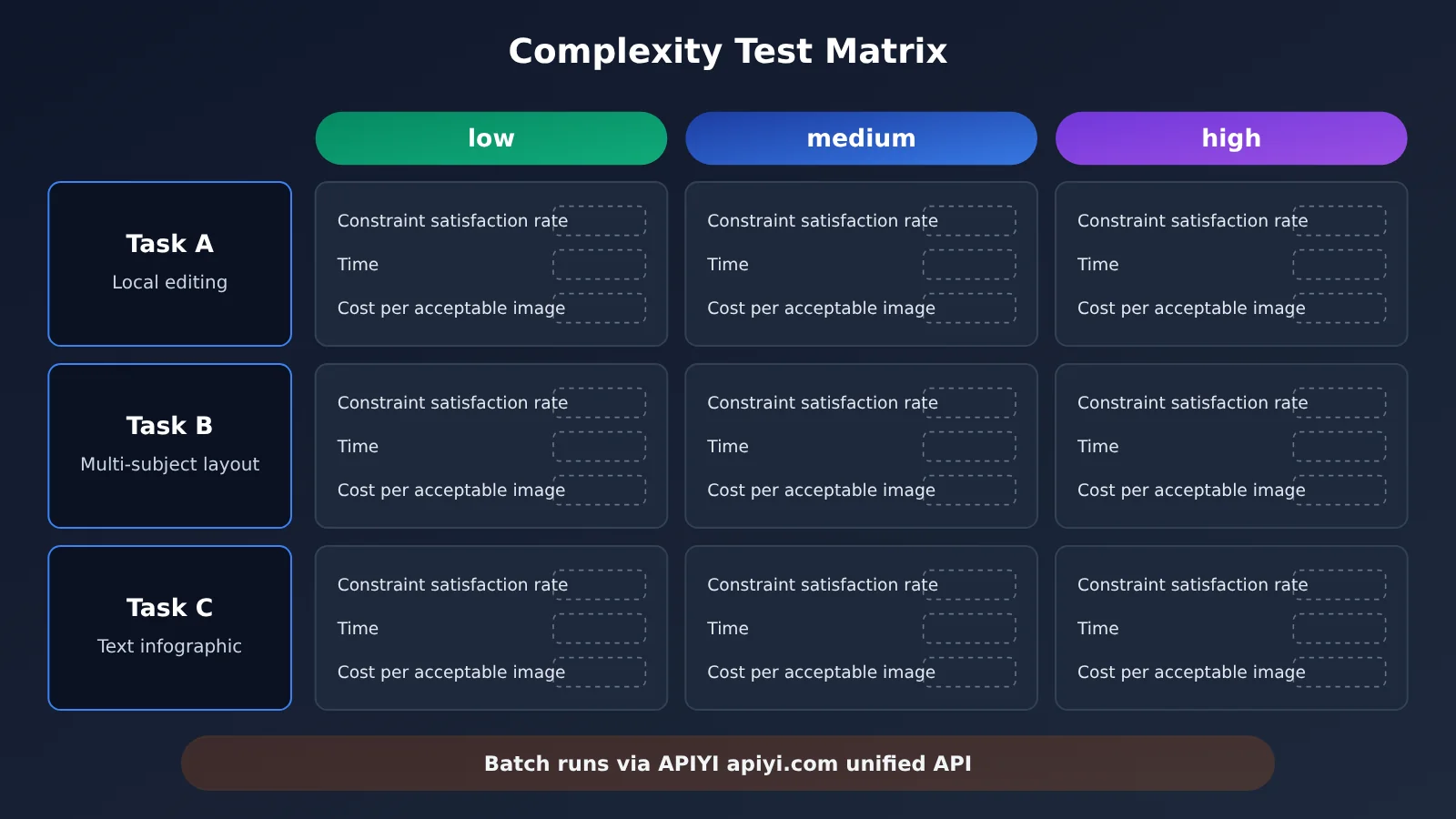
Three representative tasks:
- Task A: Simple local edit — change one object while keeping everything else unchanged;
- Task B: Complex multi-subject composition — maintain specified relationships between multiple objects;
- Task C: Text-heavy infographic — present labels, flows, and hierarchies according to a specified structure.
Controlled variables: Keep the model, prompt, reference image, size, output format, and Quality fixed. Change only Complexity, and generate multiple images at each level.
| Evaluation metric | What it measures | How to record it |
|---|---|---|
| Constraint satisfaction rate | How many hard requirements in the prompt are met | Check off each requirement |
| Layout correctness | Whether object positions and relationships match the description | Manual assessment |
| Unintended changes | Whether areas that should remain unchanged were altered during editing | Compare with the original image |
| Text accuracy | Whether labels and titles are spelled correctly and clearly legible | Check character by character |
| Generation time | End-to-end time for a single request | Script timing |
| Average cost per acceptable image | Total spend ÷ number of acceptable images | Aggregate usage |
The last metric deserves the most attention. If one level costs less per attempt but requires several retries to produce an acceptable image, it may not be cheaper overall. Comparing the “average cost per acceptable image” gives you a more realistic business view than looking at the cost of a single request.
GPT Image 2.6 Complexity Impact Analysis
Impact on Developers
- One more parameter to tune: Image generation settings used to focus mainly on size and quality. Now you’ll also need to consider how much effort to spend on planning. The default
highsetting may not be ideal for localized edits, so it’s worth reassessing when migrating existing workflows. - Take a layered approach to troubleshooting: When an image doesn’t turn out as expected, first determine whether it’s a composition issue or a rendering issue. Then adjust Complexity or Quality accordingly, rather than blindly maxing out both.
- Measure costs against your own workloads: Complexity has no additional fee, but OpenAI hasn’t published token usage differences between levels. In a single test by third-party Kingy AI, GPT Image 2.6 with the default
highsetting took longer and cost more than 2.5. However, the test conditions weren’t equivalent, so this isn’t a general conclusion—just a reason to run your own tests.
Impact on Image Generation Products
- Planning and rendering can now be controlled separately: Text models have long offered settings like reasoning effort. Image models now expose the planning stage separately, too. For product design, that means “quick drafts” and “complex layouts” can use different levels instead of sharing one configuration.
- High isn’t necessarily a selling point: OpenAI notes that higher levels can increase latency and introduce unnecessary changes. For user-facing products, automatically selecting a level based on the task is likely a better approach than always using the highest setting.
Frequently Asked Questions
Q1: What is the Complexity parameter in GPT Image 2.6?
It controls how much planning the model does before rendering to understand and meet your creative requirements. You can choose low, medium, or high; both 2.6 models default to high. It mainly affects composition, object relationships, and element placement. It can’t be used to inspect the model’s internal reasoning.
Q2: What’s the difference between Complexity and Quality?
Complexity controls how the image is arranged, while Quality controls how finely it’s rendered. They’re independent parameters. If the structure is right but small text is blurry, adjust Quality first. If elements keep ending up in the wrong places, consider adjusting Complexity.
Q3: Does setting Complexity to high always produce better results?
Not necessarily. The official documentation notes that higher settings may increase latency and introduce unwanted extra changes. The improvement may be minimal when the layout is already fully specified. For precise local edits, the official recommendation is to try low first.
Q4: Is there an extra charge for Complexity? How much does each setting cost?
According to the official documentation, there’s no separate surcharge for adjusting Complexity, but actual costs are still based on billable tokens. The average token usage and processing time for the three settings haven’t been published, so it’s best to measure the average cost per acceptable image using your own sample tasks.
Q5: How can I quickly test the effect of Complexity through the API?
1. Sign up at APIYI apiyi.com to get an API key and free test credits;
2. Check the model list to confirm that the 2.6 series models are available and support the `complexity` parameter;
3. Use the script in this article (set base_url to `https://api.apiyi.com/v1`) and run a comparison, keeping all other parameters fixed and changing only Complexity.
Q6: What are the known limitations of Complexity?
The official documentation has published a visual comparison for just one example. There are currently no large-sample success rates or average latency figures for the three settings, and no systematic independent third-party comparisons. Correct planning doesn’t guarantee clear text, complex requests may still take a long time to process, and output images still need human review before commercial use.
GPT Image 2.6 Complexity: Key Takeaways
- Definition: Complexity controls how much effort goes into scene planning before rendering. It isn’t a chain-of-thought switch.
- Division of roles: Complexity controls composition and organization; Quality controls rendering detail. You can adjust them independently.
- Official example: In the paper-cut soccer team example, the high setting moves the sign to the stands and changes the jerseys to an origami material.
- Where to start: Try low for localized edits, and compare medium and high for complex scenes with multiple constraints.
- Default trap: Both models default to high, so reassess the setting when migrating an older workflow.
- Cost: No additional fee doesn’t mean the same price. Comparing the average cost per acceptable image is more reliable.
- Getting started: You can run a three-setting comparison through APIYI apiyi.com using an OpenAI-compatible API.
Summary
The key points about the GPT Image 2.6 Complexity parameter:
- It changes how the image is organized: The official paper-cut example shows that different settings lead the model to make different design choices for the jerseys, trophy, and sign;
- It has a distinct role from Quality: One controls planning, the other rendering. When something goes wrong, first identify which category the issue falls into;
- Higher isn’t always better: High can be slower and may change things that should have stayed the same. Choose the setting based on the task.
Image generation now requires control over two things: the detail in the final image and how the model organizes the scene. A better approach is to run a small comparison using your own business samples, then choose a setting based on constraint satisfaction, unintended changes, and cost per acceptable image.
We recommend using the free credits at APIYI apiyi.com to run an initial comparison across all three settings. Confirm that the platform supports the 2.6 model and the relevant parameters before integrating it into your production workflow.
📚 References
- Official OpenAI announcement – Introducing Images 2.6: The Images 2.6 launch announcement and guidance on using Complexity
- Link:
openai.com/index/introducing-images-2-6 -
Note: Includes OpenAI’s recommendation to use low complexity first for editing tasks
-
OpenAI API documentation – GPT Image 2.6 prompting guide: An explanation of the Complexity parameter and a comparison using a cut-paper soccer team
- Link:
developers.openai.com/api/docs/guides/image-prompting -
Note: Focus on the Set image complexity, Compare complexity, and Migrate an existing workflow sections
-
OpenAI API documentation – Image generation: An overview of image generation API parameters
- Link:
developers.openai.com/api/docs/guides/image-generation -
Note: Check the full specifications for parameters such as quality, size, and output_format
-
OpenAI model page: Details on the Flare and Sunburst models
- Link:
developers.openai.com/api/docs/models/gpt-image-2.6-sunburst - Note: Check the model IDs and supported capabilities
Author: APIYI Technical Team
Technical discussions: Contact us through the APIYI homepage. For more integration resources, visit the documentation center at docs.apiyi.com.