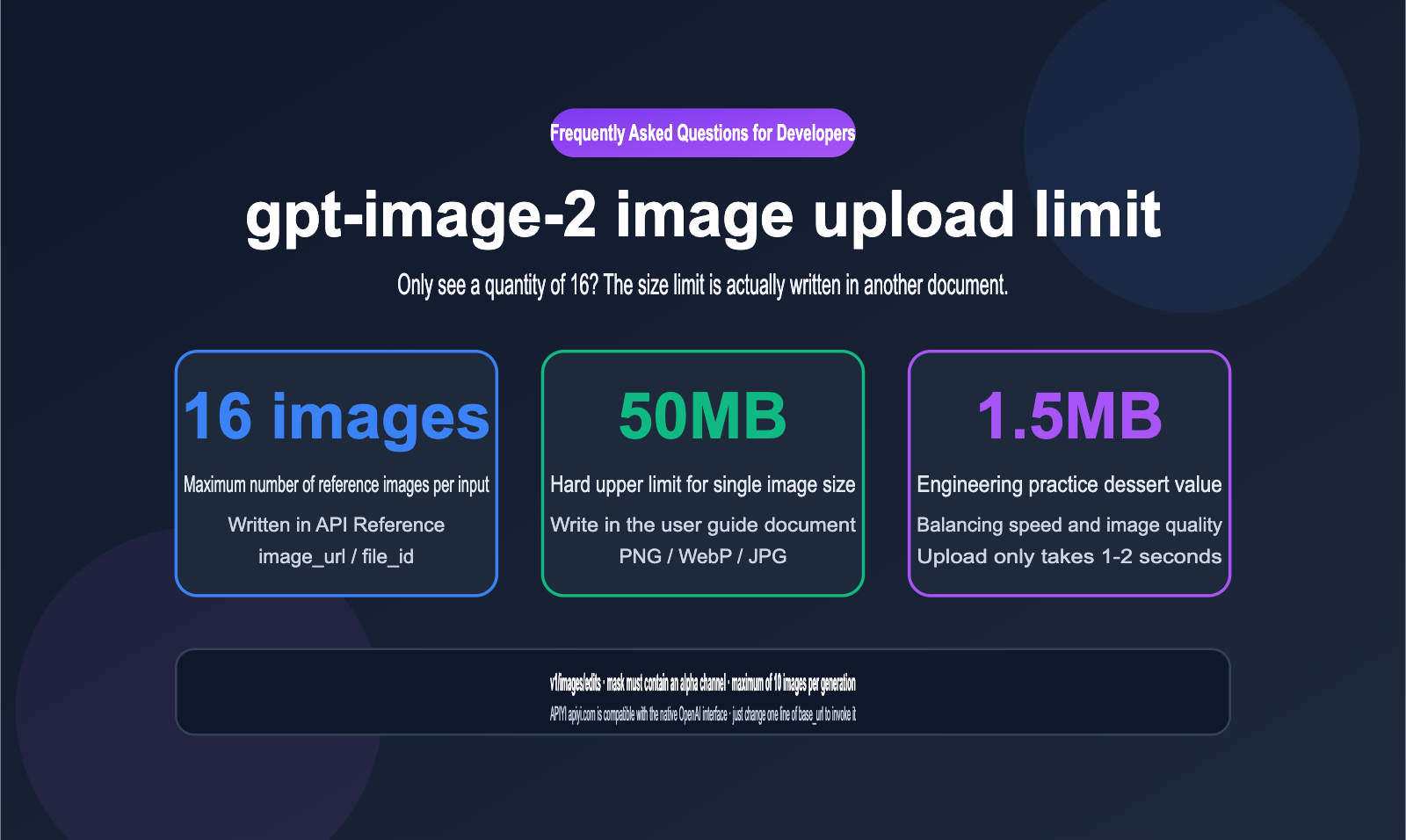
Many developers working with the gpt-image-2 image editing API hit the same wall: they scour the images/edit API Reference page, only to find the note that "GPT image models support up to 16 images," but they can't find a single word about individual file size limits. Is there no limit? Or did the documentation just leave it out?
The answer is: the limit exists, and it’s quite specific—each individual image must be under 50MB, and it supports PNG, WebP, and JPG formats. The reason so many people get stuck is that this rule isn't in the parameter table on the Reference page; it’s buried in a separate Image Generation guide. This fragmented documentation leads many developers on a wild goose chase.
In this article, we’ll break down the image upload limits for the gpt-image-2 API once and for all: quantity, size, format, mask rules, resolution constraints, and a practical issue even more important than the 50MB cap—why we strongly advise against actually uploading 50MB files.
gpt-image-2 API Image Upload Limits: Official Specifications
Let's start with the bottom line. gpt-image-2 receives input images via the v1/images/edits endpoint. The complete official limits are shown in the table below.
gpt-image-2 Image Upload Quick Reference
| Limit Item | Official Specification | Source |
|---|---|---|
| Max images per request | 16 (GPT image series models) | API Reference: images/edit |
| Single image size | < 50MB | Image Generation Guide |
| Supported formats | PNG, WebP, JPG | Image Generation Guide |
| Upload method | image_url or file_id (choose one) |
API Reference: images/edit |
| Mask | Same format/size as original, < 50MB, must have alpha channel | Image Generation Guide |
| Number of generations (n) | 1-10 images | API Reference: images/edit |
In theory, a single edit request could carry 16 images, each close to 50MB. However, "theoretical limits" and "engineering best practices" are two different things, which we'll cover later.
There's a common pitfall worth noting: the new API's images parameter accepts an array of objects, where each object provides either an image_url or a file_id. file_id comes from pre-uploading via the Files API, which is great for reusable assets; image_url supports public URLs or base64 data URLs, which is perfect for one-off requests. The 50MB limit applies to both methods.
🎯 Quick Verification Tip: If you're unsure whether your images will trigger a limit, the most direct way is to send a real request and check the error message. We recommend using the OpenAI-compatible interface from APIYI (apiyi.com) for this kind of boundary testing. The platform's log panel provides a full view of request body sizes and error details, making troubleshooting much more intuitive than calling the official API directly.
Why Can't I Find the Upload Size for gpt-image-2 in the Docs?
Returning to our initial question: why does the Reference page mention the 16-image limit but omit the file size? This is actually a design choice in OpenAI's documentation structure. The images/edit Reference page is organized by "Parameter Schema." The images parameter is treated as an array of objects at the schema level, so the quantity limit is included as an array constraint. However, file size and format fall under "runtime validation," which is categorized within the narrative text of the Image Generation guide.
There are a few other rules "hidden" in the guide that you should verify before building your image editing features:
- Three Requirements for Masks: The mask must match the format and dimensions of the image being edited, must be under 50MB, and must contain an alpha channel. Using a JPG as a mask is the most common cause of errors because JPGs do not support alpha channels.
- Resolution Isn't Arbitrary: The
sizeparameter for gpt-image-2 supports custom resolutions, but there are hard constraints: the longest side cannot exceed 3840px, both width and height must be multiples of 16px, the aspect ratio cannot exceed 3:1, and the total pixel count must fall between 655,360 and 8,294,400. - Input Images Are Billed: Reference images in an edit request are billed based on image input tokens. When
input_fidelity: highis used, the consumption of input tokens increases significantly.
gpt-image-2 Resolution and Size Parameter Constraints
| Constraint Dimension | Rule | Example |
|---|---|---|
| Longest Side | ≤ 3840px | 3840×2160 (4K Landscape) is valid |
| Side Alignment | Width/Height are multiples of 16px | 1024, 1536, 2048 are all valid |
| Aspect Ratio | ≤ 3:1 | 2048×1152 is valid, 3072×1024 is valid |
| Total Pixels | 655,360 – 8,294,400 | Below 768×854 will be rejected |
| Common Presets | 1024×1024 / 1536×1024 / 2048×2048 / 3840×2160 | Same logic applies to portrait |
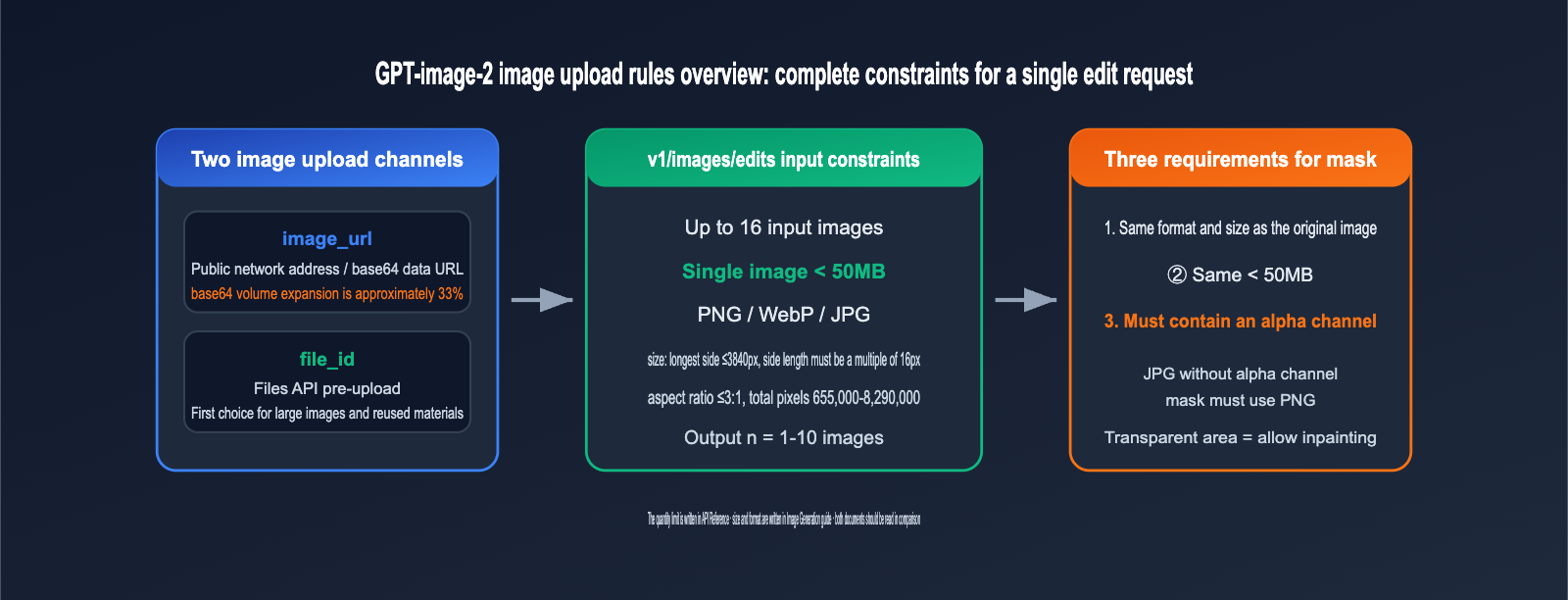
If your business requires frequent switching between different resolutions, we recommend implementing this constraint table as a local validation check before sending the request. Intercepting invalid sizes on the client side saves a round trip compared to waiting for a 400 error from the API. You can also find a parameter validation checklist for gpt-image-2 in the APIYI (apiyi.com) documentation center to help with your implementation.
gpt-image-2 in Practice: 50MB is the Limit, 1.5MB is the Sweet Spot
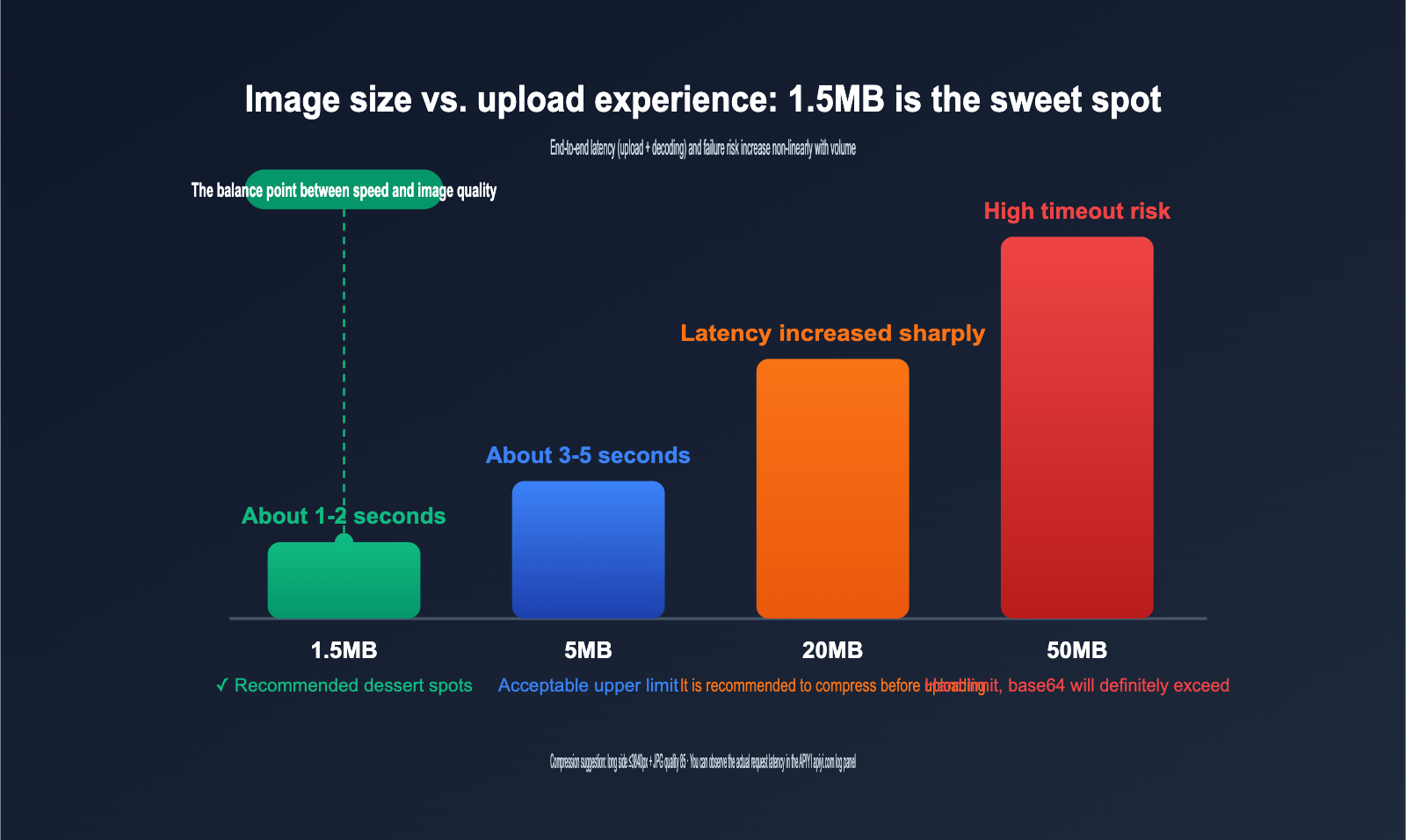
Now that you know the 50MB hard limit, a more important question is: how large should the images actually be in a real-world project? We recommend keeping each image around 1.5MB, and ideally under 5MB. This isn't just a guess; there are three reasons for this:
First, base64 expansion. If you use the data URL method to embed images, base64 encoding increases the file size by approximately 33%. A 40MB original image becomes nearly 53MB after encoding, and when combined with the JSON structure, the request body might exceed the limit. When embedding 16 images using base64, this issue is amplified 16 times, so always use the file_id pre-upload channel for large assets.
Second, transmission and decoding time. Beyond 5MB, upload time and server-side decoding time grow non-linearly. During network fluctuations, this easily triggers timeout retries, which slows down your overall image generation speed. Images around 1.5MB can be uploaded in 1-2 seconds on a standard home broadband connection, making it the balance point for stability and quality.
Third, diminishing returns on image quality. gpt-image-2 performs internal preprocessing on input images. When the input resolution far exceeds the output resolution, the extra pixels are essentially wasted. A JPG with a 3840px long side compressed to under 2MB is almost indistinguishable in editing results from a 40MB lossless PNG, but the cost and time difference is an order of magnitude.
gpt-image-2 Image Size Practical Recommendations
| Original Image Size | Recommended Handling | Expected Result |
|---|---|---|
| < 1.5MB | Upload directly | Best speed and stability |
| 1.5MB – 5MB | Upload directly, or convert to JPG/WebP | Acceptable speed |
| 5MB – 20MB | Compress to long side ≤ 3840px + 85 quality | Virtually lossless, significantly faster |
| 20MB – 50MB | Must compress, use file_id upload |
Avoid base64 expansion errors |
| > 50MB | Exceeds hard limit, must compress | Otherwise, it will return an error |
💡 Batch Processing Tip: For high-concurrency scenarios like e-commerce background removal or batch stylization, we recommend using
sharporPillowto perform pre-compression to "3840px long side + 85 JPG quality" before uploading. We have verified with enterprise clients at APIYI (apiyi.com) that this step reduces the end-to-end latency of a single edit request by over 40% on average, with zero complaints regarding image quality.
Quick Start with gpt-image-2 API: Multi-Image Editing Code Example
The gpt-image-2 model follows the standard OpenAI interface protocol. Below is a minimal editing example using multiple reference images. If you're using the APIYI API proxy service, you only need to update the base_url:
import base64
from openai import OpenAI

client = OpenAI(
    api_key="sk-your-apiyi-key",
    base_url="https://api.apiyi.com/v1"  # APIYI unified interface
)

def to_data_url(path):
    with open(path, "rb") as f:
        b64 = base64.b64encode(f.read()).decode()
    return f"data:image/jpeg;base64,{b64}"

result = client.images.edit(
    model="gpt-image-2",
    image=[to_data_url("product.jpg"), to_data_url("style-ref.jpg")],
    prompt="Integrate the product image with the neon cyberpunk style of the reference image, keeping the product subject unchanged.",
    input_fidelity="high",   # High fidelity preserves input details, consumes more input tokens
    size="2048x2048",
    quality="high"
)
print(result.data[0].b64_json[:64])  # Returns the base64 encoded result image
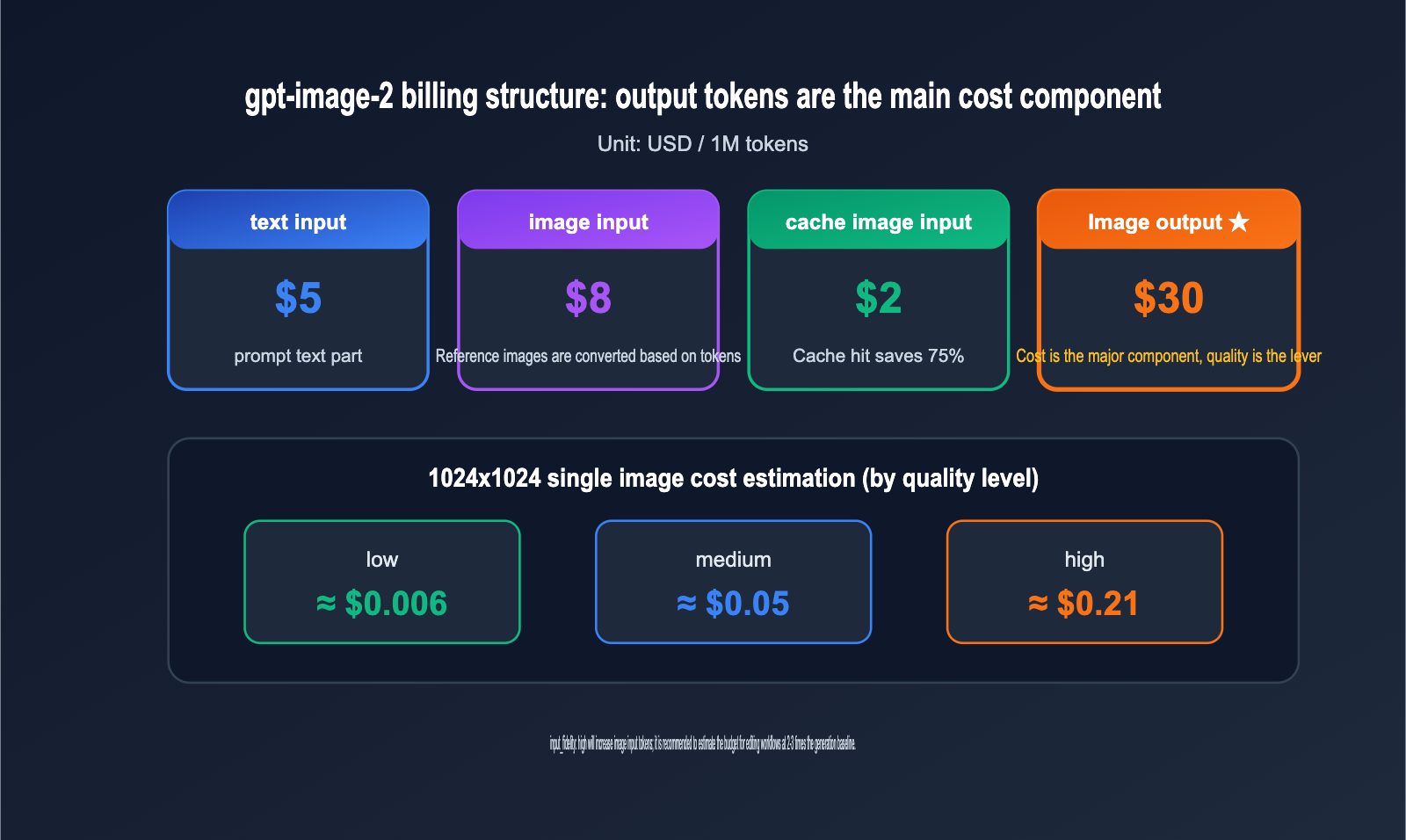
A few key parameters to note: setting input_fidelity to high significantly improves the retention of details like faces and logos, though it increases image input token costs. quality and size are the two main levers that determine output costs. The n parameter allows for generating up to 10 images at once. Regarding billing, gpt-image-2 is priced by tokens: $5/M for text input, $8/M for image input ($2/M for cache hits), and $30/M for image output. In terms of per-image costs, a 1024×1024 image costs approximately $0.006 for 'low', $0.05 for 'medium', and $0.21 for 'high' settings—the output side is always the primary cost driver.
Also, keep in mind that official rate limits are tiered by account: Tier 1 is limited to 5 images/minute, Tier 4 to 150 images/minute, and Tier 5 to 250 images/minute. New accounts start at lower tiers, making it easy to hit limits with batch tasks. Using an aggregation platform like APIYI (apiyi.com) allows you to bypass individual account tier limits, which is ideal for production environments requiring high-concurrency image generation.
Differences in Upload Limits Between gpt-image-2 and Previous Generations
If you're migrating a project from gpt-image-1 or DALL·E 2, you'll need to pay attention to a few generational differences. The biggest shift occurred between DALL·E 2 and the GPT image series: the DALL·E 2 edit interface only accepted a single square PNG under 4MB. The GPT image series expanded this to 16 images, 50MB, and three file formats. Many legacy projects with hardcoded "PNG + 4MB compression" preprocessing logic can actually be significantly simplified after migration.
The upgrade from gpt-image-1 to gpt-image-2 is primarily reflected in resolution and cost. gpt-image-1 only supported three fixed output sizes (1024×1024, 1536×1024, 1024×1536), while gpt-image-2 offers custom resolutions, supporting up to 4K output with a 3840px long edge. Regarding pricing, gpt-image-2's image input cost dropped from $10/M to $8/M, and image output dropped from $40/M to $30/M. It also introduced a $2/M cache hit tier, which significantly reduces costs for scenarios involving repeated reference images.
Comparison of Upload Limits Across Generations
| Comparison | DALL·E 2 | gpt-image-1 | gpt-image-2 |
|---|---|---|---|
| Input Image Count | 1 | Up to 16 | Up to 16 |
| Max Size per Image | < 4MB | < 50MB | < 50MB |
| Input Formats | Square PNG only | PNG/WebP/JPG | PNG/WebP/JPG |
| Output Resolution | Fixed square | 3 fixed sizes | Custom, up to 3840px long edge |
| Image Output Price | Per image | $40/M tokens | $30/M tokens (cached input $2/M) |
| input_fidelity | Not supported | Supported | Supported, higher detail fidelity |
When migrating code, you generally only need to update the model parameter. However, it's recommended to update your resolution validation and compression strategies according to the constraint table above. If you'd like to verify the migration results before updating production code, you can use the same set of assets to call both model generations on APIYI (apiyi.com) to visually compare editing quality and actual billing differences.
gpt-image-2 Image Upload FAQ
Q1: What's the actual file size limit for a single image in gpt-image-2?
The hard limit is 50MB, and it supports PNG, WebP, and JPG formats. This restriction is actually buried in the OpenAI Image Generation usage guide rather than the images/edit reference table, which is why you might miss it if you're only looking at the reference page. For the best experience, I'd recommend keeping your files between 1.5MB and 5MB.
Q2: How does the 16-image limit work?
The images parameter accepts up to 16 image objects, with each object specified via image_url or file_id. The model treats these as a combined reference, which is perfect for editing scenarios like "product shot + style reference + composition guide." Just keep in mind that 16 is the input limit; the number of outputs is still controlled by the n parameter, which caps out at 10.
Q3: Why do I keep getting an "invalid mask" error?
Nine times out of ten, it’s an alpha channel issue. Your mask must match the dimensions and format of the image being edited, and it must contain an alpha channel. Since JPG doesn't support alpha channels, you'll need to use PNG for your masks. Remember: transparent areas mean "allow repainting," while opaque areas stay exactly as they are.
Q4: Should I use base64 or file_id for uploads?
For small images (< 5MB) or one-off requests, using a base64 data URL is the easiest way to go. For larger images or assets you plan to reuse, use the Files API to pre-upload and get a file_id. This avoids the 33% size inflation caused by base64 encoding and lets you reuse the file across multiple requests. If you're unsure, you can test both methods in the APIYI (apiyi.com) console to compare actual latency before deciding on your strategy.
Summary: Three Key Numbers for gpt-image-2 Upload Limits
To wrap up, the upload limits for the gpt-image-2 image editing API boil down to three numbers: 16 images (the input limit found in the reference), 50MB (the per-file size limit in the usage guide), and 1.5MB (the "sweet spot" for engineering best practices). The fact that the documentation splits these limits across two different pages is the main reason for the confusion.
My advice for implementation is simple: always compress images to under 3840px on the long edge with JPG quality around 85 before uploading; always use PNGs with alpha channels for masks; and use the file_id path for large assets. If you make these three steps part of your standard pre-processing, you'll avoid almost all upload-related errors.
If you need a stable way to call gpt-image-2 from within China, or if you want to bump your rate limits to production levels, you can connect via the unified API at APIYI (apiyi.com). It’s fully compatible with the native OpenAI SDK—just change one line of base_url and you're good to go.
Reference: OpenAI API Reference: developers.openai.com/api/reference/resources/images/methods/edit
Author: APIYI Team
Focused on Large Language Model API aggregation and best practices. For more model evaluations and integration guides, visit APIYI at apiyi.com.