
Author’s note: This article explains endpoint limitations, parameter conflicts, and migration considerations for GIF, SVG, and markup-based local editing in the GPT Image 2.6 API. It’ll help you avoid the misconception that you can integrate the new model simply by swapping out its name.
OpenAI released GPT Image 2.6 on November 4, 2026, with two models available to developers: gpt-image-2.6-flare and gpt-image-2.6-sunburst. When teams see “GIF support, SVG support, and markup editing,” many assume they can just change the model name and request GIFs or SVGs in their existing editing workflow. According to the official documentation, those combinations don’t work at the API level.
This isn’t an attempt to nitpick the new models. The official Image generation documentation and GPT Image 2.6 prompting guide both spell out the constraints on endpoints, formats, and parameters. This article summarizes those documented limitations. It doesn’t invent test results or draw conclusions where none have been published.
What you’ll learn: By the end of this article, you’ll be able to identify the right endpoint for a GPT Image 2.6 task, recognize parameters that can’t be used together, and know which capabilities to verify before integrating with a third-party platform.
GPT Image 2.6 API Limits at a Glance
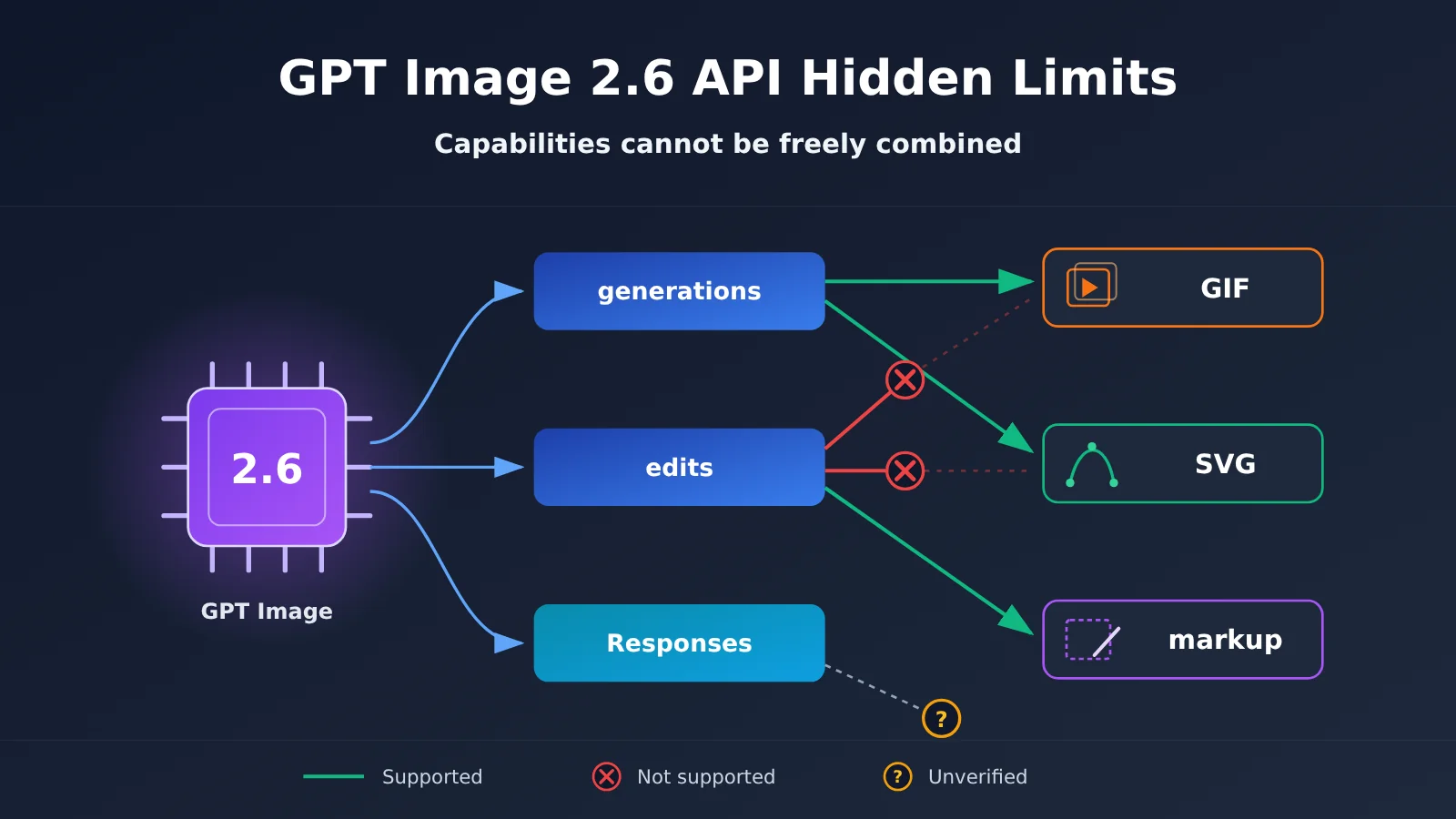
Here’s the key takeaway: a model may support a feature without exposing it through every API endpoint. GIF and SVG output are currently available only through the generations endpoint, while markup editing is available only through the edits endpoint.
| Item | Details |
|---|---|
| Release date | November 4, 2026 |
| Developer models | gpt-image-2.6-flare (optimized for speed), gpt-image-2.6-sunburst (optimized for quality and precise editing) |
| Main endpoints | POST /v1/images/generations, POST /v1/images/edits, and the Responses API image tool |
| New output formats | GIF and SVG, generations endpoint only |
| New editing method | Markup editing, edits endpoint only |
| New parameter | complexity (low / medium / high, defaults to high) |
What Each GPT Image 2.6 Endpoint Does
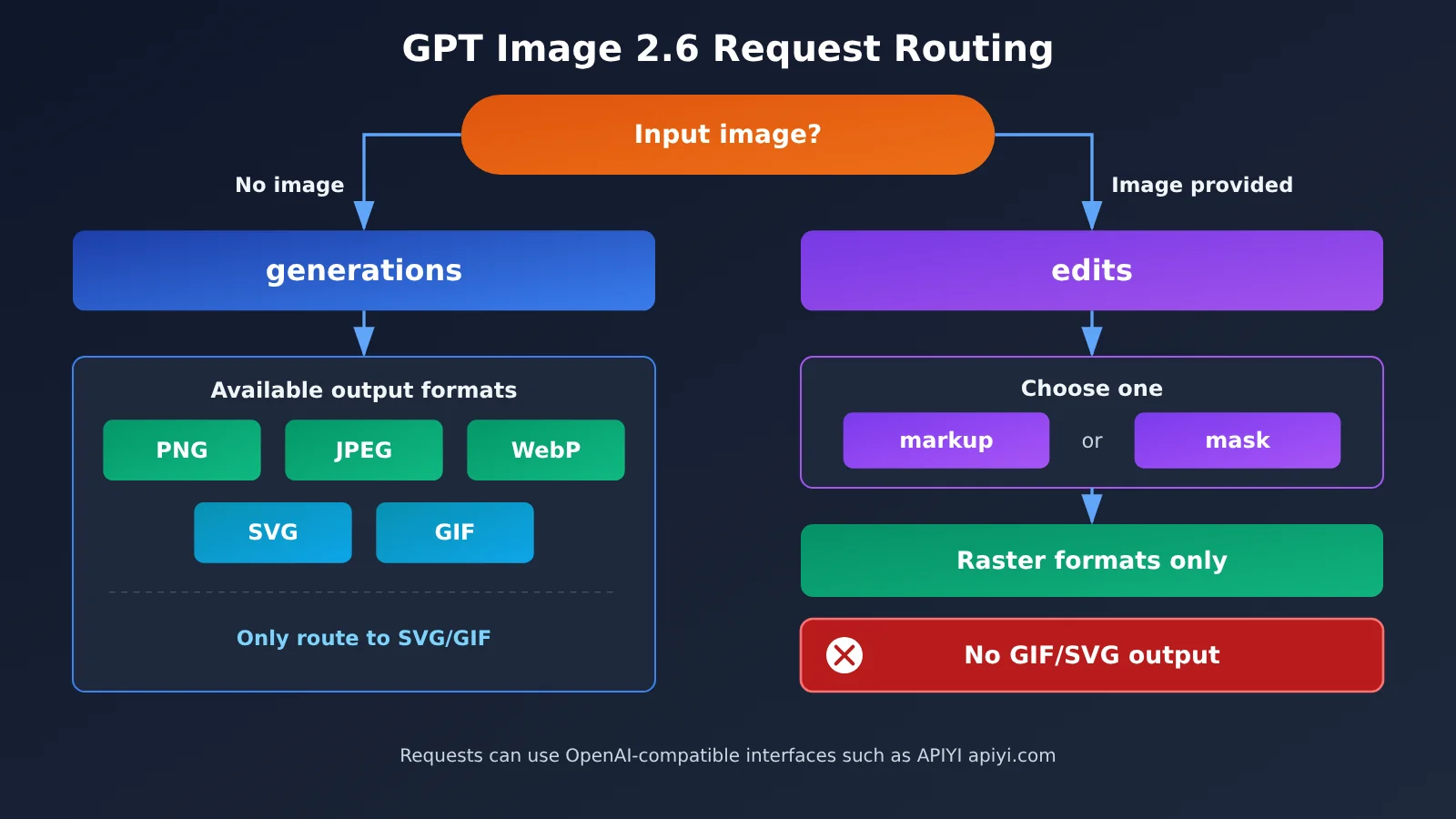
images/generations creates new images from text prompts and is the only official endpoint for GIF and SVG output. images/edits accepts an input image and instructions to modify an existing image; it’s also where markup editing happens. The image generation tool in the Responses API is suited to conversations and multistep workflows. The available documentation doesn’t specify its GIF and SVG parameters, so don’t assume it works exactly like the generations endpoint without verifying first.
There’s another easy point of confusion: ChatGPT lets users upload photos to create GIFs, but that’s a product-level feature. It doesn’t mean the Image API’s edits endpoint can output GIFs. Treating the product experience as equivalent to API capabilities is one of the most common misunderstandings here.
| Typical use case | Recommended endpoint | Official documentation support |
|---|---|---|
| Generate an SVG logo from text | generations + output_format="svg" |
Supported |
| Generate a GIF animation from text | generations + output_format="gif" |
Supported |
| Upload a product photo, circle an object, and change its color | edits + markup | Supported |
| Upload an image to edits and output a GIF directly | — | Not a documented combination |
| Upload an existing SVG, modify its paths in edits, and output an SVG | — | Not a documented vector editing workflow |
Hidden Limits of GPT Image 2.6 SVG Output
You can obtain SVG output through the generations endpoint by setting output_format="svg". It may look like just another format, but it comes with stricter constraints than raster images. The official documentation specifies the following rules:
nmust be 1; you can’t generate multiple SVGs in one request.- Streaming and
partial_imagesaren’t supported. output_compressionandprompt_rewriteraren’t supported.images/editscan’t output SVG, and SVGs can’t be used directly as raster editing inputs.
The result is returned in data[0].b64_json. Decode it as UTF-8 XML and save it as an .svg file. According to the official documentation, the generated SVG is a static vector graphic made up of shapes, paths, and colors. It contains no scripts, doesn’t rely on external resources, and doesn’t embed bitmaps. That makes it suitable for direct inline rendering on the frontend, but it doesn’t mean every SVG will have the clear layer structure of a professional design file.
Minimal GPT Image 2.6 SVG Example
The example below uses the OpenAI-compatible API format. Availability of new models and parameters varies by platform, so check before integrating them into production.
import base64
import openai

client = openai.OpenAI(
    api_key="YOUR_API_KEY",
    base_url="https://api.apiyi.com/v1"  # OpenAI-compatible endpoint; first confirm that the 2.6 model is available
)

result = client.images.generate(
    model="gpt-image-2.6-flare",
    prompt="极简风格的咖啡店 Logo,单色线条,圆形构图",
    output_format="svg",
    n=1,  # Must be 1 for SVG
)

svg_xml = base64.b64decode(result.data[0].b64_json).decode("utf-8")
with open("logo.svg", "w", encoding="utf-8") as f:
    f.write(svg_xml)
Costs also need to be assessed separately. According to the official documentation, SVG generation first creates a reference image, then uses a creation model to produce the vector result. The cost therefore includes image model usage for the reference image and token consumption by the SVG creation model. You can’t directly apply the per-image cost of a regular PNG to SVG, and there’s no official fixed price that applies to every SVG task.
🚀 Quick validation tip: Actual SVG token consumption is highly dependent on prompt complexity. Start with a few representative prompts to test the workflow, then estimate the cost of generating at scale. You can check whether your target model is available in the APIYI apiyi.com console and use the new-user test credits for small-scale validation.
GPT Image 2.6 GIF Output Parameters and Limits
GIFs are also only available through the generations endpoint. After setting output_format="gif", you can use two new parameters to control the animation’s timing. The size refers to a single frame, and the specified width and height must be multiples of 16.
| Parameter | Range | Default | Notes |
|---|---|---|---|
frame_count |
2–64 frames | 9 frames | High frame counts are subject to the pixel budget |
frame_duration_ms |
20–2000 ms/frame | 200 ms | Rounded to 10 ms increments |
size |
auto or WIDTHxHEIGHT |
— | Width and height must be multiples of 16 |
streaming / partial_images |
Not supported | — | GIFs can only be returned in full |
output_compression / prompt_rewriter |
Not supported | — | Don’t reuse JPEG/WebP settings |
Frame count, resolution, and the number of images generated are all subject to model limits and the total pixel budget. A maximum of 64 frames doesn’t mean you can reliably generate that many at any resolution—it’s the easiest detail in the parameter table to misread. The official example uses Sunburst, 512×512, quality=high, the default complexity=high, 9 frames, and 200 ms per frame, for a total duration of 1.8 seconds. It shows a little monkey in a green coat raising a lantern and returning to its starting pose to create a loop.
View the complete GIF generation code
import base64
import openai

client = openai.OpenAI(
    api_key="YOUR_API_KEY",
    base_url="https://api.apiyi.com/v1"  # Confirm the platform forwards new parameters such as frame_count before use
)

def generate_gif(prompt: str, path: str = "loop.gif") -> str:
    """Generate a looping GIF; pass non-standard SDK fields through extra_body."""
    result = client.images.generate(
        model="gpt-image-2.6-sunburst",
        prompt=prompt,
        size="512x512",          # Single-frame size, a multiple of 16
        quality="high",
        output_format="gif",
        extra_body={
            "frame_count": 9,           # 2–64, default 9
            "frame_duration_ms": 200,   # 20–2000, in 10 ms increments
            "complexity": "high",       # Default value; recommended for initial comparisons
        },
    )
    data = base64.b64decode(result.data[0].b64_json)
    if not data.startswith(b"GIF8"):
        raise ValueError("返回内容不是有效的 GIF 文件")
    with open(path, "wb") as f:
        f.write(data)
    return path

generate_gif("一只穿绿色外套的小猴子举起灯笼,再回到开始姿态,无缝循环")
The code checks the file header at the end because a successful response and a usable GIF aren’t the same thing. The official limitations also note that motion coherence and natural looping need to be checked manually—you can’t rely on the HTTP status code alone.
Hard Requirements for GPT Image 2.6 Markup Editing
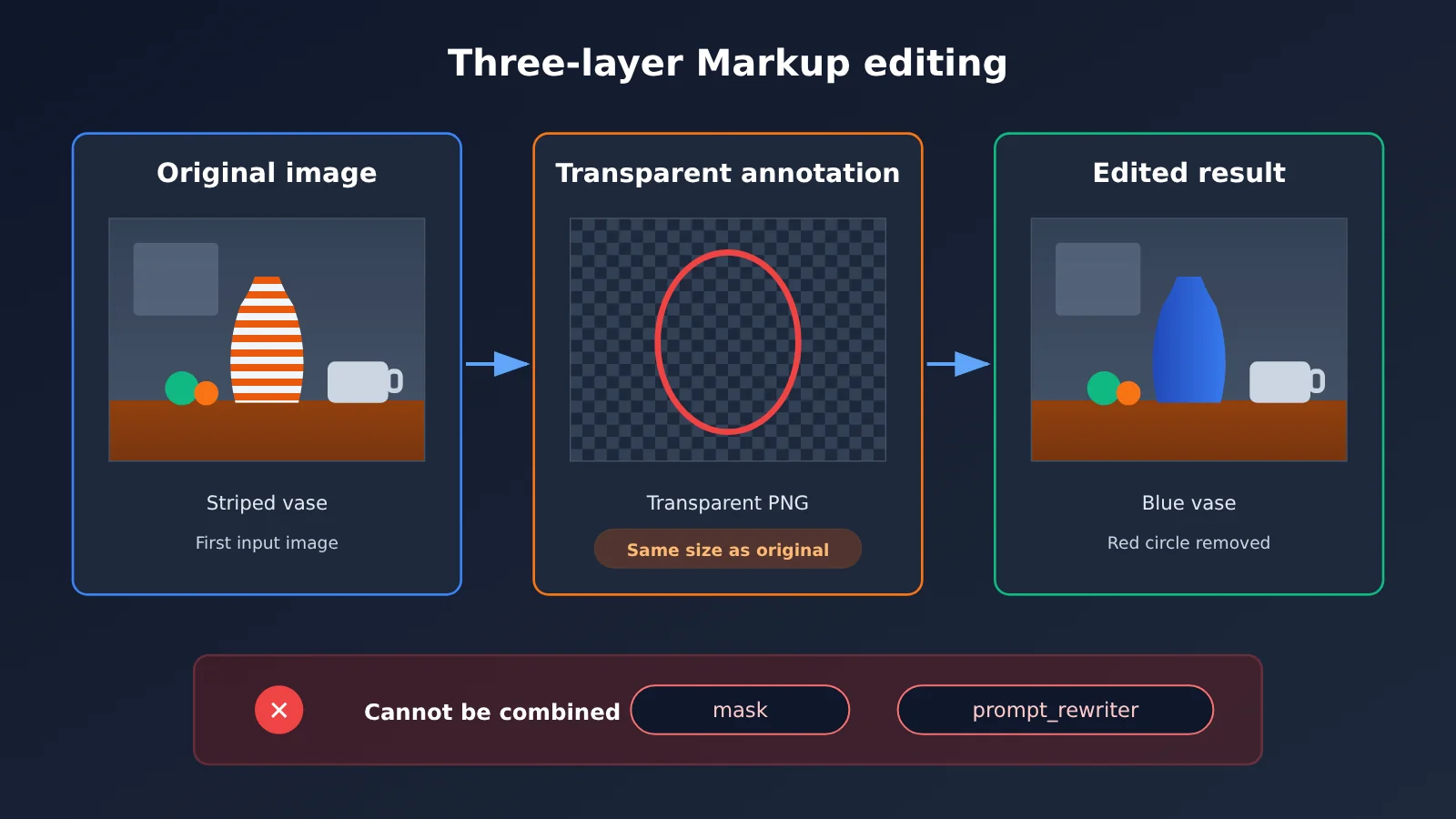
Markup is a major addition to the GPT Image 2.6 edits endpoint. To use it, you submit the original image, a transparent annotation layer, and an editing prompt. In the official example, the original image is kitchen.webp, the annotation layer is a transparent PNG with a red circle, and the prompt asks the model to turn the vase inside the circle blue, preserve the surrounding objects, and remove the red circle from the final image.
Markup has specific requirements. If any of them aren’t met, the request may fail or the result may differ from what you expect:
- The markup must be a PNG annotation layer with transparent pixels. You can’t draw a red circle directly on the original image and submit that as markup.
- The original image and markup must have exactly the same pixel width and height.
- The markup applies to the first input image. Any other images are used only as reference images.
- The first image and the annotation layer are each limited to 16,777,216 pixels, and the markup file must not exceed 50 MB.
- Markup can’t be used with
maskorprompt_rewriter.
There’s one more important point: OpenAI notes that mask-based editing is still guided by the prompt and may not strictly follow every pixel boundary. Circles and masks communicate what you want to change, but they don’t provide deterministic pixel editing like Photoshop. If certain areas must remain pixel-for-pixel identical to the original, OpenAI recommends compositing the approved edit with the original image rather than relying entirely on the model to leave those areas unchanged.
GPT Image 2.6 Parameter Compatibility Quick Reference
Putting formats and parameters in one table makes conflicts easier to spot than flipping through the documentation. The table includes only rules explicitly stated in the source. “Not specified” doesn’t mean a feature isn’t supported.
| Output format | streaming / partial | output_compression |
Transparent background | n limit |
Available endpoints |
|---|---|---|---|---|---|
| PNG | No documented restriction | Not applicable | Supported | Not specified | generations / edits |
| JPEG | No documented restriction | Supported | Not suitable | Not specified | generations / edits |
| WebP | No documented restriction | Supported | Supported | Not specified | generations / edits |
| SVG | Not supported | Not supported | Supported | Must be 1 | generations only |
| GIF | Not supported | Not supported | Not specified | Constrained by pixel budget | generations only |
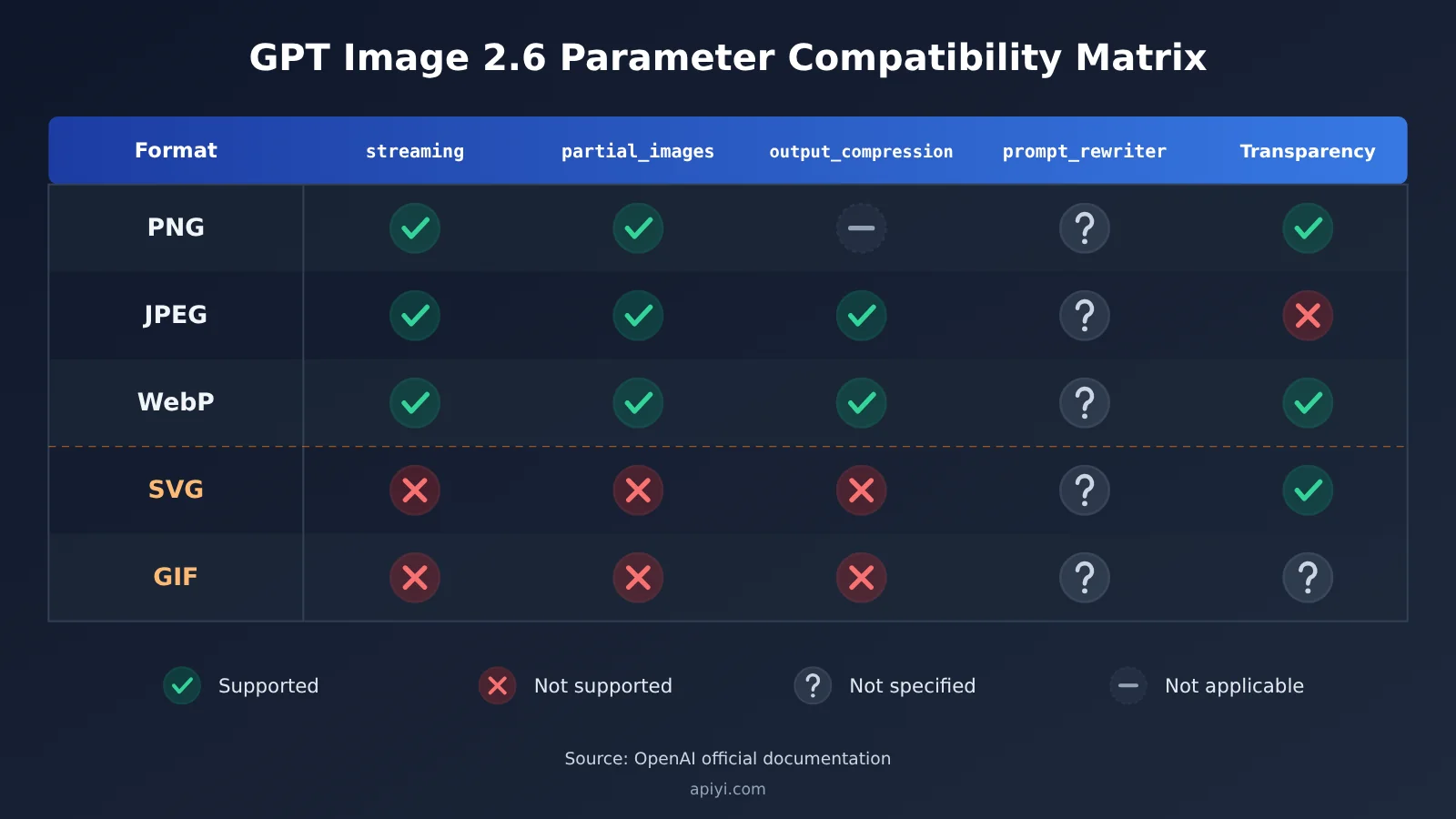
A few other details are easy to miss. Common sizes are 1024×1024, 1536×1024, and 1024×1536. Custom dimensions must be multiples of 16, with an aspect ratio between 1:3 and 3:1. The quality values are auto, low, medium, high, xhigh, and max; the complexity values are low, medium, and high. They control different aspects: the former affects rendering detail, while the latter affects composition planning and scene understanding.
How GPT Image 2.6 Limitations Affect Developers
Compatibility Risks When Migrating Existing Workflows
The official prompt guide specifically says to omit input_fidelity when editing images and notes that GPT Image 2.6 doesn’t support reasoning.summary. If your existing code includes either field, simply swapping the model name could cause an error. The recommended migration path can be summarized as follows:
- Save representative requests and outputs from the old model as a comparison baseline.
- Replace only the model name, keeping the prompt, reference images, size,
quality, and output format unchanged. - Keep
complexityat its default for the first run. After that, adjust only one variable at a time: eitherqualityorcomplexity. - Monitor output quality, latency, failure rate, retry count, and actual cost. Start with a small amount of traffic, then gradually increase it.
Handle Errors by Type
Image generation can fail because of authentication, quota, rate limits, server errors, or problems with the input. Rate-limit and server errors are good candidates for retries with backoff, but quota errors shouldn’t be retried unconditionally. When an error requires the user to change their input, ask them to adjust the request rather than repeatedly calling the API. A request blocked by moderation returns error.code = "moderation_blocked"; it’s also a good idea to log the request ID for troubleshooting.
Checklist Before Using a Third-Party Platform
When invoking a new model through an aggregation platform, the model being listed is only the first step. The checks below are based on the official capability list and should be verified individually before integration. They don’t imply that any particular platform supports or doesn’t support these features.
| Layer | What to verify |
|---|---|
| Model | Are both 2.6 model IDs, Flare and Sunburst, available? |
| API | Does it forward generations and edits requests, and support markup file uploads? |
| Parameters | Does it pass through complexity, frame_count, frame_duration_ms, and output_format? |
| Results | Does it return complete Base64 data, support large GIFs, preserve the original SVG XML, and provide error messages that are useful for debugging? |
| Pricing | Does billing correspond to token usage, and how is the extra creative-model usage for SVG calculated? |
💡 Integration tip: Test the same set of requests against both the official API and the third-party platform, paying particular attention to response formats and error messages. Before integrating through APIYI at apiyi.com, check the model list and parameter descriptions in the documentation center. Confirm which 2.6 capabilities are available before switching production traffic.
Frequently Asked Questions (FAQ)
Q1: Can the GPT Image 2.6 edits endpoint output GIFs directly?
No. According to the official documentation, GIF output is a feature of `images/generations`; `images/edits` doesn’t support direct GIF output. Photo-to-GIF conversion in ChatGPT is a product-level feature and shouldn’t be confused with the capabilities of the API editing endpoint.
Q2: Can I upload an existing SVG, modify it with GPT Image 2.6, and output another SVG?
This workflow isn’t supported by the official documentation. SVGs can’t be used as raster editing inputs, and edits can’t output SVGs. If you need to iterate on vector artwork, a safer approach is to adjust the prompt and regenerate it with generations, or use a vector editing tool.
Q3: Can markup and mask be used together?
No. The official documentation says markup can’t be used with `mask` or with `prompt_rewriter`. You can use only one method to specify the editing area.
Q4: How can I quickly test GIF and SVG requests with GPT Image 2.6?
Start by running a single request using the examples in this article, then check that the returned file is valid. You can register at APIYI apiyi.com to get testing credits. First, confirm that the target model and parameters are available, then replace the base_url with `https://api.apiyi.com/v1` for small-scale testing.
Q5: Can SVG and GIF costs be estimated per image?
Not easily. The official pricing is token-based, with no fixed price per GIF. SVG usage also includes both reference image and vector creation components. Third-party pricing depends on the platform’s published rates. You can check your actual usage details in the APIYI apiyi.com console rather than estimating costs directly from official rates.
Q6: Can GPT Image 2.6 guarantee that pixels outside a local edit remain unchanged?
No. The official documentation explains that mask-based edits are still guided by the prompt and may not strictly follow pixel boundaries. For areas that must remain completely unchanged, it recommends compositing the edited result with the original image.
GPT Image 2.6 API Limits: Key Takeaways
- Capabilities don’t apply to every endpoint: GIF and SVG output are only available through generations; markup is only available through edits.
- SVG has the most restrictions: It requires
n=1and doesn’t support streaming, compression parameters, orprompt_rewriter. The returned content must be decoded as XML. - GIFs are subject to a pixel budget: Support for 64 frames doesn’t guarantee reliable generation at any resolution. Each frame’s width and height must be multiples of 16.
- Markup has strict format requirements: It must be a transparent PNG with the same dimensions as the original image, and it can’t be used with a mask.
- Migration requires removing fields: Omit
input_fidelitywhen editing, and don’t passreasoning.summary. - Verify each layer before integration: Use APIYI apiyi.com’s documentation and test credits to check capabilities across five layers: model, endpoint, parameters, results, and pricing.
Summary
The hidden limits of the GPT Image 2.6 API come down to three points:
- Endpoints have fixed roles: Use generations to create new images and edits to modify existing ones. GIF and SVG aren’t available in editing results.
- Some parameters conflict: SVG and GIF are incompatible with streaming, compression parameters, and
prompt_rewriter. You can use either markup or a mask, but not both. - Results need validation: A successful response doesn’t guarantee a usable result. Check the file format, looping behavior, and edited area.
Integrating GPT Image 2.6 involves more than swapping out the model name. You’ll also need to check that the endpoint, format, parameters, and returned data meet your business requirements. Start by testing the capabilities you need with a few real requests on APIYI apiyi.com. Once you’ve confirmed availability and actual costs, gradually migrate production traffic.
📚 References
- OpenAI API – Image generation: Official documentation on endpoints, SVG/GIF output, markup editing, and error handling
- Link:
developers.openai.com/api/docs/guides/image-generation -
Notes: The primary source for the endpoint and parameter limits in this article
-
OpenAI API – GPT Image 2.6 prompting guide: Model parameters, migration steps, and GIF/SVG examples
- Link:
developers.openai.com/api/docs/guides/image-prompting -
Notes: Covers migration considerations such as
input_fidelityandreasoning.summary -
OpenAI – GPT Image 2.6 Sunburst Model: Sunburst model page
- Link:
developers.openai.com/api/docs/models/gpt-image-2.6-sunburst -
Notes: Model capabilities and pricing
-
OpenAI – GPT Image 2.6 Flare Model: Flare model page
- Link:
developers.openai.com/api/docs/models/gpt-image-2.6-flare - Notes: Model capabilities and pricing
Author: APIYI Technical Team
Get in touch: Contact us through the APIYI homepage at apiyi.com. For more integration resources, visit the documentation center at docs.apiyi.com.