Author's Note: This guide details how to call the Nano Banana Pro API using Google's native Gemini format. By using the APIYI platform, it costs only $0.05 per call—44% cheaper than KIE.ai—and supports 1K/2K/4K resolution image generation.
When calling the Nano Banana Pro API, many developers' first instinct is to use KIE.ai. But actually, there's a cheaper and more stable choice. This article will show you how to call Nano Banana Pro using the Google native Gemini API format and reduce your cost per call to just $0.05 via the APIYI platform—44% lower than KIE.ai.
Core Value: By the end of this article, you'll master the standard calling method for the Nano Banana Pro API, understand the price differences between platforms, and be able to generate professional-grade 4K images at the lowest cost.
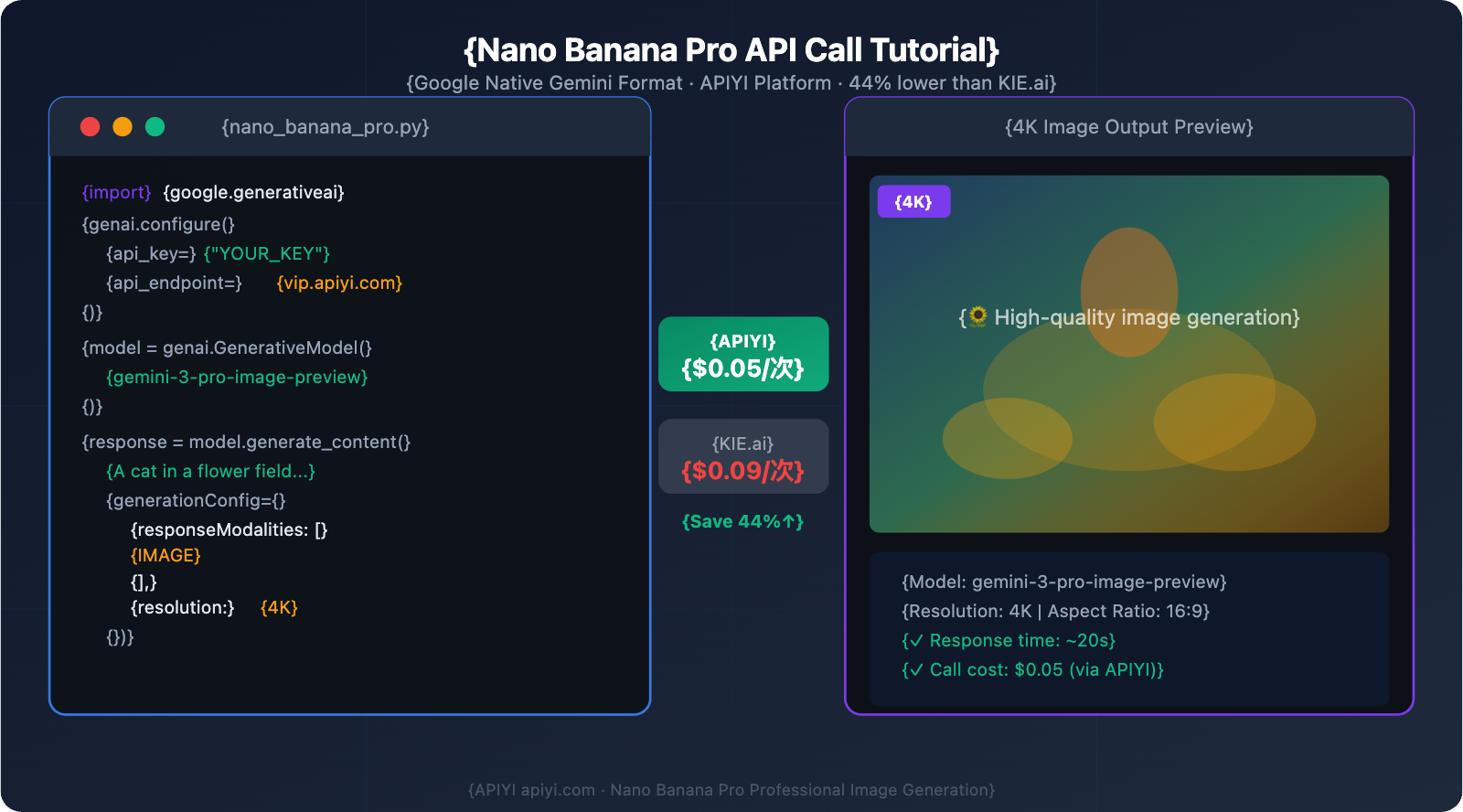
Nano Banana Pro API Core Parameters at a Glance
| Parameter | Description | Recommended Value |
|---|---|---|
| Model ID | Official Google model identifier | gemini-3-pro-image-preview |
| Call Format | Uses Google's native Gemini API format | Google Generative Language API |
| Resolution Support | Three levels of clarity available | 1K / 2K / 4K |
| Aspect Ratio | Flexible composition control | 1:1 / 16:9 / 9:16 / 4:3 (10+ types) |
| Response Modalities | Specifies the output type | responseModalities: ["IMAGE"] |
| Multi-image Reference | Supports up to 14 reference images | 6 objects + 5 people |
Why Does Nano Banana Pro Use the Native Google Format?
Nano Banana Pro (model name gemini-3-pro-image-preview) is a professional-grade image generation model from Google DeepMind. Its API design is based on the native Gemini protocol, which is fundamentally different from the OpenAI format:
- Response Modality Parameters: You need to declare
responseModalities: ["IMAGE"]within thegenerationConfig, rather than using OpenAI'sresponse_format. - Resolution Control: You specify 1K/2K/4K via the
resolutionfield, instead of defining specific pixel dimensions. - Aspect Ratio: It uses an
aspectRatiostring (like"16:9"), rather than raw width and height values.
If you try to call it using the OpenAI SDK format, you'll run into parameter parsing errors. The right way is to use the Google Generative AI SDK or send HTTP requests directly to a compatible endpoint.
What Can Nano Banana Pro Generate?
This model shines in the following scenarios, far outperforming its competitors:
- Multilingual Text Rendering: Supports precise embedding of Chinese, English, Japanese, and other languages into images with clear fonts and no gibberish.
- Infographics & Data Visualization: Can generate professional infographics including charts, tables, and data annotations.
- Marketing Materials: Posters, product shots, and ad banners with support for precise text layout.
- Product Showcases: Accurate physical lighting, material details, and shadow effects.
- Presentation Visuals: Slide illustrations that match a professional aesthetic.
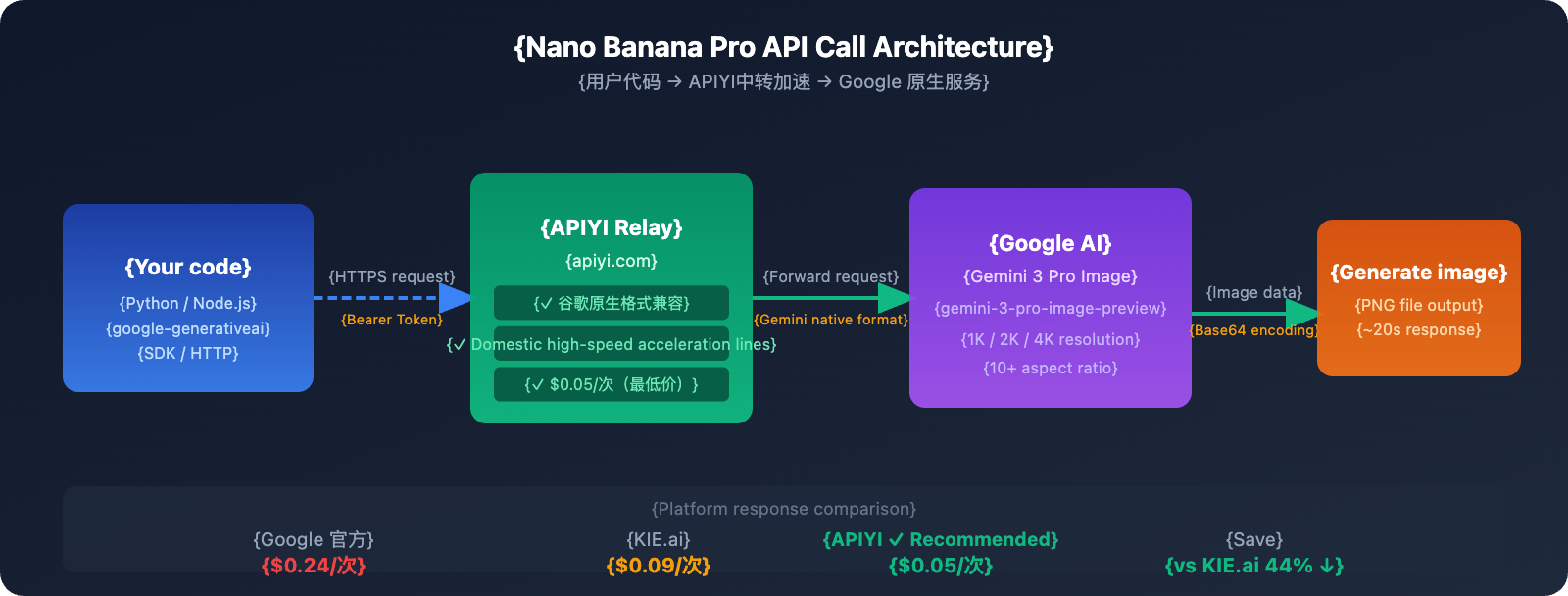
Nano Banana Pro API Price Comparison Across Platforms
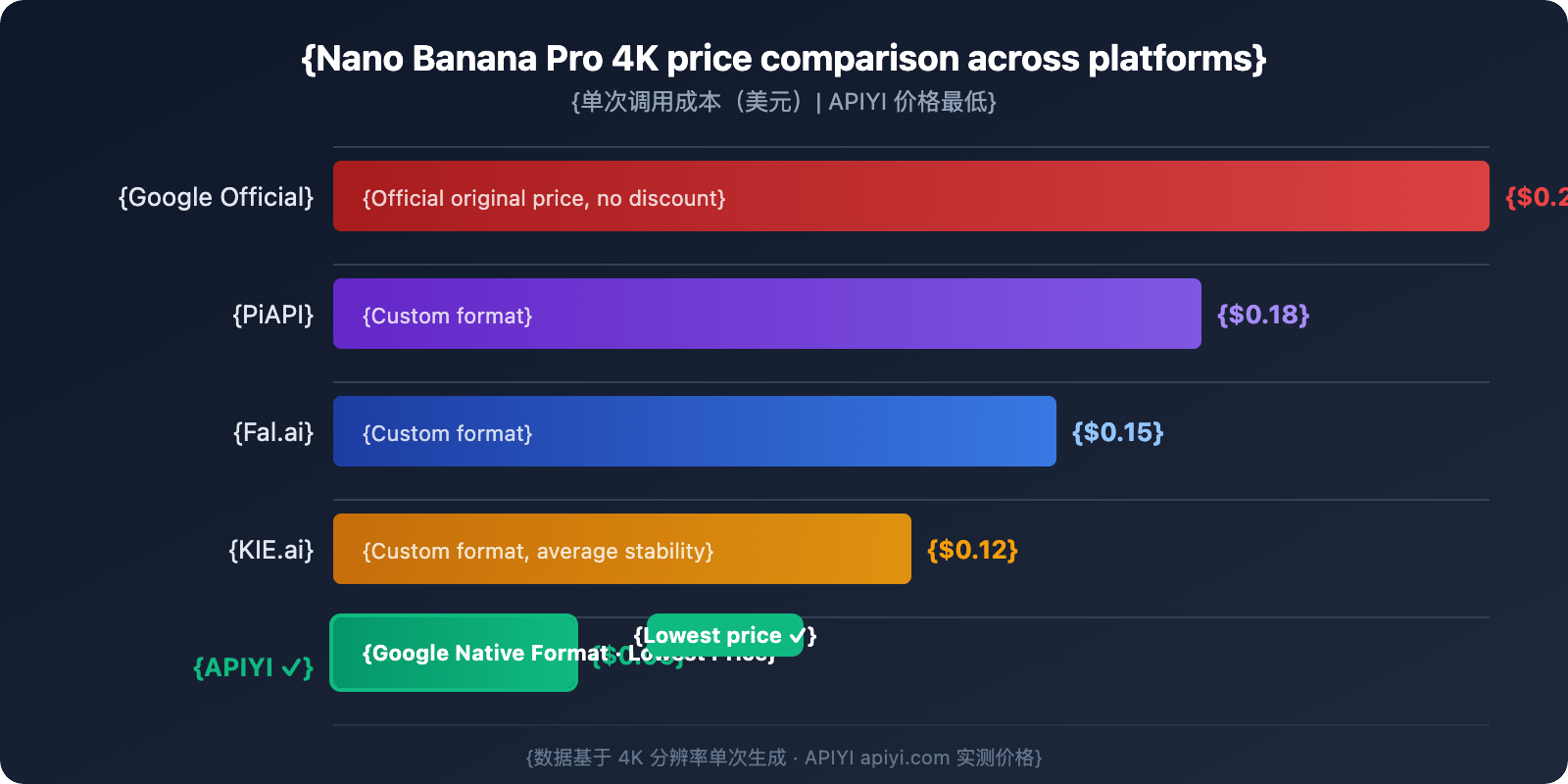
Before choosing a platform, let's take a look at the real cost differences between them:
| Platform | 1K/2K Resolution | 4K Resolution | Stability | Format Support |
|---|---|---|---|---|
| Google Official | $0.134/call | $0.24/call | ★★★★★ | Native Format |
| KIE.ai | $0.09/call | $0.12/call | ★★★☆☆ | Custom Format |
| APIYI | $0.05/call | $0.05/call | ★★★★★ | Native Format ✅ |
| PiAPI | $0.105/call | $0.18/call | ★★★★☆ | Custom Format |
| Fal.ai | $0.09/call | $0.15/call | ★★★★☆ | Custom Format |
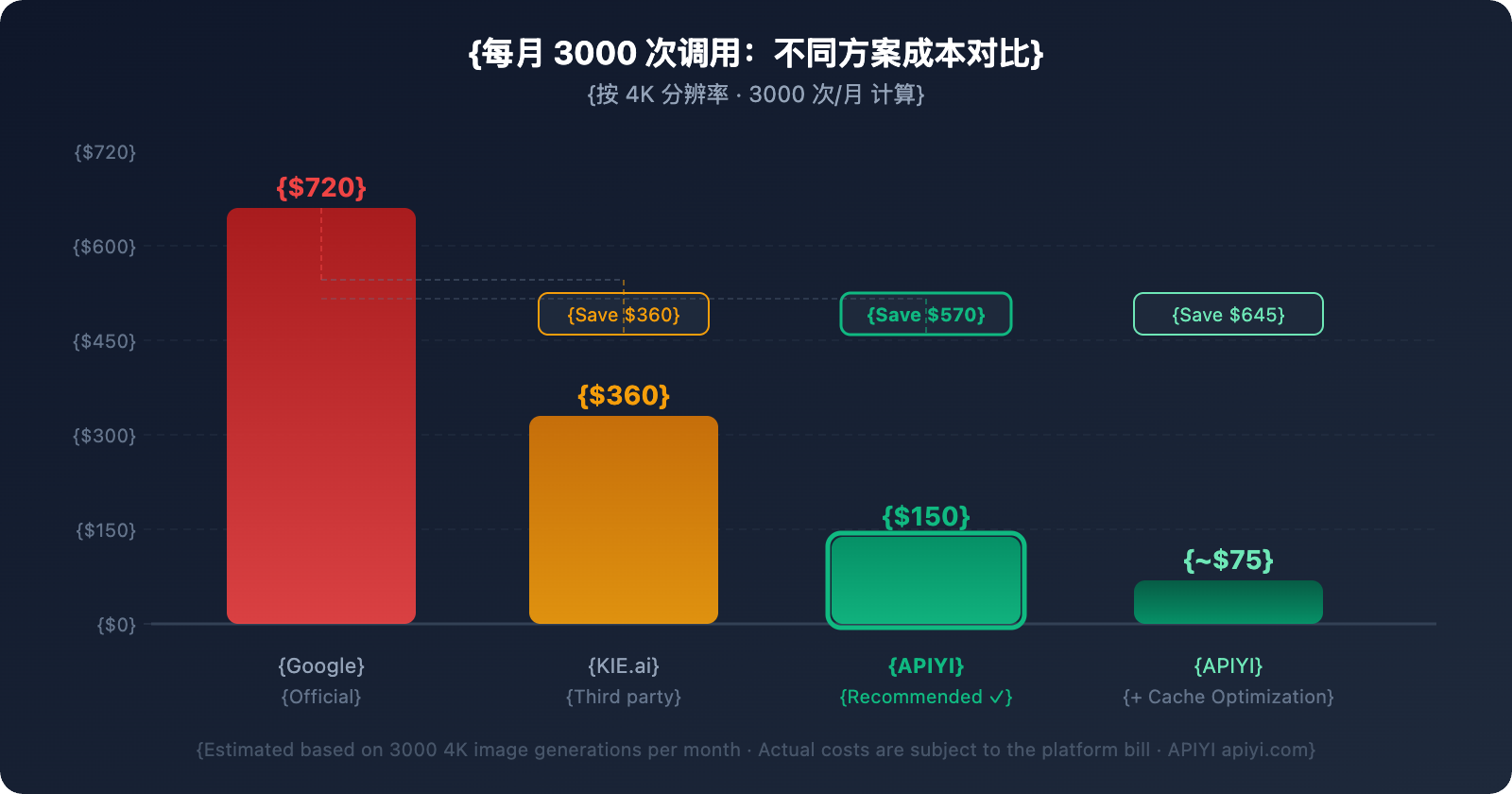
💰 Cost Comparison: Based on generating 100 4K images per day, the monthly cost for Google Official is about $720, KIE.ai is about $360, while using APIYI (apiyi.com) costs only $150—saving you over $570 per month.
Core advantages of APIYI compared to KIE.ai:
- Lower Price: $0.05/call vs. KIE.ai's $0.09/call, a 44% saving.
- Format Compatibility: Directly supports the native Google Gemini API format, so no format conversion is needed.
- Faster Speeds: Optimized acceleration routes for more stable response times.
- Unified Interface: Supports GPT, Claude, Gemini, and other mainstream models simultaneously, making it easy to switch between models.
Nano Banana Pro API Quick Start
Method 1: Using the Google Generative AI SDK (Recommended)
Install the SDK:
pip install google-generativeai
Simplest call example (Text-to-Image, 10 lines of code):
import google.generativeai as genai
import base64

genai.configure(
    api_key="YOUR_API_KEY",
    # Use the APIYI endpoint, price is only $0.05/call
    client_options={"api_endpoint": "vip.apiyi.com"}
)

model = genai.GenerativeModel("gemini-3-pro-image-preview")
response = model.generate_content(
    "An orange cat sitting in a field of sunflowers, bright sunlight, realistic style, 4K HD",
    generation_config=genai.GenerationConfig(
        response_modalities=["IMAGE"],
        resolution="4K",
        aspect_ratio="16:9"
    )
)

# Save the image
for part in response.candidates[0].content.parts:
    if part.inline_data:
        with open("output.png", "wb") as f:
            f.write(base64.b64decode(part.inline_data.data))
        print("Image saved: output.png")
🚀 Quick Start: After registering at APIYI (apiyi.com), you'll get an API Key and free test credits. Just copy the code above, replace
YOUR_API_KEY, and you're good to go—no extra configuration needed.
View full implementation code (including error handling, batch generation, and image-to-image)
import google.generativeai as genai
import base64
import os
from pathlib import Path
from typing import Optional, List


def setup_client(api_key: str):
    """Initialize the Nano Banana Pro API client"""
    genai.configure(
        api_key=api_key,
        # Call via APIYI, price is $0.05/call, 79% lower than official
        client_options={"api_endpoint": "vip.apiyi.com"}
    )
    return genai.GenerativeModel("gemini-3-pro-image-preview")


def text_to_image(
    model,
    prompt: str,
    resolution: str = "2K",       # 1K / 2K / 4K
    aspect_ratio: str = "1:1",    # 1:1 / 16:9 / 9:16 / 4:3 / 3:4
    output_path: str = "output.png"
) -> str:
    """
    Text-to-Image: Generate an image based on a text description

    Args:
        model: Initialized model instance
        prompt: Image description (supports multiple languages)
        resolution: Output resolution 1K/2K/4K
        aspect_ratio: Aspect ratio
        output_path: Path to save the file

    Returns:
        The saved file path
    """
    response = model.generate_content(
        prompt,
        generation_config=genai.GenerationConfig(
            response_modalities=["IMAGE"],
            resolution=resolution,
            aspect_ratio=aspect_ratio
        )
    )

    for part in response.candidates[0].content.parts:
        if part.inline_data and part.inline_data.mime_type.startswith("image/"):
            with open(output_path, "wb") as f:
                f.write(base64.b64decode(part.inline_data.data))
            return output_path

    raise ValueError("API did not return image data. Please check if the prompt triggered content filtering.")


def image_to_image(
    model,
    prompt: str,
    reference_image_path: str,
    resolution: str = "2K",
    output_path: str = "edited_output.png"
) -> str:
    """
    Image-to-Image: Edit or transform style based on a reference image

    Args:
        model: Initialized model instance
        prompt: Editing instructions (e.g., "change background to night")
        reference_image_path: Path to the reference image
        resolution: Output resolution
        output_path: Path to save the file

    Returns:
        The saved file path
    """
    # Read reference image
    with open(reference_image_path, "rb") as f:
        image_data = base64.b64encode(f.read()).decode()

    # Detect image format
    ext = Path(reference_image_path).suffix.lower()
    mime_map = {".jpg": "image/jpeg", ".jpeg": "image/jpeg",
                ".png": "image/png", ".webp": "image/webp"}
    mime_type = mime_map.get(ext, "image/png")

    response = model.generate_content(
        [
            {"inline_data": {"mime_type": mime_type, "data": image_data}},
            prompt
        ],
        generation_config=genai.GenerationConfig(
            response_modalities=["IMAGE"],
            resolution=resolution
        )
    )

    for part in response.candidates[0].content.parts:
        if part.inline_data and part.inline_data.mime_type.startswith("image/"):
            with open(output_path, "wb") as f:
                f.write(base64.b64decode(part.inline_data.data))
            return output_path

    raise ValueError("Image-to-image processing failed. Please ensure the reference image format is correct.")


def batch_generate(
    model,
    prompts: List[str],
    resolution: str = "2K",
    output_dir: str = "batch_output"
) -> List[str]:
    """
    Batch generate images

    Args:
        model: Model instance
        prompts: List of prompts
        resolution: Resolution
        output_dir: Output directory

    Returns:
        List of generated file paths
    """
    os.makedirs(output_dir, exist_ok=True)
    results = []

    for i, prompt in enumerate(prompts):
        output_path = f"{output_dir}/image_{i+1:03d}.png"
        try:
            path = text_to_image(model, prompt, resolution, output_path=output_path)
            results.append(path)
            print(f"[{i+1}/{len(prompts)}] Generation successful: {path}")
        except Exception as e:
            print(f"[{i+1}/{len(prompts)}] Generation failed: {e}")
            results.append(None)

    return results


# Usage Example
if __name__ == "__main__":
    # Initialize client - Call via APIYI (apiyi.com), $0.05/call
    model = setup_client("YOUR_APIYI_API_KEY")

    # Text-to-Image Example
    path = text_to_image(
        model,
        prompt="Modern minimalist product display, white background, professional studio lighting, suitable for e-commerce",
        resolution="4K",
        aspect_ratio="1:1",
        output_path="product_4k.png"
    )
    print(f"4K product image generated: {path}")

    # Image-to-Image Example (modifying an existing image)
    edited = image_to_image(
        model,
        prompt="Change the background to an outdoor natural scene, keep the main subject unchanged",
        reference_image_path="product_4k.png",
        resolution="4K",
        output_path="product_outdoor.png"
    )
    print(f"Edited image: {edited}")
Method 2: Direct HTTP Request (Suitable for any language)
If you don't want to install the SDK, you can send an HTTP POST request directly:
import requests
import base64
import json

API_KEY = "YOUR_APIYI_API_KEY"
# APIYI endpoint compatible with native Google format
BASE_URL = "https://vip.apiyi.com/v1beta/models/gemini-3-pro-image-preview:generateContent"

headers = {
    "Content-Type": "application/json",
    "Authorization": f"Bearer {API_KEY}"
}

payload = {
    "contents": [
        {
            "role": "user",
            "parts": [
                {
                    "text": "A high-tech data center room, blue neon light effects, 4K ultra-clear, cinematic quality"
                }
            ]
        }
    ],
    "generationConfig": {
        "responseModalities": ["IMAGE"],
        "resolution": "4K",
        "aspectRatio": "16:9"
    }
}

response = requests.post(BASE_URL, headers=headers, json=payload)
data = response.json()

# Extract and save the image
image_data = data["candidates"][0]["content"]["parts"][0]["inlineData"]["data"]
with open("datacenter_4k.png", "wb") as f:
    f.write(base64.b64decode(image_data))
print("Image generation complete!")
Note: The code above uses the compatible endpoint from APIYI (apiyi.com). It's fully compatible with the native Google Gemini API format, requiring no format conversion, and costs only $0.05/call.
Nano Banana Pro Core Parameters Detailed
Resolution and Aspect Ratio Full Parameter Table
| Resolution Tier | Actual Pixels (Reference) | Use Case | APIYI Unit Price |
|---|---|---|---|
1K |
~1024px short side | Quick preview, content moderation | $0.05/req |
2K |
~2048px short side | Regular use, social media posts | $0.05/req |
4K |
~4096px short side | Print materials, professional displays | $0.05/req |
Supported Aspect Ratios (aspectRatio parameter values):
Landscape: "16:9"  "4:3"  "3:2"  "21:9"
Square: "1:1"
Portrait: "9:16"  "3:4"  "2:3"  "9:21"
Custom: "4:5" (Instagram recommended)
Prompt Best Practices
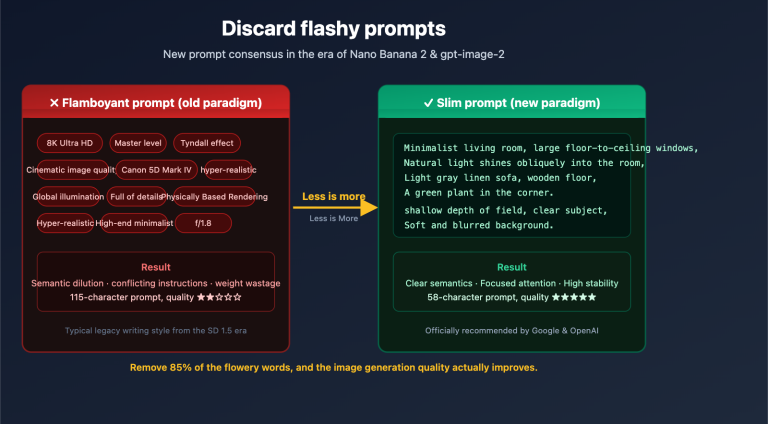
Nano Banana Pro is quite sensitive to prompt quality. Here's a proven formula for writing them:
High-Quality Prompt Structure: Subject Description + Style Definition + Lighting/Texture + Resolution/Quality Keywords
✅ Recommended:
"A young woman wearing traditional Hanfu standing in a classical garden,
 Gongbi painting style, soft natural light, rich details, 4K Ultra HD,
 highly realistic"

❌ Avoid:
"Draw a girl" (Too vague)
Specialized Prompts for Text Rendering (A core strength of Nano Banana Pro):
"An event poster with the title text '2026 AI Summit',
 bilingual in Chinese and English, modern design style, dark blue background,
 white title font, clear and readable text"
Nano Banana Pro API Real-world Use Cases
Scenario 1: Batch Generation of E-commerce Product Images
# Batch generate e-commerce product display images
product_prompts = [
    "Wireless Bluetooth headphones, plain white background, professional product photography, front view, 4K",
    "Wireless Bluetooth headphones, dark gray background, 45-degree side view, showing headphone details, 4K",
    "Wireless Bluetooth headphones, lifestyle scene, worn by a person, outdoor sunlight, 4K"
]

results = batch_generate(
    model,
    product_prompts,
    resolution="4K",
    output_dir="product_images"
)
# 3 images, total cost on APIYI: $0.15 (KIE.ai would cost $0.27)
Scenario 2: Marketing Poster Text Design
One of Nano Banana Pro's most standout features is its ability to precisely render text within images, something many similar models struggle with:
poster_prompt = """
Design a Double 11 promotion poster:
- Title: Double 11 Mega Sale
- Subtitle: Up to 50% Off Sitewide
- Background: Red gradient, festive celebratory style
- Text Color: Golden yellow, large bold font
- Bottom: Event dates 2026.11.11-11.13
Requirement: Chinese text must be clear and readable, professional layout
"""

path = text_to_image(model, poster_prompt, resolution="4K", aspect_ratio="9:16")
# Vertical mobile poster, $0.05/image
💡 Scenario Tip: For projects requiring high-volume image generation (like e-commerce catalogs or marketing assets), we recommend using the APIYI apiyi.com platform. It's not just the cheapest; it also provides detailed call logs and usage stats to help you keep costs under control.
Scenario 3: Node.js / TypeScript Project Integration
If your project uses JavaScript/TypeScript, you can integrate directly via HTTP requests:
import axios from "axios";
import * as fs from "fs";

const API_KEY = "YOUR_APIYI_API_KEY";
// APIYI is compatible with Google's native format, priced at $0.05/req
const BASE_URL = "https://vip.apiyi.com/v1beta/models/gemini-3-pro-image-preview:generateContent";

interface GenerateImageOptions {
  prompt: string;
  resolution?: "1K" | "2K" | "4K";
  aspectRatio?: string;
  outputPath?: string;
}

async function generateImage({
  prompt,
  resolution = "2K",
  aspectRatio = "1:1",
  outputPath = "output.png",
}: GenerateImageOptions): Promise<string> {
  const response = await axios.post(
    BASE_URL,
    {
      contents: [{ role: "user", parts: [{ text: prompt }] }],
      generationConfig: {
        responseModalities: ["IMAGE"],
        resolution,
        aspectRatio,
      },
    },
    {
      headers: {
        "Content-Type": "application/json",
        Authorization: `Bearer ${API_KEY}`,
      },
    }
  );

  const imageData =
    response.data.candidates[0].content.parts[0].inlineData.data;
  fs.writeFileSync(outputPath, Buffer.from(imageData, "base64"));
  return outputPath;
}

// Usage Example
generateImage({
  prompt: "Modern minimalist App splash screen, dark theme, high-tech feel, 4K",
  resolution: "4K",
  aspectRatio: "9:16",
  outputPath: "app_splash.png",
}).then((path) => console.log(`Generation complete: ${path}`));
Cost Optimization Strategies
In real-world projects, managing your Nano Banana Pro API costs is crucial:
| Optimization Strategy | Action | Savings Ratio |
|---|---|---|
| Choose Right Resolution | Use 1K for previews, 4K for production | Saves preview costs |
| Choose Low-Cost Platforms | Use APIYI instead of KIE.ai | Save 44% |
| Cache Common Images | Reuse results for identical prompts | Save 50%+ |
| Batch Async Calls | Generate multiple images concurrently | Boost efficiency by 50% |
| Streamline Prompts | Avoid overly long prompts to save tokens | Save 10-20% |
🎯 Recommendation: For startup teams and individual developers, we suggest testing with the free credits on the APIYI apiyi.com platform first. Once you've verified the image quality meets your needs, you can scale up. The platform offers pay-as-you-go pricing with no minimum spend.
FAQ
Q1: What’s the difference between Nano Banana Pro and standard Gemini image generation?
Nano Banana Pro (gemini-3-pro-image-preview) is a version Google optimized specifically for professional image creation. Here are the core differences from standard Gemini image generation:
- Text Rendering: Nano Banana Pro accurately renders multi-language text, whereas the standard version often produces gibberish.
- Resolution: It supports true native 4K output rather than simple upscaling.
- Physical Lighting: More realistic shadows, reflections, and material textures.
- Reference Image Understanding: Supports up to 14 reference images as context.
If you need high-quality professional images, Nano Banana Pro should be your first choice. When calling it via APIYI (apiyi.com), the price difference is negligible, so we recommend going straight for the Pro version.
Q2: Why am I getting errors when calling it with the OpenAI SDK?
Nano Banana Pro uses the native Google Gemini API format and is not compatible with the OpenAI SDK. Common reasons for errors include:
- The
openai.OpenAI()client can't correctly handle theresponseModalitiesparameter withingenerationConfig. - OpenAI's
response_format: {"type": "image"}differs from Gemini's parameter structure. - The returned image data structure is different (Gemini returns
inline_data.data, not a URL).
Solution: Use the google-generativeai SDK or send HTTP requests directly using the requests library. On the APIYI (apiyi.com) platform, Nano Banana Pro fully supports the native Google format, so you can just follow the code examples in this article.
Q3: Image generation failed, and the finish_reason is SAFETY. How do I fix this?
SAFETY indicates that the prompt triggered a content safety filter. Here's how to handle it:
- Check Keywords: Avoid descriptions involving violence, adult content, or political sensitivity.
- Rewrite Prompts: Use more neutral, descriptive terms instead of sensitive words.
- Break Down Instructions: Split complex prompts into multiple steps.
If your legitimate business needs are frequently misidentified, feel free to contact APIYI (apiyi.com) technical support to discuss enterprise-level content filtering policy adjustments.
Summary
Key takeaways for Nano Banana Pro API calls:
- Use Native Gemini Format: You must use the
google-generativeaiSDK or native HTTP requests; the OpenAI SDK format is incompatible. - Best Pricing on APIYI: At $0.05/request, it's 44% lower than KIE.ai ($0.09) and 79% lower than Google's official pricing ($0.24).
- 3 Key Parameters:
responseModalities: ["IMAGE"],resolution(1K/2K/4K), andaspectRatio. - Text Rendering is the Killer Feature: For marketing posters, infographics, and bilingual content, Nano Banana Pro is currently the best choice.
For teams needing batch calls or production deployments, we recommend integrating via APIYI (apiyi.com). The platform is stable and provides detailed API logs and usage monitoring to help you precisely control image generation costs.
References
-
Google Gemini API Image Generation Documentation
- Link:
ai.google.dev/gemini-api/docs/image-generation - Description: Official API parameter documentation and usage limits for Nano Banana Pro.
- Link:
-
Google Generative AI Python SDK
- Link:
github.com/google-gemini/generative-ai-python - Description: SDK installation and full API reference; the code in this article is based on this SDK.
- Link:
-
APIYI Platform Nano Banana Pro Integration Documentation
- Link:
docs.apiyi.com - Description: APIYI's compatibility notes for Google's native format and pricing details.
- Link:
Author: Technical Team
Technical Exchange: Feel free to share the creations you've made with Nano Banana Pro in the comments! For more AI image generation tips, visit the APIYI (apiyi.com) technical community.