
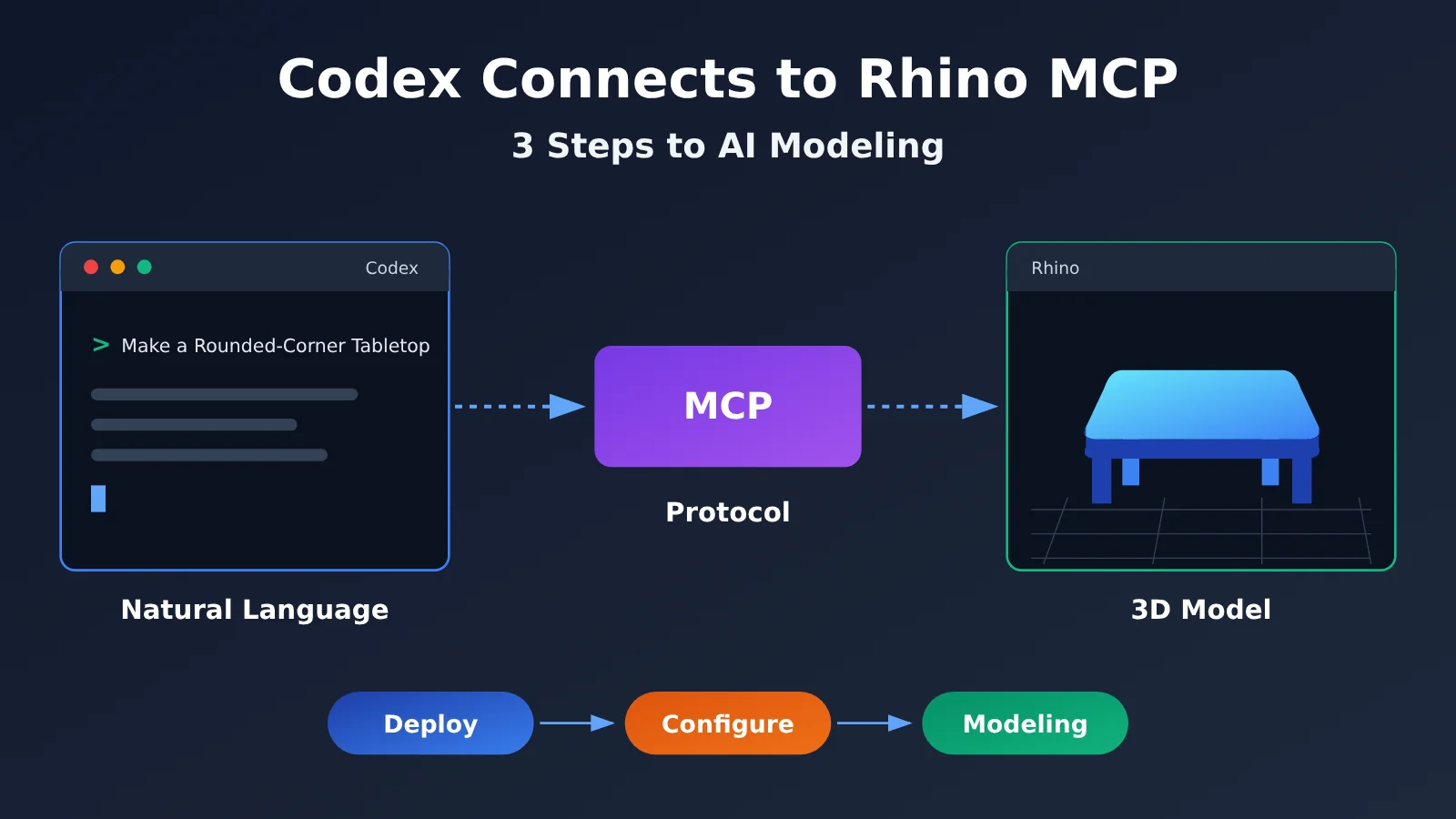
Author’s note: Deploy an Rhino MCP Server from scratch, configure the APIYI endpoint in Codex, run your first natural-language modeling command in three steps, and compare the modeling performance of GPT Codex and the Claude family.
Many 3D designers and parametric modeling engineers want to create models in Rhino with a single sentence. The challenge isn’t Rhino itself—it’s connecting the Large Language Model, the MCP protocol, and the client. This article walks you through the complete setup for Codex + Rhino MCP + the APIYI endpoint, so you can get hands-on with connecting Codex to Rhino MCP.
This isn’t a conceptual overview. It’s a practical guide that takes you through the process in order: “deploy the MCP Server → configure the Codex endpoint → run your first command.” From our experience supporting users, people usually get stuck on three things: setting up the environment from scratch, connecting Codex to a third-party API, and figuring out which model produces better results. This article answers each question in turn.
What you’ll get: By the end, you’ll be able to use natural language on your local machine to create geometry in Rhino, and you’ll know how to compare the modeling performance of different models systematically.
Key Concepts for Integrating Rhino MCP with Codex
Before you get started, make sure you understand the components involved and who’s responsible for each one. Many integration issues happen because people troubleshoot model API problems and MCP Server problems as if they were the same thing.
| Component | Role | Provided or deployed by |
|---|---|---|
| Rhino plugin | Listens for commands inside Rhino and performs modeling operations | Installed on the user’s machine |
| Rhino MCP Server | Wraps Rhino’s capabilities as MCP tools for AI clients to call | Deployed on the user’s machine |
| Codex client | Loads MCP tools and handles Large Language Model conversations and task orchestration | Installed and configured on the user’s machine |
| Large Language Model API | Understands instructions, plans steps, and generates tool call parameters | Connected through APIYI |
How Rhino MCP Works
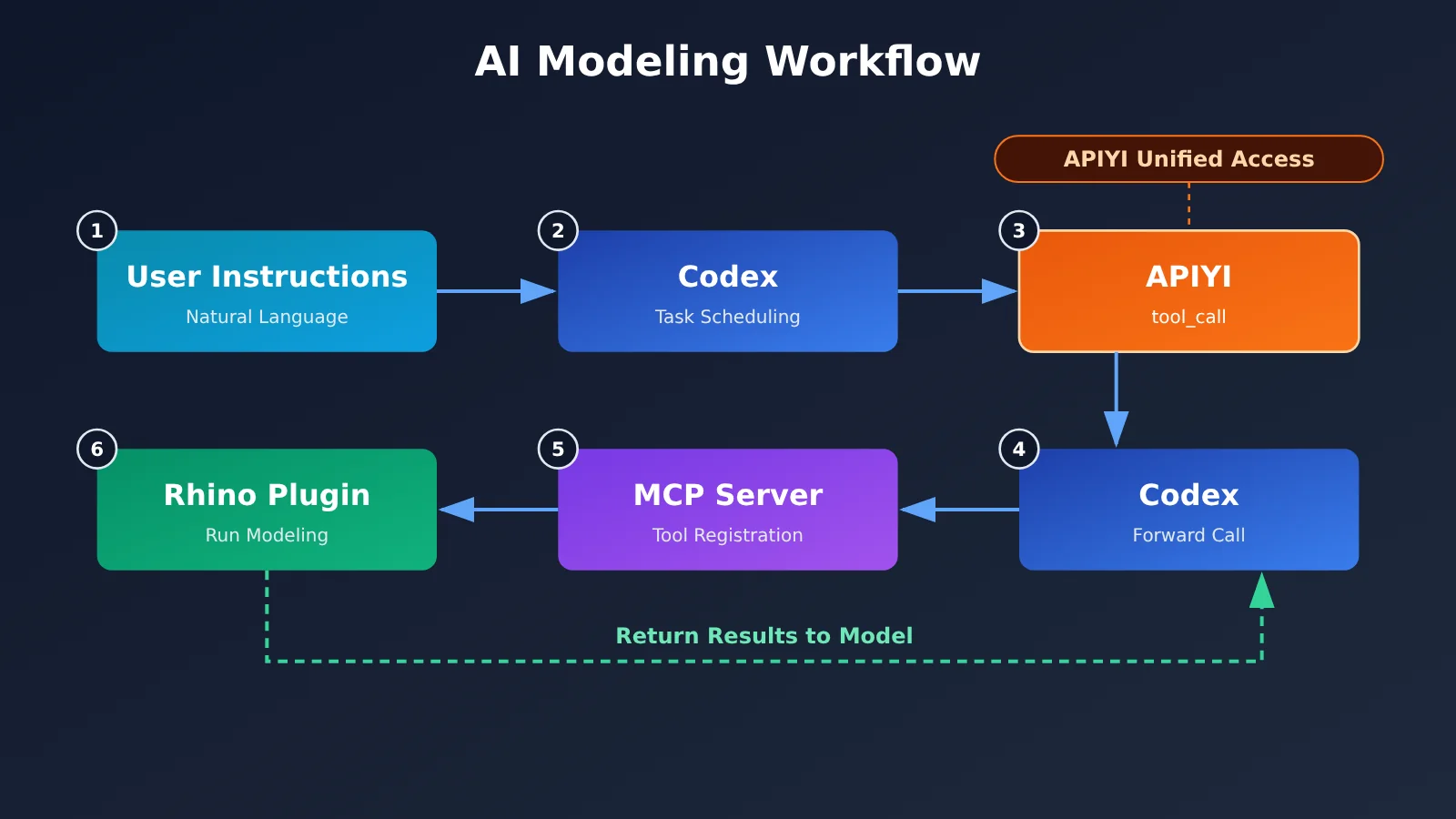
MCP (Model Context Protocol) is a protocol that lets AI clients call external tools in a consistent way. The Rhino MCP Server registers capabilities such as “create a cube,” “get objects in the current document,” and “run a Python script” as a set of tools. When Codex starts, it reads each tool’s name, description, and parameter structure, then sends them to the Large Language Model.
When you enter “Draw a 100 × 50 × 20 cube at the origin,” the model doesn’t operate Rhino directly. Instead, it returns a structured tool call request. Codex forwards that request to the MCP Server, which then uses a local connection to tell the Rhino plugin what to do. The result is sent back to the model along the same path. So, modeling quality ultimately depends on the model’s ability to call tools and plan multi-step tasks—the most important factors to consider when choosing a model.
Preparing Your Environment for Codex and Rhino MCP
Before you get started, make sure your computer meets the following requirements. Rhino MCP is an open-source community project, and installation steps may vary slightly between versions. Check the project README for the latest instructions.
| Environment | Requirement | How to check |
|---|---|---|
| Rhino | Rhino 7 or Rhino 8 (check the project documentation) | Open Rhino and check the version |
| Python environment | We recommend installing uv to run the MCP server | Run uv --version in your terminal |
| Node.js | Required to install Codex CLI with npm | Run node -v in your terminal |
| Codex client | CLI, IDE extension, or desktop app | Run codex --version in your terminal |
| API key | A key that can call Codex or Claude models | Create one in the APIYI console |
If your network connection can’t reliably reach official overseas APIs, we recommend addressing model API access first. The MCP server and Rhino both run locally; only model inference requests need an internet connection.
Get Started with Codex and Rhino MCP: Build Models with AI in 3 Steps
Step 1: Deploy the Rhino MCP Server
Using the community-built, open-source rhinomcp project as an example, deployment involves two parts: the Rhino plugin and the MCP Server.
- Open Package Manager in Rhino, search for
rhinomcp, and install the plugin. Restart Rhino after installation. - Enter the plugin’s startup command in the Rhino command line (the project uses
mcpstart) to have the plugin listen for local connections. - Run
uvx rhinomcpin a terminal and confirm that the MCP Server starts without errors.
After Step 2, Codex will start the MCP Server automatically, so starting it manually here is just for verifying your environment. If uvx isn’t found, it usually means uv hasn’t been added to your system PATH. Reopen the terminal or follow uv’s official instructions to configure it.
Step 2: Configure the APIYI API in Codex
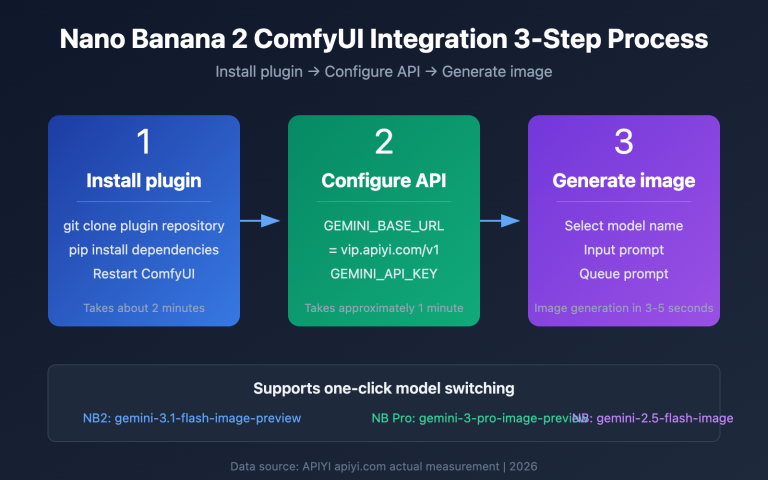
Codex’s configuration file is located at ~/.codex/config.toml in your user directory. You’ll need to do two things here: declare a custom model provider and register the Rhino MCP Server.
# ~/.codex/config.toml
model = "gpt-5-codex"          # Use a model name that's available in your APIYI console
model_provider = "apiyi"

[model_providers.apiyi]
name = "APIYI"
base_url = "https://api.apiyi.com/v1"   # APIYI's OpenAI-compatible API
env_key = "APIYI_API_KEY"               # Read the API key from an environment variable
wire_api = "responses"                  # Set to "chat" if you're using the Chat Completions protocol

[mcp_servers.rhino]
command = "uvx"
args = ["rhinomcp"]
Then set the environment variable in your terminal. Windows users can add it through System Properties:
export APIYI_API_KEY="sk-your-key"
The wire_api value needs to match the protocol supported by your chosen model. If you get a protocol-related error after configuring it, try switching to the other value. Refer to the Codex usage instructions in the APIYI documentation for details.
Step 3: Run Your First Natural-Language Modeling Instruction
Keep Rhino open with the plugin listening, then enter codex in the terminal to launch the client. You can start by asking, “What Rhino tools are available right now?” If the model lists tools related to modeling, MCP has loaded successfully.
Start with simple instructions and gradually increase the complexity. That way, it’s easier to pinpoint problems when they come up:
| Difficulty | Example instruction | Model capabilities tested |
|---|---|---|
| Beginner | Create a 100×50×20 box at the origin | Single tool call, parameter accuracy |
| Intermediate | Draw a 1200×600 tabletop and add a table leg at each corner, each 40 in diameter and 720 high | Multi-step planning, coordinate calculations |
| Advanced | Generate a 5-story spiral staircase, rotating each step 15 degrees and raising it incrementally | Loop logic, Python script generation |
| Modification | Change all cubes in the scene to red and move them to a new layer | Read document state before taking action |
For complex tasks, the model will often choose a tool like “Execute Python Script” to generate RhinoScript code and complete the modeling in one go. In these cases, the model’s code-generation ability directly affects its success rate.
Minimal Example: Use Python to Verify a Model’s Tool-Calling Capabilities
Before integrating with Codex, you can run a short script to check whether the model returns the correct arguments for modeling tools. This is a quick way to rule out issues with model API availability:
import openai, json

client = openai.OpenAI(api_key="YOUR_API_KEY", base_url="https://api.apiyi.com/v1")

tools = [{"type": "function", "function": {
    "name": "create_box",
    "description": "Create a cube in Rhino",
    "parameters": {"type": "object", "properties": {
        "origin": {"type": "array", "items": {"type": "number"}},
        "size": {"type": "array", "items": {"type": "number"}}},
        "required": ["origin", "size"]}}}]

resp = client.chat.completions.create(
    model="gpt-5-codex",  # Use the model name shown in your console
    messages=[{"role": "user", "content": "Create a 100x50x20 cube at the origin"}],
    tools=tools)
call = resp.choices[0].message.tool_calls[0]
print(call.function.name, json.loads(call.function.arguments))
View the complete implementation: Compare modeling instructions across multiple models
import openai
import json
from typing import List, Dict

client = openai.OpenAI(
    api_key="YOUR_API_KEY",
    base_url="https://api.apiyi.com/v1"  # The same key can be used to call GPT and Claude models
)

# Models to test. Replace these with model names currently available in your console.
MODELS = ["gpt-5-codex", "claude-sonnet-4-5"]

TOOLS = [
    {"type": "function", "function": {
        "name": "create_box",
        "description": "Create a box. origin is the corner coordinate, and size is the length, width, and height.",
        "parameters": {"type": "object", "properties": {
            "origin": {"type": "array", "items": {"type": "number"}},
            "size": {"type": "array", "items": {"type": "number"}}},
            "required": ["origin", "size"]}}},
    {"type": "function", "function": {
        "name": "create_cylinder",
        "description": "Create a cylinder. base is the center of the bottom face, radius is the radius, and height is the height.",
        "parameters": {"type": "object", "properties": {
            "base": {"type": "array", "items": {"type": "number"}},
            "radius": {"type": "number"},
            "height": {"type": "number"}},
            "required": ["base", "radius", "height"]}}},
]

PROMPT = "Create a 1200x600x30 tabletop with its bottom at z=720, and add a table leg at each corner, each with a diameter of 40 and a height of 720"


def run_test(model: str) -> List[Dict]:
    """Return all tool calls planned by the model."""
    try:
        resp = client.chat.completions.create(
            model=model,
            messages=[
                {"role": "system", "content": "You are a Rhino modeling assistant. Plan all tool calls at once."},
                {"role": "user", "content": PROMPT},
            ],
            tools=TOOLS,
        )
        calls = resp.choices[0].message.tool_calls or []
        return [{"name": c.function.name,
                 "args": json.loads(c.function.arguments)} for c in calls]
    except Exception as e:
        return [{"error": str(e)}]


if __name__ == "__main__":
    for m in MODELS:
        result = run_test(m)
        print(f"\n===== {m}: {len(result)} calls =====")
        for item in result:
            print(item)
        # Expected: 1 create_box call and 4 create_cylinder calls, with a leg at each corner
🚀 Get started quickly: We recommend claiming the free trial credits for new users through APIYI at apiyi.com. Use the script above to verify that the model’s tool calls are working, then integrate it with Codex and Rhino. This makes it easier to tell whether a problem comes from the model API or your local MCP environment.
Choosing a Model for Codex with Rhino MCP
AI-powered modeling places three main demands on a model: code generation, tool calling, and complex task planning. Based on our experience supporting users, we recommend starting with the GPT Codex and Claude Sonnet/Opus series. The comparison below is qualitative; test models with your own modeling tasks to see how they perform in practice.
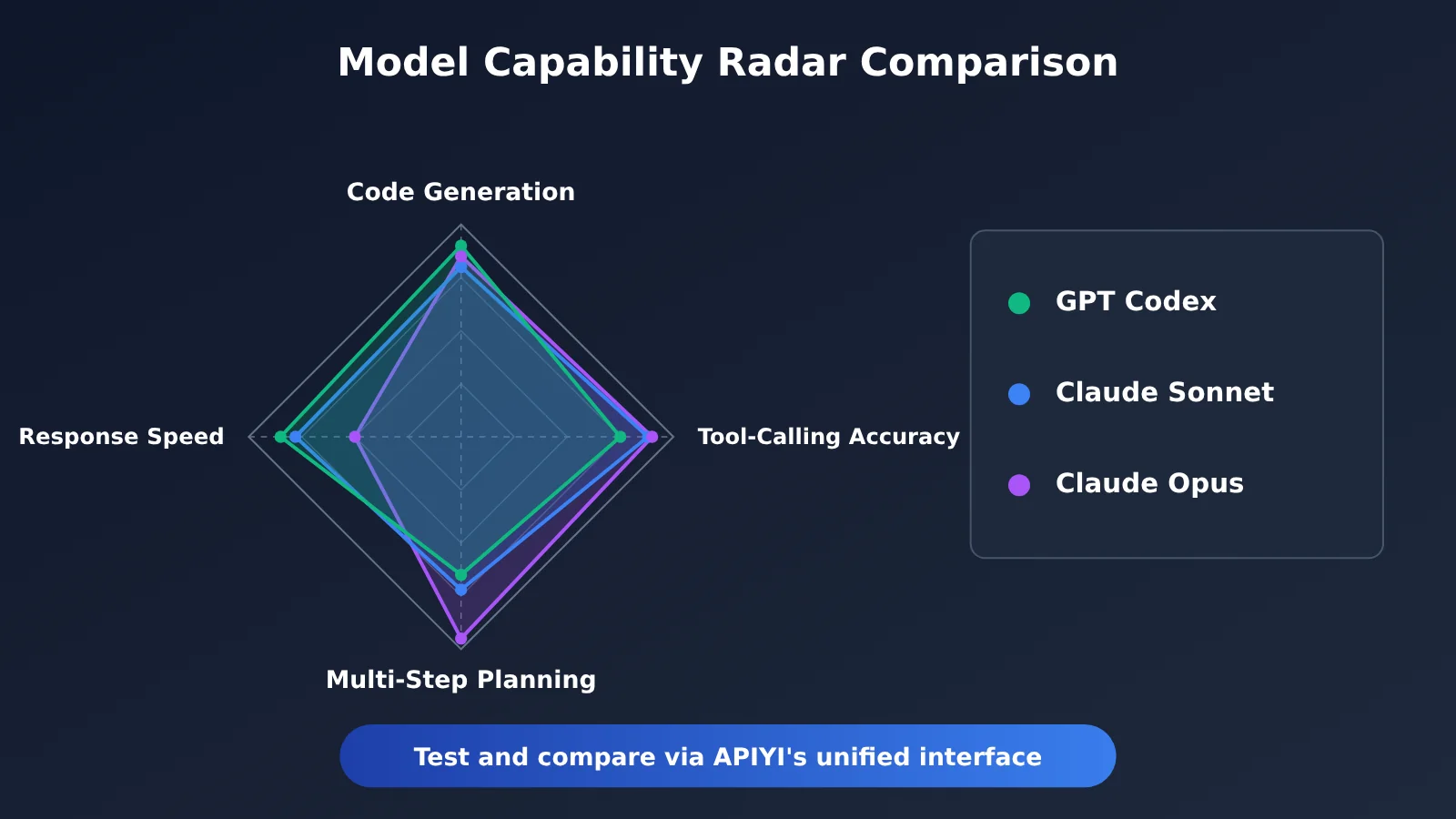
| Model Series | Key Strengths | Suitable Modeling Scenarios | Available Platforms |
|---|---|---|---|
| GPT Codex series | Deeply optimized for the Codex client, with reliable code generation | Script-based modeling, parameterized batch generation | APIYI, official API |
| Claude Sonnet series | Accurate tool calling and a good balance of speed and quality | Everyday modeling commands, multi-step operations | APIYI, official API |
| Claude Opus series | Strong complex reasoning and long-task planning | Complex structures and tasks that require repeatedly reading scene state | APIYI, official API |
GPT Codex comparison: The GPT Codex series works most natively with the Codex client. It’s simple to configure, and it consistently generates RhinoScript Python scripts. However, performance on editing tasks that require reading the scene over multiple turns and making decisions can vary depending on how you write your prompts. It’s a reliable starting point for parameterized modeling that mainly involves script generation.
Claude series comparison: Claude Sonnet/Opus has a good reputation for accurate tool-call parameters and long-horizon planning. If you prefer Claude, you can also use Claude Code with the same Rhino MCP Server as an alternative client. Alternatively, calling Claude through an OpenAI-compatible interface in Codex makes it easier to compare models side by side in the same environment.
💡 Recommendation: Model performance depends heavily on the type of modeling you do, so there’s no single best choice. We recommend using the same API key through APIYI at apiyi.com to test GPT Codex and Claude models with the same prompts from the comparison script above. Then decide based on success rate and cost.
Troubleshooting Common Errors When Connecting Codex to Rhino MCP
Most connection errors can be diagnosed layer by layer, in this order: model API → Codex configuration → MCP server → Rhino plugin.
| Issue | Possible cause | How to fix it |
|---|---|---|
| Codex returns a 401 error on startup | The environment variable hasn’t taken effect, or the API key is incorrect | Reopen the terminal and check that APIYI_API_KEY is set |
| The model can’t be found | The model name doesn’t match the one used by the platform | Copy the exact model name from the console |
| The model says no Rhino tools are available | The MCP server hasn’t been loaded | Check the spelling of the mcp_servers section in config.toml |
| Tool calls time out | The Rhino plugin isn’t listening | Run the startup command again in Rhino |
| The model calls the wrong tool or omits parameters | The instructions are unclear, or the model’s planning capabilities are insufficient | Specify dimensions, coordinates, and units, or try a different model |
Frequently Asked Questions
Q1: What is Rhino MCP?
Rhino MCP is an MCP-based tool service for Rhino that wraps Rhino’s modeling capabilities as tools AI can use. Paired with MCP-compatible clients like Codex and Claude Code, a Large Language Model can create and modify geometry directly in Rhino based on natural-language instructions.
Q2: How is connecting Codex to Rhino MCP different from asking AI to write Grasshopper code directly?
When AI writes code that you have to paste in and run manually, you still need to execute and check it yourself. With Codex connected to Rhino MCP, the model can call tools, read the results, and continue with the next step, creating a feedback loop. This approach is better suited to multi-step modeling and iterative changes, while Grasshopper is better for parametric logic that needs long-term maintenance.
Q3: Will APIYI deploy the Rhino MCP Server for me?
No. APIYI provides model API access, but you’ll need to deploy and configure the Rhino MCP Server and Codex client on your own computer. The good news is that both are local components, and you can set them up by following Steps 1 and 2 in this article.
Q4: What are the best use cases for connecting Codex to Rhino MCP?
– **Concept modeling**: Quickly generate preliminary models such as building massing and furniture frames
– **Batch parametric generation**: Generate arrays, spirals, and components with gradually changing dimensions based on rules
– **Batch scene editing**: Apply repetitive changes consistently, such as updating layers, colors, and names
Q5: How can I quickly give Codex access to a model through an API?
1. Visit APIYI at apiyi.com, create an account, and generate an API key
2. Claim the free testing credits for new users
3. Set `base_url` to `https://api.apiyi.com/v1` in `config.toml`, then enter the model name
The same key can be used with leading models like GPT and Claude. To switch models, just change the model name in the configuration.
Q6: Why does the model often call the wrong tool or use incorrect parameters?
Accurate tool use depends on two things: clear tool descriptions and the model’s planning ability. In your instructions, specify the units, coordinate origin, and exact dimensions. Break complex tasks into multiple rounds. If the same instruction keeps failing, try a model with stronger planning abilities, such as Claude Opus, and compare the results.
Q7: What are the known limitations of connecting Codex to Rhino MCP?
– **Cost**: Complex tasks involve multiple rounds of tool calls and can use significantly more tokens than a standard conversation
– **Accuracy**: The model may occasionally miscalculate coordinates, so critical dimensions still need to be checked manually
– **Compatibility**: Community plugins may temporarily become incompatible as Rhino versions are updated, so keep an eye on project updates
Key Takeaways for Connecting Codex to Rhino MCP
- Four-part setup: You need the Rhino plugin, MCP Server, Codex client, and Large Language Model API
- Local deployment: Rhino MCP Server and Codex both run on your machine; only model inference requires an internet connection
- Key configuration: Declare both the model provider and
mcp_serversinconfig.toml - Take it step by step: Start with a single cube, then move on to multi-step planning and script generation tasks
- Model selection: Test the GPT Codex series and Claude Sonnet/Opus series first
- Getting started: Use a single API key from APIYI to compare multiple models in the same setup
Summary
Here are the key steps for connecting Codex to Rhino MCP:
- Step 1: Deploy the MCP Server: Install the Rhino plugin and start the listener, then run
uvx rhinomcpto verify the service - Step 2: Configure the model API: Set up a custom provider and register Rhino MCP in the Codex configuration file
- Step 3: Run a modeling command: Start with a simple command, then gradually test the model’s tool-calling and planning capabilities
Once the full workflow is up and running, model selection and prompt writing are what really determine the modeling results. We recommend using the comparison script in this article to test tasks you commonly work on.
For quick testing, try APIYI at apiyi.com. It offers an OpenAI-compatible API, free testing credits, and unified access to multiple models, making it easy to switch between the GPT and Claude series in Codex.
📚 References
- rhinomcp open-source project: Rhino MCP plugin and server implementation
- Link:
github.com/jingcheng-chen/rhinomcp -
Description: Includes installation steps, a list of available tools, and version compatibility notes
-
OpenAI Codex repository: Codex CLI installation and configuration instructions
- Link:
github.com/openai/codex -
Description: The authoritative reference for model provider and MCP server settings in
config.toml -
Official Model Context Protocol documentation: MCP specification
- Link:
modelcontextprotocol.io - Description: A foundational resource for understanding tool registration, invocation, and response handling
Author: APIYI Technical Team
Technical inquiries: Get in touch with us via the APIYI homepage. Configuration guides for use cases involving Codex, Claude Code, and other tools are available in the documentation center at docs.apiyi.com.