Author's Note: I'll walk you through how to connect gpt-image-2 in Chatbox using a custom endpoint, and dive deep into why Chatbox can't perform the continuous, iterative image editing you see in the ChatGPT web interface. The secret lies in the architectural differences between the images/generations, chat/completions, and Responses API endpoints.
Many users have configured their OpenAI API key in the Chatbox client, only to find that inputting gpt-image-2 results in errors or garbled output. This article provides two answers: First, the correct way to connect gpt-image-2 in Chatbox (by configuring the custom endpoint to https://api.apiyi.com/v1/images/generations); and second, more importantly, why Chatbox can't "generate an image and then have a conversation to modify it" like the ChatGPT web interface.
This isn't a bug in Chatbox. It's simply that OpenAI has assigned image generation, chat completion, and multi-turn editing to three completely different API endpoints. The path Chatbox uses by default simply doesn't support continuous image editing.
Core Value: After reading this, you'll fully understand the boundaries and capabilities of OpenAI's three core endpoints. You'll know when Chatbox is sufficient, when you must switch to the Responses API, and how to use the APIYI API proxy service to stably call any endpoint from within China.
{Complete tutorial for connecting Chatbox to gpt-image-2}
{Differences between 3 endpoints · Why is continuous image generation not possible like the web version}
{📱 Chatbox client}
{Draw a blue cat}
{🖼 [Generated image]}
{Single image generation ✓}
{Change to red}
{The model does not know "it"}
{Why?}
{OpenAI three independent endpoints}
{/v1/chat/completions}
{Text conversation + image understanding · Chatbox uses this by default}
{✗ Cannot perform image generation}
{/v1/images/generations}
{Single text-to-image · Chatbox can be used here after rewriting}
{⚠ Completely no-dialogue state}
{/v1/responses}
{Multi-turn conversation + image_generation tool · Use this for the ChatGPT web version}
{✓ The only one that supports continuous image editing}
{apiyi.com · all 4 core endpoints supported · direct domestic connection}
The Correct Way to Connect gpt-image-2 in Chatbox
Let's start with the most practical part—if you want to get gpt-image-2 running in Chatbox immediately, follow these steps to get it done in 5 minutes.
Core Configuration for Connecting gpt-image-2
By default, Chatbox calls APIs using the "chat completion" method (the /v1/chat/completions endpoint). However, gpt-image-2 isn't a chat model; it's a pure image generation model, and its endpoint is /v1/images/generations. Therefore, you must use the "Custom Endpoint" feature in Chatbox to override the default address.
Complete Configuration Steps:
| Step | Action | Key Parameter |
|---|---|---|
| 1 | Open Chatbox Settings → Model Provider → Add Custom Provider | Select OpenAI API compatible mode |
| 2 | API Host | https://api.apiyi.com |
| 3 | API Path (Crucial Override) | /v1/images/generations |
| 4 | API Key | Bearer Token obtained from the APIYI console |
| 5 | Model Field | gpt-image-2 |
| 6 | Timeout | Set to ≥ 360 seconds |
Minimal Call Example for gpt-image-2 in Chatbox
Below is the officially recommended curl call example. You can use it to verify if your API key is working:
curl --request POST \
  --url https://api.apiyi.com/v1/images/generations \
  --header 'Authorization: Bearer sk-your-apiyi-key' \
  --header 'Content-Type: application/json' \
  --data '{
    "model": "gpt-image-2",
    "prompt": "Landscape 16:9 cinematic aspect ratio, an old lighthouse by the sea at dusk"
  }'
Once you've successfully run this curl command, go back to Chatbox and set the endpoint to /v1/images/generations, and you're good to go.
🎯 Configuration Tip: When configuring a custom endpoint in Chatbox for the first time, it's best to verify your API key and endpoint path using
curlfirst. We recommend using the APIYI (apiyi.com) platform to claim a test credit; the free quota is enough to complete the entire configuration verification process.
Common Configuration Errors for gpt-image-2 in Chatbox
Here are the 5 most common pitfalls users encounter:
| Error Phenomenon | Root Cause | Solution |
|---|---|---|
Returns model not found |
Used /v1/chat/completions endpoint |
Change to /v1/images/generations |
Returns invalid prompt format |
Used chat messages format |
Use the prompt field (string) instead |
| Request times out after 60s | Default timeout is too short | Increase to ≥ 360s (required for high quality) |
| Image doesn't display | Chatbox doesn't parse b64_json |
Ensure the response returns the url format |
| Chinese prompt error | Encoding issue | Confirm Content-Type: application/json; charset=utf-8 |
Why Can't I Continuously Edit Images After Connecting Chatbox to gpt-image-2?
This is the most critical technical point of this article. Many users, after completing their configuration, ask: "Why can I generate an image in Chatbox, but when I say 'change the sky to blue,' the model has no idea what I'm talking about? Yet, the ChatGPT web version allows for infinite continuous edits?"
The answer isn't a bug in Chatbox; it's that the endpoint itself doesn't support it.
Architectural Limitations of Chatbox Connecting to gpt-image-2
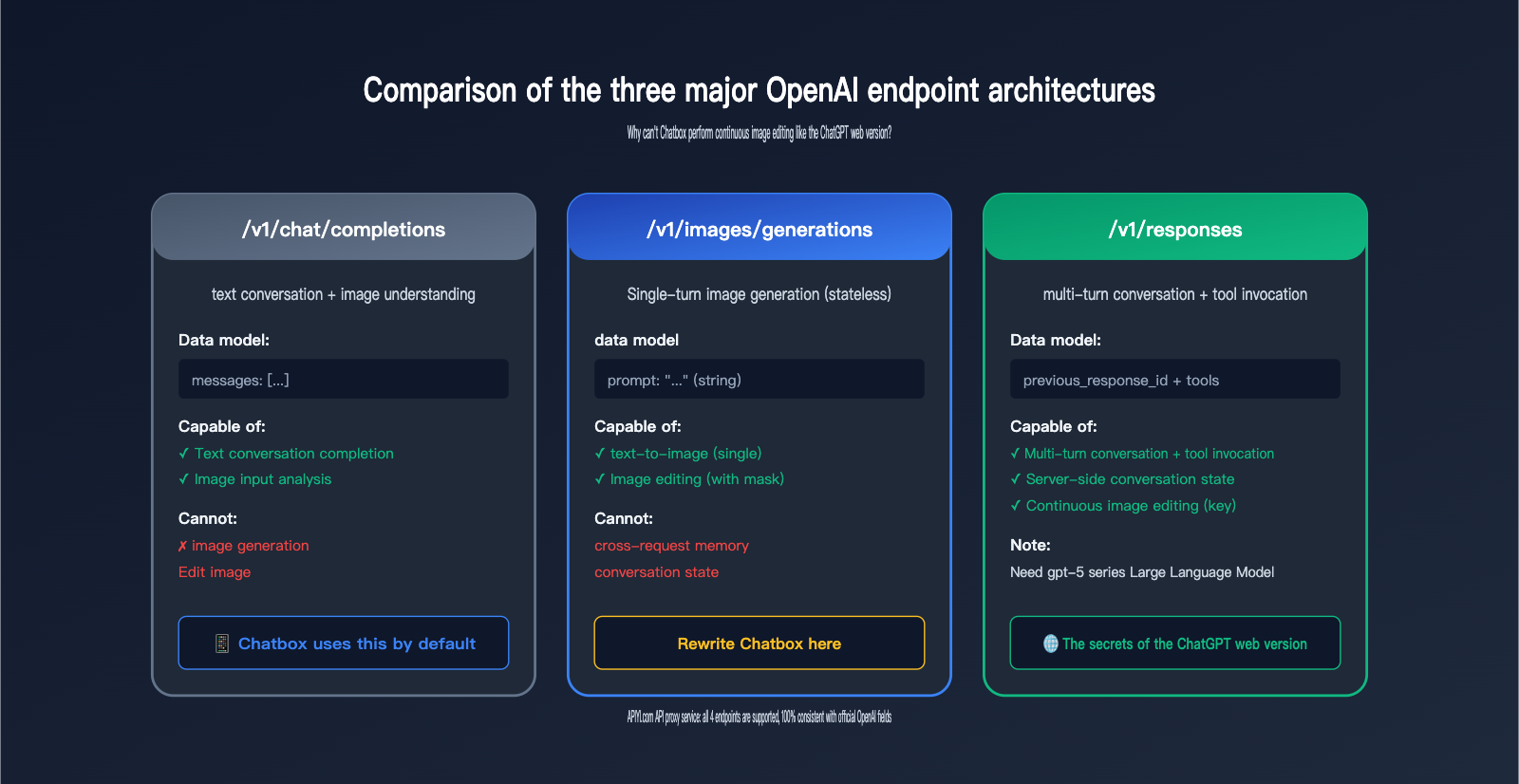
To explain this clearly, we must first understand the three completely independent endpoints currently provided by OpenAI:
| Endpoint | Path | Design Purpose | Supports Image Gen | Has Conversation State |
|---|---|---|---|---|
| Chat Completions | /v1/chat/completions |
Text conversation completion | ❌ Image input only | ❌ Client-managed |
| Image Generations | /v1/images/generations |
Single text-to-image | ✅ Generation only | ❌ Completely stateless |
| Image Edits | /v1/images/edits |
Single image-to-image/edit | ✅ Editing | ❌ Completely stateless |
| Responses API | /v1/responses |
Multi-turn chat + tool use | ✅ Tool use | ✅ Server-managed |
The Key Truth:
- Chatbox defaults to
/v1/chat/completions—this endpoint doesn't support image generation at all. - After you change the endpoint to
/v1/images/generations, you can generate images, but this endpoint is completely stateless—every request is isolated. - The ChatGPT web version uses
/v1/responsesunder the hood—it has a built-inimage_generationtool call + server-side conversation state.
Why the ChatGPT Web Version Can Continuously Edit Images
The workflow behind the ChatGPT web version works like this:
- You input "Draw a blue cat."
- ChatGPT calls the
/v1/responsesendpoint, and the model decides to call theimage_generationtool. - The tool returns an image ID (e.g.,
ig_abc123) and records it in the current session's server-side state. - You then say, "Change it to red."
- ChatGPT calls
/v1/responsesagain, passing theprevious_response_id. - The model uses the context to recognize that "it" refers to the previous image and calls the
editaction of theimage_generationtool. - The tool edits the image based on the previous one and returns a new image.
The key to the whole process is previous_response_id + server-side conversation state + built-in image_generation tool—the /v1/images/generations endpoint lacks all three of these capabilities.
Current Limitations of the Chatbox Architecture
Chatbox is a Chat Completions-style client—its core data model is a "messages array" (system/user/assistant multi-turn messages). Its working mechanism is:
- Append each user message to the messages array.
- Call a chat-style endpoint (default
/v1/chat/completions). - Append the response to the messages.
- Repeat.
When you change the endpoint to /v1/images/generations, Chatbox is effectively just changing the request path—but the messages array is still being sent in the chat format, and the endpoint only accepts a single prompt, so the conversation state cannot be passed at all.
💡 Technical Interpretation: The core design assumption of Chatbox is that "the endpoint is chat-style," while OpenAI designed image generation and image editing as independent RESTful resource endpoints; this is an architectural mismatch. We recommend testing
/v1/images/generationsfor single-shot image generation via the APIYI (apiyi.com) platform first, and once the results are verified, planning whether you need to switch to the Responses API.
Chatbox Integration with gpt-image-2: Capabilities and Alternatives
Now that we've covered the limitations, here’s a clear breakdown of what you can and can't do with this setup.
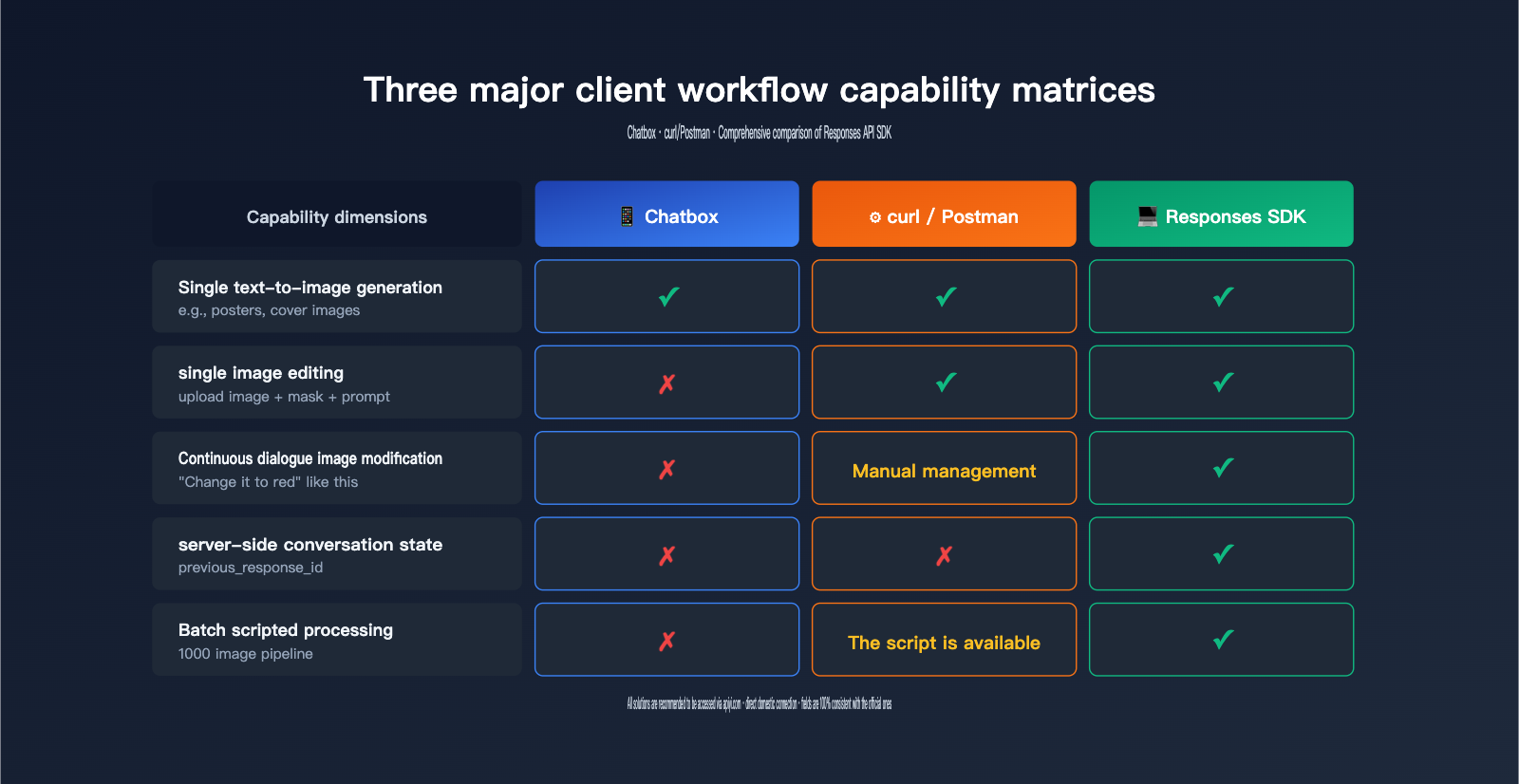
What You Can Do with Chatbox + gpt-image-2
| Scenario | Supported | Notes |
|---|---|---|
| Generate a single image from a prompt | ✅ | Standard usage |
| English/Chinese prompts | ✅ | Native support in gpt-image-2 |
| Specify size/aspect ratio | ✅ | Via size parameter |
| Specify quality (standard/high) | ✅ | Via quality parameter |
| Output URL or base64 | ✅ | Via response_format parameter |
What You Can't Do with Chatbox + gpt-image-2
| Scenario | Supported | Alternative |
|---|---|---|
| "Change it to red" after generation | ❌ | Switch to Responses API |
| Multi-turn iterative adjustments | ❌ | Switch to Responses API |
| Upload image + prompt for in-painting | ❌ (Not supported by Chatbox) | Use /v1/images/edits or Responses API |
| Fusion of multiple reference images | ❌ (Not supported by Chatbox) | Switch to Responses API |
| Server-side chat history logging | ❌ | Switch to Responses API |
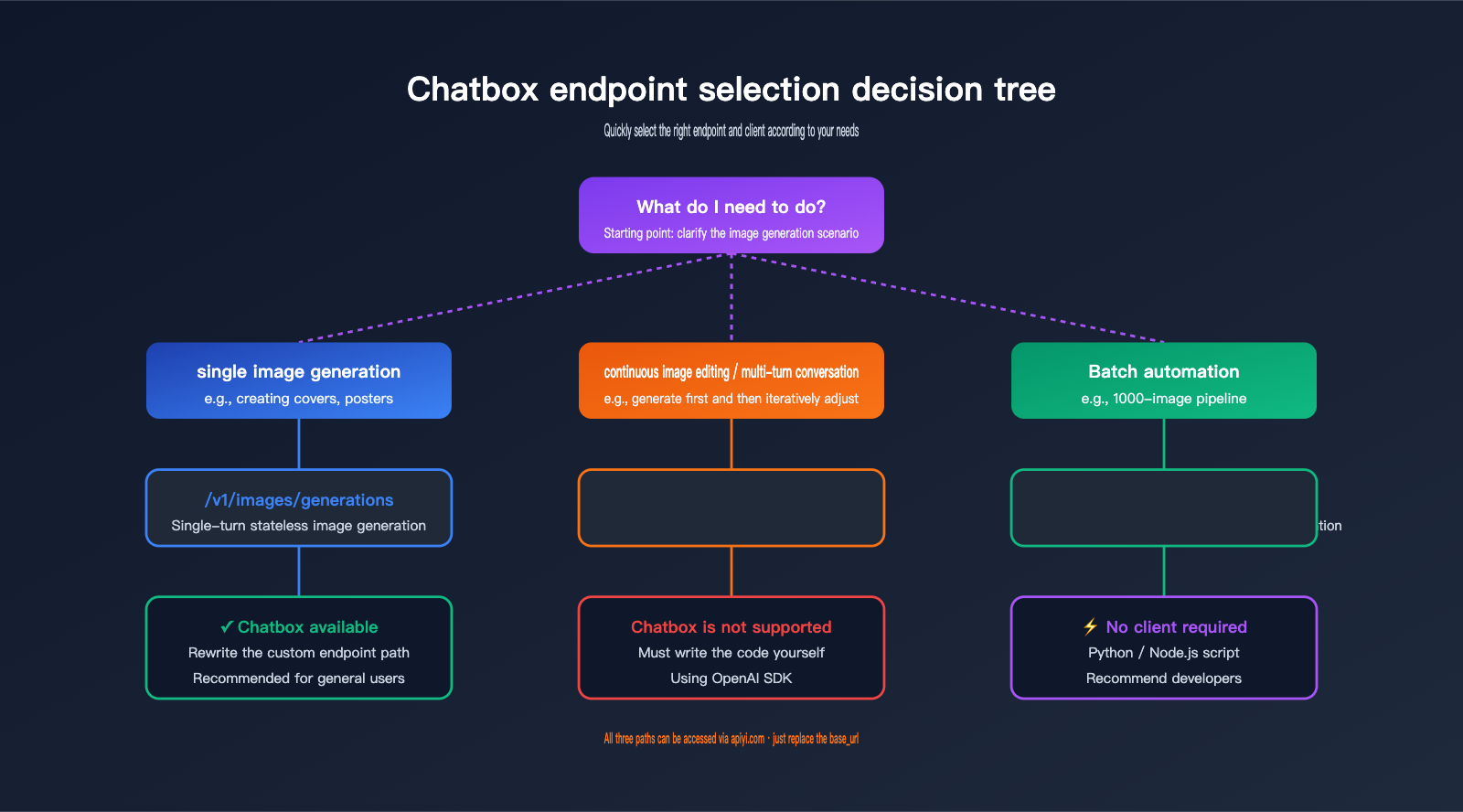
Minimal Code for Continuous Image Generation via Responses API
If you need "conversational image editing," you'll have to move beyond the Chatbox client and write your own code to call the /v1/responses endpoint:
from openai import OpenAI

client = OpenAI(
    api_key="sk-your-apiyi-key",
    base_url="https://api.apiyi.com/v1",
    timeout=600.0
)

# Round 1: Generate initial image
resp1 = client.responses.create(
    model="gpt-5",  # Responses API requires gpt-5 series
    input="Draw a blue cat walking under the moonlight, realistic style",
    tools=[{"type": "image_generation"}]
)

response_id_1 = resp1.id
print("First image:", resp1.output[-1])

# Round 2: Modify based on the previous round (key is previous_response_id)
resp2 = client.responses.create(
    model="gpt-5",
    previous_response_id=response_id_1,  # Chain the conversation state
    input="Change its color to orange and change the background to a sunrise",
    tools=[{"type": "image_generation"}]
)

print("Modified:", resp2.output[-1])
Keep these key points in mind:
- You must use
gpt-5or a newer model (gpt-image-2 cannot be called directly as a chat model). - You must pass
tools=[{"type": "image_generation"}]to enable the tool. - You must use
previous_response_idto link the conversation history; otherwise, the model won't know what "it" refers to.
🚀 Integration Tip: When using the Responses API for continuous image generation, set the
base_urltohttps://api.apiyi.com/v1. It's fully compatible with official OpenAI fields, so you can switch by just changing one line in your existing OpenAI SDK code. We recommend connecting via APIYI (apiyi.com) for stable, direct access within China.
Practical Configuration Guide for Integrating gpt-image-2 into Chatbox
Now that we've covered the theory, here is a complete "from scratch" guide to get you up and running.
Step 1: Get your APIYI API key
- Visit the APIYI console at
api.apiyi.com. - After registering, head over to the "API Tokens" page.
- Create a new token (it's best practice to use a unique token for each project).
- Copy the full Bearer Token (it will start with
sk-).
Step 2: Configure Chatbox as a Custom Provider
In your Chatbox app:
- Go to Settings → Model Provider.
- Click Add → select Custom OpenAI-compatible provider.
- Fill in the following fields:
Name: APIYI - Image Generation
API Host: https://api.apiyi.com
API Path: /v1/images/generations    # Crucial! You must change this
API Key: sk-your-apiyi-key
Default Model: gpt-image-2
- Advanced Settings:
- Request Timeout: 600 seconds
- Retry Attempts: 2
- Character Encoding: UTF-8
Step 3: Send a test prompt
Enter the following into the Chatbox input field:
16:9 cinematic aspect ratio, old lighthouse by the sea at dusk,
soft warm tones, light mist over the water, 2K resolution
If everything is configured correctly, you should receive the generated image within 1 to 3 minutes.
Step 4: Troubleshooting Common Issues
| Issue | Check |
|---|---|
| No response | Check if your API key is complete and has image generation permissions |
| Error 401 | API key is incorrect or expired; generate a new one |
| Error 404 | API Path typo; ensure it is /v1/images/generations |
| Error 429 | Rate limit triggered; wait a few minutes and try again |
| Timeout | Timeout is too short; increase it to 600 seconds |
💡 Pro Tip: If you need to integrate gpt-image-2 into your own application rather than a desktop client, I recommend using the official OpenAI SDK to call
/v1/images/generationsdirectly—it's much more flexible than Chatbox. We suggest connecting via APIYI (apiyi.com) by simply setting yourbase_urltohttps://api.apiyi.com/v1.
Decision Guide: Choosing the Right Endpoint
Use this decision table to quickly determine which endpoint fits your specific use case:
| Your Requirement | Recommended Endpoint | Compatible Client |
|---|---|---|
| Single text-to-image (e.g., cover art) | /v1/images/generations |
Chatbox / curl / SDK |
| Single image edit (with mask) | /v1/images/edits |
curl / SDK (Chatbox not ideal) |
| Continuous image modification | /v1/responses |
Custom code (Not supported by Chatbox) |
| Text-only chat | /v1/chat/completions |
Chatbox / Any chat client |
| Text chat + image understanding | /v1/chat/completions |
Supported by Chatbox |
FAQ: Integrating gpt-image-2 with Chatbox
Q1: Why doesn't Chatbox natively support continuous image generation for gpt-image-2?
This isn't a design flaw in Chatbox, but rather a limitation inherent to client-side applications. Chatbox uses a messages array data model (chat-style), while the Responses API relies on a previous_response_id + server-side conversation state—these are fundamentally incompatible paradigms. For Chatbox to support this, it would essentially require a complete rewrite of its entire conversation engine.
Q2: Can I upload images for gpt-image-2 to edit after configuring a custom endpoint in Chatbox?
Theoretically yes, but it's a hassle. The /v1/images/edits endpoint requires images to be uploaded in multipart/form-data format, whereas Chatbox's chat interface only supports text input. Forcing this configuration will result in a 415 error. Recommended alternative: Use curl, Postman, or a custom script to call /v1/images/edits directly.
Q3: Does the APIYI API proxy service support the Responses API?
Yes, fully. APIYI is an official proxy channel, meaning request/response fields are 100% synchronized with OpenAI. This includes all four core endpoints: /v1/responses, /v1/images/generations, /v1/images/edits, and /v1/chat/completions. We recommend using APIYI (apiyi.com) to invoke the Responses API for continuous image generation, as it provides stable, direct access within China without the need for a proxy.
Q4: What is the maximum prompt length when using Chatbox to call gpt-image-2?
OpenAI officially limits the prompt field to 32,000 characters. However, we recommend keeping it under 1,000 characters for actual use—excessively long prompts tend to distract the model, which can actually degrade the quality of the generation.
Q5: Can I configure both chat models and image generation models in Chatbox simultaneously?
Yes—Chatbox supports configuring multiple "Custom Providers." We suggest creating two:
APIYI - Chat→ Endpoint/v1/chat/completions→ Modelgpt-5/claude-sonnet-4-6, etc.APIYI - Image Gen→ Endpoint/v1/images/generations→ Modelgpt-image-2
You can simply switch between providers to toggle between modes.
Q6: When a Chatbox call to gpt-image-2 fails, how do I determine if the issue is with Chatbox or the API?
The fastest way is to use curl to call the API directly. If the curl command works, the issue lies in your Chatbox configuration; if the curl command also fails, the problem is with your API key or network connection. You can copy and use the curl examples provided at the beginning of this article.
Q7: What are the differences between using APIYI and the official OpenAI service?
The fields are identical—APIYI is an official proxy channel. The main differences are: direct domestic access without needing a proxy, dedicated Chinese technical support, and transparent, visible billing. We recommend that domestic developers connect to gpt-image-2 via APIYI (apiyi.com) to avoid network stability issues.
Q8: When should I abandon Chatbox and write my own code using the Responses API?
Here are three clear signals:
- You need "conversational image editing"—generating once and refining multiple times.
- You need mixed output of images and text (e.g., explaining something, generating an image, then explaining further).
- You are building a product rather than just experimenting, which requires server-side management of conversation states.
If any of these apply, it's time to switch to the Responses API.
Key Takeaways for Integrating gpt-image-2 with Chatbox
- Chatbox defaults to
/v1/chat/completions—this endpoint does not support image generation; you must change it to/v1/images/generations. /v1/images/generationsis a stateless endpoint—every request is independent, making "continuous editing" impossible.- The continuous image generation capability in the ChatGPT web interface comes from the Responses API—it uses the built-in
image_generationtool +previous_response_idconversation state. - Chatbox's inability to support continuous image generation is not a bug—it's a fundamental difference between chat-style clients and the Responses API paradigm.
- Alternative solution: When continuous image generation is required, use the OpenAI SDK to call
/v1/responseswith gpt-5 series models. - Domestic access recommendation: Connect via APIYI (apiyi.com); it supports all 4 core endpoints—just replace the
base_url. - Quick troubleshooting: If configuration fails, verify with curl first. If curl works, the issue is with the client, not the API.
Summary
The "configuration" issue when connecting Chatbox to gpt-image-2 is just the tip of the iceberg. What developers really need to understand is OpenAI's three distinct endpoint architectures—each designed for different use cases with completely different capability boundaries:
- Chat Completions: An endpoint for "text chat + image understanding," which cannot generate images.
- Images Generations / Edits: A stateless endpoint for "single-shot image generation/editing." It's simple and direct but doesn't support multi-turn iteration.
- Responses API: An endpoint for "multi-turn conversation + tool calling," which is the only way to achieve "conversational image editing."
Since Chatbox is a chat-style client, it can only perfectly adapt to one of the first two modes—by using a custom endpoint to support single-shot image generation. However, to achieve the "infinite conversational editing" seen in the ChatGPT web version, you'll have to move beyond client tools and write your own code to call the Responses API.
Once you grasp this, your workflow choices become clear:
- Small-scale, single-shot generation, personal use: Chatbox +
/v1/images/generations - Continuous editing, product-level integration: Responses API + custom code
- Batch generation, automated pipelines: Direct SDK calls to
/v1/images/generations
✨ Final Advice: For developers in China, regardless of which path you choose, we recommend using the APIYI (apiyi.com) platform. It supports all 4 core endpoints, maintains 100% compatibility with official OpenAI fields, offers stable direct domestic connections, and provides transparent token-based billing. New users get free testing credits, which are more than enough to verify both your Chatbox configuration and your Responses API implementation.
Author: APIYI Team
Last Updated: 2026-05-02