
Author’s note: Gemini 4 Neon has four thinking levels. The default is HIGH, and thinking tokens are billed at output pricing. This article explains what tasks each level is good for, and why you can’t just copy Carbon’s level settings directly over to Neon.
After integrating Gemini 4 Neon, the first problem many developers run into usually isn’t quality—it’s the bill. Thinking tokens are billed at output pricing: the higher the level, the longer the model thinks before answering, and the more output tokens it generates. This article recommends choosing the level based on the task and stopping when it’s enough, to help you land on the right level between quality and cost.
This isn’t a “higher is always better” parameter explainer. Google Cloud documentation already spells out very specific use cases for each Neon level. This article uses the official docs as its basis, organizes them into a comparison table you can follow directly when configuring, and adds a few common errors and points of confusion.
Key takeaway: By the end of this article, you’ll know that Gemini 4 Neon defaults to HIGH, LOW is enough for classification and routing tasks, and XHIGH is reserved for only the heaviest work—and you won’t accidentally apply settings from Carbon or Antigravity to API calls.
Gemini 4 Neon Thinking Levels: The Core Takeaways
Let’s start with the most important conclusions. All of these come from Google Cloud’s Gemini 4 Neon documentation (2026-11-19 version) and the latest model page in AI Studio:
| Key point | Details | Why it matters to you |
|---|---|---|
| Four thinking tiers | LOW, MEDIUM, HIGH, XHIGH, with HIGH as the default | If you don’t pass a parameter you’re already on a fairly high tier, so you have to step down explicitly |
| Old parameters throw errors | thinking_budget and MINIMAL return HTTP 400 |
You must change the parameters when migrating old code |
| Thinking tokens are billed | Thinking tokens are charged at the output price | The tier directly affects your output-side cost |
| Tiers aren’t portable across models | Carbon has only three tiers, with medium as the default; Hydrogen has four, same as Neon | You can’t copy one model’s config onto another |
| UI and API differ | “Extra” in the Antigravity UI is xhigh, and the context limits are different too | Don’t infer API behavior from your IDE experience |
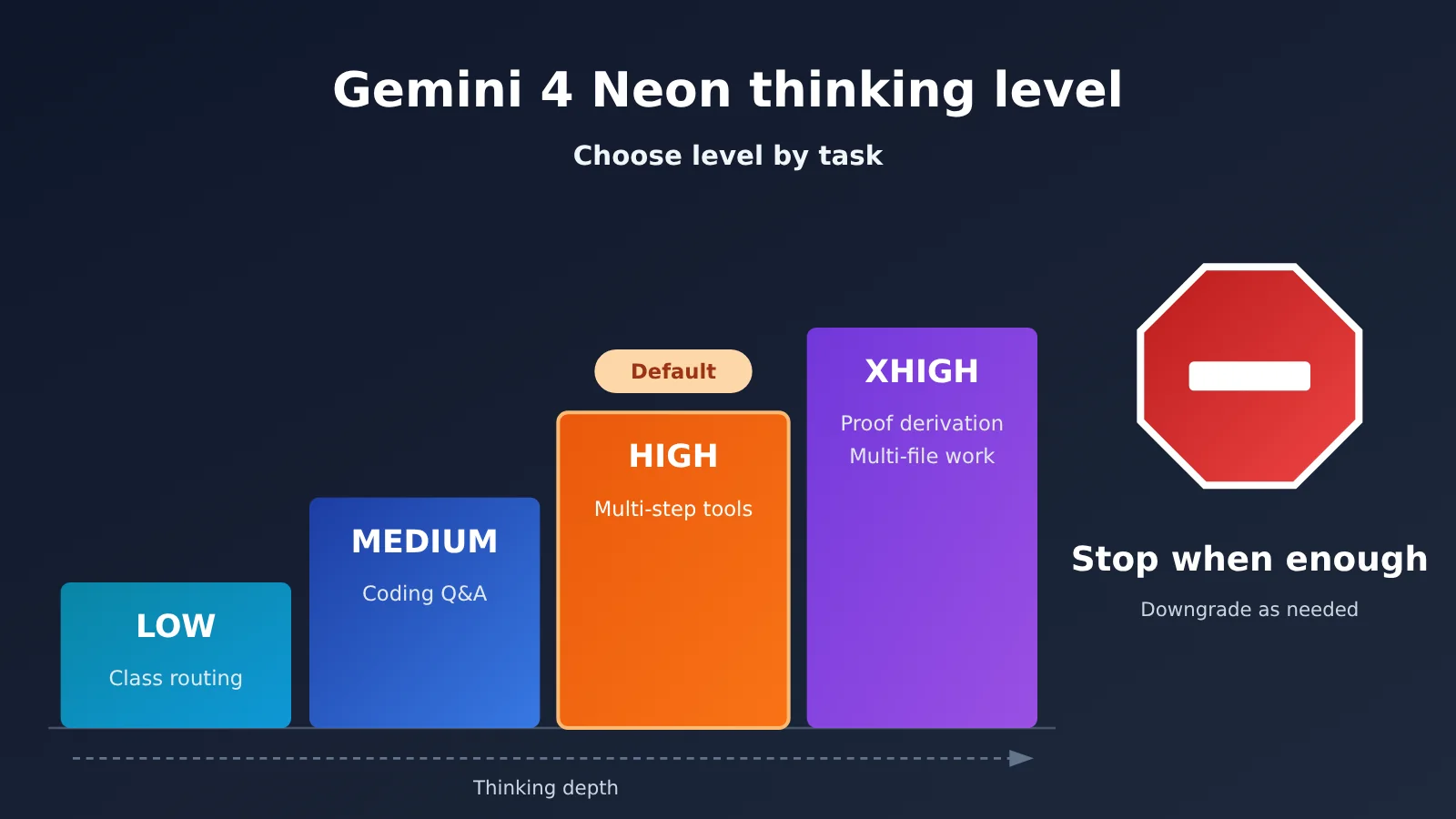
Gemini 4 Neon’s Four Thinking Levels and the Tasks They Match
The official docs spell out the recommended scenarios for each tier. Here they are in a table so you can check them while configuring:
| Thinking level | Officially recommended scenarios | Typical business examples | Selection tip |
|---|---|---|---|
LOW |
High-throughput classification, routing, summarization | Ticket tagging, intent detection, extracting key points from long documents | Prefer this tier for batch jobs |
MEDIUM |
General coding, document Q&A | Writing functions, fixing bugs, answering questions from a knowledge base | Good enough for most everyday dev requests |
HIGH (default) |
Multi-step tool calling, complex multimodal work | Agents calling tools in sequence, mixed text-and-image analysis | This is the tier you get when you pass no parameter |
XHIGH |
Proofs, scientific analysis, the heaviest multi-file engineering | Math derivations, experimental data analysis, refactors spanning many modules | Reserve it for the heaviest tasks only |
Two things to note about this table. First, the default is HIGH, not MEDIUM. In other words, if you write nothing in your code, every classification request will think with the intensity of “multi-step tool calling” — usually a waste for high-throughput scenarios. Second, XHIGH is Neon’s top tier, meant for proofs and the heaviest engineering tasks; running everyday coding requests at XHIGH mostly just buys you longer waits and more output tokens.
Why Gemini 4 Neon Should Stop When It’s “Good Enough”
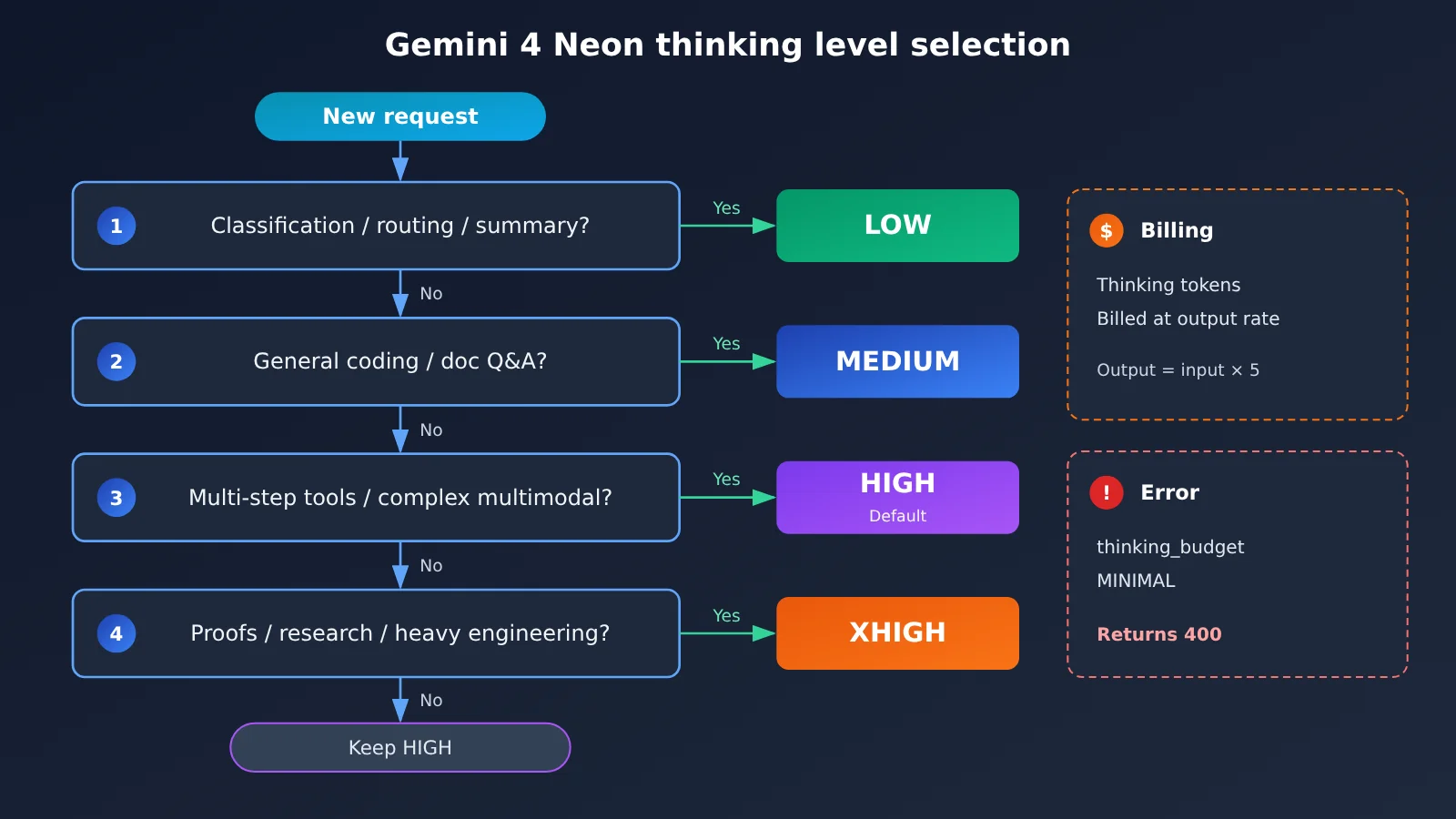
Cost is all about how billing works. Thinking tokens are charged at the output price, and Gemini 4 Neon’s output price is 5x the input price (Google’s published pricing is $3 for input, $0.15 for cached, and $15 for output — all per million tokens). The more thinking, the more of that most expensive token class you use.
How many extra thinking tokens each tier burns depends on the complexity of the task itself. Google doesn’t publish a fixed ratio, and this article won’t give you a “dropping one tier saves you X dollars” number either. The safer approach is to run LOW and the default HIGH against your own business samples, compare the output token usage and answer quality in the responses, then decide whether to drop a tier.
Gemini 4 Neon Thinking Level Quick Start
Minimal Example: Using LOW for Classification
APIYI provides an OpenAI-compatible API. With the official openai Python SDK, you can call Gemini 4 Neon just by changing base_url. Below are the key code steps, each of which you can copy directly:
- Install the SDK:
pip install openai - Create the client:
client = OpenAI(api_key="YOUR_API_KEY", base_url="https://api.apiyi.com/v1") - Specify the model:
model="gemini-4-neon" - Set the thinking level:
reasoning_effort="low" - Send the request:
client.chat.completions.create(model="gemini-4-neon", reasoning_effort="low", messages=[{"role": "user", "content": "判断这条工单属于:账单 / 技术 / 其他。工单内容:……"}]) - Read the result:
resp.choices[0].message.content
A classification task only needs a single label, so the LOW level is enough. If you switch to writing code or answering questions based on documents, just change step 4 to reasoning_effort="medium".
Note that the parameter name depends on the API format you’re using. In the native Gemini API, the thinking level is set in the thinking_level field of thinking_config, with values LOW / MEDIUM / HIGH / XHIGH. In the OpenAI-compatible format, reasoning effort is generally passed via reasoning_effort. For the exact field mapping, refer to the platform documentation. Before going live, it’s a good idea to send one request to confirm that the level actually takes effect.
View the full implementation approach: automatically select the level by task type
In production, a better approach is to have the application code choose the level based on task type, rather than hard-coding a single global value. You can break the implementation into the following steps:
1. Define a mapping table: `LEVEL_MAP = {“classify”: “low”, “route”: “low”, “summary”: “low”, “code”: “medium”, “doc_qa”: “medium”, “agent”: “high”, “multimodal”: “high”, “proof”: “xhigh”, “multi_file”: “xhigh”}`
2. Set a fallback value: `level = LEVEL_MAP.get(task_type, “high”)`. Unknown tasks use the official default HIGH, so quality won’t unexpectedly drop
3. Use a single client: `client = OpenAI(api_key=os.getenv(“APIYI_KEY”), base_url=”https://api.apiyi.com/v1″)`
4. Make the call: `client.chat.completions.create(model=”gemini-4-neon”, reasoning_effort=level, messages=messages)`
5. Log usage: write the output token count from `resp.usage` to the logs together with `task_type` and `level`, so you can track reasoning costs by task type
6. Handle 400 errors: after catching the exception, check whether the request still includes `thinking_budget` or `MINIMAL`. Both of these values return HTTP 400 on Neon
The fallback value in step 2 is important. If the mapping table misses a task type, it’s better to spend a few extra tokens on the default HIGH than to silently drop to LOW and get the answer wrong. Once you’ve accumulated logs for a while, you can lower the level for each category based on the data.
Recommendation: First run a small set of real business samples through LOW, MEDIUM, and the default HIGH, then decide on the production level. Sign up through APIYI at apiyi.com to get free testing credits; with a single API key, you can switch between and compare Neon, Hydrogen, and Carbon.
Gemini 4 Neon vs Carbon and Hydrogen: Thinking Level Comparison
A lot of people get tripped up by assuming the whole Gemini 4 family shares one set of tiers. According to the latest model pages in AI Studio, that’s not how it works:
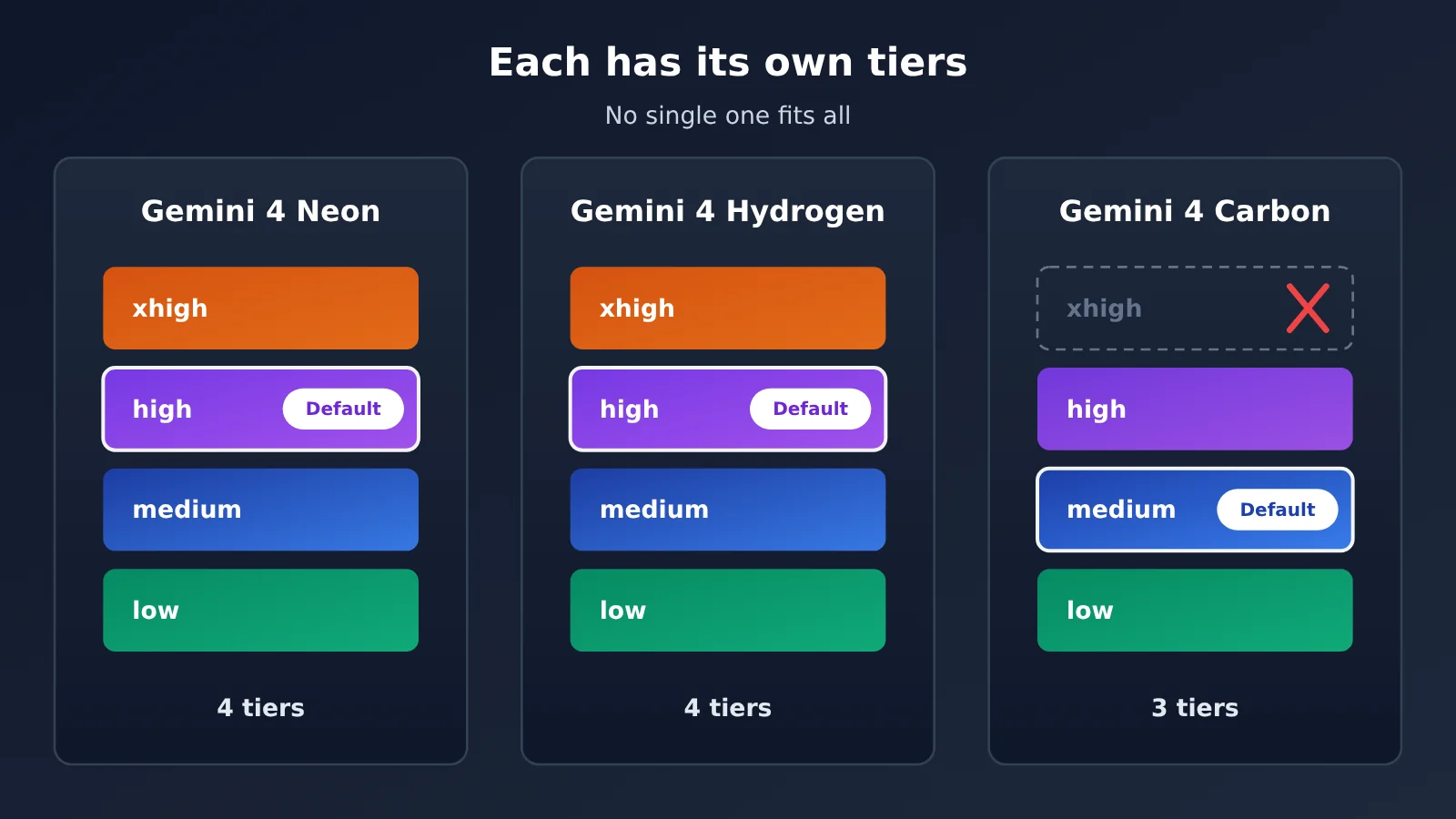
| Model | Thinking level | Default tier | Has xhigh | Available platforms |
|---|---|---|---|---|
| gemini-4-neon | low / medium / high / xhigh | high | Yes | APIYI, Google official |
| gemini-4-hydrogen | low / medium / high / xhigh | high | Yes | APIYI, Google official |
| gemini-4-carbon | low / medium / high | medium | No | APIYI, Google official |
Understanding the tier differences
Carbon comparison: Carbon’s default tier is medium, its top tier is high, and there’s no xhigh. If you take a config written for Carbon (something like “medium by default, switch to high for heavy jobs”) and apply it directly to Neon, then Neon’s “heavy jobs” only reach the middle tier — and the proof-style tasks that genuinely need XHIGH never hit maximum intensity. Conversely, passing Neon’s xhigh to Carbon falls outside the values it supports.
Hydrogen comparison: Hydrogen has four tiers like Neon, and high is also the default, so tier configs can be cross-referenced between the two. But sharing tier names doesn’t mean the same tier has the same thinking depth and cost — you still need to re-evaluate after switching models.
The Antigravity situation: In the Antigravity interface, xhigh shows up as Extra, while the CLI still writes it as xhigh. Its context limit is 512K, whereas the API’s context window is 1,048,576 tokens — these aren’t the same window. So the experience you get in the IDE can’t be used directly to estimate long-context performance for API calls.
A note on comparisons: All three models can be called through the same endpoint,
https://api.apiyi.com/v1— you just change themodelfield. Test each one within its own supported tier range, and don’t copy tier configs across models.
Gemini 4 Neon Pricing and Endpoint Verification
When you’re picking a tier, you’re bound to care about the per-unit price. The table below shows APIYI pricing verified on 2026-11-20, all in USD per million tokens. There are two data sources: the model master table at APIYI apiyi.com, docs.apiyi.com/models.md (updated 2026-11-19 10:59, UTC+8), and the pricing endpoint https://api.apiyi.com/api/pricing (version shell-api-modelmak-v1, where model_ratio of 1 corresponds to input $2 per million tokens).
| Model ID | Input | Cache read | Output | Notes |
|---|---|---|---|---|
gemini-4-neon |
$3 |
$0.15 |
$15 |
Pricing endpoint model_ratio 1.5, completion_ratio 5, cache_ratio 0.05, consistent with Google’s list price |
gemini-4-hydrogen |
$1.5 |
$0.075 |
$7.5 |
Also four tiers, defaults to high |
gemini-4-carbon |
$2 |
$0.1 |
$10 |
Consistent with Google’s introductory pricing through 2026-11-30; starting December 1, Google’s standard price is input $4, output $20 |
One thing to note: gemini-4-neon isn’t listed in this version of the model master table yet, but the pricing endpoint already has an entry for it, and the converted price matches Google’s announcement. When verifying prices, it’s best to treat the pricing endpoint as the source of truth. For Neon, the $15 output price also applies to thinking tokens, so the higher the tier, the bigger the impact of that column.
FAQ
Q1: What are the thinking levels in Gemini 4 Neon?
Thinking levels determine how much internal reasoning the model does before giving its final answer. Neon offers four tiers — LOW, MEDIUM, HIGH, and XHIGH — with HIGH as the default. Tokens generated during thinking are billed at the output price, so the tier affects both answer quality and cost.
Q2: How do the thinking levels in Gemini 4 Neon and Carbon differ?
Carbon only has three tiers — low, medium, and high — with medium as the default and no xhigh. Neon has four tiers, with high as the default. The two systems are set up differently, so you can’t copy configs straight across. Hydrogen’s tiers match Neon’s: four tiers, default high.
Q3: Why does my Gemini 4 Neon request return HTTP 400?
The most common cause is that the request still uses the old `thinking_budget` parameter, or the tier is set to `MINIMAL`. The official docs explicitly state that both of these will return HTTP 400 on Neon. Just switch to one of the tiers from LOW to XHIGH.
Q4: Which tasks suit each thinking level in Gemini 4 Neon?
– **LOW**: high-throughput tasks like ticket classification, request routing, and batch summarization
– **MEDIUM**: everyday coding and document-based Q&A
– **HIGH**: agents with multi-step tool calls, and complex multimodal image-text analysis
– **XHIGH**: math proofs, scientific data analysis, and the heaviest multi-file engineering work
Q5: How do I quickly call Gemini 4 Neon via API and set the thinking level?
1. Sign up at APIYI apiyi.com to get an API key and free test credits
2. Set the SDK’s `base_url` to `https://api.apiyi.com/v1` and `model` to `gemini-4-neon`
3. Pass in the thinking level based on the task type — for example, `low` for classification tasks
The same key can also call Hydrogen and Carbon, which makes it easy to compare results within each tier’s range.
Q6: What are the limitations of setting thinking levels in Gemini 4 Neon?
– **Cost**: thinking tokens are billed at the output rate of `$15`/million tokens, so higher tiers significantly increase output usage
– **Parameters**: `thinking_budget` and `MINIMAL` aren’t supported
– **Context**: the 512K cap in Antigravity and the API’s 1,048,576 aren’t the same window
– **Savings**: the official docs don’t give fixed ratios for token consumption per tier, so you’ll need to measure with your own workload samples
Q7: If I’m not sure about task complexity, which tier should I choose?
Keep the default HIGH and track your output token usage. Once the data shows that quality doesn’t drop for a certain class of tasks under MEDIUM or LOW, you can downgrade that specific class. Setting XHIGH as the default is usually unnecessary.
Gemini 4 Neon Thinking Levels: Key Takeaways
- HIGH is the default: Leave the parameter out, and Neon thinks as hard as it would for multi-step tool calling
- Use LOW for classification and routing: For high-throughput tagging, routing, and summarization work, the official recommendation is LOW
- Save XHIGH for the heaviest jobs: Only for proofs, scientific analysis, and multi-file engineering
- Don’t copy Carbon’s config: Carbon has just three tiers, defaults to medium, and has no xhigh
- Old parameters throw errors:
thinking_budgetandMINIMALreturn HTTP 400 - Thinking is billed as output: The higher the tier, the more of the expensive output tokens you burn
- Test before you commit: Compare tiers for quality and usage with the same key on APIYI apiyi.com
Summary
The core points about Gemini 4 Neon thinking levels:
- Pick the tier per task: LOW for classification, routing, and summarization; MEDIUM for coding and Q&A; HIGH for multi-step tool use and multimodal work; XHIGH only for the heaviest jobs
- Watch out for the default: It’s HIGH out of the box, so high-throughput workloads need to dial it down deliberately
- Tiers don’t carry across models: Neon and Hydrogen have four tiers, Carbon has three—configure each one separately
“Stop when it’s enough” means getting your workload running on the default first, then stepping tiers down class by class based on your output-token logs—rather than maxing out every request from day one. We recommend running a round of LOW, MEDIUM, and HIGH comparisons on APIYI apiyi.com with the free quota, then locking in your production config.
📚 References
-
Google Cloud – Gemini 4 Neon Model Guide: thinking levels, default tiers, error descriptions, and applicable scenarios
- Link:
docs.cloud.google.com/gemini-enterprise-agent-platform/models/guides/gemini-4-neon - Note: Primary source for the four-tier mapping and the HTTP 400 explanation in this article (2026-11-19)
- Link:
-
Google AI Studio Latest Models Page: tiers and default values for Carbon and Hydrogen
- Link:
aistudio.google.com - Note: Used to confirm the tier differences across different Gemini 4 models
- Link:
Author: APIYI Technical Team
Technical Discussion: If you run into problems while configuring Gemini 4 Neon thinking levels, feel free to reach us through the APIYI official website homepage