
Author’s note: A complete breakdown of how Claude makes videos: each frame is a pure function of time, seek(t); a four-step frame-by-frame rendering pipeline using a headless browser and FFmpeg; closed-form springs and beat syncing for smooth motion; and a practical five-step workflow to get started.
If you’ve been browsing Chinese X lately, you’ve probably seen short clips with bouncy text entrances, charts growing to the beat, and slowly rotating 3D objects—all labeled “Made with Claude.” From September to October 2026, making videos with Claude became a popular trend. One of the early sparks was a 13-second animated clip posted by @guanmo_ai (观默).
The creator’s explanation was straightforward: “I had Opus 5.5 write the code line by line and render the clip. I didn’t use any video generation models.” He added in the comments: “Render it with code, then render it frame by frame into a video.”
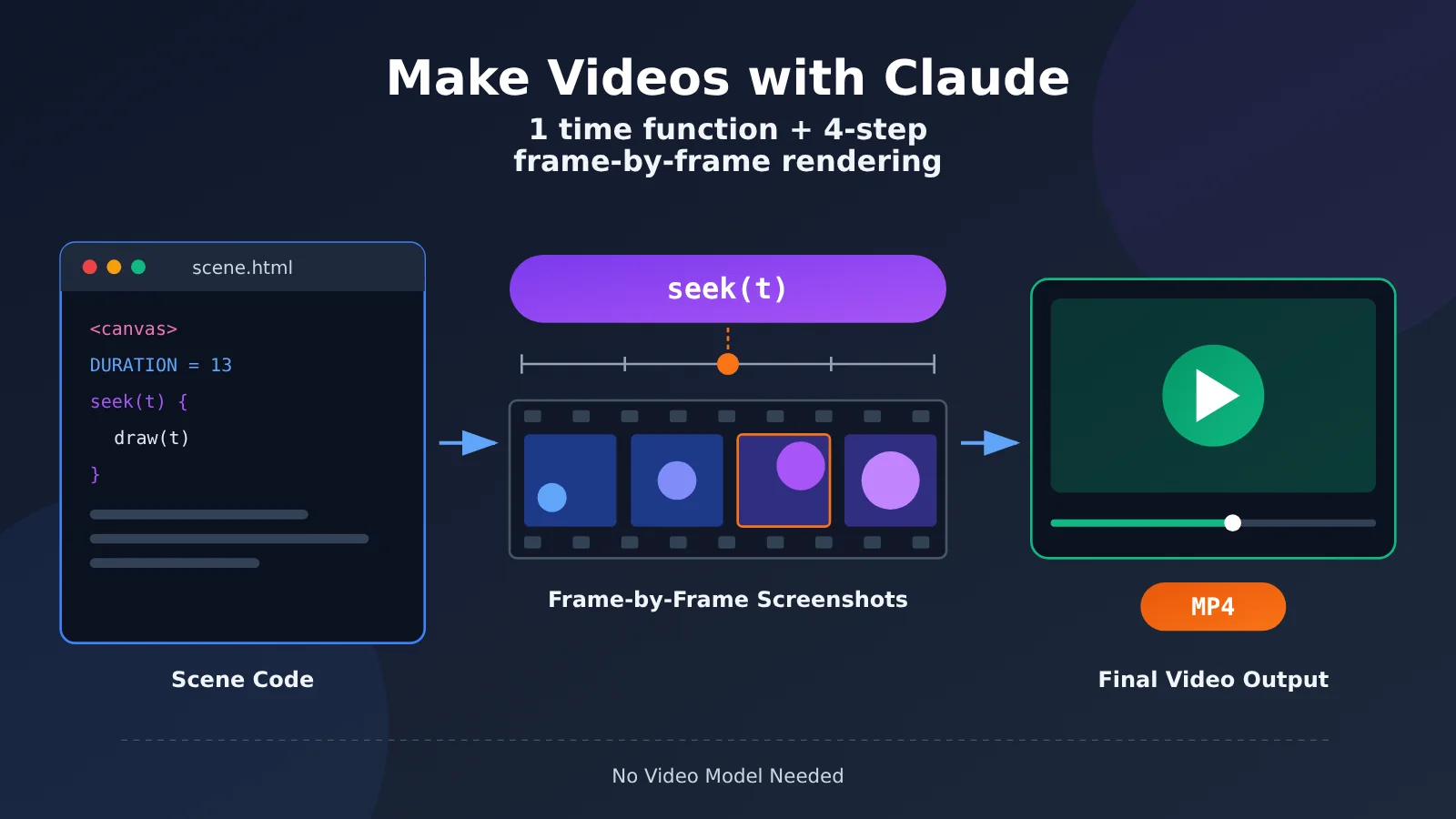
Claude hasn’t secretly launched a video model, and there’s no mysterious plugin involved. The whole process comes down to a single time function and a four-step rendering pipeline. This article breaks down how it works, then walks you through a five-step workflow you can follow yourself. You can use APIYI at apiyi.com to call claude-opus-5-5 on a pay-as-you-go basis for writing the scene code.
What you’ll learn: By the end, you’ll understand why making videos with Claude works, what makes the motion feel smooth, and why shorter prompts tend to work better. You’ll also be able to render your first MP4.
How Claude Makes Videos: No Video Model, So Where Do the Pixels Come From?
The short answer: Claude writes the code; the browser draws the pixels.
Claude Opus 5.5 is a text-only model: it takes text and images as input and outputs only text. The third-party technical blog BeatAPI says Anthropic released claude-opus-5-5 on 2026-09-22, with a 1M context window and support for up to 128K output tokens—but no video model. So when people talk about “videos made by Opus 5.5,” what the model actually produces is a web page. Tell it a point in time, and it can render the animation’s frame at that moment.
Think of Claude as a composer writing sheet music, the browser as the musicians who play it, and ffmpeg as the recording studio. The composer doesn’t produce a single note, but if the score is precise enough, the recording can be a complete piece.
| Comparison | Video generation model | Claude making video (code rendering) |
|---|---|---|
| Model output | Pixel frames directly | HTML/JS scene code |
| Source of pixels | Generated by the model’s neural network | Drawn by the browser using Canvas, SVG, or WebGL |
| Ease of editing | Changing one detail often means regenerating the entire clip | Change one line of code and render again |
| Determinism | The same prompt can produce different results each time | The same code renders identically every time |
| Text and data | Text can look blurry, and numbers can be distorted | Crisp fonts and data rendered precisely in code |
| Best suited for | Real people, live-action looks, natural scenes | Motion graphics, infographics, data animations, logo reveals |
What Is seek(t)? Every Frame Is a Pure Function of Time
Bottom line: Give me any point in time, and I’ll always return the same frame.
Imagine dragging a video player’s timeline to 3.5 seconds. The frame immediately freezes on a specific image, regardless of which seconds you’ve watched before. That’s what “pure function” means: the frame is determined only by time t, not by any previous state.
The scene code exposes just two conventions. They come from BeatAPI’s prompt template and awesomeclaude.ai’s rendering script:
window.DURATION: The total length of the video, in seconds.async window.seek(t): Jump to timetand return only after the frame has been fully rendered.
To uphold this contract, the scene explicitly forbids:
Date.now(): It reads the real wall clock, which won’t match the time shown in the frame.- Incrementing values frame by frame with
requestAnimationFrame: Positions are calculated as “previous frame + increment,” so they become incorrect when frames are skipped. - CSS
transition,setTimeout, andsetInterval: They all depend on real time passing. - Unseeded
Math.random(): Each render produces a different random result, causing flicker.
Why Rendering Must Be Deterministic
Bottom line: Rendering isn’t real-time playback, so frames aren’t “continuous.”
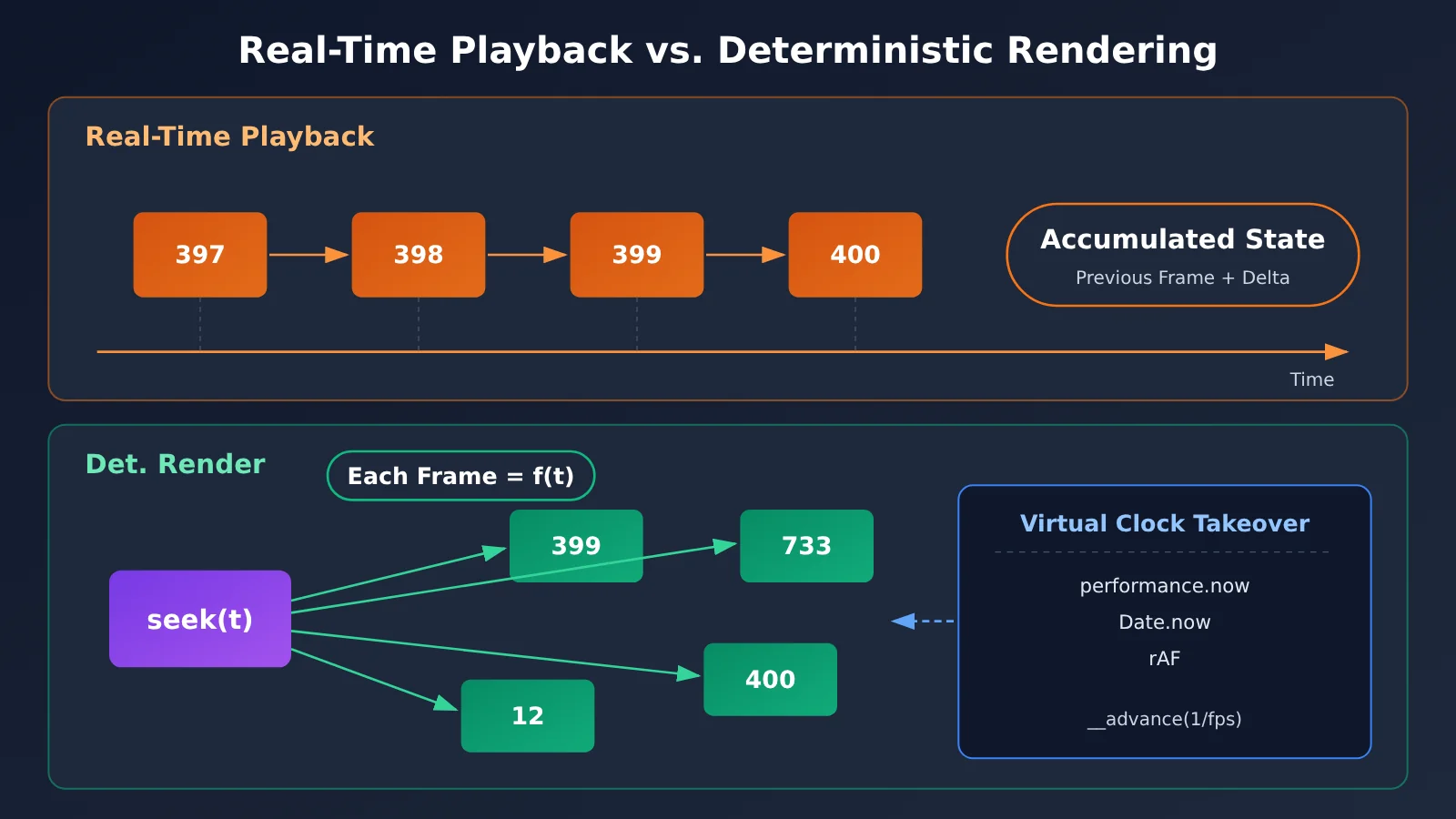
During real-time playback, frame 400 appears right after frame 399. But during offline rendering, frame 400 might not be captured until several seconds after frame 399—or multiple frames might be rendered in parallel. Any state accumulated across frames can make the image jitter or flicker, or produce different results across renders. That’s why positions must be expressed as functions of t, and random numbers must use a fixed seed.
awesomeclaude’s rendering script has another trick that makes this easier: it injects a virtual clock. The clock takes over performance.now, Date.now, requestAnimationFrame, and document.getAnimations(), then calls __advance(1/fps) once per frame to advance time precisely one frame at a time. This lets the script drive rAF loops, GSAP, and CSS animations correctly without changing the scene code.
Claude’s 4-Step Frame-by-Frame Video Rendering: From HTML to MP4
The short version: It’s basically stop-motion animation—the code positions the scene, and a headless browser presses the shutter.
Stop-motion works by setting up a scene, taking a picture, then setting it up again. Claude’s video pipeline works the same way: code positions the scene at time t, the browser takes a picture, and ffmpeg strings hundreds or thousands of pictures together into a video.
| Step | Who does it | What they do | Key details |
|---|---|---|---|
| ① Write the scene | Claude model | Generates a self-contained, single-file HTML document | Expose DURATION and seek(t) |
| ② Sample frames | Playwright headless browser | Seeks to time t, captures a PNG, and repeats until the final frame | Wait for fonts to load before capturing the first frame |
| ③ Encode the video | ffmpeg | Sends PNGs through a pipe and encodes them as H.264 | yuv420p, crf 18, +faststart |
| ④ Add audio | ffmpeg | Mixes in a separate audio track at the end | Don’t record audio from the browser |
In the first step, the model typically writes a single-file HTML document that draws with Canvas 2D, SVG+GSAP, Three.js/WebGL, or a GLSL shader. A single file has no dependencies, so you can open it in any browser.
In the second step, Playwright opens the page, seeks to time t, takes a screenshot, then seeks to the next frame. In the third step, it sends the PNGs frame by frame through a pipe to ffmpeg. These three encoding options are commonly used:
-pix_fmt yuv420p: Compatible with most players and social platforms.-crf 18: A near-visually-lossless quality setting.-movflags +faststart: Moves the index to the start of the file so videos can play while they’re still downloading.
The fourth step adds audio separately. The browser’s audio timeline doesn’t necessarily match the video timeline, so mixing in a separate audio track at the end helps keep edit points and beats in sync.
A typical way to run the rendering script is with a single command: node 渲染脚本.js scene.html out.mp4 6 60 1920 1080. The six parameters, in order, are:
scene.html: The input scene file.out.mp4: The output filename.6: Duration in seconds.60: Frame rate in fps.1920,1080: Frame width and height.
As for speed, awesomeclaude reports that on Linux with Chrome and ffmpeg 7, a 2-second, 30fps video takes about 6 seconds to render, with frame 45 landing exactly at t=1.500. This is a self-reported result, not a benchmark, and performance will vary depending on your machine. Guanmo’s build stage goes a step further: it renders four extra subframes for each frame, then uses ffmpeg’s tmix filter to create motion blur, producing a 60fps video.
Choosing a Tech Stack for Making Videos with Claude
The short version: The library determines how you build it; the style determines whether it looks AI-generated.
awesomeclaude analyzed the tech stacks nominated in 703 published results. It also found that only 38% of prompts explicitly specified a library; for the rest, the model chose one on its own.
| Tech stack | Share | Best for |
|---|---|---|
| Canvas 2D | 38% | Motion graphics, kinetic typography, particles, charts, explainer videos |
| SVG + GSAP | 26% | Logo reveals, UI animations, line drawing |
| Three.js / WebGL | 19% | 3D turntables, moving through space |
| GLSL shader | 13% | Abstract loops, fluid effects |
For videos over a minute long with multiple scenes, frameworks like Remotion and HyperFrames come with built-in frame timing and renderers, making them much easier to work with than a hand-built, single-file HTML page.
Why Claude Makes Smooth Videos: Damped Springs, Beat Sync, Motion Blur, and Self-Checks
Getting a video out is only the first step. Whether it feels smooth—and whether it has that “AI-generated” look—comes down to the following principles of motion.
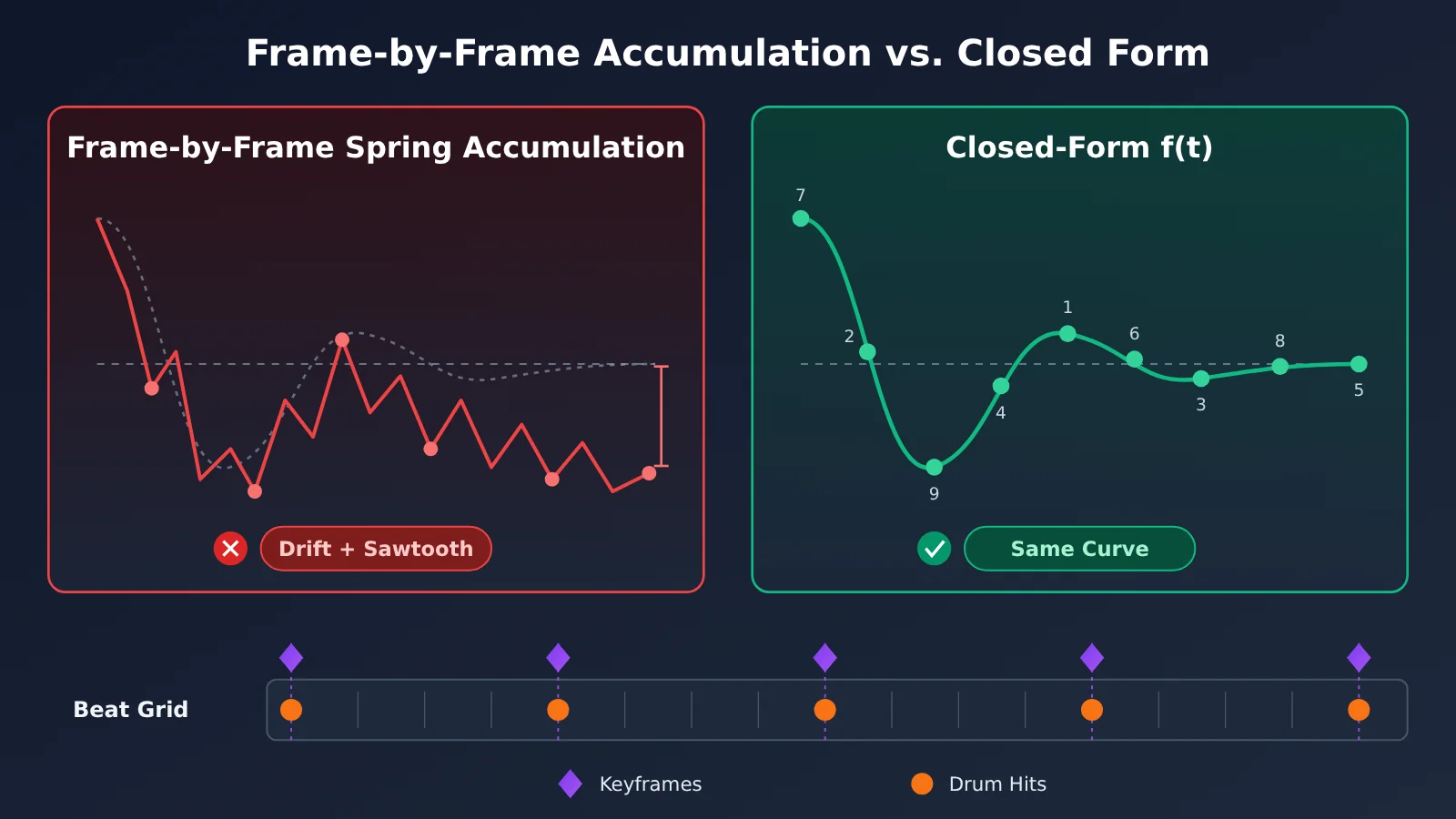
Closed-Form Springs: Calculate Positions with a Formula, Not Step by Step
Bottom line: Calculate the spring’s position directly from t instead of simulating it frame by frame.
In a typical bounce simulation, you add a little to the velocity and a little to the position on every frame, nudging the ball along step by step. A closed-form step response is a single formula: plug in t and it gives you the ball’s position at that moment. If an element gets multiple target changes, just add the individual spring responses together—the result still depends only on t.
The same principle applies to all physical quantities: calculate them in advance or express them analytically. Step-by-step integration can drift when frames are processed out of order, which is the same reason behind the seek(t) contract discussed earlier.
Beat Sync and Motion Blur: The Source of Rhythm and Texture
To sync to the beat, use NumPy to analyze the background music and generate a beat grid. Then align key actions to the beats instead of guessing their durations. Viewers might not be able to explain why it feels right, but when the visuals line up with the drums, the video feels much more “professional.”
Motion blur ties back to the subframe technique mentioned earlier. Fast-moving objects naturally leave trails in real-world photography. Sample several subframes per frame and blend them together, and the result goes from “slideshow-like stuttering” to “cinematic flow.”
Contact Sheet Self-Check: Review Thumbnails Before Rendering the Full Video
In a nutshell: Before rendering the full video, render a thumbnail grid to catch problems early.
A contact sheet is a photography term for arranging multiple small images on one page so you can scan them quickly. Before rendering the full video, render one frame per minute or per beat and combine them into a single image. Then check for overlapping text, empty shots, and pacing that drags.
awesomeclaude summed up six hard-and-fast rules you can use as a checklist:
- Read time; don’t count frames.
- Seed all random numbers.
- Don’t use physics that integrates one tick at a time.
- Run
await document.fonts.readybefore the first frame; otherwise, the opening frames may use a fallback font. - Mix audio with ffmpeg instead of recording it in the browser.
- Set the color space to BT.709, or some players may display the colors incorrectly.
Guanmo also shared three lessons learned the hard way: adding will-change to a layer that gets zoomed by the camera can make text look blurry; when changing text inside a morphing container, set its entrance and exit times separately; and the first and last frames must match exactly, or the video will judder when it loops.
Why Short Prompts Work Better for Making Videos with Claude
The takeaway: Give the model a direction and a list of things to avoid. That brings out its design skills better than piling on parameters.
Guanmo shared the original one-line prompt publicly and said that with Opus 5.5, you don’t need a skill—a single sentence is enough: make a dynamic 15-second motion graphics video that shows what an incredible motion designer you are, like it's your showreel for a résumé. go all out. In other words: “Make a 15-second motion graphics video as a portfolio piece for a job application. Go all out.” In his experience, asking for something “top-tier” and telling the model to “go all out” works better than listing a bunch of detailed parameters.
A review of 496 complete prompts by awesomeclaude found that nearly half were under 200 characters. Only 7% asked the model to check its own frames, but almost all the high-quality results included a self-check.
When you need more control, you can use Guanmo’s six-part structure:
- inputs: Have the model ask questions first, such as how many UI states are needed (8–12), along with the color palette and BPM.
- direction: Set the style and include a list of banned elements.
- structure: Lay out the sequence of states to the beat.
- build: Specify engineering constraints, such as the
seek(t)contract and subframes. - gotchas: Flag common pitfalls.
- start: Have the model provide a beat sheet first, then write the code.
The most valuable thing to include in a prompt is what not to do: particle bursts, lens flares, neon glow, RGB splitting, and bouncy easing are some of the biggest sources of that generic AI look. A general-purpose template should also specify the duration, aspect ratio, resolution, FPS, fact sheet, and audio details. The aspect ratio is the detail people most often forget, which can leave black bars in the final video.
Get Started with Video Creation in Claude: 5 Steps, Time, and Cost
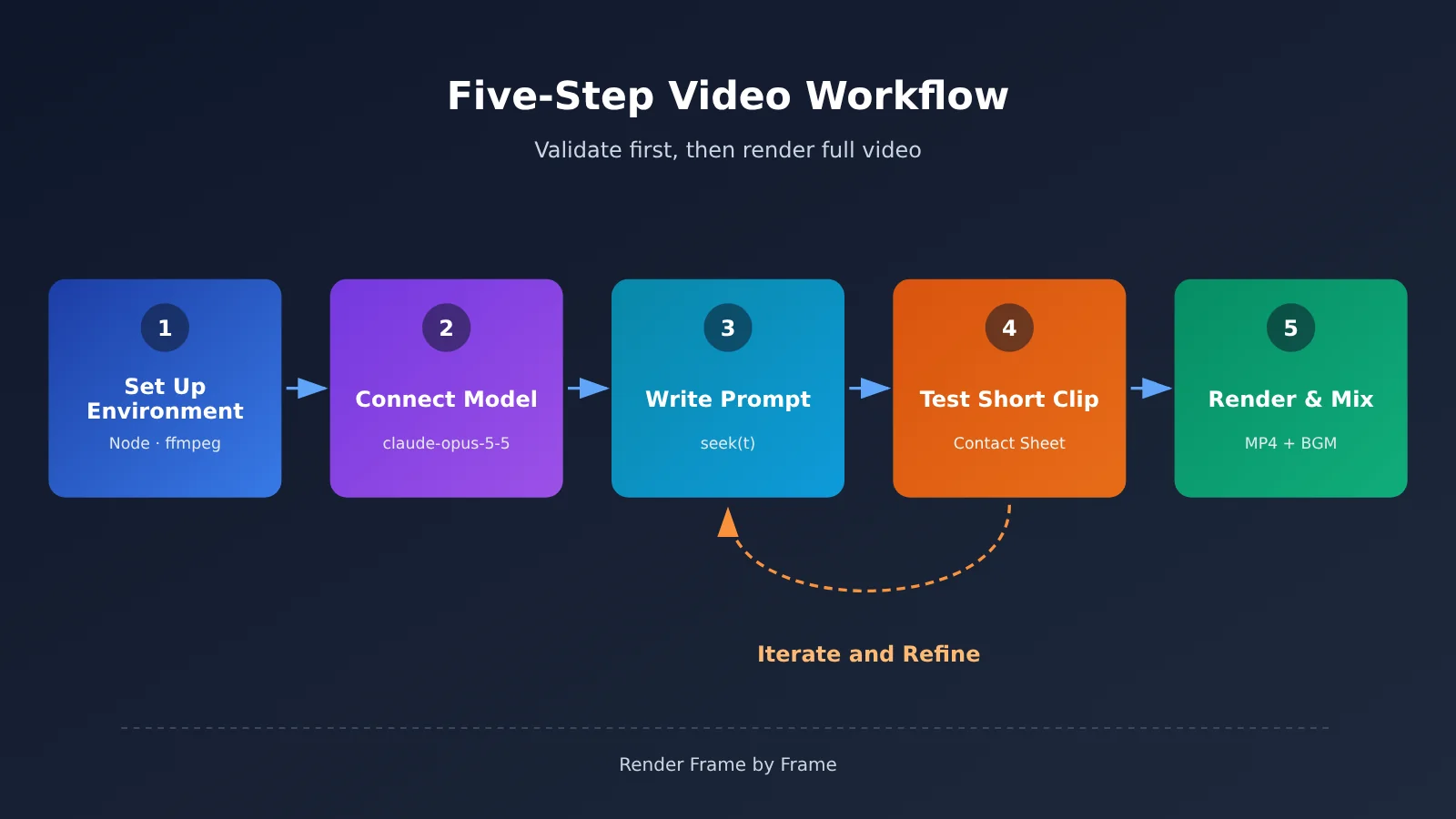
Now that we’ve covered how it works, here’s a workflow you can follow. You won’t need to write any code; commands and configuration values are shown inline.
- Set up your local environment: Install Node.js, Chrome, and ffmpeg. In your terminal, run
npx playwright install chromiumto install the headless browser, then runffmpeg -versionto make sure ffmpeg is available. - Connect to the model: In your OpenAI-compatible client, fill in three fields: set
base_urltohttps://api.apiyi.com/v1, setapi_keyto a key you created in the APIYI console, and setmodeltoclaude-opus-5-5. - Write your prompt: For a quick start, use the portfolio prompt above as-is. For more control, use the six-part format. Be sure to specify the duration, aspect ratio,
1920x1080, and60fps, and ask the scene to exposewindow.DURATIONandwindow.seek(t). - Render a contact sheet and short clip first: Ask the model to create a storyboard and four keyframes, then render a 2–3 second clip to test. Make sure there are no timers, the fonts look right, and the first and last frames match before continuing.
- Render the full video and mix the audio: Run
node 渲染脚本.js scene.html out.mp4 15 60 1920 1080, then use ffmpeg to mix the background music into the final video. Set the audio codec to-c:a aacand add-shortestto keep the audio and video the same length.
If you’re using Claude Code, it can write the scene, run the render script, inspect the contact sheet, and make revisions on its own—then produce an MP4 with an audio track. To keep the visual style consistent, open .claude/skills/SKILL.md in your project and add these lines:
- Set the first line to
name: motion-videoas the skill name. - Set the second line to
description:and explain that it “generates short animations based on seek (t).” - Add style rules on the following lines, such as a Banned list, colors, fonts, and a requirement to
await document.fonts.ready.
After that, you can recreate the same visual style with a single sentence. The claude.ai website is handy for previewing the result directly, but screen recordings can drop frames, are limited to your screen resolution, and can’t mix audio.
Time and Cost Estimates for Making Videos with Claude
The figures below are isolated data points publicly reported by other users. They’re not benchmarks and should only be used as rough estimates.
| Scenario | Time | Cost or Usage | Data Type |
|---|---|---|---|
| One-shot generation of a 15-second video | About 1 minute | About $2 in API costs | User-reported, not a benchmark |
| 5-minute explainer video (including TTS and subtitles) | 26 minutes | Not disclosed | User-reported, not a benchmark |
| 3-minute historical video, about 7,400 lines of code | About 1 hour | Used 7% of the weekly quota | User-reported, not a benchmark |
| Full song rendered at 4K60; rendering time only | About 57 minutes on an M5 Pro | Local rendering, no model costs | User-reported, not a benchmark |
| Public LaunchVideo demo | About 4 minutes | About 90,000 input + 15,000 output tokens | User-reported, not a benchmark |
Based on LaunchVideo’s token usage, the estimated model cost is: 90,000 input tokens ÷ 1 million × $4 = $0.36, and 15,000 output tokens ÷ 1 million × $20 = $0.30, for about $0.66 per video. Actual costs depend on the length of your prompts and the number of revision rounds.
claude-opus-5-5 Pricing
The following prices are from docs.apiyi.com/models, in USD per million tokens, billed by usage. Prices checked on 2026-10-26.
| Model | Type | Input | Output | Cache reads |
|---|---|---|---|---|
| claude-opus-5-5 | Text | $4 | $20 | $0.20 |
| claude-opus-5-5-thinking | Text | $4 | $20 | $0.20 |
Model names and prices are based on the platform’s model list. The console’s current prices are the source of truth. When you repeatedly revise the same scene, long prompts and existing code can be served from cache at a much lower price than standard input.
🚀 Quick start: Try making a five-second clip with the new-user free credits on APIYI (apiyi.com). This lets you test the full workflow—from setting up the environment and writing the prompt to running the render script—before investing in a longer video.
What Claude Can and Can’t Do for Video
Bottom line: If code can render it, Claude can do it. If it requires a camera, it can’t.
Code-based rendering works well for motion graphics, animated text, infographics, data animations, product showcases, logo reveals, and 3D scenes. It doesn’t create live-action footage or lip-sync, so if you need people on camera, real street footage, or cinematic shots, you’ll need to use a separate video generation model or shoot additional footage.
There are two other practical considerations: the model may occasionally add a timer to a scene, and transitions between chapters in a longer video may not come out cleanly. Render a short segment to check the results before rendering the whole video. For explanatory content, verify any numbers yourself—the model may get the facts wrong.
Frequently Asked Questions About Making Videos with Claude
Q1: What does “making videos with Claude” actually mean?
Claude writes a web scene that can be rendered frame by frame at specific timestamps. A headless browser then takes screenshots of each frame, and ffmpeg encodes them into an MP4. The model itself doesn’t generate pixels—the browser renders them all.
Q2: How is making videos with Claude different from using video generation models like Sora?
Video generation models are still ahead when it comes to realistic people and live-action footage, but they have limitations in text clarity, data accuracy, and editability. By contrast, Claude is more reliable for infographics, data animations, and logo animations. You can make precise adjustments by changing a single line of code.
Q3: When did this approach become popular?
It took off on Chinese-language X in September and October 2026. According to BeatAPI, claude-opus-5-5 was released on 2026-09-22. Guanmo later published a collection of examples called awesome-ai-motion. As of 2026-10-26, it included 1,417 indexed works, but the maintainers hadn’t independently reproduced any of them, so treat them as references only.
Q4: What kinds of videos is Claude best suited for?
– **Product promotion**: Feature demos, UI animations, and launch event intros.
– **Educational explainers**: Animated data charts, process breakdowns, and explainer videos.
– **Brand motion graphics**: Logo reveals, kinetic typography, and short social media animations.
– **3D showcases**: Product turntables and fly-throughs.
Q5: How can I use the API to have claude-opus-5-5 write scene code?
1. Sign up at APIYI (apiyi.com) and create an API key.
2. In your client, set `base_url` to APIYI’s OpenAI-compatible endpoint and set the model name to `claude-opus-5-5`.
3. Send a prompt to get a single-file HTML page, then pass it to a local rendering script to create the video.
You can also use the same key to switch between Claude, GPT, Gemini, and other models, making it easy to compare their animations.
Q6: How much does it cost to make a short video?
Based on usage figures reported by others, one LaunchVideo user estimated the model cost at about $0.66 per video, while another reported spending about $2 on a 15-second clip. These aren’t benchmarks, though. It’s best to start with a small pay-as-you-go test on APIYI (apiyi.com), track your actual token usage, and then set a budget.
Q7: Why does my rendered video flicker or jitter?
The most common cause is using `Date.now()`, incrementing values frame by frame, or generating unseeded random numbers in the scene—all of which violate the `seek(t)` contract. Also check whether the first and last frames match and whether the first frame waits for fonts to finish loading.
Key Takeaways for Creating Videos with Claude
Key Takeaways
- Where the pixels come from: Claude writes code; the browser renders the visuals. No video model is needed.
- The core contract: Every frame is a pure function of time,
seek(t), so the visual output is uniquely determined at any point in time. - The four-step pipeline: Write the scene, capture frames in a headless browser, encode them with ffmpeg, then add audio in post.
- The secrets to smooth motion: Closed-form springs, precomputed physics, beat sync, and subframe motion blur.
- Quality assurance: Generate a contact sheet before rendering the full video to catch overlaps, blank frames, and mistimed beats early.
- Prompting strategy: Keep prompts short and directional, focusing on aspect ratio and a list of things to avoid.
- Getting started: Use APIYI at apiyi.com to call claude-opus-5-5 on a pay-as-you-go basis, then render locally.
Summary
At its core, using Claude to make videos means replacing “generating visuals” with “generating code that can draw visuals.” As long as you stick to seek(t) as the time function and pair it with a headless browser and the four-step ffmpeg pipeline, a text-only model can reliably produce reproducible, editable motion graphics. Its limitations are clear, too: it’s good at motion graphics and infographics, but not at live-action footage or lip-syncing.
We recommend starting with a 5- to 15-second clip. Get the pipeline working first, then gradually add beat sync and self-checks. For writing the scene code, we recommend calling claude-opus-5-5 through APIYI at apiyi.com. It’s pay-as-you-go, and new users get free credits to test it out.
References for Creating Videos with Claude
- Guanmo’s original short video and creator’s notes: The starting point for this approach
- Link:
x.com/guanmo_ai/status/2109941504827654305 -
Details: The original 13-second motion graphics clip; the creator’s notes are at
x.com/guanmo_ai/status/2104141508081525184 -
awesome-ai-motion case library: An index of works rendered with Opus 5.5 code
- Link:
github.com/guanmo-ai/awesome-ai-motion -
Details: A useful style reference; the examples haven’t been independently reproduced
-
awesomeclaude Claude Video guide: Rendering scripts and six hard rules
- Link:
awesomeclaude.ai/claude-video -
Details: Source for the virtual clock approach and technology stack statistics
-
APIYI model list: Pricing and model categories for claude-opus-5-5
- Link:
docs.apiyi.com/models - Details: Refer to this page for the latest model names and pricing
Author: APIYI Technical Team
Technical inquiries: Contact us through the APIYI homepage. For more integration guides, visit the documentation center at docs.apiyi.com.