Author's Note: A comprehensive guide on how to enable Claude 4.6 Fast Mode, its pricing strategy, and the differences from the Effort parameter, helping you make the best choice between speed and cost.
When Claude Opus 4.6 was released, it arrived alongside Fast Mode, a research preview feature that can boost output speed by up to 2.5x. Many developers get confused when they first hear about Fast Mode: Is it the same as the Effort parameter? Does model intelligence drop when it's on? Is it worth the 6x price tag?
Core Value: By the end of this article, you'll fully understand how Claude 4.6 Fast Mode works, master 3 ways to enable it, and learn how to strike the perfect balance between speed, quality, and cost.
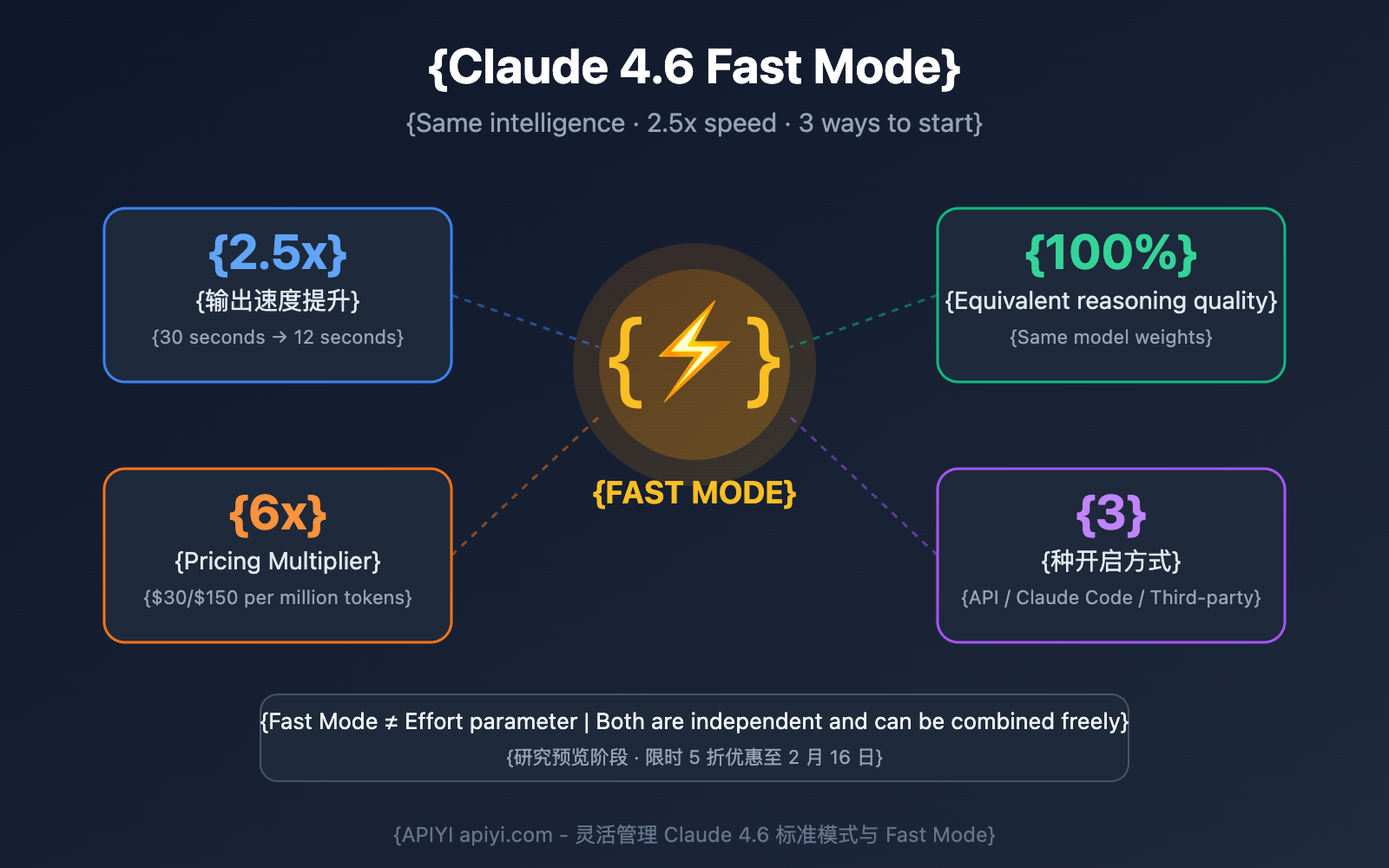
What is Claude 4.6 Fast Mode?
Fast Mode is an inference acceleration feature (currently in research preview) launched by Anthropic for Claude Opus 4.6. Its core mechanism is simple: it uses the same Opus 4.6 model weights but optimizes the backend inference configuration to speed up token output.
In a nutshell: Fast Mode = Same brain + Faster mouth.
| Dimension | Standard Mode | Fast Mode |
|---|---|---|
| Model Weights | Opus 4.6 | Opus 4.6 (Identical) |
| Output Speed | Baseline | Up to 2.5x |
| Reasoning Quality | Full Capability | Identical |
| Context Window | Up to 1M | Up to 1M |
| Max Output | 128K tokens | 128K tokens |
| Pricing | $5 / $25 per M tokens | $30 / $150 per M tokens (6x) |
Difference Between Claude 4.6 Fast Mode and the Effort Parameter
These are the two most easily confused concepts. Fast Mode and the Effort parameter are two completely independent control dimensions:
| Control Dimension | Fast Mode (speed: "fast") |
Effort Parameter (effort: "low/high") |
|---|---|---|
| What it changes | Inference engine output speed | How many tokens the model spends "thinking" |
| Affects quality? | ❌ No, quality is identical | ✅ Low effort might reduce quality for complex tasks |
| Affects cost? | ⬆️ 6x price | ⬇️ Low effort saves token consumption |
| Affects speed? | ⬆️ Output speed increases by 2.5x | ⬆️ Low effort reduces thinking time |
| API Status | Research Preview (requires beta header) | General Availability (GA) |
💡 Key Takeaway: You can use both simultaneously. For example, Fast Mode + Low Effort = Maximum speed (great for simple tasks); Fast Mode + High Effort = High-quality, rapid output (perfect for complex but urgent tasks).
3 Ways to Enable Claude 4.6 Fast Mode
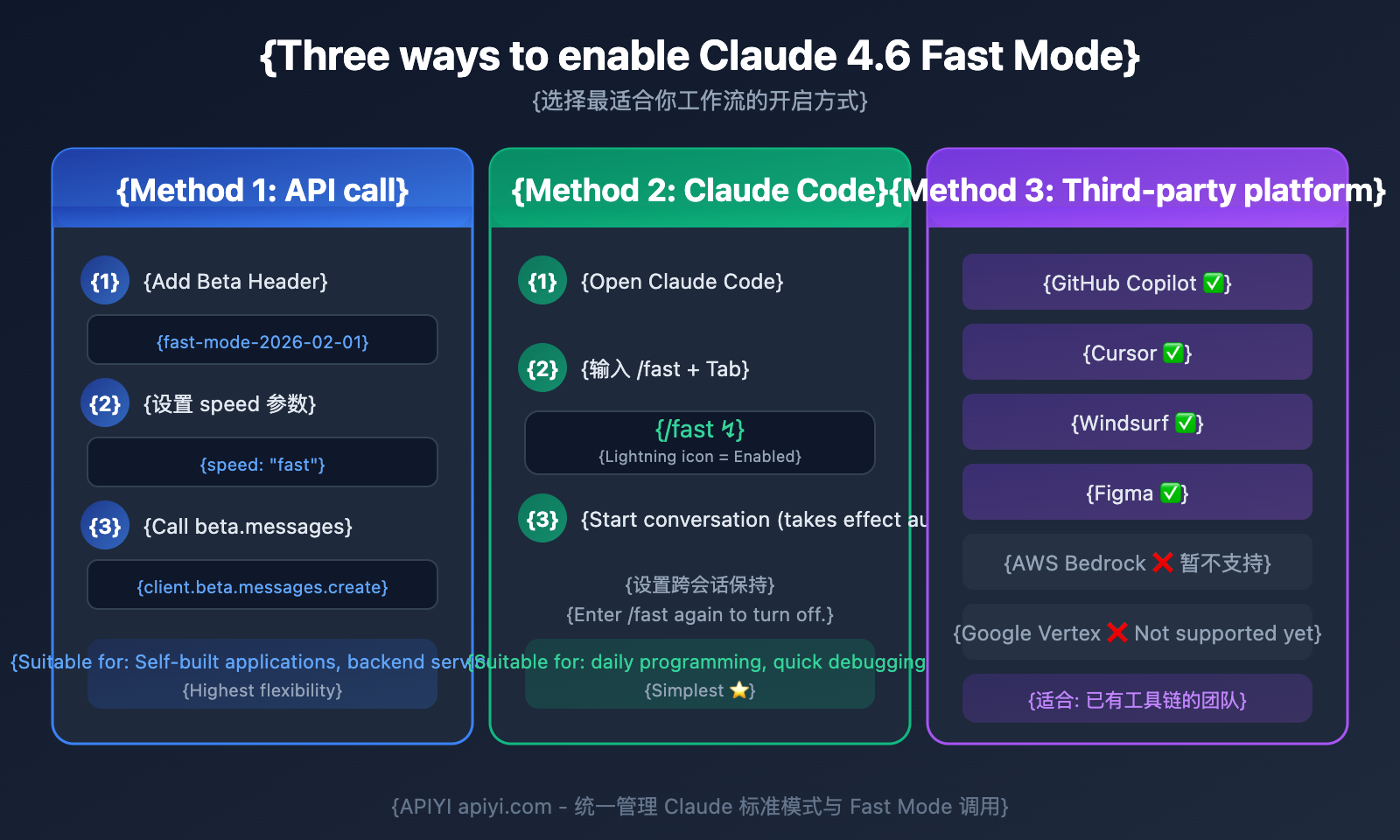
Method 1: Call Claude Fast Mode Directly via API
You'll need to add the beta header fast-mode-2026-02-01 and the speed: "fast" parameter:
import anthropic

client = anthropic.Anthropic(api_key="YOUR_API_KEY")
# Calling via APIYI is just as convenient
# client = anthropic.Anthropic(api_key="YOUR_KEY", base_url="https://vip.apiyi.com/v1")

response = client.beta.messages.create(
    model="claude-opus-4-6",
    max_tokens=4096,
    speed="fast",
    betas=["fast-mode-2026-02-01"],
    messages=[{"role": "user", "content": "Quickly analyze the issues in this code snippet"}]
)
print(response.content[0].text)
View cURL Example
curl https://api.anthropic.com/v1/messages \
    --header "x-api-key: $ANTHROPIC_API_KEY" \
    --header "anthropic-version: 2023-06-01" \
    --header "anthropic-beta: fast-mode-2026-02-01" \
    --header "content-type: application/json" \
    --data '{
        "model": "claude-opus-4-6",
        "max_tokens": 4096,
        "speed": "fast",
        "messages": [
            {"role": "user", "content": "your prompt"}
        ]
    }'
Method 2: Enable Fast Mode in Claude Code
Claude Code (CLI and VS Code extension) offers the simplest way to turn it on:
Enable via CLI command:
# Enter this in a Claude Code conversation
/fast
# Just hit Tab to toggle it
Once enabled, a lightning bolt icon (↯) will appear next to the prompt, indicating Fast Mode is active. This setting persists across sessions, so you don't have to re-enable it every time.
Enable via config file:
// Add this to your Claude Code user settings
{
  "fastMode": true
}
Method 3: Use Claude Fast Mode via Third-Party Platforms
Third-party platforms that currently support Fast Mode:
| Platform | Support Status | Description |
|---|---|---|
| GitHub Copilot | ✅ Public Preview (since Feb 7) | Select in Copilot settings |
| Cursor | ✅ Supported | Fast Mode pricing applies |
| Windsurf | ✅ Supported | Enable within the editor |
| Figma | ✅ Supported | Design tool integration |
| Amazon Bedrock | ❌ Not yet supported | May follow later |
| Google Vertex AI | ❌ Not yet supported | May follow later |
Tip: Using the APIYI (apiyi.com) platform allows you to flexibly switch between standard and Fast Mode, making it easy to manage calls and billing for multiple models in one place.
Claude 4.6 Fast Mode Pricing Breakdown
Fast Mode pricing is 6x that of standard Opus 4.6. Here is the full price comparison:
| Pricing Tier | Standard Mode Input | Standard Mode Output | Fast Mode Input | Fast Mode Output |
|---|---|---|---|---|
| ≤200K Context | $5 / MTok | $25 / MTok | $30 / MTok | $150 / MTok |
| >200K Context | $10 / MTok | $37.50 / MTok | $60 / MTok | $225 / MTok |
| Batch API | $2.50 / MTok | $12.50 / MTok | — Not supported | — Not supported |
Claude Fast Mode Cost Calculation Example
Let's look at a typical coding conversation: 2,000 input tokens and 1,000 output tokens:
| Mode | Input Cost | Output Cost | Total Cost (Single) | Total Cost (100 runs) |
|---|---|---|---|---|
| Standard Mode | $0.01 | $0.025 | $0.035 | $3.50 |
| Fast Mode | $0.06 | $0.15 | $0.21 | $21.00 |
| Difference | — | — | +$0.175 | +$17.50 |
Claude Fast Mode Cost-Saving Tips
- Limited-Time Offer: Until February 16, 2026, Fast Mode is 50% off (effectively 3x standard pricing).
- Toggle as Needed: Only turn it on when you need fast interaction, and switch it off as soon as you're done.
- Pair with Low Effort: Using Fast Mode +
effort: "low"can reduce thinking tokens, partially offsetting the price increase. - Avoid Cache Invalidation: Switching to Fast Mode will invalidate your Prompt Cache; frequent switching can actually increase your costs.
💰 Cost Tip: If your use case isn't sensitive to speed, we recommend using Standard Mode combined with the Effort parameter. You can manage your calling modes and budget more flexibly through the APIYI (apiyi.com) platform.
Claude 4.6 Effort Parameter Guide
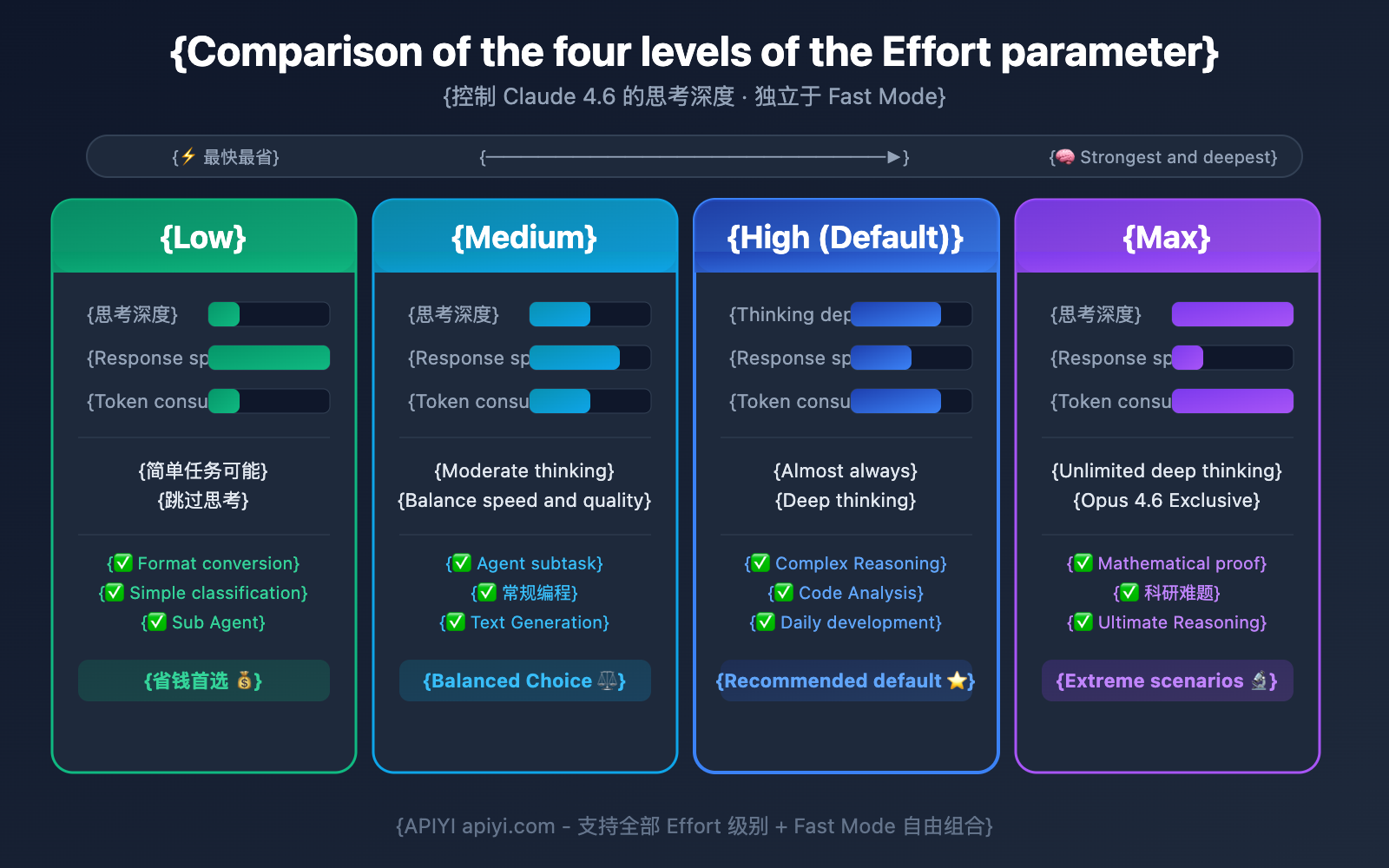
The Effort parameter is now an official GA feature for Claude 4.6 (no beta header required). It controls how many tokens the model spends "thinking":
Deep Dive into the 4 Effort Levels
import anthropic

client = anthropic.Anthropic(api_key="YOUR_API_KEY")

# 低 Effort - 简单任务,最快最省
response = client.messages.create(
    model="claude-opus-4-6",
    max_tokens=4096,
    output_config={"effort": "low"},
    messages=[{"role": "user", "content": "JSON格式化这段数据"}]
)

# 高 Effort - 复杂推理(默认值)
response = client.messages.create(
    model="claude-opus-4-6",
    max_tokens=4096,
    output_config={"effort": "high"},
    messages=[{"role": "user", "content": "分析这个算法的时间复杂度并优化"}]
)
| Effort Level | Thinking Behavior | Speed | Token Consumption | Recommended Scenarios |
|---|---|---|---|---|
low |
Skips thinking for simple tasks | ⚡⚡⚡ Fastest | Minimum | Format conversion, classification, simple Q&A |
medium |
Moderate thinking | ⚡⚡ Faster | Moderate | Agent sub-tasks, routine coding |
high (default) |
Almost always deep thinking | ⚡ Standard | High | Complex reasoning, difficult problem analysis |
max |
Unrestricted deep thinking | 🐢 Slowest | Maximum | Mathematical proofs, scientific research |
Fast Mode + Effort Combination Strategy
| Combination | Speed | Quality | Cost | Best Scenario |
|---|---|---|---|---|
| Fast + Low | ⚡⚡⚡⚡⚡ | Average | High | Real-time chat, quick classification |
| Fast + Medium | ⚡⚡⚡⚡ | Good | Very High | Urgent coding, quick debugging |
| Fast + High | ⚡⚡⚡ | Excellent | Very High | Complex but urgent tasks |
| Standard + Low | ⚡⚡⚡ | Average | Lowest | Batch processing, sub-Agents |
| Standard + High | ⚡ | Excellent | Standard | Daily development (Recommended default) |
| Standard + Max | 🐢 | Top-tier | Higher | Scientific research, math proofs |
🎯 Final Recommendations: Most developers will find that Standard + High (the default) meets their needs perfectly. Fast Mode really proves its value during interactive coding sessions where you're frequently waiting for responses. We suggest testing these combinations on the APIYI (apiyi.com) platform to see which works best for your specific workflow.
Common Misconceptions About Claude 4.6 Fast Mode
Misconception 1: Fast Mode reduces the model's intelligence
False. Fast Mode uses the exact same Opus 4.6 model weights; it's not a "lite" or stripped-down version. All benchmark scores are identical. It simply optimizes the output speed configuration of the backend inference engine.
Misconception 2: Fast Mode equals Low Effort
False. These are two completely independent control dimensions:
- Fast Mode changes output speed (doesn't affect quality).
- Effort changes thinking depth (affects quality and token consumption).
Misconception 3: Fast Mode is suitable for all scenarios
False. The 6x price tag means Fast Mode is only intended for interactive, latency-sensitive scenarios. For non-interactive tasks like batch processing or automated pipelines, you should use Standard Mode or even the Batch API (which offers a 50% discount).
Misconception 4: The first response will also be faster with Fast Mode enabled
Partially False. Fast Mode primarily boosts the Output Token Generation Speed (OTPS), but its optimization for Time To First Token (TTFT) is limited. If your main bottleneck is waiting for that very first token to appear, Fast Mode might not help as much as you'd expect.
When to Use Claude 4.6 Fast Mode: A Quick Guide
5 Scenarios where Fast Mode is recommended
- Real-time pair programming: Frequent back-and-forth dialogue where waiting 12 seconds instead of 30 makes a huge difference.
- Live debugging sessions: Quickly locating and fixing bugs on the fly.
- High-frequency iterative development: When you're doing more than 15 interactions per hour.
- Time-sensitive tasks: When deadlines are tight and you need results immediately.
- Real-time brainstorming: Creative sessions where you need instant feedback to keep the momentum going.
4 Scenarios where Fast Mode isn't recommended
- Automated background tasks: If you aren't sitting there waiting for the result, the extra speed is a waste of money.
- Batch data processing: Using the Batch API can save you 50% on costs.
- CI/CD pipelines: Non-interactive environments don't need a speed boost.
- Budget-sensitive projects: The 6x cost multiplier can quickly blow through your budget.
FAQ
Q1: Can I use Claude 4.6 Fast Mode and the Effort parameter at the same time?
Absolutely, they're completely independent. You can set speed: "fast" while specifying effort: "medium" to get that sweet spot of fast output plus a bit of reasoning. Just pass both parameters in your API call, and you're good to go.
Q2: Is there a discount period for the 6x Fast Mode pricing?
Yes! Through February 16, 2026, Fast Mode is 50% off, making it 3x the standard price instead of 6x. It's a great time to run some tests via APIYI (apiyi.com) to see how much it actually boosts your workflow.
Q3: How do I quickly toggle Fast Mode in Claude Code?
Just type /fast and hit Tab in Claude Code to toggle it. You'll see a lightning bolt icon (↯) once it's on. The best part? The setting persists across sessions, so you don't have to re-enter it every time.
Summary
Here are the key takeaways for Claude 4.6 Fast Mode:
- It's all about speed: Fast Mode uses the exact same Opus 4.6 model. You get up to 2.5x faster output with zero compromise on quality.
- Independent of Effort: Fast Mode handles speed, while Effort handles the depth of thought. You can mix and match them however you like.
- 6x Pricing: It's designed for interactive, latency-sensitive scenarios. For non-interactive tasks, you're better off sticking with Standard mode or using the Batch API.
- 3 Ways to Enable: Via API calls (
speed: "fast"+ beta header), Claude Code (/fast), or third-party platforms.
For most developers, the "sweet spot" is usually Standard + High Effort. You'll likely only need Fast Mode during those intense, interactive coding sessions.
We recommend using APIYI (apiyi.com) to flexibly manage your Claude 4.6 calls. The platform offers free credits and a unified interface, making it super easy to test different combinations of Fast Mode and Effort parameters.
📚 References
⚠️ Link Format Note: All external links use the
Resource Name: domain.comformat. This makes them easy to copy while preventing SEO juice leakage (non-clickable).
-
Anthropic Fast Mode Official Documentation: Fast Mode API parameters and usage instructions
- Link:
platform.claude.com/docs/en/build-with-claude/fast-mode - Description: Official API docs, including code samples and pricing details.
- Link:
-
Claude Code Fast Mode Documentation: Using Fast Mode within Claude Code
- Link:
code.claude.com/docs/en/fast-mode - Description: Operation guide for Fast Mode in Claude Code CLI and VS Code.
- Link:
-
Anthropic Effort Parameter Documentation: Full technical documentation for the Effort parameter
- Link:
platform.claude.com/docs/en/build-with-claude/effort - Description: Detailed explanation and usage recommendations for the 4 Effort levels.
- Link:
-
Claude Opus 4.6 Release Announcement: Official release notes
- Link:
anthropic.com/news/claude-opus-4-6 - Description: Official introduction to Fast Mode and other new features.
- Link:
Author: APIYI Team
Tech Talk: Feel free to discuss your experience with Claude 4.6 Fast Mode in the comments. For more resources, visit the APIYI apiyi.com tech community.