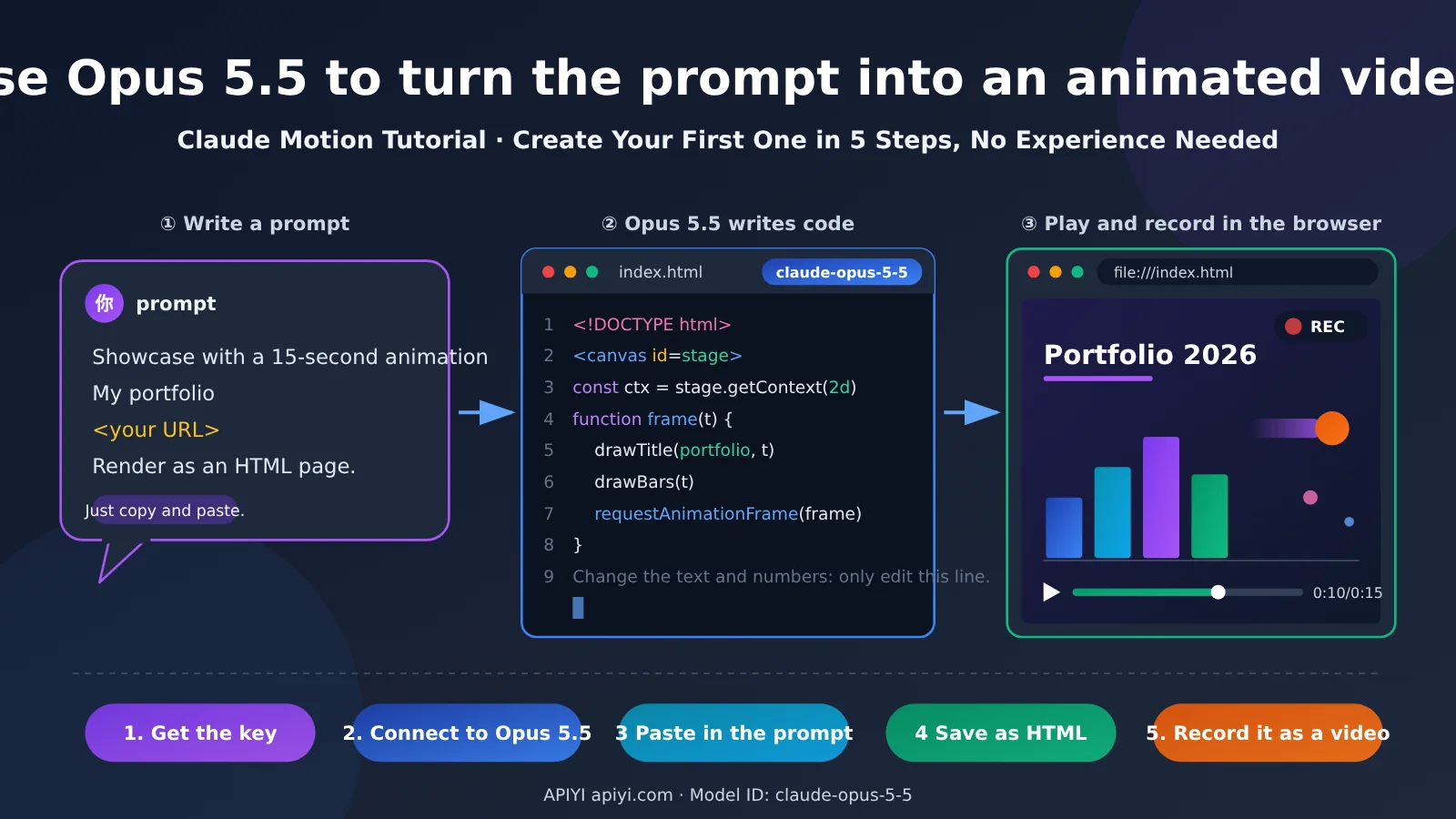
To turn a sentence into a short animated clip you can play, many people start by looking for a video model. A community technique called “Claude Motion” takes a different route: Claude Opus 5.5 writes a bit of web code, the browser renders the animation, and you record what you see as a video.
This isn’t a magic trick that always works in minutes, and you don’t need to know how to code. This guide uses graphical interfaces throughout, such as web pages and browser consoles. Before each step, you’ll learn what to expect, what to click or paste, and how to tell whether it worked.
Before you get started, here’s what to expect:
- Goal: Create your first animation that plays automatically in a browser, then record it as a video.
- Time: Your first attempt will probably take about 30–60 minutes. Most of that time goes toward getting an API key, connecting the model, and making your first round of edits.
- What you’ll need: A computer with internet access, a browser, a chat client that lets you enter a custom API key, and a key that can call Opus 5.5. Opus 5.5 is already available through APIYI at apiyi.com using the model ID
claude-opus-5-5. - Difficulty: Beginner-friendly. If you can copy and paste, create a file, and rename it, you’re all set.
What you’ll get out of this: By the end, you’ll be able to follow the steps to create your first animation, know which prompts you can reuse, and know where to keep using Opus 5.5.
Claude Motion: Key Takeaways
- What it is: “Claude Motion” is a community term, not a standalone video product officially released by Anthropic. The idea is to have Opus 5.5 create animations with code.
- How it differs from video models: It doesn’t generate image pixels, so changing text or numbers is easy—but it can’t create real human faces or live-action footage.
- The repository’s workflow has just three steps: Copy a prompt, give it to Opus 5.5, and have it render the result as HTML. If you need a video, record the page.
- Ready-made examples: The awesome-opus5-5-videos repository contains 703 works, including about 115 prompts in Chinese.
- A good first project: Try melvynx’s “15-second portfolio” prompt format. Just replace the text in angle brackets with your own website or product name.
- Where to use it: Call claude-opus-5-5 through APIYI. One API key is all you need, and usage is billed by token.
The facts in this article come from just three types of sources: the repository itself (its README and data/videos.json, with data current as of 2026-10-20; this article hasn’t independently tested them), numbers visible in screenshots, and prices listed in APIYI’s documentation. The article doesn’t include figures that aren’t found in one of these sources.
What Is Claude Motion? Opus 5.5 Writes the Code, the Browser Draws the Animation
“Claude Motion” is a community term for using Claude Opus 5.5 to create animations with code—HTML, Canvas, SVG, Three.js, and more—and then recording them as video. The repository that collects these works puts it plainly in its README: “Every video here was made by asking Claude Opus 5.5 to write the animation as code (HTML, Canvas, SVG, Three.js and friends).”
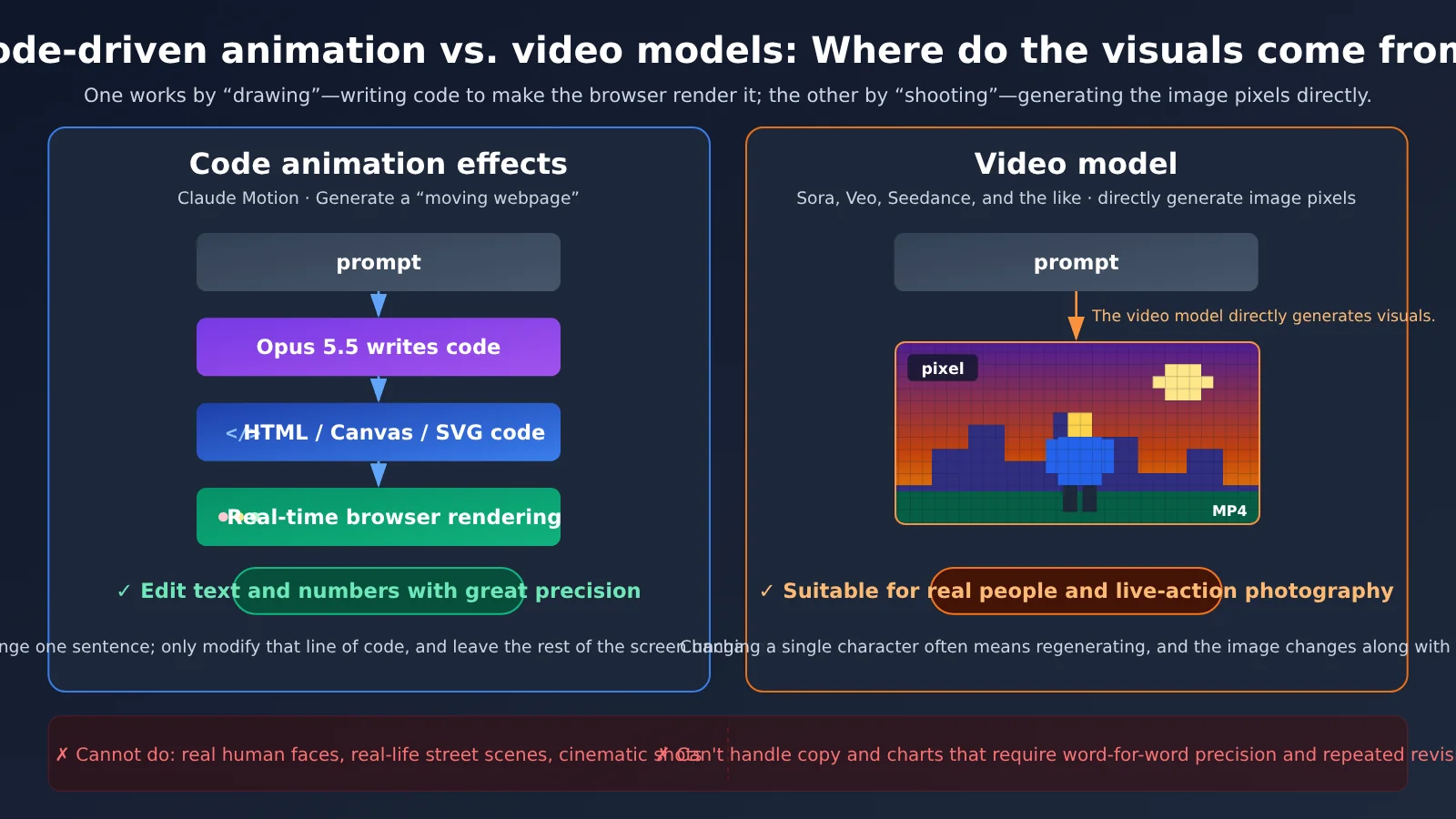
That makes it different from video models like Sora, Veo, and Seedance. Video models generate image pixels directly; Claude Motion generates a “webpage that moves.” Every word and number in the animation is written in code, so you can ask the model to change just the part you want.
| Comparison | Claude Motion (code-based animation) | Video models (such as Sora, Veo, and Seedance) |
|---|---|---|
| How the visuals are made | Opus 5.5 writes code, which the browser renders in real time | The model generates image pixels directly |
| Best for | Text, charts, graphics, product introductions, and explainers | Real people, live-action visuals, and cinematic shots |
| Changing one word | Ask it to edit that line of code while leaving everything else unchanged | Often requires regenerating the video, which may change other parts of the scene |
| What you get | An HTML file; you need to record the screen to get a video | A video file |
| Model needed | A coding-capable Large Language Model, such as claude-opus-5-5 | A dedicated video generation model |
| What it can’t do | Real human faces, live-action street scenes, or cinematic shots | Text that’s precisely controlled, or copy and charts that need repeated revisions |
When to Use Claude Motion—and When to Switch to a Video Model
Start by thinking about the kind of visuals you need. If you want real people on camera, footage shot on the street, or cinematic shots, Claude Motion isn’t the right tool—use a model designed specifically for video generation. But if you just need to change a line of text or a number on screen, make a product intro, or explain a concept clearly, Claude Motion is a good fit.
For this kind of work, you need a coding-capable model like Opus 5.5, not a video model. You can call claude-opus-5-5 directly through APIYI (apiyi.com) with a single API key, and pay based on the tokens you actually use.
How Many Ready-to-Use Prompts Are in the Claude Motion Repository?
As of 2026-10-20, the repository’s data/videos.json contains 703 entries: 369 motion pieces, 116 explainers, 117 3D pieces, and 101 interactive works. The README says another batch was added on 2026-10-12, mainly explainers and 3D works. Of the entries, 418 have a corresponding remake on Skillry, while 207 prompts are marked as incomplete. Check the notes in each file before using them.
Among the technical tags, Canvas appears 267 times, SVG 183 times, Three.js 131 times, shader 92 times, GSAP 86 times, CSS 57 times, and audio 39 times. These are just tag counts. They show which tools the model often uses, not what you need to know. The repository has about 115 prompts in Chinese, so writing your prompts in Chinese is perfectly fine. Each video and prompt belongs to its original creator.
Before You Start: Check These 6 Opus 5.5 Settings in the APIYI Console
This section has one goal: get an API key that can call Opus 5.5, and make sure a few key settings are correct. You don’t need to install anything.
- What you’ll see: After signing up for an APIYI account at apiyi.com, go to the console at api.apiyi.com. It’s a web-based console where you can create tokens and review logs for each call.
- What to click: Find the token creation page and create a new token. Choose one of the groups the documentation lists as supported:
default,svip, orClaudeCode. Then copy the full key and save it in a text editor for now. - How to tell you’re done: The new key appears in the token list, and the full key is saved in your text editor.
| Setting to check | What you should see | Why check it |
|---|---|---|
| Token | A newly created token in the list, with the full key available to copy | Your chat client will need it later |
| Group | One of default, svip, or ClaudeCode |
The documentation says these three groups support Opus 5.5 |
| Model ID | claude-opus-5-5 (or claude-opus-5-5-thinking) |
A one-character difference can prevent the call from working |
| API type | Both OpenAI-compatible and native Anthropic interfaces are available | Choose the one your client supports |
| Pricing | Per 1 million tokens: $4 for input, $20 for output, and $0.20 for cache reads | The documentation says pricing matches the upstream provider |
| Usage logs | After you finish, you can see the charge for this call | Use the log to check the cost of an individual call instead of estimating |
Pricing comes from a live update on the APIYI apiyi.com documentation site dated 2026-09-23. The page is titled “Claude Opus 5.5 Is Live, Priced Below Opus 5.” Anthropic released Opus 5.5 on September 22, 2026, and the update was posted at 2026/9/23 13:27 (UTC+8). The same documentation lists Opus 5 at $5 for input, $25 for output, and $0.50 for cache reads, so Opus 5.5 costs less. Check the console logs after your call to see exactly what it cost.
Make Your First Claude Motion Animation with Opus 5.5: 5 Steps
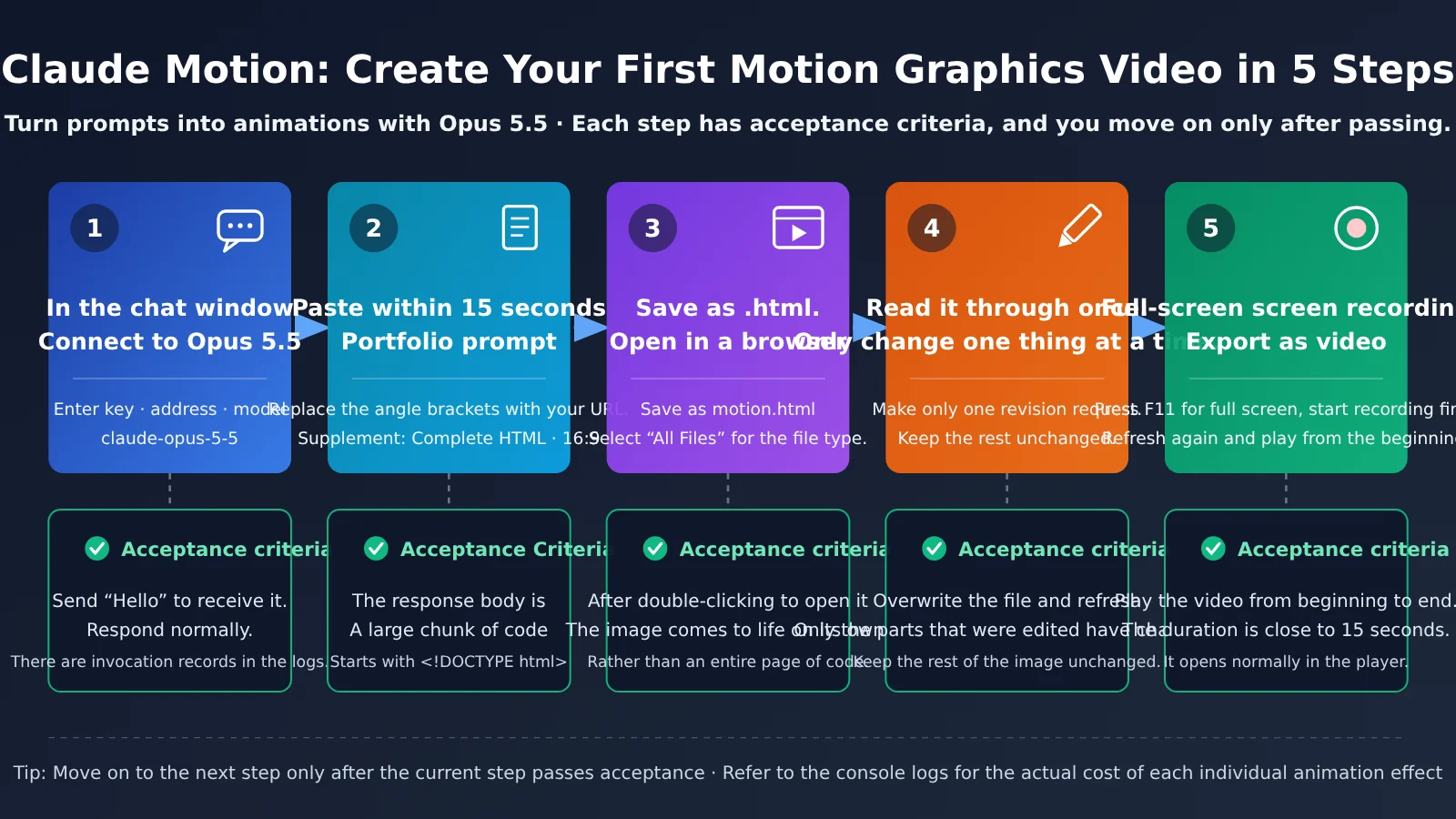
Step 1: Connect Opus 5.5 in a Chat Window
- What you’ll see: Most chat clients that support custom keys have three fields in their settings: “API Key,” “API Address,” and “Model.”
- What to enter: Paste in the key you copied earlier. For the address, use the one in the APIYI documentation for your chosen API type. Set the model to
claude-opus-5-5. If the client has a “Disable thinking” switch, leave it off. - How to tell you’re done: Send “Hi” and confirm you get a normal reply. Then check the console logs for a
claude-opus-5-5call.
Step 2: Paste in Your First Claude Motion Prompt
- What you’ll see: An empty chat box.
- What to paste: Start with melvynx’s original prompt. Replace the text in angle brackets with your own website URL or product name:
make a dynamic 15-second motion graphics video that shows what an incredible motion designer you are for
At the end of the same message, add the sentence suggested here. If the model can’t access your website, add two or three sentences describing your product:
Please output a complete HTML file with all the code in one place. It should play automatically when opened in a browser, use a 16:9 aspect ratio, and include no explanation.
- How to tell you’re done: The response should mainly be a large block of code, usually starting with
<!DOCTYPE html>and ending with</html>. You don’t need to understand the code.
Step 3: Save the Code as a Web Page and Open It in a Browser
- What you’ll see: The code block usually has a “Copy” button in the top-right corner.
- What to click: Click Copy, create a new text file, paste in the code, and save it as
motion.html. On Windows, choose “All files” as the file type when saving; otherwise, the file may end up namedmotion.html.txt. On a Mac, if you’re using TextEdit, first select “Make Plain Text” from the “Format” menu. Once saved, double-click the file to open it in a browser. - How to tell you’re done: The animation plays in the browser instead of showing a page full of code.
Step 4: Watch It Once, Then Change One Thing
- What you’ll see: The first version will usually play, but the colors may be a little plain, the pacing may feel flat, or some text may spill outside the frame.
- What to ask: Make one change at a time. For example:
Change the title that appears at the 3-second mark to “…”. Leave everything else as is, and output the complete HTML file again.
- How to tell you’re done: Replace the original file with the new code and refresh the browser. Only the part you asked to change should be different.
Step 5: Record the Animation as a Video
- What you’ll see: Your animation is playing in the browser.
- What to click: Press F11 to go full-screen. On a Mac, use Ctrl+Cmd+F. On Windows, press Win+G to open the built-in recording tool; on a Mac, use Shift+Cmd+5 to record your screen. Start recording first, then refresh the page so the animation plays from the beginning.
- How to tell you’re done: The recorded video should play from beginning to end, with a duration close to the 15 seconds you requested.
How to Know Each Step Is Done, and How to Fix 4 Common Problems
| Step | What success looks like | Common issue | What to do |
|---|---|---|---|
| Step 1: Connect Opus 5.5 | You get a reply, and the logs show a claude-opus-5-5 call |
The model returns a 400 error | Don’t turn off thinking, and don’t set tool calls to “required.” Either setting can return a 400 error with Opus 5.5. |
| Step 2: Paste in the prompt | The response is a complete HTML file | You get a long explanation instead of a video | Add “Output only one complete HTML file. Don’t explain,” then send the prompt again. |
| Step 3: Save it as a web page | The animation plays in the browser | The page is blank | Check that the file extension is .html and that the code ends with </html>. If the code was cut off, ask it to “continue and finish the file.” If it uses external libraries, connect to the internet before opening it. |
| Step 4: Change one thing | Only the requested part changes | Text spills outside the frame | Tell it: “Keep all text within safe margins, lock the frame to 16:9, and scale it proportionally with the window.” |
| Step 5: Record the video | The video plays from beginning to end | The recording starts halfway through the animation | Start recording first, then refresh the page. |
🚀 Quick-start tip: For your first try, you can apply for trial credits for
claude-opus-5-5at APIYI apiyi.com. See Further Reading at the end of the article for the steps. After you’ve run one call, check the console logs to see what it cost before deciding how to use it next.
Optional: If You’re Already Using Claude Code
You can skip this section entirely and still complete the tutorial. If you already use Claude Code, it can write the HTML file directly to your computer, so you can skip copying and pasting the code and changing the file extension.
According to the APIYI documentation, put your key in ANTHROPIC_AUTH_TOKEN. Use the domain from the console above, add https:// at the beginning, and don’t add /v1 at the end. Set the model to claude-opus-5-5. Also note that Opus 5.5’s default effort has changed from high to medium, so it’s best to specify the effort explicitly when writing animation code. If you’re using several Agents at once, see the magpie article in Further Reading to learn how to share one key across all your Agents.
4 Claude Motion Examples: Adapt These Opus 5.5 Prompts
The four prompts below are copied from the original repository, and the preview images are frames from clips hosted by the list’s curator. All four use the same model, claude-opus-5-5. You can try them one by one with a single API key through APIYI at apiyi.com—no need to switch models for different styles.
| Author | Repository category | Technical tags | Best for | How to make it your own |
|---|---|---|---|---|
| melvynx | motion | Canvas / SVG / GSAP | 15-second portfolio video | Replace the angle-bracketed text with a URL or product name |
| ezshine | motion | Canvas / SVG / GSAP | Widescreen product introduction (Chinese prompt) | Add a list of your product’s features |
| songkeys | motion | Canvas | Storytelling with little text | Change the subject, keep the style words |
| Ror_Fly | explainer | Canvas | 30-second step-by-step explainer | Replace the cocktail recipe with your own process |
Example 1: melvynx’s 15-Second Portfolio Video
This is the same prompt we used in Step 2. It’s short and only specifies the duration and purpose, making it a good first exercise.

The image above is a frame from melvynx’s work. It corresponds to the prompt: “make a dynamic 15-second motion graphics video that shows what an incredible motion designer you are for
Example 2: ezshine’s Chinese Product Promo
If you have a product and want to make a widescreen introduction video, you can use this Chinese prompt as-is:
Design an animation to introduce the features of this project, like a professional product promo. The final video should be an MP4 in 16:9.
The model can see the project when you say “this project.” A regular chat window can’t, so add three to five features afterward. The chat window can’t deliver an MP4; what you’ll get is still HTML, which you can record by following Step 5.

The image above is a frame from ezshine’s work. It corresponds to the Chinese prompt: “Design an animation to introduce the features of this project, like a professional product promo. The final video should be an MP4 in 16:9.”
Example 3: songkeys’ Origami-and-Doodle Story
This prompt works well for storytelling, not for listing features. Its strength is the specific style direction: origami, doodles, cute, warm, and minimal text.
Create a short origami / doodle-style animation showing humanity’s development, progress, and civilization from birth to the present, and ultimately the hatching of AI. AI then gradually develops and advances, eventually hatching today’s Opus 5.5 (you). Style: doodly, cute, warm, strongly narrative, no spoken language (simple text is OK, but don’t use too much explanatory/narrative text, because I want different civilizations to be able to understand it), poetic, moving, high quality.

The image above is a frame from songkeys’ work. It corresponds to the prompt: “Create a short origami / doodle-style animation showing humanity’s development…”
Example 4: Ror_Fly’s Cocktail Recipe Explainer
The video goes from an empty glass to a finished drink in 30 seconds, showing the ingredients and measurements as they’re added. The original repository prompt’s misspelling, ingreidents, is preserved.
We’re going to try a little test. Do you think you could render a recipe motion graphic animation using javascript or html (w/e you think will produce the best) to show the full recipe from start to finish (empty glass to completed cocktail) – Explainer video style – Showing the recipe ingreidents + measurements as they’re going into the cup. Should be a 30s video.

The image above is a frame from Ror_Fly’s work. It corresponds to the prompt: “We’re going to try a little test. Do you think you could render a recipe motion graphic animation…”
After Claude Motion Videos Go Live: The Numbers You Can Verify in Screenshots
The first item in the repository’s Motion graphics section is tagged Canvas · AI image. Its prompt is long, but the gist is to reuse the same track from the song Claude Pop and create a new version of the visuals.

The image above is a frame from anabology’s work. The corresponding repository prompt asks for a new version of the visuals using the same track from the song Claude Pop.
The following three screenshots show the views these videos received across different platforms. Claude Motion videos are clearly getting plenty of attention.
This Douyin post by @悲伤喜羊羊 says it was made with Claude Opus 5.5. It has 303,000 likes, 2,498 comments, 22,000 saves, and 112,000 shares.
This post by @anabology on X, dated September 26, 2026, reached a staggering 20.1 million views.
This Douyin post by @电子智人, published on September 28, is titled “Information Theory / The Study of Wonder.” It has 867,000 likes, 8,107 comments, 213,000 saves, and 195,000 shares.
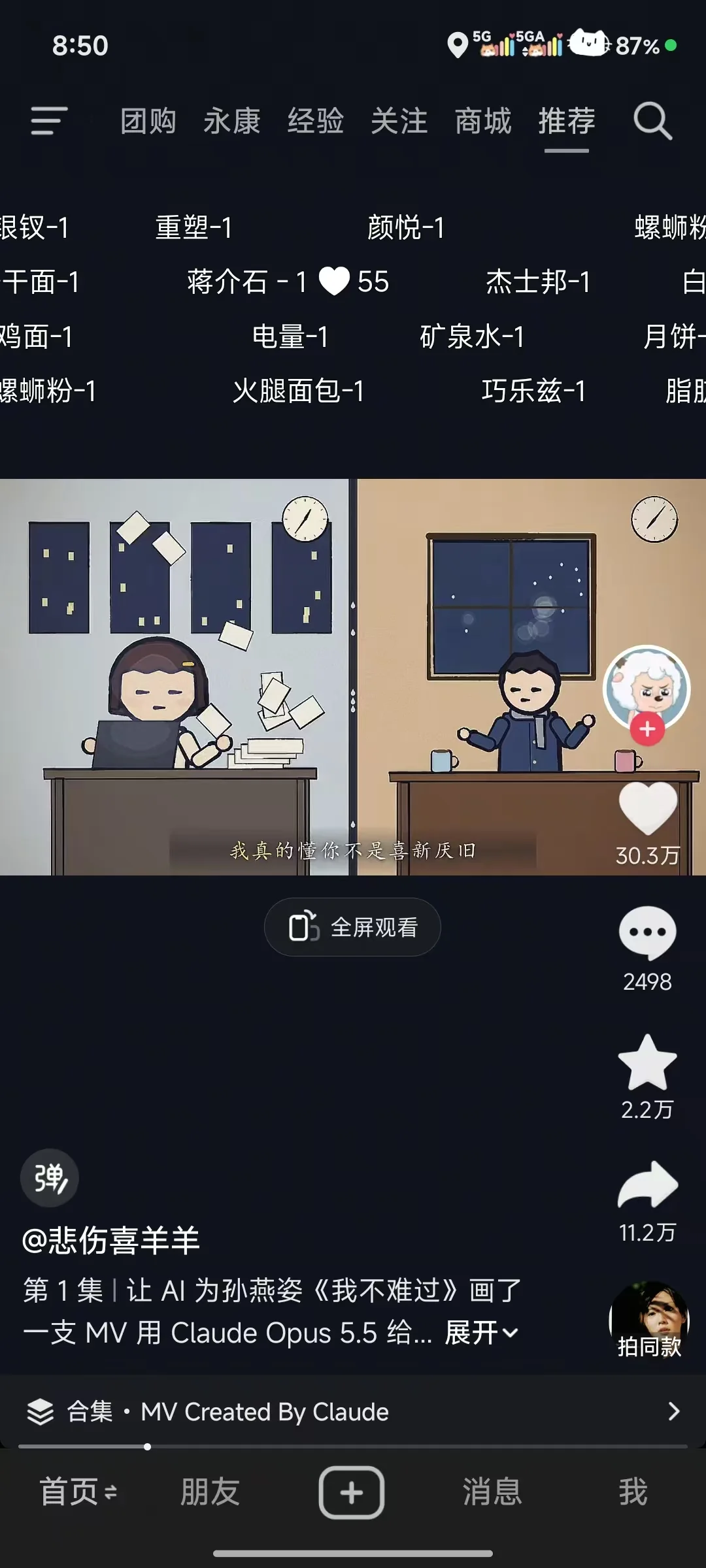
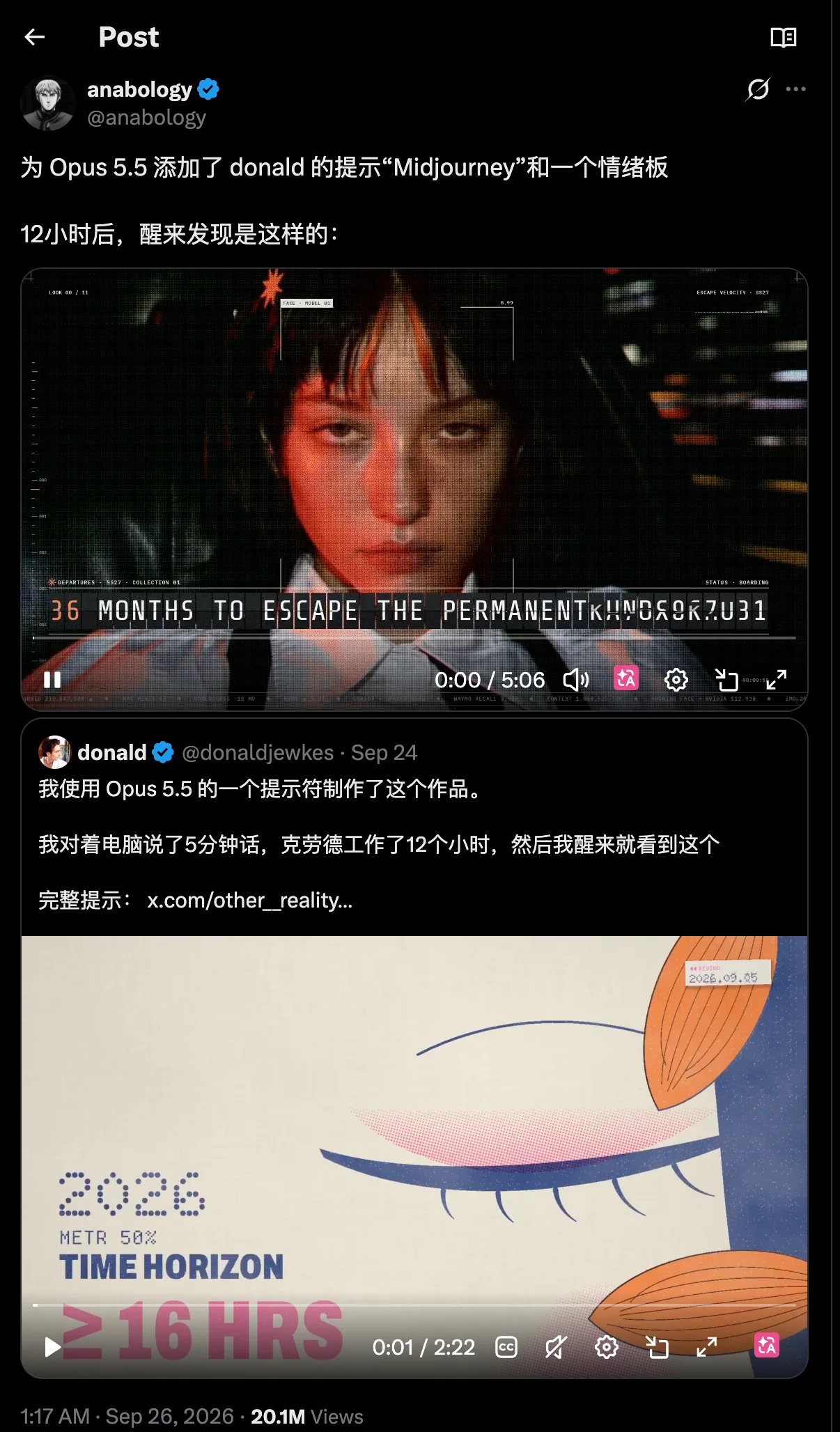

This post only shows that this kind of motion-graphics explainer can get engagement. It doesn’t tell us which model was used.
The gist of anabology’s original post is: they gave Opus 5.5 a Midjourney prompt by donald and a mood board, then saw the result 12 hours later. The quoted post by donald (@donaldjewkes), dated only “Sep 24,” says he talked at his computer for five minutes, and Claude worked for 12 hours.
Claude Motion FAQ
Q1: Can I make Claude Motion animations if I don’t know how to code?
Yes. Opus 5.5 writes the code. You just need to copy it, paste it, save it as an `.html` file, and open it in a browser. The only part that requires any technical know-how is getting an API key. You can register and create a token on APIYI at apiyi.com with just a few clicks.
Q2: How do I choose between Claude Motion and Seedance?
For realistic human faces, live-action visuals, and cinematic shots, choose a video model like Seedance. For text, numbers, charts, product introductions, and educational explainers, choose Opus 5.5. When someone puts the cost of a single video in its title, that’s promotional copy—not a verified result or an official price.
Q3: Why does my first Claude Motion animation look so bad?
The first version usually just moves. Common reasons include not specifying a style, asking for too much at once, and leaving the effort setting at medium. Follow songkeys and be specific about the style; if your client has a thinking-level setting, turn it up. Then change just one thing per iteration.
Q4: Can I download an MP4 directly?
The result in this article is an HTML file. The most reliable approach is to use your system’s screen recorder, as described in Step 5. Don’t expect to download an MP4 directly the first time around.
Summary
Claude Motion isn’t a video app. It’s a community-developed workflow: Opus 5.5 writes the code, the browser renders the animation, and then you record it as a video. You don’t need to know how to code.
For your first try, follow these five steps: get a key for claude-opus-5-5 from APIYI at apiyi.com, paste in a prompt, save the result as HTML, change just one thing, and record your screen. To find out how much a video costs, check the console logs after you’ve made it—not the numbers in someone else’s video title.
For real people on camera, live-action street footage, or cinematic shots, don’t use Claude Motion—switch to a model designed specifically for generating video. For changing a sentence or a number, or creating product introductions and educational explainers, use Claude Motion.
Further Reading
- 📘 How Does Claude Opus 5.5 Write Videos with Code? A Guide to the 4 Key Stages: SVG Assets, Voiceover, Animation, and Subtitles: If you’ve finished this article and want to see how rendering, voiceover, and subtitles fit together, start here. This article doesn’t repeat the underlying concepts.
- 📘 How to Try Claude Opus 5.5 for Free: Application Steps, Usage Limits, and Restrictions: For anyone who hasn’t topped up yet and wants to try it with some free credits.
- 📘 Claude Sonnet 5.5 vs. Claude Opus 5.5: Is Opus Faster While Sonnet Is Just Cheaper? 6 Data Comparisons Reveal the Best Pairing for Enterprise Agents with Long Contexts: If you’re not sure whether Opus 5.5 is the right choice for your use case.
- 📘 Step-by-Step Guide: Connect Every Agent with One Key Using the Open-Source Magpie API Gateway (Examples: Claude Code, Codex, Pi, and Hermes): If you already use several Agents and want to connect them all with one key. These examples don’t represent the limits of what it can do—all Agents can be connected.
- 📘 Hands-On with SeeDance 2.5 for Face-Based Video Generation and Editing: Add Real-Person Footage and Use It Compliantly in 3 Steps: If you need real people or live-action footage, don’t force the visuals with code-based animation—use a video model instead.
References
- Projects and prompt list: github.com/yihui-dev/awesome-opus5-5-videos (README and data/videos.json; data current as of 2026-10-20; not tested for this article)
- Side-by-side viewing page: skillry.dev/ai-videos/opus-5-5
- Original case posts: x.com/melvynx/status/2103714680577638493, x.com/ezshine/status/2103501705698750731, x.com/songkeys/status/2102743212922384673, x.com/Ror_Fly/status/2102853258582880547, x.com/anabology/status/2103534482930491441
- Pricing: APIYI documentation site, updated 2026-09-23. Page title: “Claude Opus 5.5 Is Live, Priced Below Opus 5.” Input: $4; output: $20; cache reads: $0.20 per million tokens. The documentation states that pricing matches the upstream provider.