Author’s note: This is a hands-on tutorial you can follow from start to finish. By the time you’ve read it and worked through the steps, you’ll have a setup where “one key and one gateway address are all you need to connect however many Agents you’ve installed.” When you want to switch models or rotate your key later, you’ll only need to change one place.
Before you start, make sure you know what you’re setting up
- Goal: Have all the coding Agents on your machine share one API key and one upstream address. This tutorial uses Claude Code, Codex, Pi, and Hermes as examples—you can connect as many as you’ve installed.
- Time required: About 30 minutes (not including registration or downloads)
- What you’ll need: An APIYI token (or any OpenAI-/Anthropic-compatible API proxy or official key), a computer that can run command-line tools, and at least one Agent already installed
- Difficulty: ★★☆☆☆. You just need to click a few buttons and copy and paste. No command-line input required.
Tutorial Roadmap
| Step | What you’ll do | How to check it’s done |
|---|---|---|
| Step 1 | Get a token from APIYI | Copy the token and make sure you know which of the two addresses to enter |
| Step 2 | Install magpie and find its two pages | You can open the “Agent” and “Providers” pages |
| Step 3 | Add your key on the “Providers” page | Your provider appears in the list, along with the number of models |
| Step 4 | Turn on the integration toggle for each Agent and select a model | The toggle turns green and the status shows that it’s connected |
| Step 5 | Test each Agent with a short prompt | Each tool returns a response |
| Step 6 (optional) | Compare with native configuration without magpie | You know which file magpie changed |
Understand in Three Minutes: What Does magpie Actually Do?
If you just want to “follow the steps,” you can skip this section. But spending three minutes on it will make troubleshooting much faster later.
Different agents have very different requirements for their upstream models. Configure them manually, and you’ll have to maintain a separate set of settings for every tool you install. Here are four of the most common:
| Agent tool | Main protocol | Common configuration location | Pain point of manual configuration |
|---|---|---|---|
| Claude Code | Anthropic Messages | Environment variables or ~/.claude/settings.json |
Requires an endpoint in Anthropic format |
| Codex | OpenAI Responses / Chat | ~/.codex/config.toml |
Requires a custom provider section |
| Pi (coding agent) | Supports multiple providers | Pi’s model configuration file | Requires you to declare custom providers and model lists separately |
| Hermes Agent | OpenAI-compatible, etc. | Hermes configuration directory and .env |
Requires selecting a custom endpoint and entering a key |
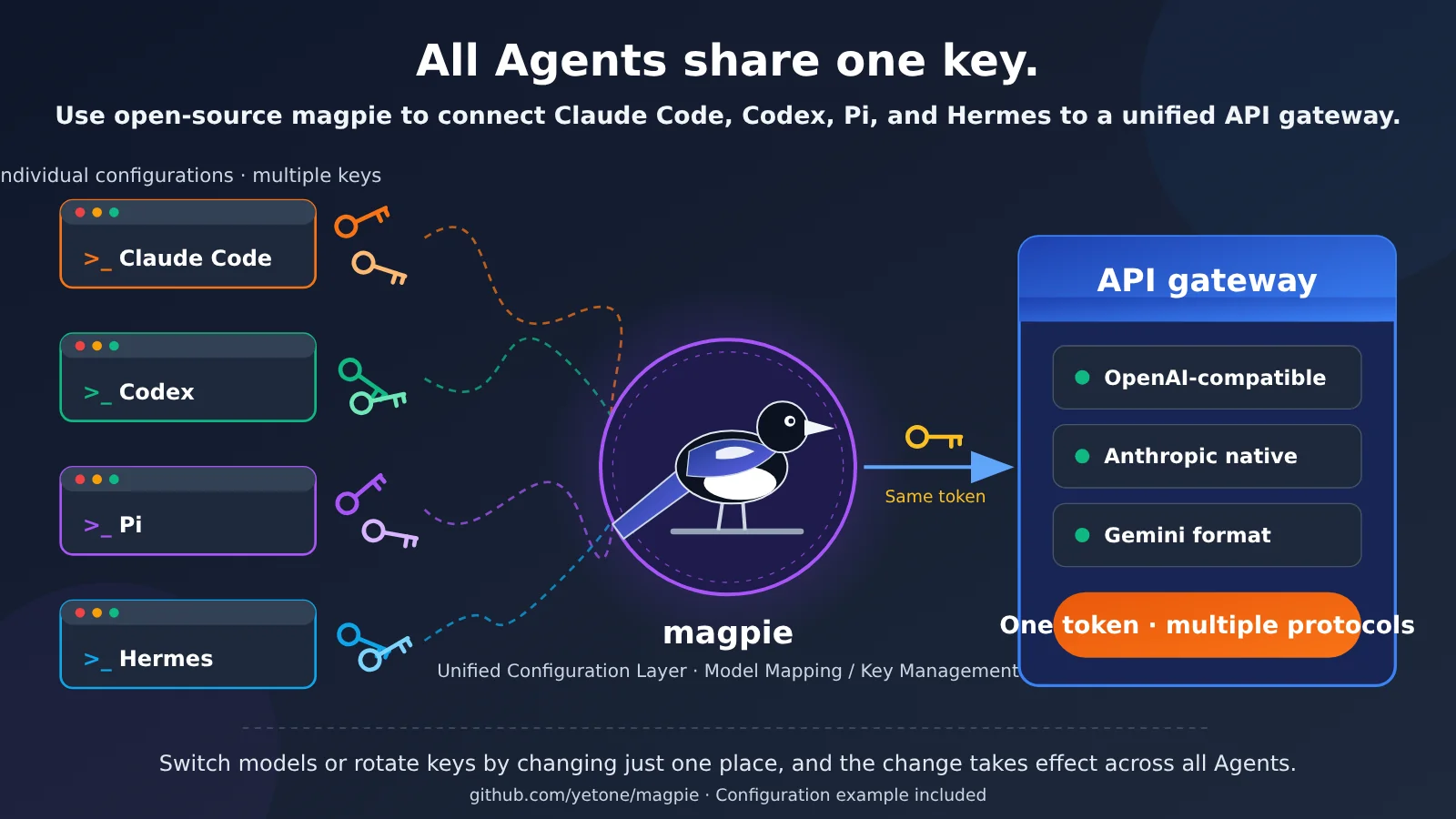
magpie (repository: github.com/yetone/magpie, tagline: “Every agent’s model. One place.”) solves this problem: it gives you one place to manage which model each agent uses and which key it reads, then updates each tool’s native configuration for you.
In short:
- magpie handles model routing: it decides which model Claude Code uses and which model Codex uses
- The gateway handles protocols: it forwards requests in Anthropic, OpenAI, or Gemini format to the actual model provider
So Your Upstream Gateway Should Support Multiple Protocols
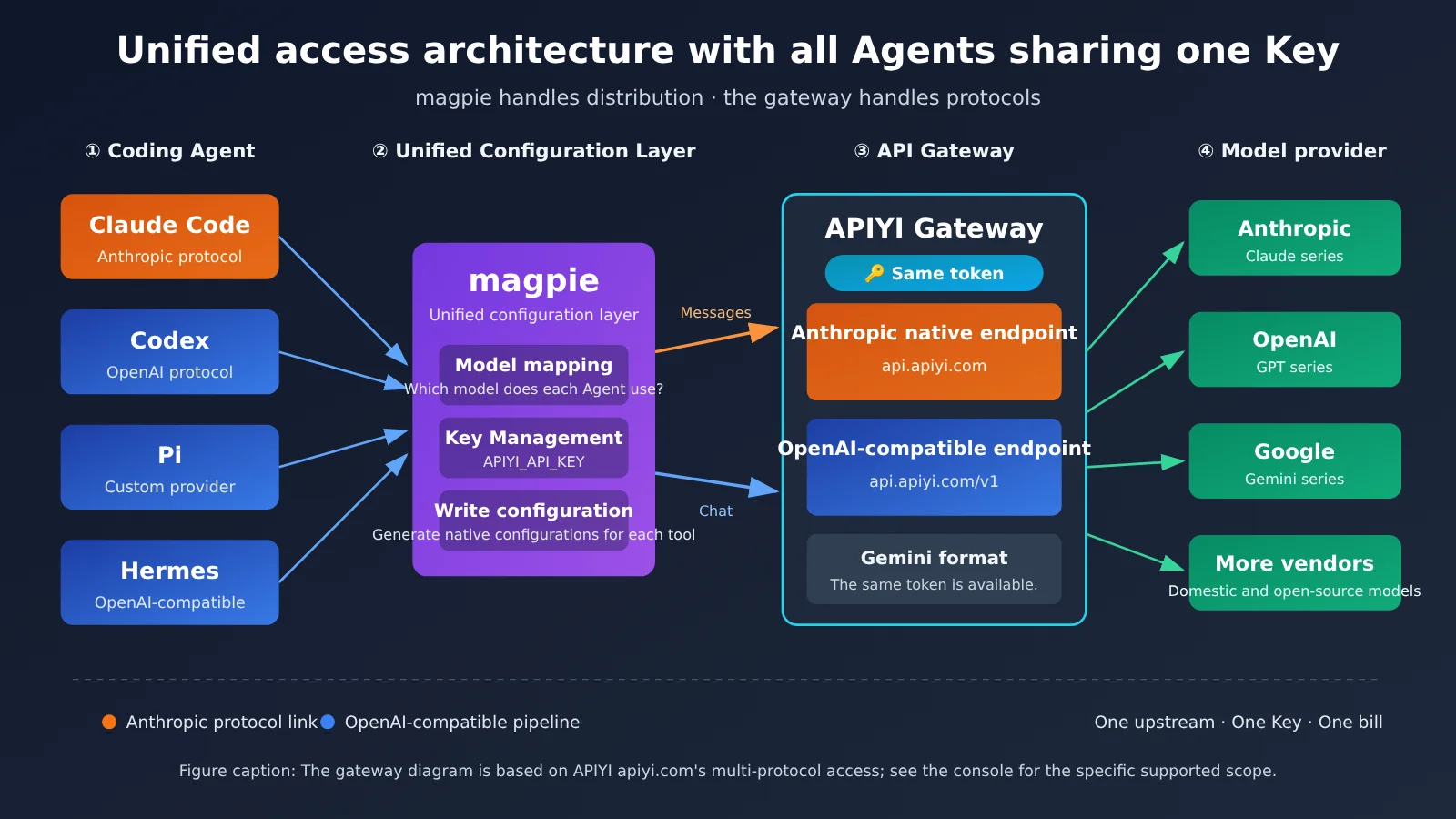
The ideal setup is “magpie handles routing, the gateway handles protocols.” If the gateway only supports the OpenAI-compatible format, Claude Code needs an extra protocol-conversion layer. That makes the request path longer and increases the chance of inconsistent tool-calling formats.
APIYI’s approach is to support three major protocols with a single token: OpenAI-compatible, native Anthropic, and Gemini formats can all be used with the same key (check the console for the exact scope of support). That means you only need to connect one upstream to magpie, and all your agents can use it directly—no need to manage separate provider accounts and bills.
How to Choose Between the Three Approaches
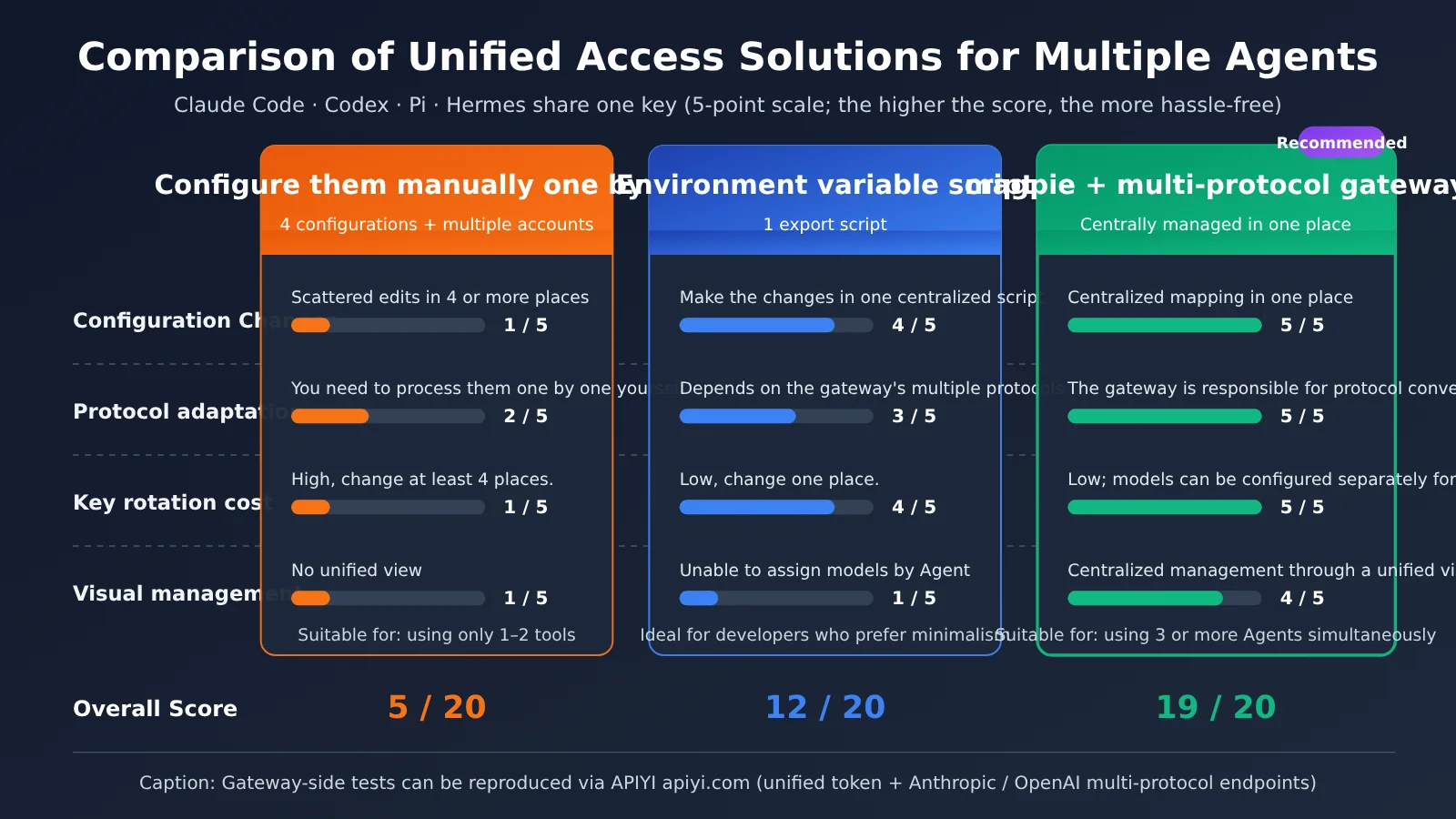
| Approach | Configuration changes | Protocol support | Key-rotation cost | Best for |
|---|---|---|---|---|
| Configure each tool manually | 4 config files + multiple provider accounts | Handle it yourself | High; update 4 or more places | People who use only 1–2 tools |
| Environment-variable script | 1 script | Depends on the gateway supporting multiple protocols | Low; update 1 place | Developers who prefer a minimal setup |
| magpie + multi-protocol gateway | 1 centralized configuration | Handled by the gateway | Low, with model assignment per agent | People who use 3 or more agents |
Manual configuration is the most straightforward option, but as you add tools, keys end up scattered across a pile of files, making rotation and troubleshooting more costly. An environment-variable script has no dependencies and takes just a few dozen lines, but it can’t assign different models to different agents. For needs like “Claude Code uses Claude, Codex uses GPT, and Hermes uses a cheaper model,” a centralized management solution like magpie is the easiest way to go.
Step 1: Get a Key and Copy It
1.1 Create a token in the APIYI console
Go to the APIYI console (apiyi.com) and create a token, then copy it.
You don’t need to run any commands for this step. The Key will only appear once in the entire process: when you paste it into magpie’s Providers panel (Step 3). After you paste it, magpie will write the configuration files for each Agent automatically. You won’t need to export environment variables or edit files like config.toml or settings.json.
🚀 Don’t have a token yet? Sign up at APIYI apiyi.com and claim some test credits. You can use one token to try out the tools you use regularly, then decide which models you want to keep using long term.
1.2 Keep these two addresses handy
You’ll need to choose one of these addresses when you fill in the provider details in Step 3:
| Use | Address |
|---|---|
| OpenAI-compatible endpoint (Codex, Pi, Hermes, etc.) | https://api.apiyi.com/v1 |
| Native Anthropic endpoint (Claude Code) | https://api.apiyi.com |
✅ Step complete when: The token is on your clipboard, and you know which address to enter in Step 3.
Step 2: Install magpie and Get to Know These Two Pages
For magpie’s source code, installation instructions, and configuration format, refer to the README in the official repository (github.com/yetone/magpie). The project is updated frequently, so installation commands and field names may change between versions. The screenshots and steps below are the parts that should remain useful over time.
Once you’ve installed and launched magpie, you’ll see a window with navigation on the left. This tutorial uses just two pages: Agent (which model each tool uses) and Providers (where the Key is configured).
① Agent in the left navigation is the central control panel for all your Agents:
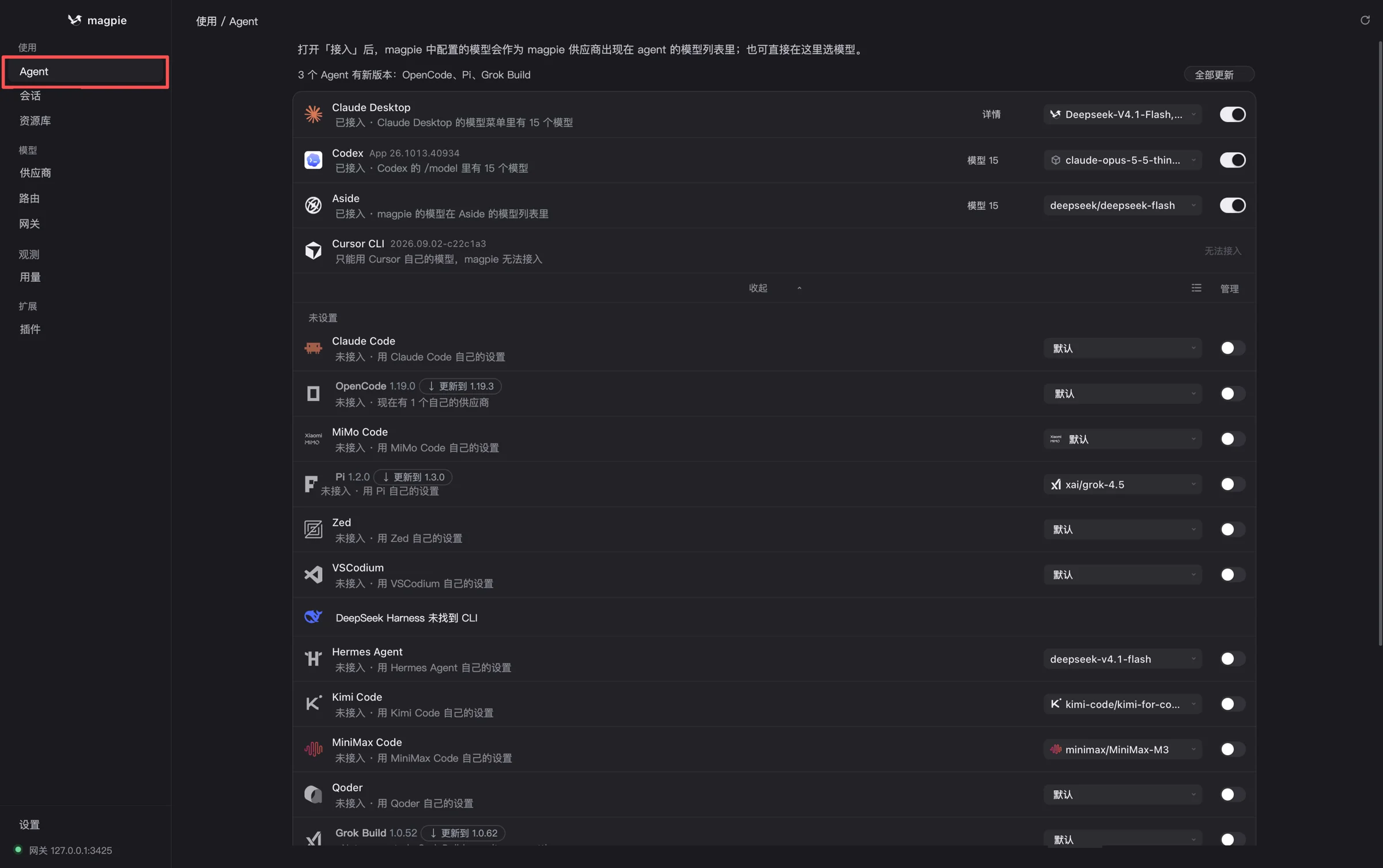
Figure 1 · Agent page: Each tool has its own row. The switch on the right controls whether it’s connected to magpie, and the dropdown beside it lets you choose a model.
Here are three things to look for on this page:
| Location | What it means | Used in this tutorial |
|---|---|---|
| Icon and name on the left of each row | An Agent tool (Claude Desktop, Codex, Pi, Hermes Agent, etc.) | Turn them on one by one in Step 4 |
| Gray text below the name | Current status: connected / not connected / can only use its built-in model | Verify in Step 5 |
| Switch and model dropdown on the right | Turn on the connection and choose which model this Agent uses | Step 4 |
② Providers in the left navigation is where you add your upstream Key. We’ll cover this in the next section.
If you want to see what magpie’s configuration files look like first, take a quick look at the
providers/agentsstructure in the official README. The basic idea is to “give an upstream provider a name, enter itsbase_urland Key, then assign a model to each Agent.” But you can do everything in the window for everyday use: magpie writes the native configuration for each tool, which is much safer than editing YAML by hand.
✅ Step complete when: The window opens, and you can see Agent and Providers in the left navigation.
Step 3: Add Your Key Under “Providers”
3.1 Open the Providers Page
Click Providers in the left sidebar (① in the red box in Figure 2), then click + Add Provider in the upper-right corner (② in the red box):
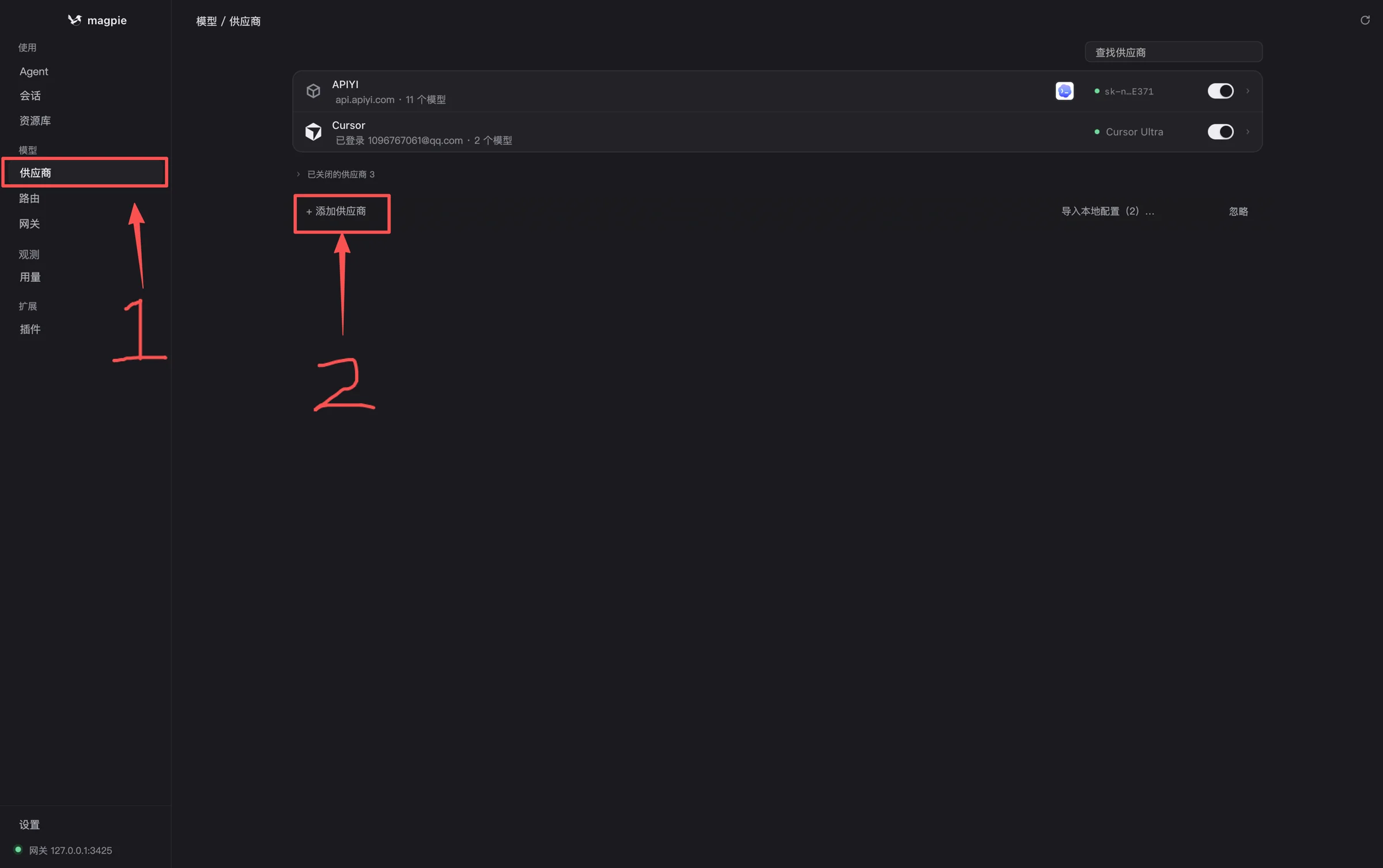
Figure 2 · On the Providers page, open “Providers” from the left navigation. “+ Add Provider” in the upper-right corner is the only way to add one.
Providers you’ve already added appear here as cards. The second line on each card shows its address and the number of available models (for example, api.apiyi.com · 11 models). If you want to check whether a provider is ready to use, first make sure there’s a number on this line.
3.2 Choose a Provider Type
Click + Add Provider to open a selection panel organized into several groups (Figure 3):
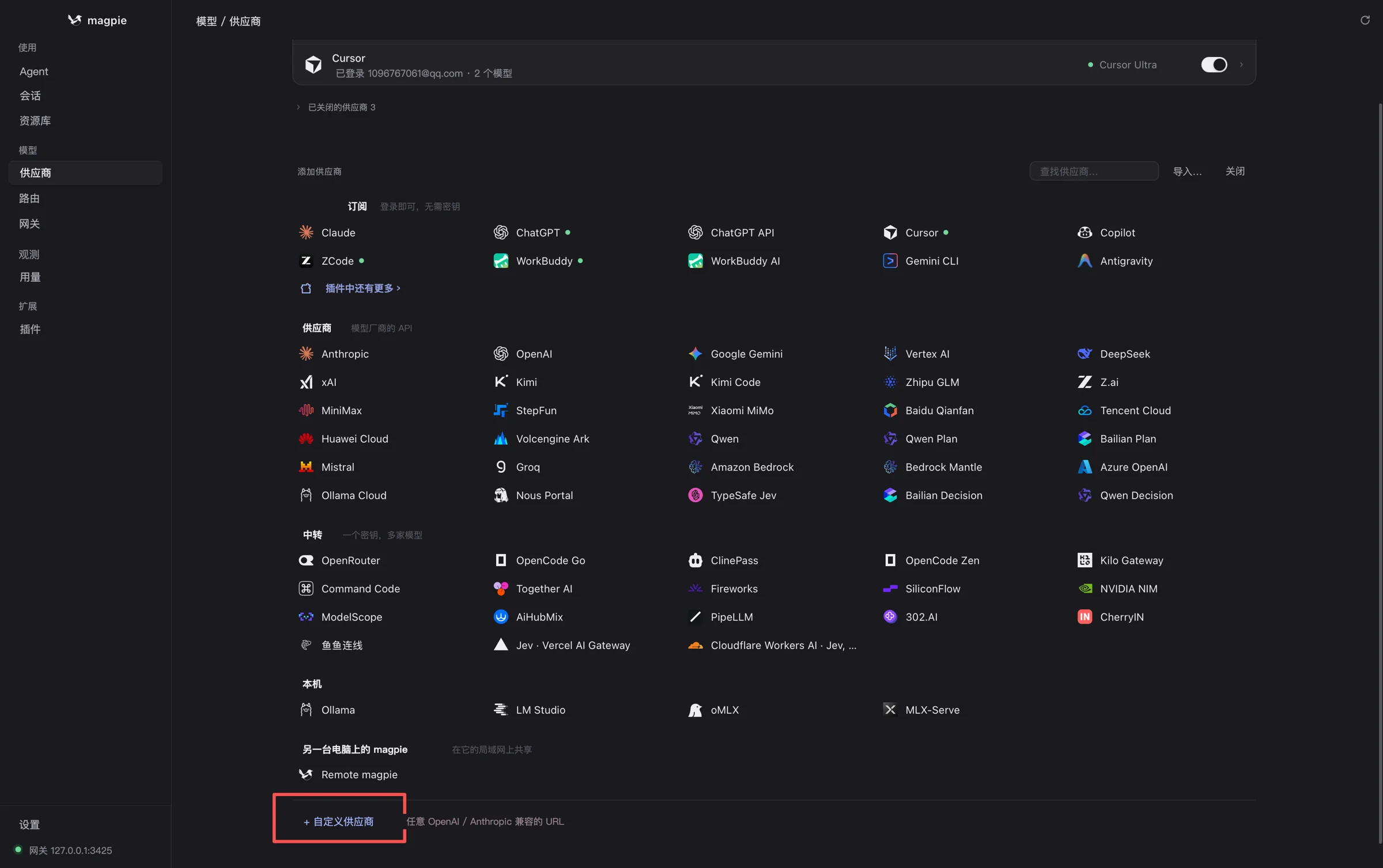
Figure 3 · The Add Provider panel has five options: subscriptions, providers, API proxies, local services, and magpie on another computer.
The groups correspond to five different types of credentials:
| Group | What it includes | When to choose it |
|---|---|---|
| Subscriptions (sign in, no API key required) | Official subscriptions such as Claude, ChatGPT, Cursor, Copilot, and Gemini CLI | You have an official subscription and want to make it available to other Agents |
| Providers (model companies’ APIs) | Anthropic, OpenAI, Google Gemini, DeepSeek, Kimi, Zhipu, MiniMax, and others | You have an API key directly from a model provider |
| API proxies (one key, multiple models) | Aggregated API proxy services like APIYI | You use one API proxy key to access models from multiple providers |
| Local | Local services such as Ollama, LM Studio, and MLX | You run models locally |
| magpie on another computer | magpie shared from another computer on your local network | You want to share one configuration across multiple computers |
If you’re using APIYI, its OpenAI-compatible endpoint is a standard API proxy setup. Choose the matching option in the API proxies group. If you have a custom OpenAI- or Anthropic-compatible key, click + Custom Provider at the bottom (red box in Figure 3) and enter the address and key. For the address, enter https://api.apiyi.com/v1 for OpenAI-compatible requests or https://api.apiyi.com for native Anthropic requests.
Here’s the full configuration panel for a provider. You’ll only need to set four fields:
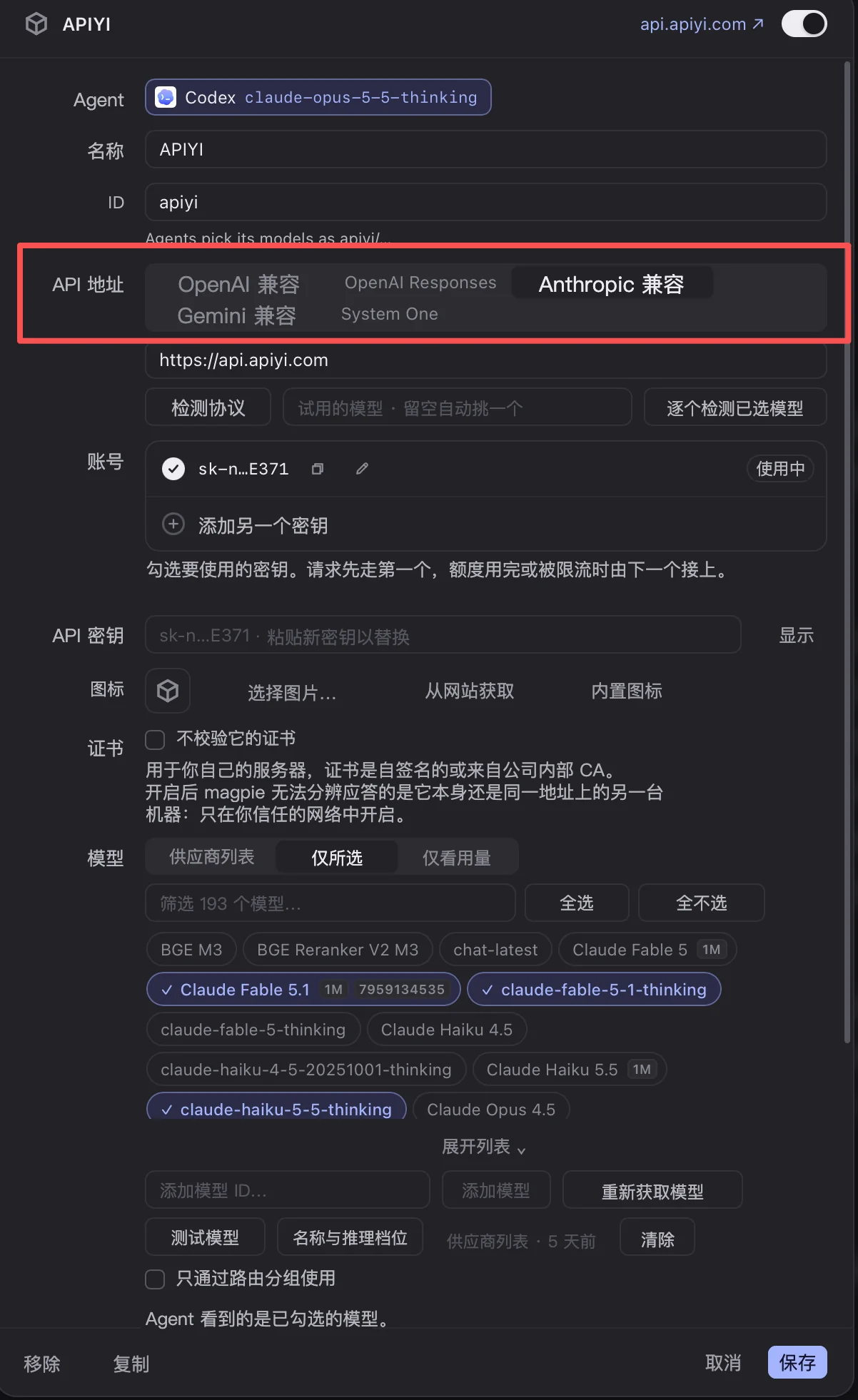
Figure 4 · APIYI provider settings: choose a protocol and enter the address under Base URL, add your key under Accounts, and select the models you want to make available to Agents under Models.
| Field | What to enter |
|---|---|
| Base URL | First choose a protocol (OpenAI-compatible / Anthropic-compatible / Gemini-compatible), then enter the address below |
| Accounts | Your API key. You can add multiple keys; when the first one runs out of credits, the next one is used automatically |
| Models | Select the models you want to make available to Agents. The models you select here will appear in the dropdown in Step 4 |
| Agents | Which Agents can use this provider as a model source |
This is where the “one token, multiple protocols” setup we mentioned earlier comes together. The address is
https://api.apiyi.comfor each protocol: choose Anthropic-compatible for the native endpoint Claude Code needs, OpenAI-compatible for the/v1endpoint used by Codex, Pi, and Hermes, or Gemini-compatible for Gemini. You don’t need to manage three providers and three separate keys.
After saving, return to the Providers list and check two things: the card’s second line shows a model count, and its toggle is on. If you see · N models, your key and address are connected—this check confirms the setup, so there’s no need to run a separate command.
✅ Step complete when: Your provider card appears in the list and shows something like · N models instead of “Not configured.”
Step 4: Connect Each Agent You’ve Installed
Return to the Agent page and repeat the same three steps for each tool you’ve installed. This page lists all the Agents magpie can connect to. The list is growing, and any tools you haven’t installed will show “CLI not found.” Connect the tools you’ve installed; the table below just uses four of the most common ones as examples:
- Turn on the toggle on the right (it changes from gray to highlighted)
- Choose a model next to the toggle (if you don’t select one, the default is used; your selection is written to that tool’s own configuration)
- Restart the tool when prompted (Codex, Claude Code, Pi, and Hermes usually need a process restart to load the new configuration)
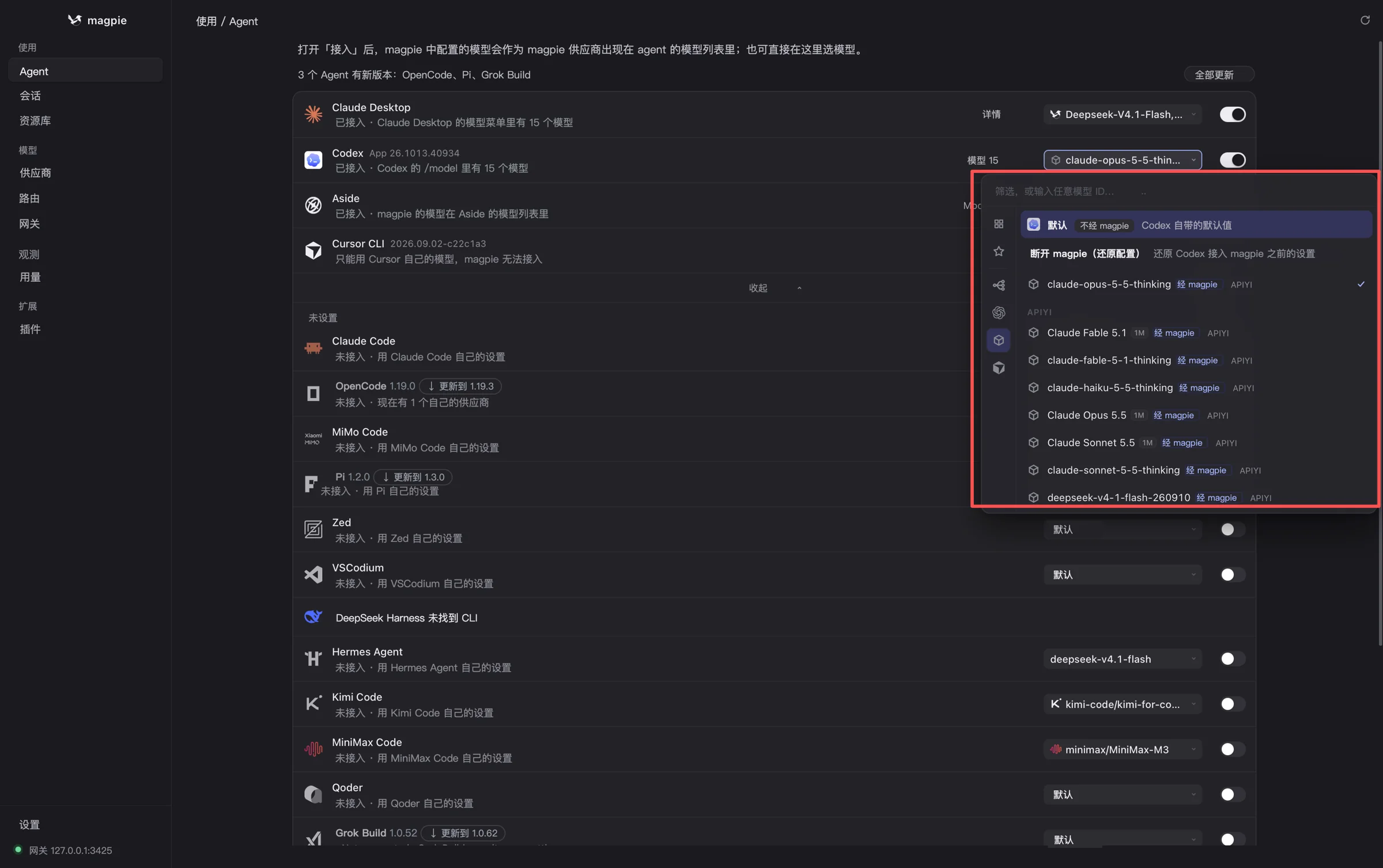
Figure 5 · Open the model dropdown. The first option, “Default,” lets the Agent use its own model without going through magpie. Each option below is labeled “via magpie.” Choose one to route the Agent to that model from your upstream provider.
| Agent | What happens when you turn on the toggle | Restart required? |
|---|---|---|
| Claude Code | magpie updates the base_url and token it reads so they point to its own gateway |
Yes. Run exit, then start it again with claude |
| Codex | magpie writes a provider section to ~/.codex/config.toml |
Yes. Restart codex in the terminal |
| Pi | magpie adds a custom provider to Pi’s model configuration | Yes. Restart Pi |
| Hermes Agent | magpie writes a custom endpoint to the Hermes configuration directory | Yes. Restart Hermes |
Here are some common statuses you might see. These indicate that things are on the right track:
- Connected: The configuration has been written and will take effect after you restart the tool
- Not connected · Using XXX’s own settings: The toggle is off, or no model has been selected
- Only XXX’s own models are available; magpie can’t connect: This tool (such as Cursor) only allows its own models. This is a design limitation, not a configuration error
- CLI not found: The tool isn’t installed or isn’t in your PATH. Install it or update your PATH, then try again
💡 Want to use different models with different Agents—Claude with Claude Code, GPT with Codex, and a cheaper model with Hermes? Choose each model here. This is one of magpie’s main advantages over “environment variable scripts.”
✅ Step complete when: The toggles for your installed tools are on, and their status no longer says “Not connected.”
Step 5: Run a One-Line Test in Each Agent
Configuration isn’t complete until it works. Send the simplest possible task in each tool:
| Agent | Test | Expected result |
|---|---|---|
| Claude Code | Start claude and enter “Check the current directory and list three file names” |
Returns normally, with no 401 / 404 errors |
| Codex | Start codex and ask “What language is this repository written in?” |
Returns normally, with no provider-related errors |
| Pi | Start Pi and ask it to explain a snippet of code | Returns normally |
| Hermes Agent | Start it and ask a one-sentence question | Returns normally |
The easiest way to confirm that requests are actually going through the gateway is to check the token’s usage and logs in the APIYI console. If you see new request records, that means all the Agents’ requests are being routed through the same key.
✅ Acceptance criteria for this step: Every Agent returns a response, and the console shows the corresponding request records.
Appendix: Choosing a Model (The Default If You’re Not Sure)
| Agent | Recommended model type | Protocol endpoint |
|---|---|---|
| Claude Code | Claude models (it’s most familiar with its own models’ tool-calling format) | Native Anthropic |
| Codex CLI | GPT / Codex models | OpenAI Responses |
| Pi | Switch based on the task: use a stronger model for coding and a cheaper one for editing documents | OpenAI-compatible |
| Hermes | Cost-effective models or models with a long context window | OpenAI-compatible |
💡 Try the same task with different Agents and models. With a shared key, switching only requires changing the model name, making it easy to compare costs.
Step 6 (Optional): What Configurations Does magpie Write for You?
This step isn’t necessary to get things working, and it won’t affect whether you can run the tools. You don’t need to touch these files for everyday use: as soon as you turned on the switch in Step 4, magpie wrote all of the configurations below. They’re included here for two reasons: so you know which layer to check if something goes wrong, and so you can copy these settings directly if you ever decide to stop using magpie.
Claude Code: ANTHROPIC_BASE_URL + ANTHROPIC_AUTH_TOKEN
export ANTHROPIC_BASE_URL="https://api.apiyi.com"   # Native Anthropic endpoint
export ANTHROPIC_AUTH_TOKEN="$APIYI_API_KEY"
# Optional: Set the default model (check the model list in the console)
# export ANTHROPIC_MODEL="<Claude model name>"
claude
You can also add these to the env field in ~/.claude/settings.json so they don’t depend on your terminal session.
Codex: The provider section in ~/.codex/config.toml
# ~/.codex/config.toml
model = "<GPT-family model name>"
model_provider = "apiyi"

[model_providers.apiyi]
name = "APIYI"
base_url = "https://api.apiyi.com/v1"   # OpenAI-compatible endpoint
env_key = "APIYI_API_KEY"
wire_api = "responses"                   # If the selected model doesn't support Responses, change this to "chat"
wire_api is the setting most likely to trip you up: newer versions of Codex use the Responses protocol by default. If the model only supports Chat Completions on the gateway side, you must change this to chat.
Pi and Hermes: Declare a custom OpenAI-compatible provider
The idea is the same: set base_url to https://api.apiyi.com/v1 and reference APIYI_API_KEY for the key. The structure varies between versions, so check each tool’s official documentation:
Expand: Pi / Hermes configuration examples + one-click switch script
// Pi: Declare a provider in your custom model configuration (refer to Pi's official documentation for the exact structure)
{
  "providers": {
    "apiyi": {
      "baseUrl": "https://api.apiyi.com/v1",
      "api": "openai-completions",
      "apiKey": "APIYI_API_KEY",
      "models": [{ "id": "<model name>" }]
    }
  }
}
# Hermes: Run hermes model and select a custom OpenAI-compatible endpoint.
# Enter the following details when prompted (or add them to a .env / config file in the Hermes config directory):
#   Base URL : https://api.apiyi.com/v1
#   API Key  : $APIYI_API_KEY
#   Model    : <model name>
#!/usr/bin/env bash
# agents-env.sh — A fallback that doesn't depend on magpie: use one key for all agents
# Usage: source agents-env.sh
: "${APIYI_API_KEY:?Please export APIYI_API_KEY first}"

# Claude Code (Anthropic protocol)
export ANTHROPIC_BASE_URL="https://api.apiyi.com"
export ANTHROPIC_AUTH_TOKEN="$APIYI_API_KEY"

# Common variables for OpenAI-compatible tools such as Codex, Pi, and Hermes
export OPENAI_BASE_URL="https://api.apiyi.com/v1"
export OPENAI_API_KEY="$APIYI_API_KEY"

# Check connectivity
curl -s "$OPENAI_BASE_URL/models" \
  -H "Authorization: Bearer $APIYI_API_KEY" | head -c 300 && echo
echo "✅ All agents are now pointed to the same gateway"
If you’re used to working in the command line, just copy those `export` lines into `~/.zshrc`. If you only want to check whether your key works, one command is enough:
curl -s "https://api.apiyi.com/v1/models" \
  -H "Authorization: Bearer sk-your-token" | head -c 300
If the command prints a list of models (a bunch of `”id”:”…”` entries), the token and URL are both working.
Start Here If Something Goes Wrong: Four Common Errors
| Error | Common cause | How to fix it |
|---|---|---|
| Claude Code 401 / authentication failed | The key was set as ANTHROPIC_API_KEY, or /v1 was added to the base URL |
Use ANTHROPIC_AUTH_TOKEN; set the base URL to the domain only |
| Codex 404 / route not found | wire_api doesn’t match the protocol supported by the model |
Try switching between responses and chat |
| Model not found | The model name is misspelled, or the token doesn’t have access to that model | Open the model dropdown under “Providers” and check whether the model is listed. From the command line, you can also verify with curl /models |
| Pi / Hermes isn’t responding | No custom provider was declared, or the key variable isn’t set | Run echo $APIYI_API_KEY and restart the terminal |
Always troubleshoot from the bottom up: first confirm the gateway and token are working (does the provider card show · N models?), then check the native configuration for the individual agent, and only then look at magpie’s mapping layer. These three checks will tell you whether the problem is with the upstream service, the tool itself, or the shared configuration layer.
Frequently Asked Questions
Q1: What is magpie?
magpie is an open-source project started by yetone. Its repository is `github.com/yetone/magpie`, and its tagline is “Every agent’s model. One place.” It centralizes model configurations for multiple AI agents, reducing the need to configure each tool separately across tools like Claude Code and Codex. It currently has around 16,000 stars on GitHub.
Q2: How does magpie relate to an API gateway?
They have different roles. magpie manages “which model each agent uses and which key it reads,” while the API gateway “forwards requests to model providers using the right protocol.” magpie doesn’t replace the gateway; it works best alongside a gateway that supports multiple protocols.
Q3: After following the tutorial, do all agents really share one key?
Yes. Each agent’s requests are routed to the same gateway address, and each agent reads only the `APIYI_API_KEY` environment variable. When you rotate the key, you only need to update it in one place, and the change takes effect everywhere. You’ll also see a single bill on the gateway side.
Q4: Do I need to restart after changing the configuration?
Yes. For command-line tools like Claude Code, Codex, Pi, and Hermes, quit and reopen the app. For graphical tools like Claude Desktop and Zed, fully quit and reopen them—just closing the window isn’t enough. The status line on the Agent page will tell you exactly what to do.
Q5: Why do some agents say they can “only use their built-in models”?
Some tools, like Cursor, restrict you to models included in their own subscription and don’t read external providers. That’s a product limitation, not a configuration mistake. Skip those tools and connect the rest as usual.
Q6: Will routing Claude Code through a gateway affect tool calls?
Not if the gateway provides the native Anthropic Messages format. The trouble usually comes from a chain that uses “OpenAI-compatible format + an additional conversion layer,” where details of the tool-call format can get lost. That’s why we recommend choosing an upstream gateway that supports multiple protocols.
Q7: What are the limitations of this setup?
There are three: magpie’s configuration fields may change between versions, so you might need to review them after an upgrade; some tools, such as Cursor, can’t be connected; and if the gateway doesn’t support the native Anthropic format, the Claude Code request path will be longer and more prone to errors.
Five-Minute Reference
- Division of responsibilities: magpie handles model mapping; the gateway handles protocol forwarding. Each does one job.
- One API key: Choose an upstream provider that supports multiple protocols so all agents can share one key and one bill.
- Setup order: Create a key in the console → paste it into “Providers” → turn on the Agent toggle → test each agent one by one. Everything is done in the window—no commands needed.
- Troubleshooting order: Gateway → agent’s native configuration → magpie mapping layer. Work from the bottom up.
- Claude Code tip: Use
ANTHROPIC_AUTH_TOKEN; don’t add/v1tobase_url. - Codex tip:
wire_apimust match the protocol supported by the model. - Fallback option: An environment-variable script (
agents-env.sh) can also let all agents share one key.
If you use three or more agents, it’s worth spending half an hour setting this up. After that, changing models or rotating keys only requires updating one place. We recommend getting test credits through APIYI at apiyi.com, then testing your regular tools before fine-tuning each agent’s model assignments for specific tasks.
Further Reading
- 📘 Does Workbuddy Support Claude’s Native Format? 3 Key Reasons and Hands-On Troubleshooting for 6 Types of Content Errors: To understand the differences between Anthropic’s native format and the OpenAI-compatible format, start here. It also explains why Step 2 in this article requires Claude Code to use a native endpoint.
- 📊 claude-sonnet-5-5 vs. claude-opus-5-5: Is Opus Faster While Sonnet Is Just Cheaper? 6 Data Points on the Best Setup for Enterprise Agents with Long Contexts: Read this before choosing models for different agents in Step 4 to decide which ones should use Opus and which can use a cheaper model.
- ⚠️ What’s the gemini-4-argon AI Studio Concurrency Limit? 5 Causes of Frequent 429 Errors and 6 Steps to Fix Them: If several agents hit the same key at once and run into rate limits, follow these six troubleshooting steps.
- 🧭 Getting “model not found” from OpenAI? GPT-5.5 Was Removed from ChatGPT on October 14: 5 Troubleshooting Steps and Alternatives: If you get a “model not found” error during Step 5 verification, first check whether the model name is still valid.
📚 References
- GitHub – magpie: The project’s official repository
- Link:
github.com/yetone/magpie - Note: Refer to the README for installation instructions, configuration formats, and version updates.
- Claude Code official documentation: Environment variables and settings configuration
- Link:
docs.anthropic.com/en/docs/claude-code - Note: Official documentation for variables such as
ANTHROPIC_BASE_URL. - OpenAI Codex CLI repository:
config.tomlandmodel_providersconfiguration - Link:
github.com/openai/codex - Note: Details on custom providers and the
wire_apiparameter. - APIYI documentation center: Multi-protocol endpoints and model list
- Link:
docs.apiyi.com - Note: Integration instructions for OpenAI, Anthropic, and other protocol endpoints.
Author: APIYI Technical Team
Technical discussions: Share your magpie configuration tips in the comments. For more integration resources, visit the APIYI documentation center at docs.apiyi.com.