A developer friend recently asked in our group: "Can gpt-image-2 generate images from CSV or Excel files? I saw someone on TikTok using an image model to generate PPTs, and I want to see if it can read file data." The answer is straightforward: No. The gpt-image-2 model, released by OpenAI in April 2026, only accepts text prompts and images as input. It neither reads CSV/Excel files nor outputs PPTX/PDF files.
However, this doesn't mean the goal is unreachable. Extracting file content into text, taking screenshots of file pages, and then feeding those into gpt-image-2 is exactly the standard workflow used today. This article clarifies the capability boundaries of gpt-image-2 regarding file uploads and outlines 5 workarounds to help you deliver features your clients might think are impossible.
{gpt-image-2 input and output capability boundaries}
{2026-04-21 Released · Multimodal image generation and editing}
{✅ Supported inputs}
{text prompt}
{Chinese / Multilingual}
{reference image}
{Maximum 16, ≤1.5MB}
{❌ Unsupported input}
{CSV / Excel / PDF}
{PPT / Word / TXT}
{Audio / Video}
{All documents and multimedia files}
{Must convert to text or screenshot first}
{Output format}
{PNG / JPEG / WebP}
{1024×1024 – 3840×2160}
{low / medium / high}
{⚠ Do not output PPTX/PDF/SVG}
{5 workflows to bypass file upload restrictions}
{① File to text}
{2. Screenshot for image generation}
{3. Visualization enhancement}
{4. Dual-model pipeline}
{5. Generate PPT}
{CSV/Excel}
{PDF/PPT}
{data charts}
{Long report}
{Demo document}
{The model layer only does what it is good at · The data layer is pre-processed externally}
The Reality of gpt-image-2 File Uploads: Inputs are Limited to Text and Images
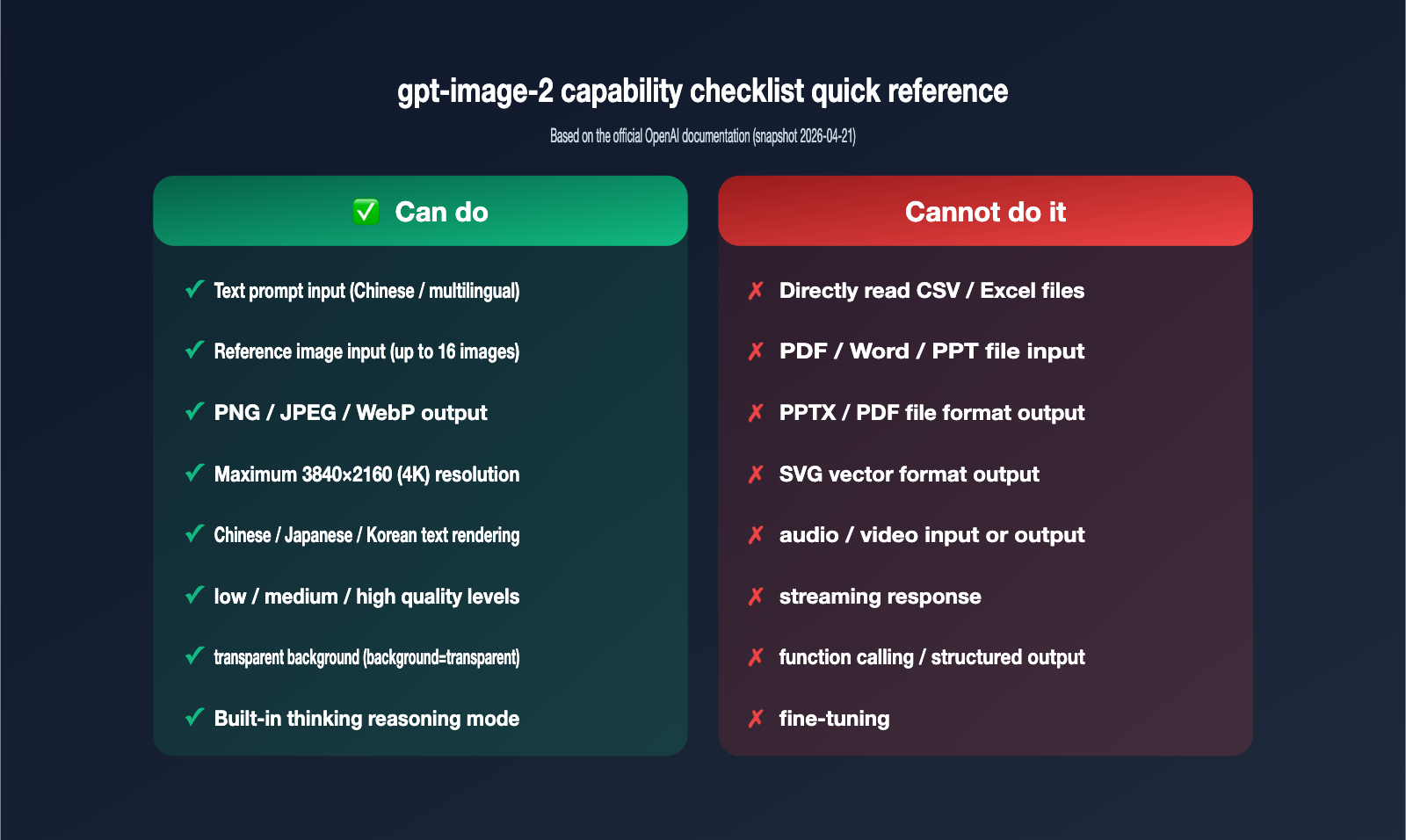
Let's establish the official boundaries first, as all subsequent solutions are built upon them. According to OpenAI's developer documentation, gpt-image-2 (snapshot gpt-image-2-2026-04-21) is a native multimodal image generation model. The modality support table clearly defines its input and output ranges.
| Modality Type | Input Supported | Output Supported | Notes |
|---|---|---|---|
| Text | ✅ Yes | ❌ No | Used as prompts; supports multi-language (Chinese, Japanese, etc.) |
| Image | ✅ Yes | ✅ Yes | Used for editing/reference; outputs PNG/JPEG/WebP |
| Audio | ❌ No | ❌ No | Irrelevant to image generation |
| Video | ❌ No | ❌ No | Irrelevant to image generation |
| Documents (CSV/Excel/PDF/Word/PPT) | ❌ No | ❌ No | Cannot be uploaded or output as files |
Simply put, gpt-image-2 isn't a "general-purpose brain" like GPT-4; it specializes in image generation and editing. OpenAI didn't build a parsing channel for CSV/Excel/PDF files into it. If you try to push binary Excel data to it, the API will return a 400 error. If your project requires a stable, high-RPM gpt-image-2 connection, we recommend using an API proxy service like APIYI (apiyi.com). They have documented the model's input validation and parameter limits, making it much easier for beginners to avoid common pitfalls.
🎯 Core Insight: The capability boundary of
gpt-image-2is "Text + Image → Image." Don't treat it as an all-knowing Agent. File-related requirements must be handled by external tools, while the proxy layer (like APIYI) ensures stable model invocation, and your business logic handles the data preprocessing.
Why "PPT Generation" and "File-to-Image" are Different Things
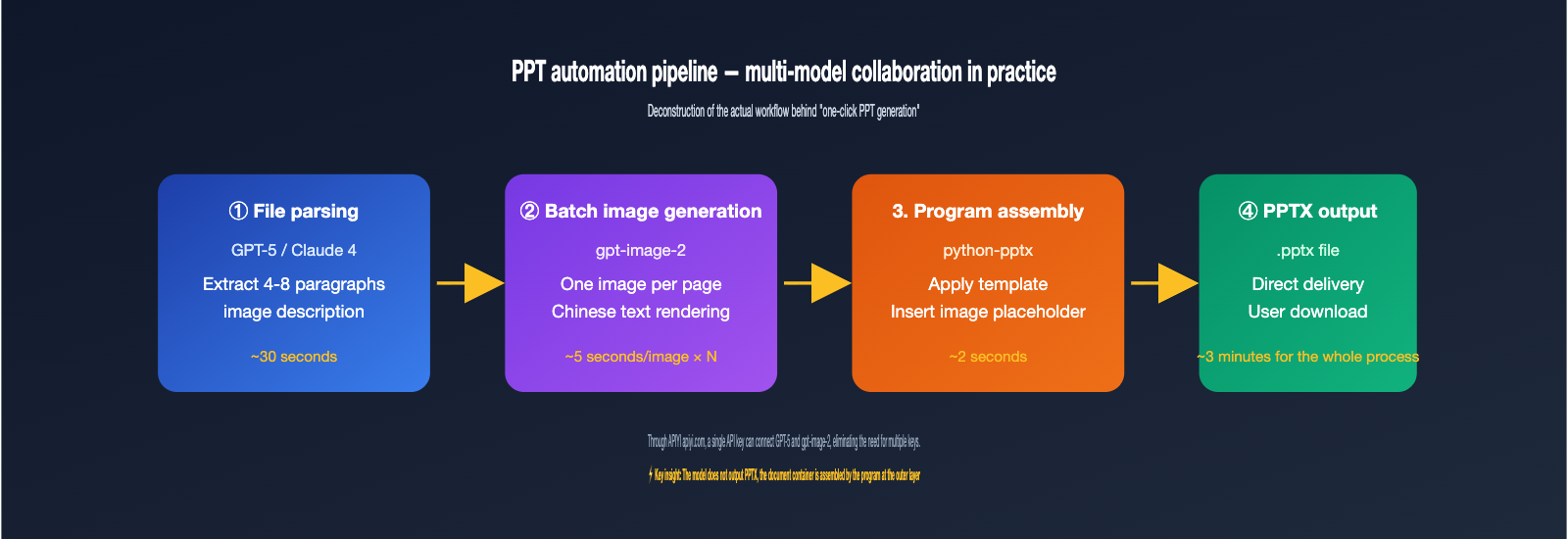
Many clients confuse "AI one-click PPT generation" with "model reading files to generate images," but these are two very different workflows. The PPT automation cases you see on social media are almost always multi-step pipelines: first, use a Large Language Model to distill data into copy, then use an image model to generate illustrations for each slide, and finally, use a script to assemble them into a PPTX file.
The image generation step in the middle usually uses a model like gpt-image-2. It only sees the text prompt and reference image it receives; it has no idea whether the source was an Excel file or a Notion page. Once you understand this, the 5 solutions become much clearer.
Upgrades Compared to the Previous gpt-image-1
Many long-time users ask: "If it can't upload files, what makes gpt-image-2 better than gpt-image-1?" The differences are actually critical and directly determine whether the "screenshot-to-image" workflow will succeed. The new version has significant improvements in text rendering, reference image capacity, and reasoning capabilities.
| Capability Dimension | gpt-image-1 |
gpt-image-2 |
|---|---|---|
| Max Reference Images | 4 | 16 (Recommended ≤4 for best results) |
| Text Rendering | Good for English; prone to errors in CJK | Significant accuracy boost for CJK, Hindi, Bengali, etc. |
| Reasoning Ability | None | Built-in "thinking" mode for complex layouts |
| Knowledge Cutoff | Early 2024 | December 2025 |
| Output Resolution | Max 1024×1024 | Max 3840×2160 (4K) |
In short, if your previous attempts at "screenshot style transfers" with gpt-image-1 weren't ideal, it's worth re-running them with gpt-image-2, especially for scenarios like Chinese posters or PPT slides that require precise text rendering.
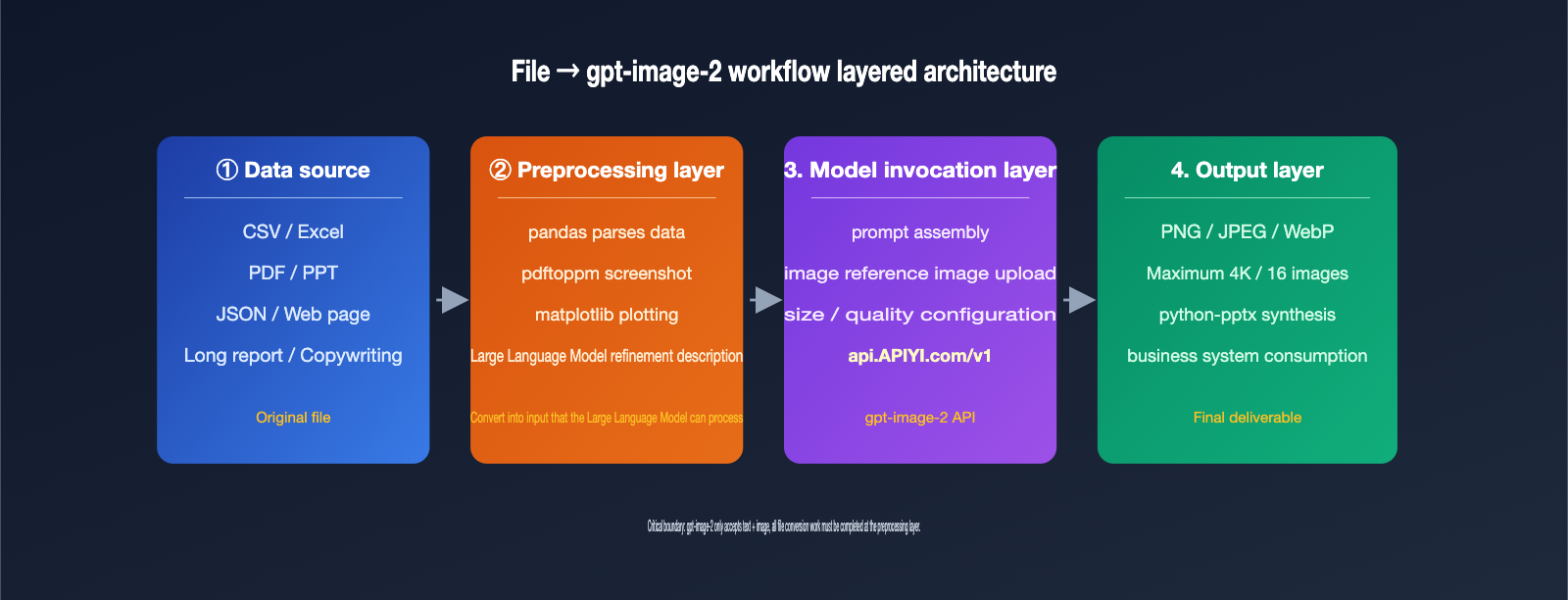
5 Workflow Strategies to Generate Images from gpt-image-2 File Content
These 5 strategies cater to different data sources and use cases. The right choice depends on your file type, desired output format, and the level of automation you need. We’ve ranked them from lightweight to heavy-duty.
Strategy 1: Convert Files to Text Prompts for Direct gpt-image-2 Input
Best for structured data like CSV, Excel, JSON, or plain text. The process involves using a script (via pandas or openpyxl) to read the file, extract headers, key rows, and statistical metrics, and then combine them into a natural language description. This description is then used as a prompt for the /v1/images/generations endpoint. For example, you could summarize sales data as: "A bar chart of Q1 2026 sales across three regions: East China 12M, North China 9.8M, South China 7.6M, in a dark business style."
The advantage here is simplicity—no image input required. The downside is that the prompt has limited capacity, and while gpt-image-2 is good at representing numbers, it isn't perfect. You must explicitly state the value for each bar in the prompt, or the model will redistribute heights based on visual logic.
Strategy 2: Use File Page Screenshots as Reference Images
Ideal for content that "already looks like an image," such as PDFs, PPT slides, or web reports. Convert the target page into a PNG (using macOS Preview, pdftoppm, or Puppeteer), then upload it as an image parameter via the /v1/images/edits endpoint. Pair this with a prompt describing the changes, such as: "Keep the layout, change the English title to Chinese, and convert the bar chart to an Apple-style design."
In the 2026 version, gpt-image-2 accepts up to 16 reference images, but both official and community testing suggest using 1 main reference image + 1–2 style reference images. Adding more can dilute the model's focus. Keep each image under 1.5MB to avoid a significant spike in input token consumption.
Strategy 3: Pre-visualize Data, Then Use gpt-image-2 for Polishing
Perfect for scenarios where you need both accuracy and aesthetics. First, use matplotlib, ECharts, or Excel’s built-in charting tools to generate a base version of the data and export it as a PNG. Then, use this base image as an input for gpt-image-2 with a prompt like: "Keep data points and values unchanged, but change the chart style to dark mode with neon highlights and an infographic aesthetic."
This is currently the most reliable way to combine data visualization with AI enhancement. The raw values are guaranteed by deterministic plotting libraries, while the visual style is reshaped by gpt-image-2—letting each tool do what it does best. If you're running this at scale, I recommend using APIYI (apiyi.com) to call gpt-image-2. It handles upstream account pool scheduling for high-concurrency scenarios (up to 5000 RPM), making it perfect for tasks involving thousands of images daily.
Strategy 4: Dual-Model Pipeline (LLM + gpt-image-2)
Best for files with complex content that requires semantic understanding, such as long reports, contract summaries, or marketing copy. First, use a GPT-4 or Claude 4 model to read and understand the file, distilling it into 4–8 scene descriptions. Then, loop through these to call gpt-image-2 to generate the corresponding images.
The key here is decoupling "semantic understanding" from "image generation." The LLM decides "what should be drawn on this page," and gpt-image-2 handles "drawing the image based on this prompt." You can manage this entire pipeline using the same API key on APIYI (apiyi.com), saving you the hassle of switching SDKs or managing multiple keys.
Strategy 5: Programmatic PPT/Poster Synthesis After Batch Generation
This is the secret behind those "one-click PPT" tools you see on social media. The model itself won't output a PPTX file, but it can generate images for every slide. You then use Python’s python-pptx or the frontend library PptxGenJS to insert these images into your PPT template.
In a nutshell: A PPT is essentially a presentation document made of multiple images. gpt-image-2 solves the "image" problem, while python-pptx solves the "document container" problem. A common breakdown: use high-quality 4K images for covers, medium-quality 1536×1024 images for inner pages, and low-quality drafts for tables of contents or transition slides—using the quality parameter to optimize costs. A 20-page PPT requires about 20–30 model invocations, which can be completed in minutes using the 5000 RPM proxy channel.
| Strategy | Applicable File Types | Engineering Effort | Output Quality | Recommended Use Case |
|---|---|---|---|---|
| 1. File to Text | CSV/Excel/JSON | Low | Medium | Simple charts, stylized illustrations |
| 2. Page Screenshot Input | PDF/PPT/Web | Low | Medium-High | Layout rewriting, style transfer |
| 3. Pre-rendered Visualization | CSV/Excel | Medium | High | Data chart beautification |
| 4. LLM + gpt-image-2 | Long reports/Copy | Medium-High | High | Content cards, tutorial images |
| 5. Batch PPT Synthesis | Any | High | High | Automated presentation documents |
API Call Code Example: How to Turn File Content into Input for gpt-image-2
It's much more intuitive when you look at the concepts at the code level. Below is a minimal, runnable Python example that converts an Excel table into a text prompt and then calls gpt-image-2 to generate the corresponding visualization. We use APIYI (apiyi.com) as a unified API proxy service; you only need to replace the base_url, and the rest of the SDK usage remains exactly the same as the official version.
from openai import OpenAI
import pandas as pd
import base64

client = OpenAI(
    api_key="your-apiyi-key",
    base_url="https://api.apiyi.com/v1"
)

df = pd.read_excel("sales_q1.xlsx")
summary = df.groupby("region")["sales"].sum().to_dict()
prompt_text = (
    f"Create a bar chart for Q1 2026 regional sales,"
    f"data: {summary}, "
    f"dark business style, pure white title, clear data labels."
)

resp = client.images.generate(
    model="gpt-image-2",
    prompt=prompt_text,
    size="1536x1024",
    quality="high"
)
img_b64 = resp.data[0].b64_json
with open("sales_chart.png", "wb") as f:
    f.write(base64.b64decode(img_b64))
The logic is clear: the business layer parses the Excel file into a text description, and the model layer only receives text. If you're using image-to-image (Option 2), simply swap client.images.generate for client.images.edit and pass the image via image=open("page.png", "rb").
| Parameter | Range | Description |
|---|---|---|
model |
gpt-image-2 / gpt-image-2-mini |
The mini version is faster and cheaper |
size |
1024×1024 / 1536×1024 / 1024×1536 / Custom | Longest side ≤ 3840px, must be divisible by 16 |
quality |
low / medium / high / auto | Higher quality takes longer and consumes more tokens |
n |
1–4 | Number of images per request; use a loop for batching |
response_format |
png (default) / jpeg / webp | gpt-image-2 does not support PDF/PPTX output |
🎯 Code Tip: To get this workflow running quickly, we recommend registering an account at APIYI (apiyi.com). By switching your
base_urltohttps://api.apiyi.com/v1, you can use a unified interface to callgpt-image-2,GPT-5, and theClaude 4series, saving you the hassle of integrating different vendors one by one.
The 4 Most Common Pitfalls and How to Avoid Them
After understanding the five approaches, you'll likely run into some subtle issues during implementation. We've compiled the four most frequently asked questions from our support group.
Pitfall 1: Putting base64-encoded CSV into the prompt
Some students come up with a "clever" idea: read a CSV file into a base64 string and stuff it into the prompt, thinking the model will decode it itself. This path is a dead end. gpt-image-2 won't execute code, nor will it treat the string as data; it will simply interpret the base64 string as meaningless characters, resulting in a mess of gibberish. The correct approach is to parse the CSV into a text description at the business layer (see Option 1).
Pitfall 2: Expecting gpt-image-2 to draw a table "exactly like Excel"
The model excels at visual consistency and stylization, but pixel-perfect reproduction is a different story. If you need a strict table, we recommend a hybrid strategy: use ECharts/matplotlib to draw an accurate version (Option 3), then let gpt-image-2 beautify the appearance. Expecting a single prompt to make the model draw 100 rows of data accurately is currently not feasible.
Pitfall 3: Wanting SVG or PDF vector output
gpt-image-2 only outputs in three bitmap formats: PNG, JPEG, and WebP. There is no support for vector formats like SVG, PDF, or AI. If you need vector graphics, please use Stable Diffusion with vectorizer.ai, or simply have GPT-5 generate the SVG code. Confirming the output format before choosing a model can save you from having to redo your work later.
Pitfall 4: Repeatedly uploading the same reference image, causing token consumption to skyrocket
gpt-image-2 processes every input image with high fidelity. Even if your prompt is just a minor tweak, every request recalculates the input tokens. We recommend implementing reference image caching on the client side, or using previous_response_id for conversational editing (Responses API) to reuse the previous image context.
Another detail to note: even if you only output a 256×256 thumbnail, if the reference image is a 4K high-res file, the input tokens are still billed based on the 4K size. Compress the reference image to a 1024px long side locally before uploading; this can save over 60% of input tokens, which is the easiest cost-control point to overlook in large-scale tasks.
| Error Phenomenon | Root Cause | Recommended Solution |
|---|---|---|
| 400 invalid_request_error | Uploaded non-image binary (CSV/Excel) | Convert file to text or screenshot externally |
| Characters rendered as gibberish | Using base64 string as a prompt | Use parsed natural language description instead |
| Table data inaccurate | Using prompt to draw precise tables | Use Option 3 for pre-rendered visualization |
| Wanting SVG output | Model does not support vector formats | Use GPT-5 to generate SVG code |
| Token consumption higher than expected | Repeatedly uploading large reference images | Compress to under 1.5MB and enable caching |
FAQ
Q1: Is it really impossible to upload a PDF to gpt-image-2?
You can't upload a PDF directly. However, you can use pdftoppm to convert each page into a PNG and then input them as images. If you need to "understand PDF content to generate images," we recommend using GPT-5 to read the PDF and extract descriptions first, then feed those descriptions into gpt-image-2. You can run this entire workflow using a single API key on APIYI (apiyi.com).
Q2: Is it safe to send files containing sensitive data directly to the model?
The file-to-text conversion happens on your own server; only the final prompt text is sent to the model, so you can redact sensitive information during the conversion process. If you use an API proxy service, APIYI (apiyi.com) explicitly states that it does not store user prompts or returned content, making it more controllable and compliant than routing through public proxies.
Q3: Do the "one-click PPT generation" tools on TikTok use gpt-image-2?
Some do, some don't. The logic is usually: LLM writes the copy → Image model (gpt-image-2 / Nano Banana Pro / Flux) creates illustrations → Backend uses python-pptx to assemble everything. gpt-image-2 excels at text rendering, especially for Chinese characters, making it perfect for PPT slide illustrations.
Q4: Why do some people say they can upload Excel files?
They are essentially uploading screenshots of Excel as images. The model isn't actually "reading" the Excel structure; it's just processing the image. If the numbers in your screenshot are blurry, the model will just redraw them based on that blurriness.
Q5: Should I choose gpt-image-2 or gpt-image-2-mini?
The mini version is faster and cheaper, making it ideal for bulk drafts and thumbnails, while the standard version is better for final production assets. Both versions have the exact same input limitations (neither supports document files). You just need to switch the model ID in the model parameter; no changes to your SDK implementation are required.
Summary
gpt-image-2 does not support direct uploads of CSV, Excel, or PPT files, nor does it output PPTX or PDF files. This is a boundary of the model's capabilities, not a configuration issue. Once you understand this, you can pre-process your file content—by converting it to text, taking screenshots, or visualizing it before beautifying—to make it work for almost any "file-input" requirement. The "one-click PPT," "Excel-to-poster," and "PDF style transfer" tools you see on social media are essentially multi-step pipelines. Once you clarify the division of labor between model inference and data processing, you can easily implement these requirements.
The core principle for implementation is simple: Let the model layer do what it's good at, and handle the data layer externally beforehand. If you want to run a complete pipeline, we recommend using APIYI (apiyi.com) to access both GPT-5 (for text understanding) and gpt-image-2 (for image generation). You can complete the entire process with one API key, and the 5,000 RPM high-concurrency capability ensures that batch tasks run smoothly without the hassle of maintaining multiple keys and SDKs for different models.
About the author: The APIYI team specializes in multi-model aggregation and high-concurrency inference infrastructure, handling a large volume of image generation API inquiries daily. This article is based on official OpenAI documentation and real customer consultations. If you need to learn about gpt-image-2 integration solutions, please visit APIYI (apiyi.com).