Many developers, after successfully registering their OpenAI accounts, linking credit cards, and adding funds, start calling the gpt-image-2 API with high expectations, only to be blocked by a mysterious error message:
Your organization must be verified to use the model 'gpt-image-2'. Please go to: https://platform.openai.com/settings/organization/general and click on Verify Organization. If you just verified, it can take up to 15 minutes for access to propagate.
Even with a sufficient balance in the OpenAI console and a valid API key, why can't you use gpt-image-2? This article will clear up the ins and outs of this error and provide three practical solutions — including the fastest way to "bypass" the verification process.
The Real Reason Behind the gpt-image-2 API "Must Be Verified" Error
To solve the problem, you first need to understand it. This error isn't a standard authentication failure; it's the result of the Organization Verification mechanism introduced by OpenAI in 2025.
Organization Verification ≠ Credit Card Linking
The biggest misconception among developers is: "I've already linked a card and added funds, so why won't they let me use it?" The truth is that OpenAI has split account access into two gates:
| Gate | Check Item | Unlocked Capability |
|---|---|---|
| Gate 1: Credit Card Linking | Payment method validity | Basic models (gpt-4o, gpt-4o-mini, TTS, etc.) |
| Gate 2: Organization Verification | Real identity + face consistency | Frontier models (gpt-image-2, o3, gpt-5, streaming responses) |
Linking a card only unlocks the first gate. To use frontier models like gpt-image-2, you must pass the second identity verification gate. This is a security strategy by OpenAI to prevent the abuse of frontier models and comply with regulations.
Which Models Require Organization Verification
According to the official OpenAI Help Center, the models and capabilities that currently require organization verification include:
| Model / Capability | Verification Required | Note |
|---|---|---|
| gpt-image-2 | ✅ Yes | Image generation model |
| gpt-image-1 | ✅ Yes | Older version also requires it |
| o3 / o3-pro | ✅ Yes | Reasoning model |
| o4-mini | ✅ Yes | Small reasoning model |
| gpt-5 / gpt-5-mini | ✅ Yes | Full flagship series |
| Reasoning Summaries | ✅ Yes | Reasoning summary feature |
| Streaming | ⚠️ Partial | Depends on usage tier |
| gpt-4o / gpt-4o-mini | ❌ No | Basic models |
| TTS / Whisper | ❌ No | Audio series |
🎯 Core Tip:
gpt-image-2is a frontier model. Any account (including Tier 5 enterprise customers) must complete organization verification before it can be invoked. If you need to use it immediately, you can access thegpt-image-2official API proxy service via APIYI (apiyi.com). The pricing is identical to OpenAI's official rates, but you don't need to go through the verification process.
The Hidden Meaning of "If you just verified, it can take up to 15 minutes"
The sentence at the end of the error message is easy to overlook, but it actually hides three possible scenarios:
- Not verified at all: You need to go to
platform.openai.com/settings/organization/generalto complete the process. - Just finished verification: The status is propagating, and it will automatically take effect within 15 minutes.
- Verification failed but not displayed: The system has determined your account is "unverified," and you need to restart the process.
The latter two scenarios are the most common help requests seen in the OpenAI community.
Comparison of 3 Solutions for gpt-image-2 API Errors
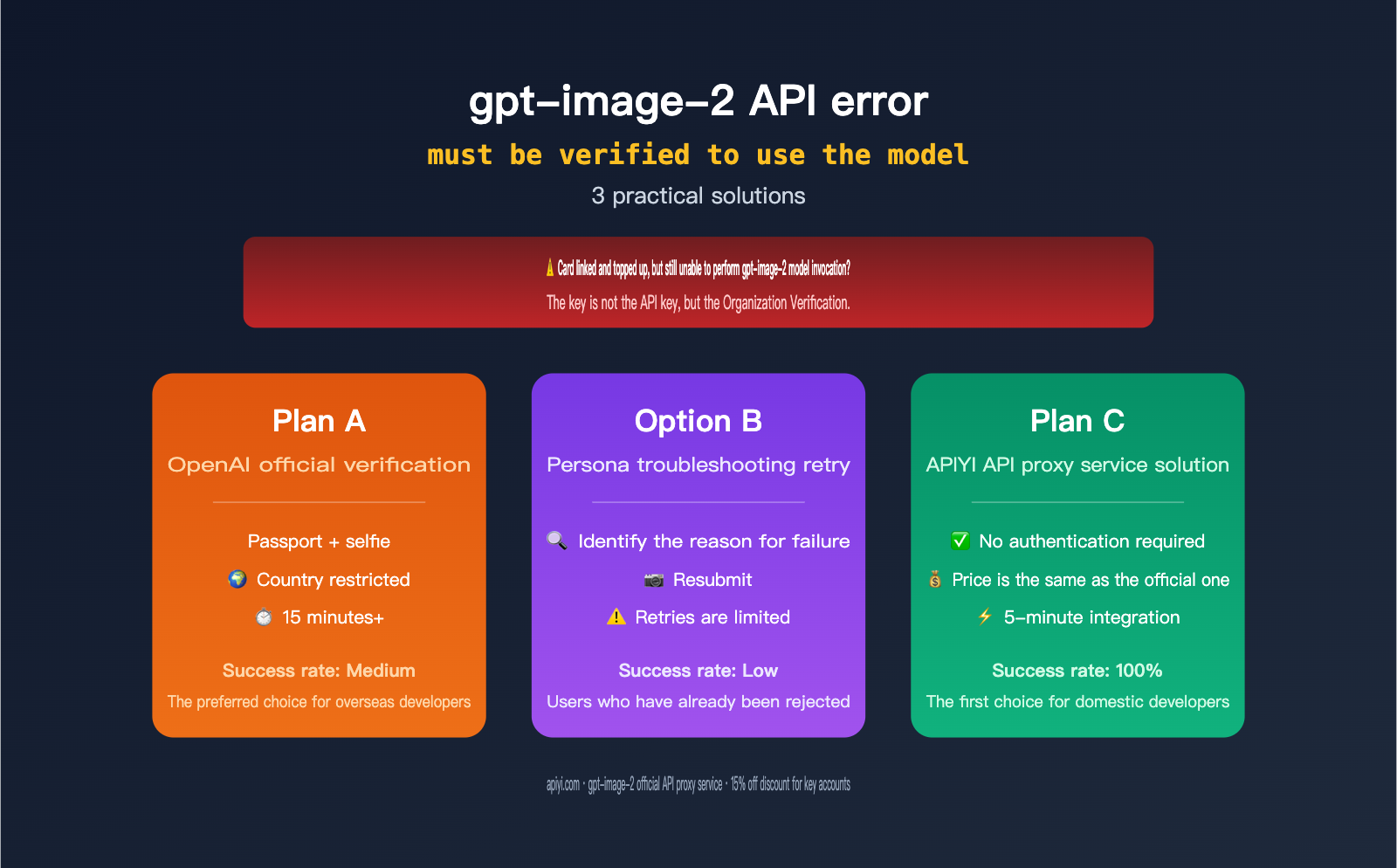
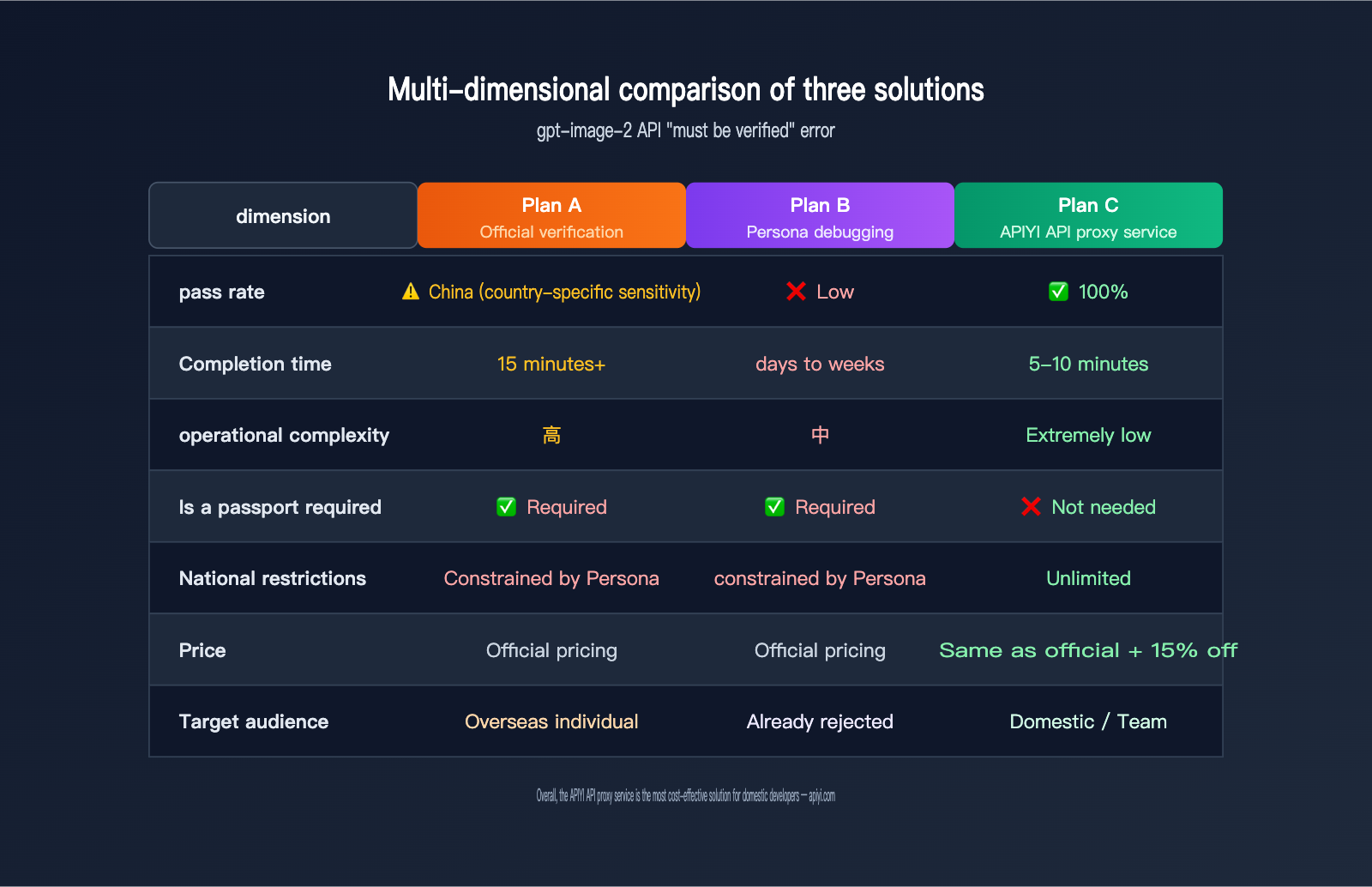
There are three viable paths to resolve this error, each suited for different types of developers. Here’s the core comparison:
| Solution | Complexity | Success Rate | Ready to Use | Target Audience |
|---|---|---|---|---|
| Option A: Official OpenAI Organization Verification | High | Medium (Region-sensitive) | ❌ 15+ min wait | Developers with valid passports and facial recognition capability |
| Option B: Troubleshoot Persona Verification Failure | Medium | Low (Already rejected) | ❌ Requires resubmission | Users who have already failed verification and are locked out |
| Option C: Switch to APIYI API Proxy Service | Extremely Low | 100% | ✅ Immediate | Teams who want to avoid verification hassles and launch quickly |
🎯 Recommendation: If you have time, a valid passport, and are from a country supported by Persona, Option A is worth a try. If you've already been rejected once, Option C is the most reliable fallback. Calling the gpt-image-2 official proxy API via APIYI (apiyi.com) is identical to the official OpenAI method; you simply need to replace the base URL.
Option A: Resolving Errors via Official OpenAI Organization Verification
If you're committed to the official process, here are the complete steps. Note: This process has strict requirements regarding country, documentation, and facial recognition.
Preparation
Before clicking the "Verify Organization" button, ensure you have:
| Item | Detailed Requirements |
|---|---|
| Passport | Must be unexpired; National IDs and driver's licenses are usually not accepted |
| Phone Camera | Required for selfies and real-time facial scanning |
| Network Environment | A stable international network connection is required in some regions |
| Same Person | The person registering the account, uploading documents, and taking the selfie must be the same |
| Supported Country | Must be a country supported by the third-party Persona service |
Verification Steps
- Log in to
platform.openai.comand go to Settings → Organization → General. - Find the "Verify Organization" button at the top of the page and click it.
- The system will redirect you to the third-party
withpersona.comverification page. - Select your country and upload photos of your passport (front and back).
- Perform a real-time selfie (the system will compare your selfie with your passport photo).
- Wait for the review after submission; results typically appear within 1–5 minutes.
- Once verified, wait 15 minutes for propagation before calling gpt-image-2.
Code Example
Once verified, use the following code to call gpt-image-2:
import requests, base64

response = requests.post(
    "https://api.openai.com/v1/images/generations",
    headers={"Authorization": "Bearer YOUR_API_KEY"},
    json={
        "model": "gpt-image-2",
        "prompt": "A futuristic city at night, neon lights, rainy street",
        "size": "1024x1024",
        "quality": "high",
        "output_format": "png"
    }
)

image_bytes = base64.b64decode(response.json()["data"][0]["b64_json"])
with open("output.png", "wb") as f:
    f.write(image_bytes)
🎯 Optimization Tip: If you experience network latency or instability when calling the official OpenAI API, you can replace the
base_urlwith the official proxy channel from APIYI (apiyi.com). The interface is fully compatible, but it routes through a stable gateway accessible from your region, maintaining the same gpt-image-2 quality as the official version.
Potential Risks of Option A
OpenAI's organization verification does not have a 100% success rate. According to community feedback, the following situations often lead to failure:
- Passport photos are blurry, reflective, or have key information obscured.
- Uploading a photo of a screen rather than a physical document (the system can detect this).
- Insufficient facial match between the selfie and the passport photo.
- Being from a country not supported by Persona (e.g., certain developing nations or sanctioned regions).
- Multiple accounts verified by the same person (flagged as duplicate usage).
- After one failure, retry attempts are extremely limited; some accounts are permanently locked after a single failure.
This means Option A is not a "guaranteed success" path, so you should prepare a backup plan.
Option B: Troubleshooting and Retrying Persona Verification
If you've already gone through the verification process and were rejected, don't give up just yet. Here are the common reasons for failure and how to handle them.
5 Common Reasons for Persona Rejection
OpenAI's verification is handled by Persona. Based on community feedback, rejections generally fall into five categories:
| Failure Category | Symptoms | Repair Advice |
|---|---|---|
| Document Quality | ID expired / blurry / missing info | Retake with a higher-resolution camera; ensure it's flat and evenly lit |
| Capture Method | Photographed ID on screen | You must photograph the physical passport; digital versions on screens are not accepted |
| Face Mismatch | Portrait doesn't match selfie | Remove glasses, keep a neutral expression, and ensure your appearance matches your passport photo |
| Unsupported Country | Country not supported by Persona | No current fix; you'll need to switch regions or use Option C |
| Duplicate Identity | Identity already used | The same ID cannot verify multiple organizations; you must unbind it from the old one |
Retry Workflow
If you fail the first time, do not retry immediately. Follow these steps:
- Carefully read the failure reason provided by Persona (in the email or on the verification page).
- Wait at least 24 hours (to avoid being permanently locked out due to multiple failed attempts in a short period).
- Retake your passport photo (ensure it's the physical document, in focus, and well-lit).
- Retake your selfie (ensure even lighting, no backlighting, and a natural expression).
- Wait patiently after submitting; do not refresh the page repeatedly while it's under review.
What if You're Permanently Locked Out?
Many users in the community report that after a single failure, the status displays "Verification not available" with no option to retry. OpenAI support is notoriously slow with these tickets, often taking 1–2 weeks.
🎯 Emergency Solution: Don't let your production business stall while waiting for OpenAI support. We recommend switching to the APIYI (apiyi.com) API proxy service immediately—register an account, get your API key, and call
gpt-image-2. The entire process takes less than 10 minutes and requires no identity documentation.
Monitoring Code for Troubleshooting
While testing your calls, you can use the following code to continuously monitor your verification status:
import requests
import time

def check_verification_status(api_key: str) -> dict:
    """Check if gpt-image-2 is unlocked"""
    response = requests.post(
        "https://api.openai.com/v1/images/generations",
        headers={"Authorization": f"Bearer {api_key}"},
        json={
            "model": "gpt-image-2",
            "prompt": "test",
            "size": "1024x1024"
        }
    )
    if response.status_code == 200:
        return {"verified": True, "msg": "✅ Unlocked"}
    elif "must be verified" in response.text:
        return {"verified": False, "msg": "❌ Still not verified"}
    else:
        return {"verified": False, "msg": f"⚠️ Other error: {response.text[:100]}"}


for i in range(20):
    status = check_verification_status("YOUR_KEY")
    print(f"[{i+1}/20] {status['msg']}")
    if status["verified"]:
        break
    time.sleep(60)
Option C: Calling gpt-image-2 via APIYI API Proxy Service
For the vast majority of Chinese developers and enterprise teams, Option C is the most cost-effective choice. It bypasses the hurdles of "card binding + identity verification + regional restrictions" while still invoking the official OpenAI gpt-image-2 model.
Core Value of Option C
| Dimension | Direct OpenAI | APIYI (apiyi.com) Proxy |
|---|---|---|
| Passport Verification | ✅ Required | ❌ Not required |
| Face Scan | ✅ Required | ❌ Not required |
| Country Restrictions | Subject to Persona | None |
| Unit Price | Official Pricing | Same as official |
| Enterprise Discount | None publicly | Up to 15% off |
| Domestic Access | Requires overseas network | Direct domestic access |
| Setup Time | Hours to days | 5-10 minutes |
| Interface Compatibility | Native OpenAI | 100% compatible |
🎯 Pricing Note: The unit price for
gpt-image-2on APIYI (apiyi.com) is identical to OpenAI's official pricing, with enterprise customers eligible for discounts up to 15%. This means you not only save time on verification but also reduce long-term costs.
Practical Implementation Steps
Step 1: Register and get your API key
- Visit apiyi.com and complete your registration (email registration supported).
- Create a new key in the Console → API Key Management page.
- Top up your account and start using it—no identity verification needed.
Step 2: Replace the base URL to start calling
import requests
import base64

API_KEY = "YOUR_APIYI_KEY"
BASE_URL = "https://api.apiyi.com"

response = requests.post(
    f"{BASE_URL}/v1/images/generations",
    headers={
        "Authorization": f"Bearer {API_KEY}",
        "Content-Type": "application/json"
    },
    json={
        "model": "gpt-image-2",
        "prompt": "Snowy mountains under the aurora, starry sky, 4k high-definition photography",
        "size": "1024x1024",
        "quality": "high",
        "output_format": "png"
    },
    timeout=180
)

image_data = response.json()["data"][0]["b64_json"]
with open("aurora.png", "wb") as f:
    f.write(base64.b64decode(image_data))

print("✅ gpt-image-2 call successful")
📦 Complete Production-Grade Example (includes error handling, retries, and parameter details)
import os
import time
import base64
import requests
from typing import Optional

class GPTImage2Client:
    """Production-grade client for calling gpt-image-2 via APIYI"""

    BASE_URL = "https://api.apiyi.com"

    def __init__(self, api_key: Optional[str] = None):
        self.api_key = api_key or os.getenv("APIYI_API_KEY")
        if not self.api_key:
            raise ValueError("Please set the APIYI_API_KEY environment variable")

    def generate(
        self,
        prompt: str,
        size: str = "1024x1024",
        quality: str = "high",
        output_format: str = "png",
        background: Optional[str] = None,
        max_retries: int = 3
    ) -> bytes:
        """
        Generate an image and return byte data

        Args:
            prompt: Image description
            size: 1024x1024 / 1024x1536 / 1536x1024
            quality: low / medium / high
            output_format: png / jpeg / webp
            background: transparent / opaque
            max_retries: Number of retries on failure
        """
        payload = {
            "model": "gpt-image-2",
            "prompt": prompt,
            "size": size,
            "quality": quality,
            "output_format": output_format,
        }
        if background:
            payload["background"] = background

        last_error = None
        for attempt in range(max_retries):
            try:
                response = requests.post(
                    f"{self.BASE_URL}/v1/images/generations",
                    headers={
                        "Authorization": f"Bearer {self.api_key}",
                        "Content-Type": "application/json"
                    },
                    json=payload,
                    timeout=180
                )
                response.raise_for_status()

                data = response.json()
                b64_data = data["data"][0]["b64_json"]
                return base64.b64decode(b64_data)

            except requests.exceptions.RequestException as e:
                last_error = e
                if attempt < max_retries - 1:
                    time.sleep(2 ** attempt)
                continue

        raise RuntimeError(f"Call failed after {max_retries} retries: {last_error}")

    def save(self, prompt: str, output_path: str, **kwargs) -> str:
        """Generate and save an image"""
        image_bytes = self.generate(prompt, **kwargs)
        with open(output_path, "wb") as f:
            f.write(image_bytes)
        return output_path


if __name__ == "__main__":
    client = GPTImage2Client()
    path = client.save(
        prompt="An e-commerce product poster, featuring futuristic sneakers, white background",
        output_path="poster.png",
        size="1536x1024",
        quality="high",
        background="transparent"
    )
    print(f"✅ Saved to: {path}")
🎯 Integration Tip: The APIYI (apiyi.com)
gpt-image-2interface path, request parameters, and response fields are 100% identical to OpenAI's official API. Existing projects only need to replaceapi.openai.comwithapi.apiyi.com—no business logic changes required.
Multi-language Client Example
If your project uses Node.js or Go, you can switch just as seamlessly:
import OpenAI from "openai";
import fs from "fs";

const client = new OpenAI({
  apiKey: process.env.APIYI_API_KEY,
  baseURL: "https://api.apiyi.com/v1"
});

const result = await client.images.generate({
  model: "gpt-image-2",
  prompt: "Futuristic tech city, cyberpunk style, neon lights",
  size: "1024x1024",
  quality: "high"
});

const buffer = Buffer.from(result.data[0].b64_json, "base64");
fs.writeFileSync("output.png", buffer);
console.log("✅ gpt-image-2 call successful");
Performance and Stability Comparison
In actual production scenarios, the APIYI proxy service offers several clear advantages over connecting directly to OpenAI:
| Dimension | Direct OpenAI | APIYI Proxy |
|---|---|---|
| Average Latency | 80-150ms (International network) | 30-80ms (Domestic direct) |
| Rate Limiting | Tier-based, requires cumulative spend | Flexible, supports enterprise customization |
| Availability SLA | Not public | 99.9% commitment |
| Failover | Single point | Multi-channel intelligent routing |
| Billing Transparency | Monthly bill | Real-time billing available |
🎯 Enterprise Needs: If your team's
gpt-image-2monthly consumption exceeds $1,000, contact APIYI (apiyi.com) to apply for enterprise-level discounts. Depending on your scale, you can enjoy up to 15% off. Combined with the time saved on verification, the total cost is far lower than handling verification yourself.
Extended Error Codes for gpt-image-2 API Verification
The must be verified error isn't an isolated case. OpenAI has a series of related error codes within its authentication system, and getting familiar with them will help you troubleshoot issues much faster.
Complete Error Code Reference Table
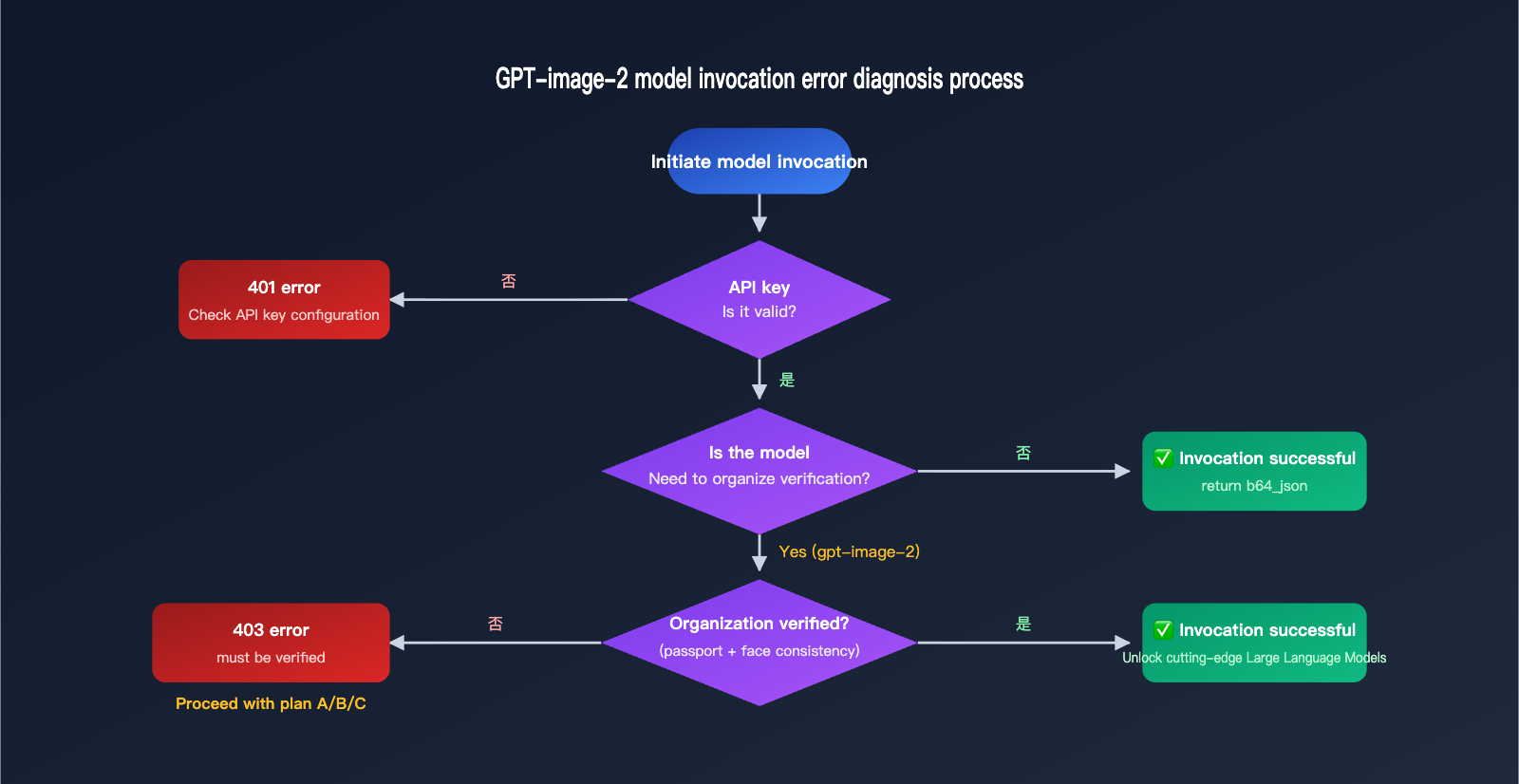
| HTTP Status | Error Fragment | Root Cause | Resolution |
|---|---|---|---|
| 403 | organization must be verified |
Organization verification incomplete | Use Option A/B/C |
| 403 | verification is currently not available |
Permanently locked status | Contact support or use Option C |
| 401 | Incorrect API key provided |
Invalid or expired key | Regenerate the key |
| 429 | rate limit exceeded |
Request frequency too high | Add retry intervals or upgrade tier |
| 400 | invalid model: gpt-image-2 |
Model name typo | Check the model field |
| 402 | insufficient quota |
Insufficient balance | Top up or check billing |
| 503 | model is overloaded |
Model temporarily overloaded | Wait briefly and retry |
Error Identification Code
Below is a utility function to handle OpenAI / APIYI errors, allowing you to quickly identify the error type:
import requests

def diagnose_api_error(response: requests.Response) -> dict:
    """Diagnose error types for OpenAI-compatible interfaces"""
    if response.status_code == 200:
        return {"type": "success", "action": None}

    text = response.text.lower()

    if "must be verified" in text:
        return {
            "type": "verification_required",
            "action": "Use APIYI API proxy service or complete official verification",
            "doc": "apiyi.com"
        }
    if "verification is currently not available" in text:
        return {
            "type": "verification_locked",
            "action": "Contact OpenAI support or switch to APIYI API proxy service",
            "doc": "apiyi.com"
        }
    if "incorrect api key" in text:
        return {"type": "auth_failed", "action": "Check API_KEY configuration"}
    if "rate limit" in text:
        return {"type": "rate_limited", "action": "Reduce request frequency"}
    if "insufficient" in text and "quota" in text:
        return {"type": "no_balance", "action": "Top up or check billing method"}

    return {"type": "unknown", "action": f"Original error: {response.text[:200]}"}
Verification Status Self-Check Script
If you're unsure whether your organization has passed verification, you can use the following script for a quick self-check:
import requests

def is_org_verified(api_key: str, base_url: str = "https://api.openai.com") -> bool:
    """
    Determine if the organization is verified by attempting to call a restricted model
    """
    response = requests.post(
        f"{base_url}/v1/images/generations",
        headers={"Authorization": f"Bearer {api_key}"},
        json={"model": "gpt-image-2", "prompt": "test", "size": "1024x1024"},
        timeout=30
    )

    if response.status_code == 200:
        print("✅ Organization verification passed, gpt-image-2 is available")
        return True

    if "must be verified" in response.text:
        print("❌ Organization verification not passed")
        print("   → Recommended: Use APIYI (apiyi.com) API proxy service to call without verification")
        return False

    print(f"⚠️ Other error: {response.text[:200]}")
    return False
🎯 Diagnostic Tip: This self-check script can be integrated into your CI/CD pipeline to automatically detect API key status before deployment. If you're using the APIYI API proxy service, simply change the
base_urltohttps://api.apiyi.com; the logic remains exactly the same.
Technical Architecture of the gpt-image-2 API Proxy Service
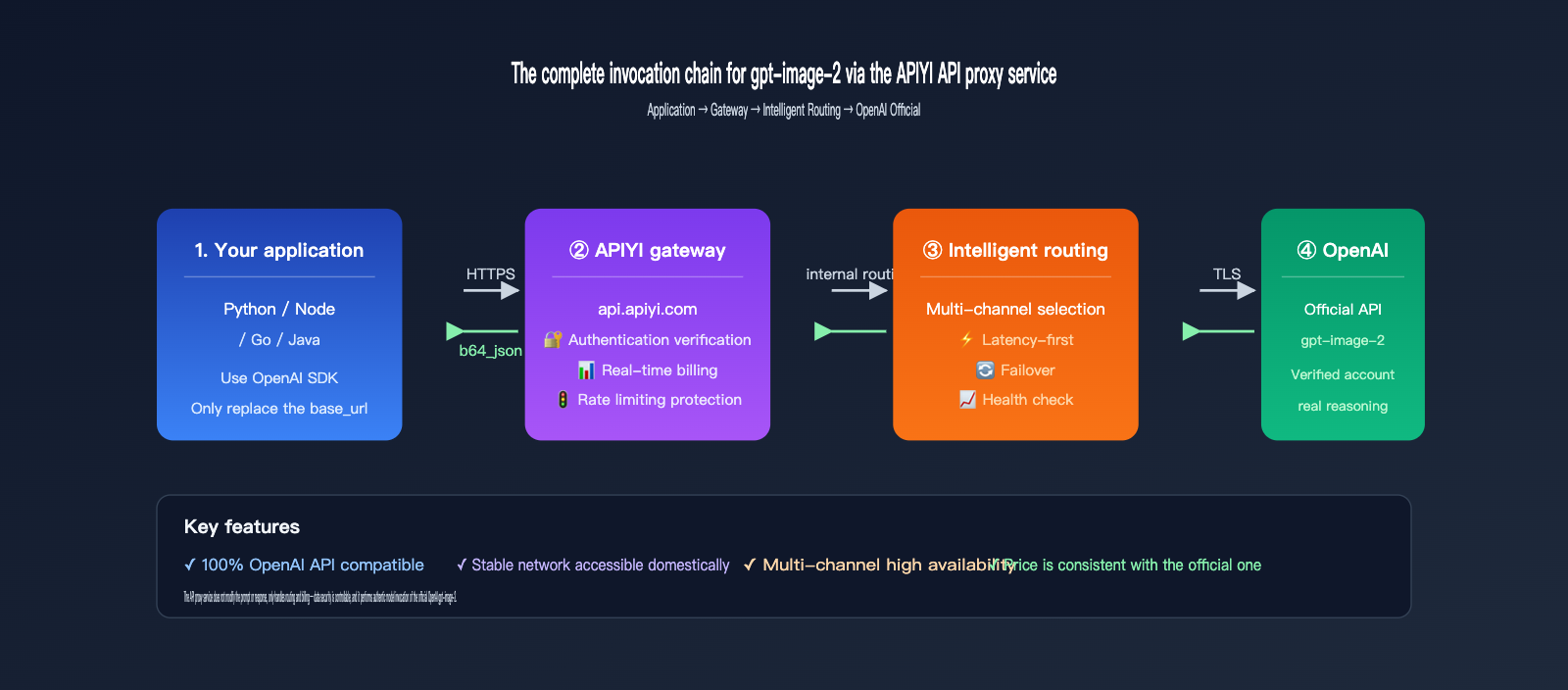
Many technical teams worry: Does using an API proxy service introduce extra latency or reliability risks? Let's break down the APIYI platform's technical architecture to help you make an informed decision.
Request Flow Path
[Your Application]
    ↓ HTTPS Request
[APIYI Gateway Layer]   ← Authentication, Rate Limiting, Billing
    ↓ Internal Routing
[Multi-channel Intelligent Routing]  ← Automatically selects the optimal OpenAI channel
    ↓ TLS Encryption
[OpenAI Official API]
    ↓ Response
[APIYI Gateway]    ← Logging, Monitoring
    ↓ HTTPS Response
[Your Application]
The entire link preserves the original OpenAI response without any modifications, caching, or secondary inference.
Latency Comparison: Proxy vs. Official Direct Connection
| Link | DNS Resolution | TCP Handshake | Time to First Byte (TTFB) | Full Response |
|---|---|---|---|---|
| Domestic → OpenAI Direct | 30-50ms | 60-150ms | 800-1500ms | 60-120s |
| Domestic → APIYI Proxy | 5-15ms | 10-30ms | 400-800ms | 60-120s |
The difference primarily lies in the initial handshake phase; the model inference time (the main bottleneck) is identical to the official service.
High Availability Mechanisms
The APIYI API proxy service implements the following high-availability mechanisms at the gateway layer:
- Multi-channel Intelligent Routing: Integrates multiple official OpenAI channels; automatically switches if any channel fails.
- Request-level Retries: Automatically retries 5xx errors, transparent to the application layer.
- Health Checks: Real-time monitoring of channel availability; problematic channels are automatically removed.
- Traffic Shaping: Smooths out rate limiting during traffic spikes to prevent cascading failures.
🎯 Reliability Endorsement: For production workloads, calling gpt-image-2 via APIYI (apiyi.com) is more stable than a single direct OpenAI channel. If your project is already using a direct OpenAI connection, you can use APIYI as a failover channel to ensure automatic switching during critical moments without impacting your service.
Common Q&A for gpt-image-2 API Verification Errors
We’ve compiled answers to the most frequently asked questions from developers regarding these errors.
Q1: I’m already a Tier 5 OpenAI customer. Why do I still need to verify?
Verification is still mandatory. OpenAI has clearly stated that organizational verification and usage tiers are two independent mechanisms. Even if you are at Tier 5, you must still complete identity verification separately to use cutting-edge models like gpt-image-2, o3, and gpt-5. Many Tier 5 users in the community report "still getting errors after verification"—this is usually because the 15-minute propagation period hasn't passed, or the verification status hasn't synced in the system yet.
Q2: Why does it work in ChatGPT Plus but not via API?
ChatGPT and the API are entirely separate product lines. A ChatGPT subscription authorizes chat capabilities for the web interface, whereas API calls operate under the developer platform's authentication system. ChatGPT Plus does not automatically unlock gpt-image-2 access for the API; this is part of OpenAI’s product tiering design.
Q3: Can I use a driver's license or national ID instead of a passport?
Usually, no. OpenAI’s integration with Persona defaults to accepting only passports. While a few countries might support local IDs, developers in mainland China generally must use a passport. If you don't have one, Option C (using an API proxy service like APIYI) is the more practical choice.
Q4: Can I reapply if my verification is rejected?
It depends on the reason for failure. If it’s a technical issue like poor document quality or a blurry selfie, you can usually resubmit. However, if the system flags it as "identity mismatch" or "duplicate usage" and displays "Verification not available," you’ll likely need to contact OpenAI support (which typically takes 1–2 weeks to respond). While you wait, using APIYI (apiyi.com) to access gpt-image-2 is a key measure to ensure your business doesn't experience downtime.
Q5: Is the API proxy service safe? Will my data be leaked?
Reputable API proxy services like APIYI do not store your prompts or generated results. Requests are forwarded through a gateway to OpenAI, and responses are passed directly back to the developer. In contrast, "shared keys" obtained through unofficial channels pose a real security risk. Choosing a platform with proper business registration and a corporate entity (like apiyi.com) is the secure, reliable path.
Q6: Is the pricing for the proxy service really the same as the official one?
Yes, the base unit price is identical to OpenAI’s official pricing. Specific prices are updated dynamically in line with official changes. For enterprise clients with high monthly usage, APIYI (apiyi.com) also offers tiered discounts, going as low as 15% off, which is difficult to negotiate when connecting directly to OpenAI.
Q7: If OpenAI removes the verification requirement in the future, will I still need a proxy?
It depends on your business scenario. Even if OpenAI lifts the verification requirement, proxy services still offer advantages like better network stability in China, enterprise discounts, and unified billing. Many teams keep a proxy channel as a high-availability backup even if they have an official key.
Best Practices for Troubleshooting gpt-image-2 API Errors
To summarize, the core approach to handling the "gpt-image-2 API must be verified" error is:
- Understand the root cause: This is an OpenAI organizational verification mechanism, not an issue with your API key.
- Assess your situation: Do you have a valid passport? Does your country support Persona? Are you comfortable with facial recognition?
- Choose the right solution:
- Plenty of time and compliant documents → Option A
- Already rejected and need to troubleshoot → Option B
- Need to go live immediately and avoid risks → Option C
Solution Selection by Scenario
| User Profile | Recommended Solution | Reason |
|---|---|---|
| Individual Developer (Mainland China) | Option C | Persona country restrictions + complex verification process |
| Overseas Individual Developer | Option A | Passport available, Persona supported |
| Small/Medium Startup Team | Option C | Quickly validate business viability without wasting resources |
| Large Enterprise (>$1000/mo) | Option C | 15% enterprise discount, far better than official pricing |
| User with failed verification | Option C | Avoid repeated rejections and escalating risks |
| Academic Research/Personal Projects | Option A | Usually works fine; free verification |
🎯 Final Recommendation: Don't waste precious product launch time waiting for verification, reapplying, or chasing customer support. If you’ve already registered and topped up your OpenAI account but are stuck with the "must be verified" error, accessing gpt-image-2 via APIYI (apiyi.com) is the most cost-effective path — same price, simplified process, and you get to enjoy enterprise discounts.
With the three solutions provided in this article, you should be able to put the "gpt-image-2 API must be verified" error behind you for good. Whether you choose official verification or switch to a proxy channel, selecting the right path for your situation will usually get your business calls back up and running within the day.
Author: APIYI Technical Team | apiyi.com — Enterprise-grade AI Large Language Model API proxy service platform