When generating images with Nano Banana, many developers encounter a frustrating problem: the images look great, but the text on them is either misspelled, blurry, or completely garbled.
The good news is that Google's official documentation actually provides a key tip: first have the model generate the text content, and then request an image containing that text. This is known as the "Two-Step Approach," and it can significantly improve text rendering accuracy.
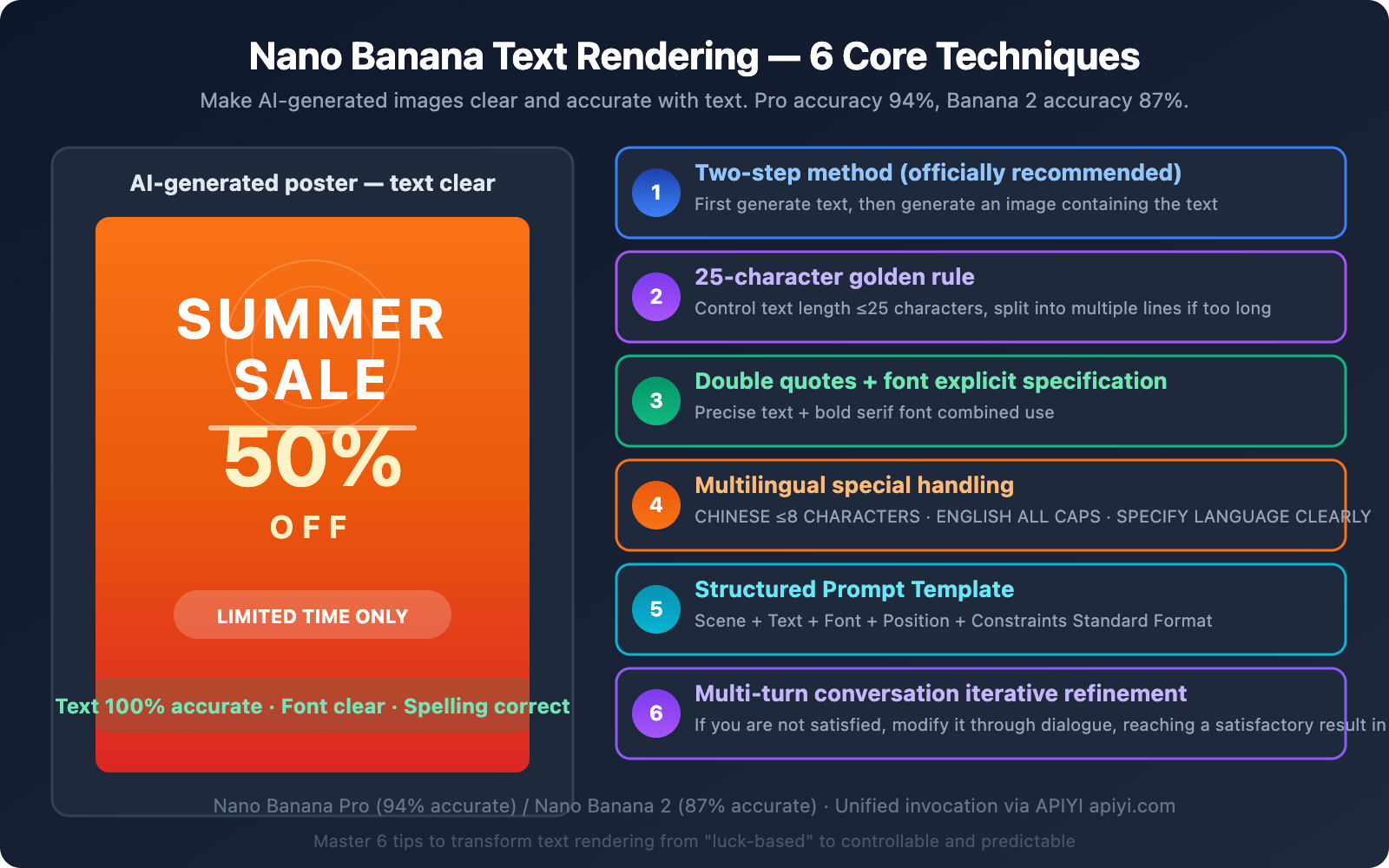
This article will dive deep into the technical reasons behind this phenomenon and provide 6 proven text rendering techniques to help you get clear and accurate text in your Nano Banana generated images.
Key Takeaway: After reading this article, you'll understand how Nano Banana renders text, master the Two-Step Approach and 6 other practical techniques, and take your image text accuracy from "luck of the draw" to a controllable level.
Nano Banana Text Rendering Status: Powerful, but Requires Skill
Let's get straight to the point: The Nano Banana series models' text rendering capabilities are top-tier in the AI image generation space, but it's not a "just write any prompt and get perfect text" situation.
Nano Banana Text Rendering Accuracy Data
| Model | Text Accuracy | Multilingual Support | Max Reliable Text Length | Description |
|---|---|---|---|---|
| Nano Banana Pro | ~94% | Excellent | Approx. 25 characters | Highest precision, suitable for commercial posters |
| Nano Banana 2 | ~87% | Excellent | Approx. 20 characters | Fast, high cost-performance |
| DALL-E 3 | ~78% | Good | Approx. 15 characters | Prone to errors with longer text |
| Stable Diffusion XL | ~45% | Poor | Approx. 8 characters | Generally unreliable |
| Midjourney v6 | ~65% | Average | Approx. 12 characters | Good style, but weak text |
As you can see, Nano Banana Pro's 94% accuracy is already the highest in the industry. However, the remaining 6% of failure scenarios—spelling errors, blurry text, missing characters—are simply unacceptable for commercial use.
Why AI Image Generation Struggles with Text Rendering
To understand why the "two-step method" is necessary, let's first grasp the challenges of rendering text in AI-generated images:
- Pixel-level Precision Required: Text in images must be pixel-perfect; even a single stroke out of place can turn it into a typo. Other AI-generated content (landscapes, people) allows for a certain degree of blurriness.
- Explosive Character Combinations: With 26 English letters, thousands of Chinese characters, plus variations in case, fonts, and arrangements, the possibilities are almost infinite.
- Contextual Interference: When generating the overall composition of an image, the model can easily get "distracted"—it needs to render the background well and arrange the text correctly, with both tasks competing for its attention.
- Training Data Bias: The proportion of images with perfect text in training datasets is limited, meaning the model might not have sufficient learning for certain fonts and layout combinations.
🎯 Pro Tip: Understanding the difficulties of text rendering is key to optimizing your prompt effectively. By using the APIYI apiyi.com platform to invoke Nano Banana Pro and Nano Banana 2, you can quickly compare the text rendering effects of both models and choose the best solution for your scenario.
Core Technique One: The Two-Step Method – Official Best Practice for Text Rendering
This is the method explicitly recommended in Google's official documentation, and it's the most important technique we'll cover in this article.
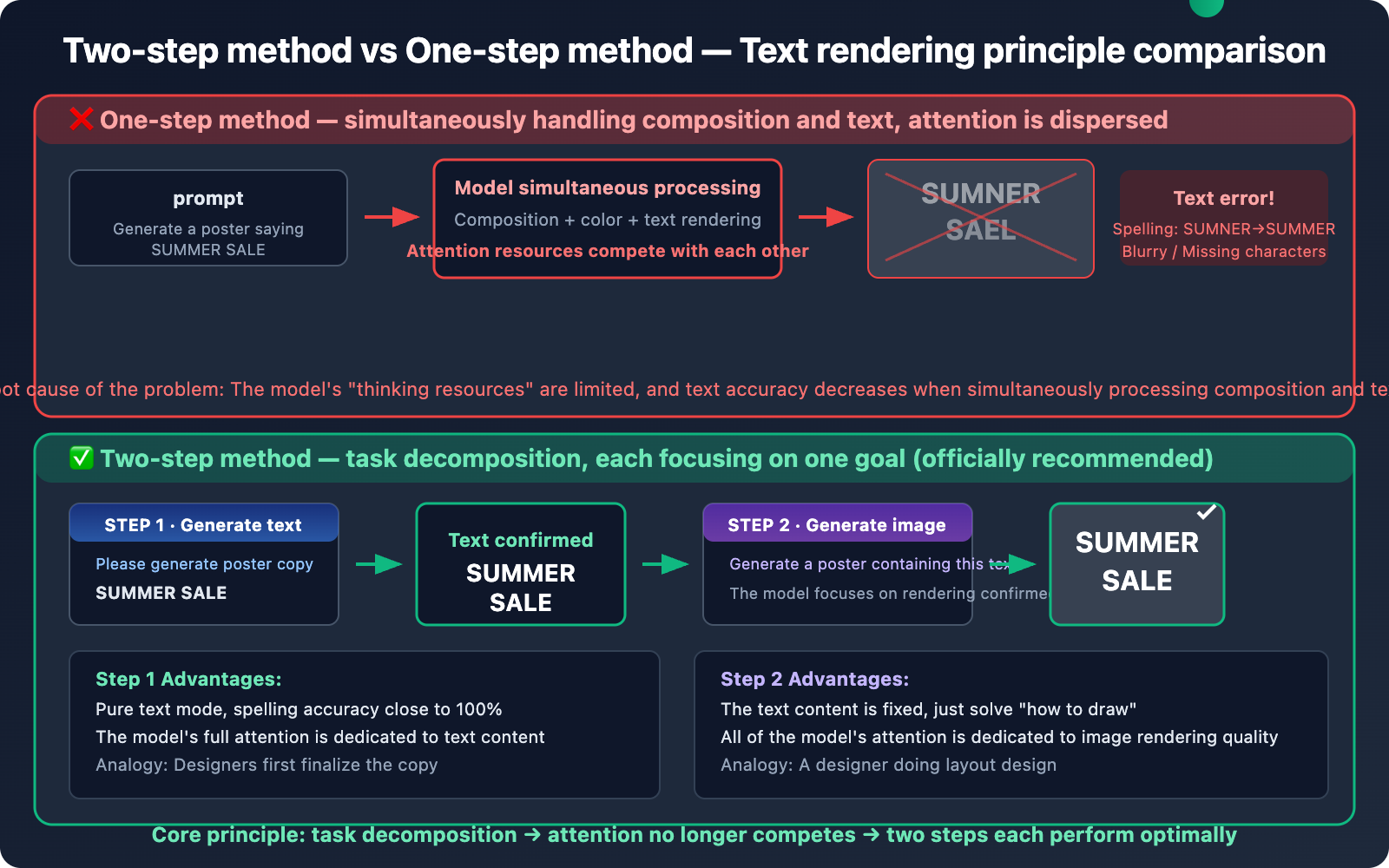
How the Two-Step Method Works
Traditional One-Step Method (Poor Results):
"Generate a poster with 'SUMMER SALE 50% OFF' written on it."
→ Model processes composition and text simultaneously → Text is prone to errors
Two-Step Method (Good Results):
Step One: "Please generate poster copy for me: Summer Sale 50% Off"
→ Model outputs text: "SUMMER SALE 50% OFF"

Step Two: "Generate a poster image that accurately displays the text 'SUMMER SALE 50% OFF'"
→ Model focuses on rendering the confirmed text into the image → Accuracy significantly improves
Why the Two-Step Method Works – A Technical Explanation
Nano Banana is built upon the Gemini multimodal Large Language Model. When you use the one-step method and directly ask it to "generate an image containing certain text," the model needs to simultaneously complete two tasks:
- Understand and plan the image composition — scene, colors, layout
- Precisely render text characters — spelling, font, position
These two tasks compete with each other within the model's attention mechanism. The model's "thinking resources" are limited, and when it tries to handle two high-precision tasks at once, the text rendering often becomes the casualty.
The core idea behind the two-step method is task separation:
- The first step allows the model to focus on generating and confirming the text content — at this point, the model is in a pure text mode, ensuring extremely high spelling accuracy.
- The second step allows the model to focus on rendering the confirmed text into the image — the text content is already fixed, so the model only needs to solve the "how to draw it" problem.
It's like asking a painter to first decide what text should be on a poster (the copywriting phase) before actually painting the poster (the design phase). Doing these two stages separately leads to higher efficiency and accuracy.
Two-Step Method API Code Implementation
import openai

client = openai.OpenAI(
    api_key="YOUR_API_KEY",
    base_url="https://api.apiyi.com/v1"  # APIYI unified interface
)

# ========== Step 1: Have the model generate/confirm text content ==========
text_response = client.chat.completions.create(
    model="gemini-3.1-flash-image-preview",
    messages=[{
        "role": "user",
        "content": "I need a promotional poster for a coffee shop. Please generate the English copy to be displayed on the poster, keeping it concise and powerful, no more than 20 characters. Only output the text, no other content."
    }]
)

poster_text = text_response.choices[0].message.content.strip()
print(f"Step 1 - Generated copy: {poster_text}")
# Output example: "BREW YOUR PERFECT DAY"

# ========== Step 2: Use the confirmed text to generate the image ==========
image_response = client.chat.completions.create(
    model="gemini-3.1-flash-image-preview",
    messages=[{
        "role": "user",
        "content": f'Generate an image: A warm-toned coffee shop promotional poster. Display the exact text "{poster_text}" in bold serif font, centered at the top. Background shows a cozy cafe interior with warm lighting.'
    }]
)

print("Step 2 - Image generation complete")
Key Details of the Two-Step Method
| Detail | Explanation | Reason |
|---|---|---|
| Use pure text mode in Step 1 | Don't ask for image generation in the first step | Allows the model to focus on text quality |
| Enclose text in double quotes | In the Step 2 prompt, wrap the text with "..." |
Clearly tells the model that this content needs to be rendered exactly as-is |
| Use English prompts in Step 2 | Image generation instructions are recommended in English | English prompts generally have higher comprehension accuracy |
| Specify font style | Add descriptions like bold serif font |
Helps the model choose fonts that are easier to render |
| Limit text length | Keep it under 25 characters in Step 1 | Accuracy significantly drops beyond 25 characters |
Core Skill Two: The 25-Character Golden Rule
This is the most crucial hard constraint for Nano Banana text rendering.
Nano Banana Text Rendering Accuracy vs. Character Count
| Character Count Range | Accuracy Rate | Recommendation |
|---|---|---|
| 1-10 Characters | ~98% | Optimal range, almost no errors |
| 11-20 Characters | ~92% | Safe range, occasional minor issues |
| 21-25 Characters | ~85% | Usable but requires checking, may need retries |
| 26-40 Characters | ~60% | High-risk range, frequent errors |
| 40+ Characters | <40% | Not recommended, generally unreliable |
Strategies for Exceeding 25 Characters
When your text genuinely exceeds 25 characters, you've got 3 ways to handle it:
Strategy One: Split into Multiple Short Lines
# ❌ Rendering long text all at once
prompt = 'Generate a poster with text "ANNUAL SUMMER CLEARANCE SALE - UP TO 70% OFF ALL ITEMS"'

# ✅ Splitting into multiple short lines
prompt = '''Generate a poster with two lines of text:
Line 1 (large, bold): "SUMMER SALE 70% OFF"
Line 2 (smaller, below): "ALL ITEMS INCLUDED"'''
Strategy Two: Gradual Addition Through Multi-Turn Conversations
# Round 1: Generate image with only the main title
# Round 2: Add subtitle based on the previous result
# Round 3: Add bottom explanatory text
Strategy Three: Use Images for Key Text, Post-Synthesis for Long Text
For scenarios that truly require a lot of text (like infographics), we recommend using Nano Banana only for generating key, short titles. Long paragraphs of text can be overlaid later using design tools.
Core Skill Three: Double Quotes + Explicit Font Specification
Combining these two small tricks can boost text rendering accuracy even further.
The Role of Double Quotes
Double quotes tell the model: the content within the quotes needs to be rendered precisely, character by character, rather than being a general description.
# ❌ No quotes, the model might take liberties
prompt = "Generate a sign that says Welcome to Tokyo"
# Might output: "WELCOME TO TOKIO" (misspelled) or completely different text

# ✅ Enclosed in double quotes, forcing character-by-character rendering
prompt = 'Generate a sign that displays the exact text "Welcome to Tokyo"'
# Output: "Welcome to Tokyo" (highly likely to be accurate)
Explicit Font Specification
Explicitly specifying the font type can help the model choose font styles that are easier to render:
| Font Specification | Prompt Wording | Effect |
|---|---|---|
| Bold Serif | bold serif font |
Clearest, recommended for poster titles |
| Sans-serif | clean sans-serif font |
Modern feel, suitable for tech themes |
| Handwritten Script | handwritten script |
Lower text accuracy, use with caution |
| Monospace Font | monospace font |
Suitable for code screenshot scenarios |
| Specific Font | in Helvetica style |
Style reference, not guaranteed to be an exact match |
💡 Practical Tip: Bold serif fonts are the most accurate font type for text rendering. Their thick strokes and clear structure make them easier for the model to generate accurately. Handwritten and script fonts have the lowest accuracy, so try to avoid them for critical text.
Core Skill Four: Special Handling for Multilingual Text Rendering
Nano Banana performs excellently in multilingual text rendering, but different languages require different handling strategies.
Multilingual Text Rendering Performance
| Language | Rendering Accuracy | Optimal Character Count | Special Notes |
|---|---|---|---|
| English | ~94% | ≤25 | All caps works best |
| Chinese | ~85% | ≤8 characters | Simplified is better than Traditional |
| Japanese | ~82% | ≤10 | Hiragana is better than Kanji |
| Korean | ~80% | ≤12 | Needs explicit Korean specification |
| Arabic | ~75% | ≤8 | Pay attention to right-to-left alignment |
Multilingual Text Rendering Prompt Templates
# English — Most reliable
prompt = 'Generate a poster with bold text "HELLO WORLD" in white serif font'

# Chinese — Specify language + concise
prompt = 'Generate a poster with Chinese text "欢迎光临" in bold Chinese calligraphy style font, centered'

# Japanese — Explicitly state language
prompt = 'Generate a Japanese store sign with text "いらっしゃいませ" in clean sans-serif Japanese font'

# Mixed languages — Handle line by line
prompt = '''Generate a bilingual poster:
Top line in English: "GRAND OPENING"
Bottom line in Chinese: "盛大开业"
Both in bold, high contrast against dark background'''
🎯 Technical Tip: For multilingual text rendering, we recommend extensive testing and comparison using the APIYI apiyi.com platform. The results can vary significantly between languages, so practical testing is more reliable than theoretical parameters. The platform supports quick switching between Nano Banana Pro and Nano Banana 2 models.
Core Skill Five: Structured Prompt Templates (Essential for Practical Use)
Let's combine all the previous tips into a standardized prompt template for various scenarios.
Nano Banana Universal Text Rendering Prompt Template
Generate an image:
[Scene description, max 100 characters].
Display the exact text "[Your text, ≤25 characters]" in [font style] font,
positioned at [position], [size description].
The text should be [color] with high contrast against the background.
Ensure the text is perfectly legible and correctly spelled.
Practical Examples for Different Scenarios
Scenario One: Commercial Poster
prompt = '''Generate an image:
A vibrant summer sale promotional poster with tropical beach background.
Display the exact text "SUMMER SALE" in bold white serif font,
positioned at the center top, large and prominent.
Below it, display "50% OFF" in bold yellow sans-serif font.
The text should have high contrast against the background.
Ensure all text is perfectly legible and correctly spelled.'''
Scenario Two: Logo Design
prompt = '''Generate an image:
A minimalist tech company logo on a clean white background.
Display the exact text "NEXUS" in modern bold sans-serif font,
positioned at the center, medium size.
The text should be dark navy blue (#1a1a2e).
Ensure the text is perfectly legible and correctly spelled.'''
Scenario Three: Social Media Graphic
prompt = '''Generate an image:
An inspirational quote card with soft gradient background (blue to purple).
Display the exact text "START NOW" in elegant white serif font,
positioned at the center, large and prominent.
The text should be pure white with subtle drop shadow.
Ensure the text is perfectly legible and correctly spelled.'''
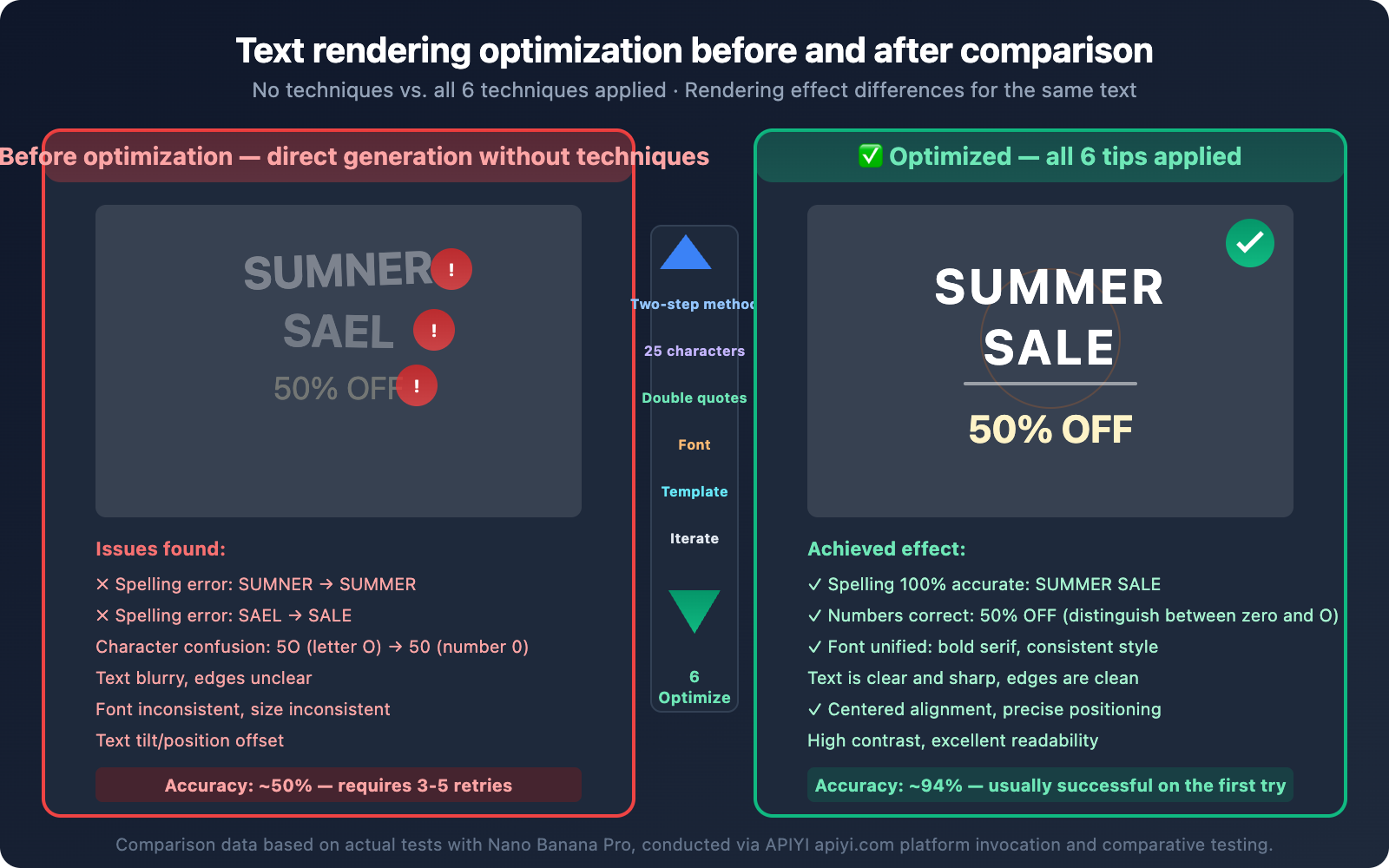
Core Skill Six: Iterative Refinement with Multi-turn Conversations
Even after using the first 5 techniques, text rendering might still not be perfect. A major advantage of Nano Banana is its support for multi-turn conversational editing—if you're not satisfied, you can directly refine the previous result.
Text Correction Conversation Flow
import openai

client = openai.OpenAI(
    api_key="YOUR_API_KEY",
    base_url="https://api.apiyi.com/v1"
)

messages = []

# Round 1: Generate initial image
messages.append({
    "role": "user",
    "content": 'Generate an image: A coffee shop menu board with text "TODAY\'S SPECIAL" in chalk-style white font on dark background'
})

response_1 = client.chat.completions.create(
    model="gemini-3.1-flash-image-preview",
    messages=messages
)
messages.append({"role": "assistant", "content": response_1.choices[0].message.content})

# Round 2: Check and correct text
messages.append({
    "role": "user",
    "content": 'The text is slightly blurry. Please regenerate with the text "TODAY\'S SPECIAL" rendered more sharply and clearly. Make the font bolder and increase the contrast.'
})

response_2 = client.chat.completions.create(
    model="gemini-3.1-flash-image-preview",
    messages=messages
)
Common Correction Prompts
| Problem | Correction Prompt |
|---|---|
| Blurry Text | "Make the text sharper and bolder, increase contrast" |
| Spelling Error | "Fix the spelling. The correct text should be exactly '[Correct Text]'" |
| Missing Text | "The text '[Text]' is missing. Add it at [Position] in [Font Style]" |
| Incorrect Font | "Change the font to bold serif, keep the same text content" |
| Misplaced Text | "Move the text to the center of the image, keep everything else" |
| Incorrect Size | "Make the text larger/smaller while keeping it legible" |
🚀 Quick Start: Multi-turn conversational editing is perfect for scenarios where you have high demands for text effects. By invoking Nano Banana via the APIYI apiyi.com platform, each editing round costs about $0.02, and you can achieve satisfactory results in 3-4 iterations.
Nano Banana Text Rendering Full Workflow
Let's integrate all 6 techniques into a standardized workflow:
Step One: Plan Text Content
- Determine the text to be rendered (≤25 characters)
- If over 25 characters, split into multiple lines
- Confirm accurate spelling
Step Two: Two-Step Generation
- First, let the model confirm/optimize the text content
- Then, use the confirmed text to generate the image
Step Three: Prompt Optimization
- Enclose text in double quotes
- Explicitly specify font style
- Use a structured template
- Add the constraint
"Ensure text is perfectly legible"
Step Four: Check and Iterate
- Check if the text in the generated result is accurate
- If not satisfied, correct with multi-turn conversations
- Typically, 1-3 rounds are enough to achieve satisfactory results
View the complete text rendering workflow code
#!/usr/bin/env python3
"""
Nano Banana Text Rendering Optimization Workflow
Full implementation of the two-step method + 6 key techniques
"""

import openai
import base64
import re
from datetime import datetime

API_KEY = "YOUR_API_KEY"
BASE_URL = "https://api.apiyi.com/v1"

client = openai.OpenAI(api_key=API_KEY, base_url=BASE_URL)

def render_text_in_image(
    scene_description: str,
    desired_text: str,
    font_style: str = "bold serif",
    text_color: str = "white",
    text_position: str = "centered",
    model: str = "gemini-3.1-flash-image-preview",
    max_fix_rounds: int = 2
):
    """
    Generates an image with accurate text using the two-step method.

    Args:
        scene_description: Scene description (without text requirements)
        desired_text: The text to be rendered (recommended ≤25 characters)
        font_style: Font style
        text_color: Text color
        text_position: Text position
        model: The model to use
        max_fix_rounds: Maximum number of correction rounds
    """
    # Check text length
    if len(desired_text) > 25:
        print(f"⚠️ Text length {len(desired_text)} exceeds 25 characters, accuracy might decrease")

    # ===== Step One: Confirming text content =====
    print(f"📝 Step One: Confirming text content → '{desired_text}'")

    text_check = client.chat.completions.create(
        model=model,
        messages=[{
            "role": "user",
            "content": f"Please verify this text is correctly spelled and formatted: '{desired_text}'. Only reply with the verified text, nothing else."
        }]
    )
    verified_text = text_check.choices[0].message.content.strip().strip("'\"")
    print(f"✅ Verified text: '{verified_text}'")

    # ===== Step Two: Generating image with text =====
    print(f"🎨 Step Two: Generating image...")

    image_prompt = f'''Generate an image:
{scene_description}.
Display the exact text "{verified_text}" in {font_style} font,
positioned at {text_position}, with {text_color} color.
The text should have high contrast against the background.
Ensure the text is perfectly legible and correctly spelled.'''

    messages = [{"role": "user", "content": image_prompt}]

    response = client.chat.completions.create(
        model=model,
        messages=messages
    )

    content = response.choices[0].message.content
    print(f"✅ Image generation complete")

    # Save image
    save_image(content, f"text_render_{datetime.now().strftime('%H%M%S')}.png")
    return content


def save_image(content, filename):
    """Extracts and saves the image from the response"""
    patterns = [
        r'data:image/[^;]+;base64,([A-Za-z0-9+/=]+)',
        r'([A-Za-z0-9+/=]{1000,})'
    ]
    for pattern in patterns:
        match = re.search(pattern, content)
        if match:
            data = base64.b64decode(match.group(1))
            with open(filename, 'wb') as f:
                f.write(data)
            print(f"💾 Saved to: {filename} ({len(data):,} bytes)")
            return True
    print("⚠️ No image data found")
    return False


# ===== Usage Example =====
if __name__ == "__main__":
    # Example 1: Commercial Poster
    render_text_in_image(
        scene_description="A vibrant promotional poster with tropical beach background, summer vibes",
        desired_text="SUMMER SALE",
        font_style="bold white serif",
        text_position="top center, large and prominent"
    )

    # Example 2: Logo
    render_text_in_image(
        scene_description="A minimalist tech company logo on clean white background",
        desired_text="NEXUS",
        font_style="modern bold sans-serif",
        text_color="dark navy blue",
        text_position="centered"
    )

    # Example 3: Chinese Text
    render_text_in_image(
        scene_description="A traditional Chinese restaurant sign with red and gold decorations",
        desired_text="福满楼",
        font_style="bold Chinese calligraphy",
        text_color="gold",
        text_position="centered, large"
    )
Nano Banana Pro vs. Nano Banana 2: Text Rendering Comparison
Both models have their strengths when it comes to text rendering:
| Comparison Dimension | Nano Banana Pro | Nano Banana 2 | Recommendation |
|---|---|---|---|
| Text Accuracy | ~94% | ~87% | Choose Pro for commercial-grade requirements |
| Max Reliable Characters | ~25 | ~20 | Pro offers more error tolerance |
| Multilingual Support | Excellent | Excellent | Both are on par |
| Font Style Variety | Richer | Sufficient | Pro has more font options |
| Generation Speed | 10-20 seconds | 3-8 seconds | Choose Banana 2 for rapid iteration |
| API Price | ~$0.04/invocation | ~$0.02/invocation | Choose Banana 2 if cost-sensitive |
| Iterative Correction Capability | Excellent | Excellent | Both are on par |
| Model ID | gemini-3.0-pro-image |
gemini-3.1-flash-image-preview |
Can be invoked simultaneously via APIYI apiyi.com |
Model Selection Recommendations for Text Rendering
- Commercial Posters/Branding Materials: Choose Nano Banana Pro — 94% accuracy + more font styles
- Social Media Graphics/Rapid Prototypes: Choose Nano Banana 2 — faster speed + better cost-effectiveness
- Scenarios Requiring Frequent Iteration: Choose Nano Banana 2 — faster speed means lower iteration costs
- Multilingual Text: Not much difference between the two; choose based on speed/cost requirements
Frequently Asked Questions
Q1: Why does Google officially recommend “generating text first, then generating images”?
This is because when a multimodal model simultaneously handles two tasks—"generating text content" and "rendering text into an image"—attention resources compete with each other, leading to a decrease in text accuracy. The two-step method splits these tasks: in the first step, the model focuses solely on text correctness (pure text mode, nearly 100% accurate), and in the second step, it focuses on rendering the confirmed text into the image. This principle is similar to how human designers finalize copy before starting the design. Using the two-step method via the APIYI apiyi.com platform is very convenient, and the total cost for two API invocations is less than $0.05.
Q2: Is the 25-character limit a hard constraint? Will it definitely cause errors if exceeded?
It's not a hard constraint, but rather a watershed for accuracy. Within 25 characters, accuracy ranges between 85%-98%. Beyond 25 characters, accuracy significantly drops to below 60%. If you absolutely need to use longer text, we recommend splitting it into multiple lines (≤15 characters per line) or adding it incrementally using multi-turn conversations.
Q3: How good is Chinese text rendering? Is it much worse than English?
Nano Banana's Chinese text rendering is much better than most competitors, but it is indeed slightly inferior to English. Our tests show Chinese accuracy at about 85% (compared to 94% for English). We recommend keeping Chinese text within 8 characters, using a bold style, and explicitly specifying "Chinese text" and "Chinese calligraphy font" or "bold Chinese font" in your prompt. You can quickly test the Chinese rendering effect of different prompt formulations via the APIYI apiyi.com platform.
Q4: Will the two-step method significantly increase costs?
The two-step method does require two API invocations, but the first step is pure text generation (not involving images), which has an extremely low cost (less than $0.001). The second step is image generation ($0.02-$0.04). So, the total cost only increases by less than 5%, but the improvement in text accuracy is very significant. Considering that without the two-step method, you might need to retry 3-5 times to get the correct text, the two-step method is actually more cost-effective.
Q5: Is there a method that guarantees no errors?
Currently, AI image generation's text rendering can't guarantee 100% accuracy. Even with all optimization techniques, we still recommend incorporating a manual review step into your workflow—especially for images intended for commercial use. For scenarios requiring absolute accuracy (e.g., screenshots of legal documents, official certificates), we suggest using AI to generate the background and composition, then overlaying the text portion later with design tools.
Summary
Nano Banana's text rendering capability is already top-tier in AI image generation (Pro 94%, Banana 2 87%). However, to consistently leverage this ability, you'll need to master the right techniques.
Here are 6 core techniques, ranked by importance:
- Two-Step Method — Generate text first, then generate the image. This is officially recommended and yields the most significant results.
- 25-Character Rule — Control text length. For longer texts, break them down and process them separately.
- Double Quotes + Font Specification — Force character-by-character rendering + choose fonts with high accuracy.
- Multilingual Special Handling — Use different strategies for different languages.
- Structured Prompt Templates — Standardize your prompts to improve stability.
- Multi-Turn Conversation Refinement — If you're not satisfied, iterate and optimize.
Once you've mastered these techniques, Nano Banana's text rendering transforms from a "hit-or-miss" endeavor into a controllable and predictable capability. We recommend using APIYI apiyi.com to quickly start testing and find the parameter combinations that best suit your specific scenarios.
References
-
Google Official – Nano Banana Image Generation Documentation
- Link:
ai.google.dev/gemini-api/docs/image-generation - Description: Includes the official recommendation to "generate text first, then generate the image".
- Link:
-
Google Developers Blog – Prompting Tips for Nano Banana Pro
- Link:
blog.google/products/gemini/prompting-tips-nano-banana-pro/ - Description: Official prompt optimization tips.
- Link:
-
Google Developers Blog – How to Prompt Gemini 2.5 Flash Image Generation
- Link:
developers.googleblog.com/how-to-prompt-gemini-2-5-flash-image-generation-for-the-best-results/ - Description: Image generation optimization strategies for Flash series models.
- Link:
📝 Author: APIYI Team | For technical discussions and API integration, please visit apiyi.com