
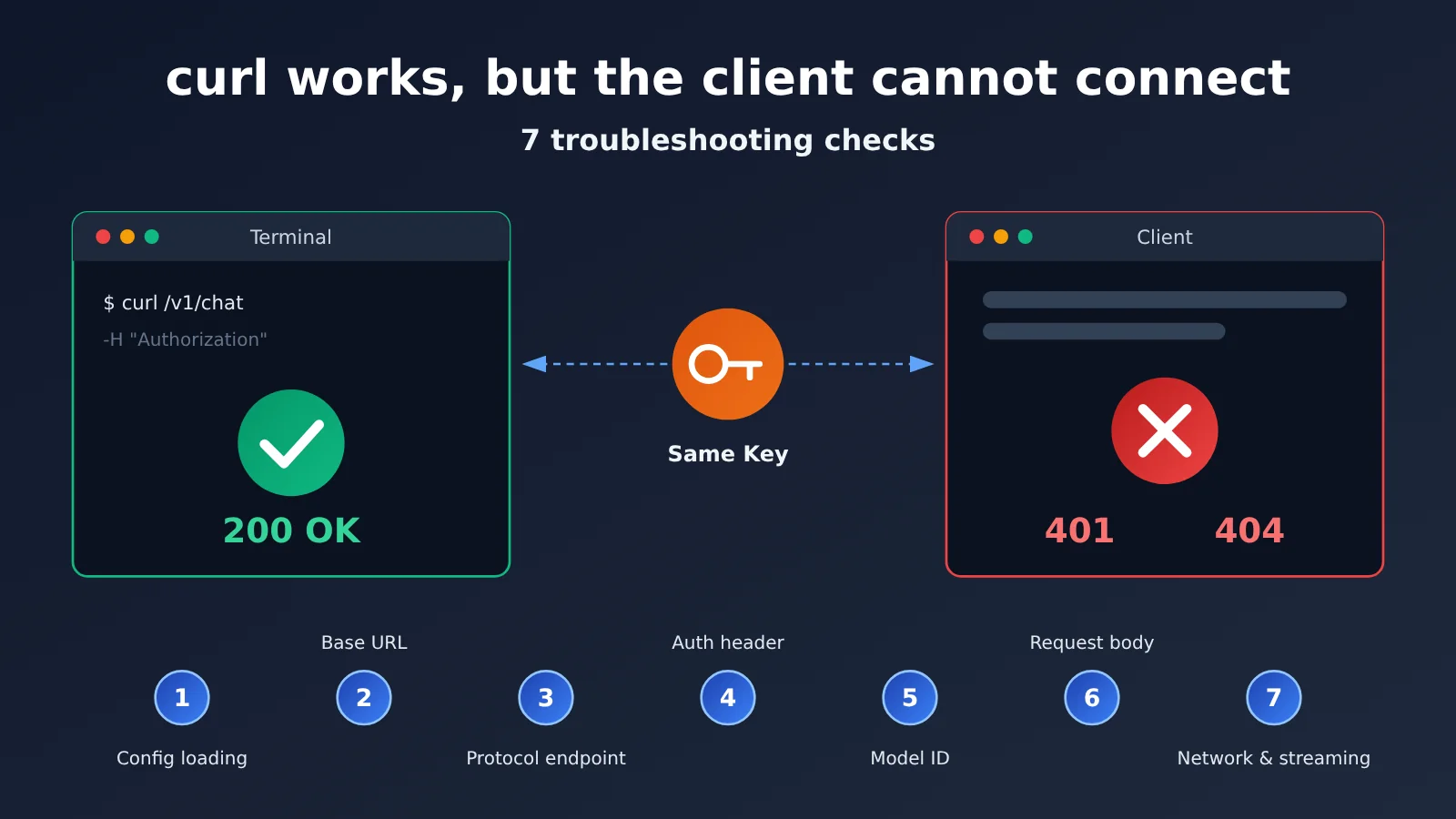
Author’s note: If curl works but your client returns a 401, 404, or 400—or can’t connect—follow these 7 API proxy service checkpoints in order. This guide also includes an error code reference and a 10-minute troubleshooting checklist.
You use the same key and model, and a curl request returns 200. But in Cherry Studio, Chatbox, Cursor, Cline, Claude Code, or Codex CLI, you get a 401, 404, or 400—or a timeout or empty response. In this situation, suspect the client configuration first; don’t replace the key just yet. If curl works, you’ve already confirmed that the key is valid and the network is reachable. The problem is likely that the request your client actually sends differs from what you expect.
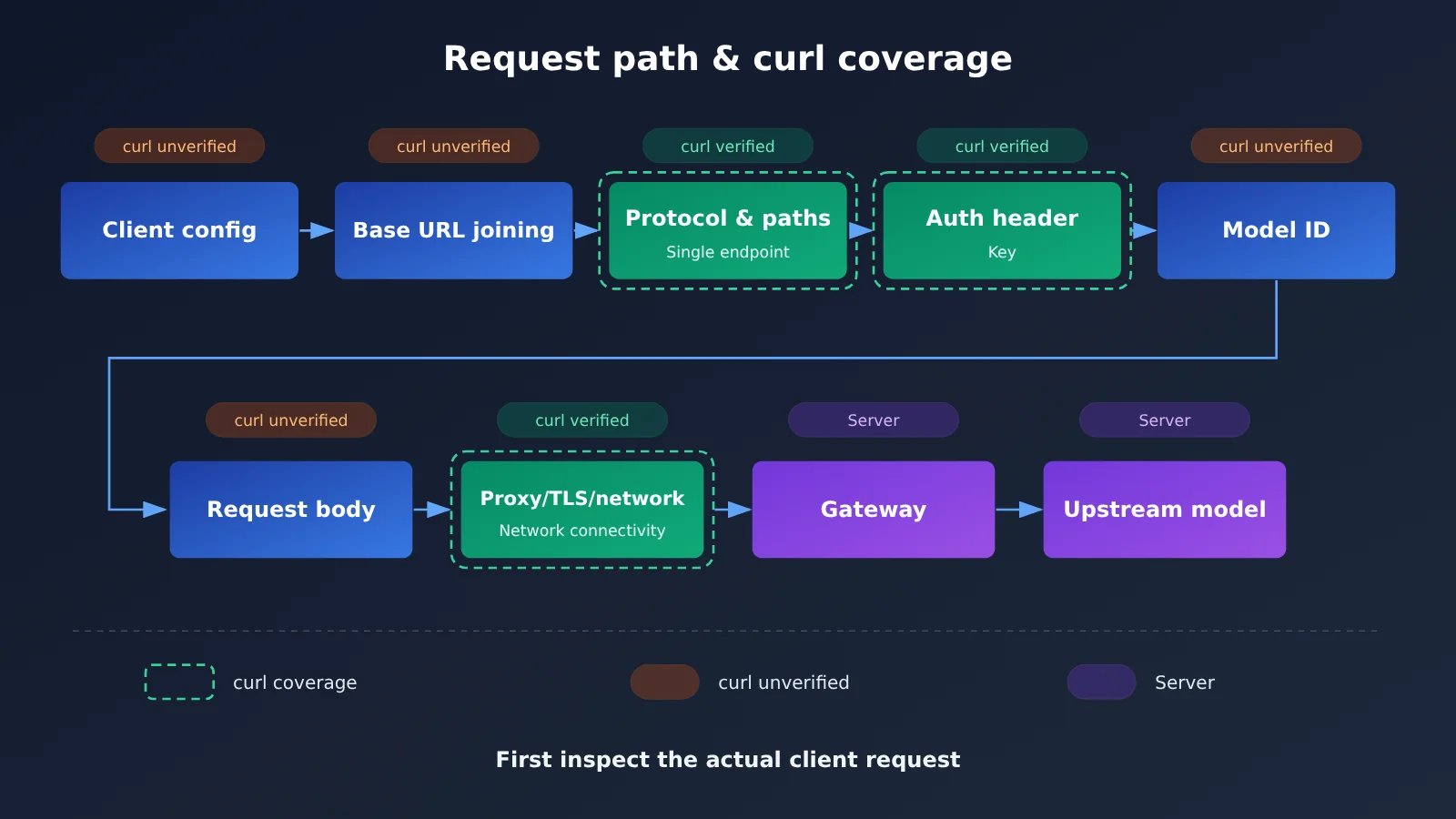
The recommended troubleshooting order is: Base URL → protocol and endpoint → authentication headers → model ID → request body → network. Before all that, confirm that the client has actually loaded your updated configuration. This article breaks the request chain down into 7 checkpoints, each covering symptoms, causes, how to verify the issue, and how to fix it. The goal is to help you determine within 10 minutes whether the problem is in the client, the gateway, or upstream.
This isn’t another introduction to API concepts—it’s a troubleshooting guide you can follow step by step.
Why curl Works but Your Client Can’t Connect: API Proxy Troubleshooting Essentials
curl only verifies a small part of the connection: DNS resolution, the TLS handshake, network reachability, key validity, and whether the specific endpoint you requested manually is available. It doesn’t verify whether the client loaded your updated configuration, how it constructs the Base URL, or whether its request headers and body match curl’s.
A request from a client typically follows this path: client configuration (environment variables, config files, GUI) → Base URL construction → protocol and endpoint → authentication headers → model ID and mapping → request body (messages, tools, multimodal content, streaming) → proxy, TLS, and network → gateway → upstream model. A successful curl request only shows that the one path you constructed manually works. The client may be taking a completely different path.
| Checkpoint | Typical symptoms | What to check first |
|---|---|---|
| 1. Configuration loading | Changes don’t take effect; the error stays the same | Check the actual request URL in the client logs |
| 2. Base URL construction | 404, or /v1/v1 or // appears in the path |
Compare the URL in the logs with the curl URL |
| 3. Protocol and endpoint | 404, 400, or response format parsing errors | Confirm which protocol the client is using |
| 4. Authentication headers | 401, but the key works with curl | Compare the request headers |
| 5. Model ID | 404 or 400 saying the model doesn’t exist | Compare it character by character with the gateway’s model list |
| 6. Request body | Plain text works, but adding an image or tool causes a 400 | Add variables one at a time to reproduce the issue |
| 7. Network and streaming | Timeouts, stream disconnected, or empty responses | Compare with streaming disabled and check the proxy |
API Proxy Troubleshooting Checks 1–2: Configuration Loading and Base URL Construction
Check 1: Is the client actually reading your updated configuration?
Symptoms: You changed the Base URL and key, but the error is exactly the same as before. Or it works in one project but not another.
Cause: Most clients have more than one configuration source. For example, GUI settings may override environment variables; a configuration file may contain multiple profiles, and the active one isn’t the one you edited; project-level settings may override global settings; or an old process may still be running with the values it loaded at startup. The last case is especially common with command-line tools: you change an environment variable in your terminal, but an already-running IDE or agent process can’t see it.
How to verify: Check the client logs or debug output to see whether the actual request URL and the first few characters of the key match the values you just entered. If the logs are hard to access, deliberately change the Base URL to an obviously invalid address and see whether the error changes. That tells you whether the new configuration is taking effect.
How to fix it: First, find out the client’s configuration precedence. GUI or project settings often take precedence over global configuration files, which in turn take precedence over environment variables, but the rules vary by client, so check its documentation. Then make changes only in the highest-priority location, remove conflicting settings elsewhere, and fully exit the client process before restarting it.
Check 2: Trailing slashes, duplicate /v1, and path prefixes in the Base URL
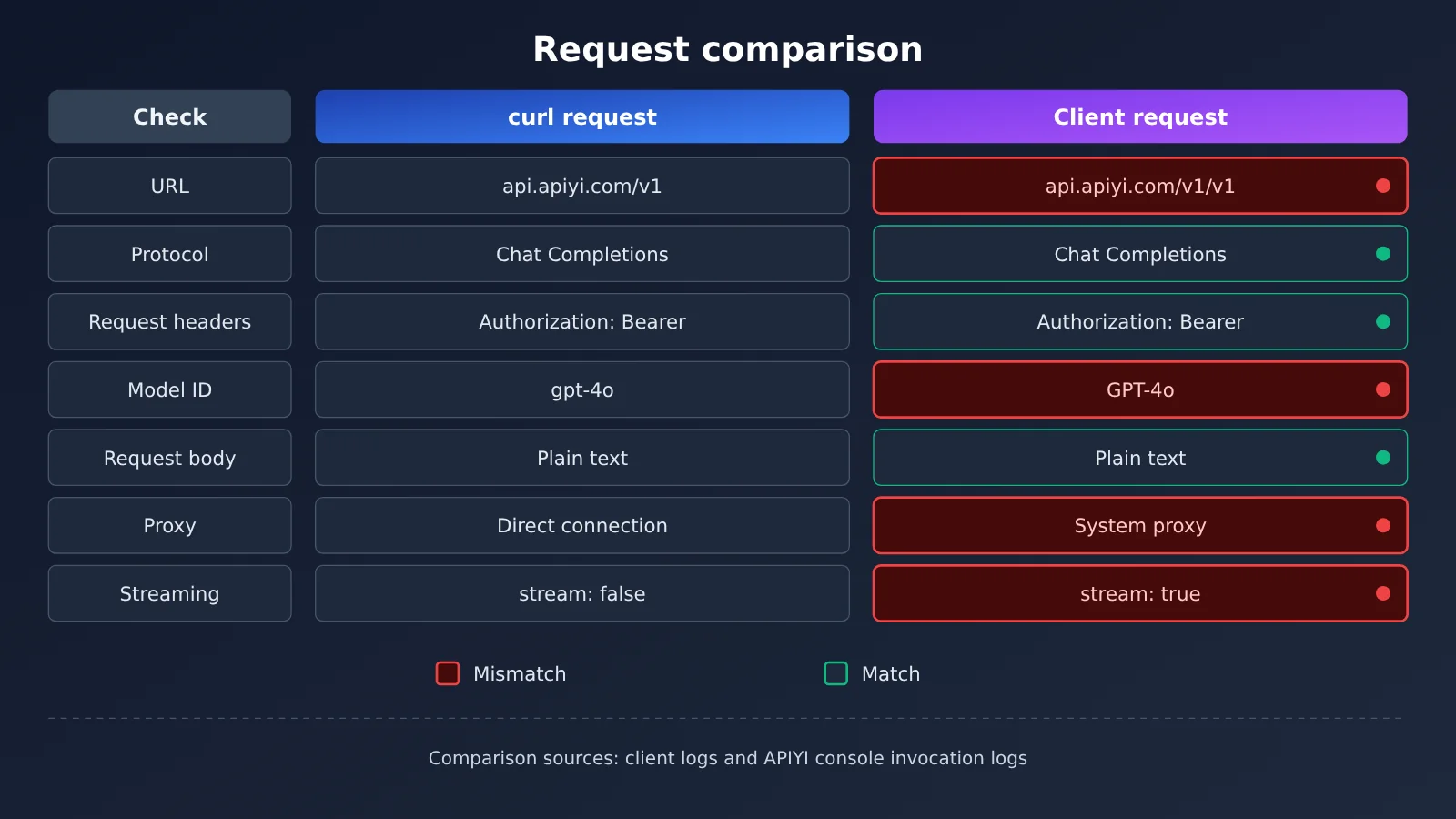
Symptoms: You get a 404, and the URL in the logs contains /v1/v1/chat/completions, //chat/completions, or something like /v1/chat/completions/chat/completions.
Cause: Different clients interpret the Base URL field differently. Some expect a root URL and append /v1 themselves; others expect a URL ending in /v1 and then append /chat/completions; still others have separate fields for the Base URL and the full endpoint. If you enter the entire https://api.apiyi.com/v1/chat/completions URL in a field that accepts only a prefix, or add a trailing slash to an address that already includes /v1, the resulting path can be incorrect.
How to verify: Compare the full request URL in the logs character by character with the URL you use in curl. Check how many times /v1 appears, whether there are double slashes, and whether extra path segments have been added at the end.
How to fix it: Enter the URL as specified in the client’s documentation. For OpenAI-compatible clients, this is usually https://api.apiyi.com/v1, without a trailing slash. If the client automatically appends /v1, remove the /v1 you entered. After making the change, check the URL in the logs again and confirm that the final path follows the standard form, such as https://api.apiyi.com/v1/chat/completions.
🎯 Configuration tip: APIYI’s (apiyi.com) OpenAI-compatible endpoint is
https://api.apiyi.com/v1, following the same format used by the official OpenAI SDK. You can view the available models in the console or request the model list endpoint using the same Base URL. Use it to confirm that your key and address are correct before configuring the client.
API Proxy Troubleshooting Points 3–4: Protocol Endpoints and Authentication Headers
Checkpoint 3: Do the Protocol and Endpoint Match?
Symptom: The Base URL looks right, but you still get a 404 or 400. Or the request succeeds, but the client reports that it can’t parse the response or returns empty content.
Cause: Large Language Model APIs use more than one protocol. Your client may support only Chat Completions, while you’ve pointed it at an endpoint that offers only Responses. Claude Code uses the Anthropic Messages protocol, not OpenAI Chat Completions. Gemini’s native format and its OpenAI-compatible format also use entirely different paths and request bodies. You may have entered the correct endpoint by hand in curl, while the client sends requests using its own default protocol.
| Protocol | Typical endpoint path | Common users | Authentication |
|---|---|---|---|
| OpenAI Chat Completions | /v1/chat/completions |
Many clients, including Cherry Studio, Chatbox, and Cline | Authorization: Bearer |
| OpenAI Responses | /v1/responses |
Newer OpenAI ecosystem tools | Authorization: Bearer |
| Anthropic Messages | /v1/messages |
Anthropic-native tools such as Claude Code | x-api-key plus anthropic-version |
| Gemini native | Native API paths containing the model name | Gemini native SDK | Follow the official and gateway documentation |
How to check: Look at the last part of the request path in the client logs to identify the protocol. Then confirm that your chosen gateway endpoint supports it. If the client has a “provider type” or “API format” dropdown, make sure the selected option matches the protocol you want to use.
How to fix it: Align the client’s protocol type, Base URL, and model. For an OpenAI-compatible format, choose an OpenAI-type provider. Configure native tools like Claude Code for the Anthropic protocol, and use the Gemini format when you need native Gemini capabilities. APIYI supports both OpenAI-compatible formats and native API formats such as Claude and Gemini. Check the documentation at docs.apiyi.com for the exact connection URL for each native format—don’t try to piece the path together from memory.
Checkpoint 4: Do the Authentication Headers Match the Protocol?
Symptom: You get a 401, but the same key works perfectly in curl.
Cause: OpenAI-compatible APIs commonly use Authorization: Bearer <Key>, while the native Anthropic API commonly uses x-api-key plus anthropic-version. Some platforms also require organization- or project-related headers. You may have used the correct headers in curl, while the client sent different ones for another protocol—or included an organization header the gateway doesn’t recognize, causing authentication to fail.
How to check: Compare the request headers in curl and the client logs, paying particular attention to fields such as Authorization, x-api-key, Content-Type, and OpenAI-Beta. Check for extra spaces, line breaks, or quotation marks before or after the key. These are common when copying and pasting from a web page.
How to fix it: Authentication headers depend on the protocol. Once you select the right protocol, most clients will send the right headers automatically. If the client allows custom request headers, remove unnecessary organization or project headers. Paste the key again, making sure it has no extra characters.
API Proxy Troubleshooting Points 5–7: Model IDs, Request Bodies, and Network Streaming
Checkpoint 5: Model IDs and Model Mapping
Symptoms: You get a 404 or 400 error saying the model doesn’t exist or is invalid. Or one model fails while the others work.
Cause: The model ID must match the gateway’s model list exactly. Common differences include capitalization, version suffixes, prefixes (such as provider/model), and aliases. The same model may have different names on different platforms. Your client’s built-in model list may not include the ID you need, so it silently substitutes a default.
How to verify: Copy the model ID from the gateway’s model list API or console, then compare it character by character with the model field in the request body shown in your client logs. If only one model fails, first check whether the model ID matches the endpoint, then check whether your account has access to that model.
How to fix it: Manually add a custom model in your client and paste the ID provided by the gateway—don’t type it by hand. If the client maps model names, make sure the mapped name is correct.
💡 Model ID tip: When using one API key through APIYI apiyi.com to access models from providers such as OpenAI, Claude, Gemini, DeepSeek, and Qwen, use the model IDs listed in the console. Different platforms may name the same model differently, so copying the ID from the console is the easiest way to avoid mistakes. Check the console and documentation for model availability, too.
Checkpoint 6: Request Body and Multimodal Format
Symptom: Text-only conversations work, but sending an image, calling a tool, or enabling a reasoning parameter returns a 400 error.
Cause: Request body compatibility issues usually come from one of these places: the structure of the multimodal content array, the format of the image_url field, or a base64 image missing a MIME prefix such as data:image/png;base64,. Tool call fields may not match the current protocol; different models have different requirements for max_tokens and max_completion_tokens; and only some models accept reasoning-related parameters. Parameters aren’t fully interchangeable across providers.
How to verify: Add variables one at a time. Start with a text-only request, then enable streaming once that works. Next, add tool calling, and finally, add multimodal content. Test after each change. The step where it starts failing points to the problem field. Error messages usually identify the specific field, so be sure to read the full error response.
How to fix it: Turn off any advanced client parameters you don’t need, and adjust the fields according to the target model’s documentation. For images, use a valid base64 prefix or an accessible URL. Format tool definitions according to the current protocol.
Checkpoint 7: Network, Proxies, TLS, and Stream Buffering
Symptom: Connection timeouts, stream disconnected, an empty response after a long wait, or non-streaming requests working while streaming requests fail.
Cause: The client may be using a system proxy or a proxy set through environment variables while curl isn’t, or vice versa. Corporate firewalls, TLS certificate validation, IPv6 resolution, and DNS can all prevent the client from connecting. For streaming requests, some proxies buffer the response and only forward it after the entire response is received. If the client doesn’t receive data in time, it may report a timeout or a disconnected stream.
How to verify: First, distinguish between a connection that was never established and a stream that was cut off. In the first case, check for TLS or connection errors; in the second, you’ve usually already received some content. Try again with streaming turned off. If the non-streaming request works, proxy buffering or timeout settings are likely the cause. Check whether the client and terminal use the same proxy environment variables.
How to fix it: Align the proxy settings for the client and curl; bypass any buffering proxies for streaming requests; and increase the client timeout as needed. For occasional upstream interruptions, you can retry a limited number of times or temporarily switch to another model to see whether the issue is limited to one upstream provider.
API Proxy Quick Start: Error Code Reference and Client Configuration Checklist
When you get an error, use the error code to narrow down the cause, then work through the configuration checklist.
Error Code Reference
| Error code | Common causes | Check first |
|---|---|---|
| 401 | API key is invalid, expired, or disabled; request header is malformed; organization or project mismatch | Checklist items 1 and 4 |
| 403 | API key is valid but blocked by model, organization, or regional policies; IP allowlist; model access not enabled | Checklist item 5, account permissions |
| 404 | Incorrect Base URL path; endpoint or model ID doesn’t exist; gateway doesn’t implement the route | Checklist items 2, 3, and 5 |
| 400 | Invalid request body, parameter, model ID, or multimodal field; incompatible provider parameters | Checklist items 5 and 6 |
| 429 | Rate limit or insufficient quota | Check Retry-After, back off, or switch models |
| 500/502/503/529 | Upstream or gateway error; 529 often indicates overload | Retry a limited number of times and check gateway logs |
| Timeout, stream disconnected | Network, proxy, TLS, or upstream interruption | Checklist item 7 |
Client Configuration Checklist
| Item | What to check |
|---|---|
| Configuration source | Are you editing environment variables, a configuration file, or a GUI? Which takes precedence? Are multiple profiles or project configurations overriding settings? |
| Base URL | Does it include /v1? Does the client append /v1 automatically? Is there an extra trailing slash? |
| Endpoint type | Is it Chat Completions, Responses, or the native Claude or Gemini endpoint? Does the client version support it? |
| Authentication header | Is it Authorization: Bearer or x-api-key? Is anthropic-version required? |
| Model ID | Does it match the gateway’s model list exactly, including capitalization and prefixes? |
| Request body | Does it include tools, images, or reasoning parameters? Is the max_tokens field compatible with the target model? |
| Streaming and network | Is streaming enabled? Is the proxy buffering responses? Are the client’s proxy settings consistent with curl’s? |
Reproduce the Issue with a Minimal Request
The most effective approach is a controlled comparison: use the same Base URL, API key, model, and request body, first with curl and then with the client. Follow these steps:
- Use the model list endpoint to verify the API key and Base URL, for example by requesting
https://api.apiyi.com/v1/models; - Use a minimal plain-text chat request to verify the endpoint and model ID;
- Enable streaming to check the network and proxy;
- Add tool calls or multimodal content to check the request body;
- At each step, check both the client logs and the gateway logs.
🚀 Troubleshooting tip: The APIYI console shows usage statistics and detailed invocation logs. If the client reports an error but there’s no record of the invocation in the console, the request didn’t reach the gateway—the issue is in the client configuration or local network. If there’s a record with an error message, use the logs to determine whether it’s a parameter issue or an upstream issue.
Frequently Asked Questions
Q1: If curl works but the client can’t connect, will changing the API key help?
Usually not. If curl works, that already shows the API key is valid. When changing the key seems to fix the problem, it’s often because the client was also restarted or the profile was switched, causing the configuration to reload. Instead of changing the key, fully quit and restart the client, then check the logs to confirm the Base URL and API key it’s actually using. You can also check the key’s status and invocation history in the APIYI console to see whether there’s a genuine key issue.
Q2: Why does the /models endpoint work, but chat requests fail?
The model list endpoint only verifies that authentication and the Base URL are basically correct. It doesn’t test the chat endpoint, model ID, or request body. If chat requests fail, check the following in order: whether the client’s protocol matches the endpoint (Checkpoint 3), whether the model ID exactly matches the one in the list (Checkpoint 5), and whether the request body contains parameters the target model doesn’t support (Checkpoint 6).
Q4: If only one model fails and the others work, what should I check first?
Check the model ID and endpoint first, then check account permissions. Differences in capitalization, prefixes, and aliases are the most common causes. The model may also require a different protocol, such as its native format. Finally, check for permission or availability issues. With APIYI, you can switch between models from different providers using a single API key. Testing a similar model temporarily can help you quickly determine whether the issue affects one model or the overall configuration.
Q5: How can I tell whether the problem is with the client or the gateway?
Look at two things: whether the gateway received the request, and whether the same request succeeds with curl. If the gateway has no record of it, the problem is likely with the client or local network. If the same request succeeds with curl but fails in the client, the issue is likely how the client constructs the URL or request body. If the request also fails with curl and the logs show a 5xx error, contact gateway support.
Summary: A 10-Minute API Proxy Troubleshooting Checklist and When to Ask for Help
If curl works but your client can’t connect, don’t rush to replace your API key. Run through this checklist first:
- Check the client logs: Get the actual request URL, headers, and body, and confirm that your configuration has taken effect.
- Check the Base URL: Make sure
/v1appears only once and there are no double slashes or duplicate path segments. - Check the endpoint protocol: Make sure Chat Completions, Responses, Claude Messages, or Gemini native matches your client type.
- Check the authentication header: Use
Authorization: Bearerorx-api-key, remove unnecessary organization headers, and trim whitespace from both ends of the key. - Check the model ID: Compare it character by character with the gateway’s model list.
- Send a minimal request: Send one request with curl and one with the client, using the same key, model, and request body.
- Add streaming: If it fails, check proxy buffering and timeouts.
- Add tools or multimodal content: If it fails, check the request body fields.
- Make the final call: Use the gateway logs to determine whether the problem is with the client or the gateway.
When it’s a client bug: The gateway has no record of the request, or curl succeeds with the exact same URL, headers, and body while the client fails—and you’ve confirmed that the configuration is correct and the client version supports the endpoint. In that case, upgrade the client or report the issue to the client project.
When to contact gateway support: The same minimal request also fails with curl, and the gateway logs show the request returning a 5xx error. Another sign is that one model consistently fails while other models work, after you’ve ruled out model ID and permission issues. Include the request time, model ID, error code, and error message from the logs to help support investigate faster.
For teams that need reliable tools, having multiple models and routes is itself a troubleshooting advantage. If one model or route fails, switch to another for a comparison test and quickly narrow down the problem. APIYI apiyi.com provides access to OpenAI-compatible, Claude native, and Gemini native formats with a single key. You can also use the console’s usage data and logs for quick verification. Check the console and documentation for current pricing and availability.
Author: APIYI Technical Team
Technical discussions: Contact us through the APIYI homepage.